
0.1About this guide
This guide describes the Cryptolink app for iPhone and Android phones screen by screen: what each button does, what every status and message means, and what to do when something goes wrong.
iOS and Android
One guide covers both apps. The iOS / Android switch in the top bar, next to EN / RU, chooses the platform: the text and screenshots change to match the app on that platform. Both shows the two versions side by side. The guide picks the platform of your device on first opening and remembers your choice.
- Words that differ between the apps are shown for the selected platform, for example the CardsCard tab.
- Where the apps behave differently, the text is marked with an iOS or Android label and a coloured bar on the left.
- Sections that exist on only one platform, such as Apple Wallet, say so at the top of the page.
How the guide is organised
- Part 0 — this introduction, the app at a glance and device requirements.
- Part 1 — getting started: onboarding, creating a card account, signing in, the app passcode.
- Part 2 — verification: verification levels and binding your phone number.
- Part 2 — cards: ordering, paying for and using your card.
- Part 3 — the crypto wallet: creating, backing up and managing wallets.
- Part 4 — sending crypto, fees and transactions.
- Part 5 — account and settings: profile, language, notifications, referrals, support.
- Part 6 — troubleshooting and reference: messages, statuses and terms in one place.
Every section starts with a short summary, followed by step-by-step instructions, annotated screenshots and a “If something goes wrong” block with the messages you may see.
Conventions
| Looks like | Means |
|---|---|
| Next | A button, tab, field or screen name exactly as it appears in the app. |
| Payment received | A message or status text shown by the app. |
| Account › App | A path: tap these items one after another. |
| 2.2 | A link to another section of the guide. |
Android system elements are called as follows: the system Back button (a gesture or a button at the bottom of the screen), a system prompt (an Android window on top of the app), a notification (a message in the notification shade).
How to read annotated screenshots
Numbered markers on a screenshot point to parts of the screen. The table next to it explains each number. Some rows end with a small grey note — it says when the element is shown.
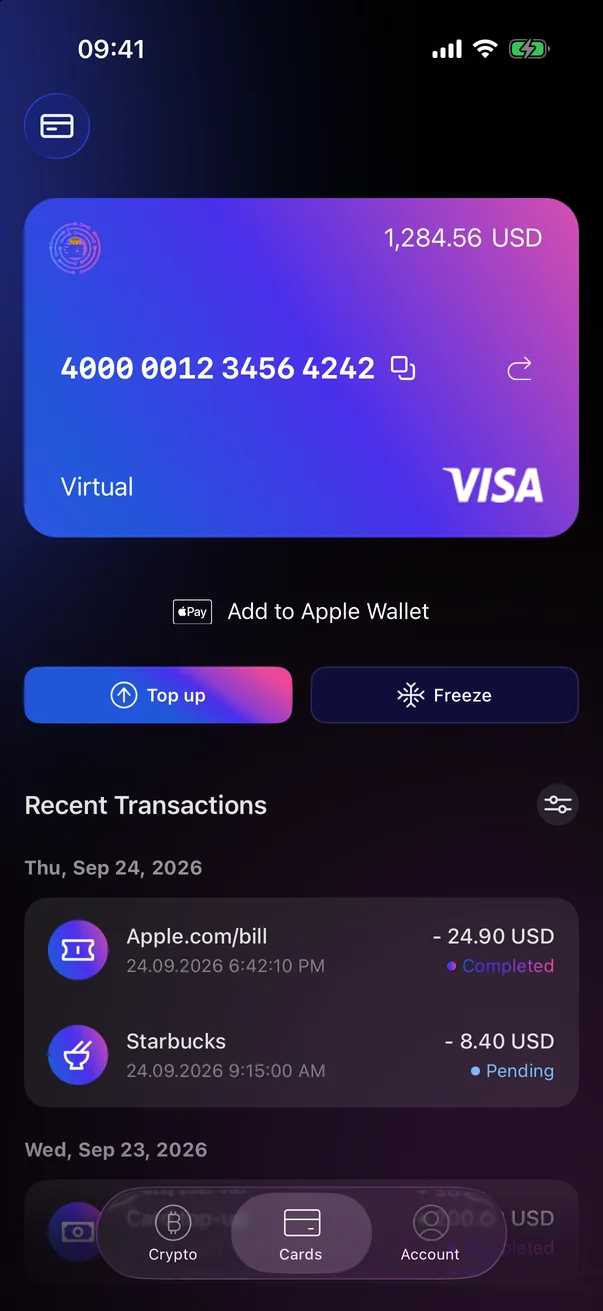 1
2
1
2
| 1 | Top up — an example of a button description.An example of the “when it is shown” note. |
| 2 | Recent Transactions — another element on the same screen. |
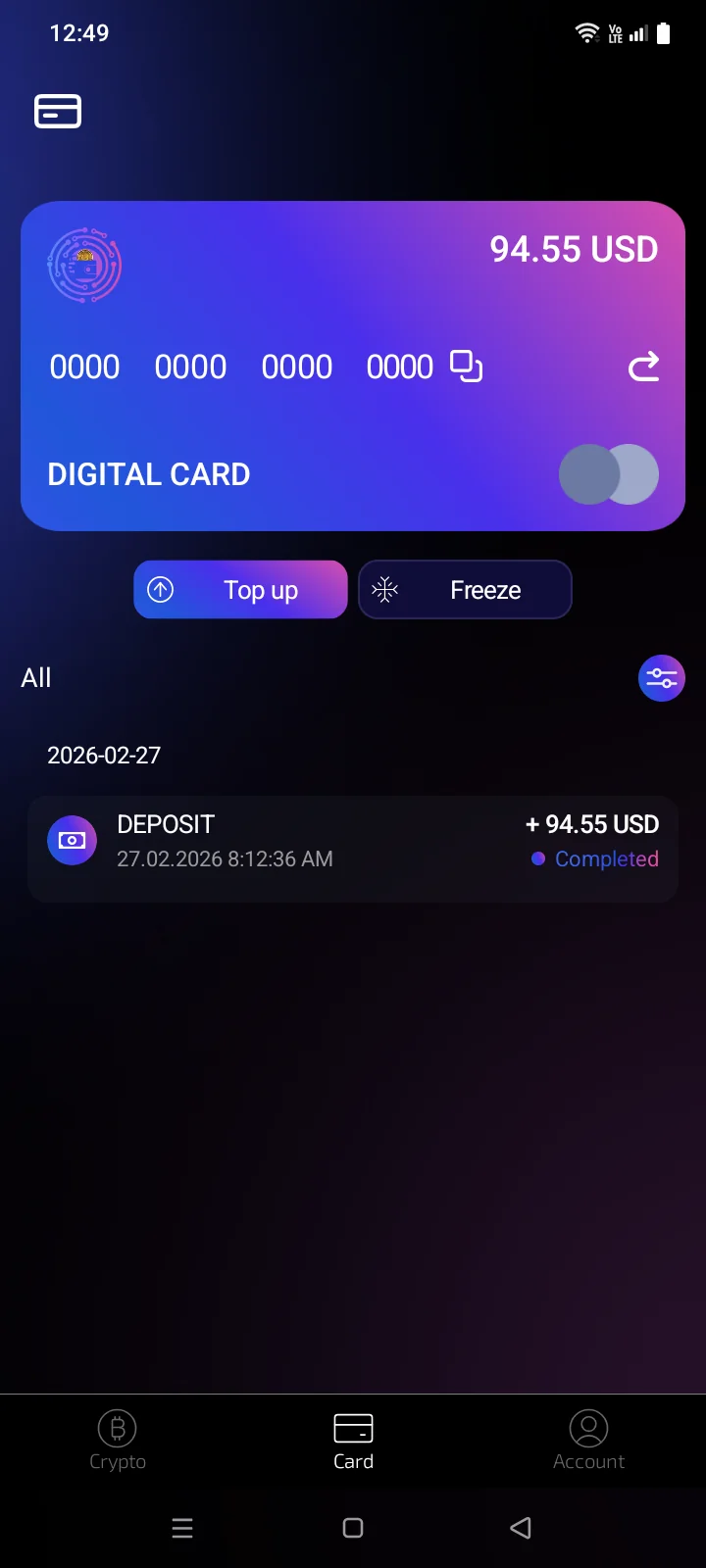 1
2
1
2
| 1 | Top up — an example of a button description.An example of the “when it is shown” note. |
| 2 | Card — another element on the same screen. |
- Tap a screenshot to open it full size. There you can download it or copy it to send to someone.
- Copy steps next to an instruction copies its text — handy for replying to a customer.
- The link icon next to a heading copies a direct link to that part of the page.
- EN / RU in the top-right corner switches the language of the guide. The screenshots follow the language too.
About the screenshots
Screenshots were taken on an iPhonean Android phone with sample data: names, amounts, card numbers and addresses are not real. Depending on your iPhone model, iOS versionphone model, Android version and app version, some screens may look slightly different.
Windows shown by Android itself (the fingerprint prompt, choosing a Google account, permissions) look different on phones from different manufacturers.