
0.2The app at a glance: Crypto, Cards and Settings tabsThe app at a glance: Crypto, Card and Account tabs
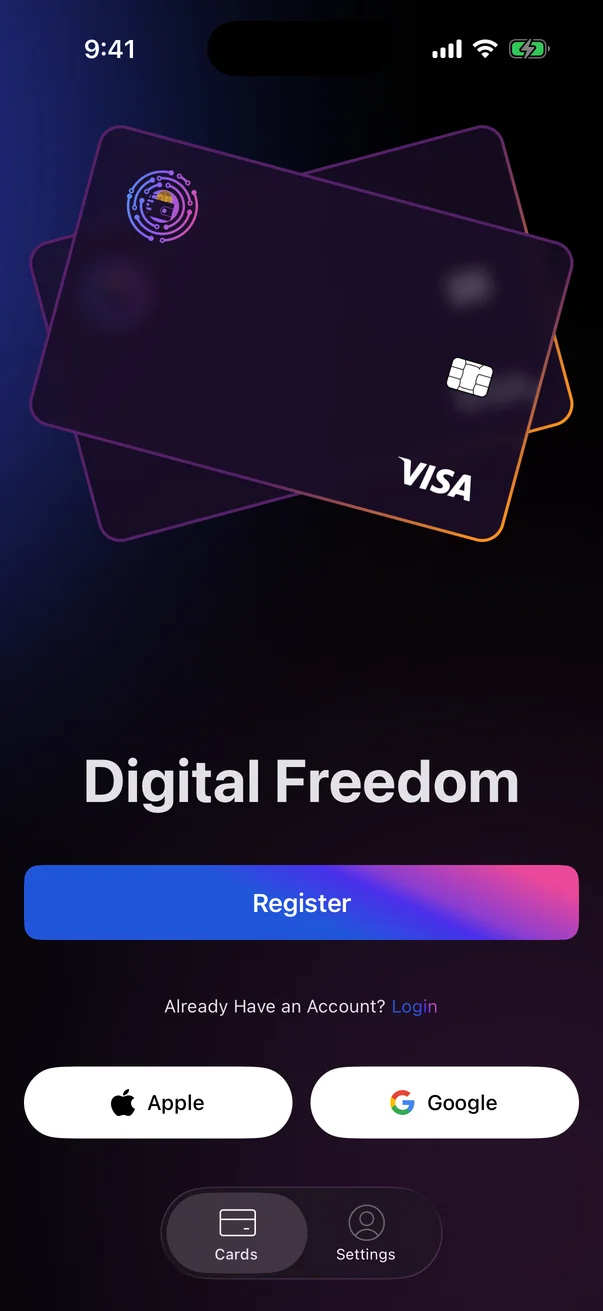
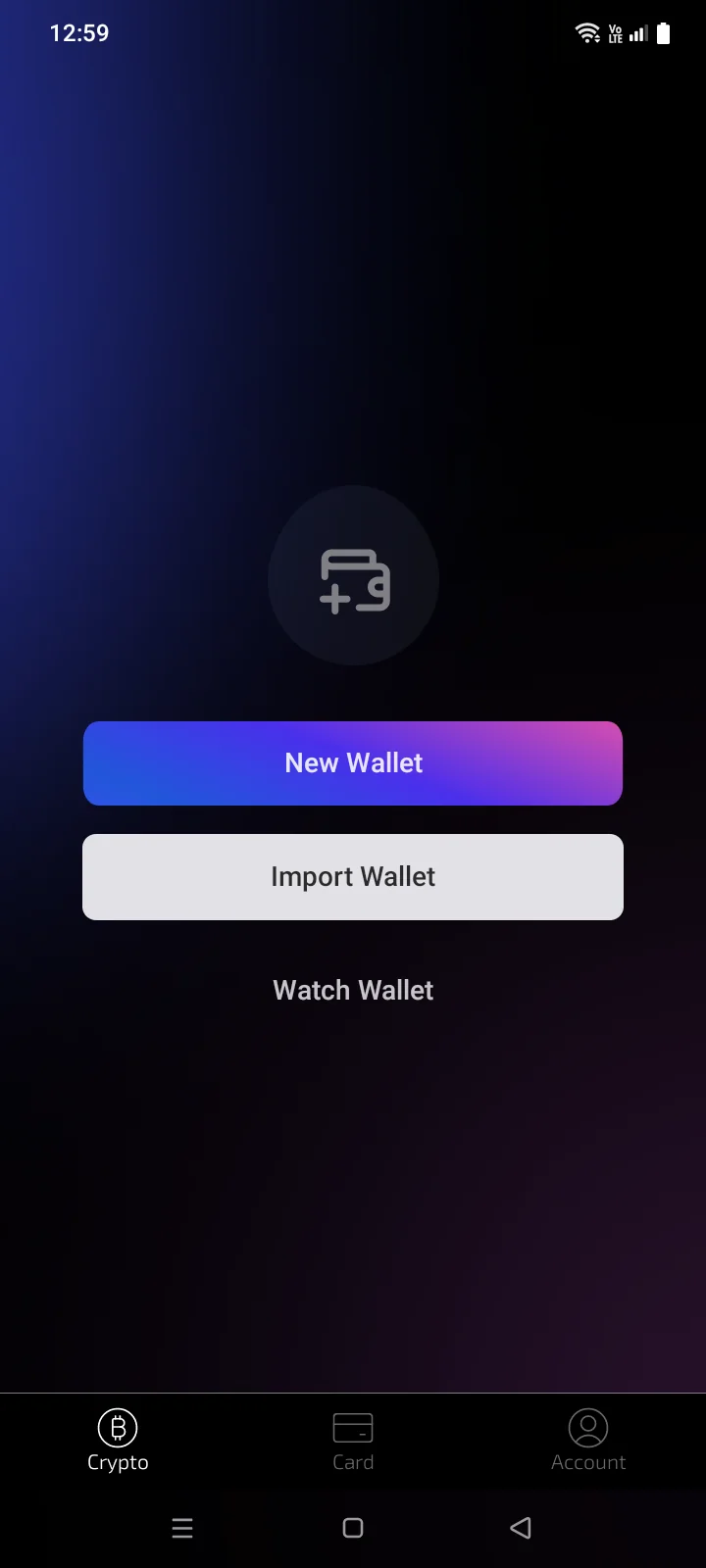
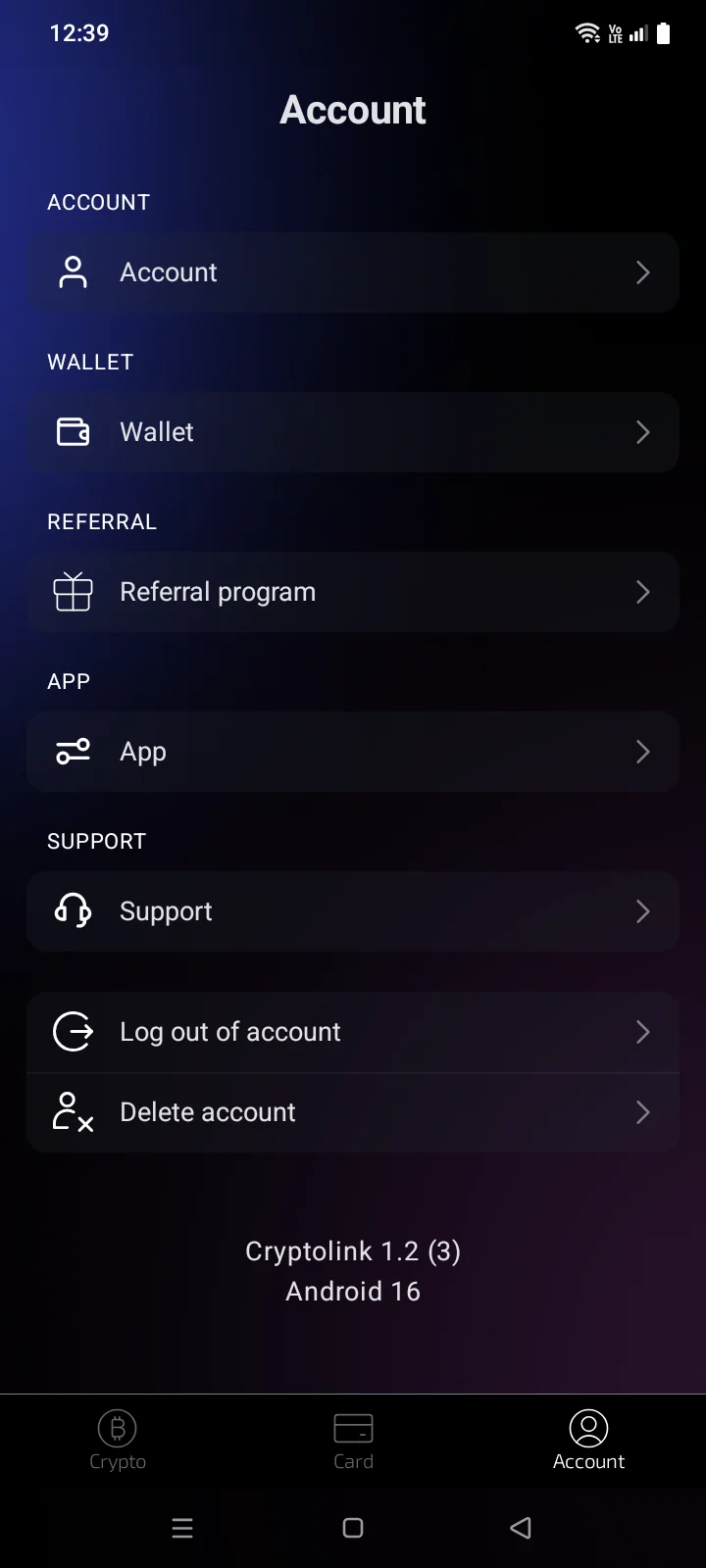
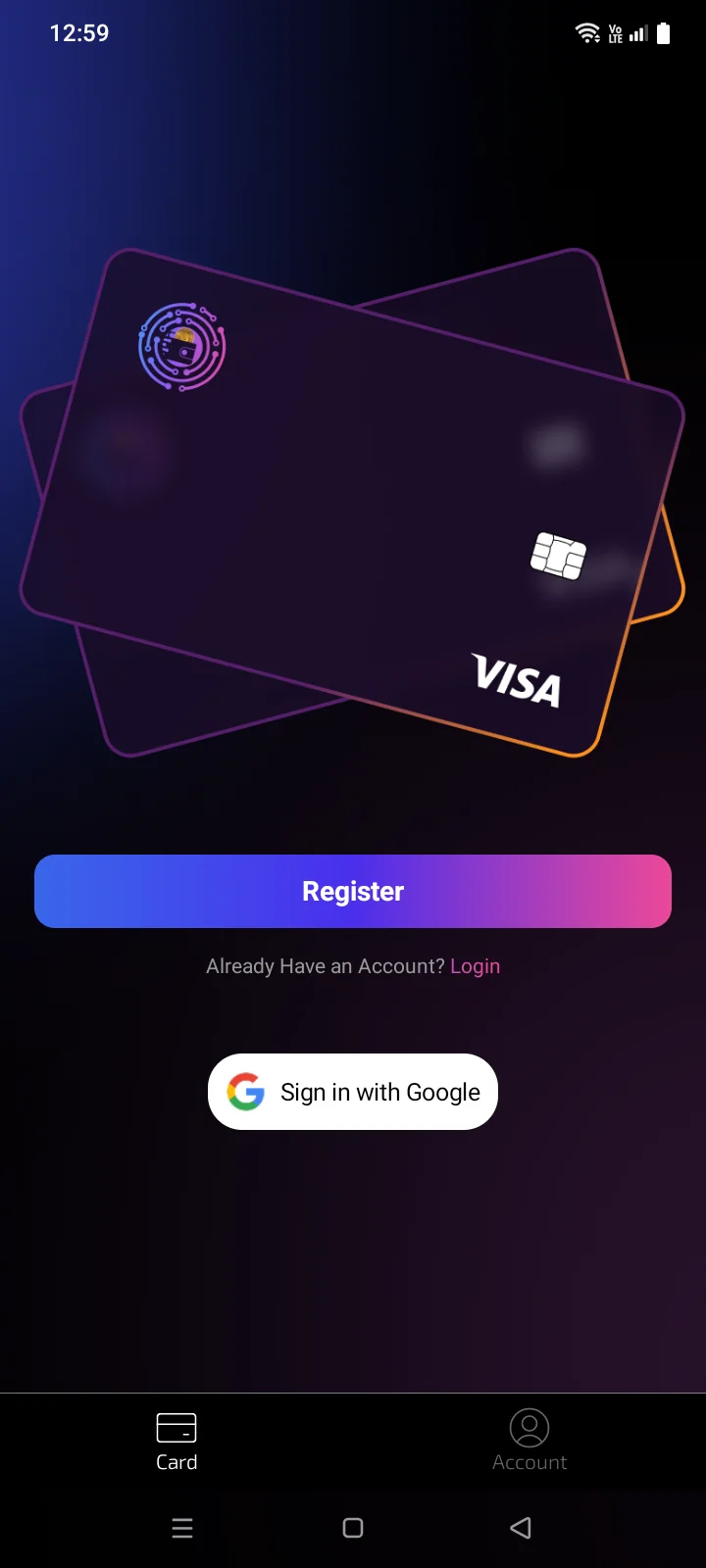
Cryptolink combines a crypto wallet and payment cards in one app. Everything is reached from the tab bar at the bottom of the screen: Crypto, CardsCard and Account.
The tabs
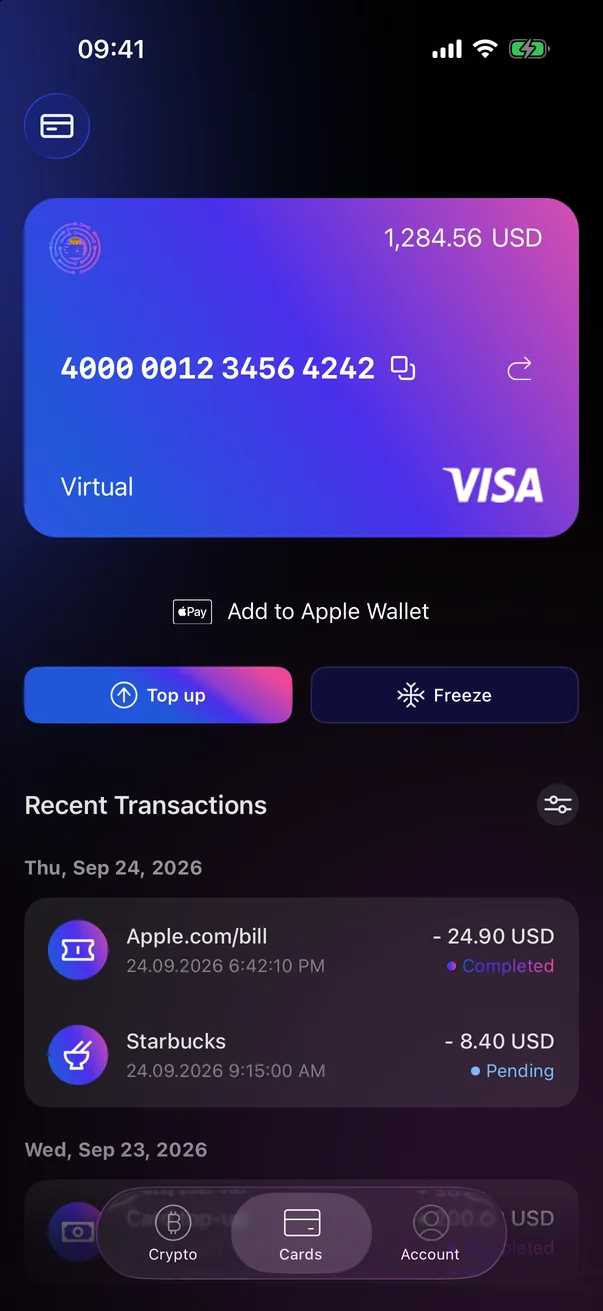 1
2
3
1
2
3
| 1 | Crypto — your crypto wallets: balances, receiving and sending (Parts 4 and 5).Only when you are signed in to a card account. |
| 2 | Cards — ordering and managing cards (Part 3). Before you sign in, this tab shows the welcome screen with registration and sign-in (see 1.1). |
| 3 | Account — account, wallet and app settings, and support (Part 6). The screen is titled Settings. |
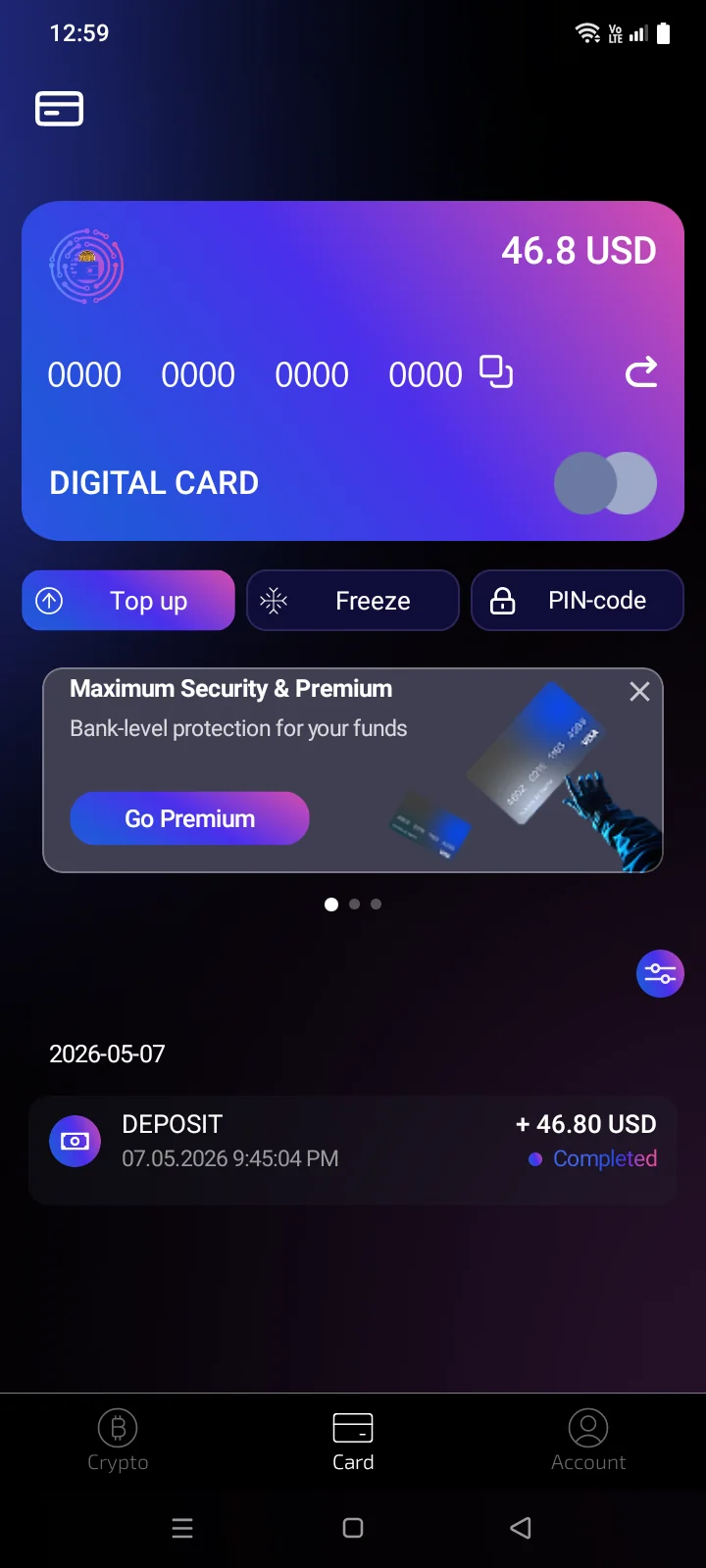 1
2
3
1
2
3
| 1 | Crypto — your crypto wallets: balances, receiving and sending (Parts 4 and 5).Only when you are signed in to a card account. |
| 2 | Card — ordering and managing cards (Part 3). Before you sign in, this tab shows the welcome screen with registration and sign-in (see 1.1). |
| 3 | Account — account, wallet and app settings, and support (Part 6). |
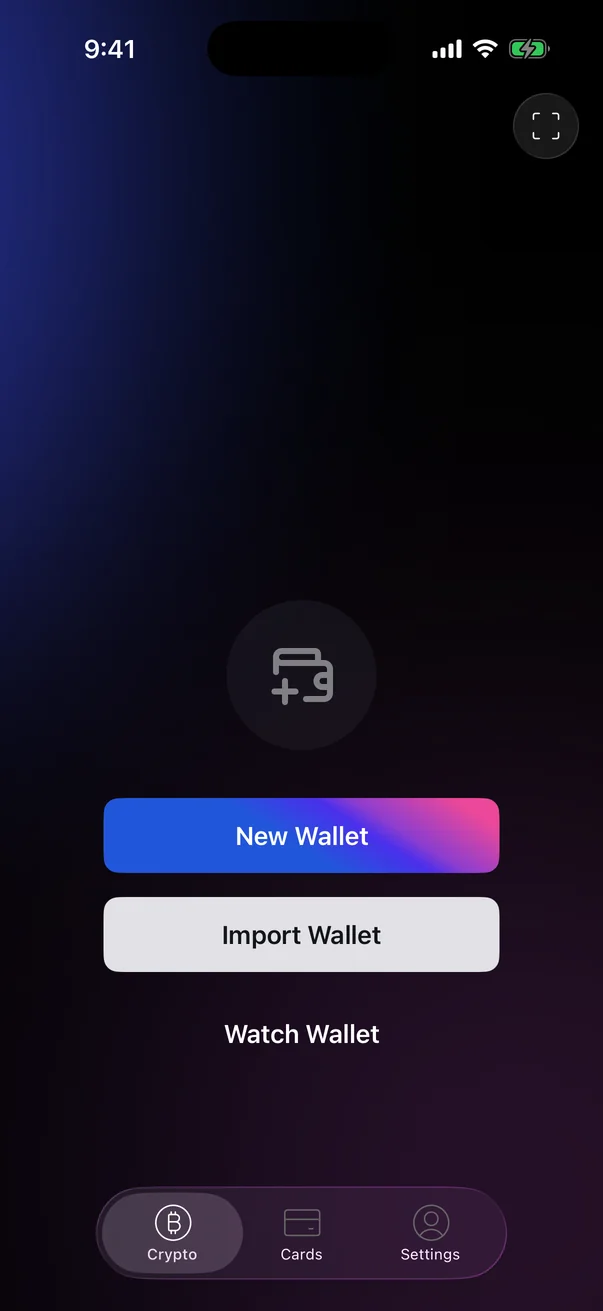
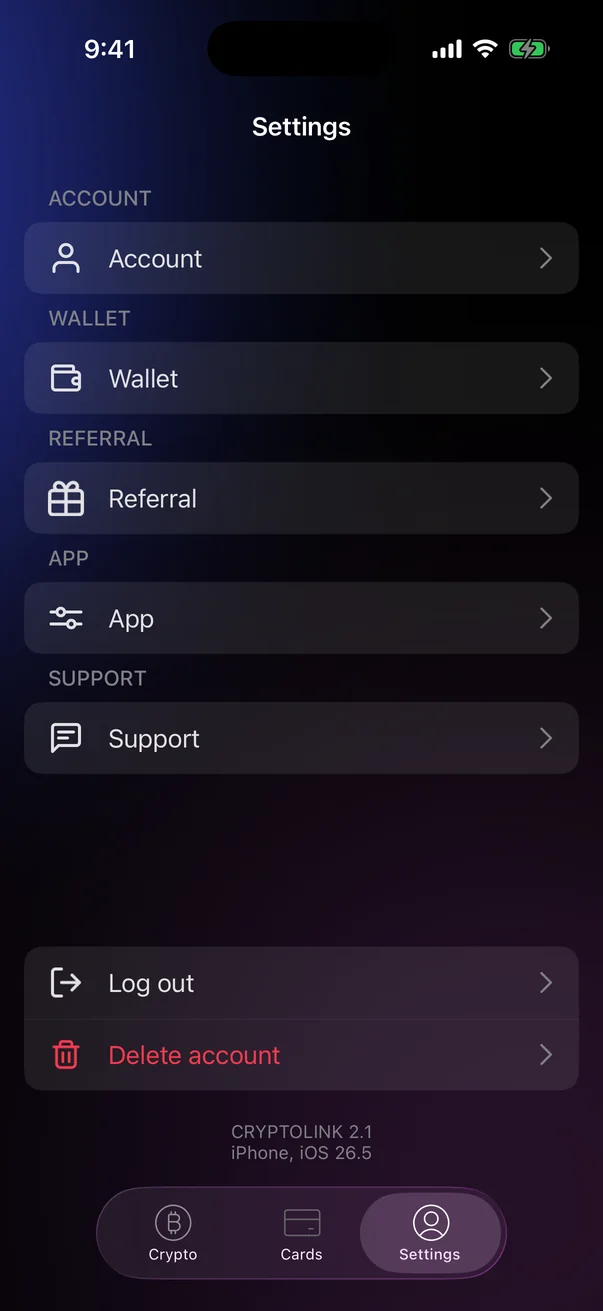
Which tabs you see
| Situation | Tabs |
|---|---|
| Not signed in to a card account | CardsCard, Account. On the Account tab only App and Support are available. |
| Signed in | Crypto, CardsCard, Account. The Account tab gets the Account, Wallet and ReferralReferral program sections and the Log outLog out of account and Delete account rows. |
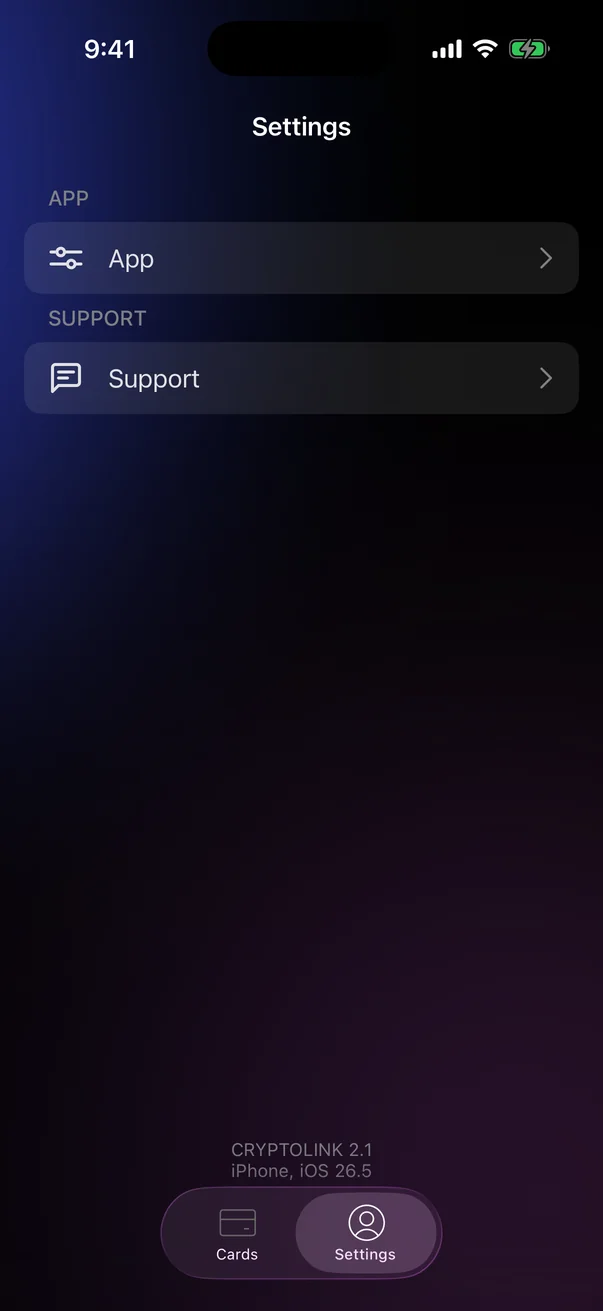
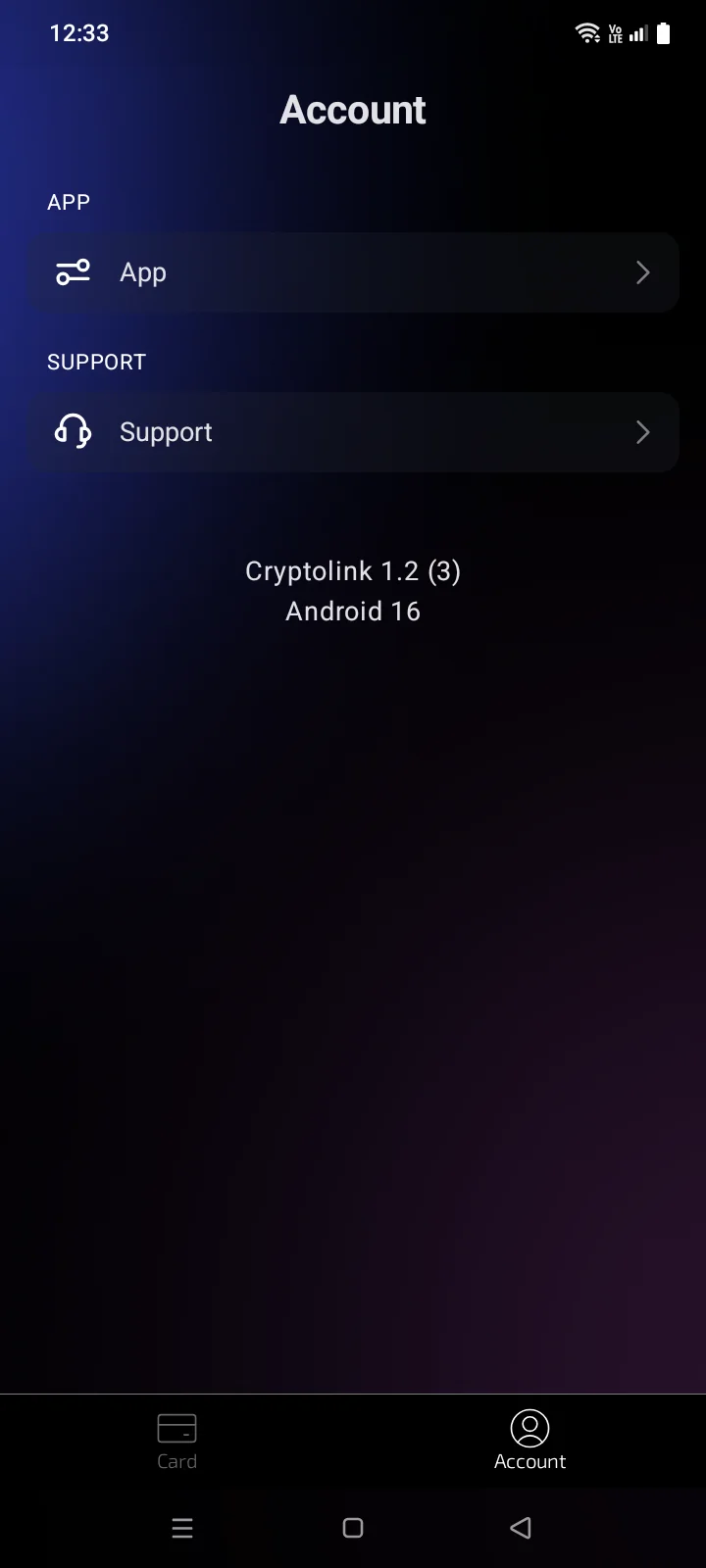
The bottom of the Account tab shows the app version and your iPhone model and iOS versionthe Android version — you'll need them if you contact support.
Hide a tab you don't use
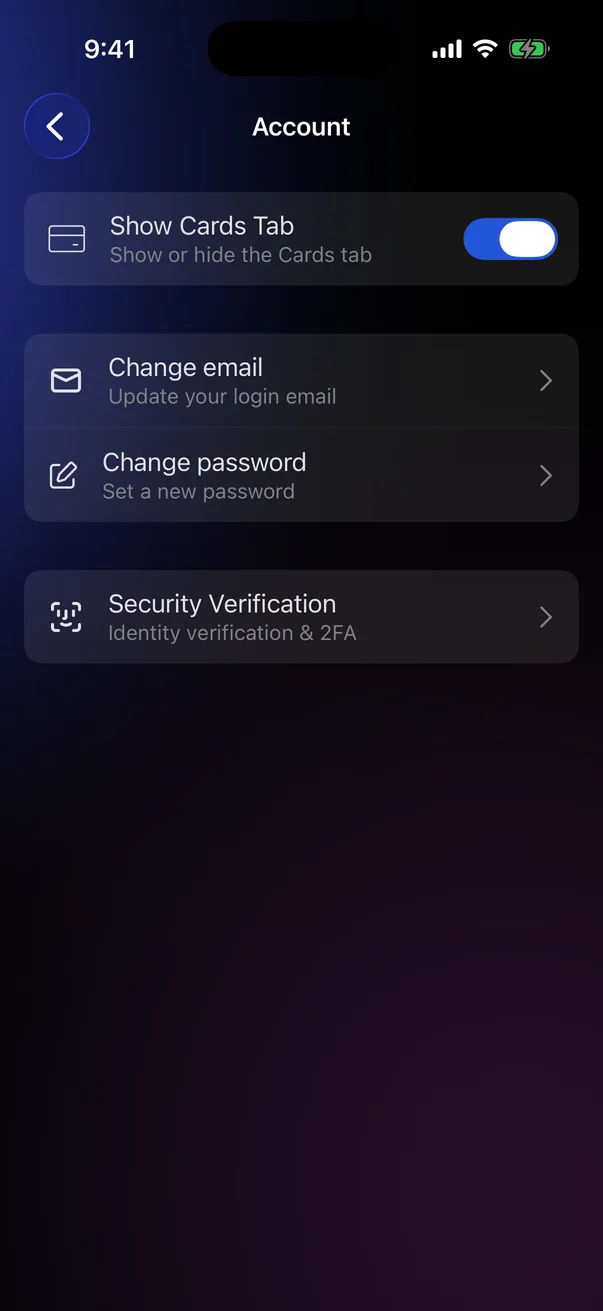
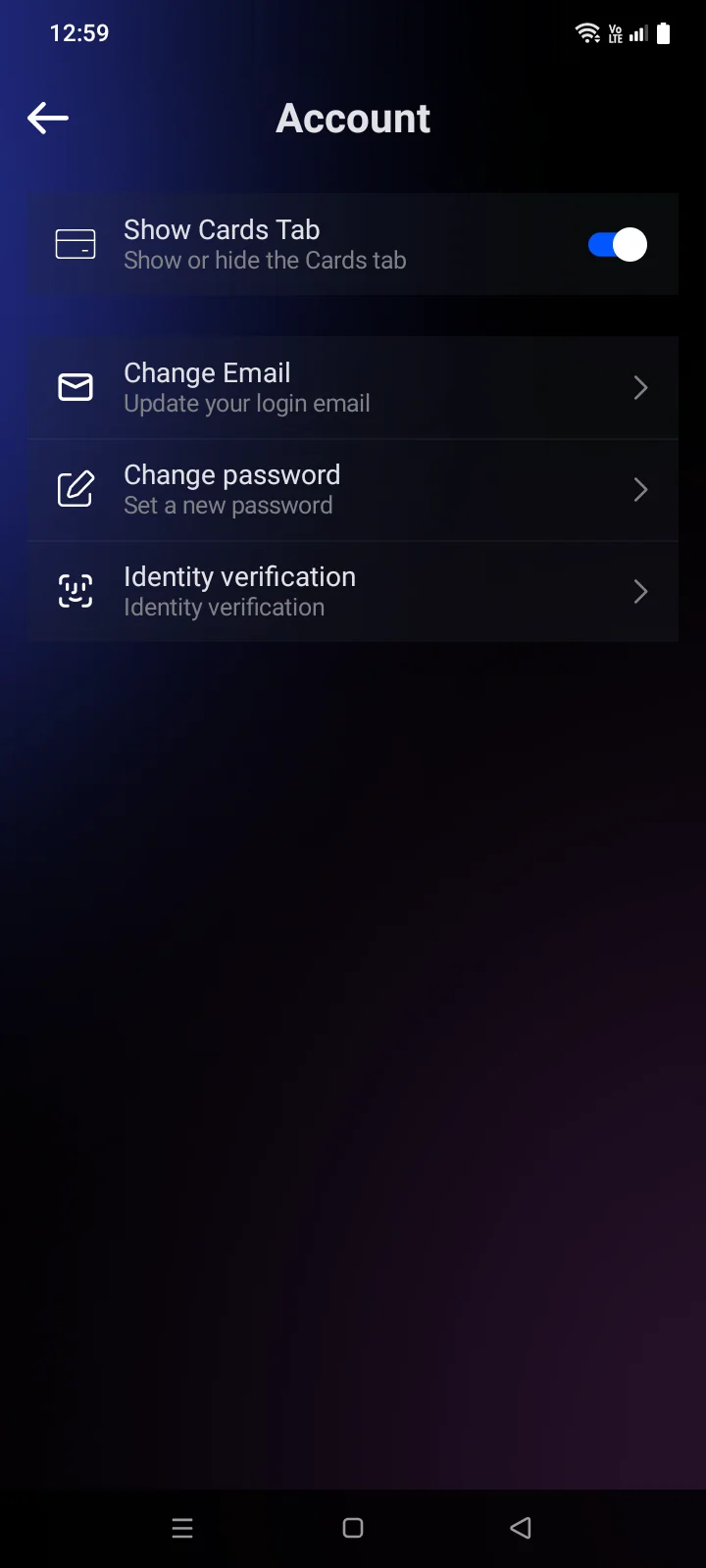
- Account › Account › Show Cards Tab — shows or hides the CardsCard tab.
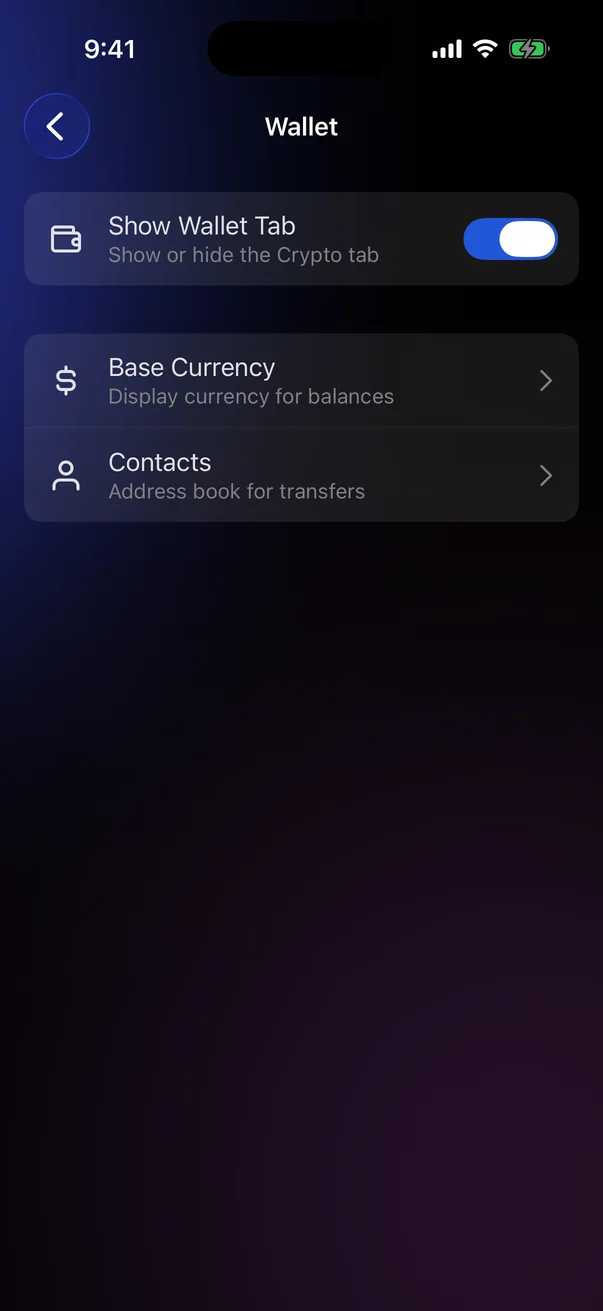
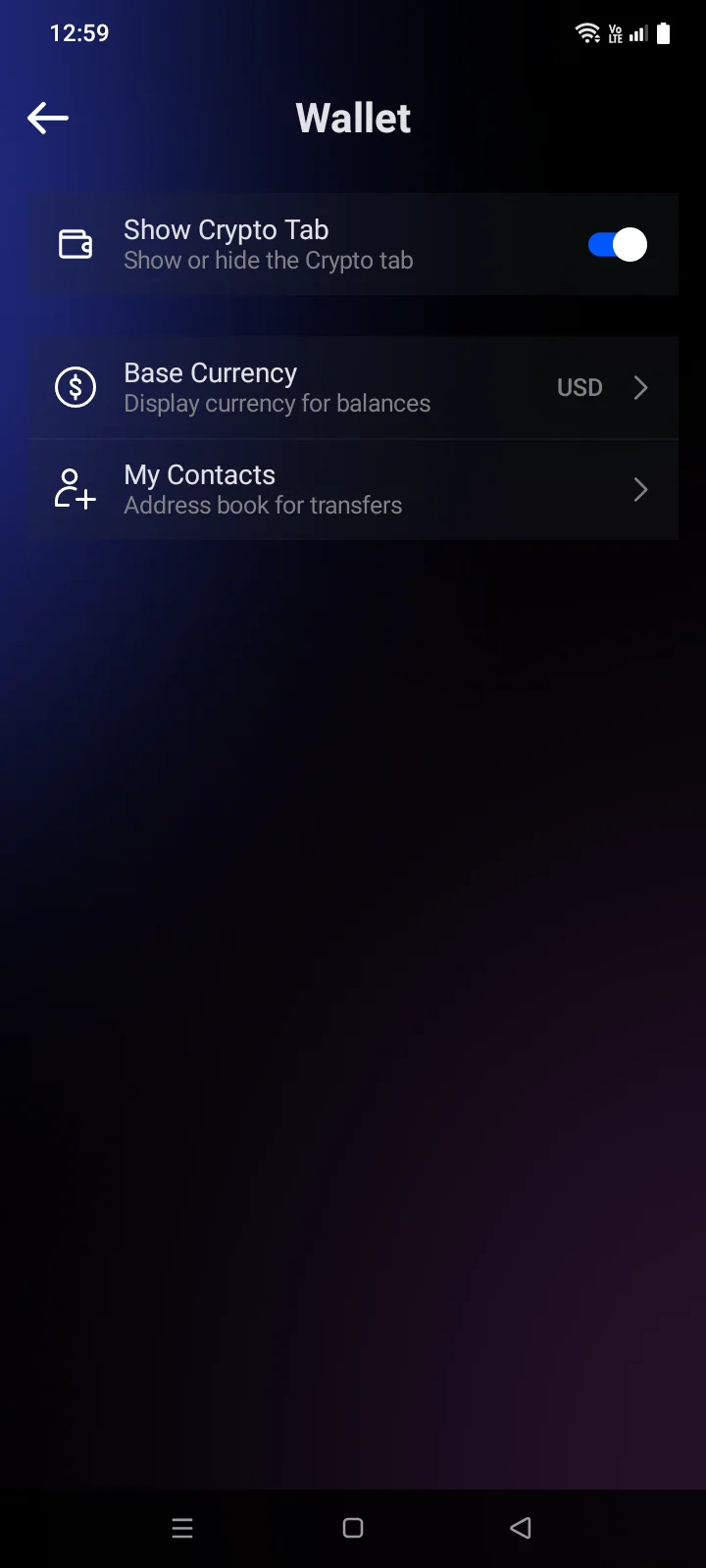
- Account › Wallet › Show Crypto Tab — shows or hides the Crypto tab (see 3.1).
Hidden tabs and their data aren't deleted — turn the switch back on to see them again. The Account tab is always shown.
Until you sign in to a card account, the CardsCard tab is shown even if you've hidden it — that's where you sign in.
When you log out, the Show Cards Tab switch turns back on.
On the main screen, the system Back button doesn't close Cryptolink — it minimises the app, which stays on the same tab.
In Arabic, the order of the tabs is mirrored: Account comes first on the left.