
Part 1 · Getting started
1.1First launch and onboarding
The first time you open Cryptolink, a short onboarding shows what the app can do. After it, the app opens on the CardsCard tab, where you create a card account or sign in.
Before you startCryptolink works only on an iPhone protected with a passcodea phone with a screen lock turned on. Without it, the app asks you to turn it on first — see 0.3 Device requirements and security basics.
Onboarding
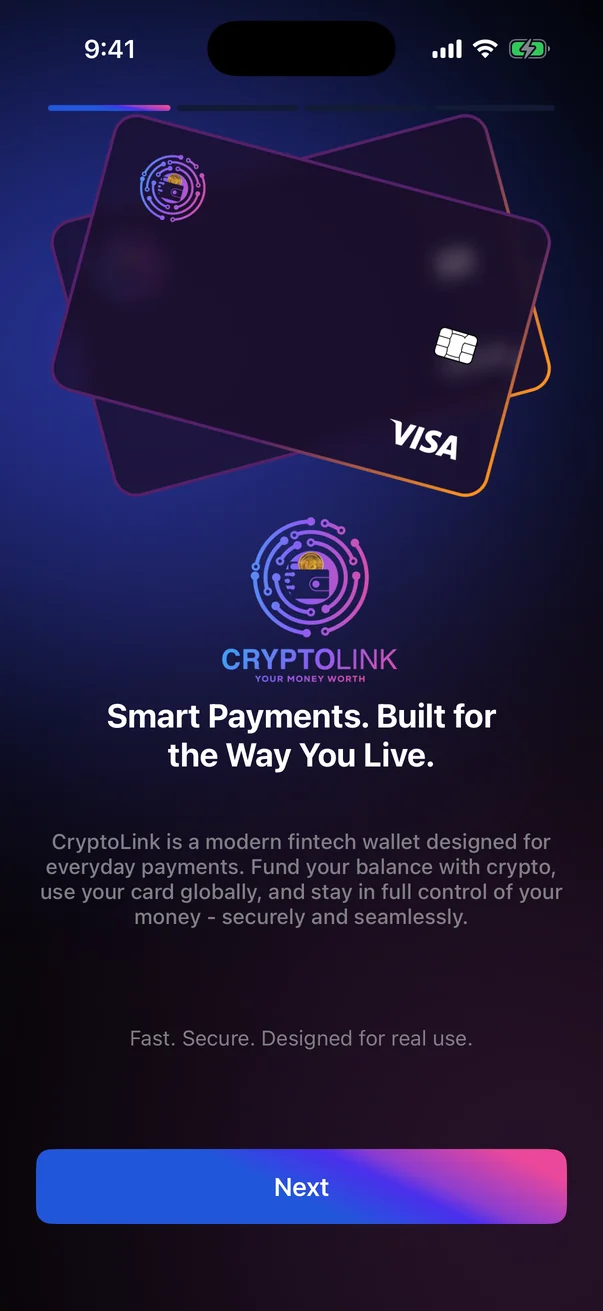
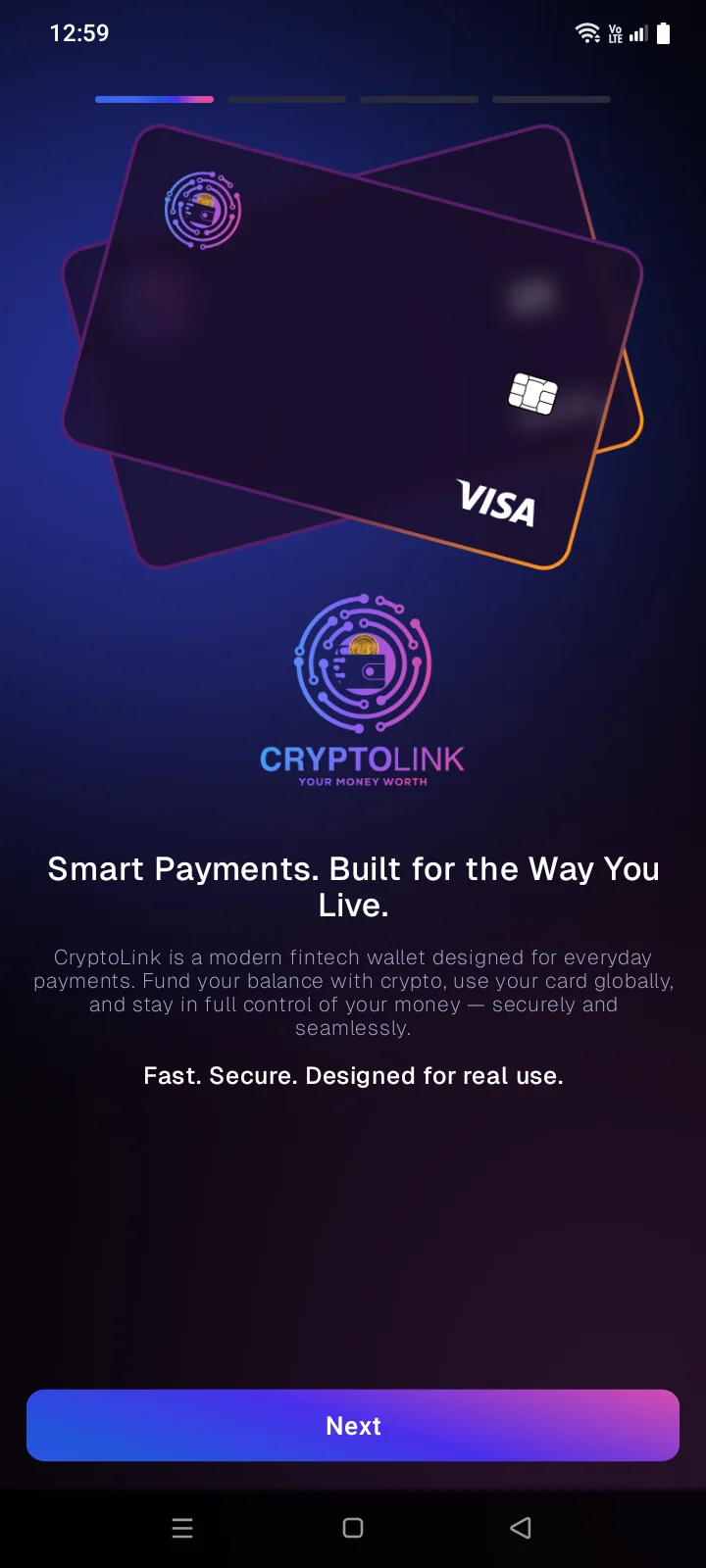
Onboarding has four slides. The bars at the top show which slide you are on.
- Read the slide and tap Next, or swipe left. To go back, swipe right or press the system Back button. On the first slide, Back minimises the app.
- On the fourth slide, tap Next to finish. The app opens on the CardsCard tab.
 1
2
3
1
2
3
| 1 | Title — the main idea of the slide. |
| 2 | Description — a few words about what the app offers. |
| 3 | Next — goes to the next slide. On the last slide it finishes onboarding. |
 1
2
3
1
2
3
| 1 | Title — the main idea of the slide. |
| 2 | Description — a few words about what the app offers. |
| 3 | Next — goes to the next slide. On the last slide it finishes onboarding. |
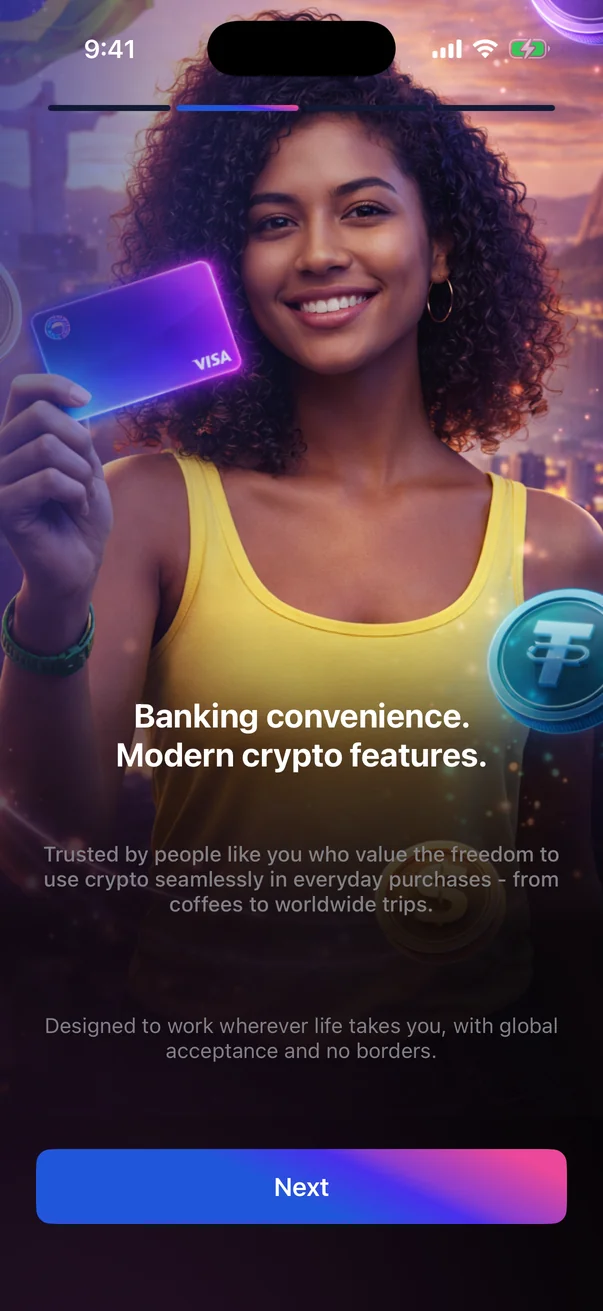
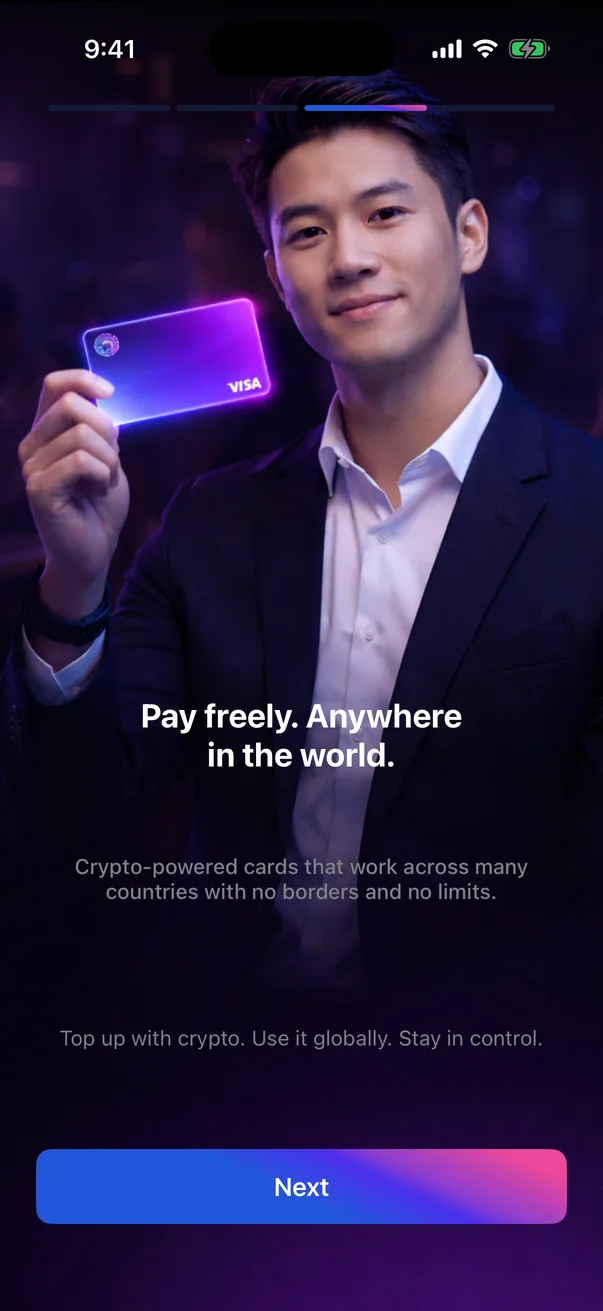
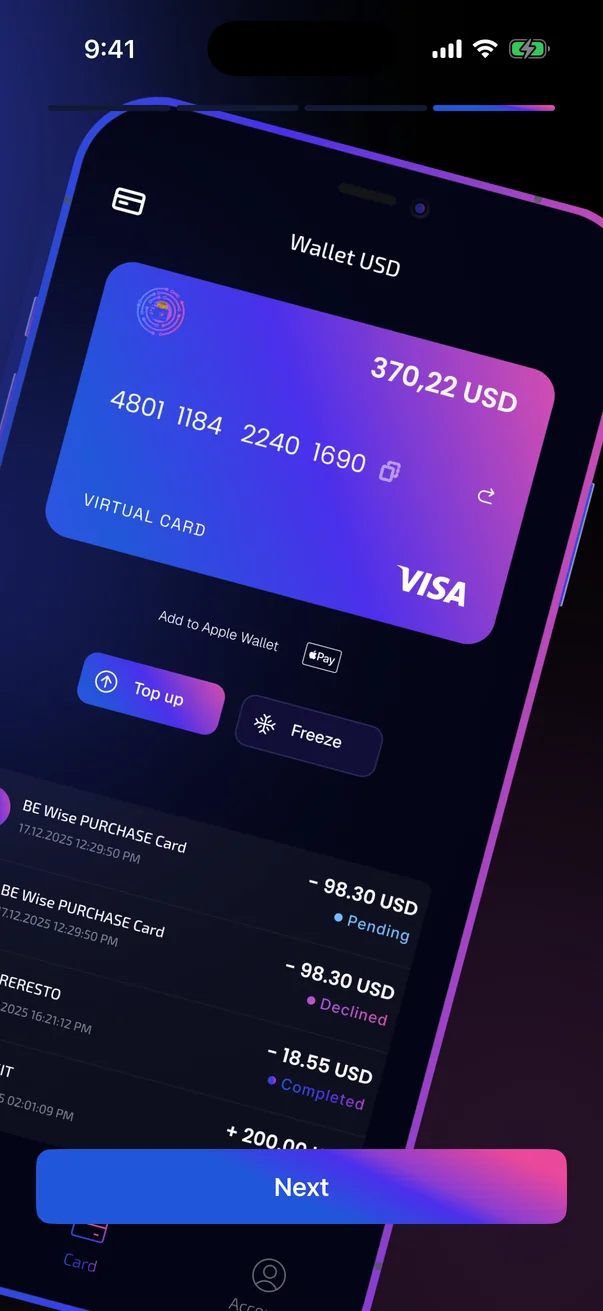
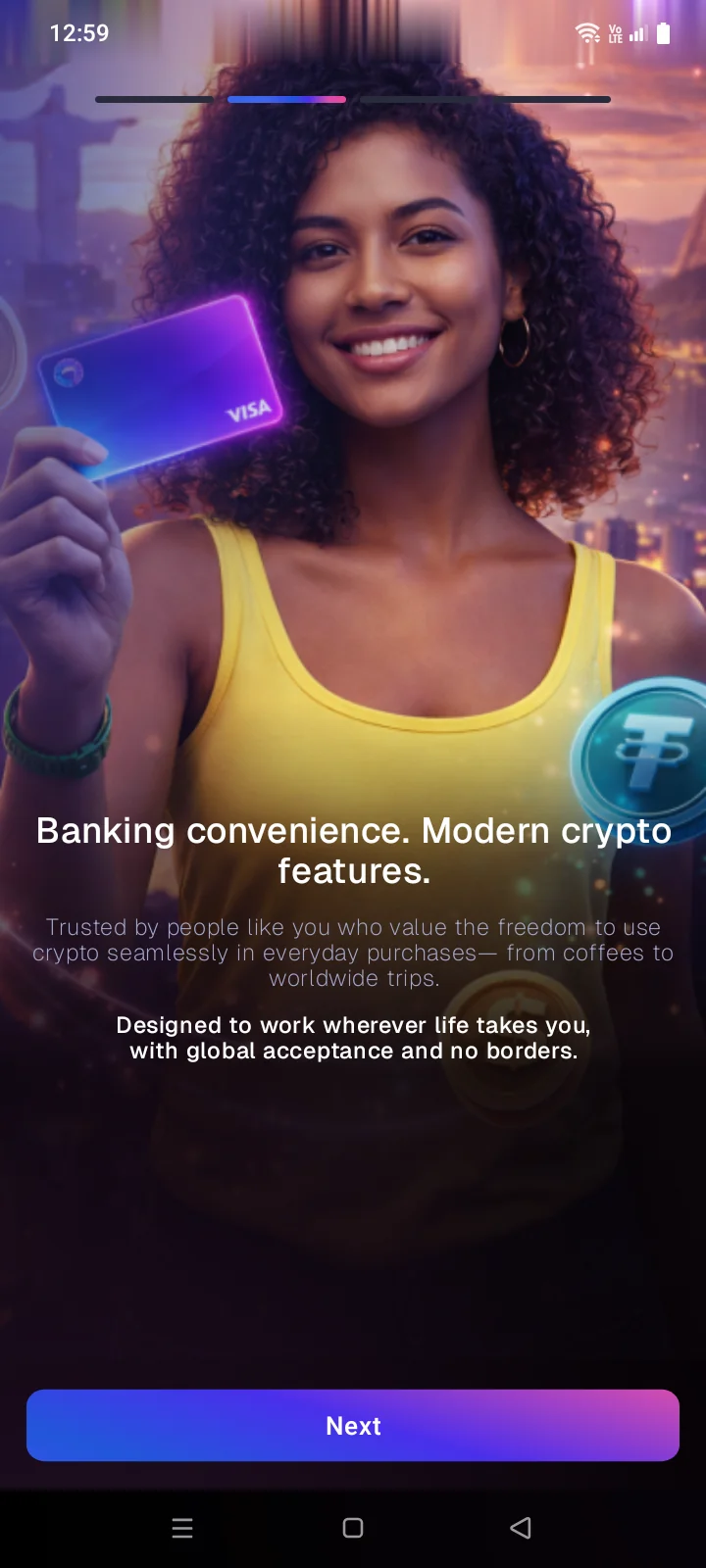
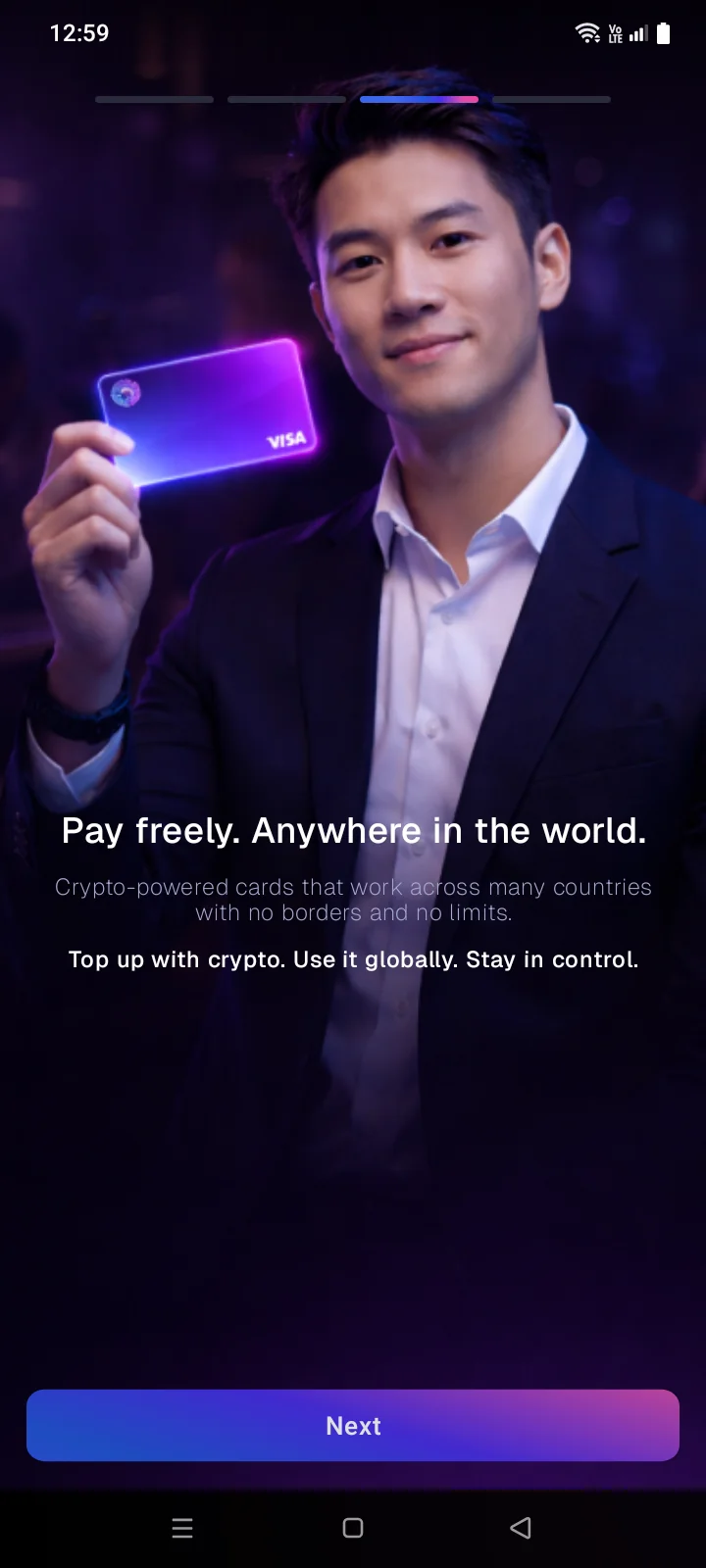
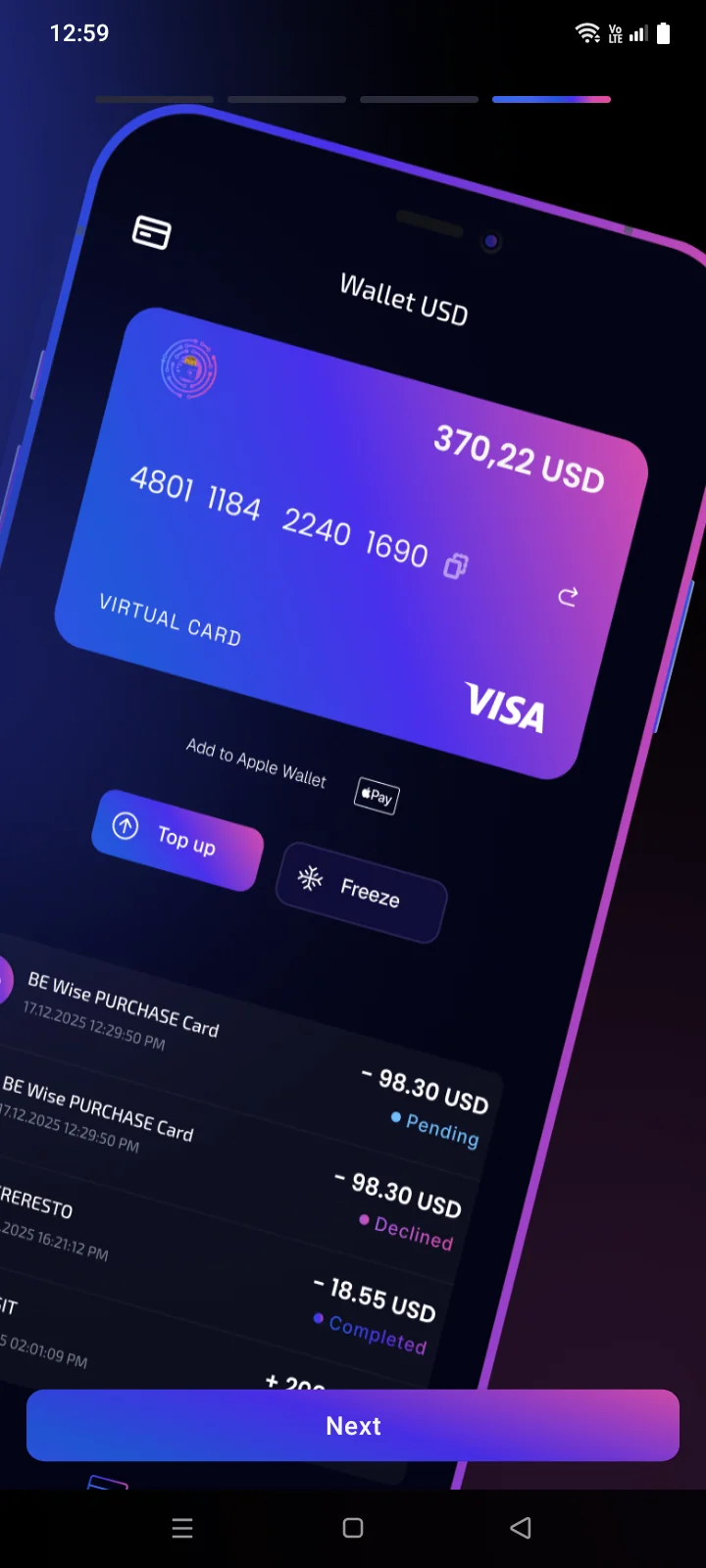
Onboarding can't be skipped. It appears only once: next time the app opens straight to the main screen. If you close the app before the last slide, onboarding starts over the next time you open it.
After onboarding
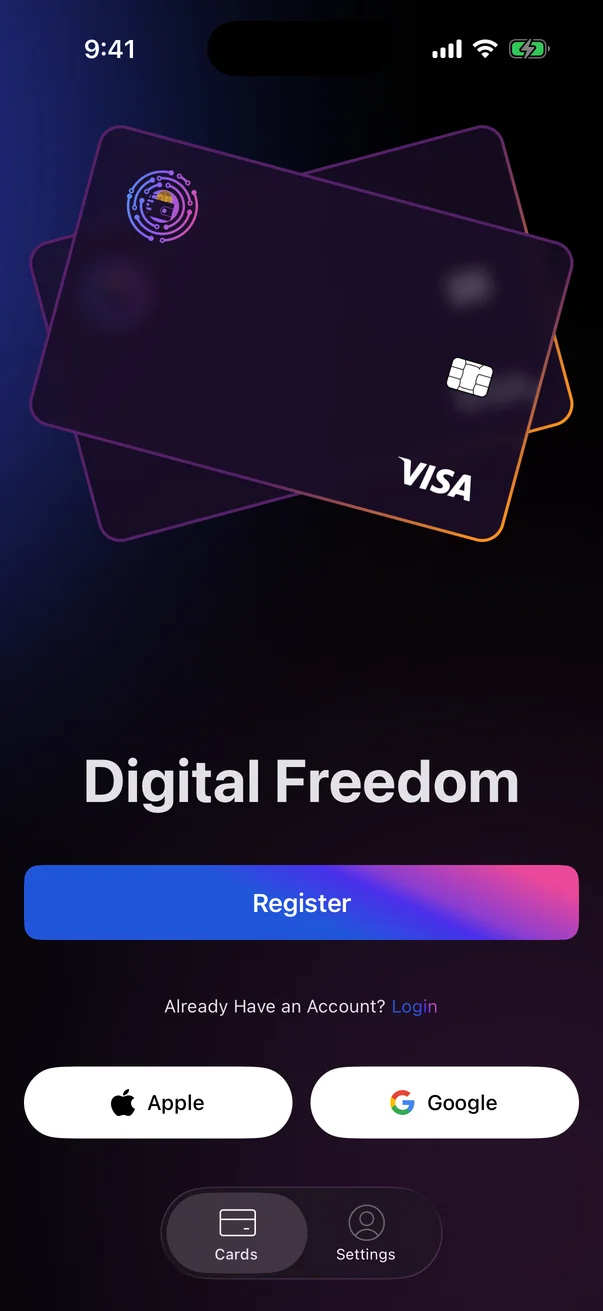
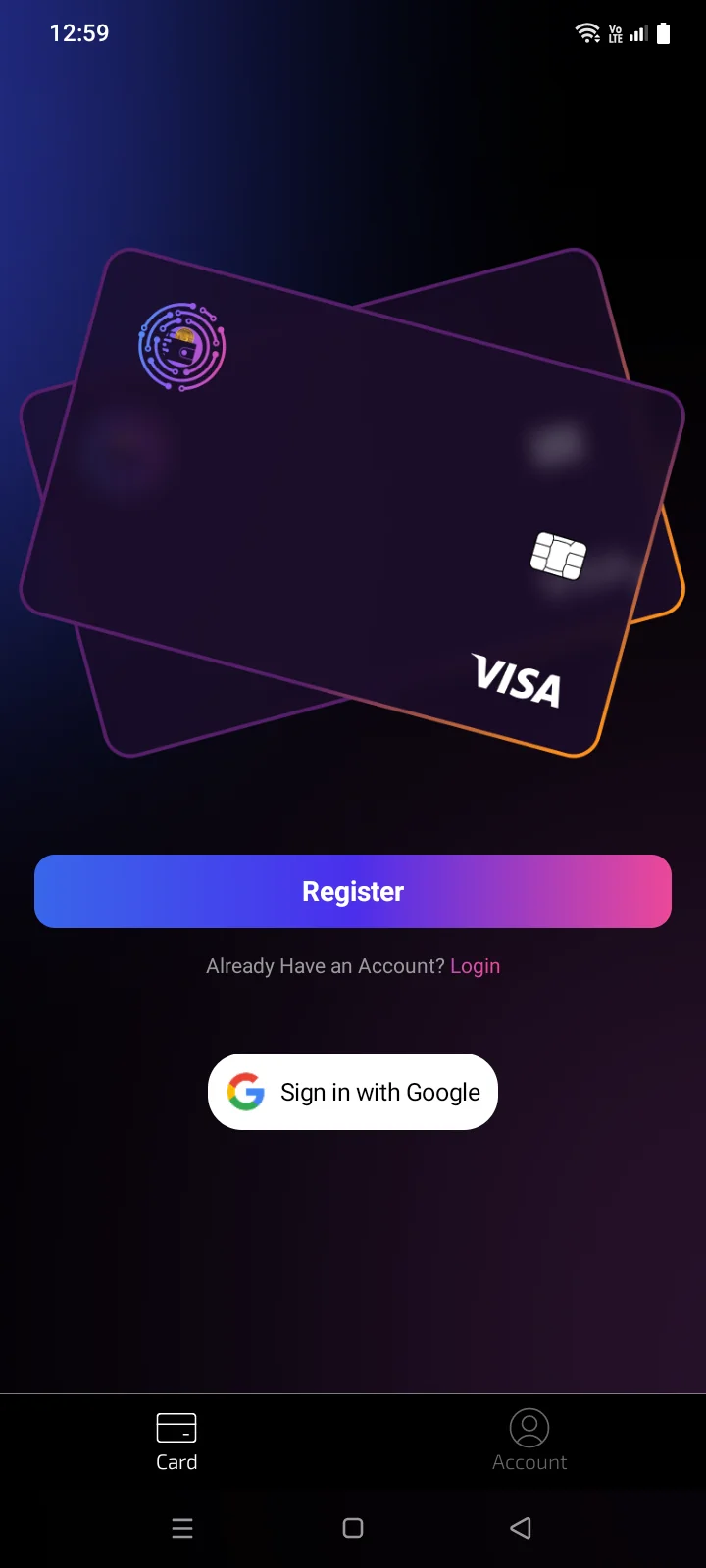
The CardsCard tab shows the welcome screen. From here you create a card account or sign in to an existing one. At the bottom there are two tabs: CardsCard and Account.
 1
2
3
4
1
2
3
4
| 1 | Register — create a card account with your email, see 1.2 Creating a card account. |
| 2 | Login — sign in with your email and password, see 1.3 Signing in, including Apple and Google. |
| 3 | Apple — sign in or create an account with your Apple Account. |
| 4 | Google — sign in or create an account with your Google account. |
 1
2
3
1
2
3
| 1 | Register — create a card account with your email, see 1.2 Creating a card account. |
| 2 | Login — sign in with your email and password, see 1.3 Signing in, including Apple and Google. |
| 3 | Sign in with Google — sign in or create an account with your Google account. |
Signing in with Apple isn't available in the Android app — only email and Google.