
1.4Forgot password
If you forgot the password to your card account, set a new one with a code sent to your email. Everything happens on one screen, and once the password is changed you are signed in right away.
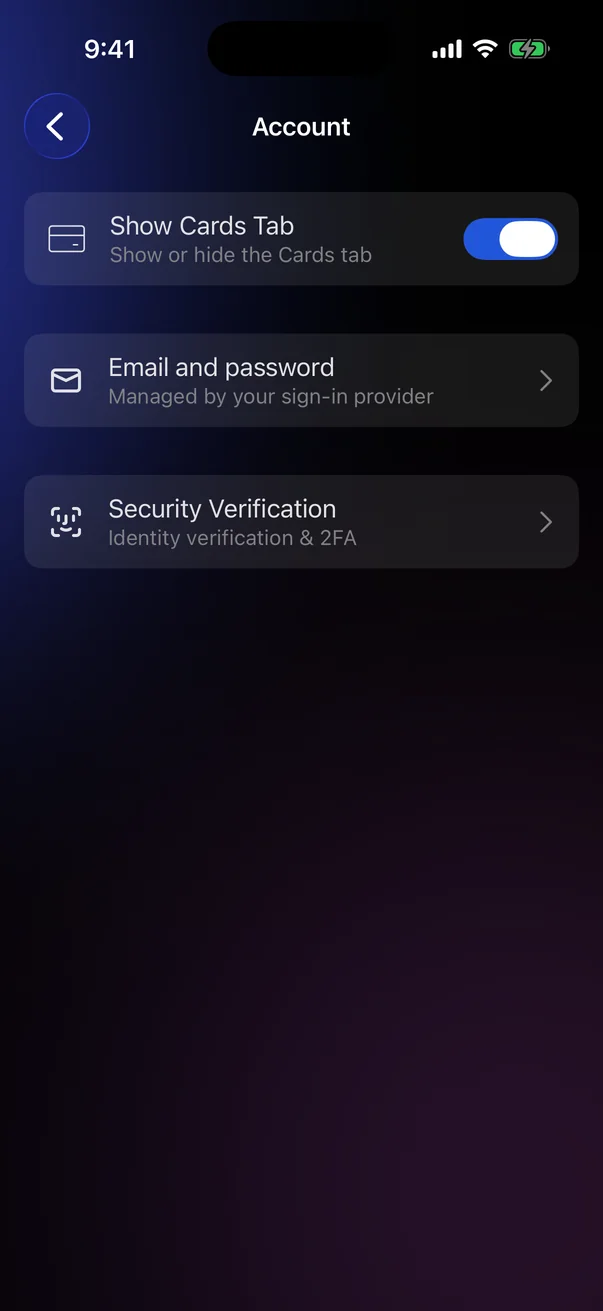
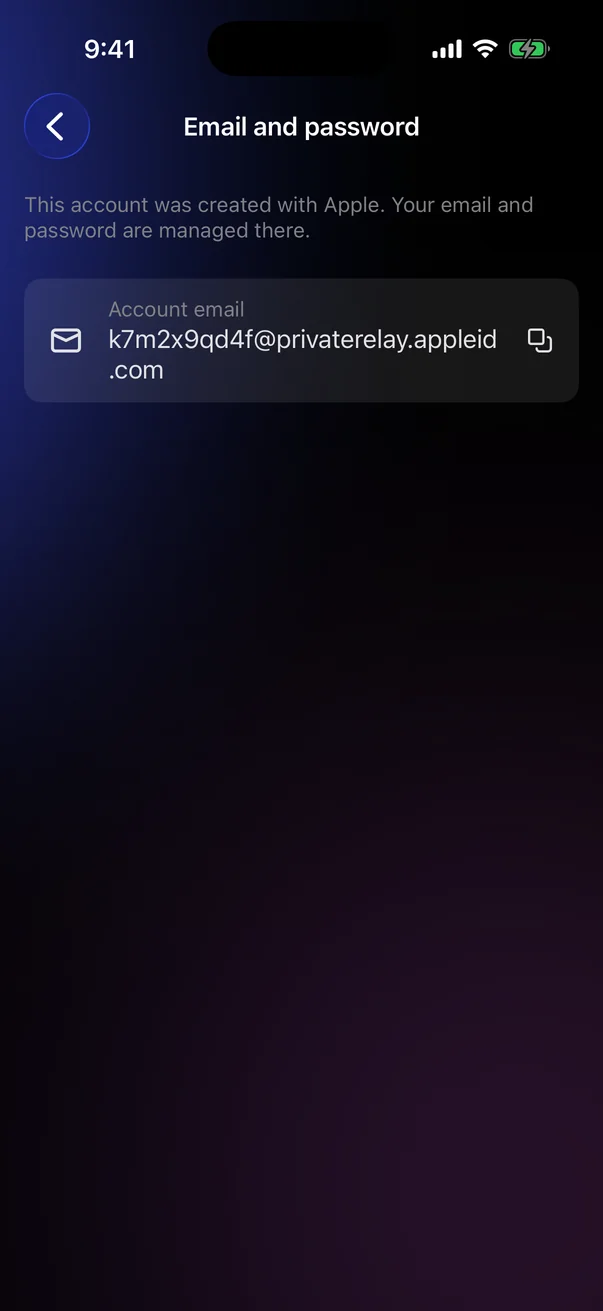
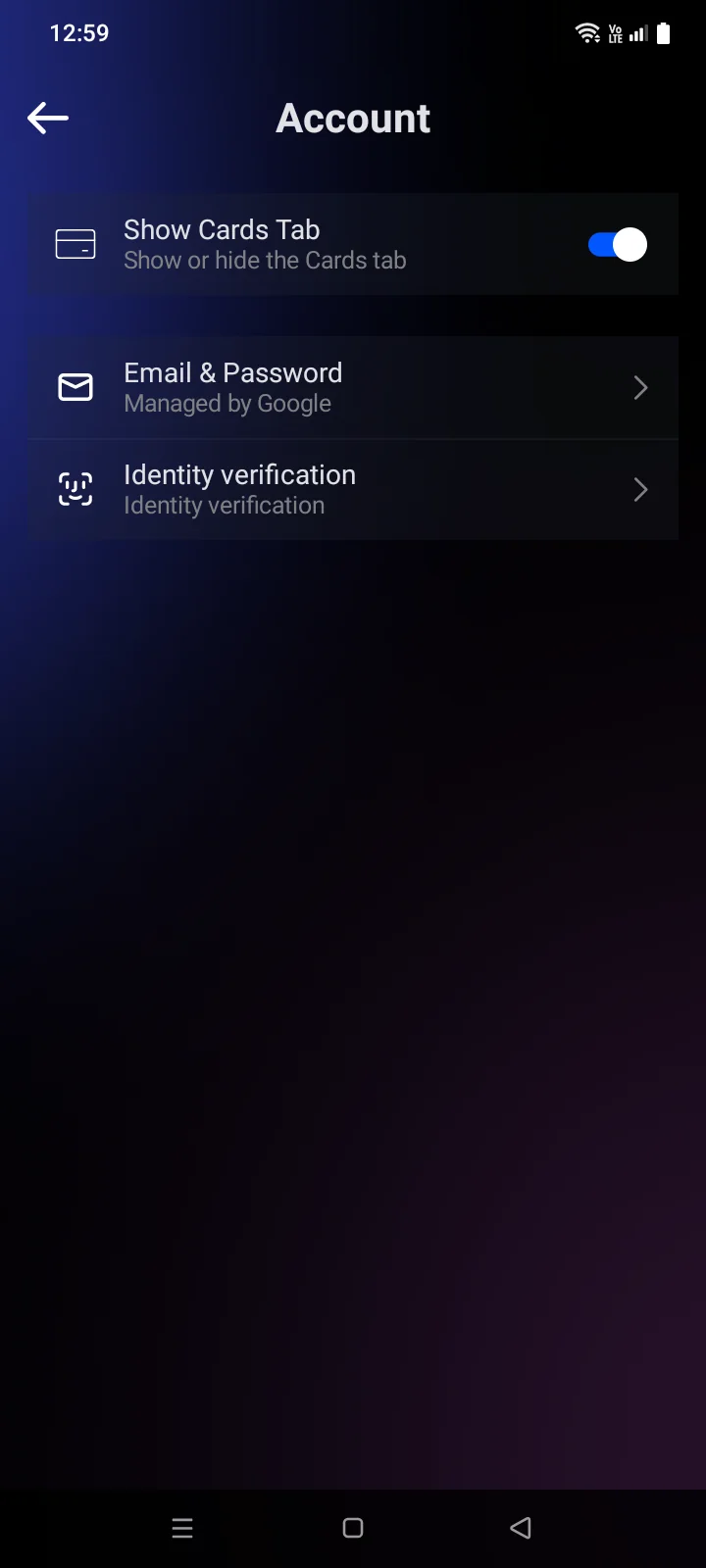
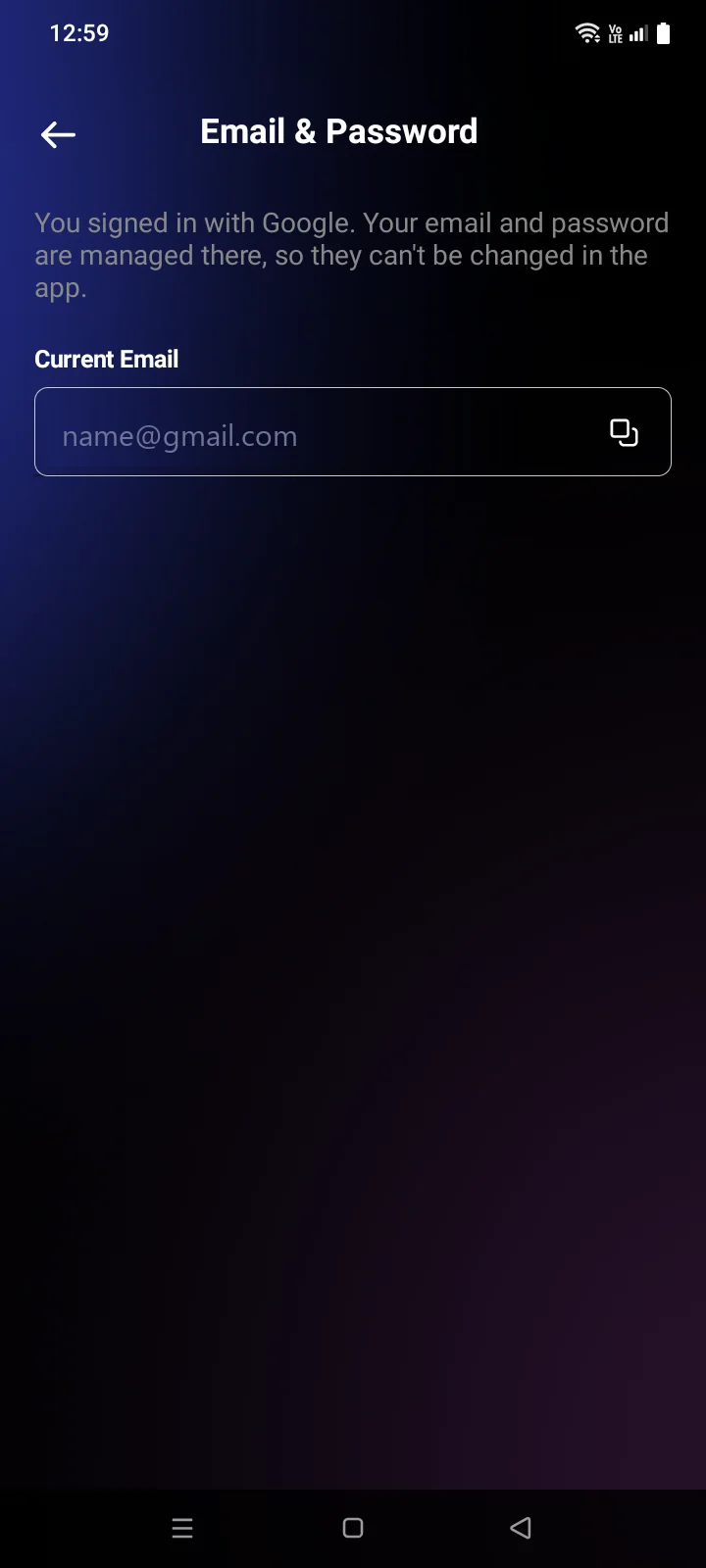
You can see how your account was created in Account › Account. For an Apple or a Google account, the Change emailChange Email and Change password rows are replaced by Email and passwordEmail & Password — Managed by your sign-in providerManaged by Google. Tap it to see which service the account was created with and to copy the account email. If you chose to hide your email when signing in with Apple, this is an address ending in @privaterelay.appleid.com.
Set a new password
On the sign-in screen, tap Recover it here next to Forgot your password?. The same link is on the code step of sign-in.
Request a code
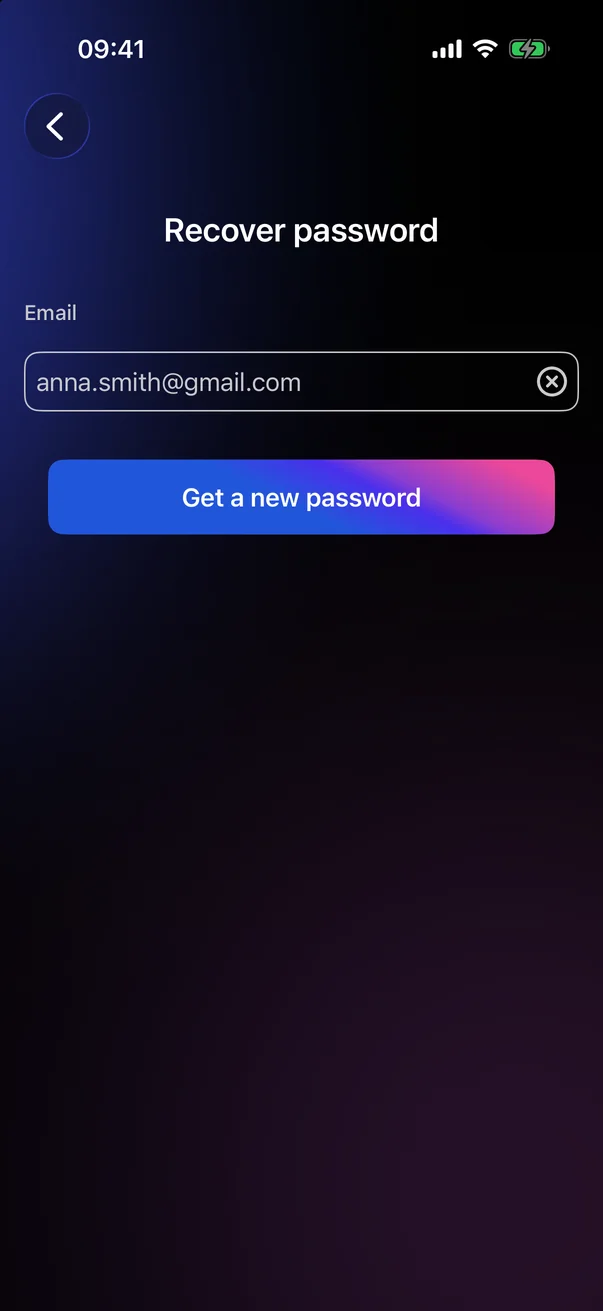
- Enter the email of your card account and tap Get a new password.
- A 6-digit code is sent to that email, and the next screen opens.
Enter the new password and the code
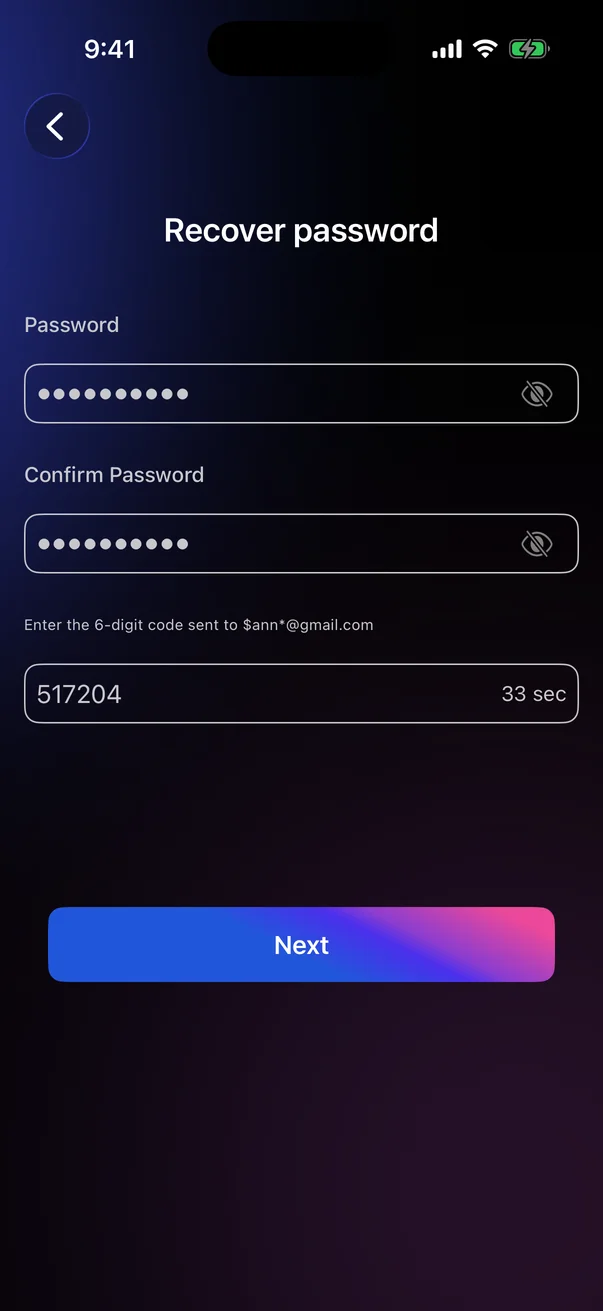
- Enter a new password and repeat it in Confirm Password. Choose a password that meets the requirements in 1.2.
- Enter the 6-digit code from the email.
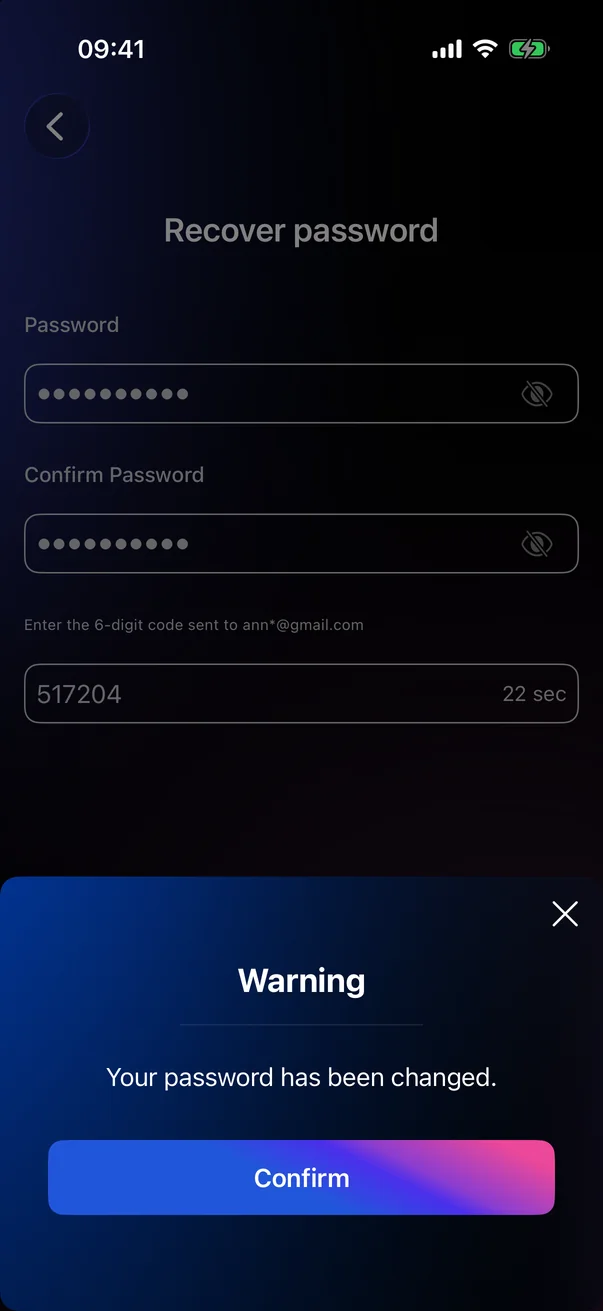
- Tap Next. The message Your password has been changed. confirms the change.
- Tap Confirm. You return to the welcome screen. Sign in with the new password (see 1.3).
 1
2
3
4
1
2
3
4
| 1 | Password — the new password. |
| 2 | Confirm Password — the same password again. |
| 3 | Code — from the email; the hint shows the address it was sent to. |
| 4 | Next — active when all three fields are filled in. |
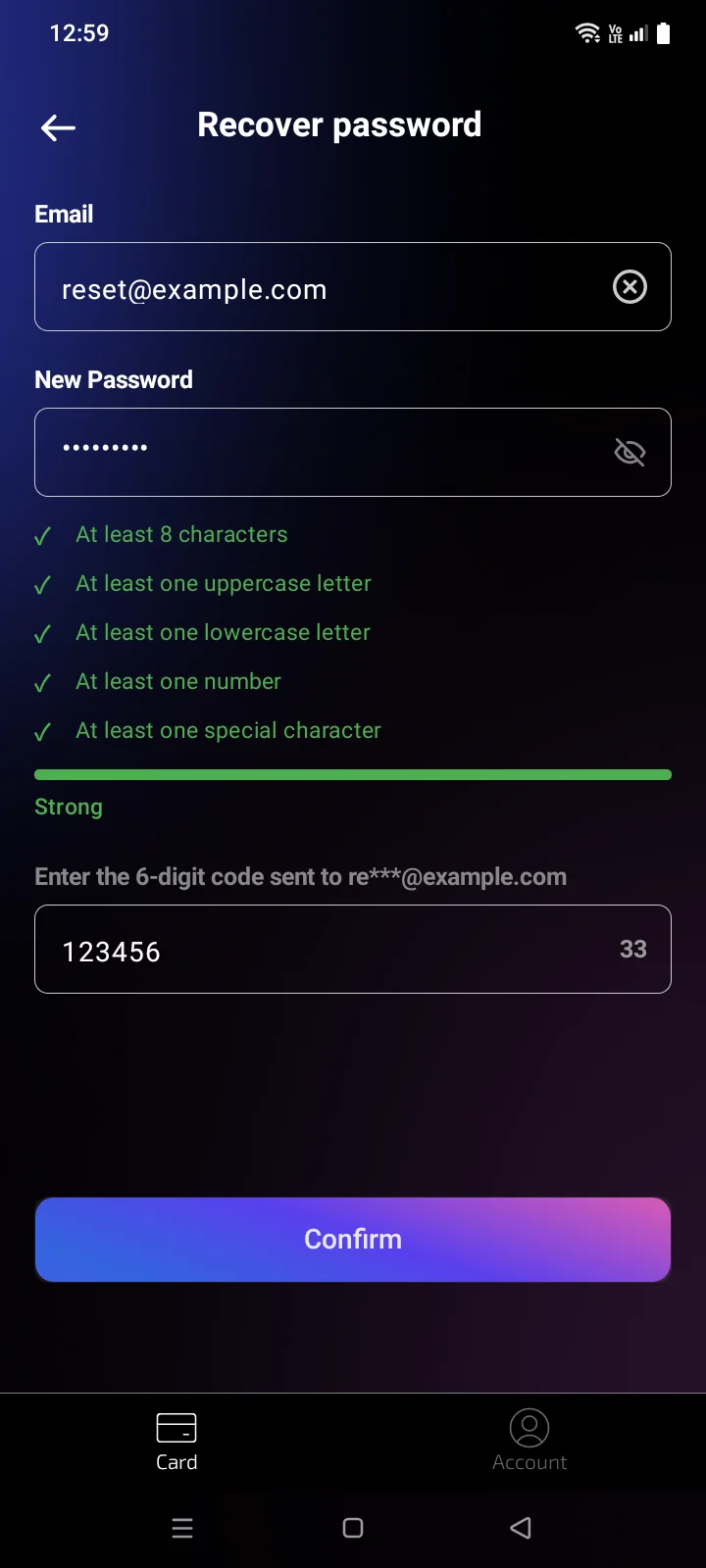
The Recover password screen opens — you enter the email, the new password and the code on it.
- Check the address in the Email field. If you already entered it on the sign-in screen, it is filled in for you and the code is sent right away — you see Confirmation code sent to your email address. If the field is empty, enter your email and tap Get Code.
- Enter a new password in New Password. The list under the field shows which requirements are met. The requirements are the same as for registration — see 1.2. You don't need to repeat the password.
- Enter the 6-digit code from the email.
- Tap Confirm. The password is changed and you are signed in right away — the card screen opens.
 1
2
3
4
5
1
2
3
4
5
| 1 | Email — the address of your card account; the × icon clears the field. |
| 2 | New Password — with the requirements list and strength bar, as in registration. |
| 3 | Code — from the email; the address it was sent to is shown above the field. |
| 4 | Get Code — sends a code to the address. After sending, a 60-second countdown takes its place, then the button comes back. |
| 5 | Confirm — active when the email is valid, the password meets all requirements and all 6 digits of the code are entered. |
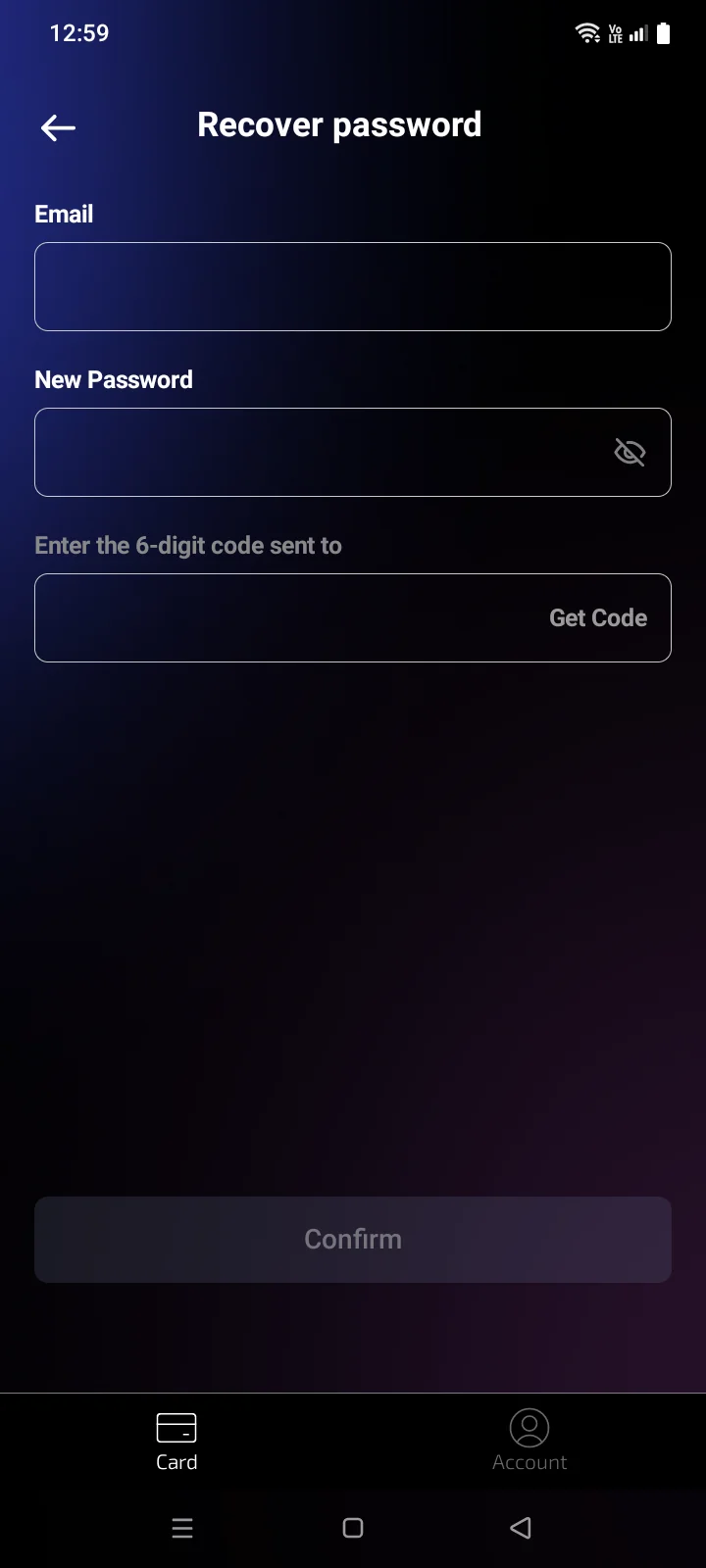
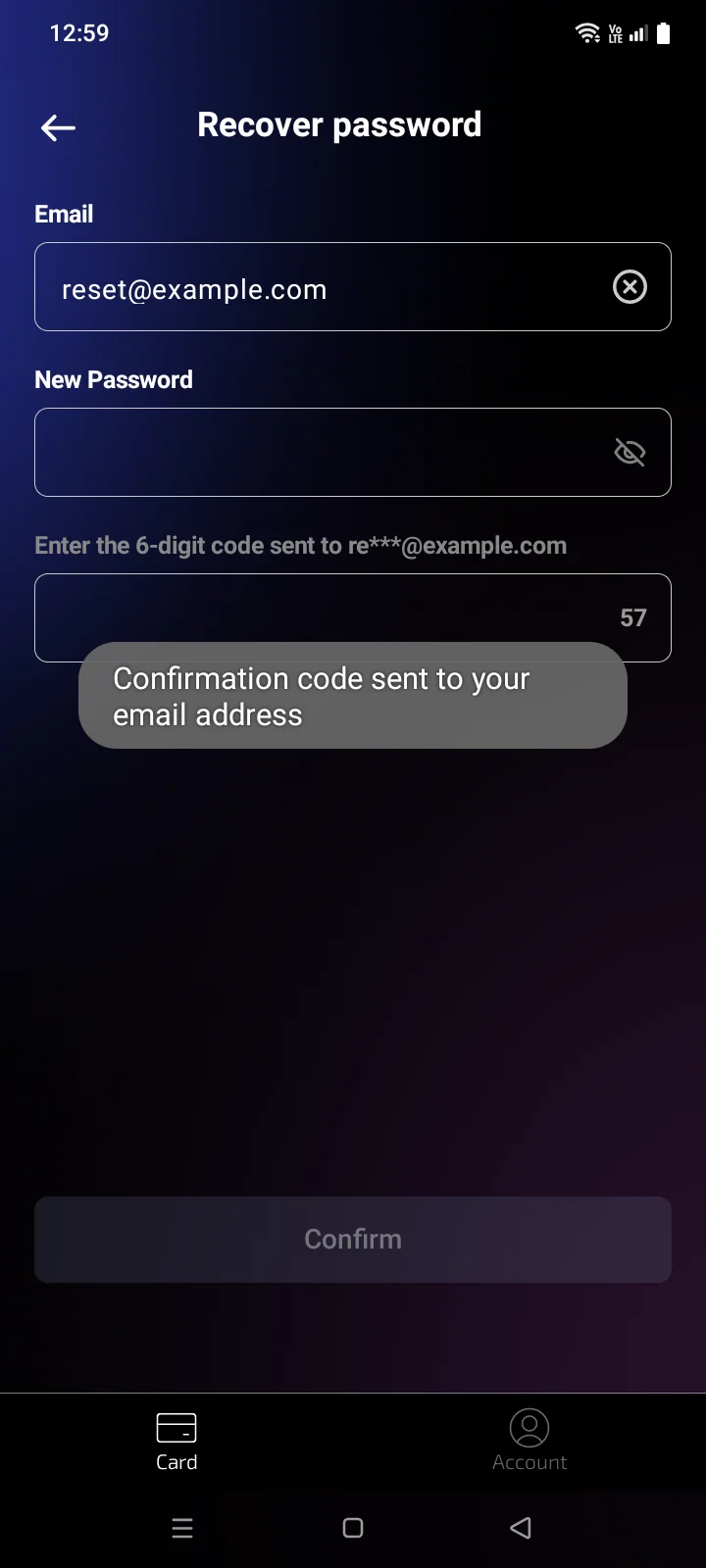
If the code doesn't arrive, check the spam folder. When the countdown runs out, tap Get Code to get a new one.
If something goes wrong
| Message | What to do |
|---|---|
| Mail not found in the database.No account found for this email | No card account uses this email. Check the address, or create an account (see 1.2). |
| The passwords do not match. | Enter the same password in both fields. |
| Invalid Email | Appears when you tap Get Code with a mistyped address. Correct the email. |
| The password must be at least 8 characters long and contain an uppercase and a lowercase Latin letter, a digit and a special character, with no spaces | Usually doesn't appear: the button is active only when the password meets all requirements. Check the requirements list under the field (see 1.2). |
| Incorrect or expired code | Check the code in the latest email. If it has expired, wait for the countdown to finish, tap Get Code and enter the new code. |
| Connection error. Please check your internet connection and try again | Check your internet connection and try again. |
| Server error. Please try again later | Try again later. |