1.3Signing in, including Apple and GoogleSigning in, including Google
Sign in to your card account with your email and password, confirmed by a one-time code from your email. If you use Apple or Google, you can sign in with one tap instead.
Sign in with email and password
- Open the CardsCard tab and tap Login next to Already Have an Account?.
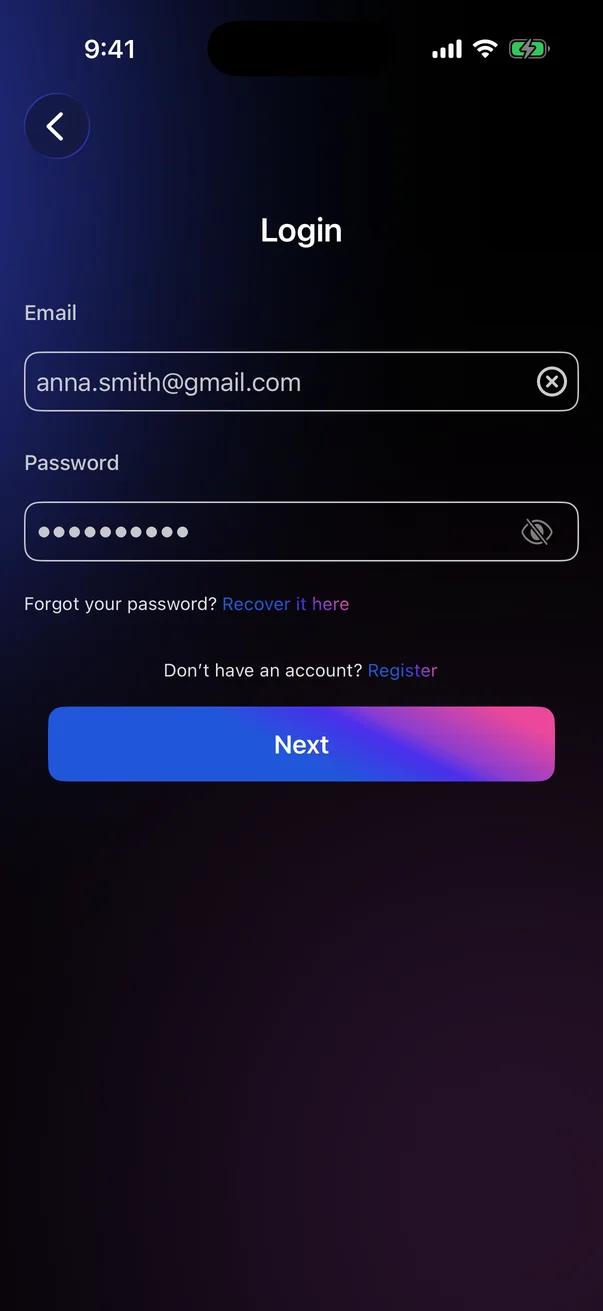
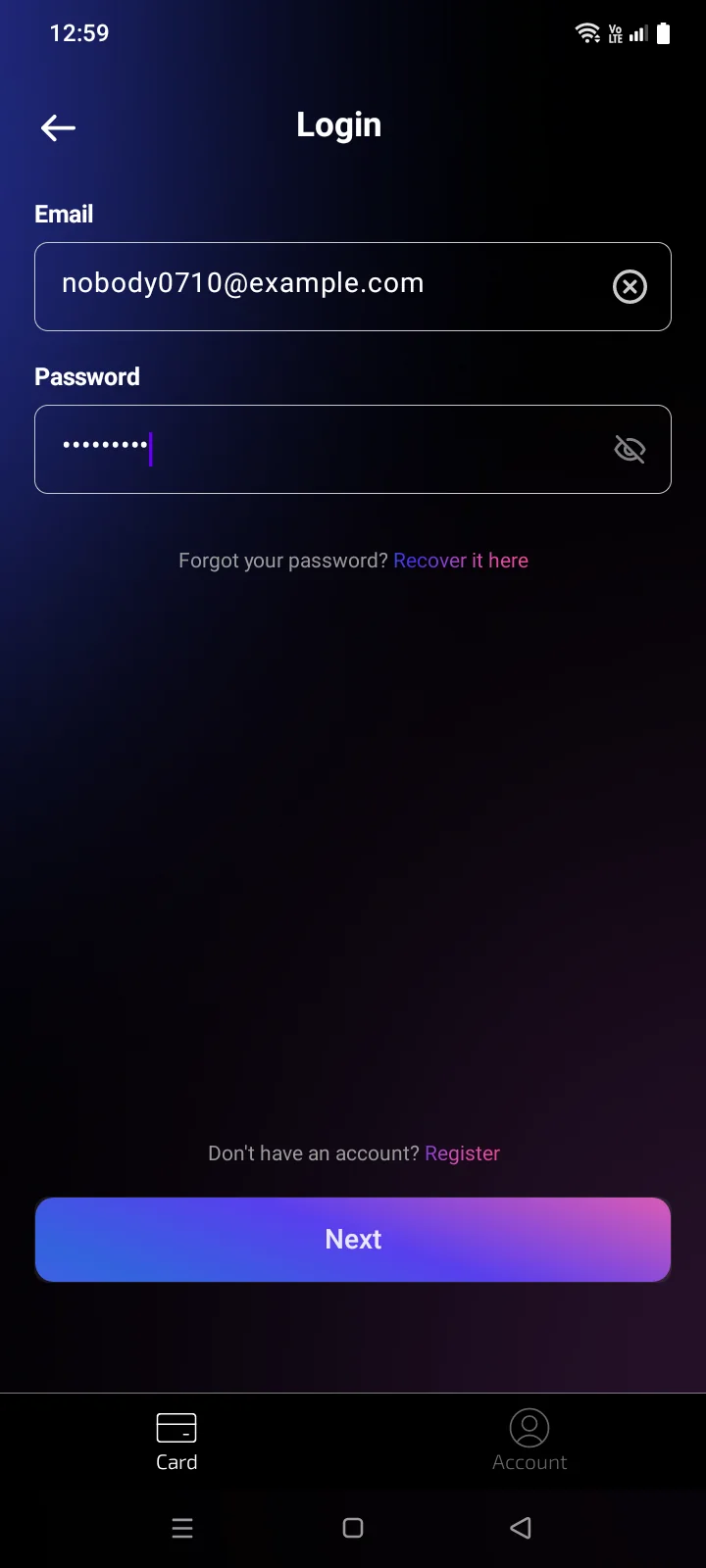
- Enter your email and password and tap Next.
- A 6-digit code is sent to your email, and the code screen opens. It shows the address the code was sent to (partly hidden).
- Enter the code and tap Next. The card screen opens, and the Crypto tab appears in the tab bar (see 3.1).
 1
2
3
4
5
1
2
3
4
5
| 1 | Email — the × icon clears the field. |
| 2 | Password — the eye icon shows or hides it. |
| 3 | Recover it here — if you forgot the password, see 1.4 Forgot password. |
| 4 | Register — create a new account, see 1.2 Creating a card account. |
| 5 | Next — active when both fields are filled in. The email format is checked after you tap it; the password is checked only by the server. |
 1
2
3
4
5
1
2
3
4
5
| 1 | Email — the × icon clears the field. |
| 2 | Password — the eye icon shows or hides it. |
| 3 | Recover it here — if you forgot the password, see 1.4 Forgot password. |
| 4 | Register — create a new account, see 1.2 Creating a card account. |
| 5 | Next — active when the email is valid and the password isn't empty. |
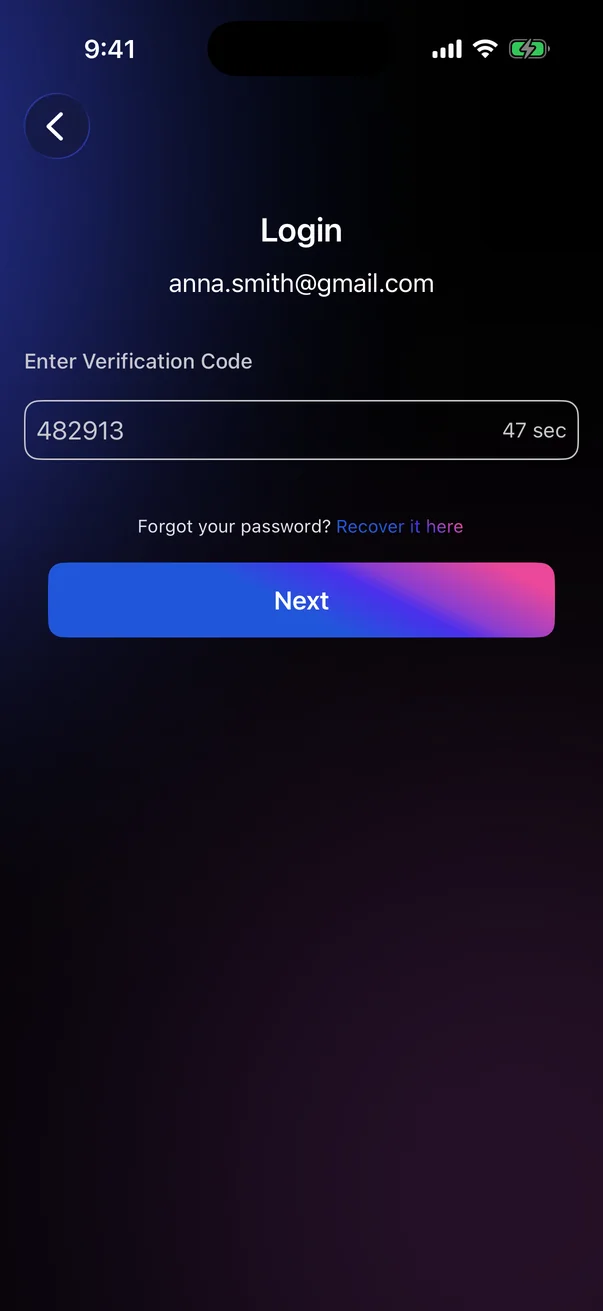 1
2
3
4
1
2
3
4
| 1 | Your email — the account you are signing in to. |
| 2 | Enter Verification Code — the 6-digit code from the email. |
| 3 | Countdown — after 60 seconds, Get Code appears: tap it to get a new code. The message A new verification code has been sent to your email confirms it. |
| 4 | Next — completes the sign-in. Active as soon as the field isn't empty; the server checks that the code is exactly 6 digits. |
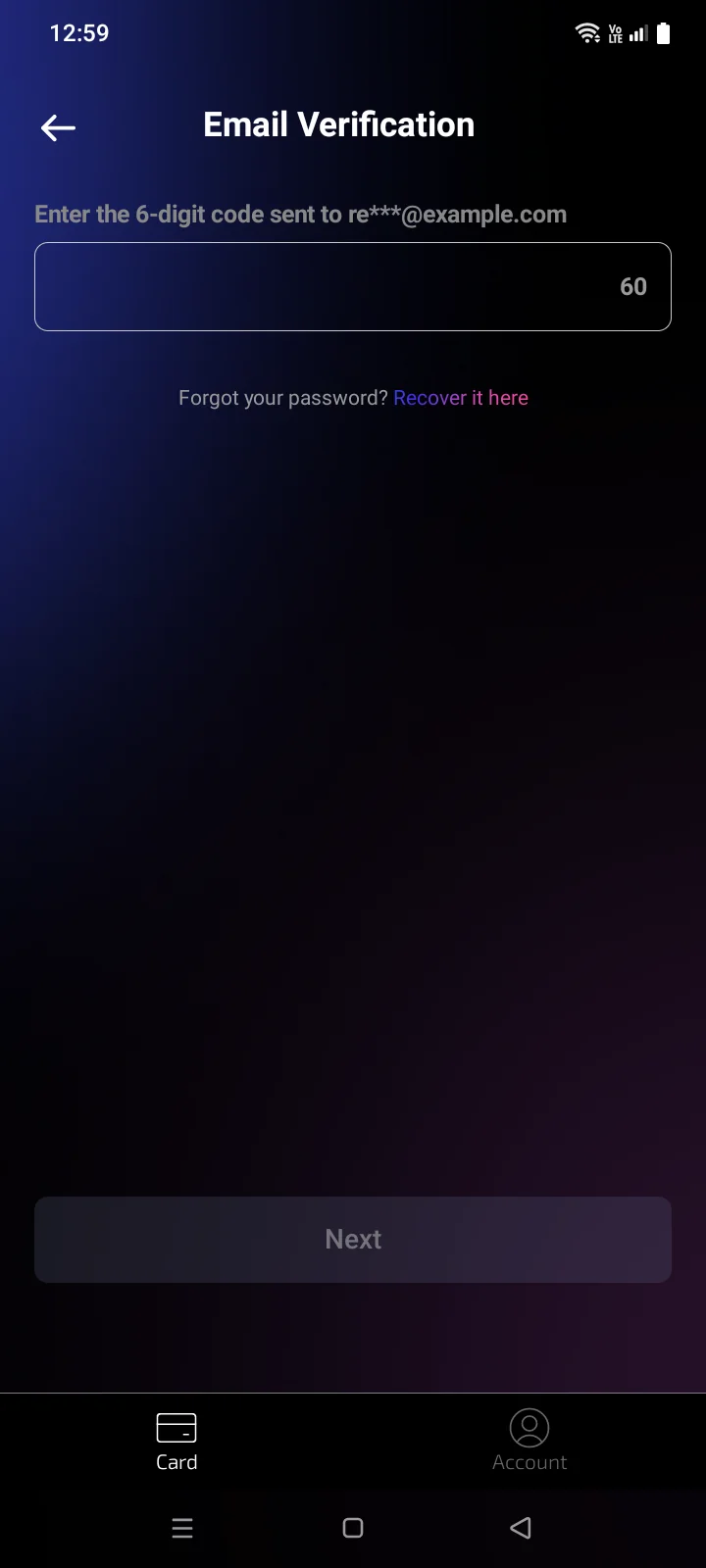 1
2
3
4
1
2
3
4
| 1 | Code field — the 6-digit code from the email. The address it was sent to is shown above. |
| 2 | Countdown — after 60 seconds, Get Code appears: tap it to get a new code. The message Confirmation code sent to your email address confirms it. |
| 3 | Forgot your password? Recover it here — reset your password right from this step (see 1.4). |
| 4 | Next — active once all 6 digits are entered; completes the sign-in. |
The Forgot your password? Recover it here link is on the code step too. The arrow at the top left takes you back to the previous step.
Sign in with Apple or Google
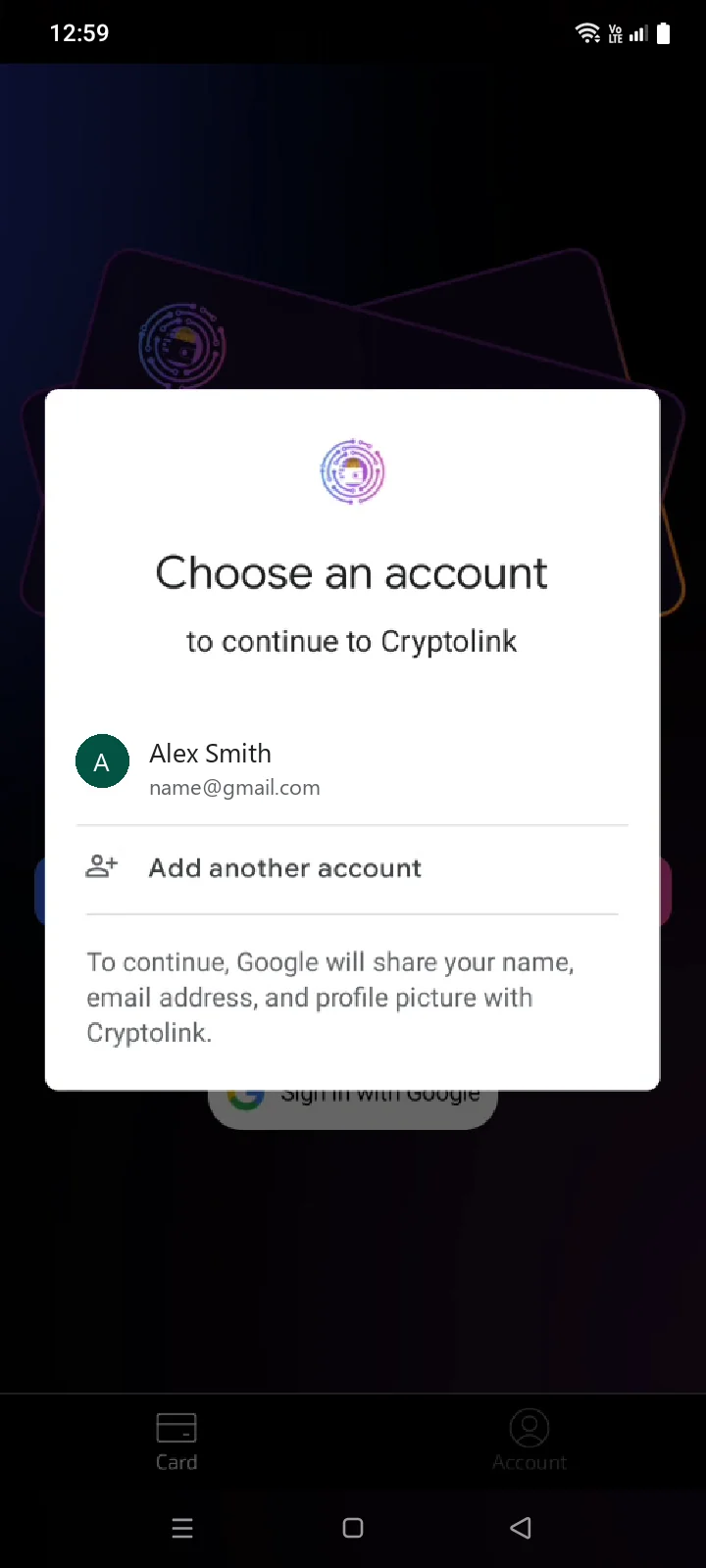
- Open the CardsCard tab and tap AppleSign in with Google or Google.
- Confirm in the system Apple or Google windowGoogle account picker. If you close the window, nothing changes.
- If you already have a card account, the card screen opens.
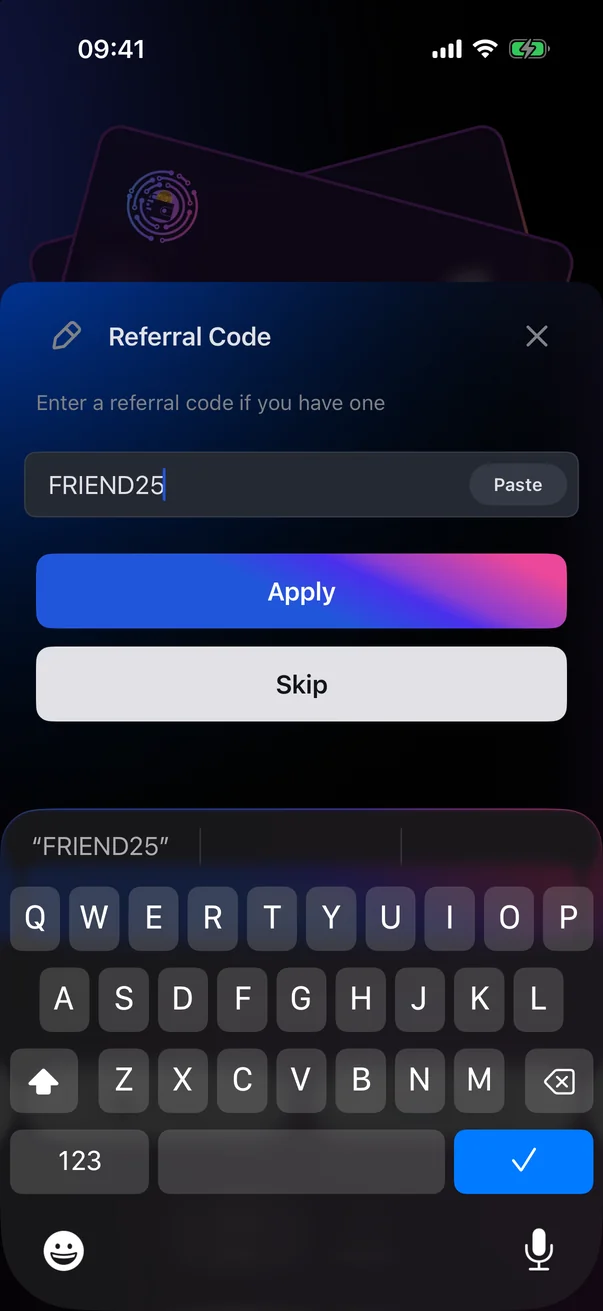
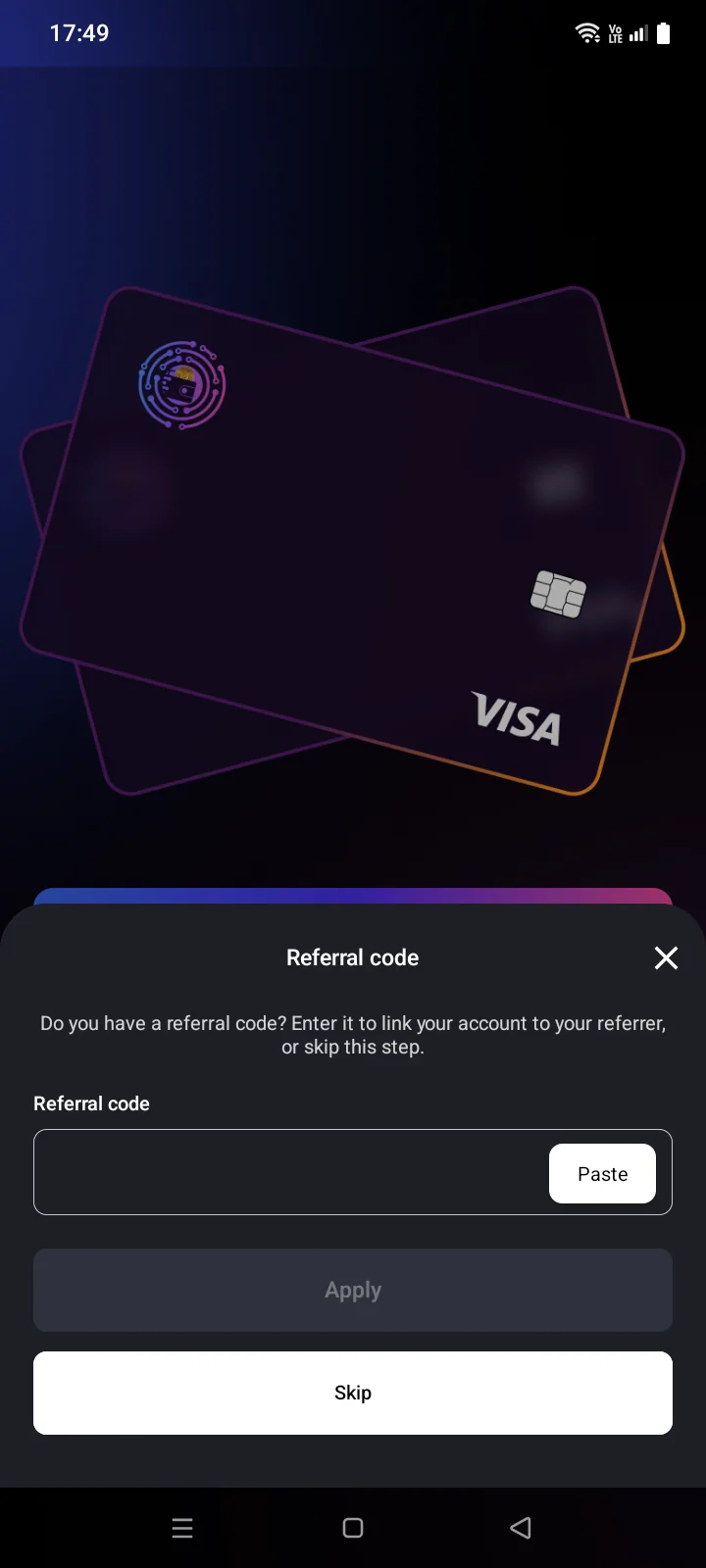
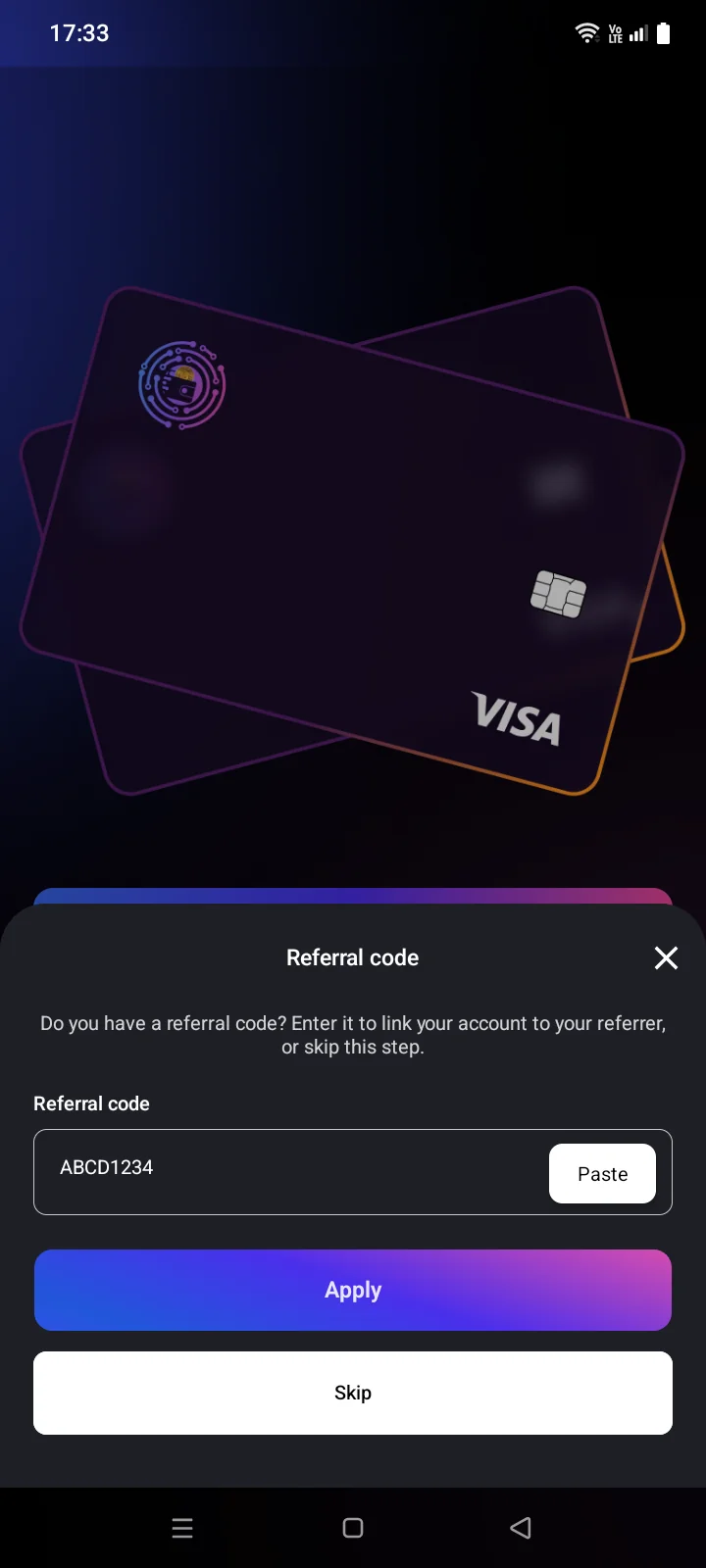
- If this is your first sign-in, a card account is created, and the Referral CodeReferral code panel opens (see below).
The account picker appears every time you sign in, so you can switch to another Google account. If Google Play services are missing or need an update, Android first offers to install or update them.
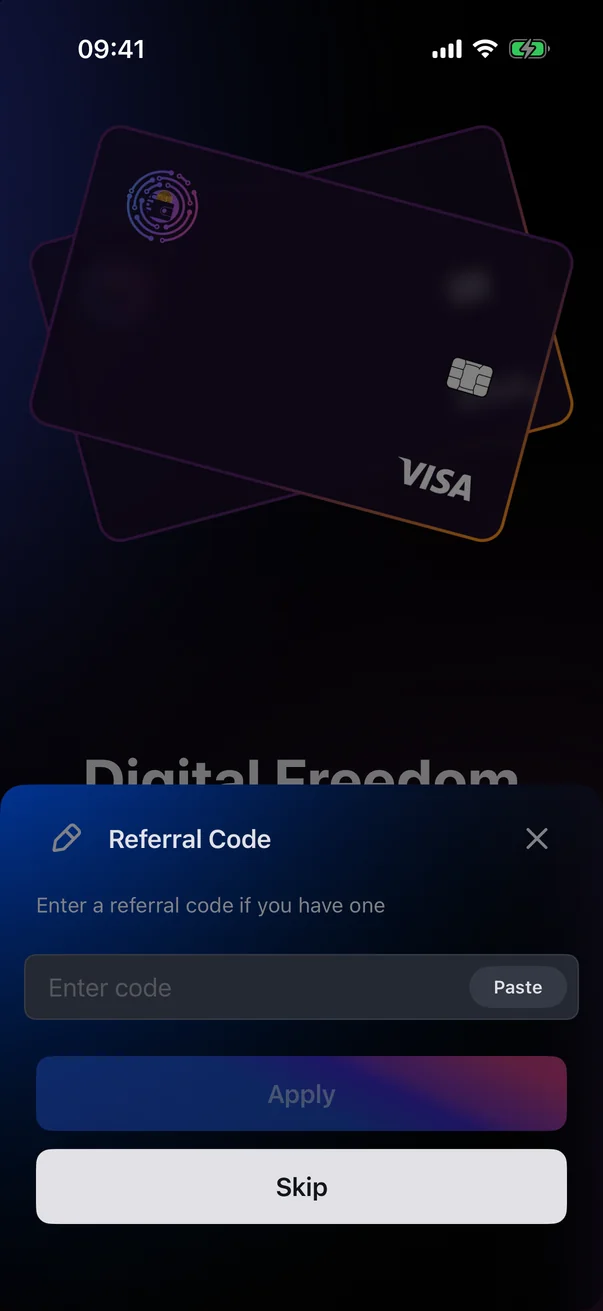
The Referral Code panel
If a friend invited you, enter their code in the field or tap Paste to insert a copied code. While the field is empty, Apply is inactive.
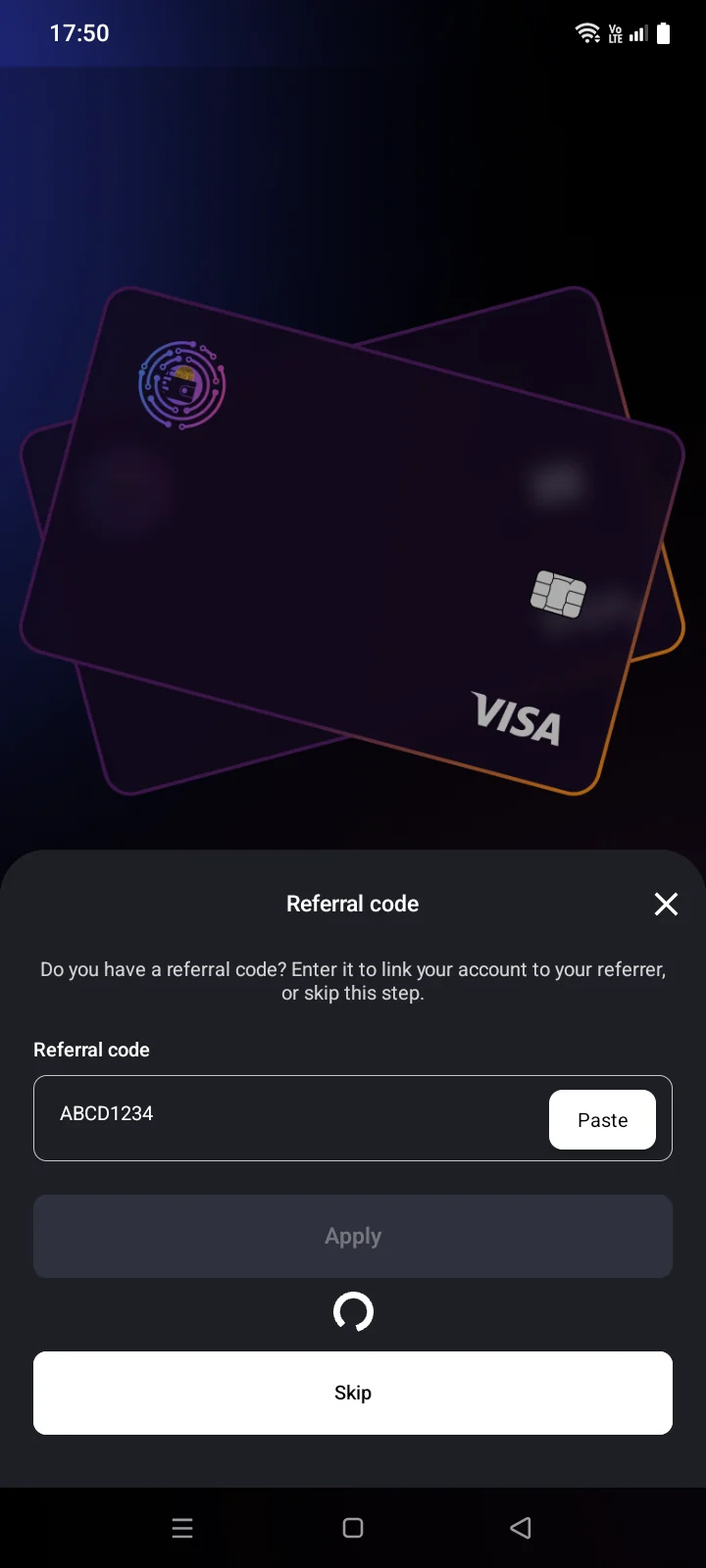
- Tap Apply. While the code is being checked, Apply and Skip are inactivethe button is inactive and a spinner turns below it.
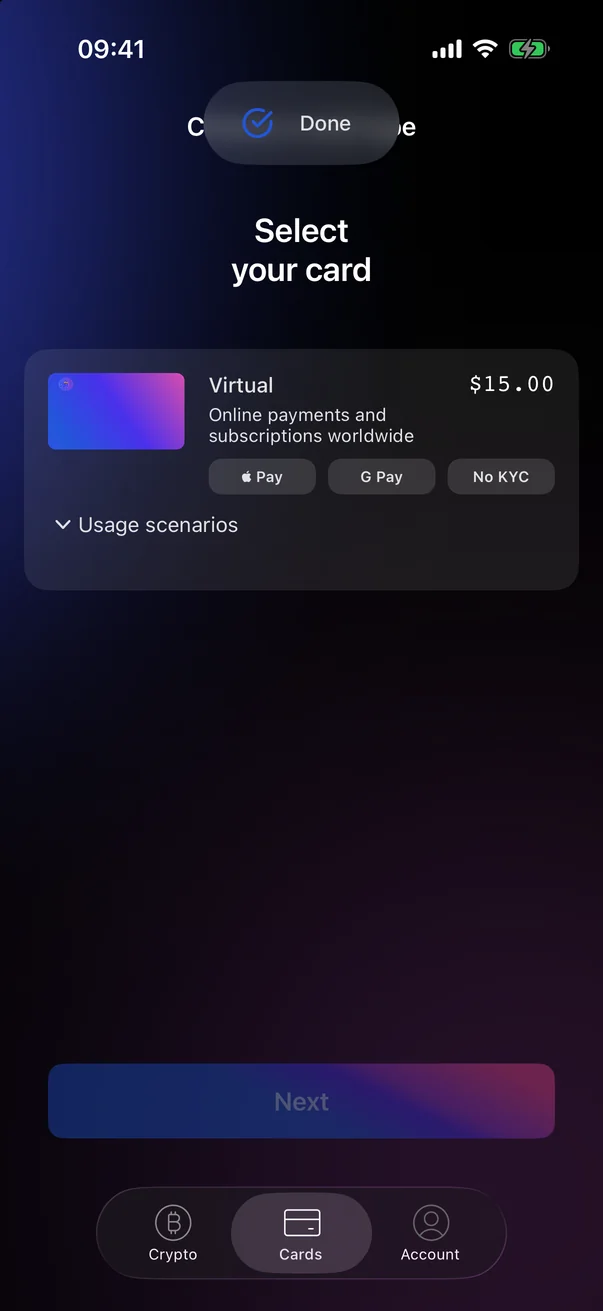
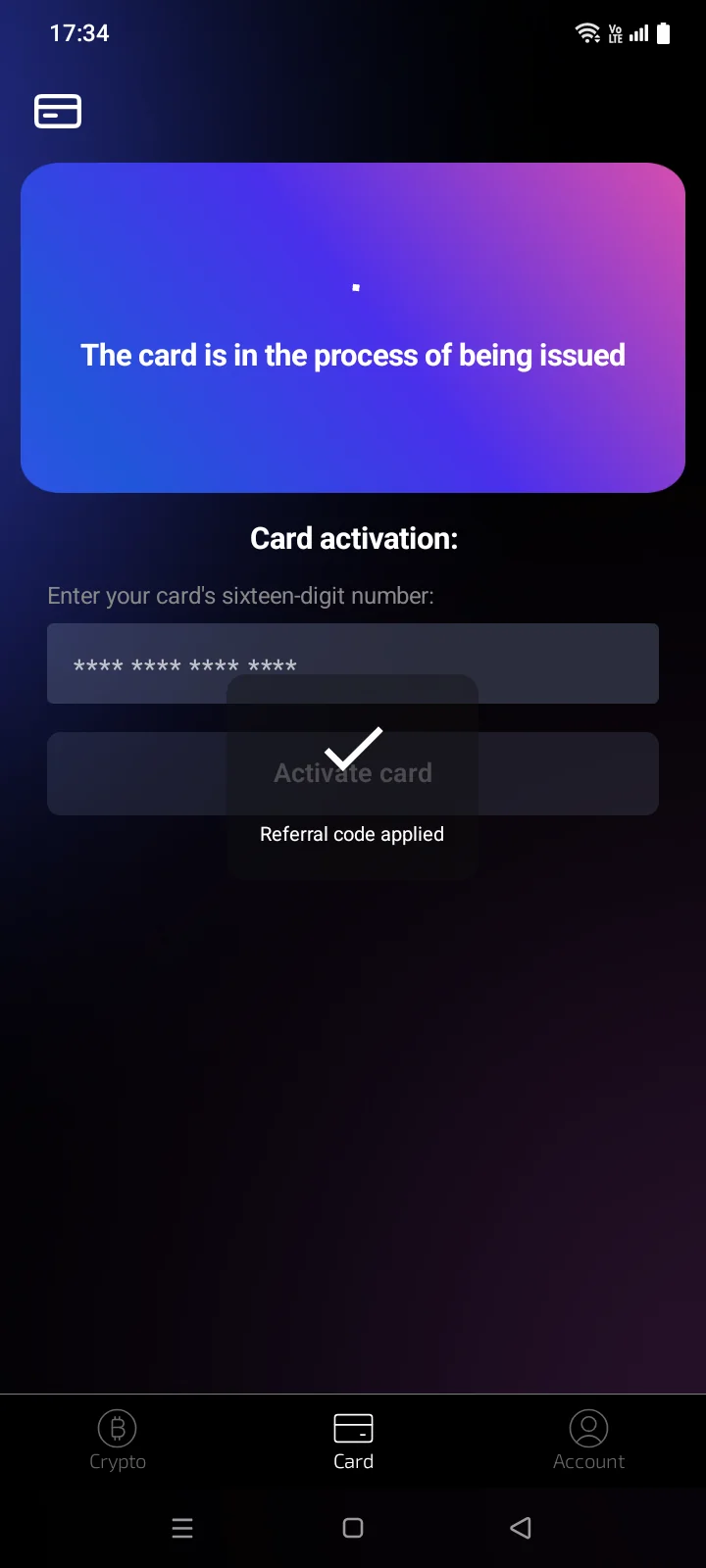
- If the code is accepted, the message DoneReferral code applied appears, the panel closes and the card screen opens.
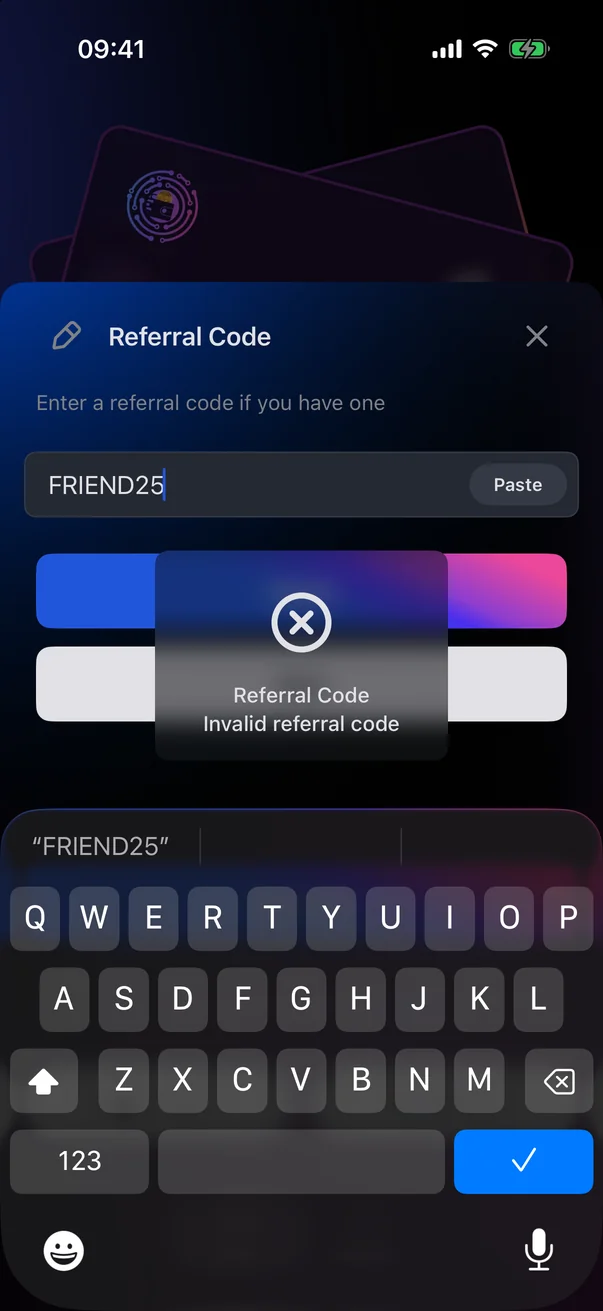
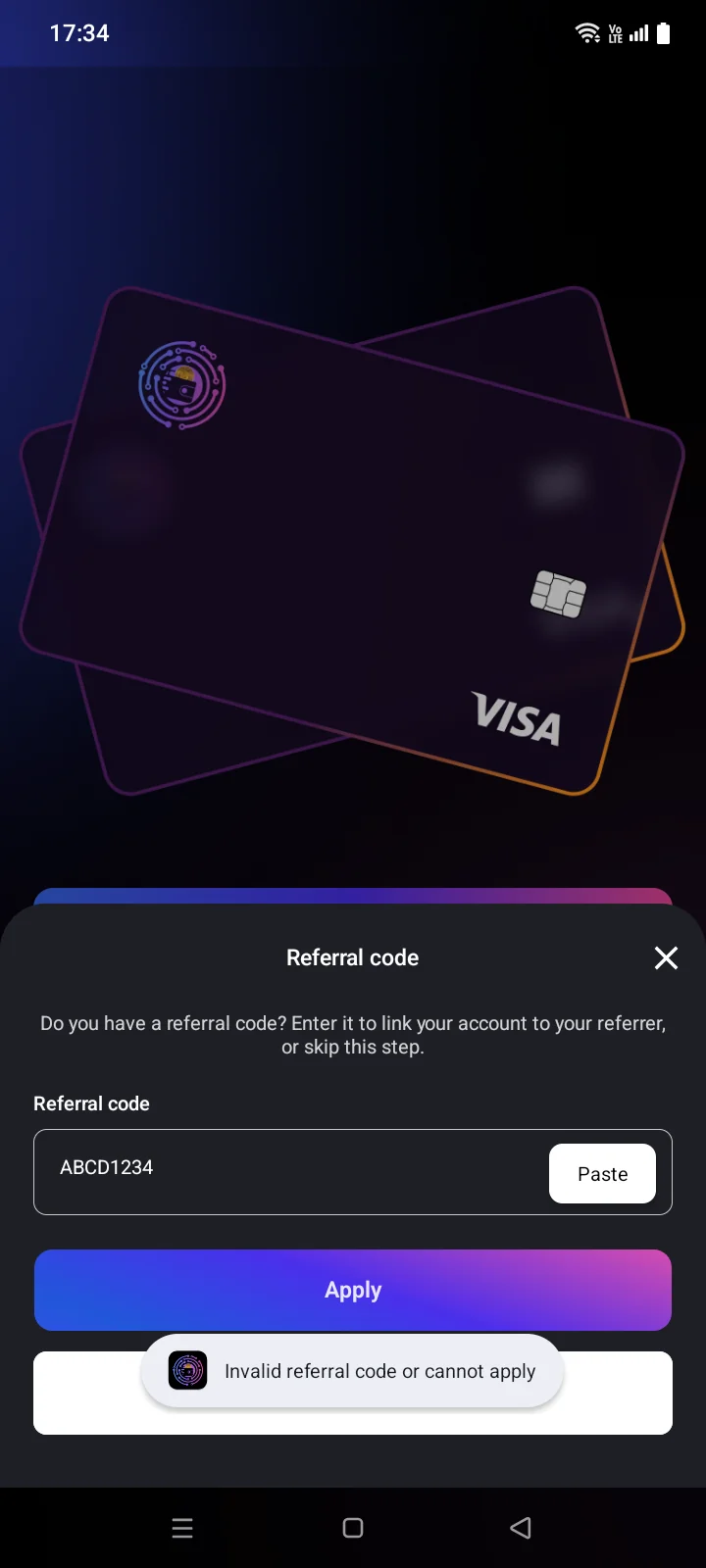
- If the code doesn't work, an error message appears. The panel stays open with the code still in the field: correct it and tap Apply again, or skip this step.
- Invalid referral codeInvalid referral code or cannot apply — check the code and try again.
- Referral code already applied — a code is already linked to your account.
If you have no code, tap Skip or swipe the panel down or close the panel with the cross — the card screen opens.
The system Back button first hides the keyboard — the code you entered stays in the field — and pressing it again closes the panel, like Skip.
If something goes wrong
| Message | What to do |
|---|---|
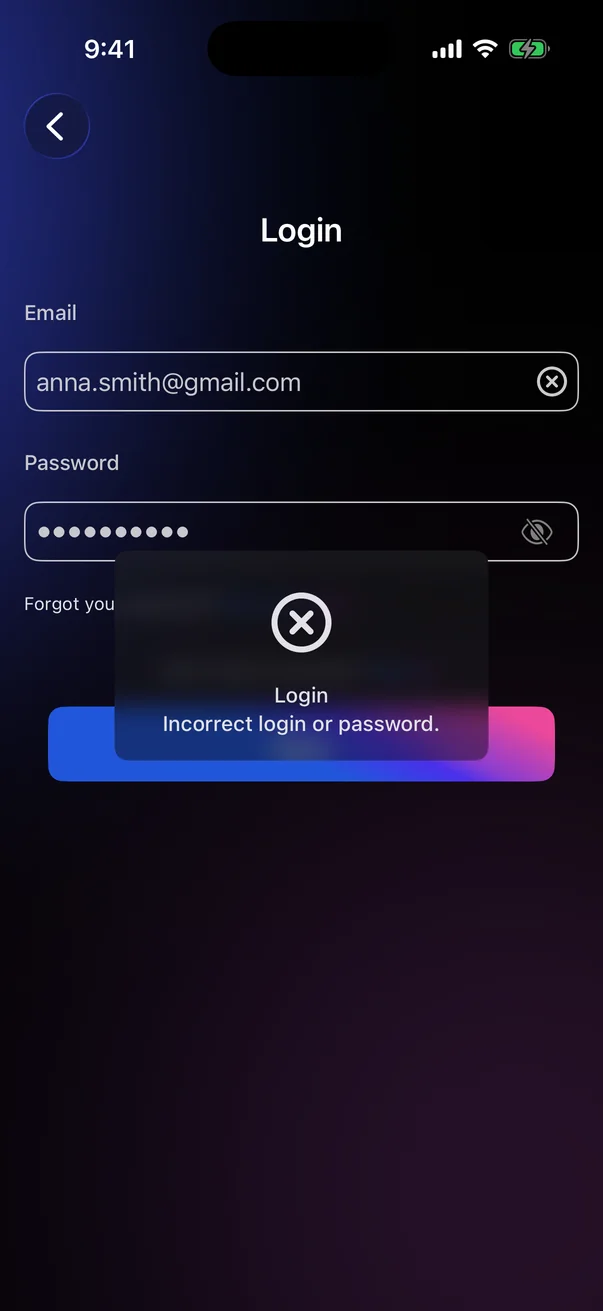
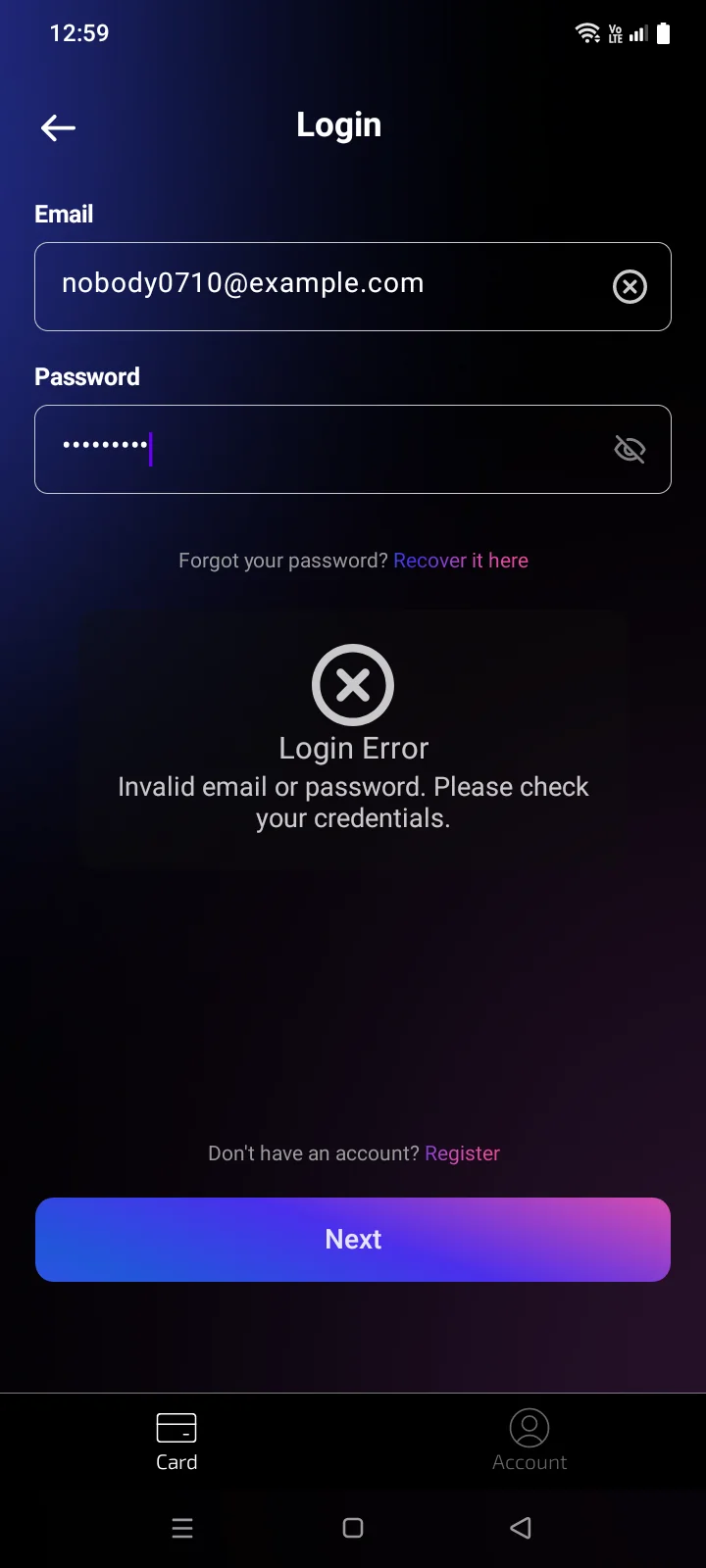
| Incorrect login or password.Login Error — Invalid email or password. Please check your credentials. | Check the email and password. If you forgot the password, recover it (see 1.4). |
| Invalid email format. | Check the email for typos. The format rules are in 1.2. |
| Invalid verification code.An error occurred | Check the code in the latest email and enter it again. If that doesn't help, request a new code with Get Code. |
| The verification code must be exactly 6 digits. | Enter all 6 digits of the code. |
| Too many attempts. Please request a new code. | Wait for the countdown, tap Get Code and enter the new code. |
| Not registered. Please register to sign in. | There is no card account for this Google account. The registration form opens — create an account with your email (see 1.2). |
| This account has been deletedAccount deleted or not registered. Please register in the app. | The card account linked to this Apple or Google account has been deleted. Contact support (see 5.7). |
| Email is required for registration | The card account needs an email. Try again; if the message repeats, contact support (see 5.7). |
| This Google account has no email. Please choose another account. | Choose another Google account or register with your email. |
| Invalid request. Please allow access to your email in Google. | Sign in again and allow the app to access your email address in the Google window. |
| Couldn't sign in with Google. Sign in with your email and password or contact support. | Google sign-in isn't working right now. Sign in with your email and password or contact support (see 5.7). |
| An error occurred. Please try again later. | Try signing in with Google again later. |
| Connection error. Please check your internet connection and try again | Check your internet connection and try again. |
| Service is temporarily unavailable. Please try again in a few minutes.Server error. Please try again later | Try again later. |