
1.2Creating a card account
A card account lets you order and manage Cryptolink cards. You can create it with your email and a password, as described here, or with your Apple or Google accountGoogle account — see 1.3 Signing in, including Apple and Google.
Fill in the registration form
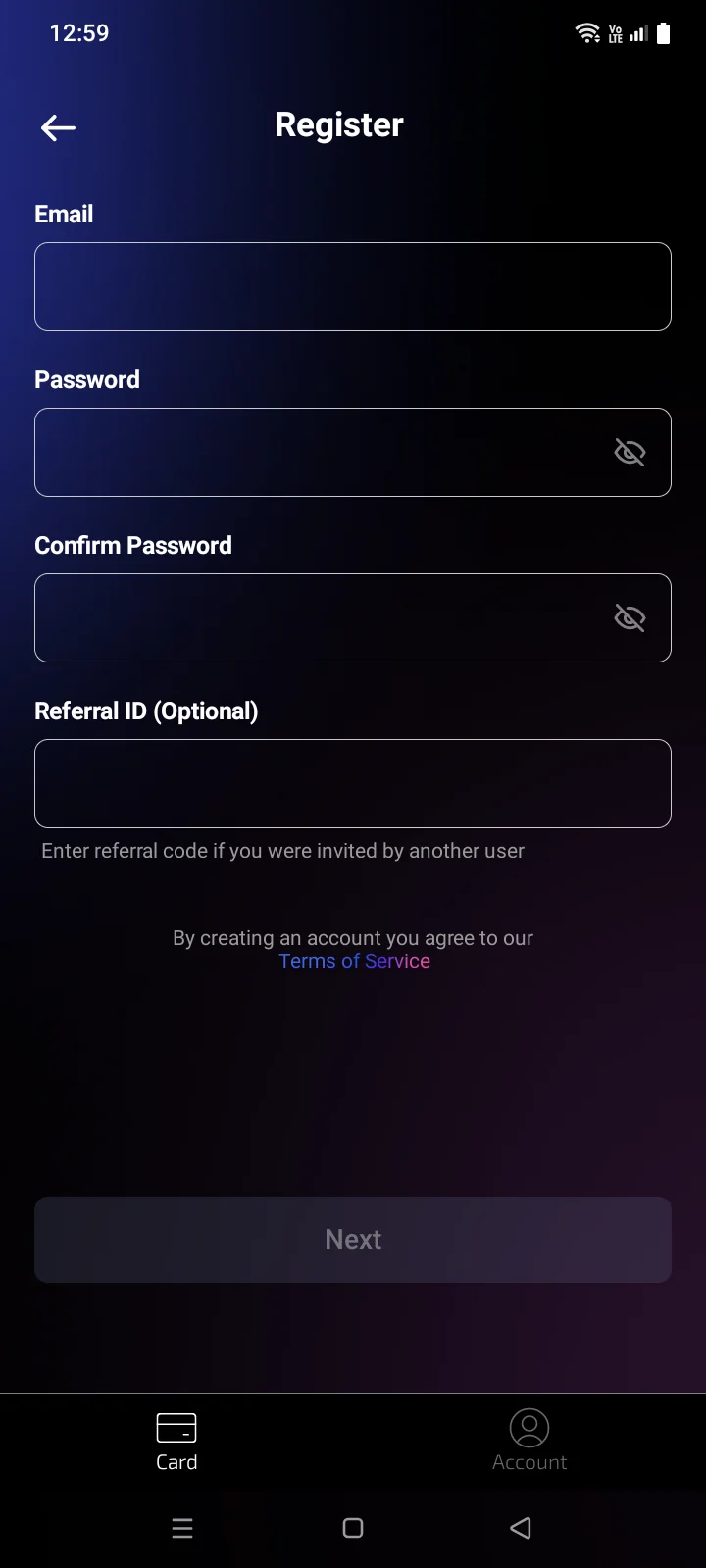
- Open the CardsCard tab and tap Register. You can also get here from the sign-in screen with the Don't have an account? Register link.
- Enter your email. You will use it to sign in, and verification codes are sent to it.
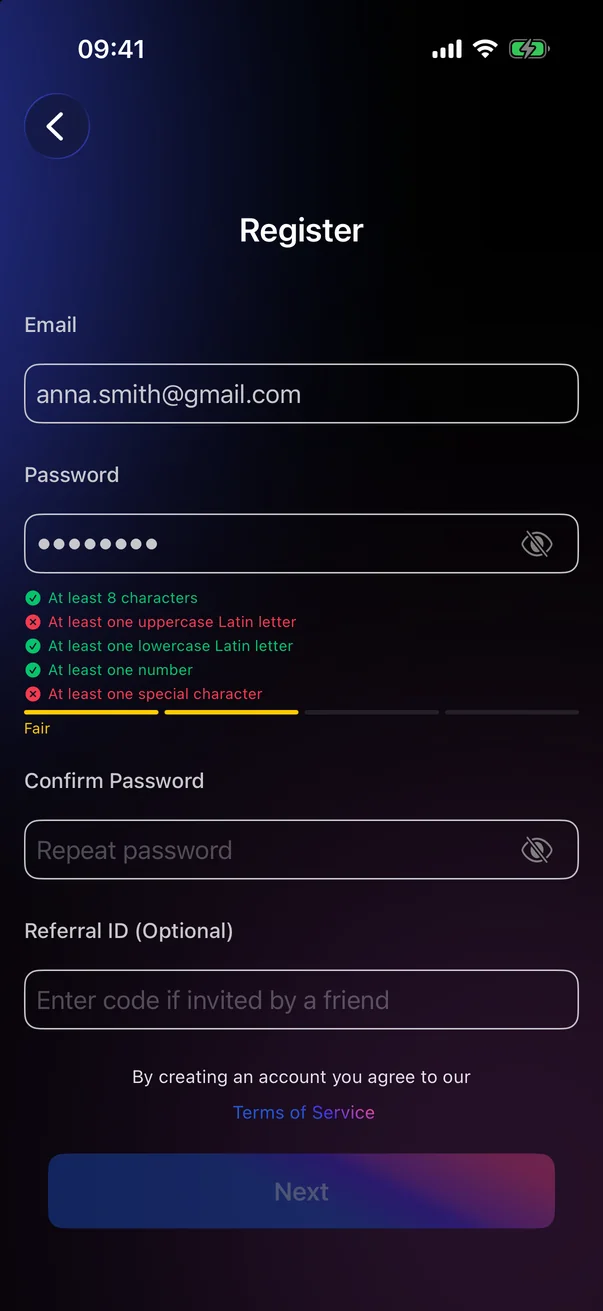
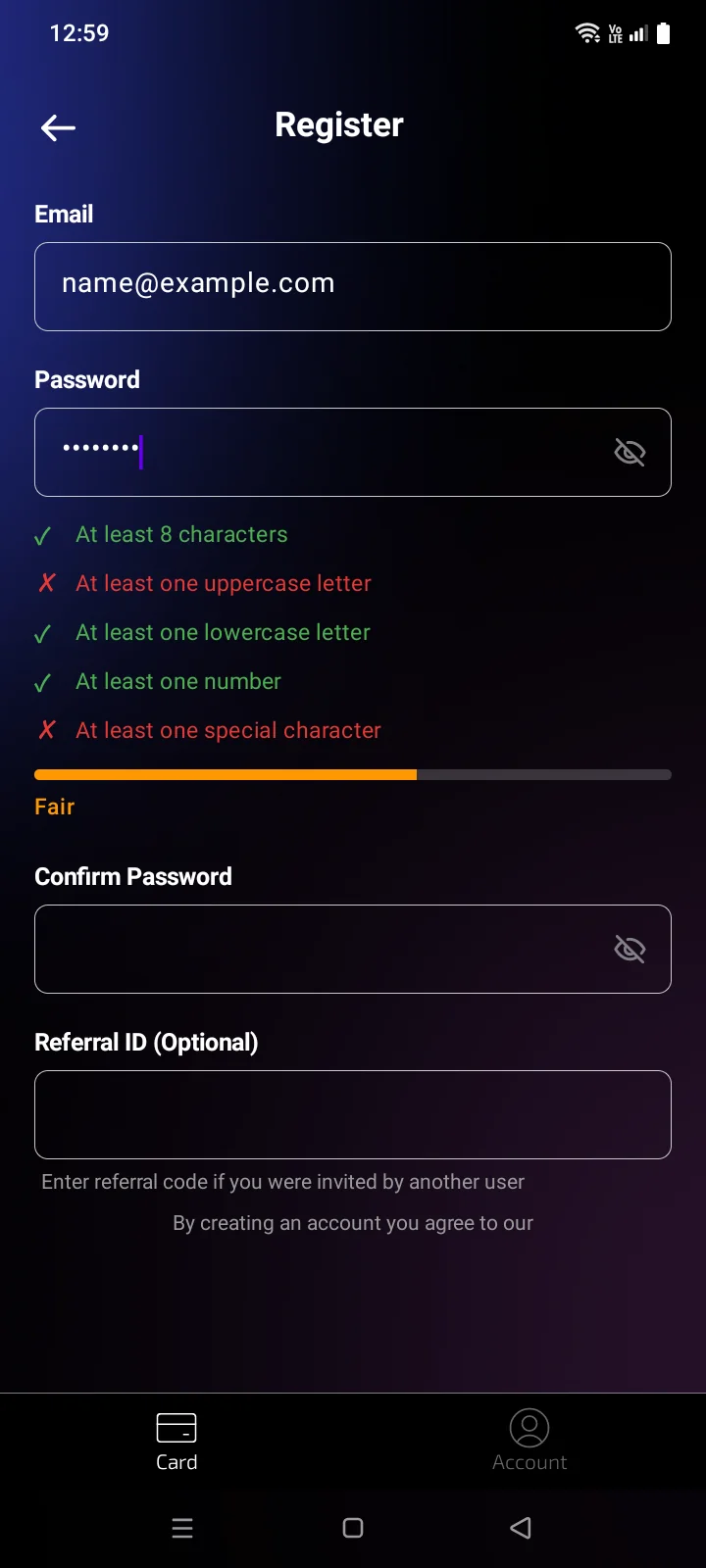
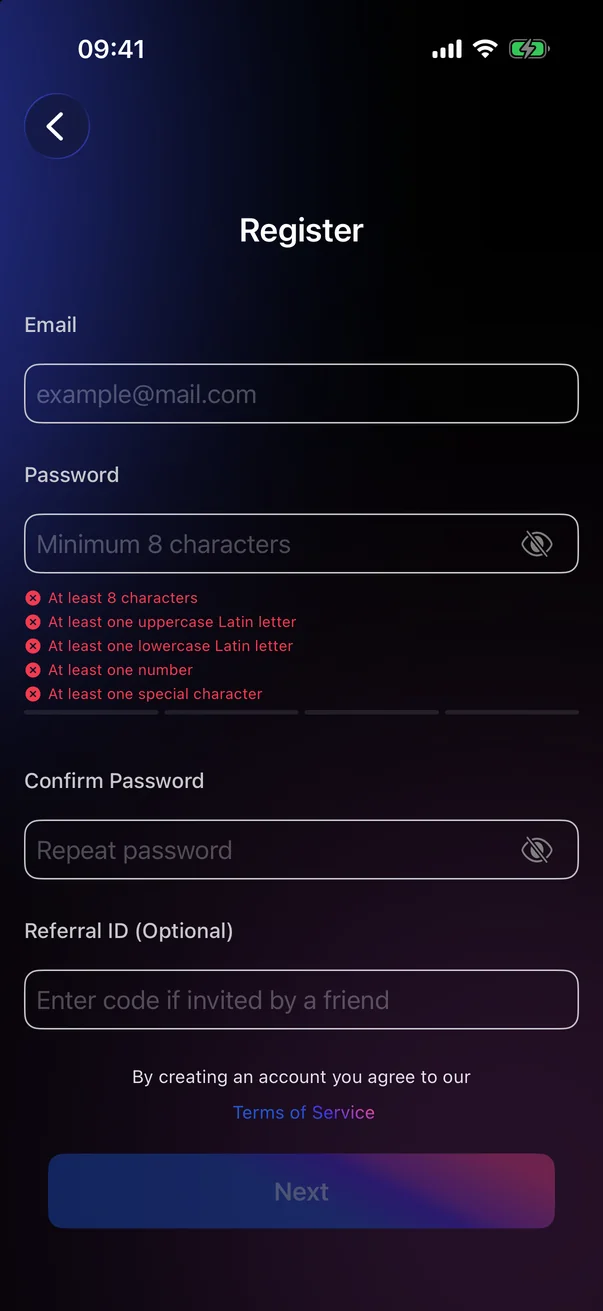
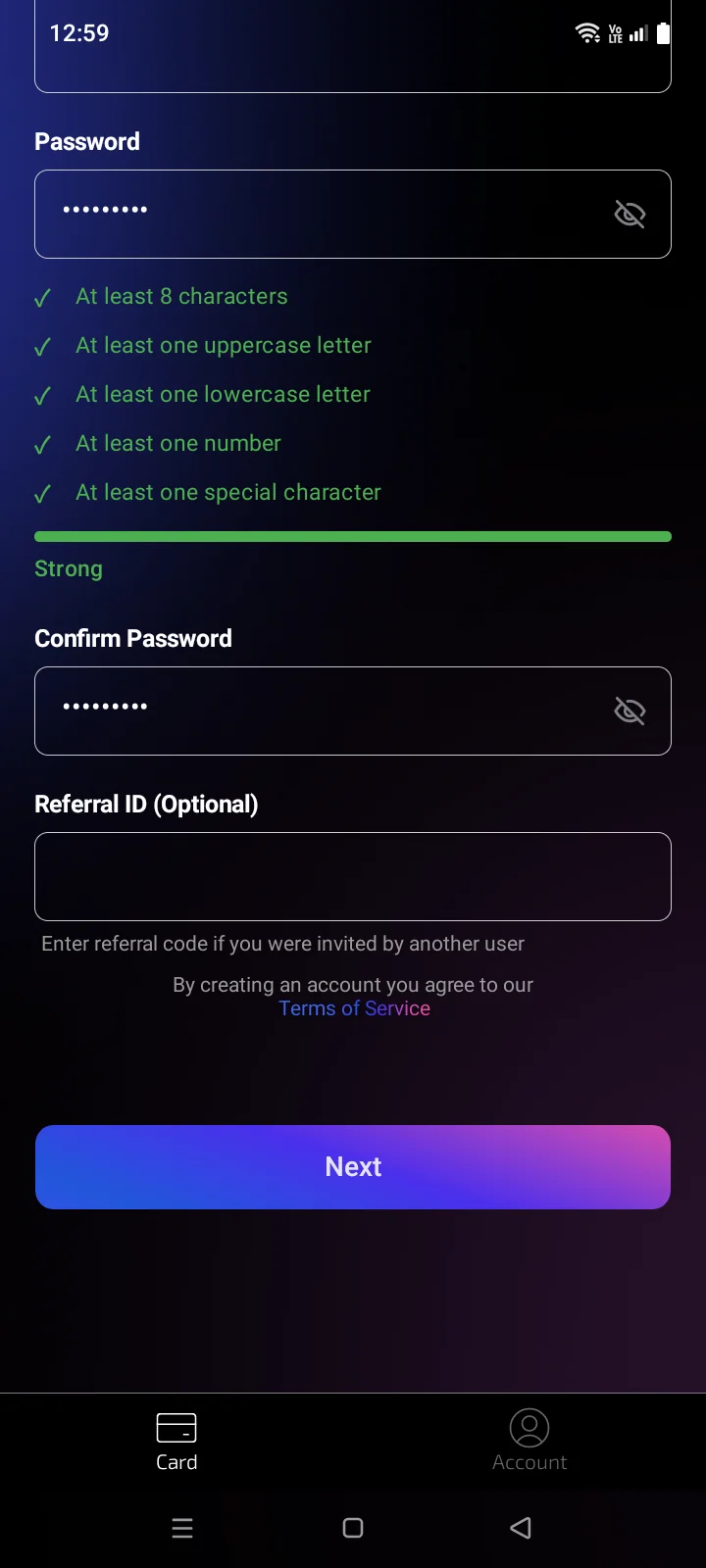
- Create a password. The list of requirements under the field shows which ones are already met; it appears as soon as you start typing (see below).
- Repeat the password in Confirm Password.
- If a friend invited you, enter their code in Referral ID (Optional).
- Tap Next. By creating an account you agree to the Terms of Service — tap the link to read them.
 1
2
3
4
5
6
7
1
2
3
4
5
6
7
| 1 | Email — your login and the address for verification codes. |
| 2 | Password — the eye icon shows or hides what you typed. |
| 3 | Requirements and strength bar — a green check next to each met requirement, a red cross next to each unmet one, and the password strength below. |
| 4 | Confirm Password — the same password again. |
| 5 | Referral ID — an invitation code from a friend, if you have one. |
| 6 | Terms of Service — opens the terms in the browser. |
| 7 | Next — becomes active when email, password and confirmation are filled in and the address isn't in the .ru domain. The email format, the password match and the password requirements are checked after you tap it. |
 1
2
3
4
5
6
1
2
3
4
5
6
| 1 | Email — your login and the address for verification codes. |
| 2 | Password — the eye icon shows or hides what you typed. |
| 3 | Requirements and strength bar — a green check next to each met requirement, a red cross next to each unmet one, and the password strength below.Appears when you start typing the password. |
| 4 | Confirm Password — the same password again. |
| 5 | Referral ID — an invitation code from a friend, if you have one. The hint under the field reads Enter referral code if you were invited by another user. |
| 6 | Terms of Service — opens the terms in the browser. |
| 7 | Next — becomes active when the email is valid, the password meets all requirements and the confirmation field is filled in. |
Email requirements
- Before the @: Latin letters, digits and the characters
. _ % + -. _ + -. - After the @: a domain of Latin letters, digits, dots and hyphens, ending with a dot and a zone of 2 to 64at least 2 Latin letters, for example .com or .online.
- Addresses with non-Latin characters, for example in the .рф zone, aren't accepted. Spaces can't be used.
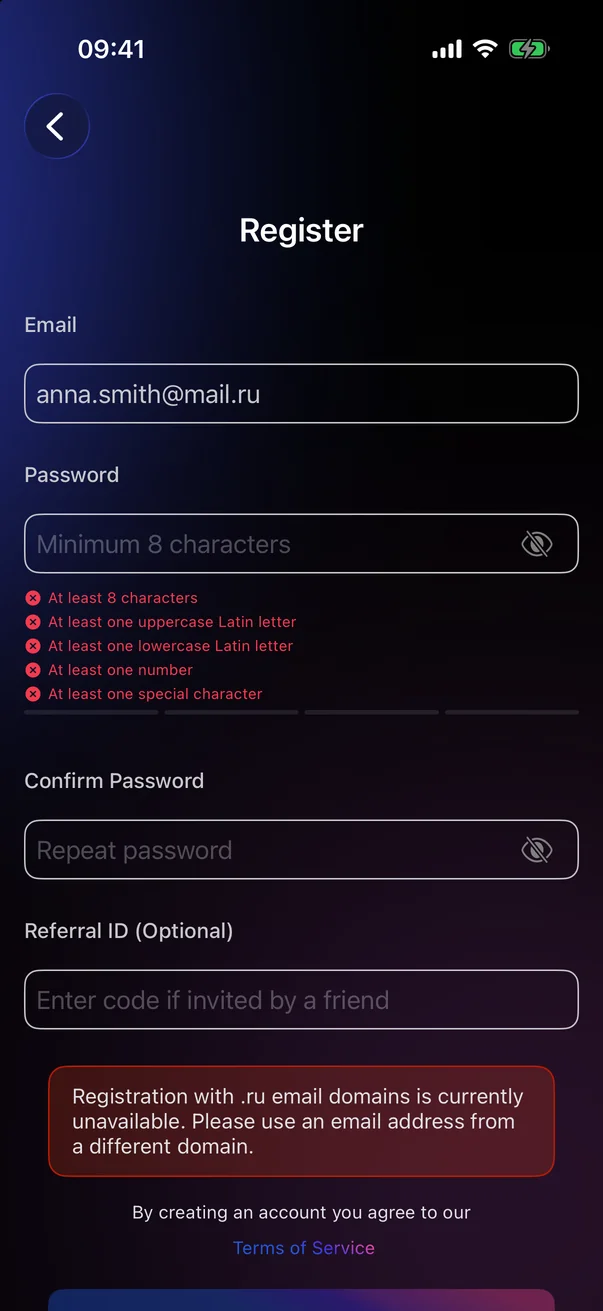
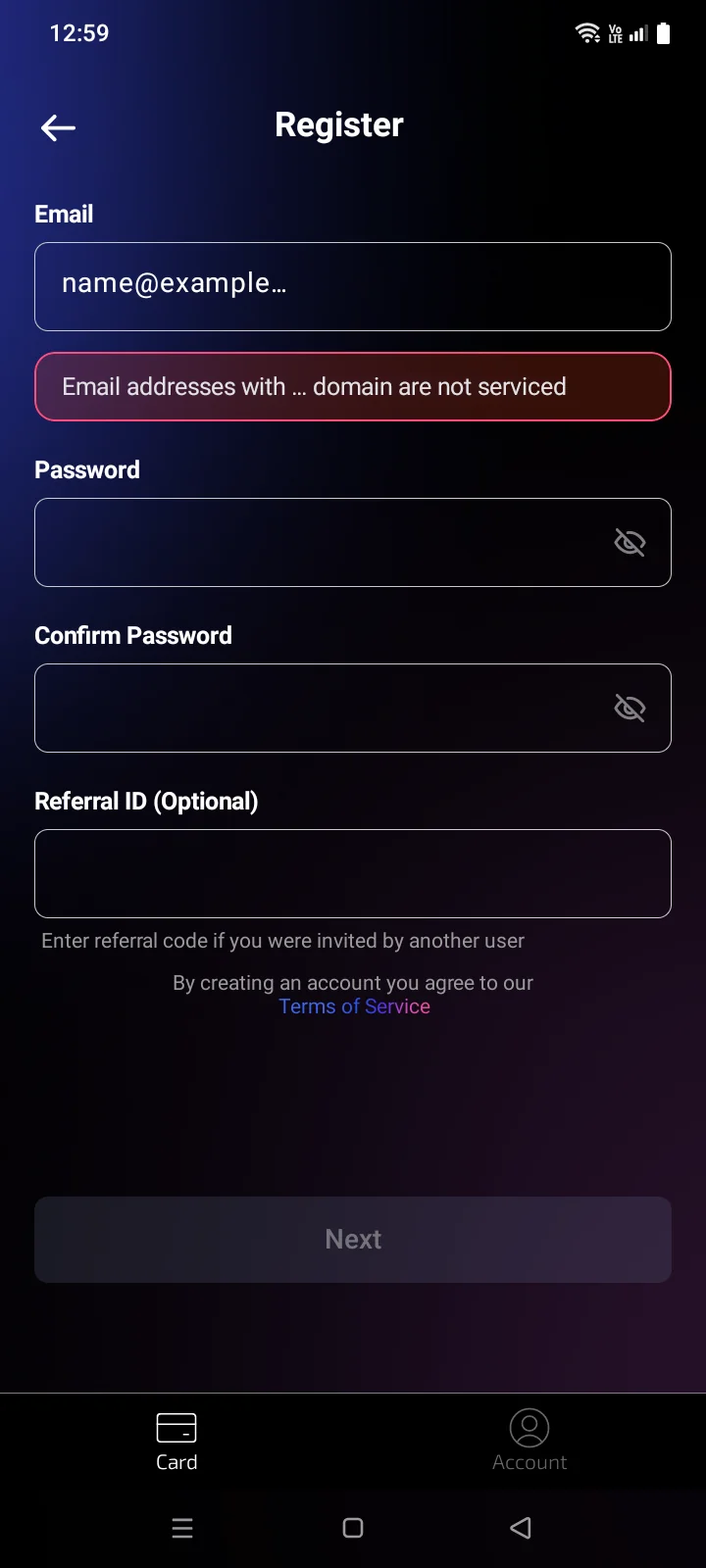
- Addresses in the .ru zone can't be used for registration (see below).
The app doesn't limit the length of the name or the domain.
Until the address meets these requirements, Next stays inactive.
Password requirements
The password must meet all fivesix requirements:
- at least 8 characters;
- at least one uppercase Latin letter;
- at least one lowercase Latin letter;
- at least one number;
- at least one special character.;
- Latin letters only, no spaces.
Any character that isn't a letter, a digit or a space counts as a special character, for example ! @ # $ % ^ & * ( ) _ - + = [ ] { } ; : ' " , . / ? \ | ~ `. There is no list of allowed special characters. Only Latin letters, digits and special characters can be used: non-Latin letters (for example, Cyrillic) and spaces aren't allowed. Such characters can't be typed, and spaces in pasted text are removed.
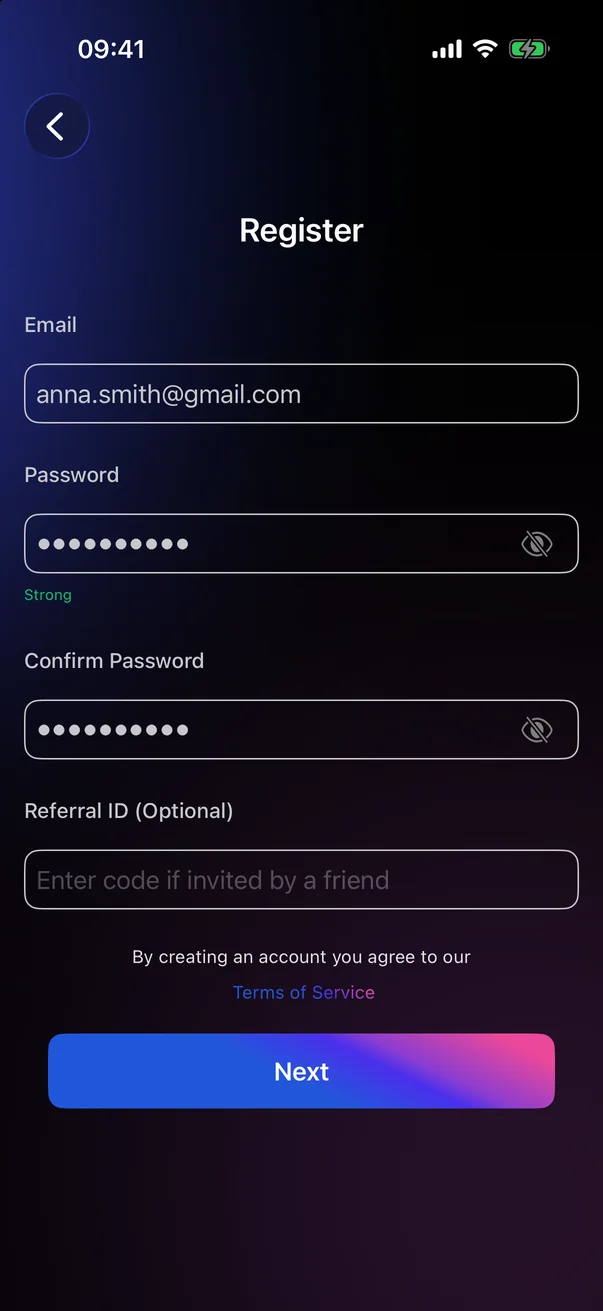
While you type, the strength label shows Weak, Fair or Good. When all requirements are met, the checklist folds away and only Strong remains.
While you type, the bar shows Weak, Fair, Good or Strong. Strong appears only when all six requirements are met — that's also when Next becomes active.
Confirm your email
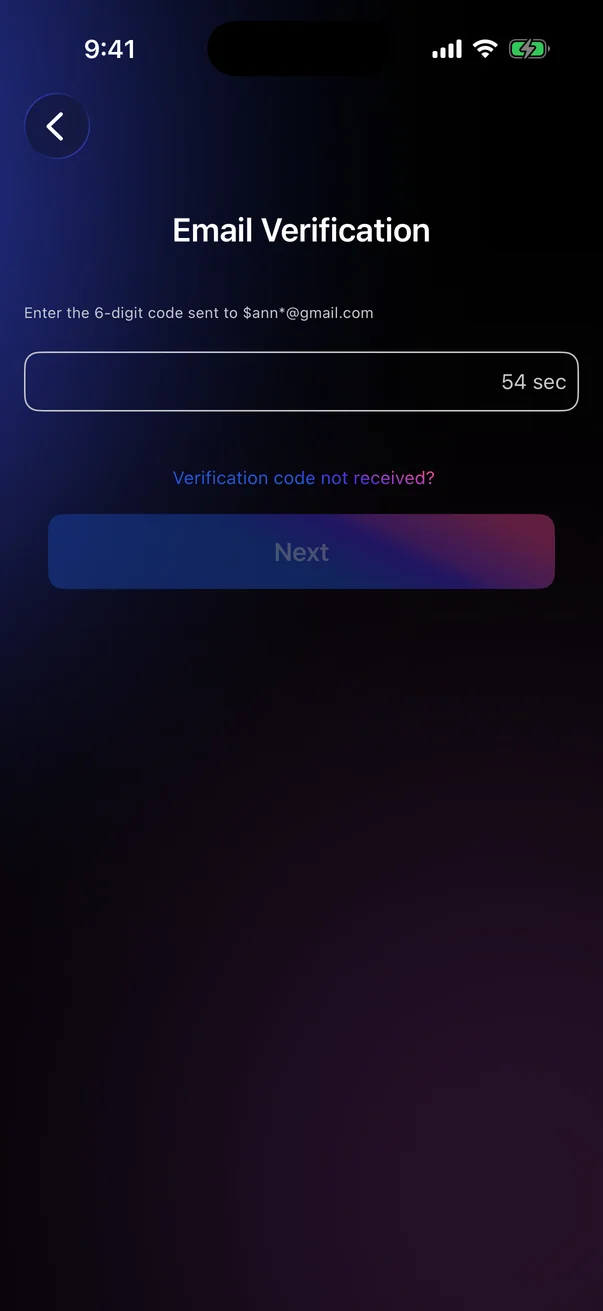
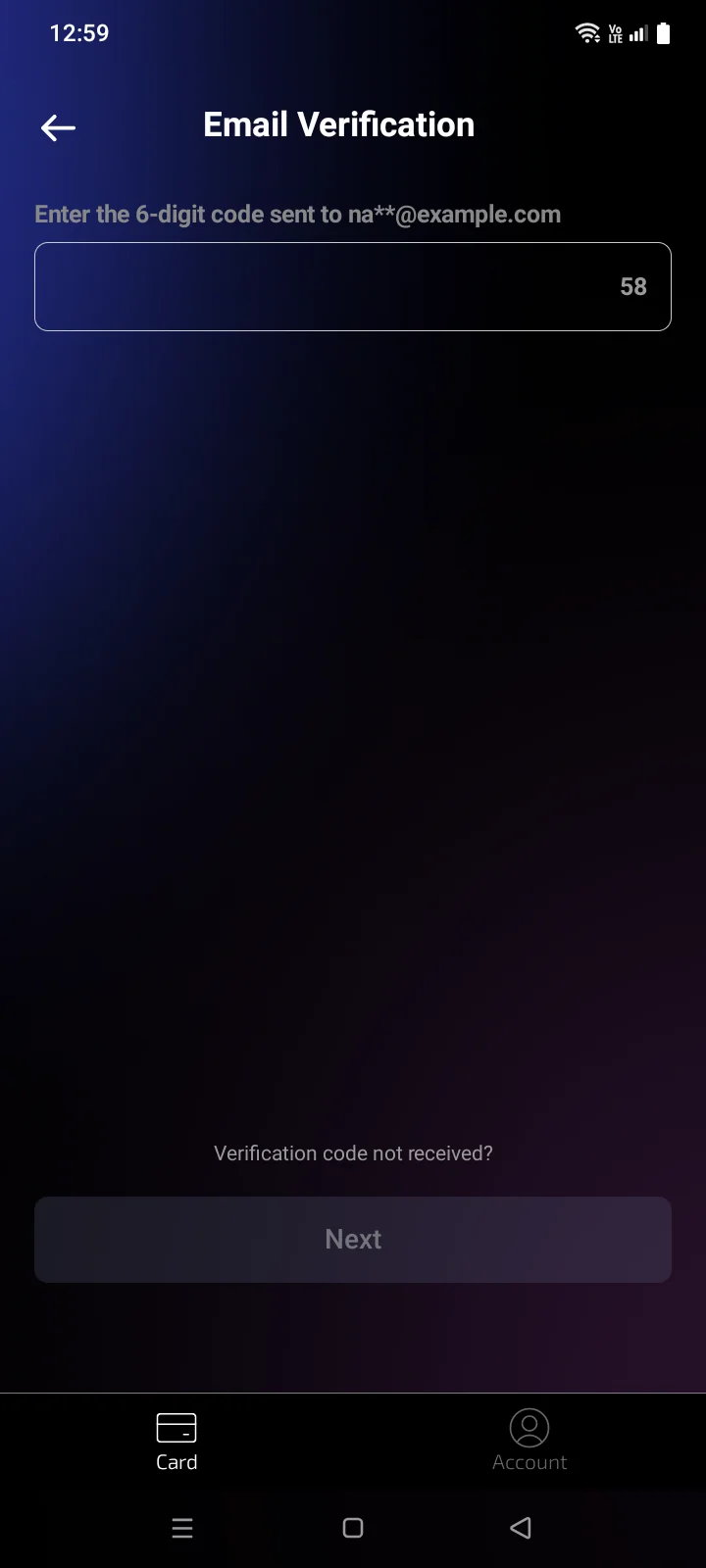
After you tap Next, a 6-digit code is sent to your email and the Email Verification screen opens.
- Find the email with the code. The screen shows which address it was sent to.
- Enter the code and tap Next.
- The account is created and you are signed in. The Crypto tab appears in the tab bar, and the CardsCard tab offers to choose your first card — see 2.2 Choosing and ordering a card.
 1
2
3
4
1
2
3
4
| 1 | Code field — the hint shows the address the code was sent to (partly hidden). |
| 2 | Countdown — after 60 seconds it turns into Get Code: tap it to receive a new code. The banner New code sent confirms it. |
| 3 | Verification code not received? — tips if the email hasn't arrived. |
| 4 | Next — confirms the code. Active as soon as the field isn't empty; the server checks that the code is exactly 6 digits. |
 1
2
3
4
1
2
3
4
| 1 | Code field — the address the code was sent to is shown above it (partly hidden). Digits only. |
| 2 | Countdown — after 60 seconds it turns into Get Code: tap it to receive a new code. The field is cleared, Confirmation code sent to your email address confirms the code was sent, and the countdown starts again. |
| 3 | Verification code not received? — tips if the email hasn't arrived. |
| 4 | Next — becomes active once all 6 digits are entered. |
If the code doesn't arrive
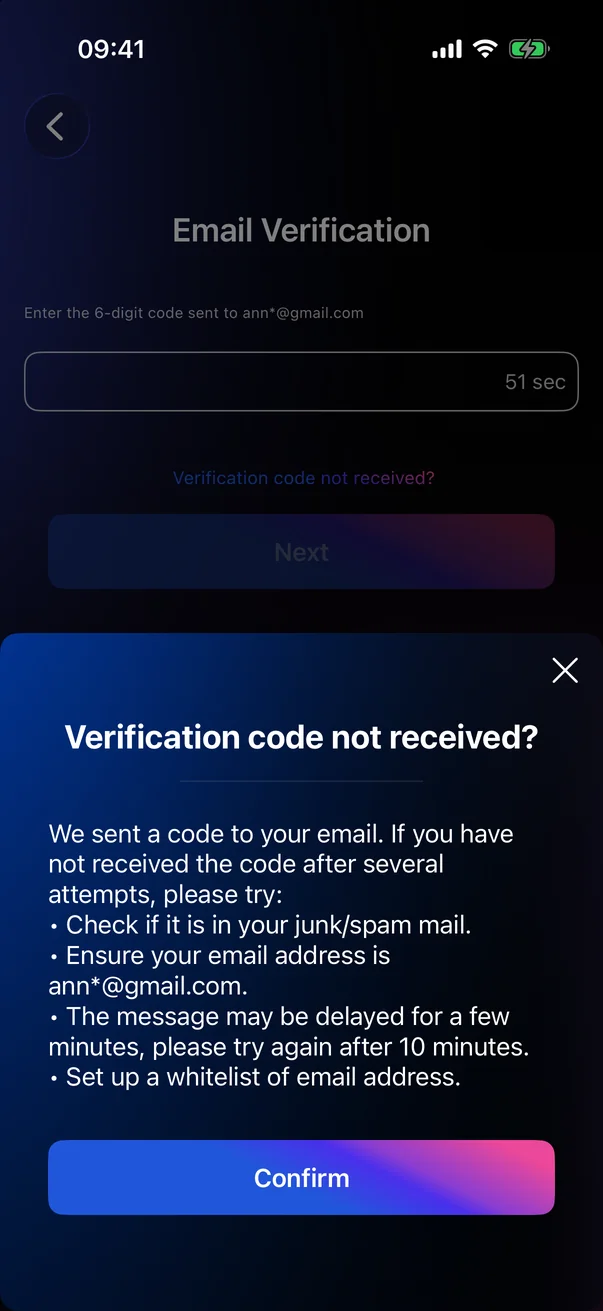
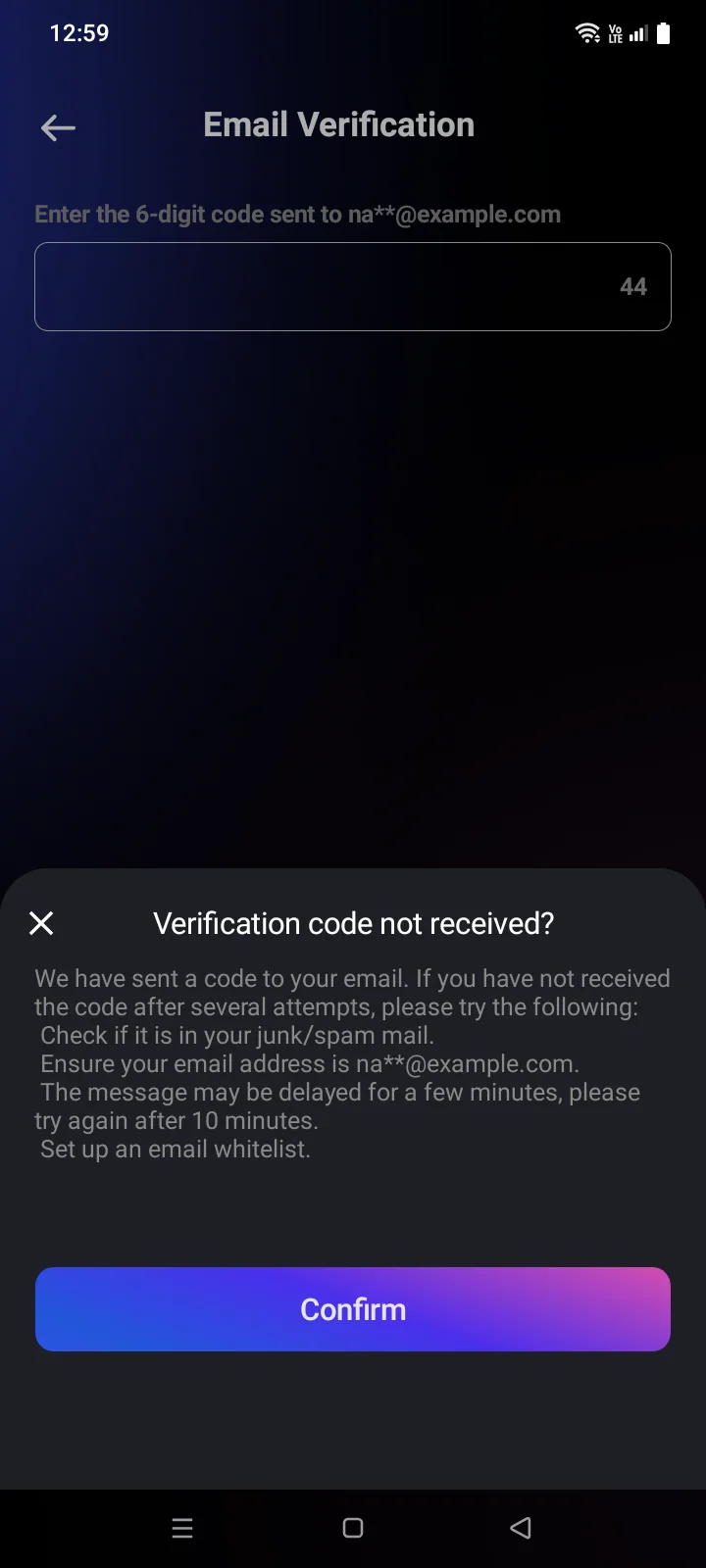
Tap Verification code not received?. The panel suggests what to check:
- look in the junk or spam folder;
- make sure the email address shown is correct;
- the email may be delayed — try again in 10 minutes;
- add the sender to your email whitelist.
Tap Confirm to close the panel. To get a new code, wait for the countdown to end and tap Get Code.
If something goes wrong
| Message | What to do |
|---|---|
| Invalid email format. | Check the email for typos. |
| Registration with .ru email domains is currently unavailable. Please use an email address from a different domain.Email addresses with … domain are not serviced | Registration with a .ru address isn't available. Use an email in another domain. |
| The passwords do not match. | Enter the same password in both fields. |
| The password does not meet the requirementsThe password must be at least 8 characters long and contain an uppercase and a lowercase Latin letter, a digit and a special character, with no spaces | Make sure the password meets all the requirements — check the list under the field (see Password requirements). Usually this message doesn't appear: Next is active only when the password meets all requirements. |
| This email is already in use. | An account with this email already exists. Sign in (see 1.3) or recover your password (see 1.4). |
| An error occurred | Try again. If you already have an account with this email, sign in (see 1.3) or recover your password (see 1.4). |
| Verification code expired or invalid email.Verification error — Incorrect or expired code | Check the code in the latest email. If it has expired, tap Get Code when the countdown ends and enter the new code. |
| Too many attempts. Please request a new code. | Wait for the countdown, tap Get Code and enter the new code. |
| Connection error. Please check your internet connection and try again | Check your internet connection and try again. |
| Service is temporarily unavailable. Please try again in a few minutes.Server error. Please try again later | Try again later. |