
1.5App passcode and biometrics
A 6-digit app passcode keeps other people out of Cryptolink, even if they pick up your unlocked phone. You can also unlock the app with Face ID or Touch IDyour fingerprint or face (depending on your phone). All of this is set up in Account › App › Security.
Turn on the passcode
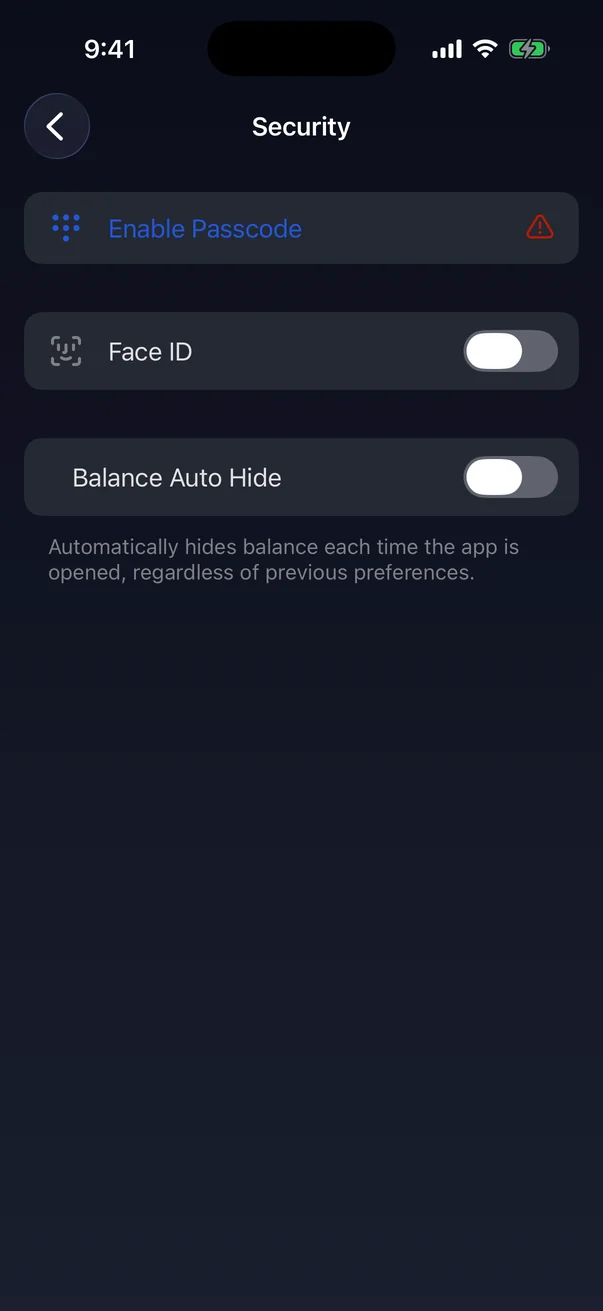
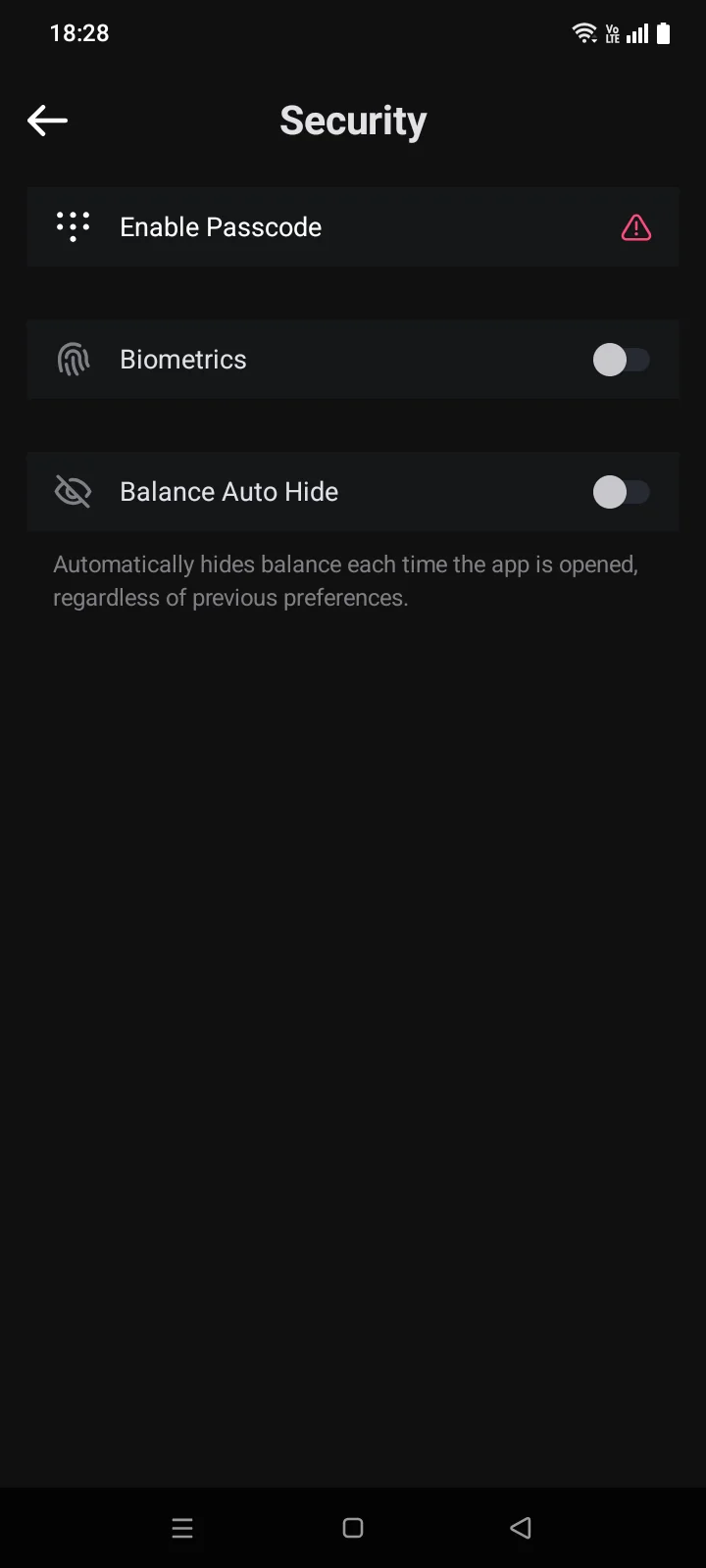
- Open Account › App › Security. While no passcode is set, the Enable Passcode row is marked with a warning icon.
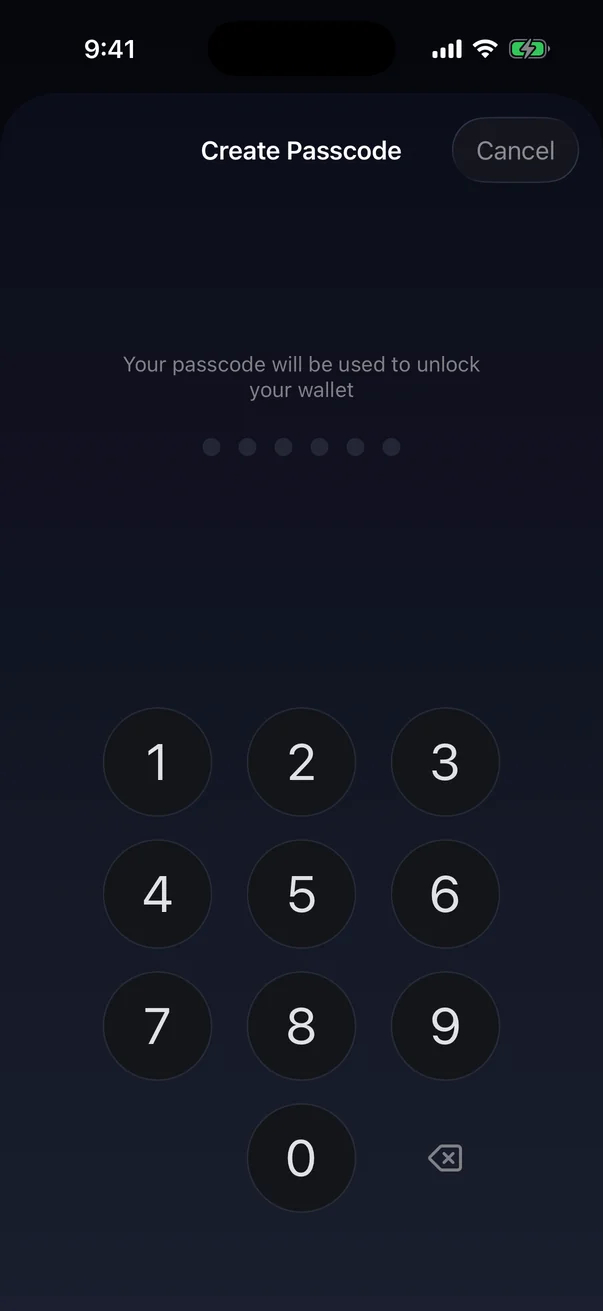
- Tap Enable Passcode. The Create Passcode screen opens.
- Enter 6 digits. The app moves on by itself after the sixth digit.
- Enter the same 6 digits again to confirm. The passcode is saved and the screen closes.
 1
2
3
4
1
2
3
4
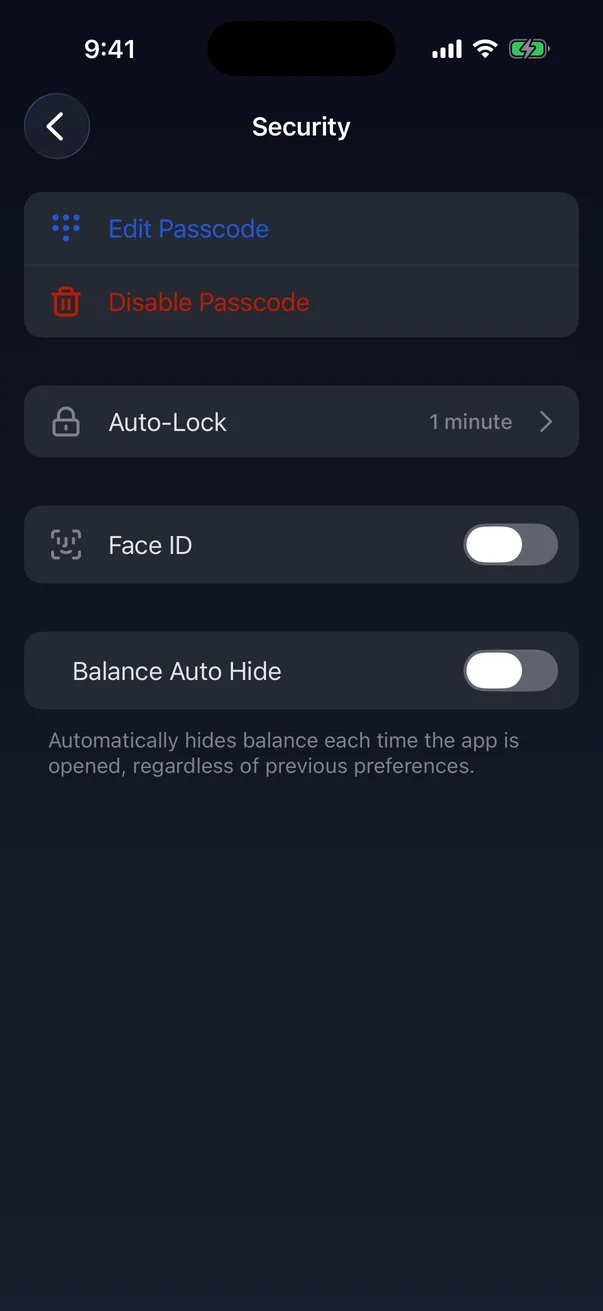
| 1 | Enable Passcode — creates the app passcode. |
| 2 | Warning icon — the app isn't protected by a passcode yet. |
| 3 | Face ID / Touch ID — unlock with biometrics (see below).Only on an iPhone with Face ID or Touch ID. |
| 4 | Balance Auto Hide — hides crypto wallet balances every time you open the app, whatever you chose before. Card balances on the Cards tab are not hidden. |
 1
2
3
1
2
3
| 1 | Enable Passcode — creates the app passcode. The red icon on the right means the app isn't protected by a passcode yet. |
| 2 | Biometrics — unlock with your fingerprint or face (see below).Only if a fingerprint or face unlock is set up on the phone. |
| 3 | Balance Auto Hide — hides the balance every time you open the app, whatever you chose before. |
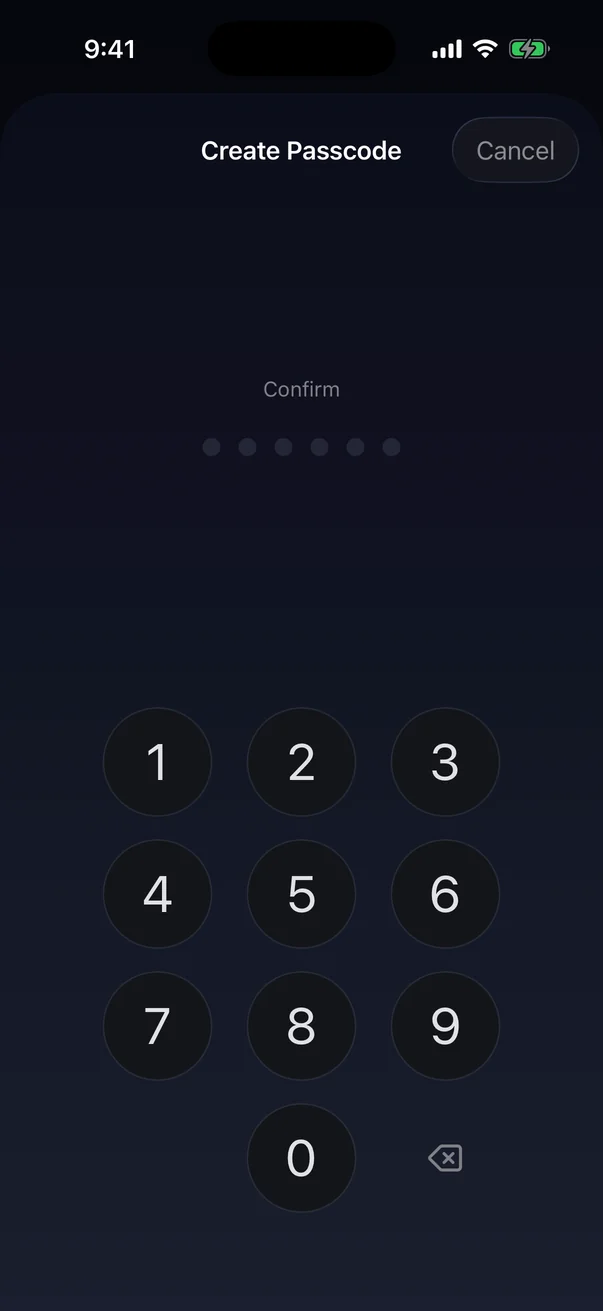
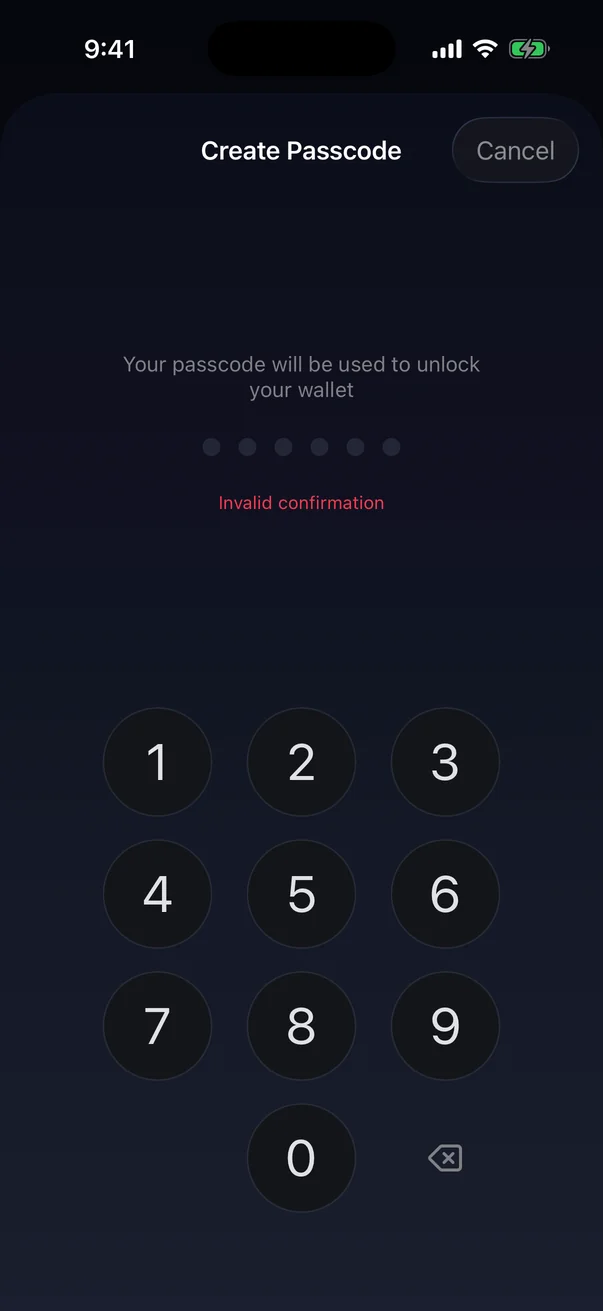
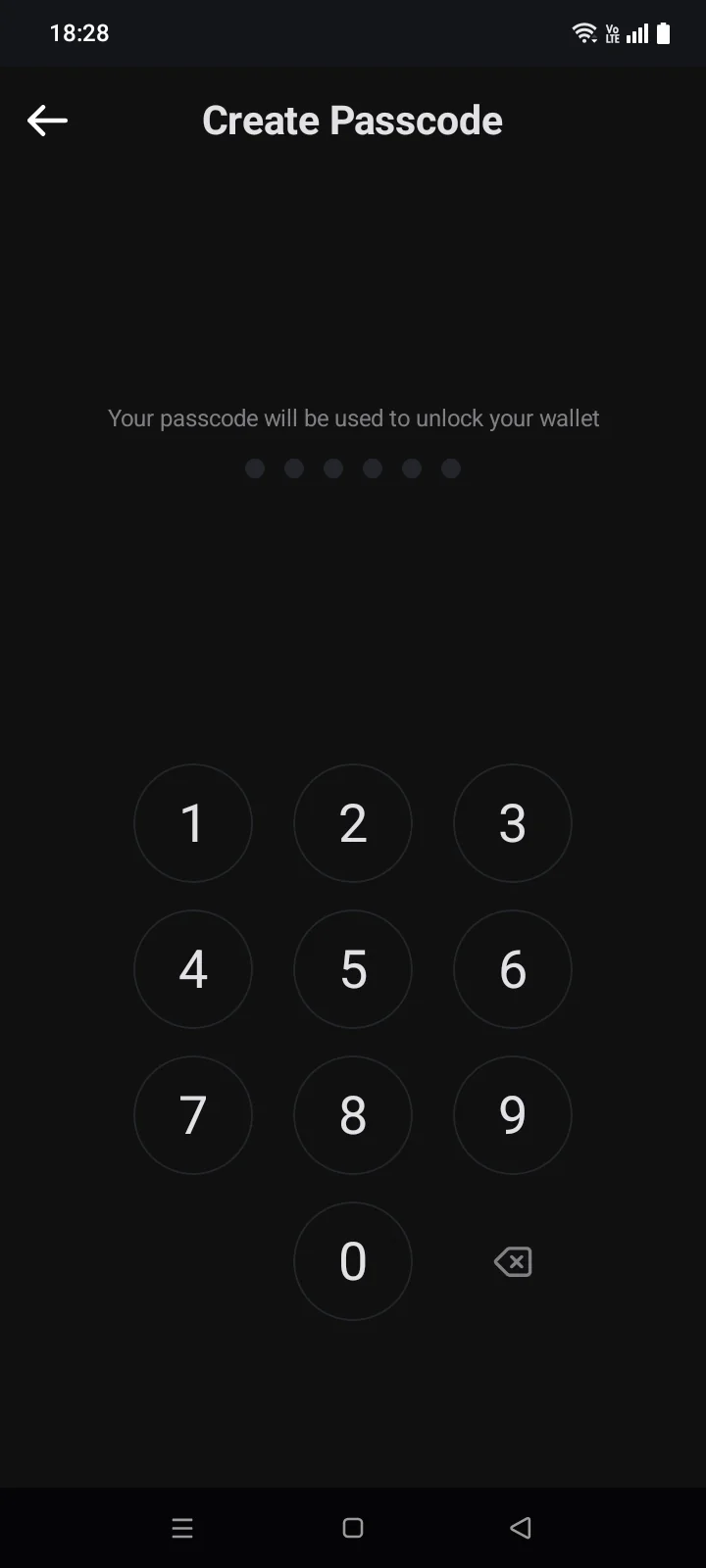
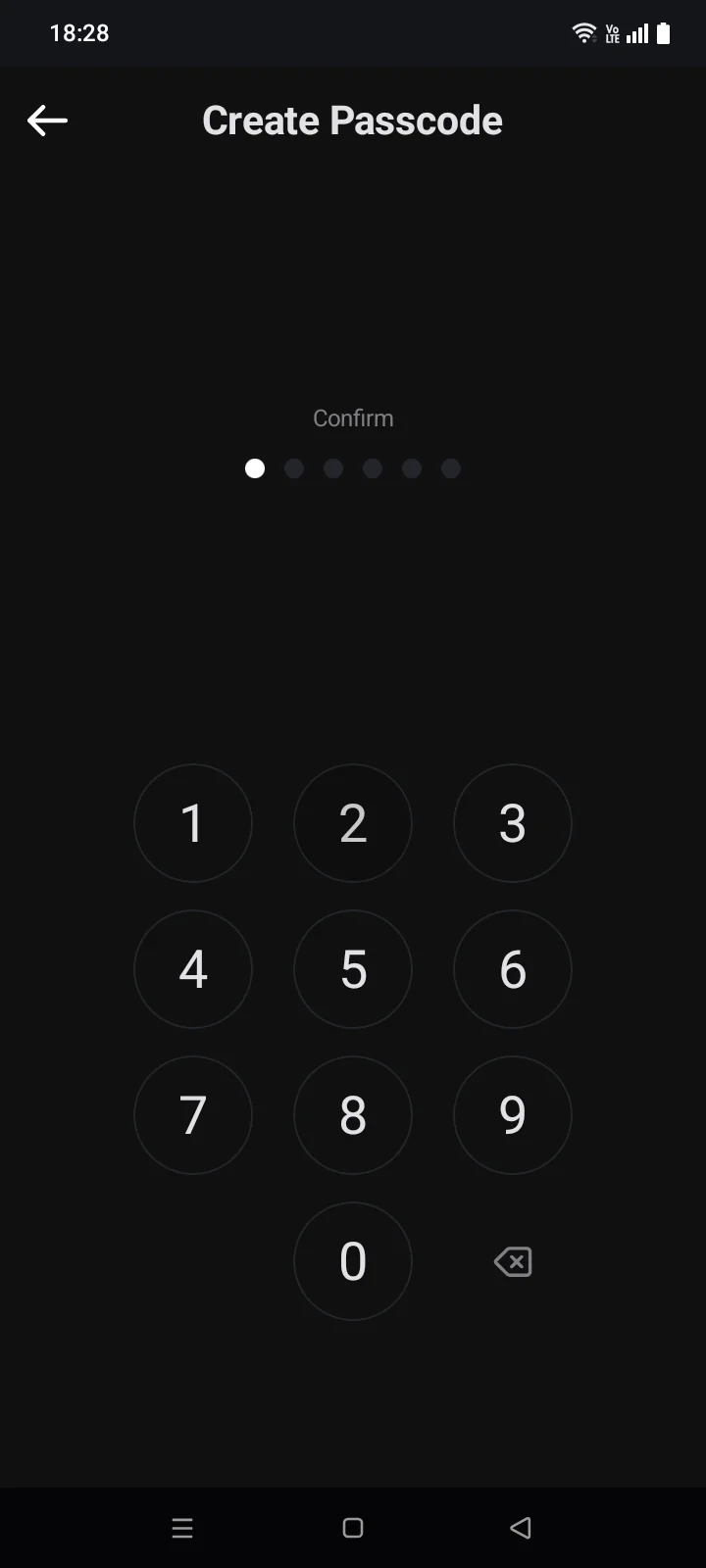
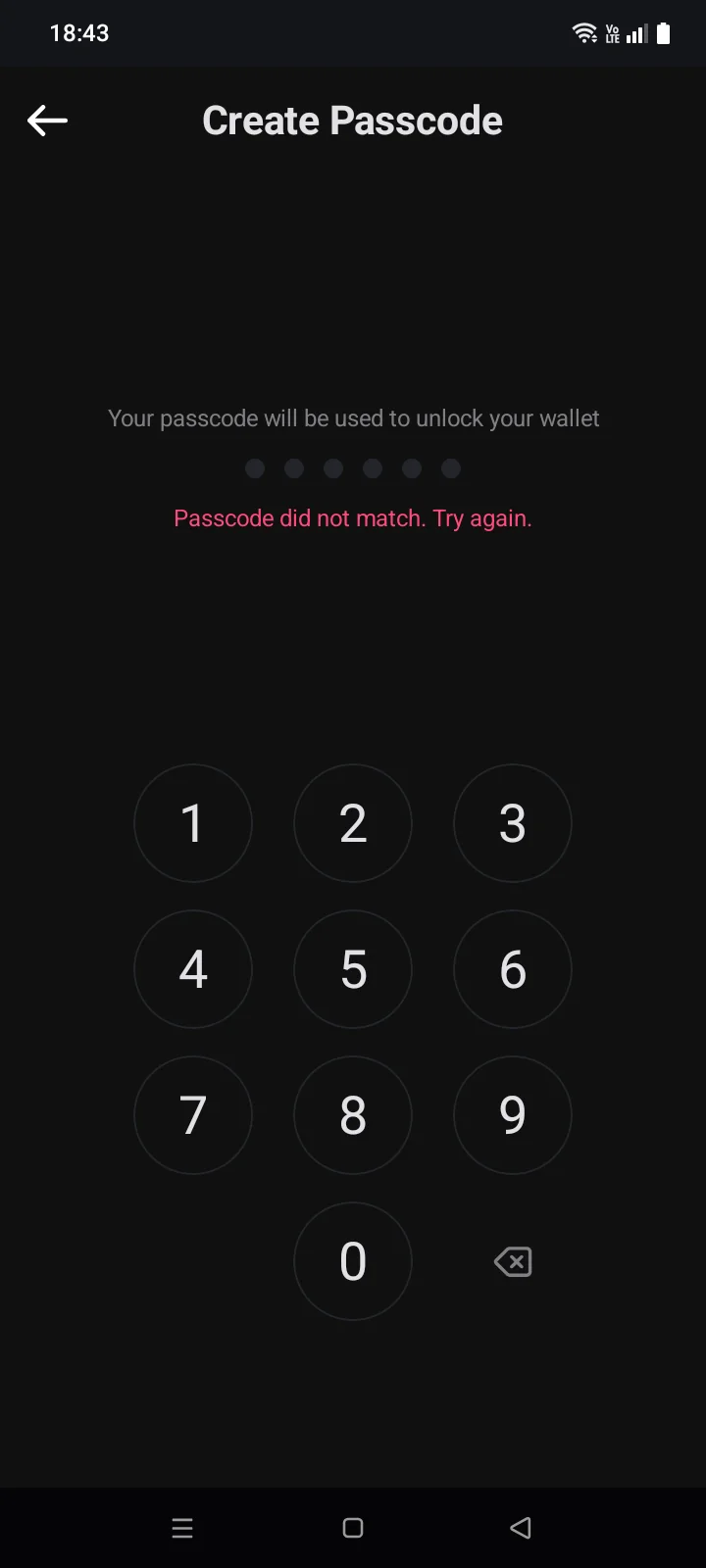
If the two entries differ, the message Invalid confirmationPasscode did not match. Try again. appears and you start over. To stop without saving, tap Cancelthe back arrow at the top of the screen.
Unlock the app
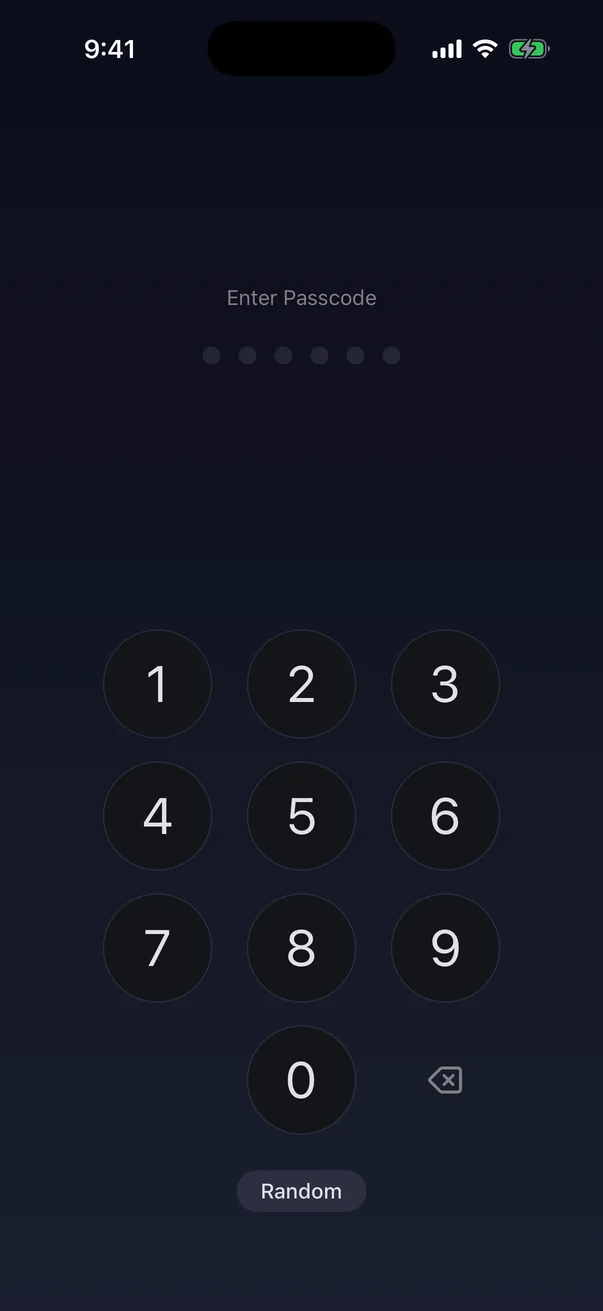
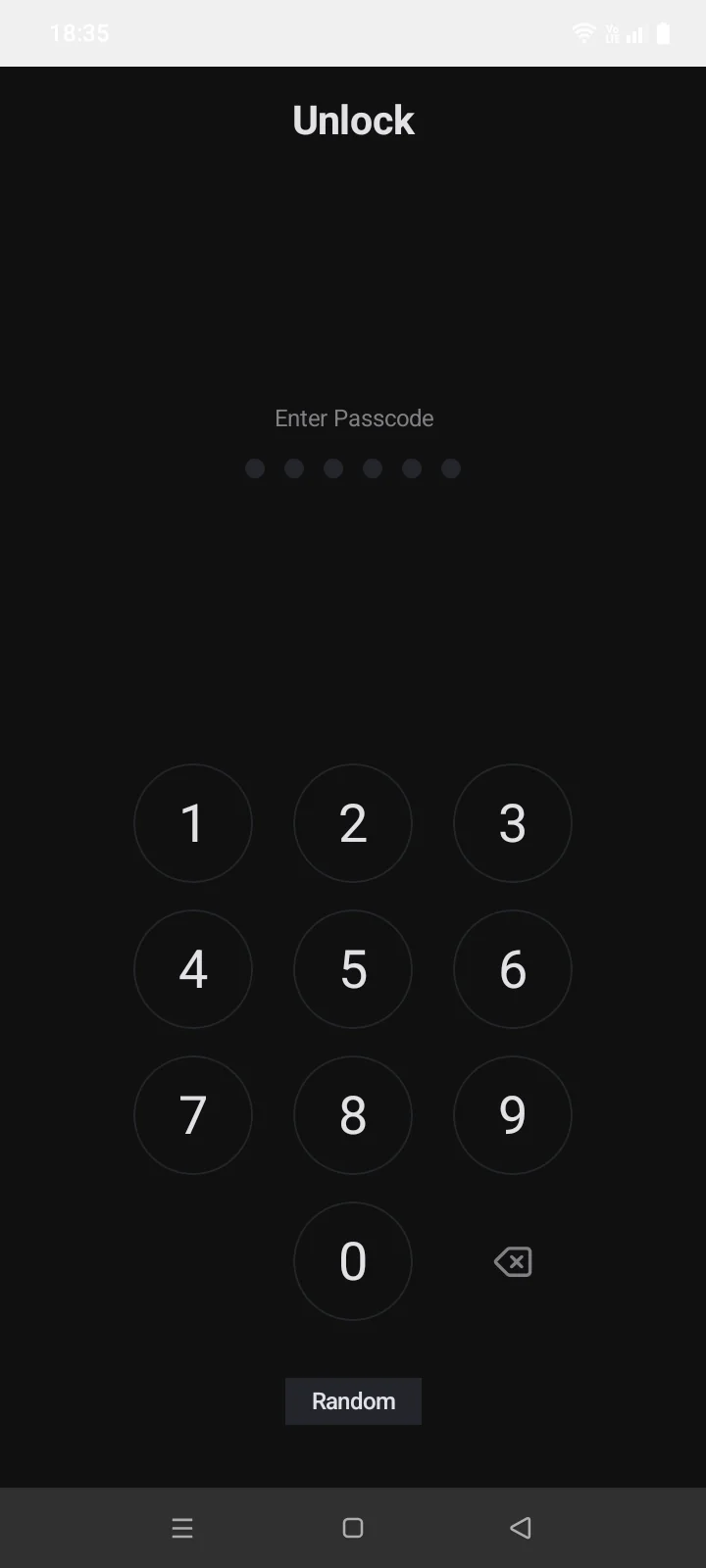
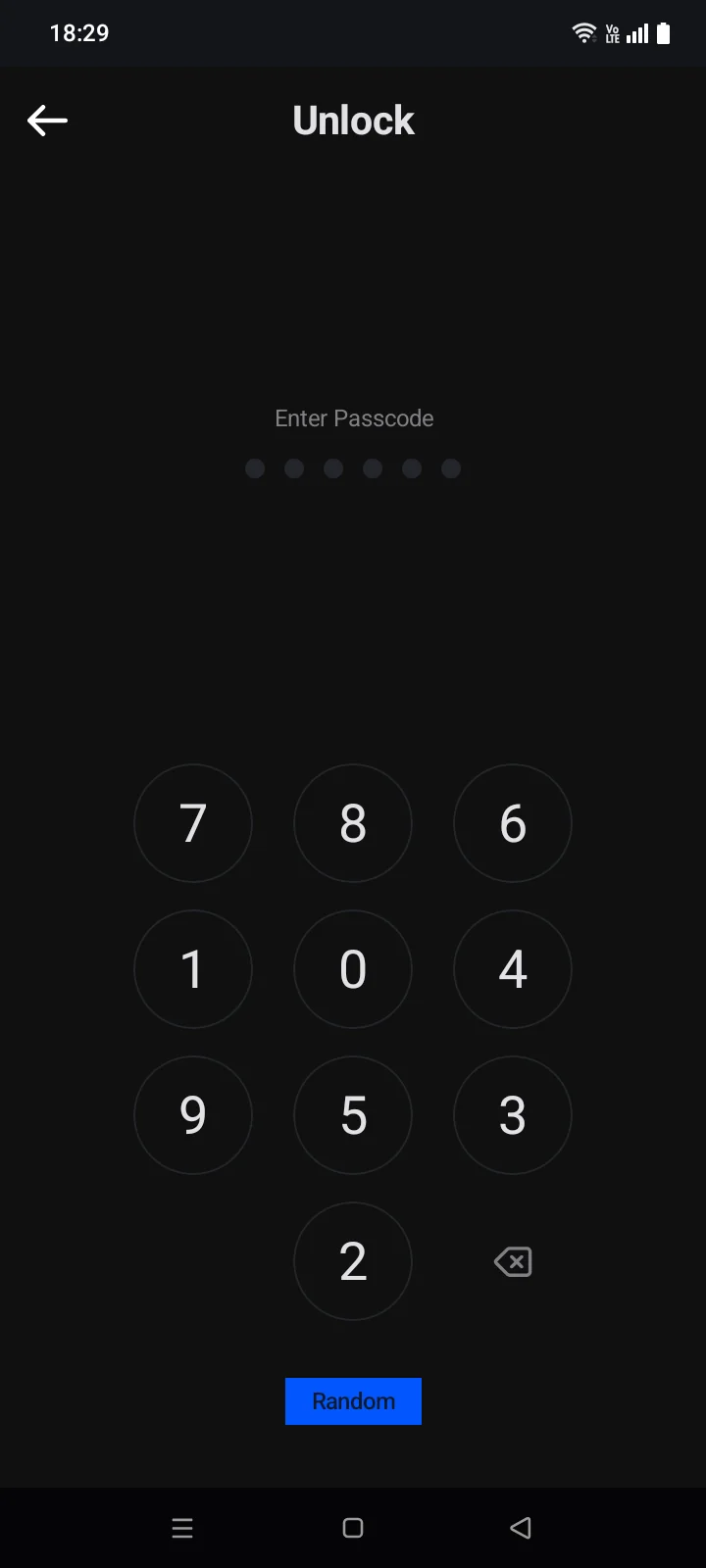
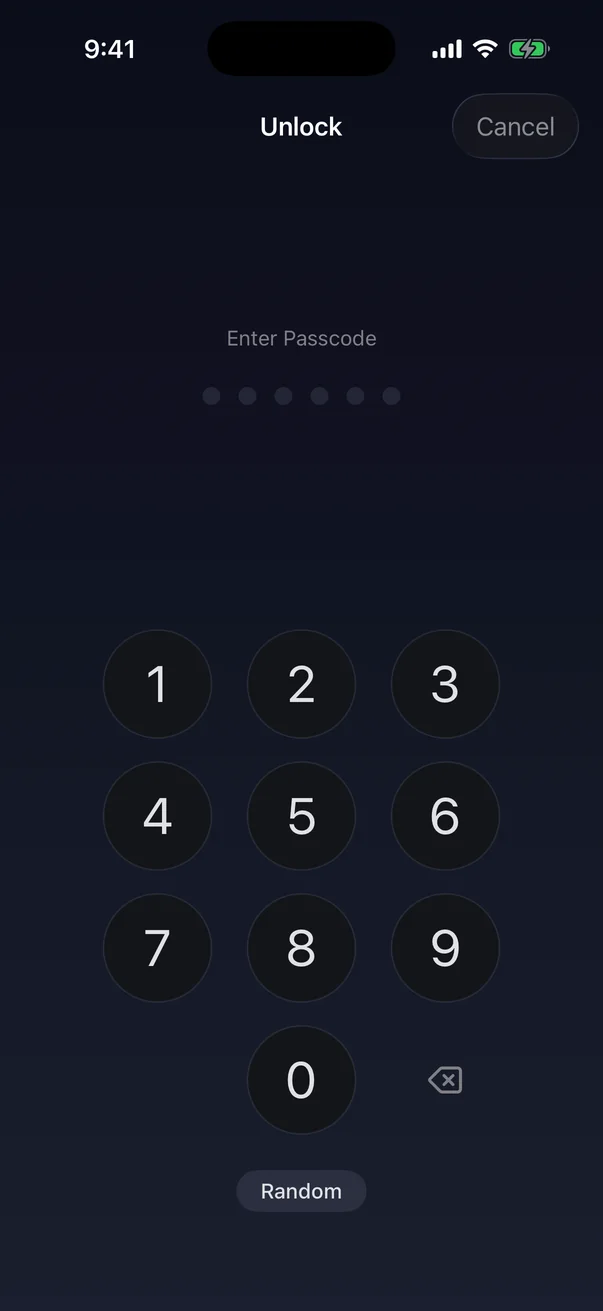
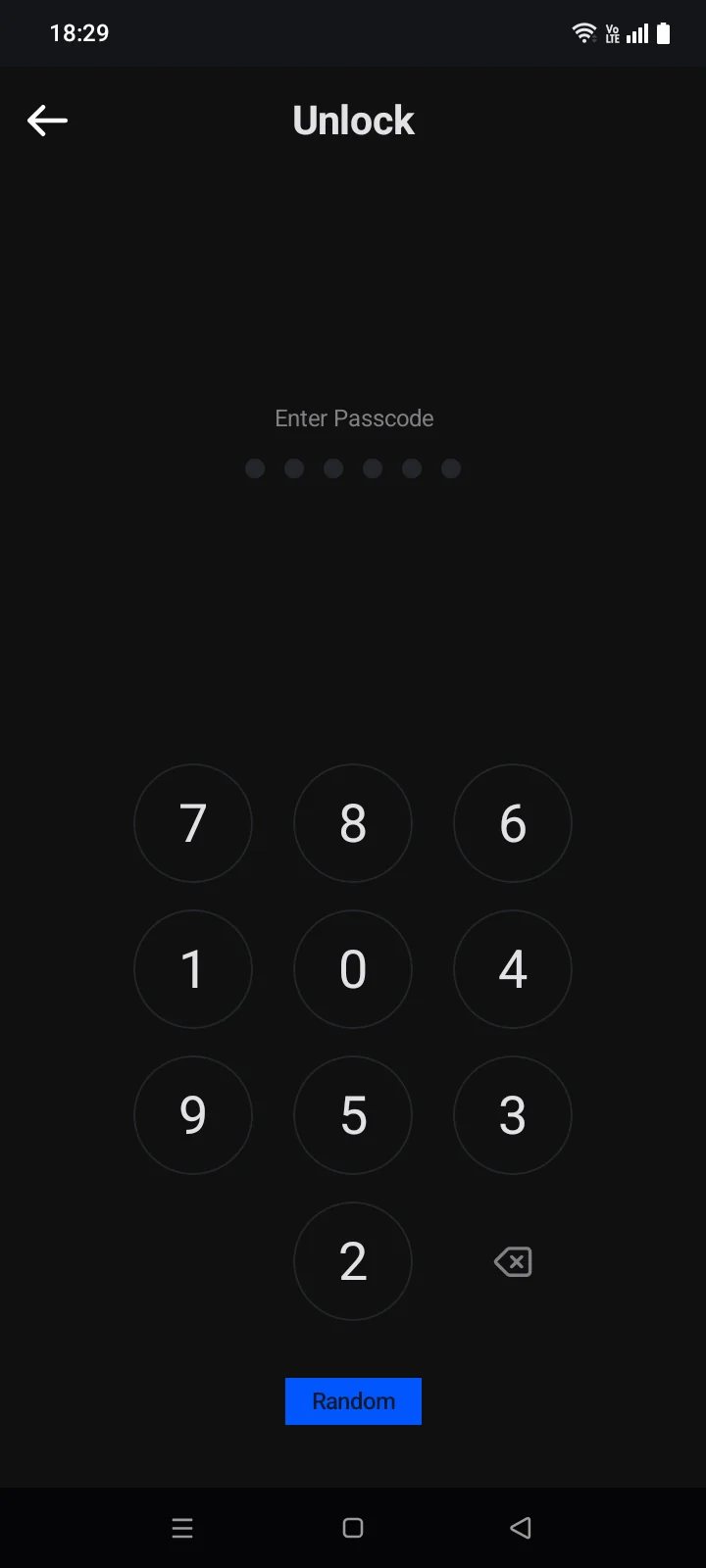
With a passcode set, Cryptolink asks for it every time you open the app, and when you return to it after the Auto-Lock period (see below).
 1
2
3
4
1
2
3
4
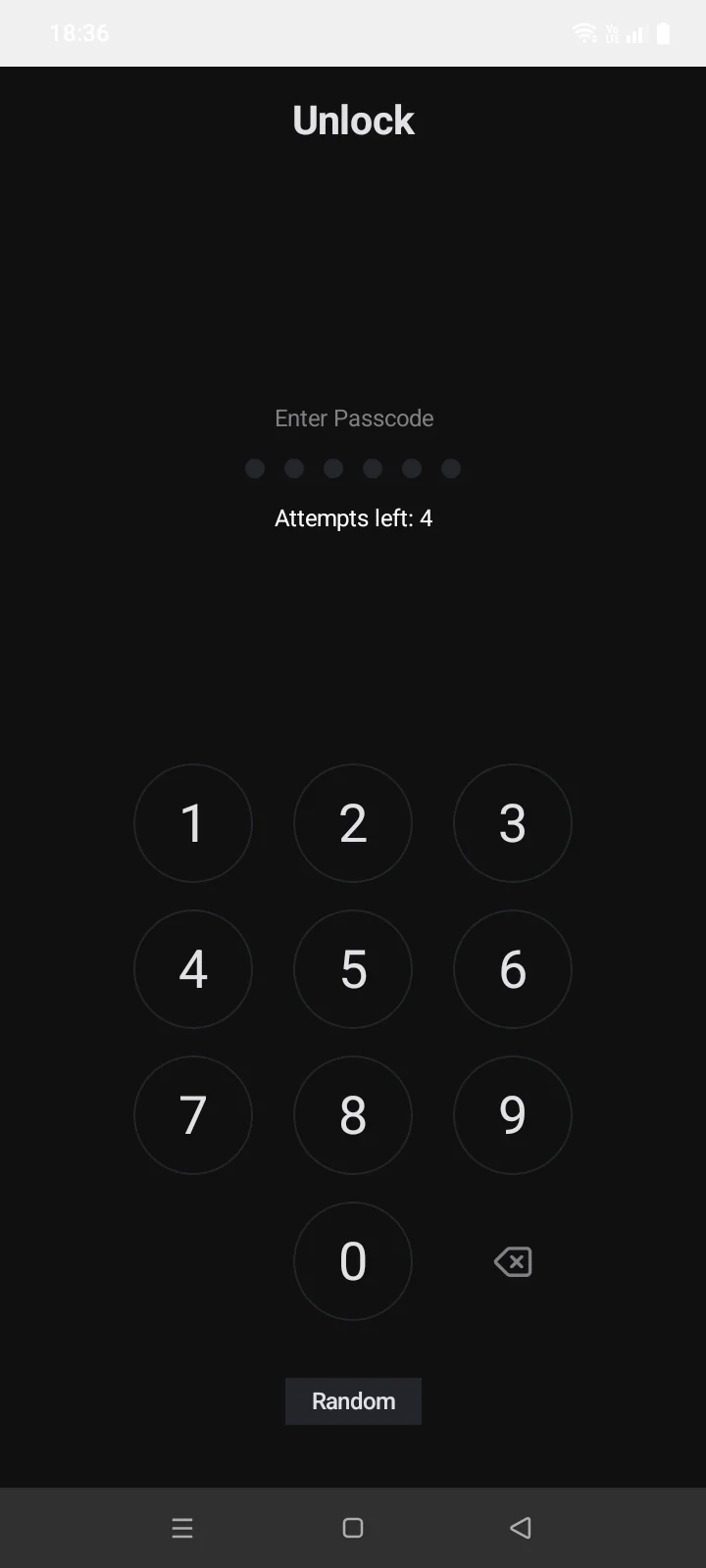
| 1 | Enter Passcode — the prompt. |
| 2 | Dots — fill in as you type. The passcode is checked right after the sixth digit. |
| 3 | Delete — removes the last digit. |
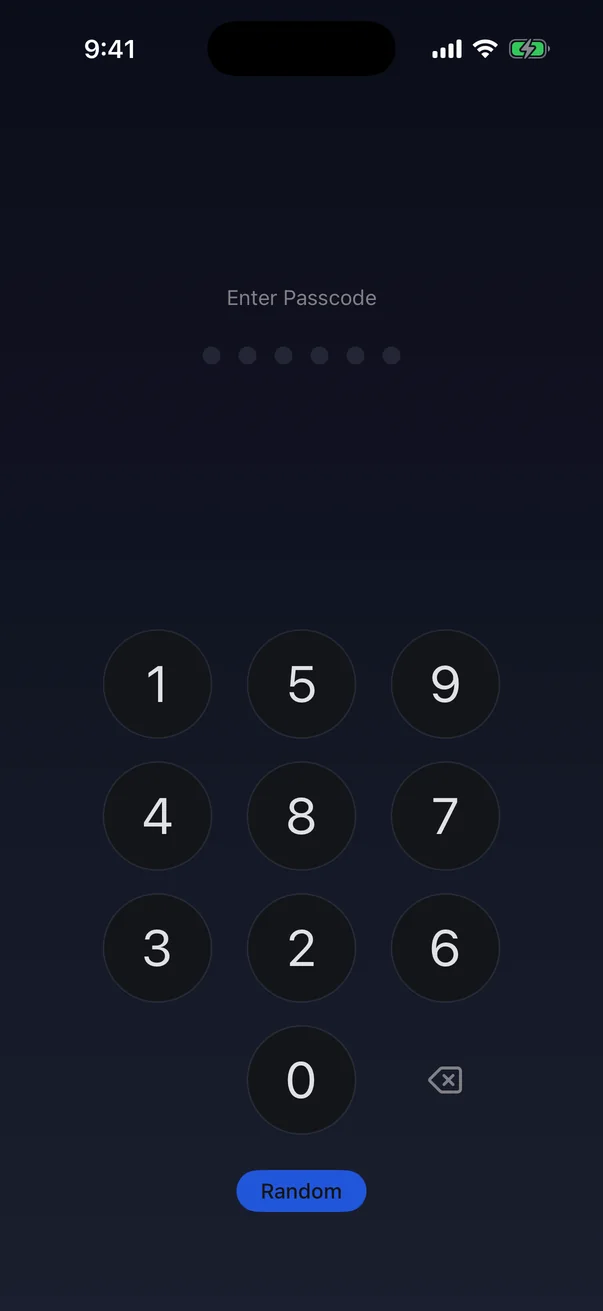
| 4 | Random — shuffles the digits on the keypad. Tap again to restore the usual order. |
 1
3
4
1
3
4
| 1 | Enter Passcode — the prompt; the dots under it fill in as you type. The passcode is checked right after the sixth digit. |
| 2 | Biometrics — opens the fingerprint or face prompt again.Only if biometrics are turned on. |
| 3 | Delete — removes the last digit. |
| 4 | Random — shuffles the digits on the keypad. Tap again to restore the usual order. Your choice is remembered. |
Wrong passcode
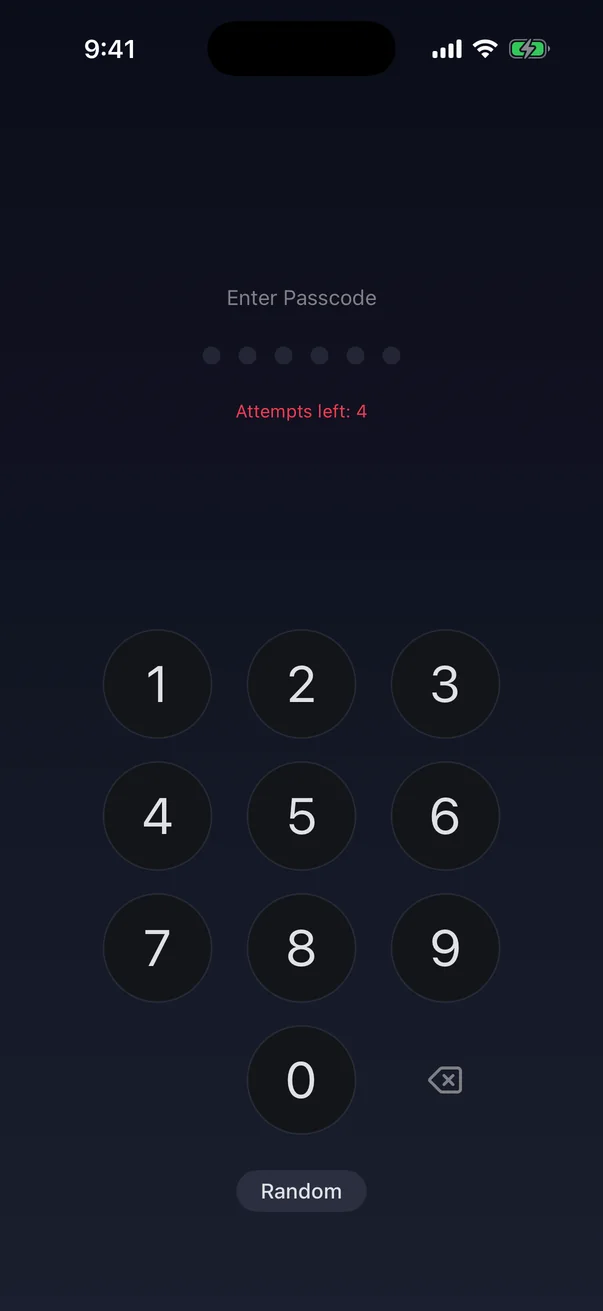
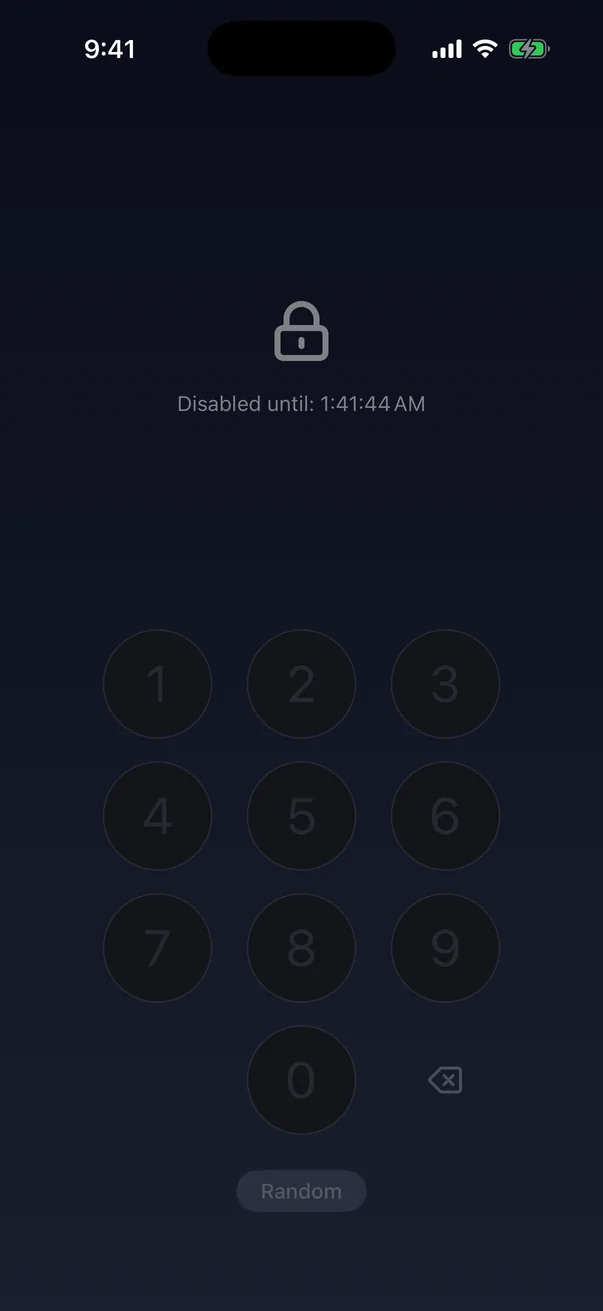
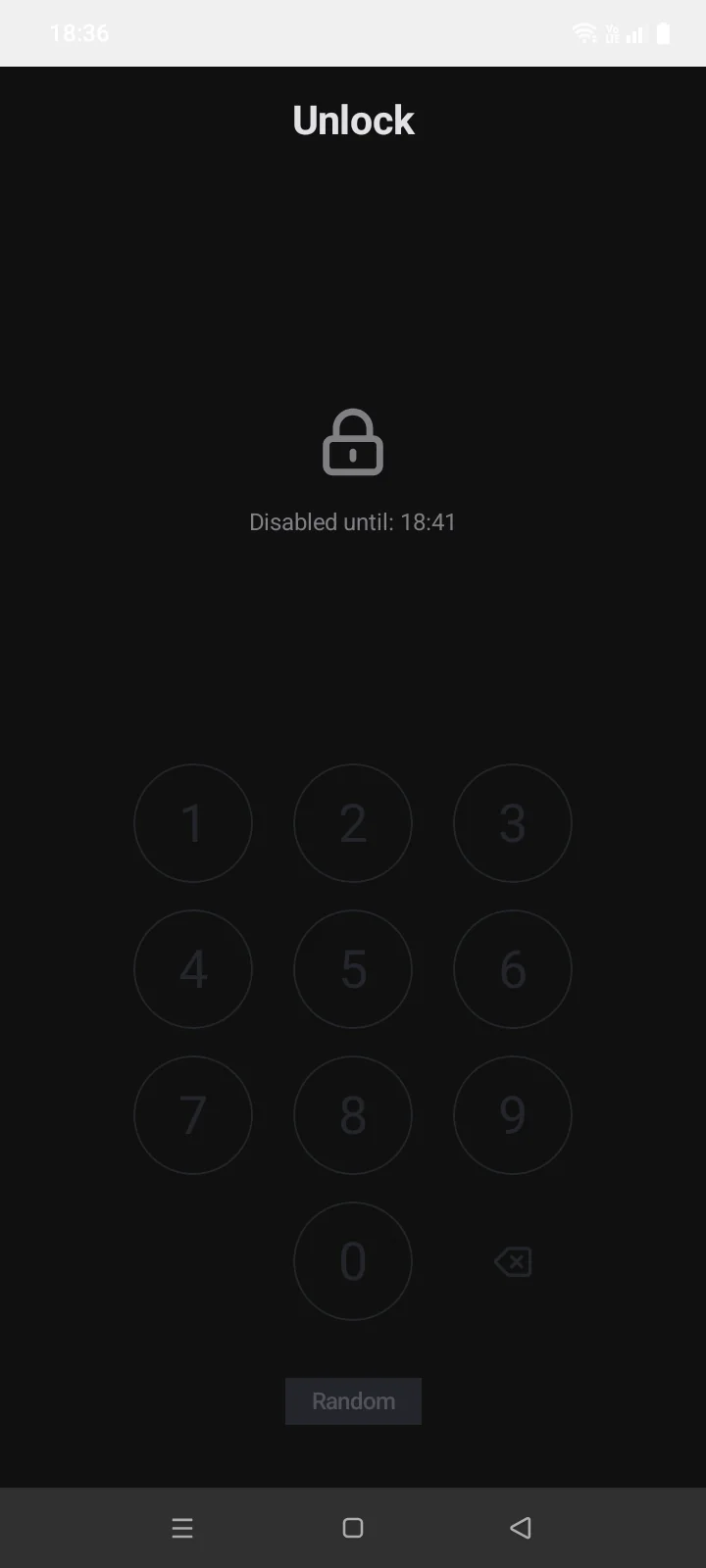
After a wrong passcode the dots shake and Attempts left shows how many tries remain out of 5. After the fifth wrong passcode the keypad is locked for 5 minutes, and Disabled until shows when you can try again. After that you get one attempt; each further mistake locks the keypad for longer: 10, 15 and then 30 minutes. Closing or restarting the app doesn't reset the counter.
Forgot the passcode? It can't be reset in the app. Delete the app and install it again, then sign in and, if needed, restore your wallets from their recovery phrases (see 3.5). Without the recovery phrases, wallets can't be restored.
Face ID and Touch IDFingerprint and face
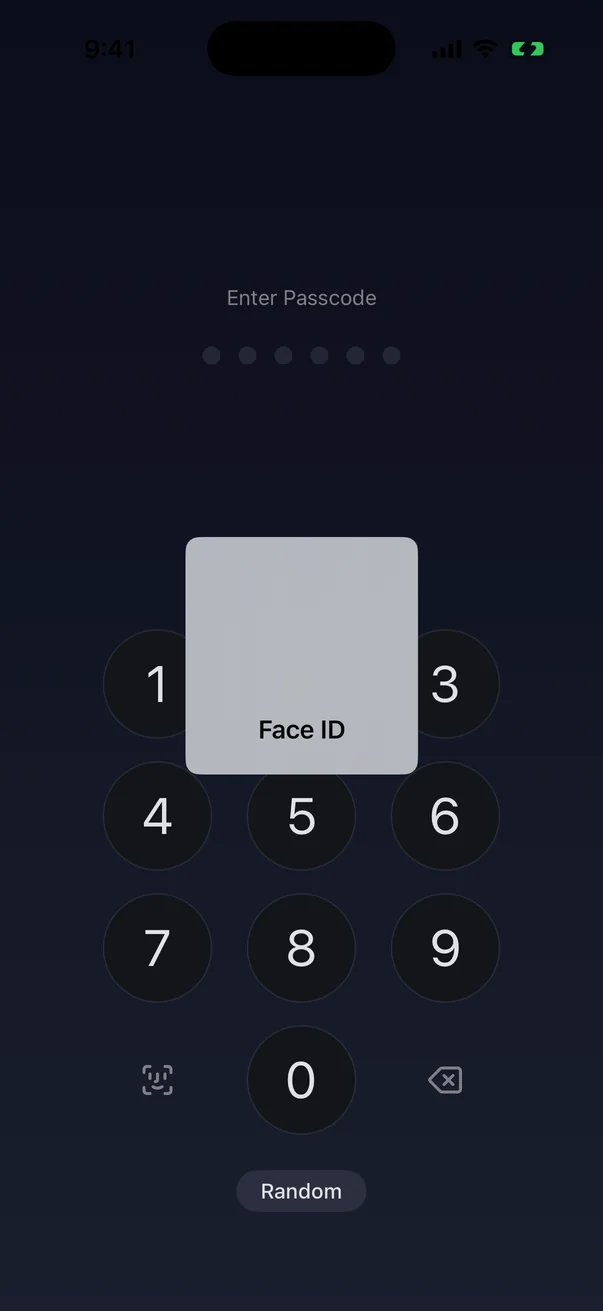
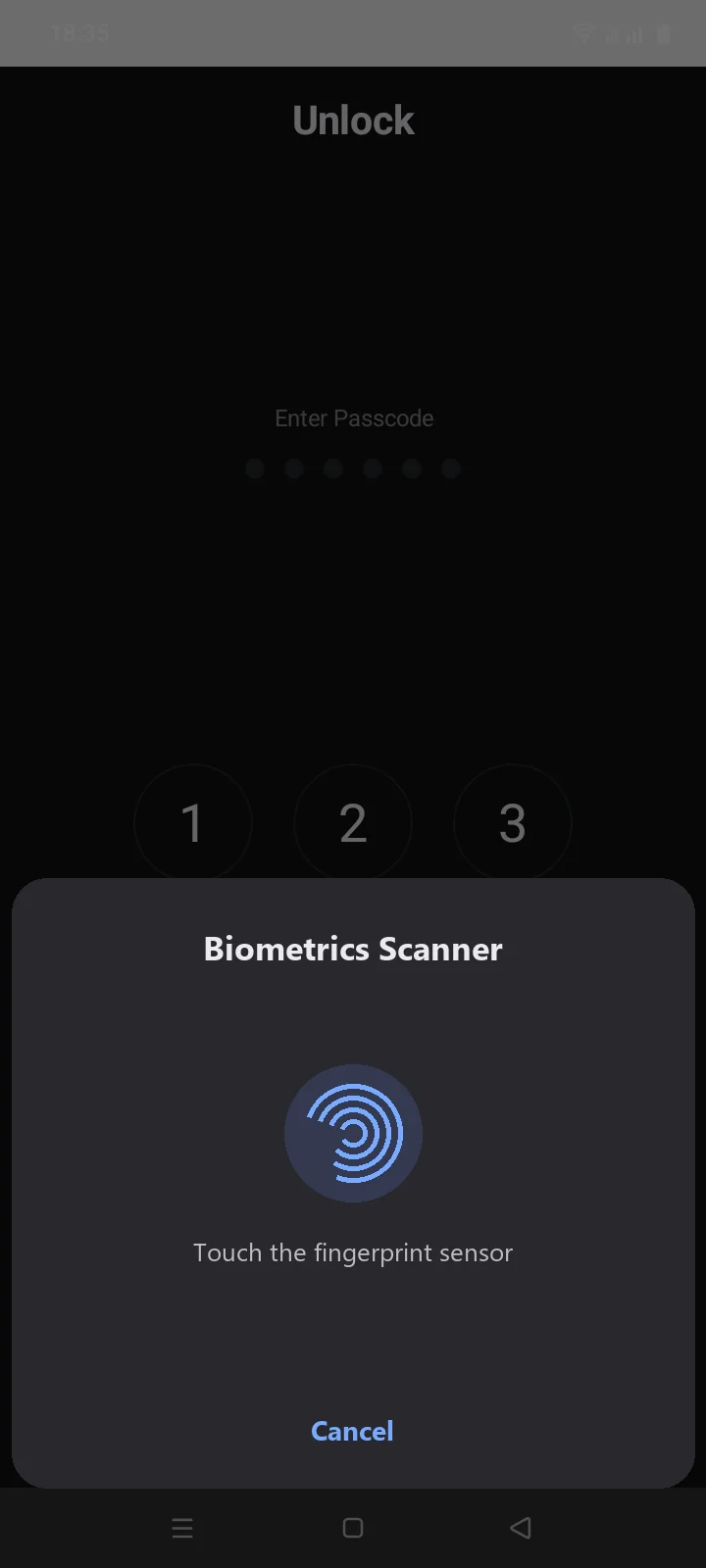
Turn on the Face ID (or Touch ID)Biometrics switch in Security. From then on the lock screen opens the Face ID or Touch ID promptthe system Biometrics Scanner prompt by itself: touch the sensor or look at the camera, depending on what is set up on your phone. Cancel closes the prompt so you can enter the passcode. The button in the bottom-left corner of the keypadThe biometrics icon to the left of the bottom digit opens it again. After a wrong passcode, biometrics isn't offered until you enter the passcode correctly.
Biometrics works only together with the passcode. If there is no passcode yet, turning the switch on first opens Create Passcode with the text Set a passcode to enable Face IDSet a passcode to enable Biometrics. If you leave without saving a passcode, biometrics stays off — the switch turns back off.
If Android temporarily disables biometrics after several failed attempts, the app shows a Biometrics Scanner window with Enter passcode or try again later. Tap Passcode and enter your passcode.
Auto-Lock
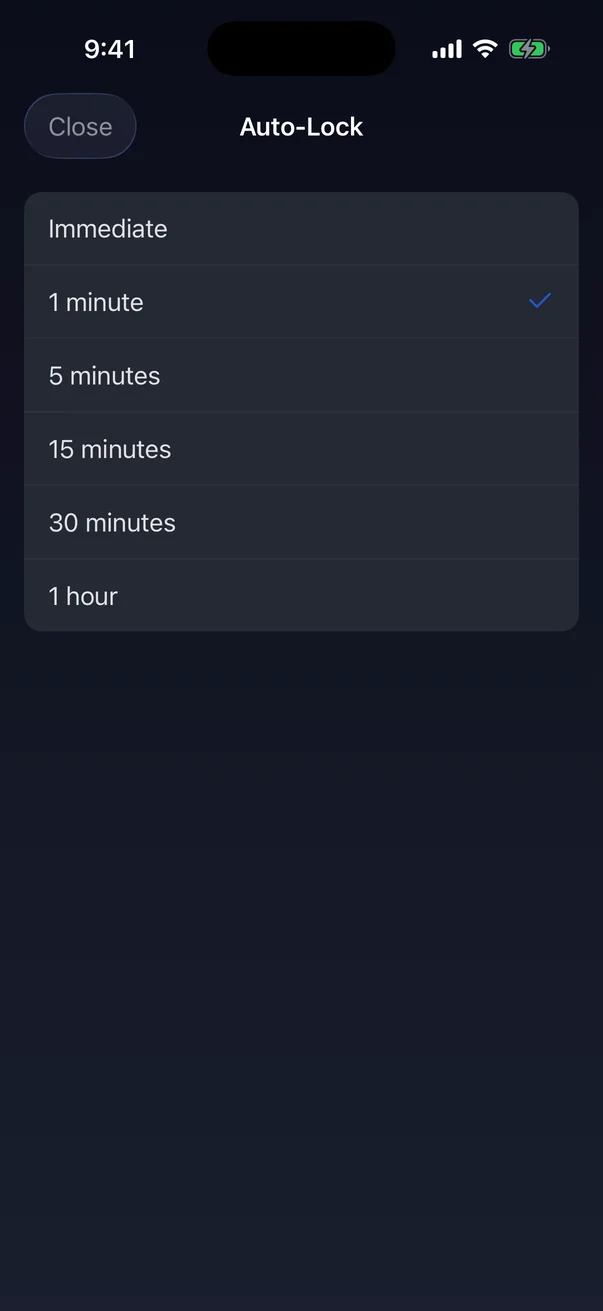
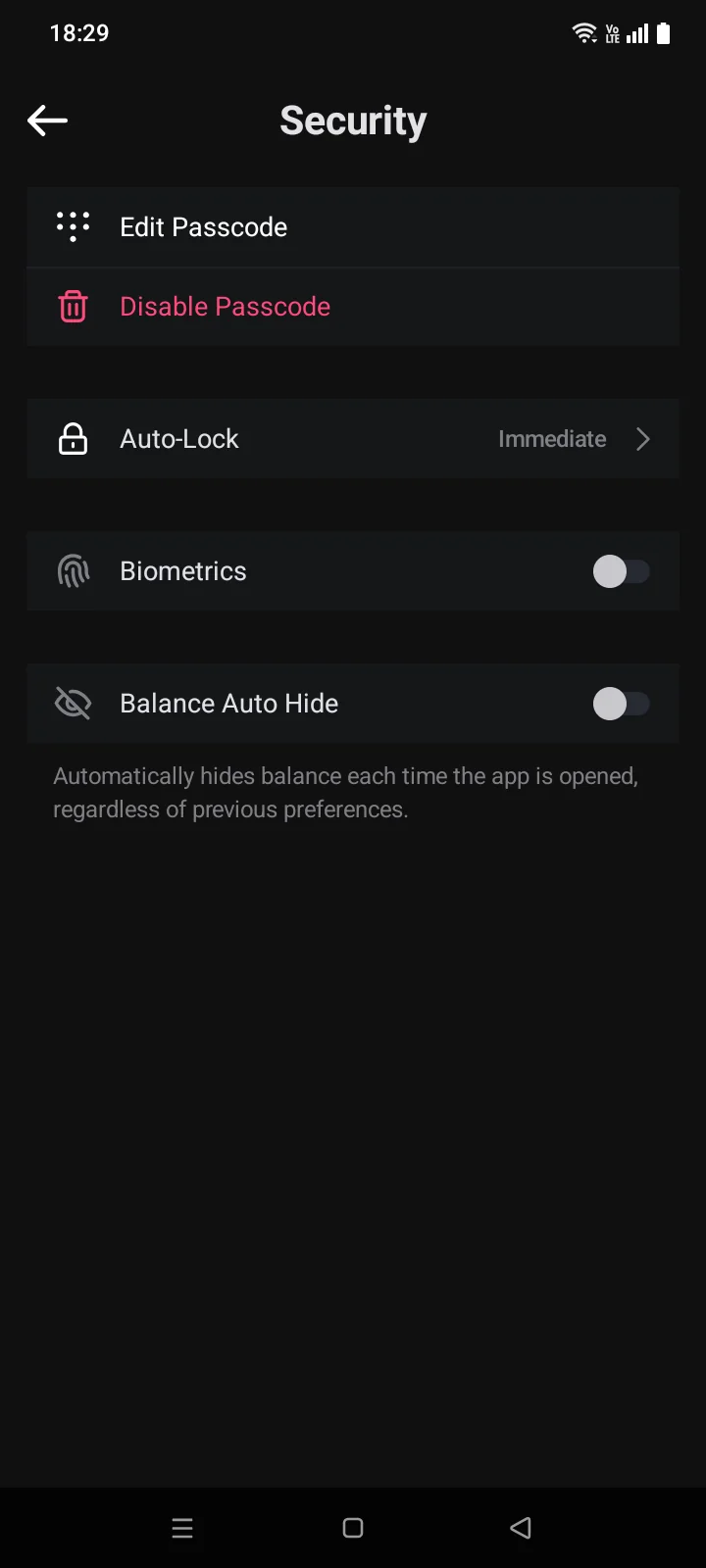
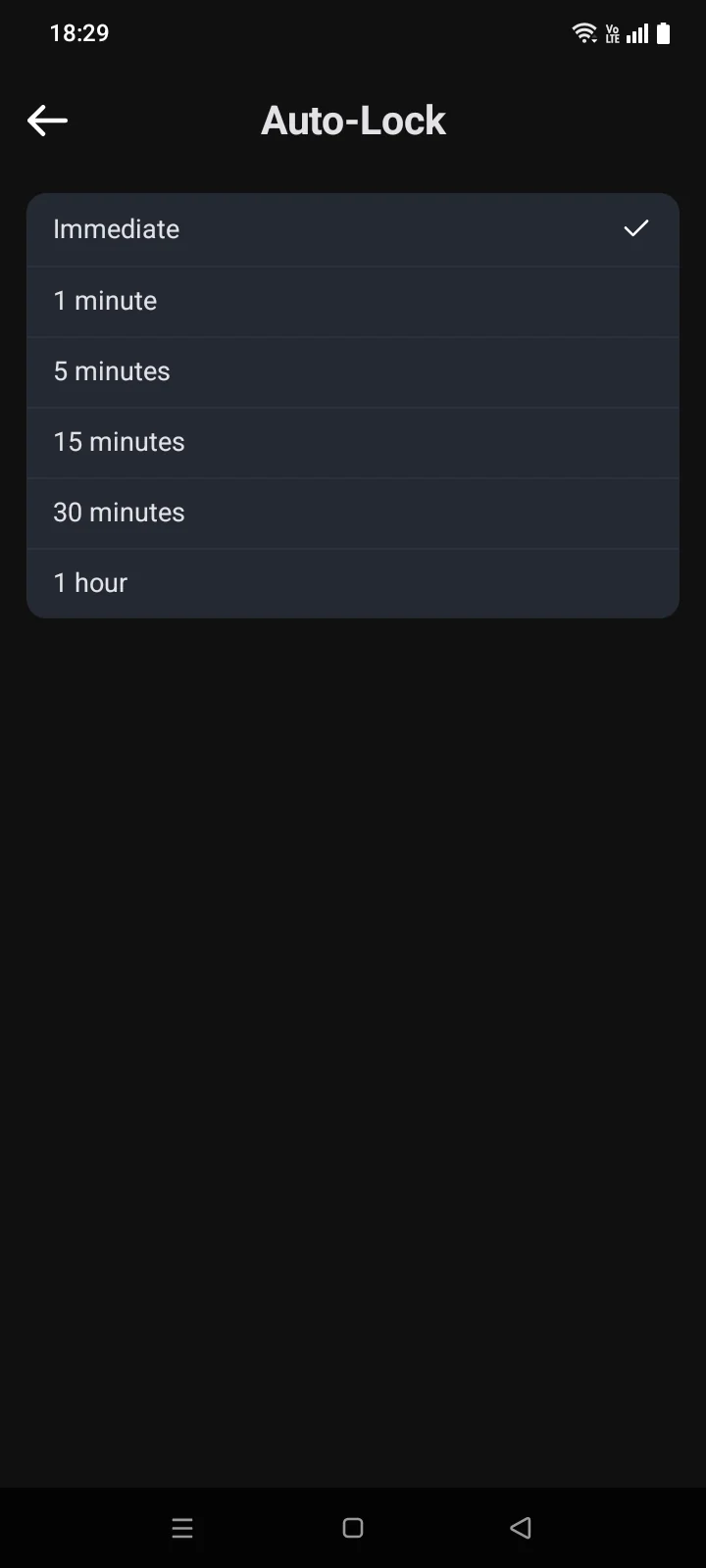
Auto-Lock sets how long the app can stay in the background before it asks for the passcode again: Immediate, 1 minute (default), 5 minutes, 15 minutes, 30 minutes or 1 hour. The row appears only when a passcode is set.
Change or turn off the passcode
- Change: tap Edit Passcode, enter the current passcode on the Unlock screen, then enter the new passcode twice.
- Turn off: tap Disable Passcode and enter the current passcode. The passcode is removed at once, and biometrics is turned off too.
Privacy in the app switcherrecent apps list
When you leave Cryptolink, the app switcher shows a cover with the app iconrecent apps list shows an empty window (see 5.3) instead of your balances and cards.