
5.3Privacy
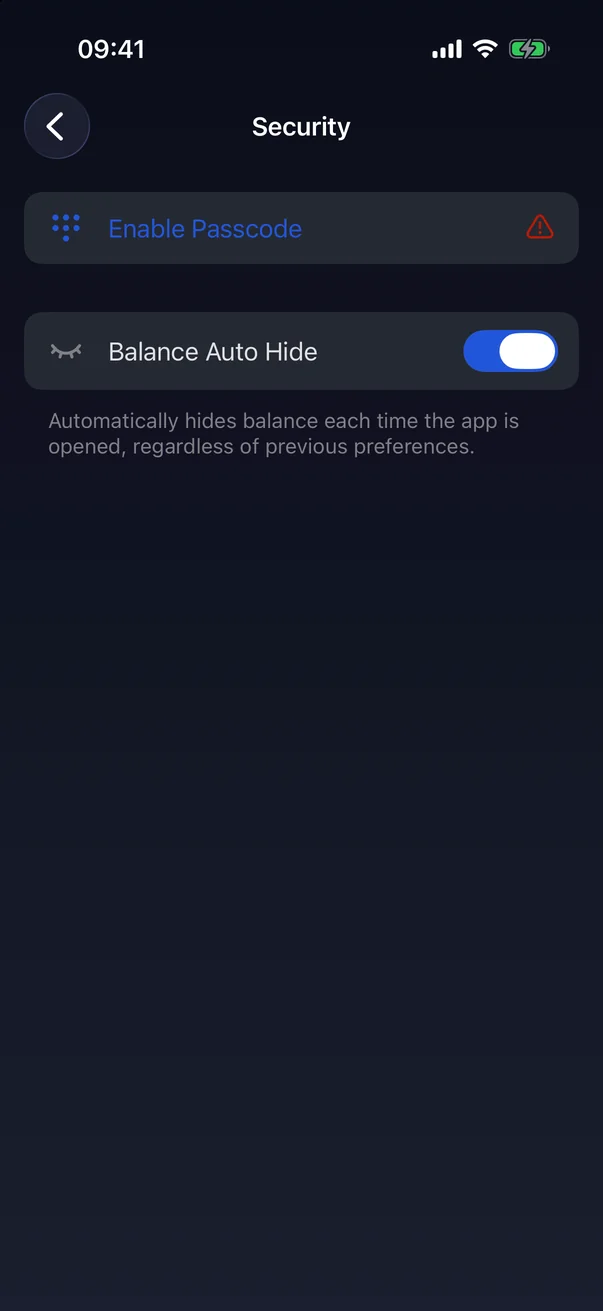
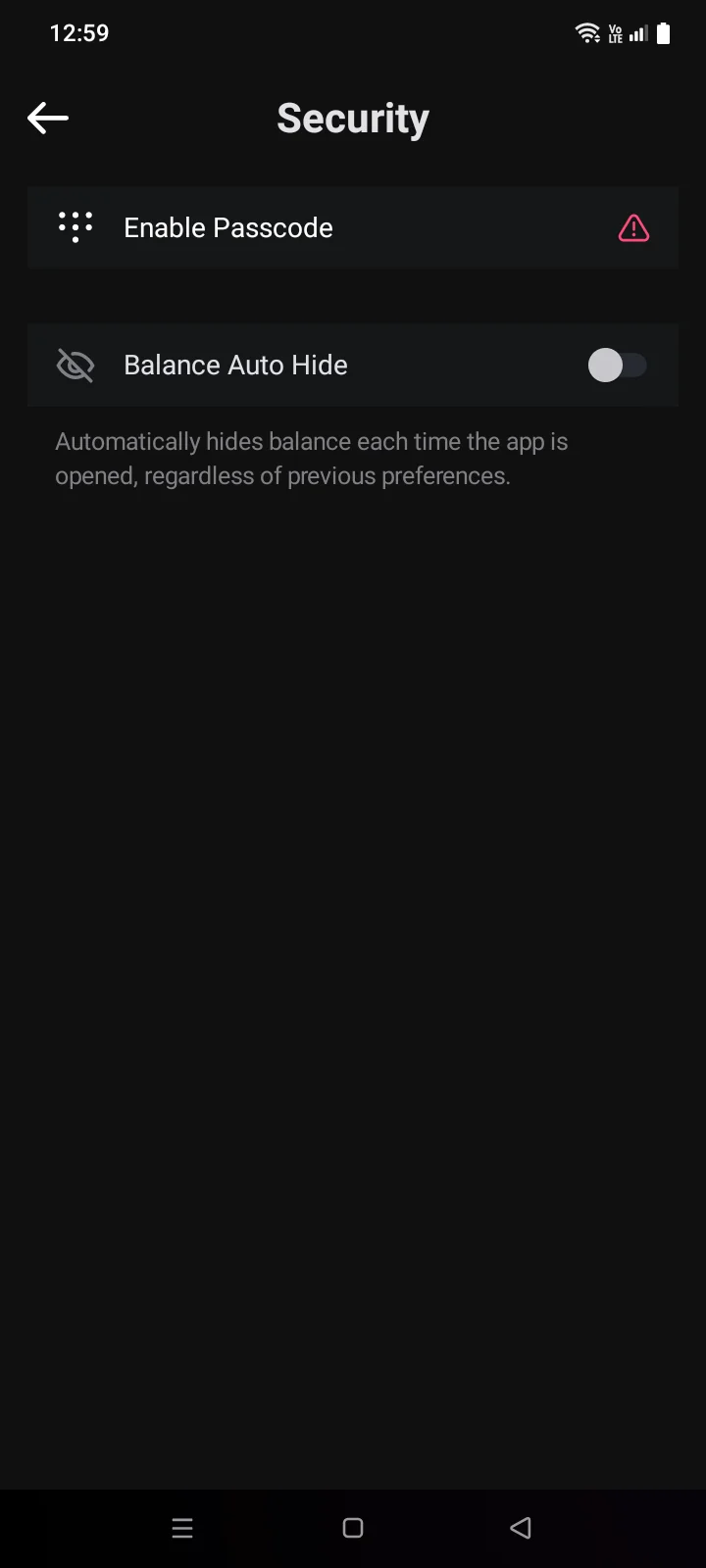
Privacy settings are in Account › App › Security, next to the passcode and Face IDbiometrics. This page covers hiding balances and screen protection; the passcode, Face IDbiometrics and Auto-Lock are described in 1.5.
Balance Auto Hide
Turn on Balance Auto Hide so that crypto balances are hidden behind *****:
- immediately after you turn it on;
- every time you open the app;
- every time you minimize the app or switch to another app and come back.
To see the balance, tap it on the Crypto tab (see 3.2); it will be hidden again the next time you leave the app. Card balances on the CardsCard tab aren't hidden. Off by default.
App switcher and screenshots
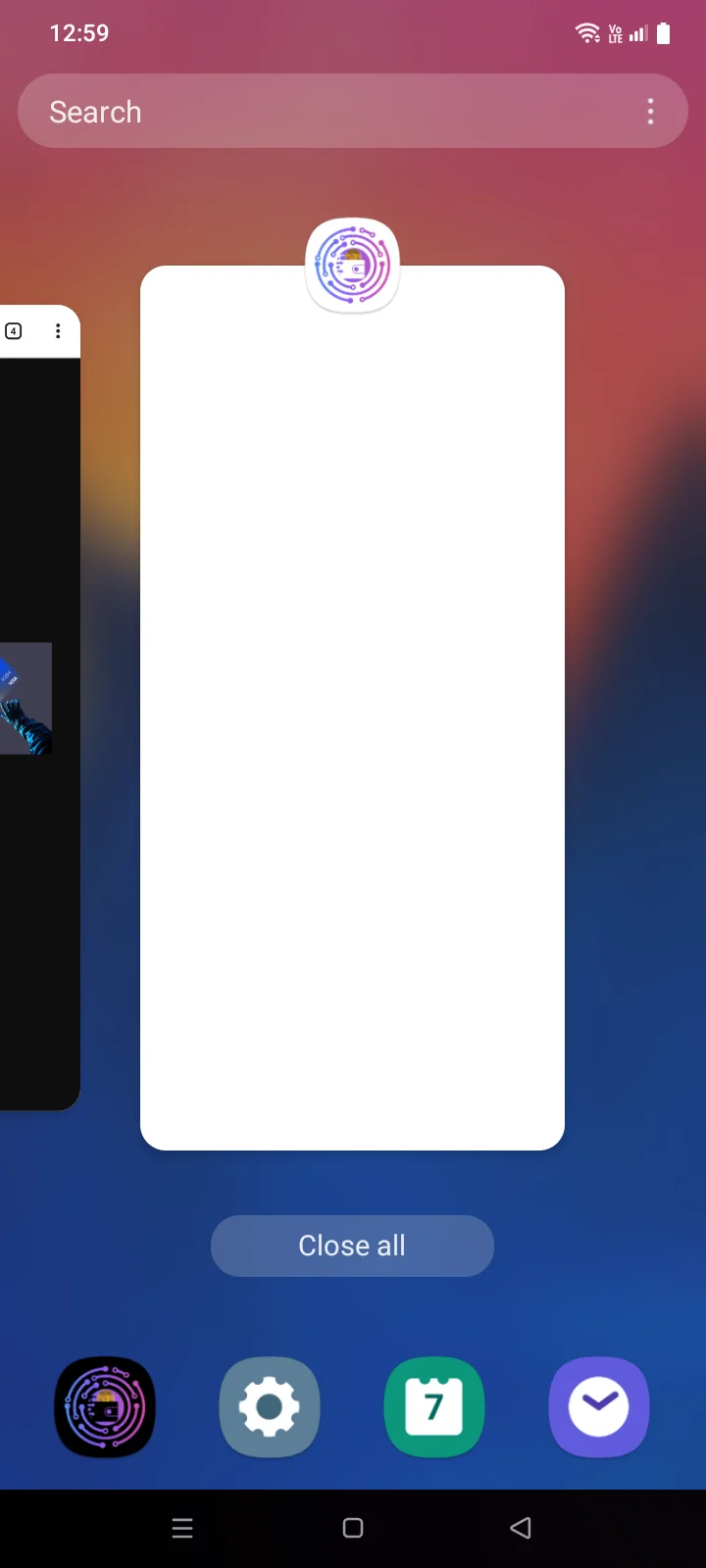
Cryptolink hides its content when you leave the app, so balances and card details aren't visible in the app switcherrecent apps list. This always works and has no setting.
When you switch apps, Cryptolink covers its screen with a splash.
On Android 13 and later, after you minimize Cryptolink or switch to another app, the recent apps list shows an empty rectangle instead of the Cryptolink screen. If you open the recent apps list right from Cryptolink, Android shows the live app window — this is how the system works. On Android 12 and earlier, Cryptolink asks the system to hide the screen contents; whether the thumbnail is empty depends on the phone.
On screens with the recovery phrase and wallet keys, you can't take a screenshot or record the screen (see 3.4). On other screens, screenshots are allowed — they're handy to send to support (see 5.7).
Where the other security settings are
| Setting | Default | Details |
|---|---|---|
| PasscodeEnable Passcode | Off | 1.5 |
| Face ID / Touch IDBiometrics | Off; the row is shown if the phone supports unlocking with a fingerprint or face | 1.5 |
| Auto-Lock | 1 minute | 1.5 |