
5.5Notifications
Cryptolink sends push notifications about card operations and online payment confirmations. In the app, they're turned on and off with one switch; in addition, notifications must be allowed for Cryptolink in the phone settings.
Allow notifications in iOSAndroid
At the first launch, iOS asks whether to allow Cryptolink to send notifications. Tap Allow. If you haven't answered this prompt yet, iOS shows it again when you turn on the Push Notifications switch in the app.
On Android 13 and later, a system prompt appears after you launch the app, asking whether to allow Cryptolink to send notifications. Tap Allow. The app shows this prompt on its own no more than once. On Android 12 and earlier, notifications are allowed by default.
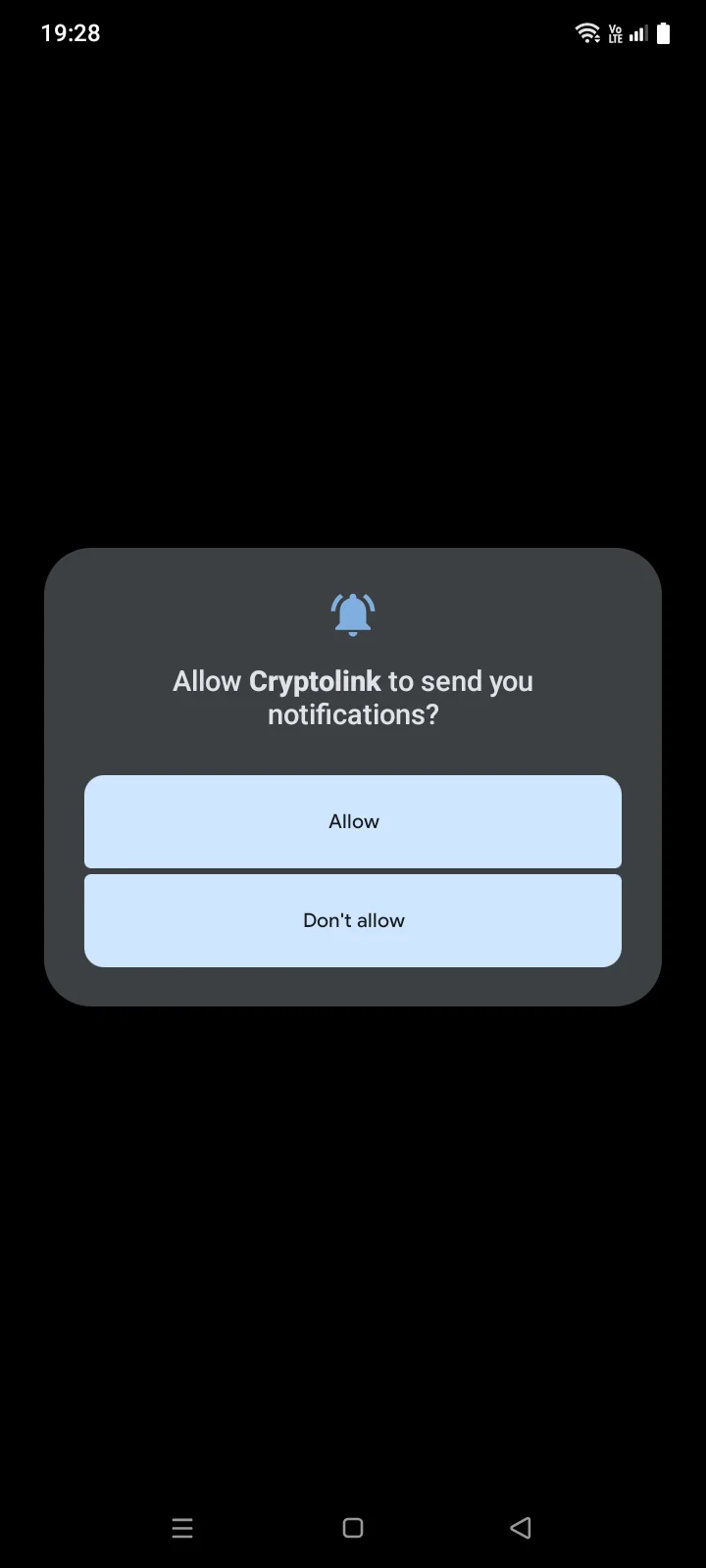
If you decline, the app won't ask again at launch. To get notifications, turn them on in the phone settings: Settings › Apps › Cryptolink › Notifications (item names depend on the phone model).
Turn notifications on or off in the app
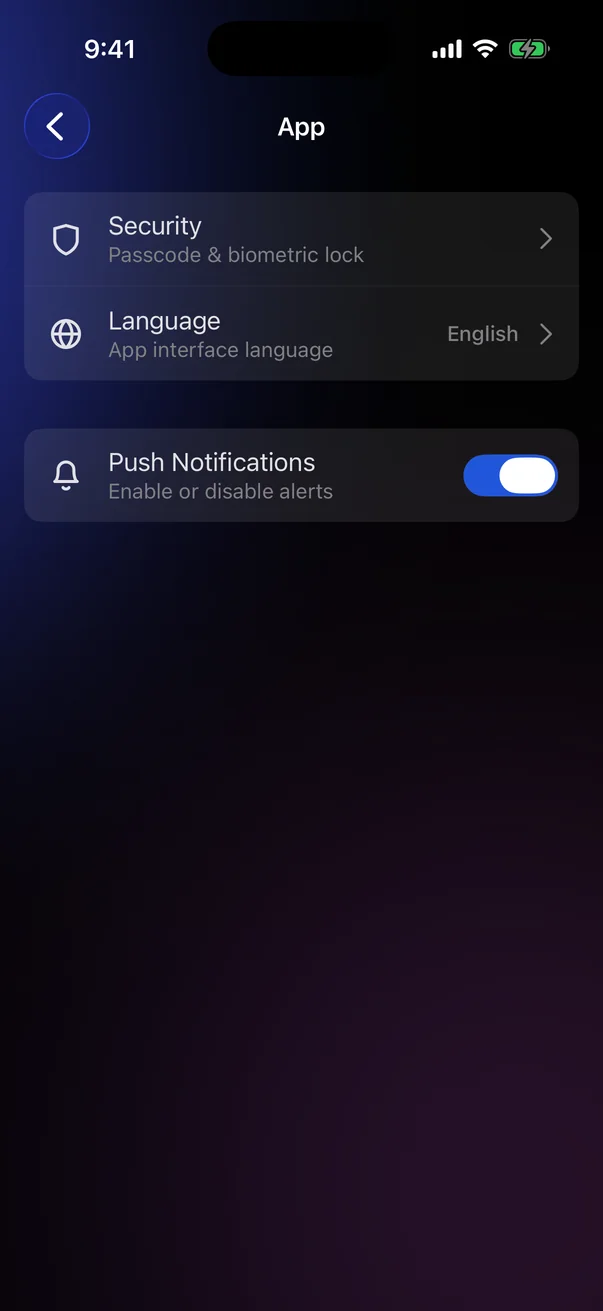
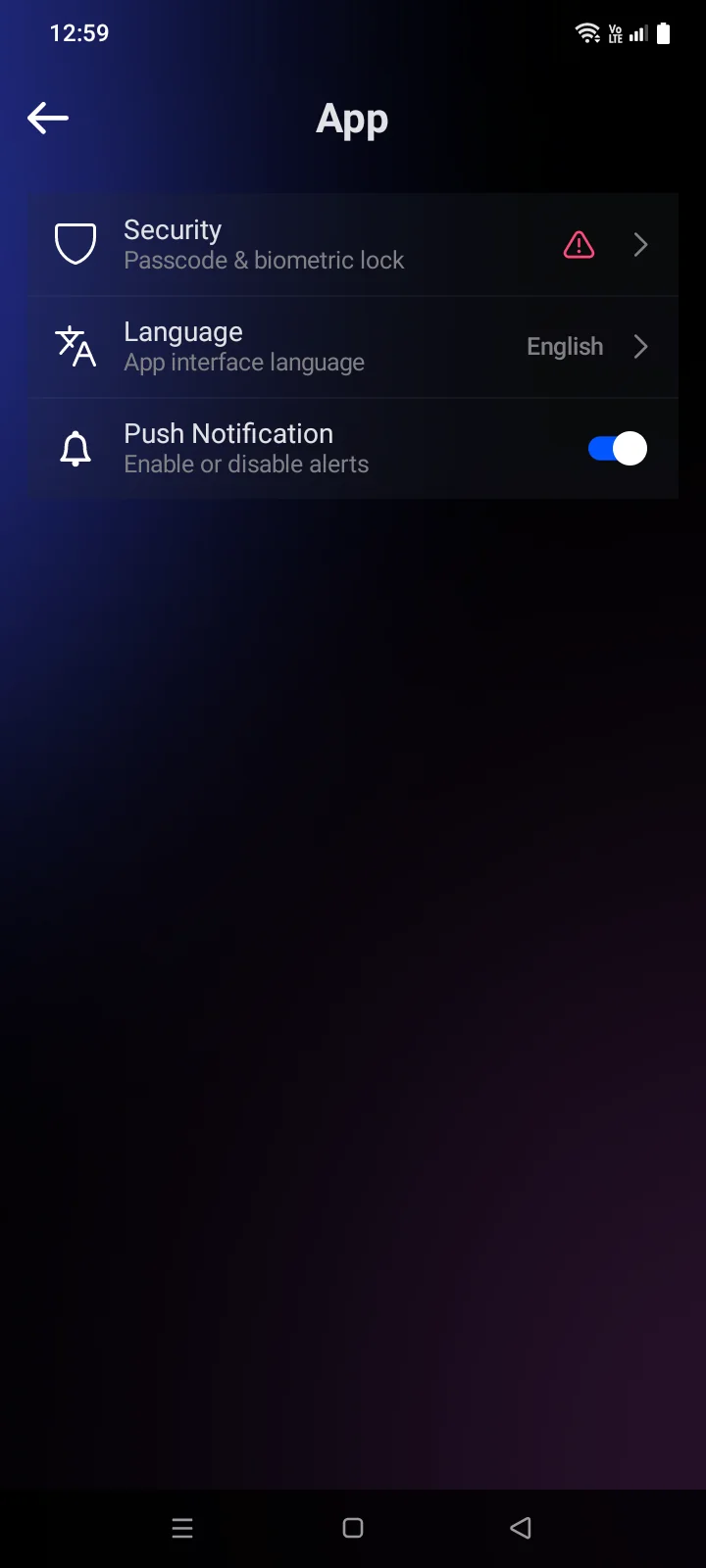
Go to Account › App and use the Push NotificationsPush Notification switch. The setting is stored on the Cryptolink server for your account, so the row appears when you're signed in. There are no separate categories: when the switch is off, Cryptolink sends no notifications at all, including 3-D Secure requests.
If the setting couldn't be saved (for example, there's no internet connection), the message Couldn't update notification settings. Please try again.Couldn't change the notification setting. Try again later. appears, and the switch goes back to its previous position. Try again when the connection is back.
If notifications are blocked in the phone settings
If notifications for Cryptolink are turned off in the iPhone settings, the switch goes back to off when you turn it on, and a panel opens at the bottom of the screen:
- a bell icon and the title Notifications Disabled;
- the text Push notifications are disabled in system settings. Enable them to receive important updates about your transactions and account.;
- two buttons: Open Settings and Cancel.
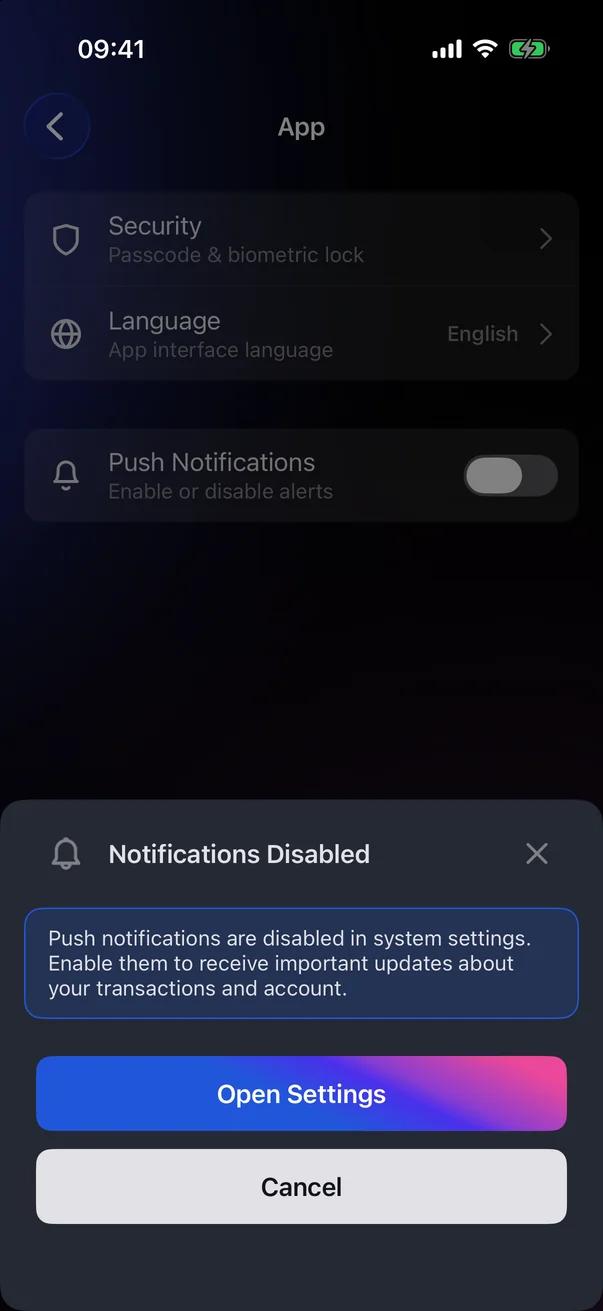
- Tap Open Settings. The Cryptolink page in the iPhone settings opens.
- Open Notifications and turn on Allow Notifications.
- Return to Cryptolink and turn on the Push Notifications switch again.
Cancel closes the panel; notifications stay off.
The switch in the app doesn't know whether notifications are allowed in Android, so it may look on. If it's on but notifications don't arrive, check the permission in the phone settings (see 5.5).
What notifications you get
- Online payment confirmation (3-D Secure) — tap it to confirm the payment (see 2.10).
- Card transactions and received payments (see 2.11).
- Account and security events.
Notifications use the language chosen in the appyour phone's language, not the language chosen in the app (see 5.4). After you sign out, notifications to this phone stop (see 5.8).