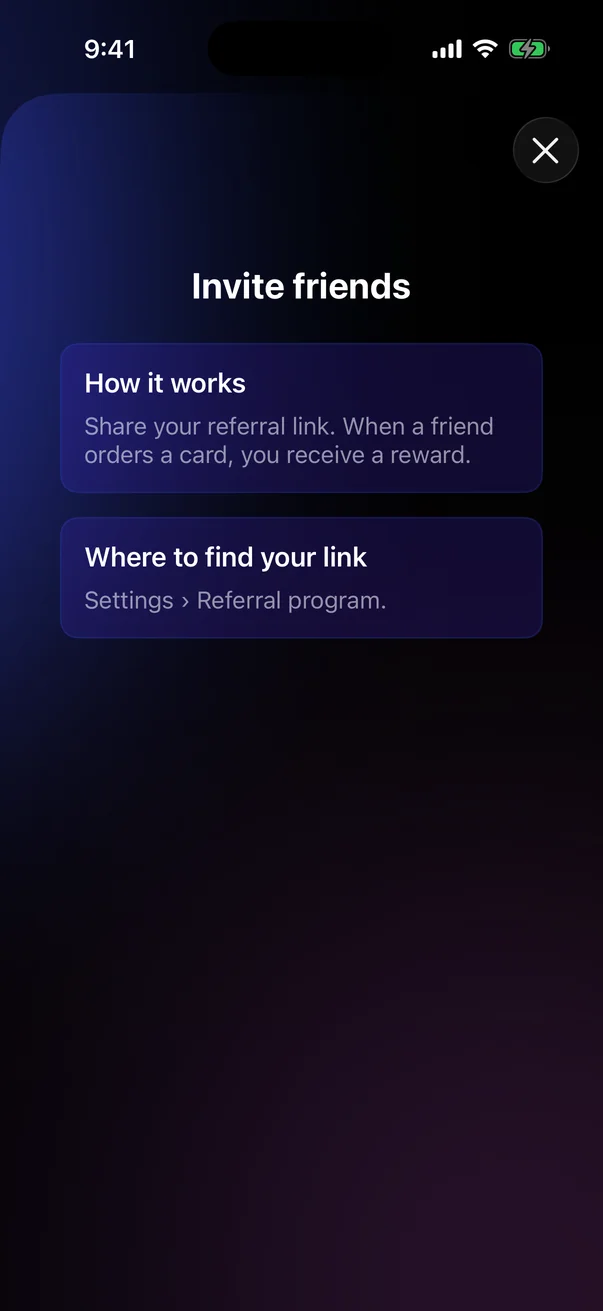
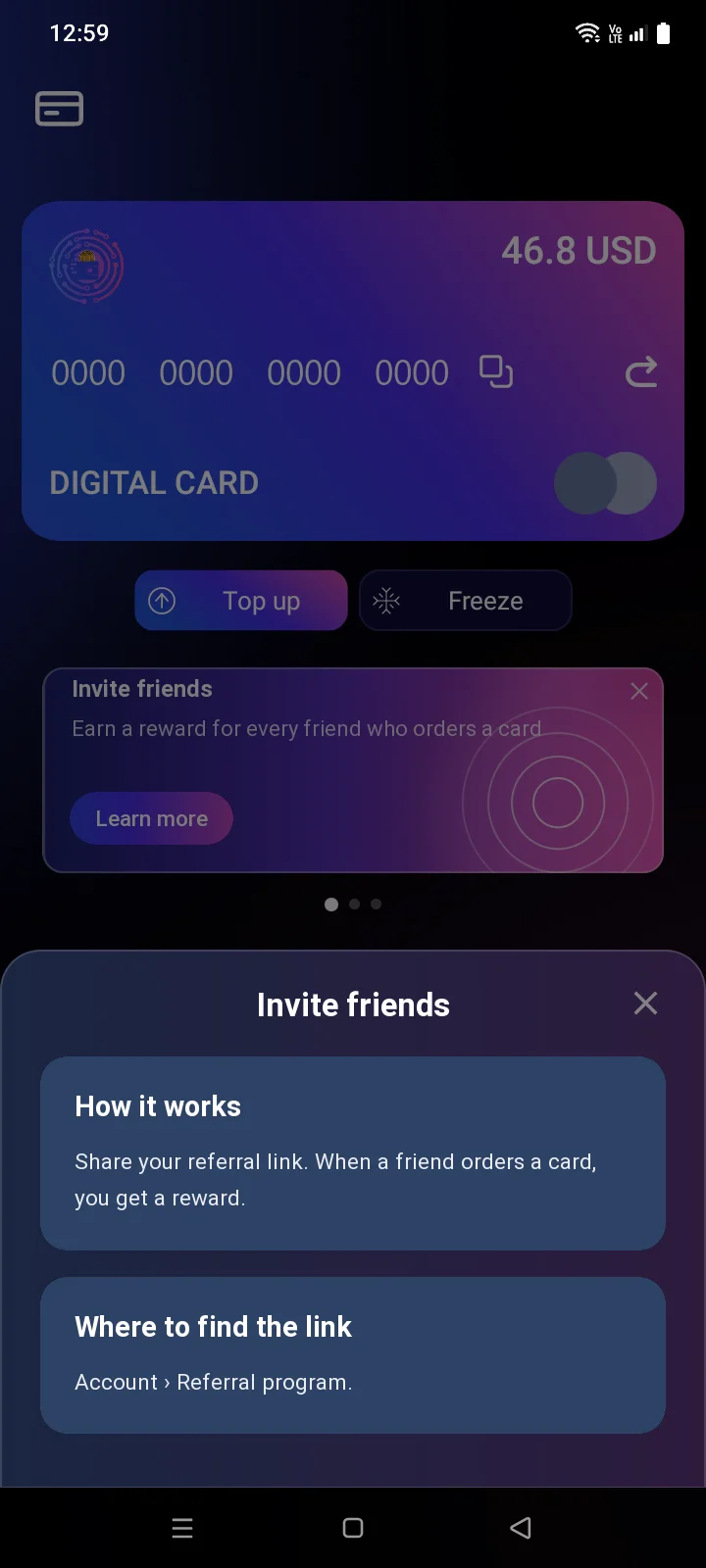
2.11Card notifications and banners
The app tells you about card operations with push notifications and messages inside the app. News and offers appear as banners on the card screen.
Push notifications
If notifications are allowed (see 5.5) in the app and for Cryptolink in the Android settings, the app notifies you about card operations. When the app is open, the notification appears at the top of the screen.The notification appears in the notification shade even when the app is open.
| Notification | When it arrives |
|---|---|
| Transaction created | A card payment has been processed. The text shows the amount and the merchant: A transaction of … at … has been processed.Transaction for … at … has been processed. |
| Transaction failed | A card payment wasn't completed: A transaction of … at … was not completed.Transaction for … at … was not completed. |
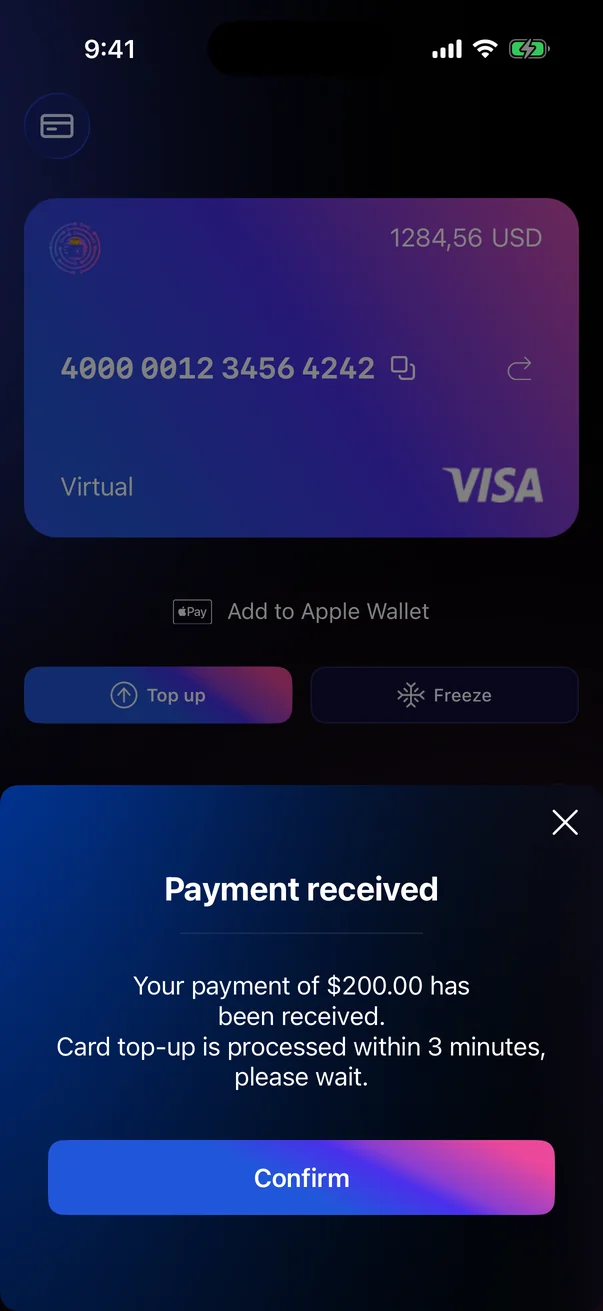
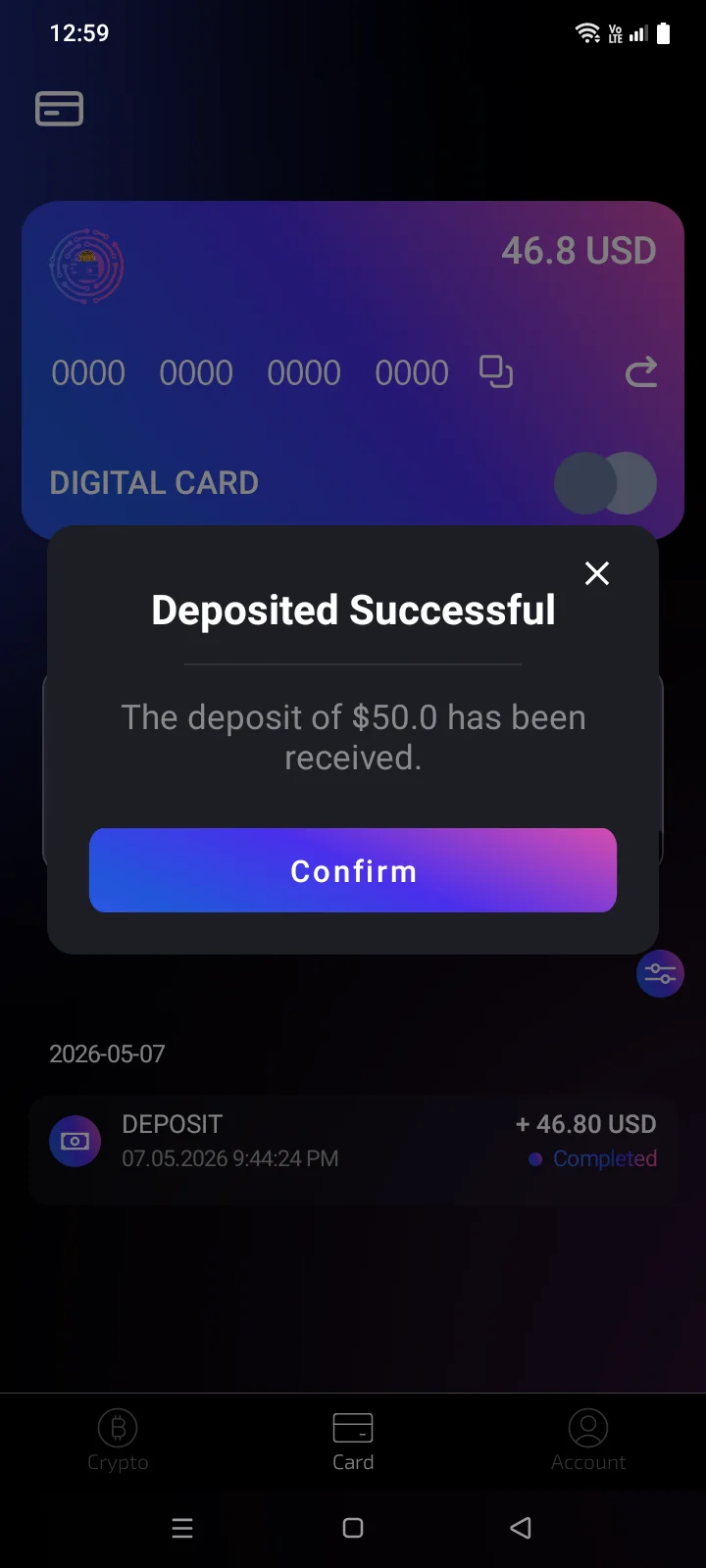
| Payment receivedDeposited Successful | A top-up has arrived. The top-up is credited to the card within 3 minutes.If an outstanding subscription fee was deducted from it, the text shows how much and for what period (see 2.6). |
| Card recharged | … has been credited to your card. |
| Recharge declined | The recharge operation for … was not completed. |
| Payment received | The payment for your card order has arrived. |
| Error | A card payment or top-up didn't go through: An error occurred during the operation or a description of the reason. |
| 3-D Secure requestTransaction confirmation | An online payment needs your confirmation — see 2.10. |
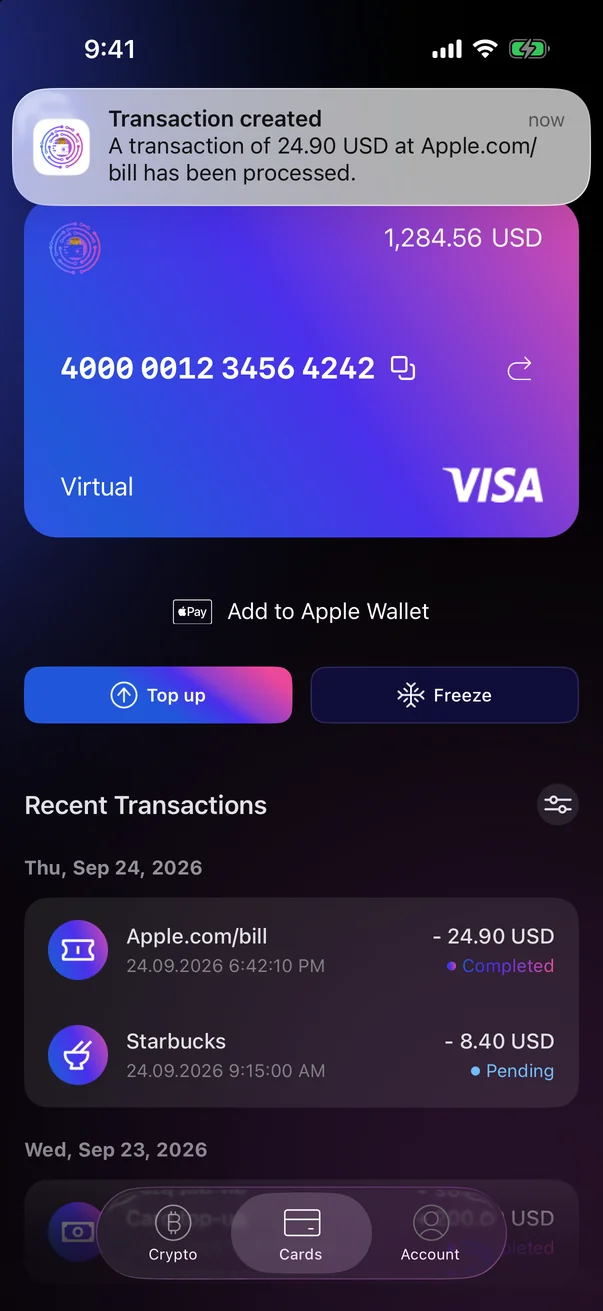
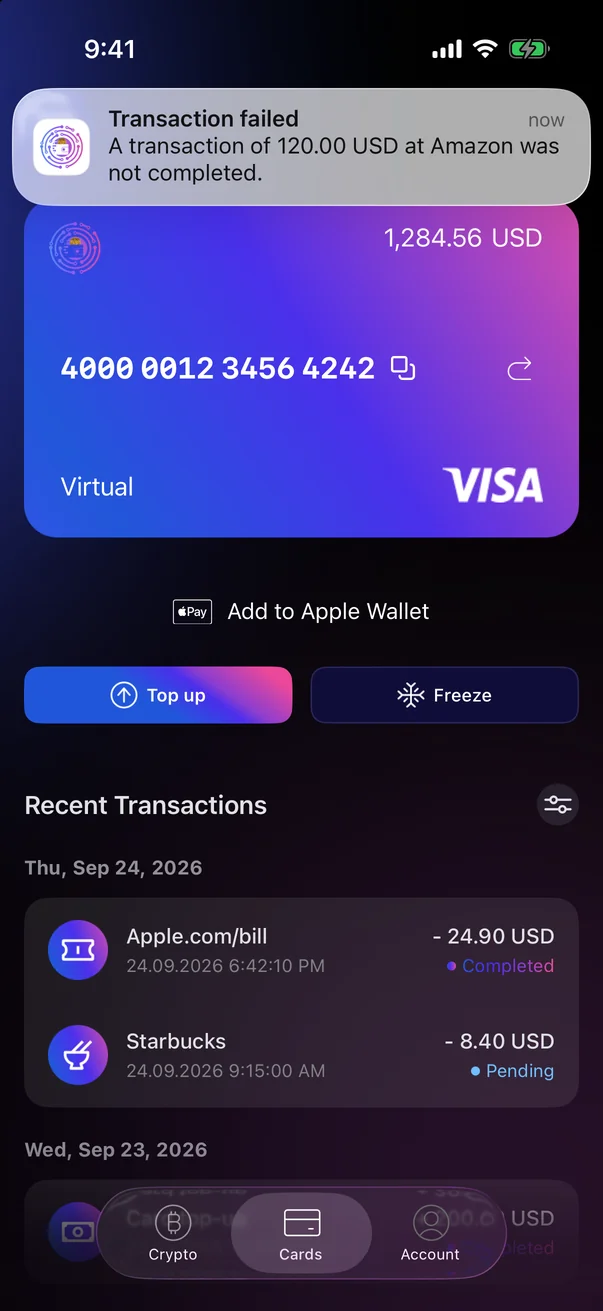
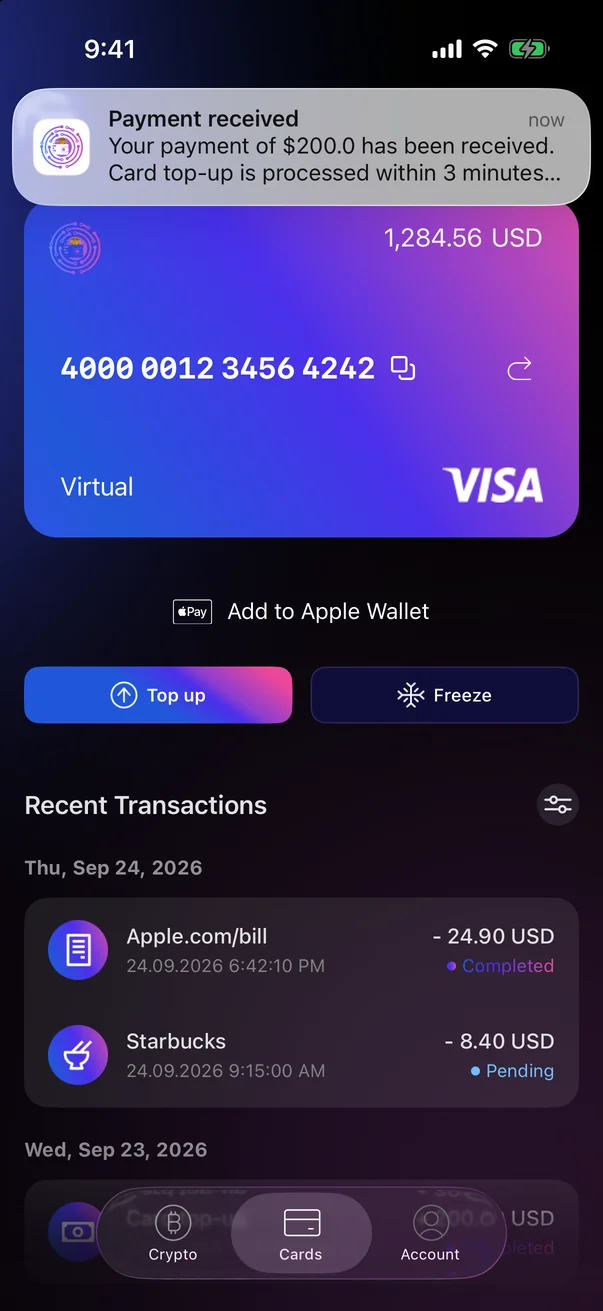
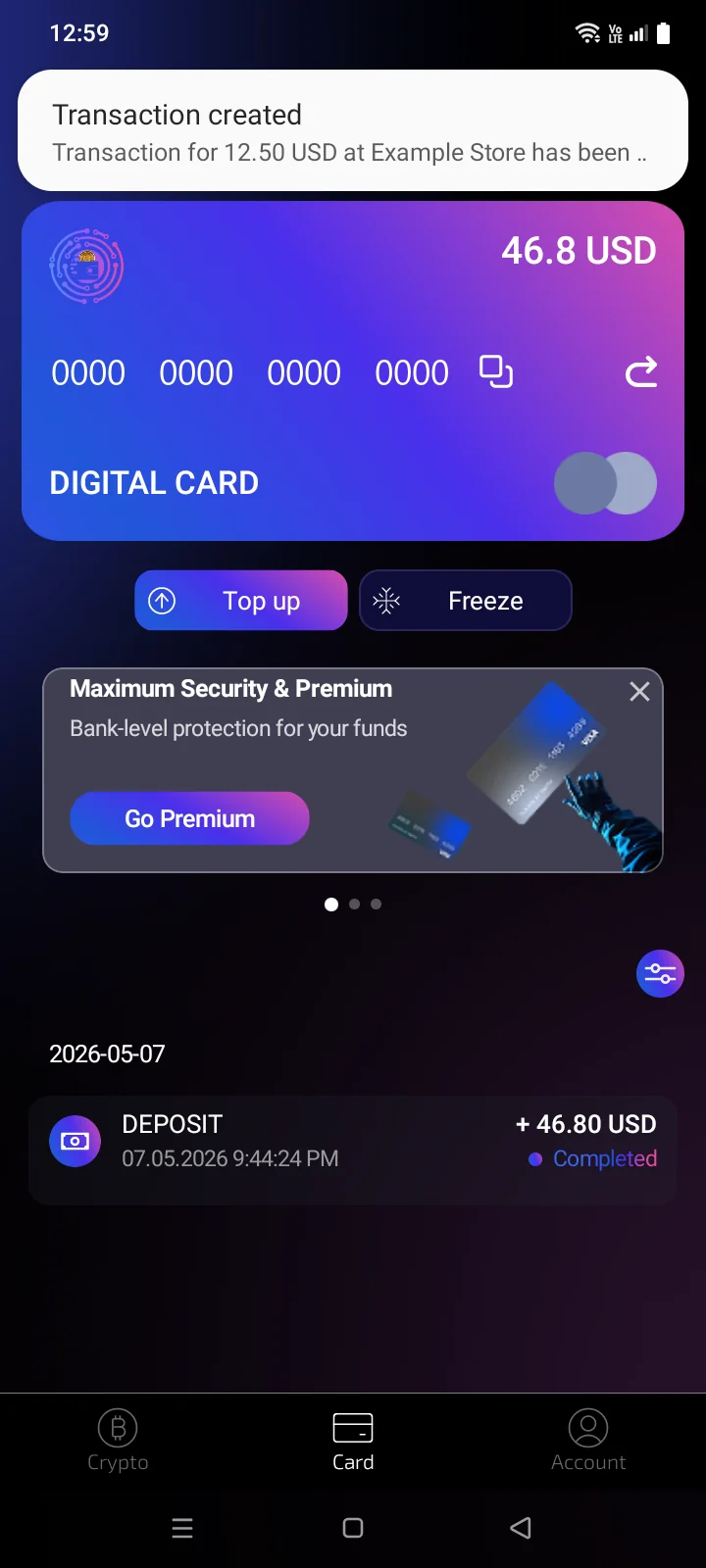
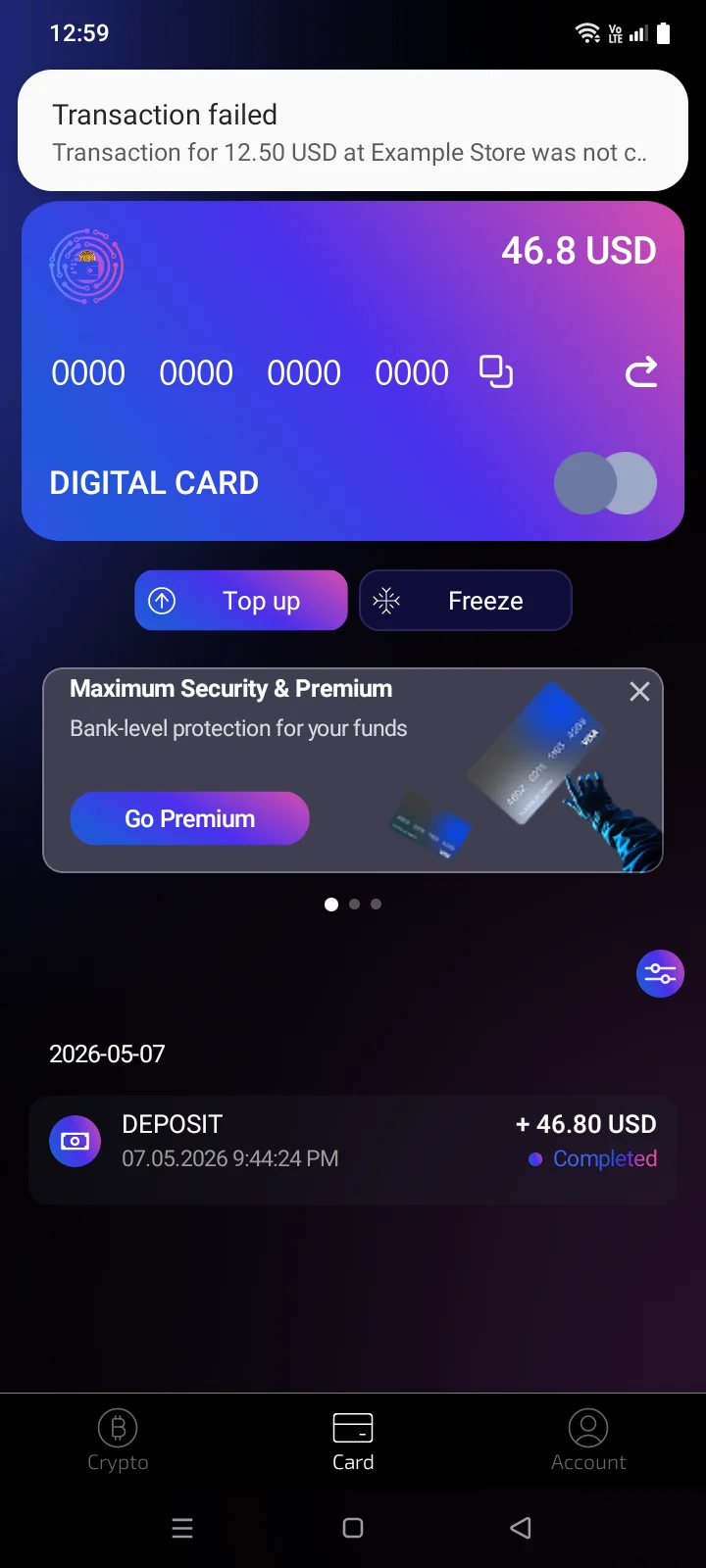
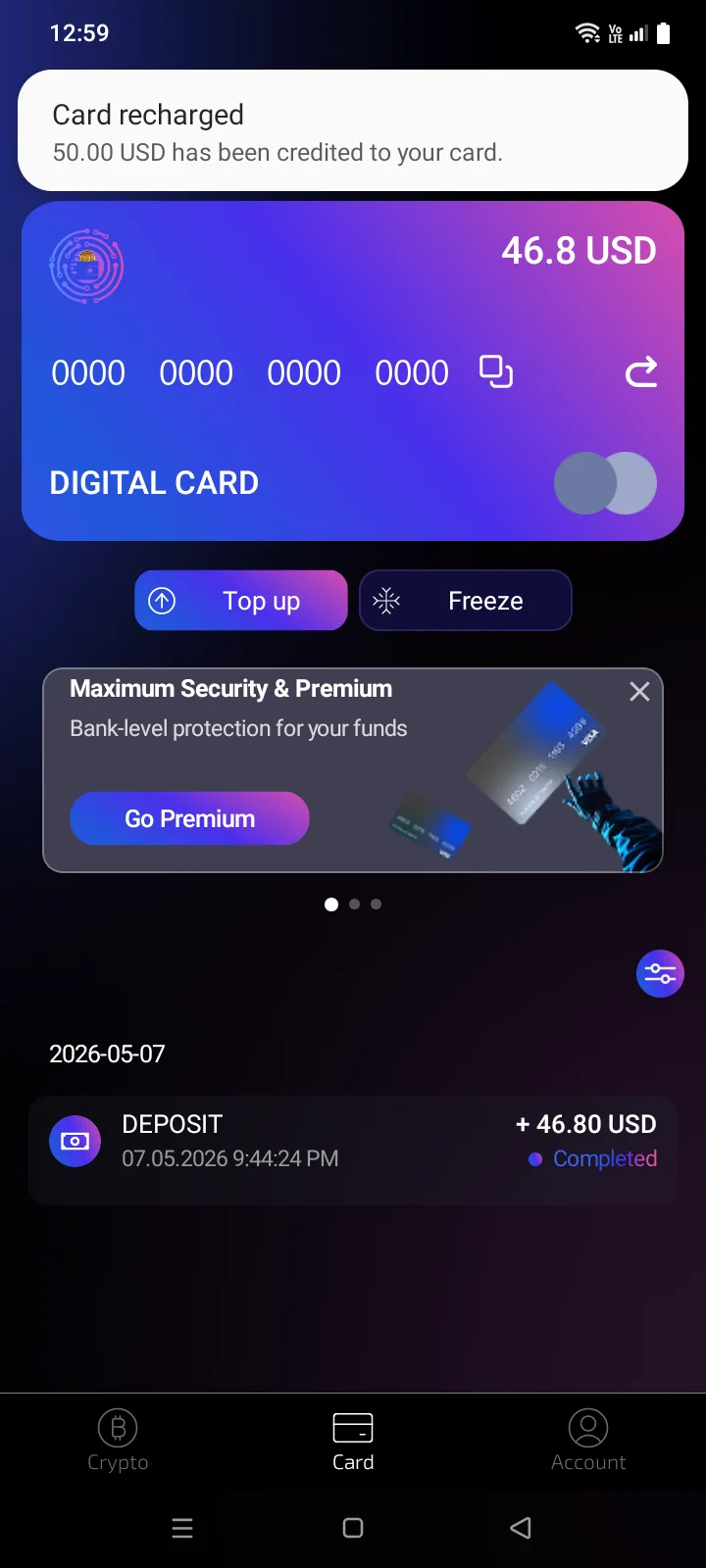
Tapping a 3-D SecureTransaction confirmation notification opens the confirmation screen. Tapping any other notification opens the app.
Messages inside the app
When the app is open, some results are shown as a message window on the card screen:
- Payment receivedDeposited Successful — the top-up has arrived, see 2.6;
- Payment received — the payment for a card order has arrived, see 2.3;
- Activation Error — a physical card can't be activated, see 3.4;
- Top-up amount is less than minimumError — the payment was below the minimumthe payment didn't go through; the window shows the reason (for example, Wrong amount), see 2.6.
To close the window, tap Confirm or ×.
If a top-up result arrives while the app is in the background, the message is shown the next time you open the Cards tab (within 24 hours).
The app also closes the payment screen and returns to the card screen.
Banners
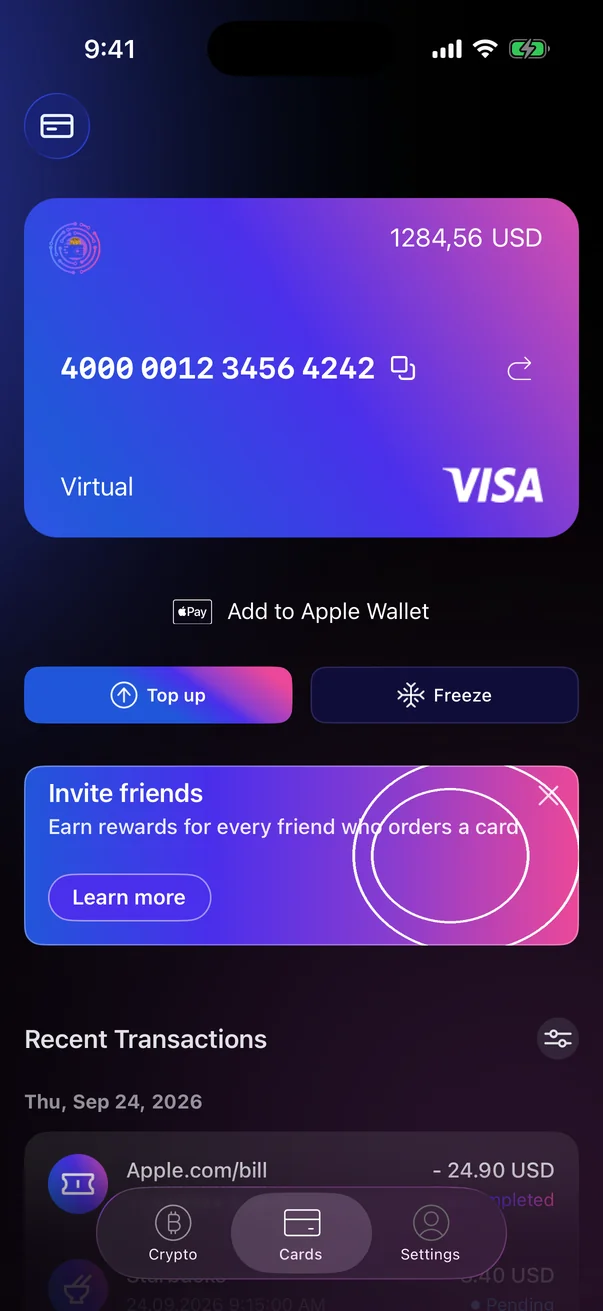
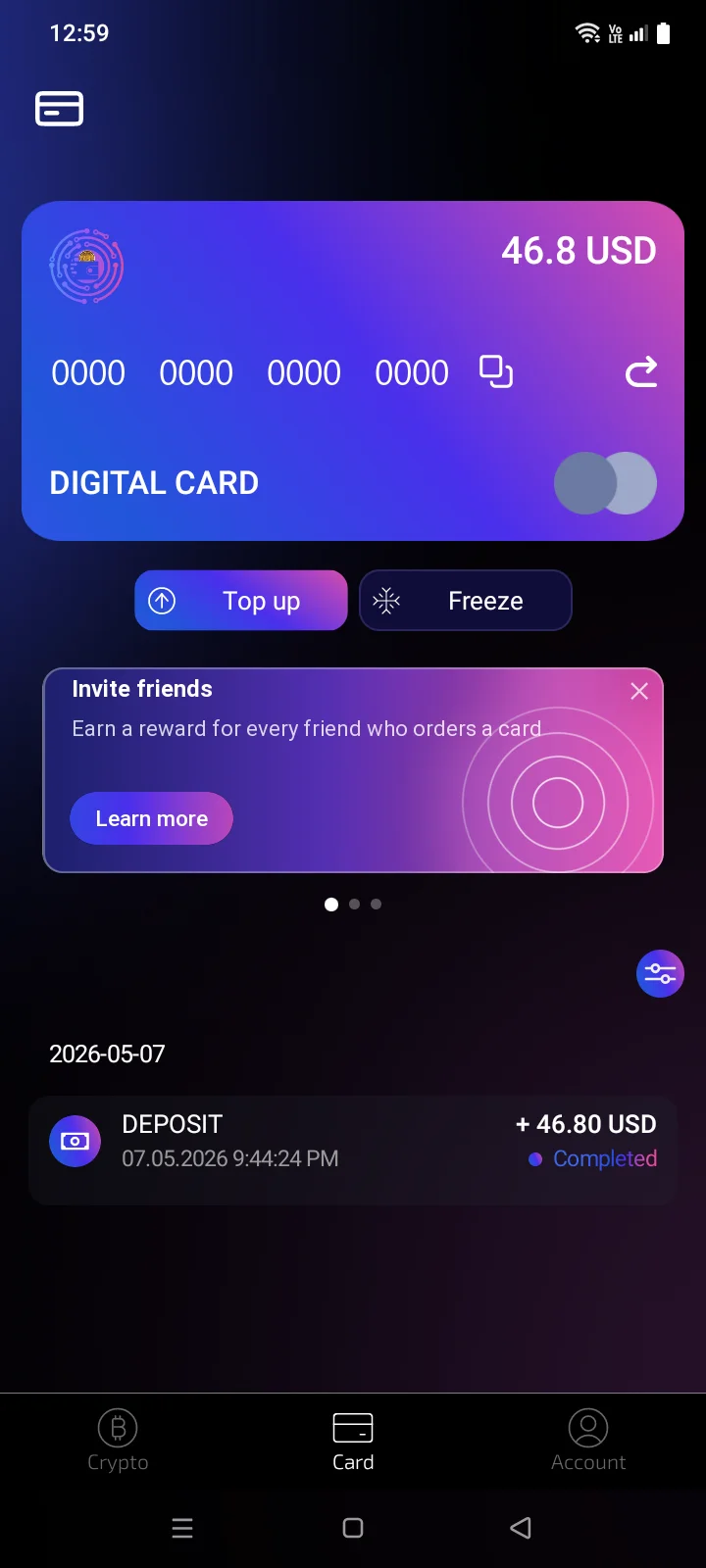
News and offers can appear as banners on the screen of an active card, between the buttons and the list of transactions. A banner has a picture, a title, a short text and usually a button. If there are several banners, swipe left or right; the dots under the banner show how many there are.
 1
2
3
1
2
3
| 1 | Title — what the banner is about. |
| 2 | Text — a short description. |
| 3 | Button — opens the details: a web page in the browser or a bottom panel in the app.If the banner has a button. |
 1
2
3
4
1
2
3
4
| 1 | Title — what the banner is about. |
| 2 | Text — a short description. |
| 3 | Button — opens the details: a web page in the browser or a bottom panel in the app.If the banner has a button. |
| 4 | × — hides the banner. |
If a banner has no web link, tapping it opens its details right in the app, in a bottom panel. Some banners can be closed with ×. The banner text depends on the app language. To refresh the banners, pull the card screen down.