
Part 2 · Cards
2.7Adding a card to Apple Wallet
iOS onlyThis feature is available only in the iOS app.
A virtual card can be added to Apple Wallet to pay with Apple Pay in shops, apps and online.
Which cardsThe Add to Apple Wallet button appears only for active virtual cards.
Add a card
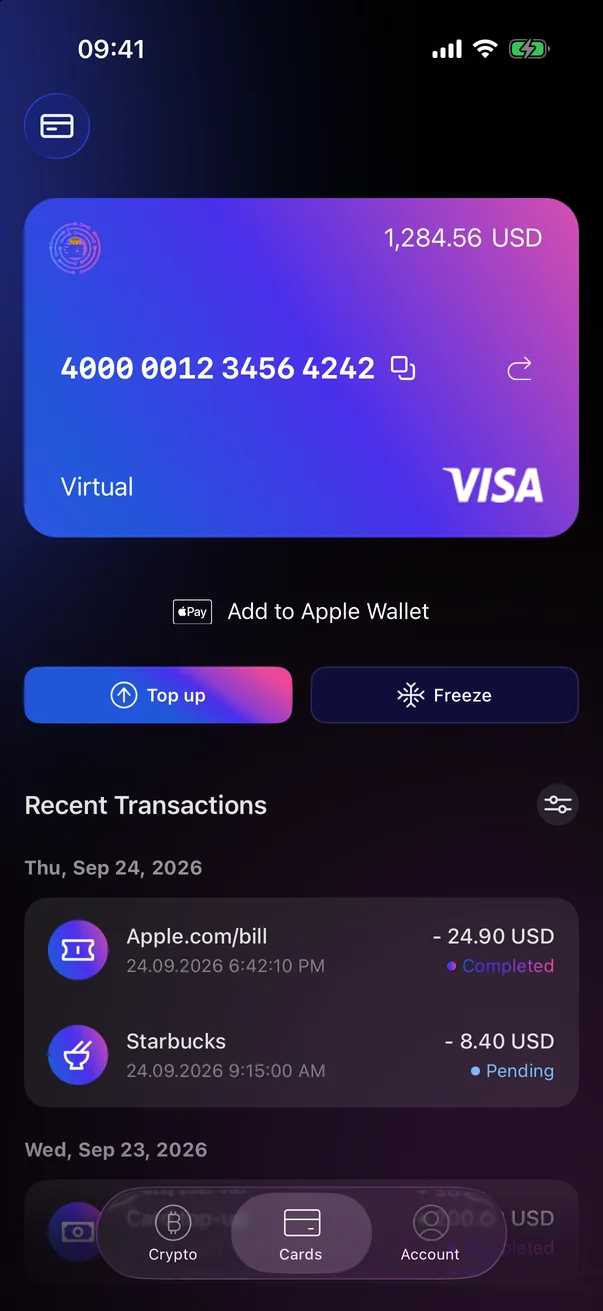
- Open the Cards tab and select the virtual card.
- Tap Add to Apple Wallet. The Apple Wallet app opens.
- In Apple Wallet, add a new card and follow the on-screen steps. When asked for the card details, enter the card number, expiry date and CVV from the Cryptolink app (see 2.4).
- To confirm the card, choose to get the one-time code by email. To confirm the card, choose where to get the one-time code: SMS to the phone number linked to your account (see 2.2) or email. Enter the code in Apple Wallet.
 1
2
3
1
2
3
| 1 | Add to Apple Wallet — opens the Apple Wallet app. |
| 2 | Copy card number — copies the number to paste into Apple Wallet. |
| 3 | Flip card — shows the expiry date and CVV. |
No access to your email?Contact support (see 5.7).
No access to the phone number?Choose email for the code. If neither the phone number nor the email is available to you any more, contact support (see 5.7).