
2.9Card transactions
Every purchase, top-up and declined payment appears in the card's transaction history. You can see the latest operations right on the card screen and open the details of any of them.
Recent transactions
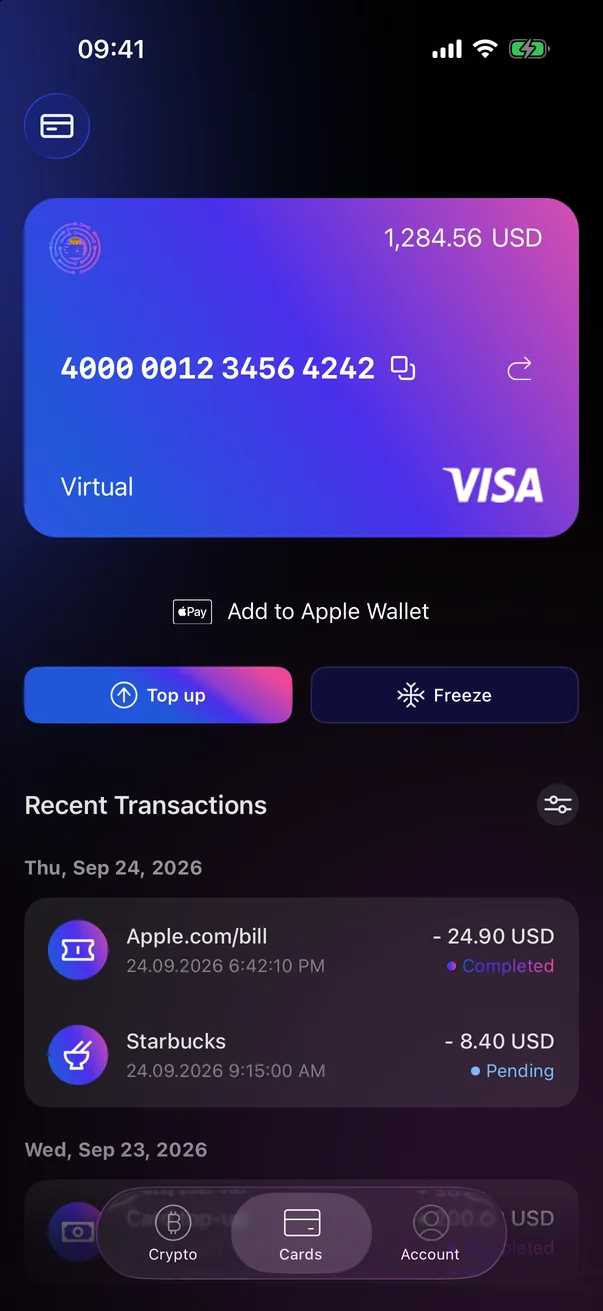
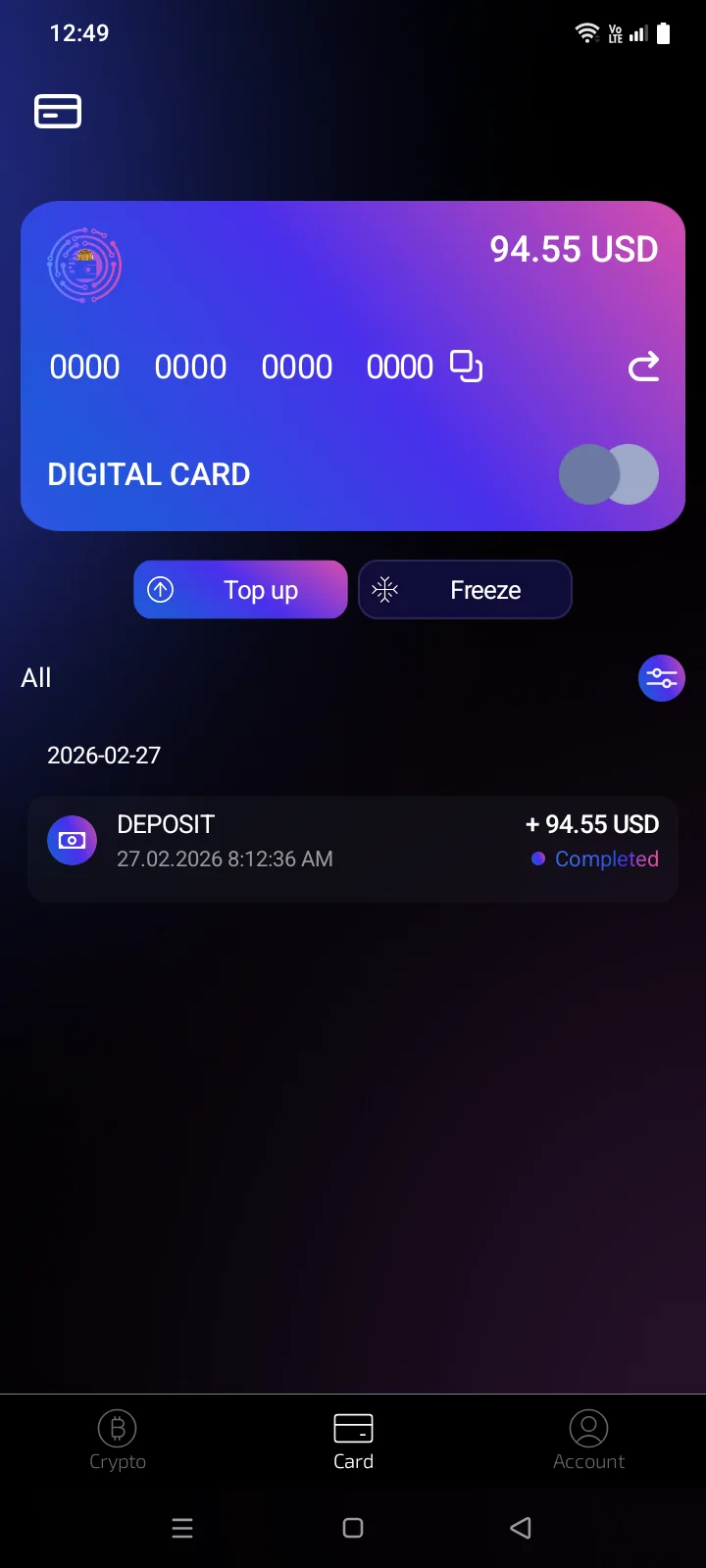
Under the card controls (and under the banners, if there are any), the Recent TransactionsAll block lists the 10 latest operations, grouped by day. The icon to the right of the heading opens the full list. If the card has no operations yet, the block isn't shown.If the card has no operations yet, the list is empty.
 1
2
3
4
5
6
1
2
3
4
5
6
| 1 | Recent Transactions — the 10 latest operations on the selected card. |
| 2 | All transactions — opens the full list. |
| 3 | Day — operations are grouped by date, newest first. |
| 4 | Operation — the merchant or the operation name, with the date and time below. The icon on the left shows the purchase category; top-ups have a cash icon. |
| 5 | Amount — in USD: − for purchases and withdrawals, + for top-ups. |
| 6 | Status — see the table below. |
 1
2
3
4
5
1
2
3
4
5
| 1 | All transactions — opens the full list. |
| 2 | Day — operations are grouped by date; the date is shown as YYYY-MM-DD. |
| 3 | Operation — the merchant or the operation name, with the date and time below. The icon on the left shows the purchase category; top-ups have a cash icon; a declined payment without a category has an error icon. |
| 4 | Amount — in the operation currency: + for top-ups and refunds, − for purchases and withdrawals. |
| 5 | Status — see the table below. |
Transaction statuses
| Status | What it means |
|---|---|
| Completed | The operation has been processed. |
| Pending | The operation is still being processed. |
| Declined | The payment didn't go through. The details show the reason. |
| Unknown | The app didn't recognise the status. Open the details; if you still have questions, contact support (see 5.7). |
Status names are always shown in English, whatever the app language.
All transactions
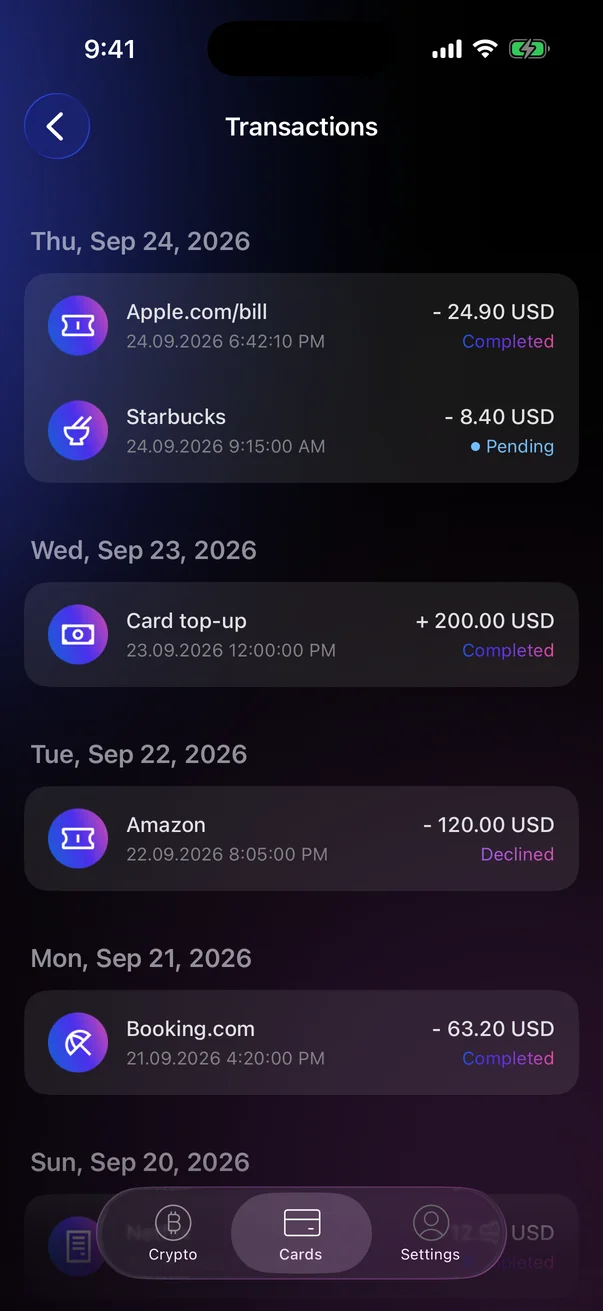
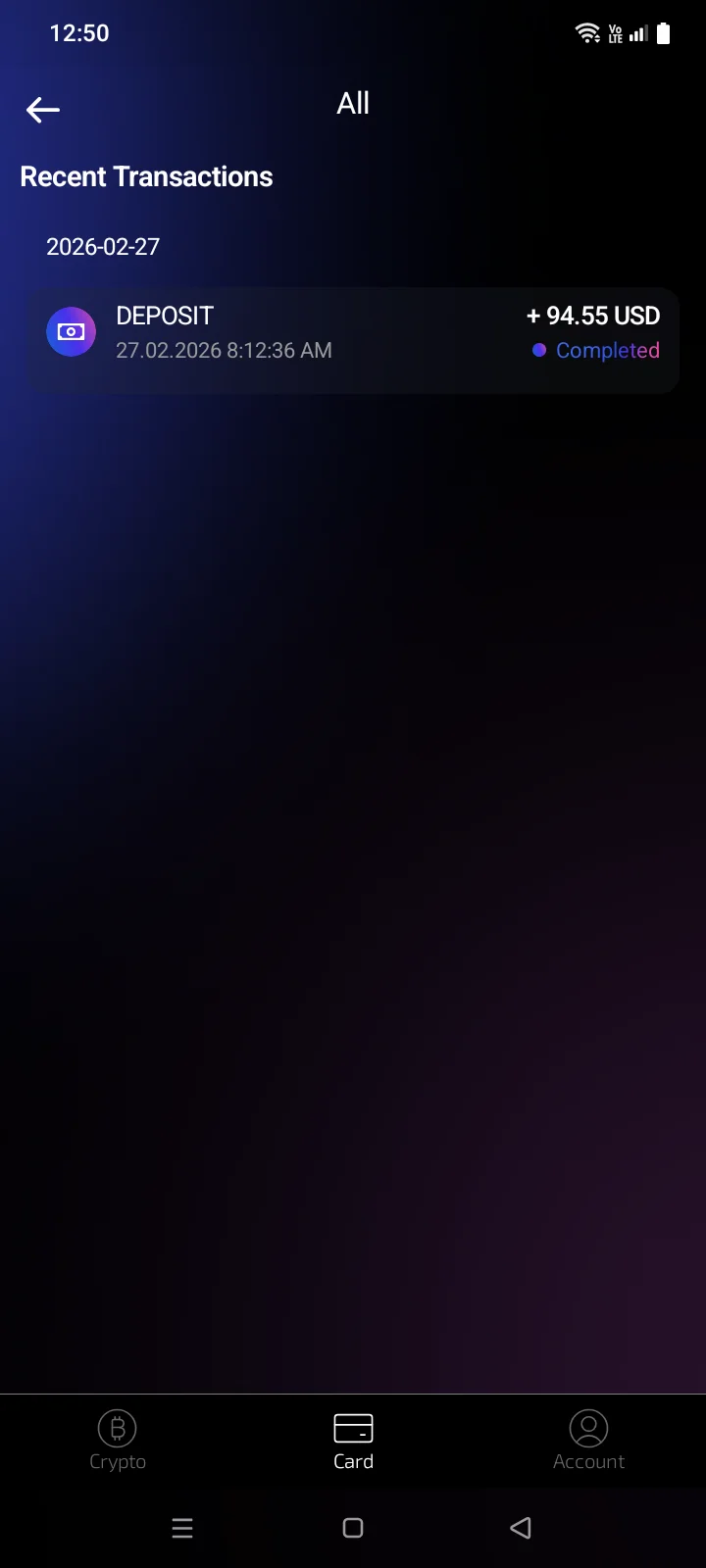
Tap the icon to the right of Recent TransactionsAll. The TransactionsAll screen shows the card's operations grouped by day.
The list shows up to the 50 most recent operations. Pull the list down to refresh it.
Operations are listed in the Recent Transactions section. Scroll down — older operations load automatically, with a loading indicator at the bottom, all the way back to the card's first operation. If the card has no operations, the message Transactions not found appears. To refresh the list, go back to the card screen and open it again.
Transaction details
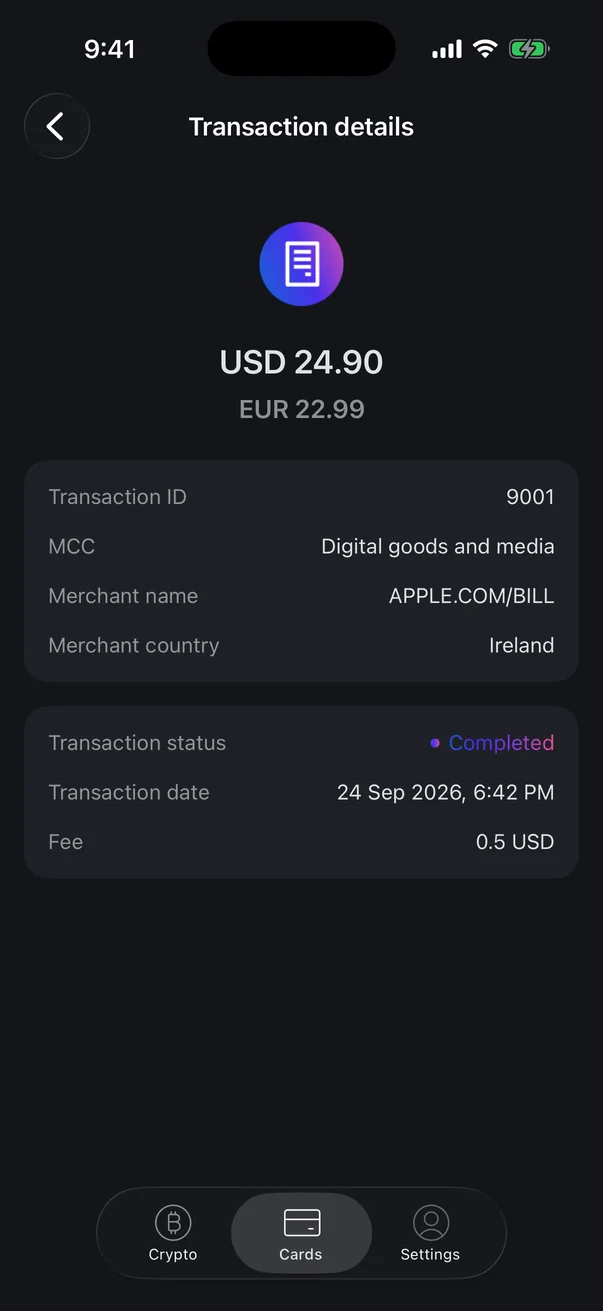
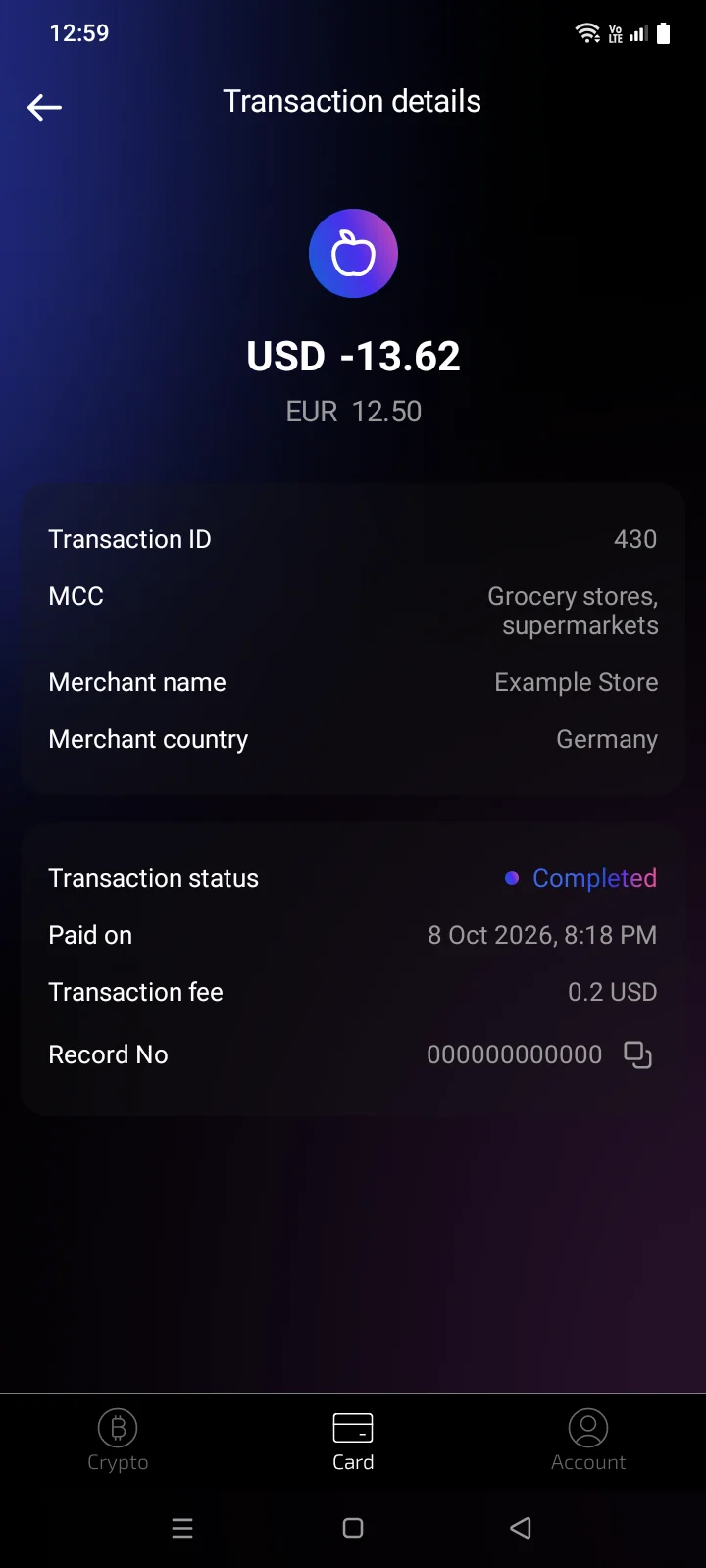
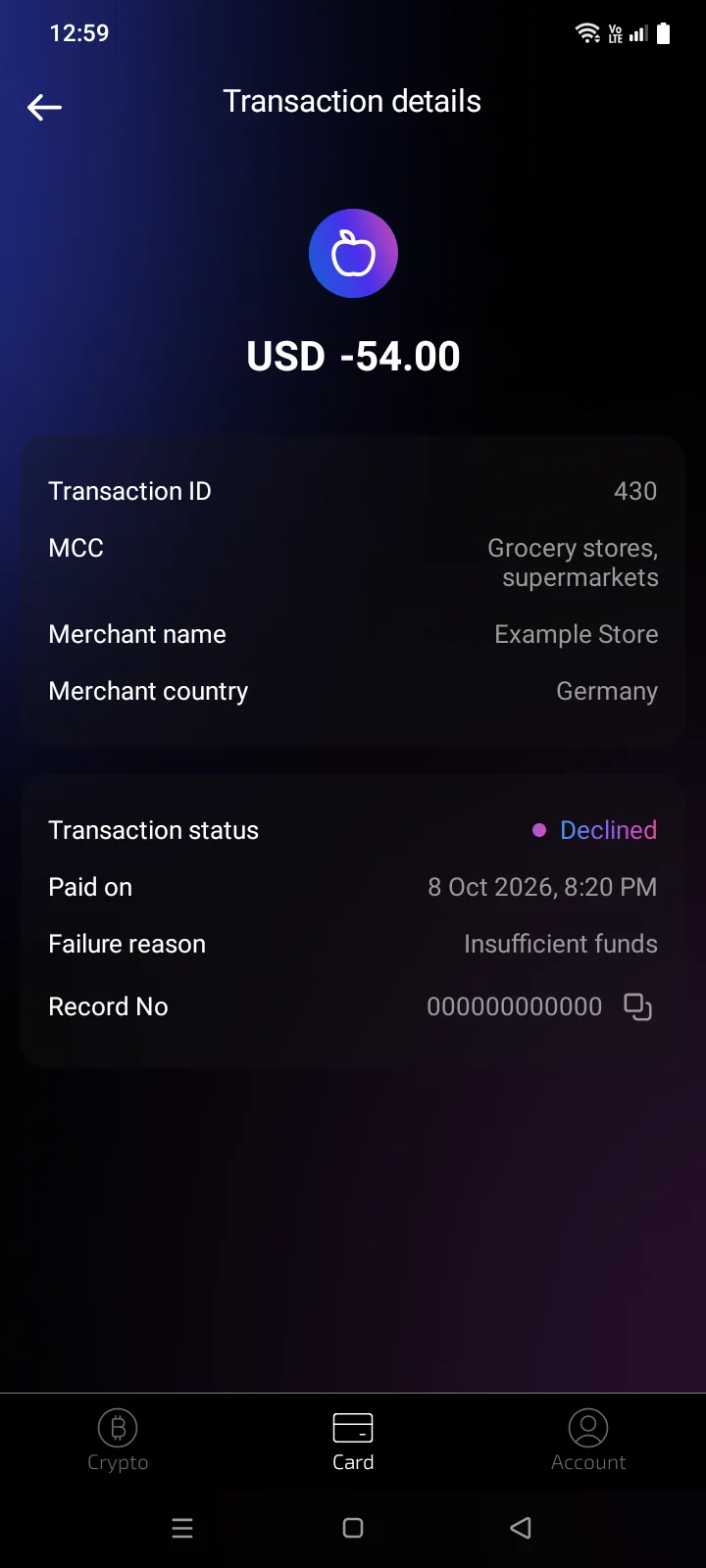
Tap any operation to open Transaction details. The set of rows depends on the operation type.
 1
2
3
4
5
6
7
8
1
2
3
4
5
6
7
8
| 1 | Amount — the amount charged to the card. For a payment in another currency, the amount in the payment currency is shown below it. |
| 2 | Transaction ID — the operation identifier. Give it to support if you have a question about this operation. |
| 3 | MCC — the merchant category. |
| 4 | Merchant name — who you paid. |
| 5 | Merchant country — the merchant's country. |
| 6 | Transaction status — Completed, Pending or Declined. |
| 7 | Transaction date — the date and time of the operation. |
| 8 | Fee — the fee for this operation.Only if a fee was charged. |
 1
2
3
4
5
6
7
8
9
1
2
3
4
5
6
7
8
9
| 1 | Amount — the amount charged to the card. For a payment in another currency, the amount in the payment currency is shown below it. |
| 2 | Transaction ID — the operation identifier. Give it to support if you have a question about this operation. |
| 3 | MCC — the merchant category.If the server provided it. |
| 4 | Merchant name — who you paid. |
| 5 | Merchant country — the merchant's country. |
| 6 | Transaction status — Completed, Pending or Declined. |
| 7 | Paid on — the date and time of the operation. |
| 8 | Transaction fee — the fee for this operation.Only if a fee was charged. |
| 9 | Record No — the operation number in the system; the icon on the right copies it (you see Copied). |
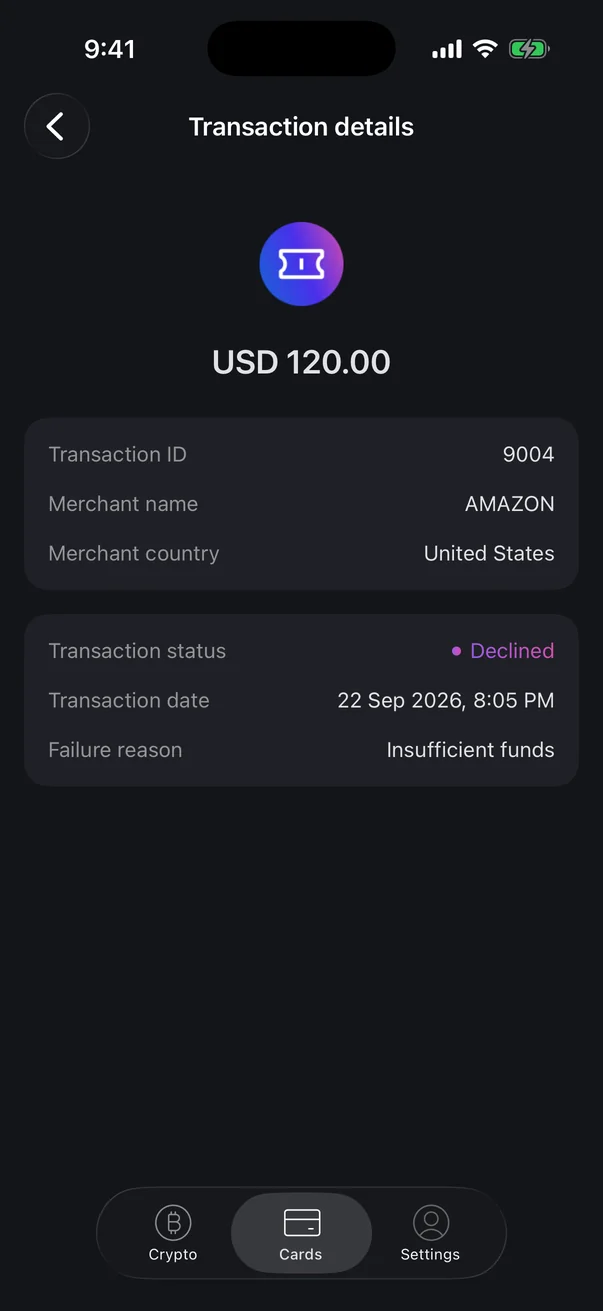
A declined payment has a Failure reason row that explains why the payment didn't go through.
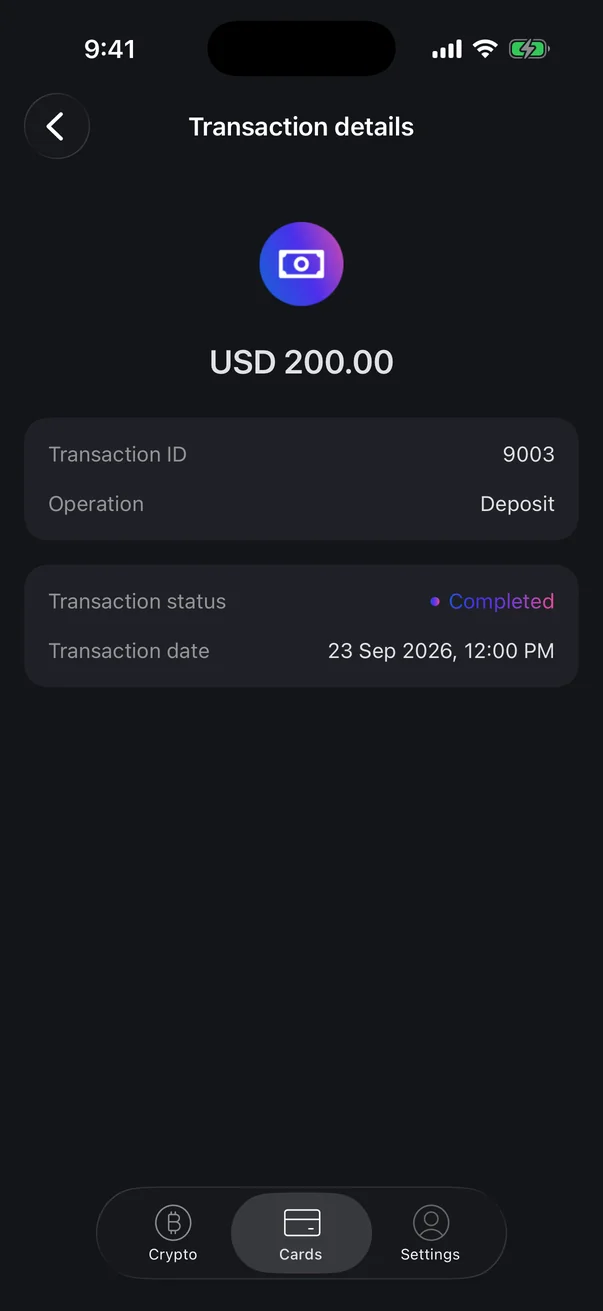
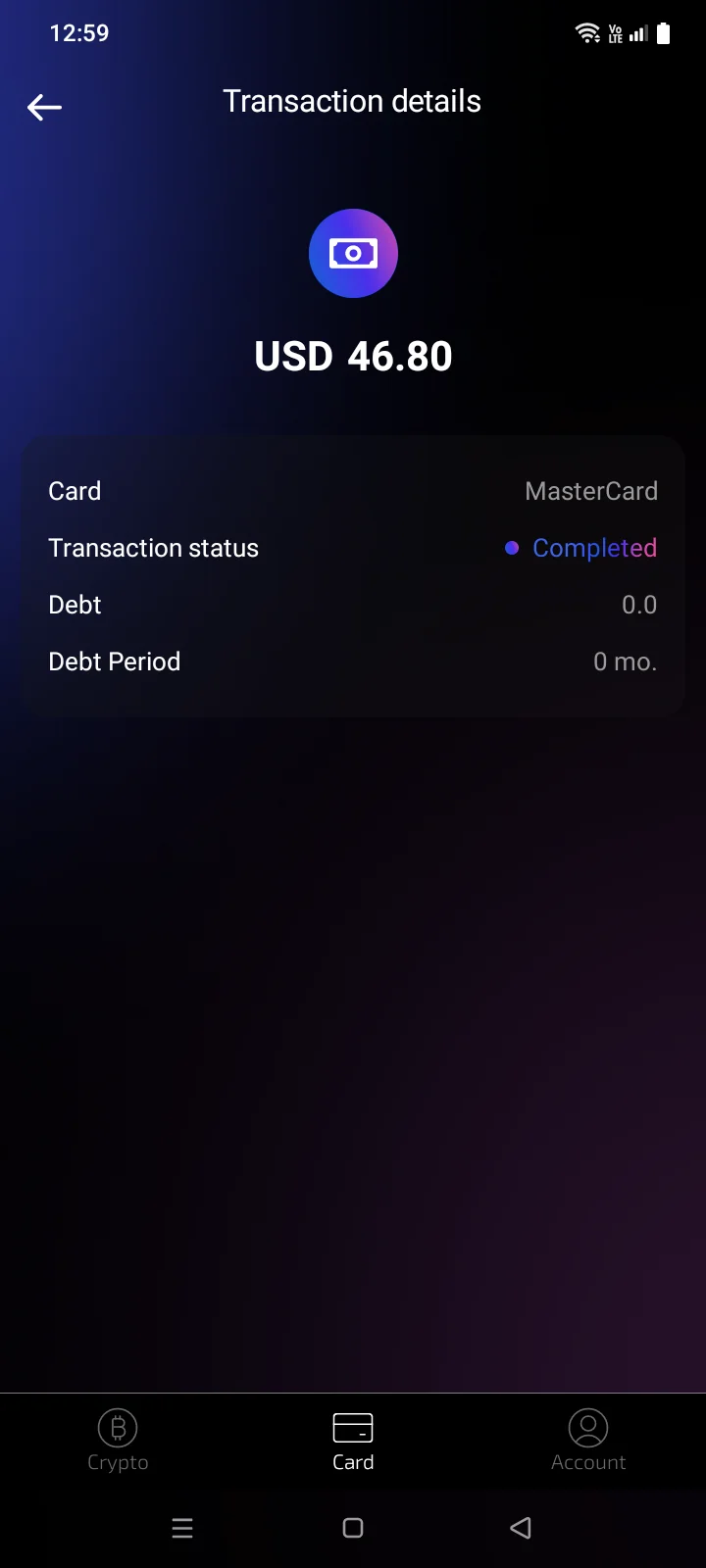
A top-up is shown with the Operation row set to Deposit.
Top-up details show the credited amount, Card (the payment system), Transaction status, Debt and Debt Period — how much subscription debt was deducted from the top-up and for how many months (see 2.6). If the top-up came from a blockchain, the Transaction Hash row shows the hash with a copy button.
If the details fail to load, an error message appears. Go back and open the operation again.