
Part 2 · Cards
2.4Card number, expiry date and CVV
To pay online you need the card number, the expiry date and the CVV. The card number is on the front of the card in the app; the expiry date and CVV are on the back.
Card number
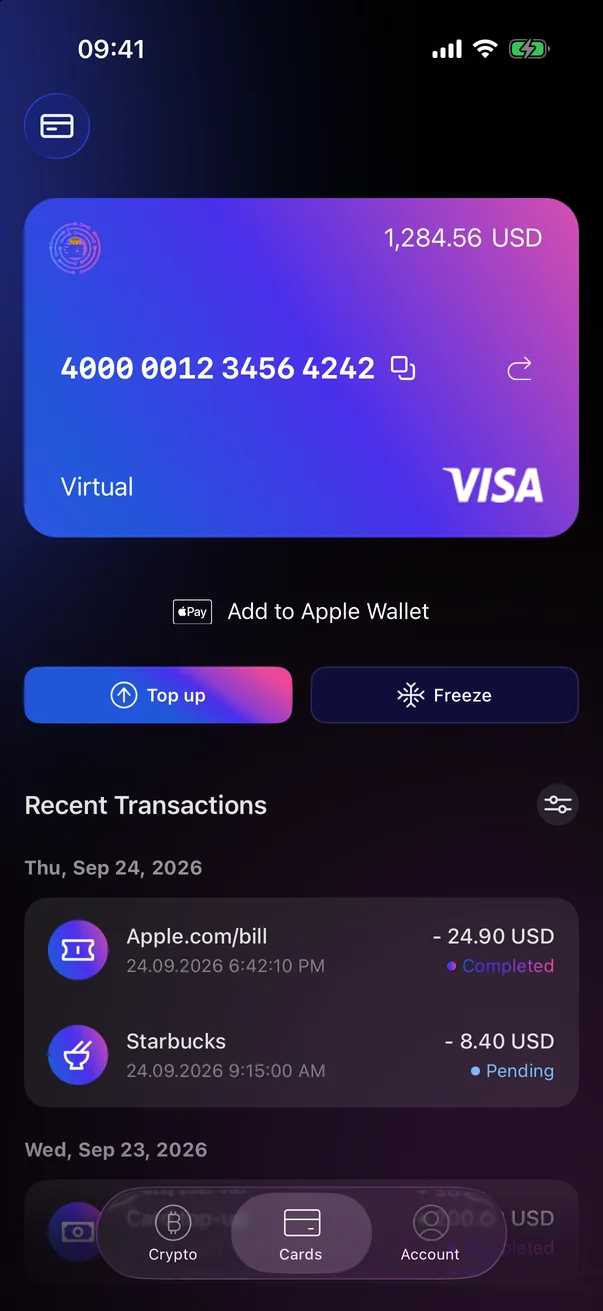
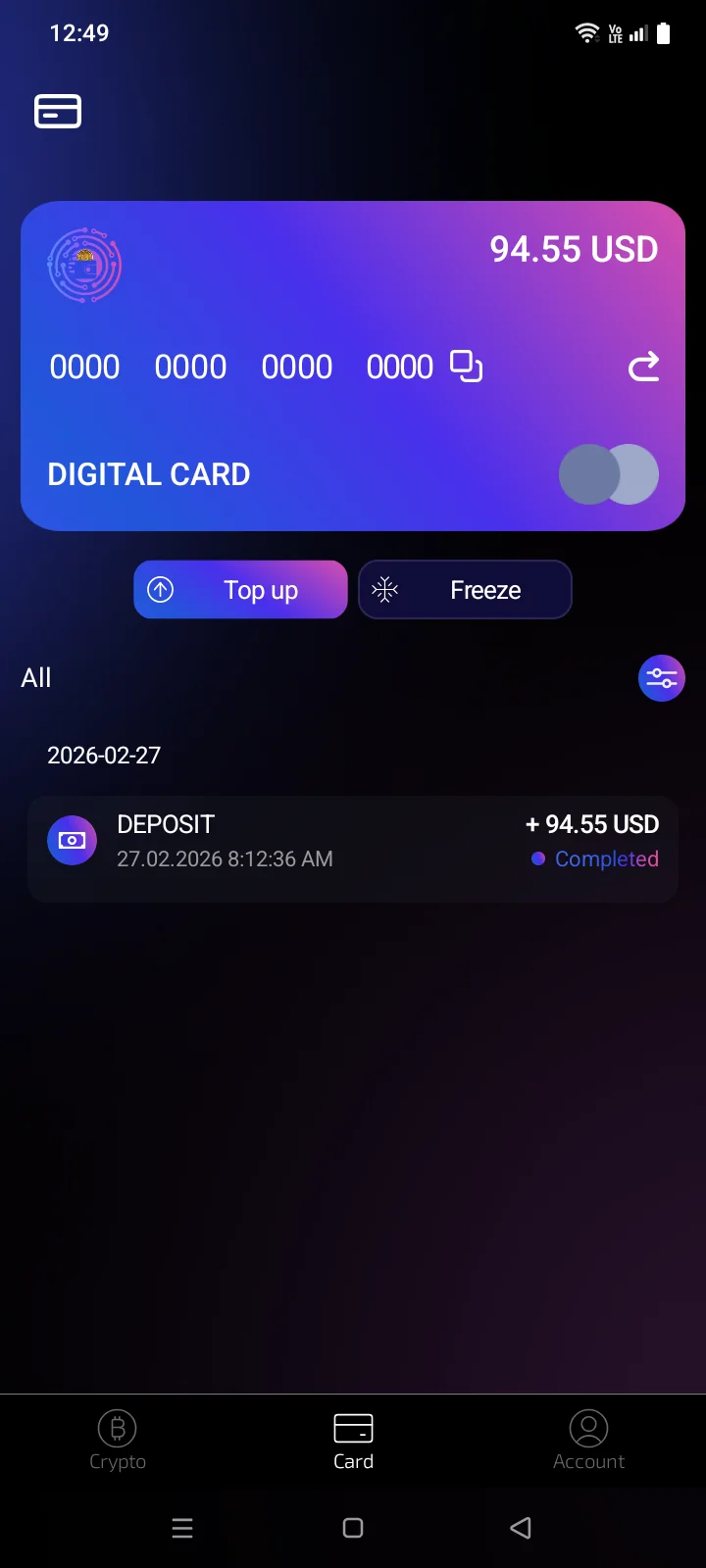
The full 16-digit card number is shown on the front of an active card. Tap the copy icon next to it to copy the number and paste it into a payment form. The Card number copiedCopied message appears.
 1
2
3
1
2
3
| 1 | Card number — the full 16-digit number. |
| 2 | Copy — copies the card number. |
| 3 | Flip card — shows the back of the card with the expiry date and CVV. |
 1
2
3
1
2
3
| 1 | Card number — the full 16-digit number. |
| 2 | Copy — copies the card number. |
| 3 | Flip card — shows the back of the card with the expiry date and CVV. |
Expiry date and CVV
- Open the CardsCard tab and select the card.
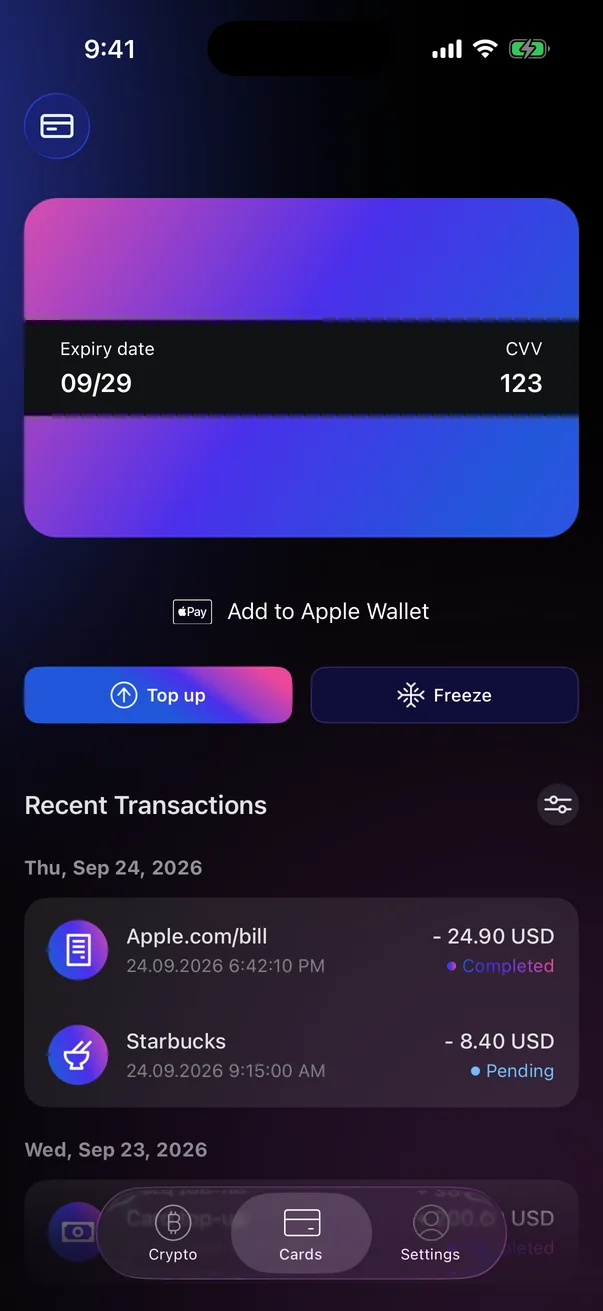
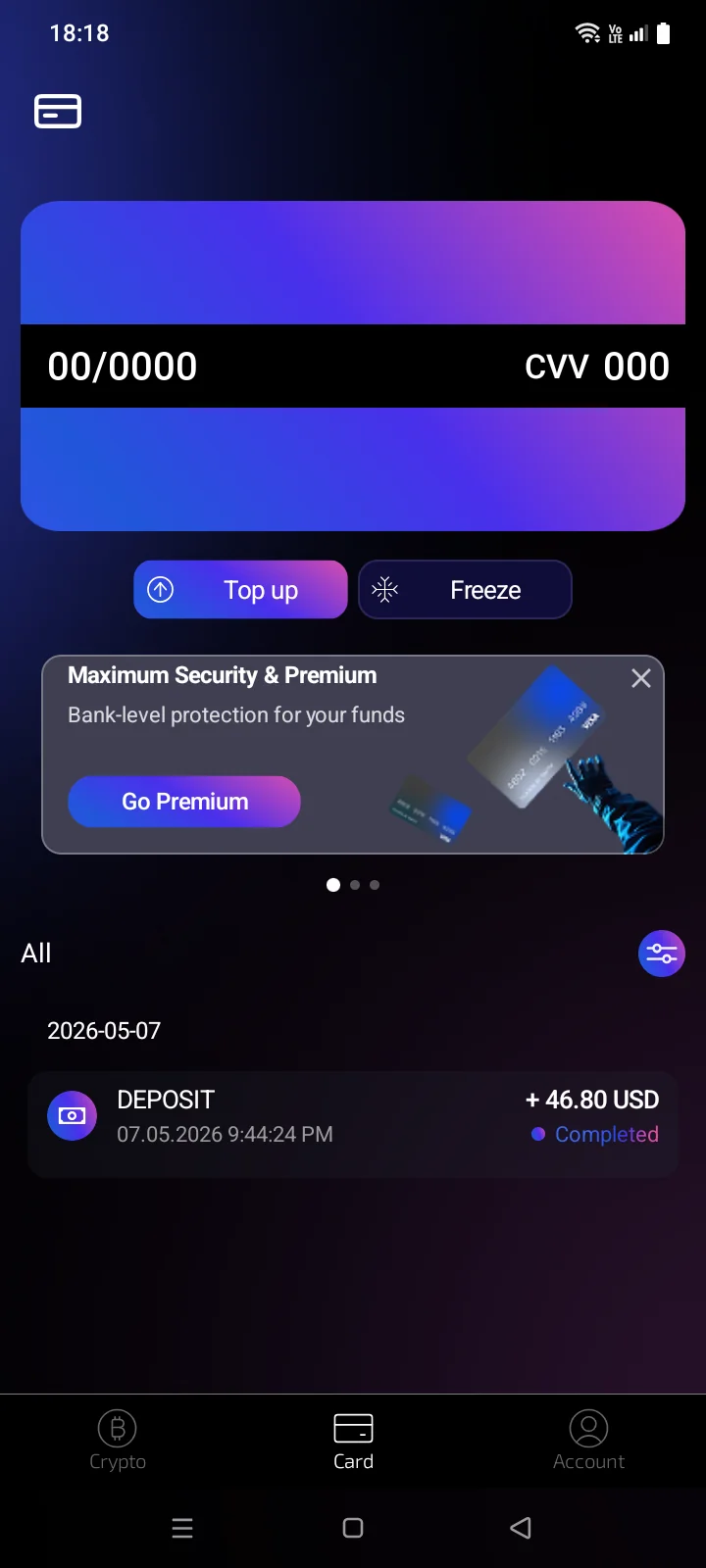
- Tap the card or the flip icon to the right of the number. The card turns over: on the black stripe, Expiry date is on the left and CVV is on the right.
- Tap the card again to turn it back to the front.
 1
2
1
2
| 1 | Expiry date — the month and year until which the card is valid, in MM/YY format. |
| 2 | CVV — the 3-digit security code for online payments. |
 1
2
1
2
| 1 | Expiry date — the month and year until which the card is valid. |
| 2 | CVV — the 3-digit security code for online payments. |
When the details are availableThe card number, expiry date and CVV are shown only for active cards. While a card is being issued or is frozen, the card shows its status instead. See 2.1.
Keep your card details privateAnyone who knows the card number, expiry date and CVV can pay online with your card. Don't share them in messages or screenshots.
If the details don't load
The expiry date and CVV are loaded when you turn the card over. If they can't be loaded, dashes appear instead of the values, and an error message titled Get info card describes the problem.
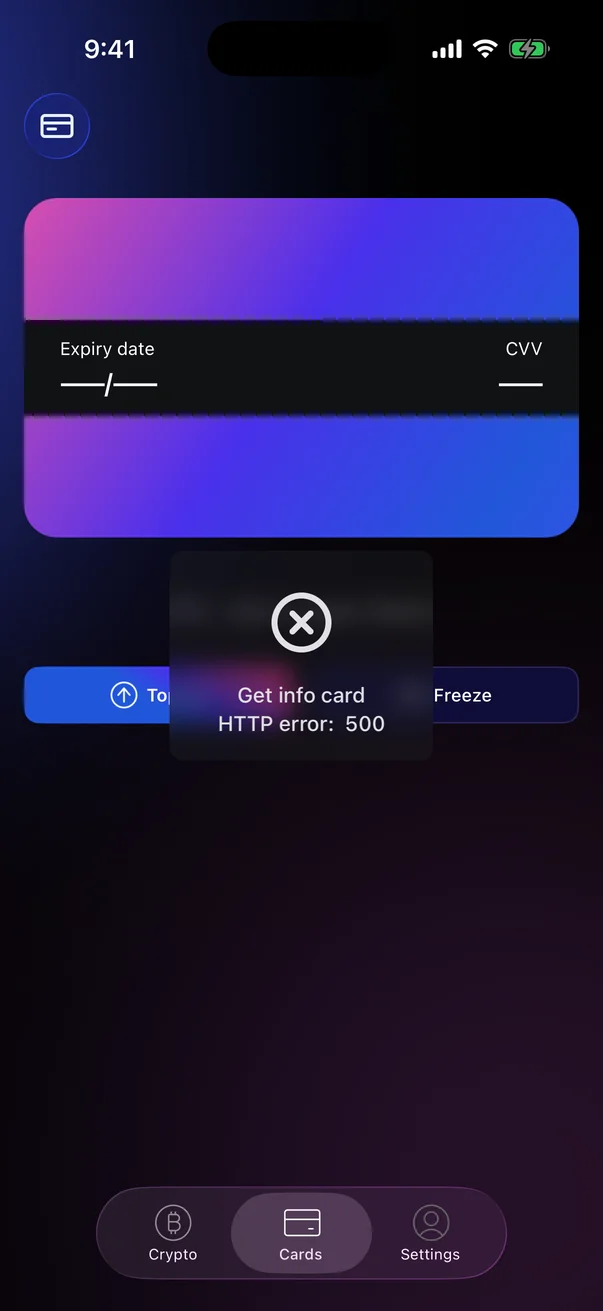
Check your internet connection and try again later. If the problem persists, contact support (see 5.7 Getting help).