
2.1The Cards tab and card statusesThe Card tab and card statuses
The CardsCard tab is where you order, top up and manage your Cryptolink cards. This page explains what the tab shows, what every control on the card screen does and what each card status means.
What the CardsCard tab shows
The content of the tab depends on your account:
- You are not signed in — the tab shows the sign-in screen. See 1.2 Creating a card account and 1.3 Signing in, including Apple and Google.
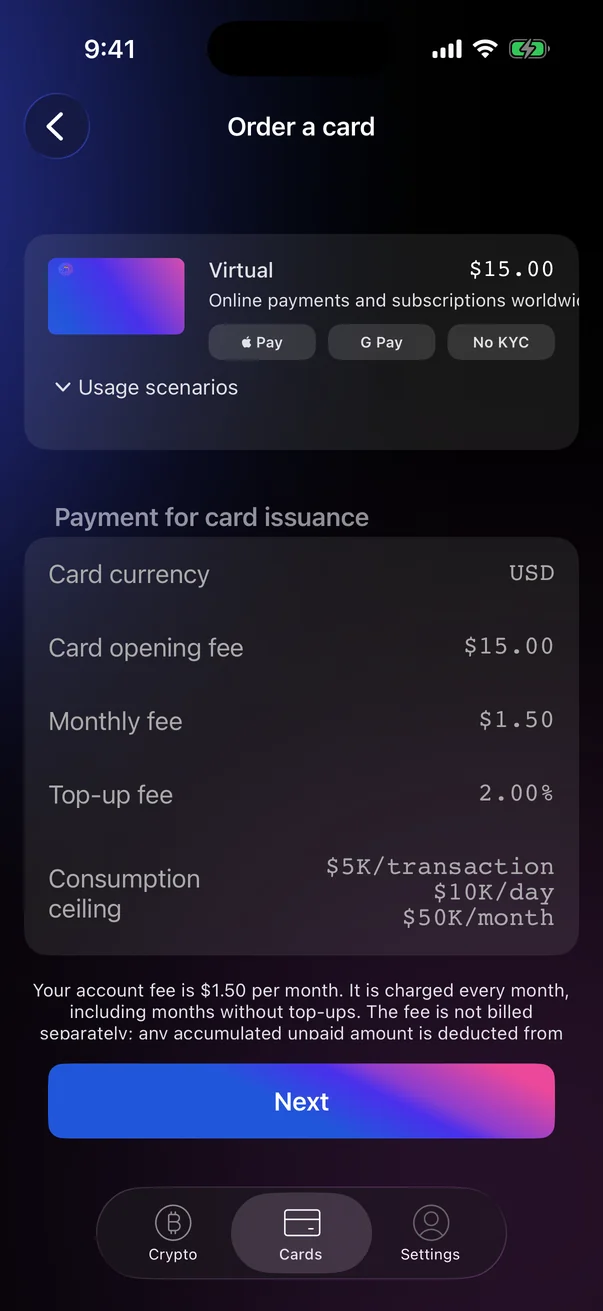
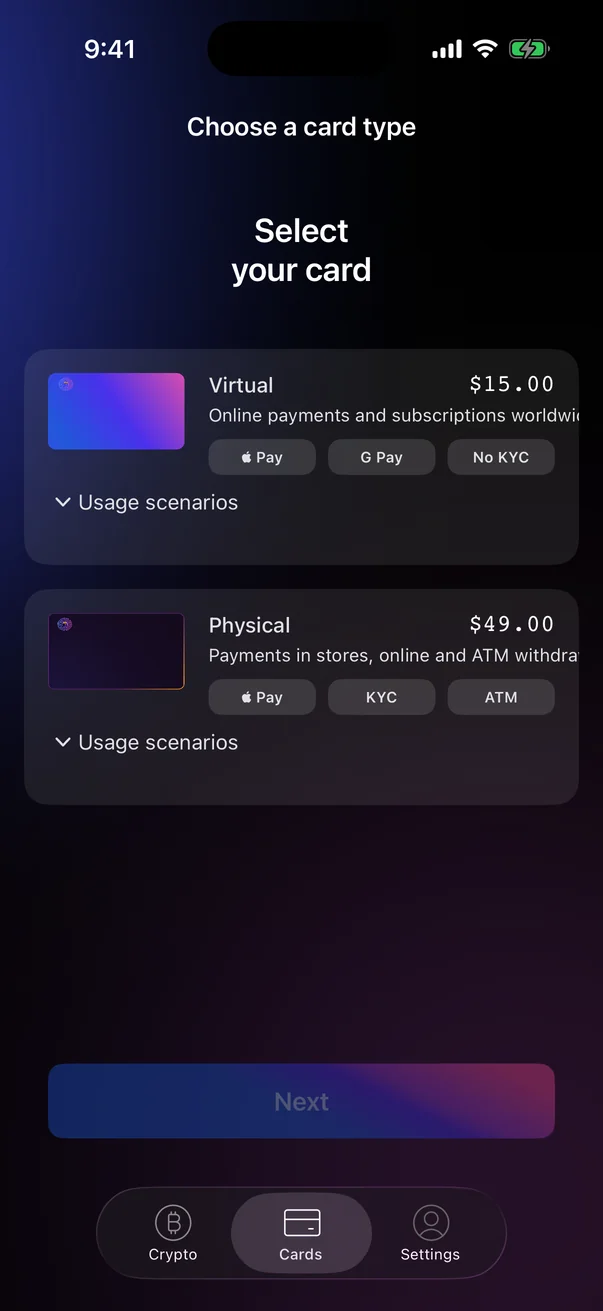
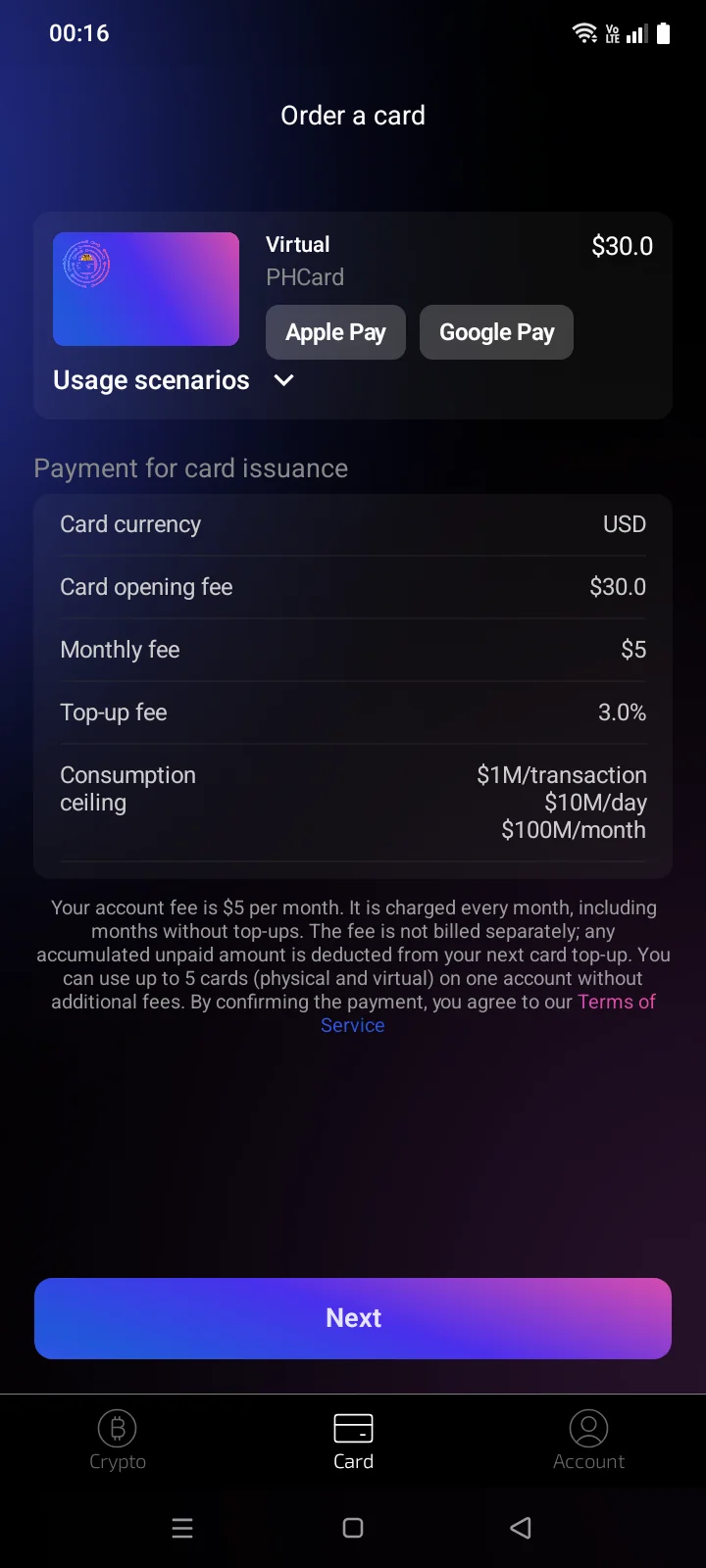
- You are signed in but have no cards yet — the Order a card screen opens with the card terms. See 2.2 Choosing and ordering a card. If several cards are available to order, the tab first opens Choose a card type, where you pick a Virtual or Physical card.
- You have at least one card — the tab opens the card screen described below.
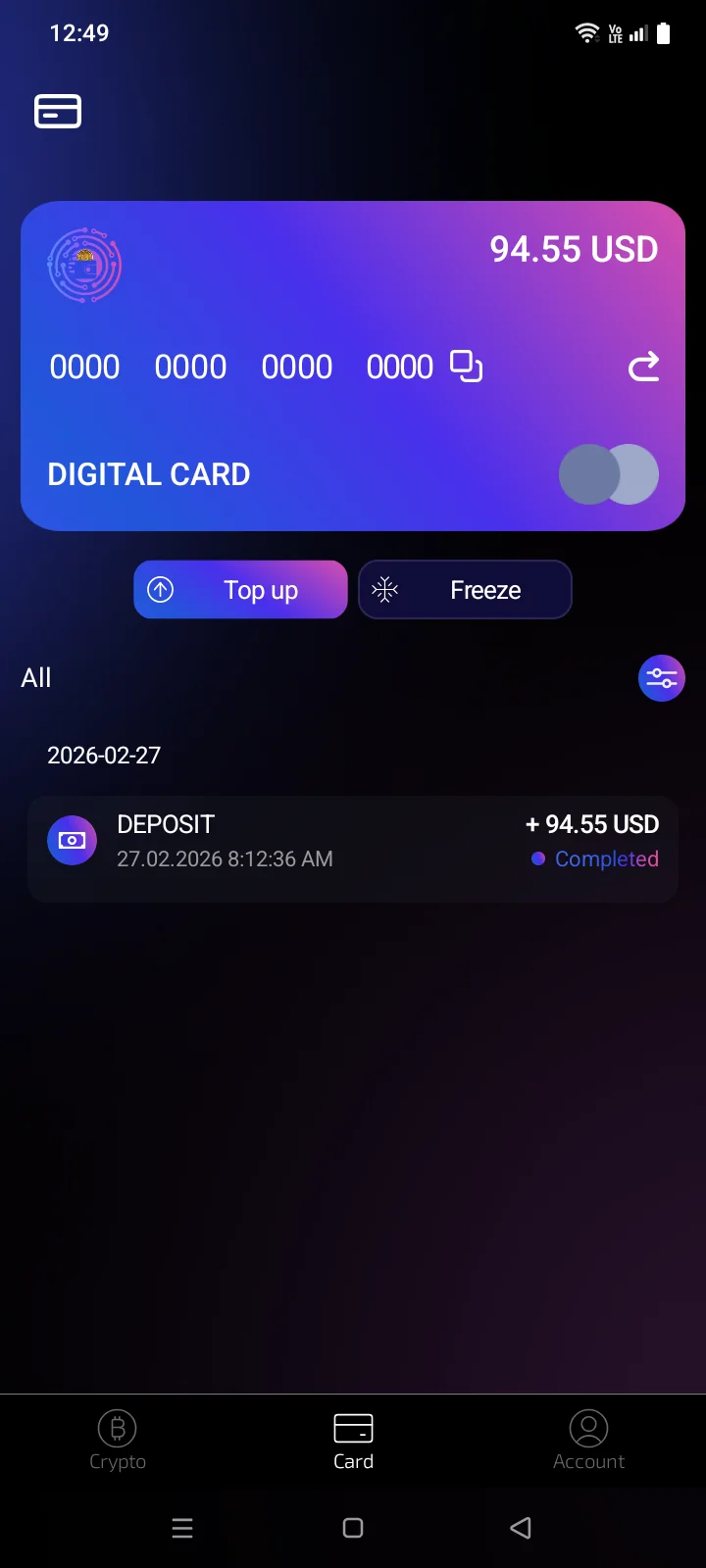
The card screen
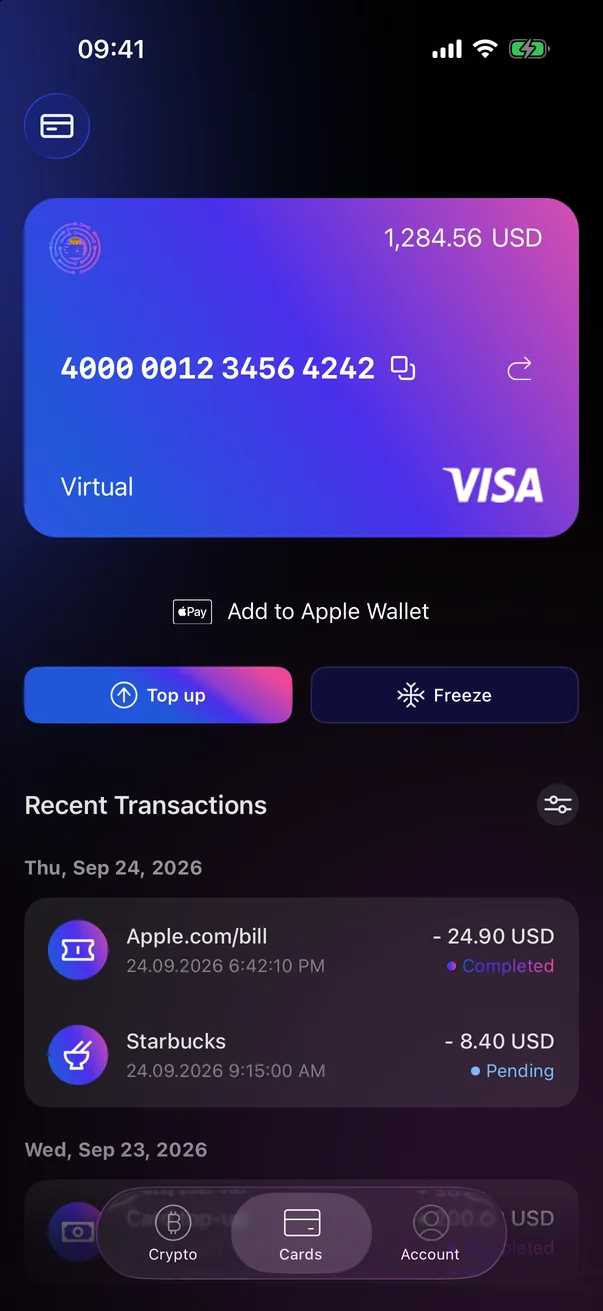
The card screen shows one card at a time. When you open the tab, your first active card is shown. To refresh the card details and the list of transactions, pull the screen down.
1
2
3
4
5
6
7
8
9
10
| 1 | Cards list — opens the list of all your cards, where you can switch to another card or order a new one. |
| 2 | Balance — the money available on this card, in USD. |
| 3 | Card number — the full 16-digit card number.Shown for active cards. |
| 4 | Copy — copies the card number, for example to pay online. The Card number copied message appears. |
| 5 | Flip card — turns the card over to show the expiry date and CVV. See 2.4.Active cards only. |
| 6 | Card type — Virtual or Physical, with the payment system logo on the right. |
| 7 | Add to Apple Wallet — adds the card to Apple Wallet. See 2.7.Active virtual cards only. |
| 8 | Top up — adds money to the card. See 2.6.Active cards only. |
| 9 | Freeze — temporarily locks the card. See 2.5.Active cards only. |
| 10 | Recent Transactions — the latest transactions on the card, grouped by day. The icon on the right opens the full list. See 2.9.Shown when the card has transactions. |
1
2
3
4
5
6
7
8
9
| 1 | Cards list — opens the list of all your cards, where you can switch to another card or order a new one. |
| 2 | Balance — the money available on this card, in USD. |
| 3 | Card number — the full 16-digit card number.Shown for active cards. |
| 4 | Copy — copies the card number, for example to pay online. The Copied message appears. |
| 5 | Flip card — turns the card over to show the expiry date and CVV. See 2.4.Active cards only. |
| 6 | Card type — virtual, with the payment system logo on the right. |
| 7 | Top up — adds money to the card. See 2.6.Active cards only. |
| 8 | Freeze — temporarily locks the card. See 2.5.Active cards only. |
| 9 | Transactions — the latest transactions on the card, grouped by day. Above the list is the All heading; the icon to its right opens the full list. See 2.9.Shown when the card has transactions. |
Banners with news and offers may appear on the card screen (see 2.11).
Switching between cards
Tap the cards list button (1) in the top-left corner. The Cards screen opens: each card shows its type and status, the last four digits of the number and the balance. Tap a card to open it, or tap Order a card at the bottom of the list to order another one. To go back, tap the back arrow or the system Back button.
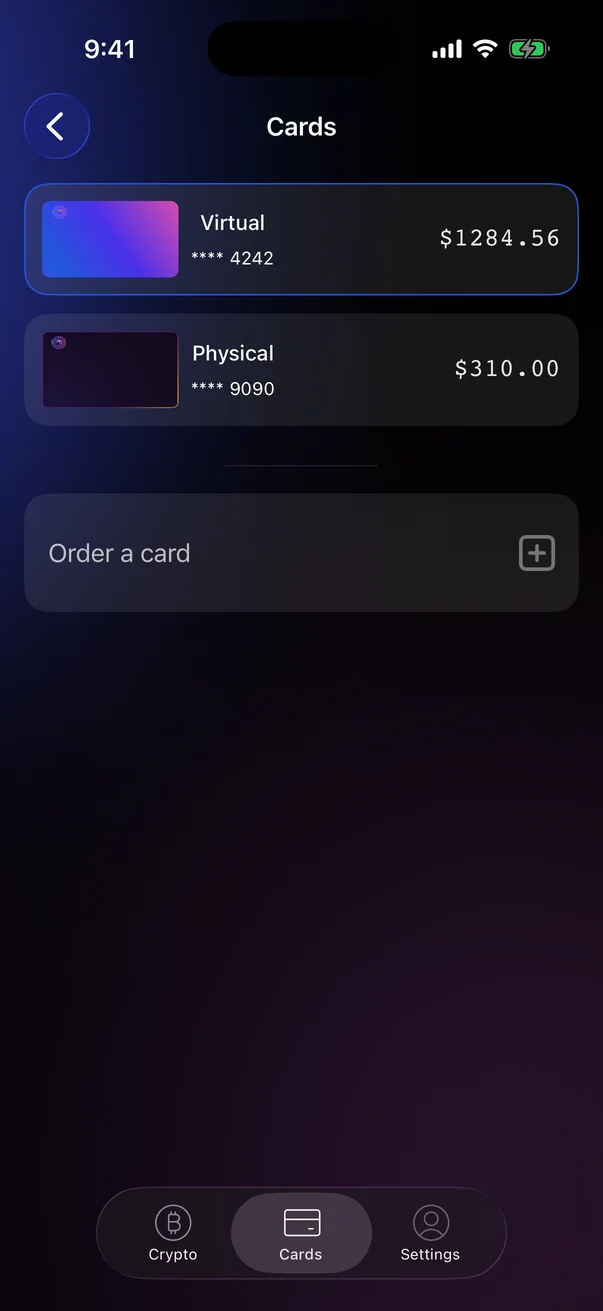
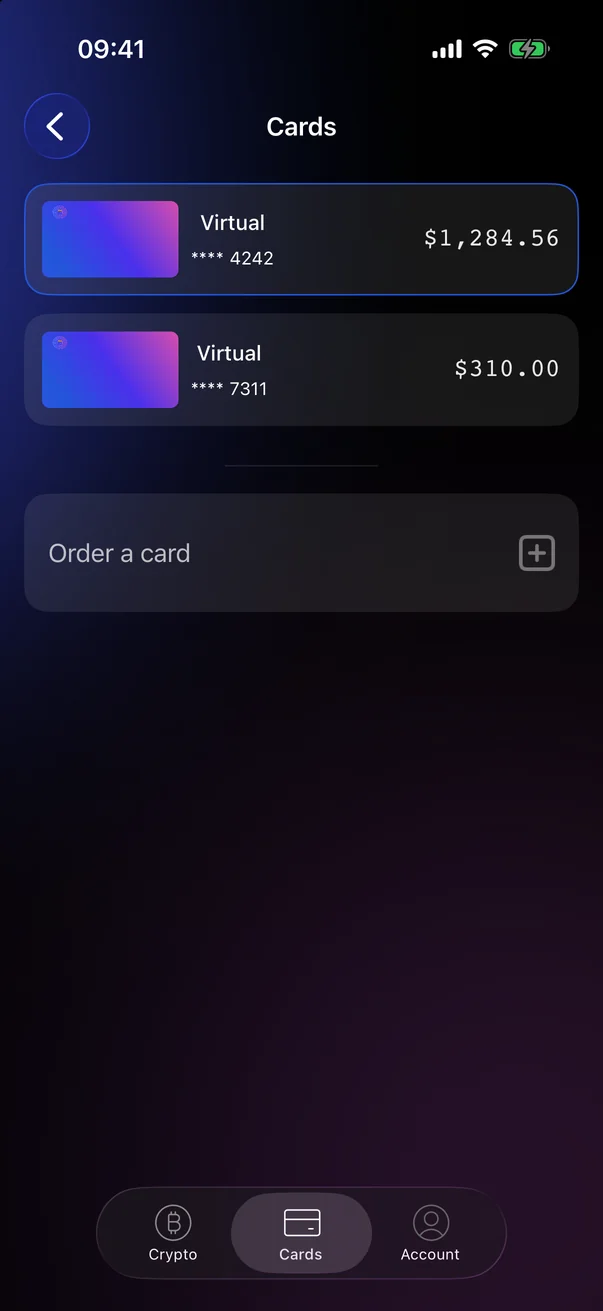
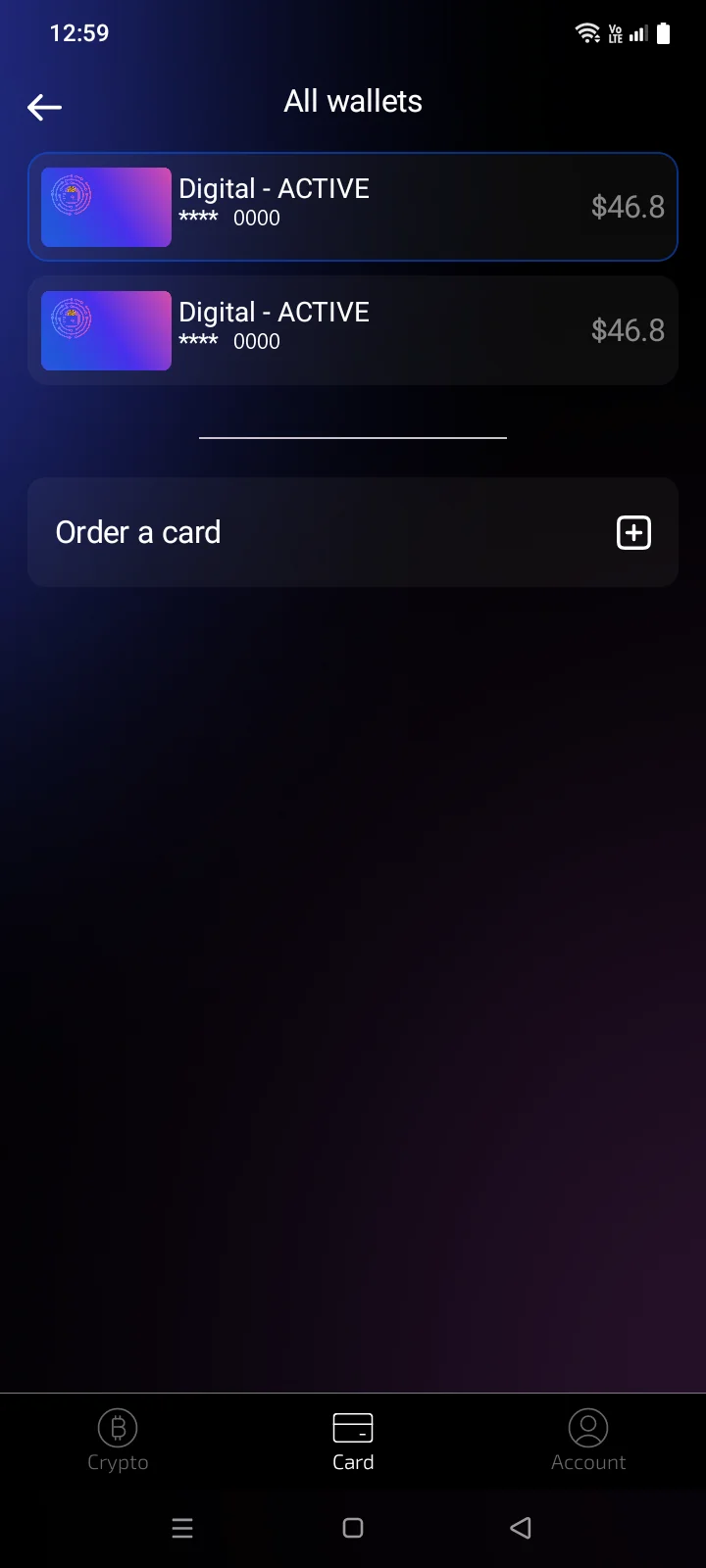
If you have already ordered the maximum number of cards, instead of Order a card you see the message You have reached the maximum card limit on this account.You have reached the limit on the number of cards on your account. See 2.8 Several cards.
Card statuses
When a card is not ready for payments, a status appears on the card instead of its details, and only what makes sense for that status is shown below the card.
| What you see | What it means | What you can do | |
|---|---|---|---|
| Card details, no status | The card is active and ready to use. | All controls: top up, freeze, copy the number, see the expiry date and CVV. | 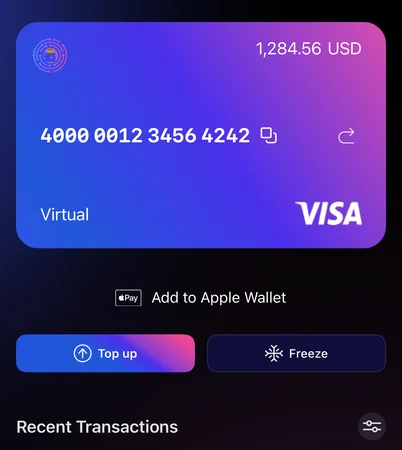 |
| In the process of releaseThe card is in the process of being issued | The card is being issued. | The text below the card reads Your card is being prepared for issuance. This may take some time. Please wait. There is nothing to do: the card becomes active automatically. | 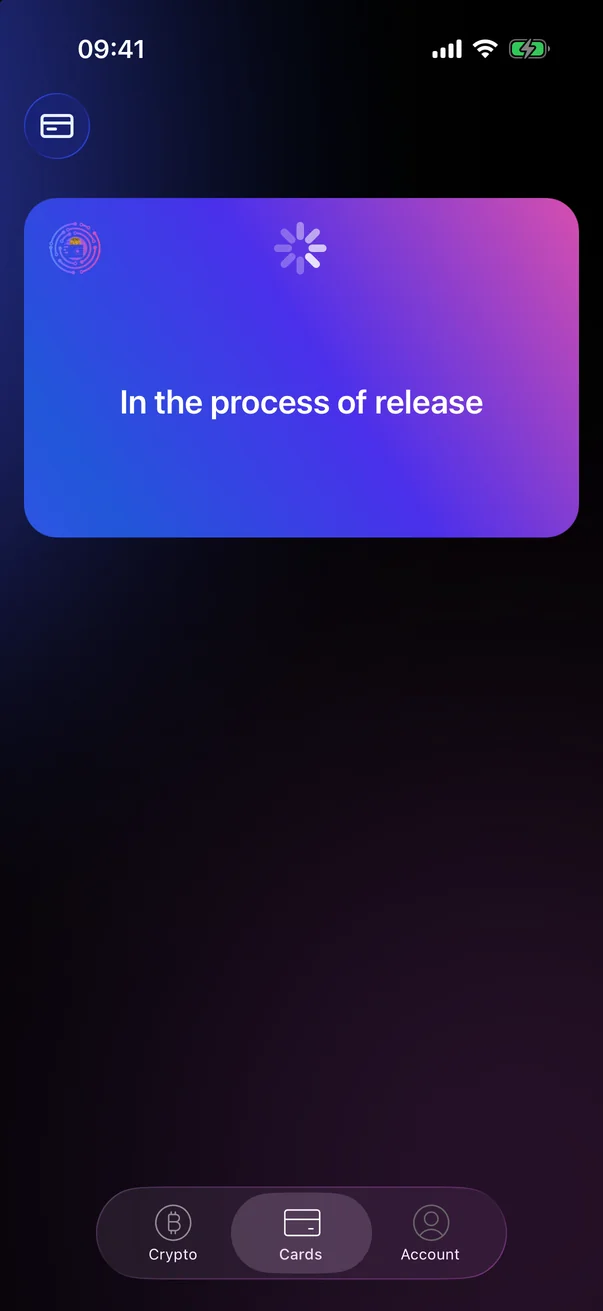 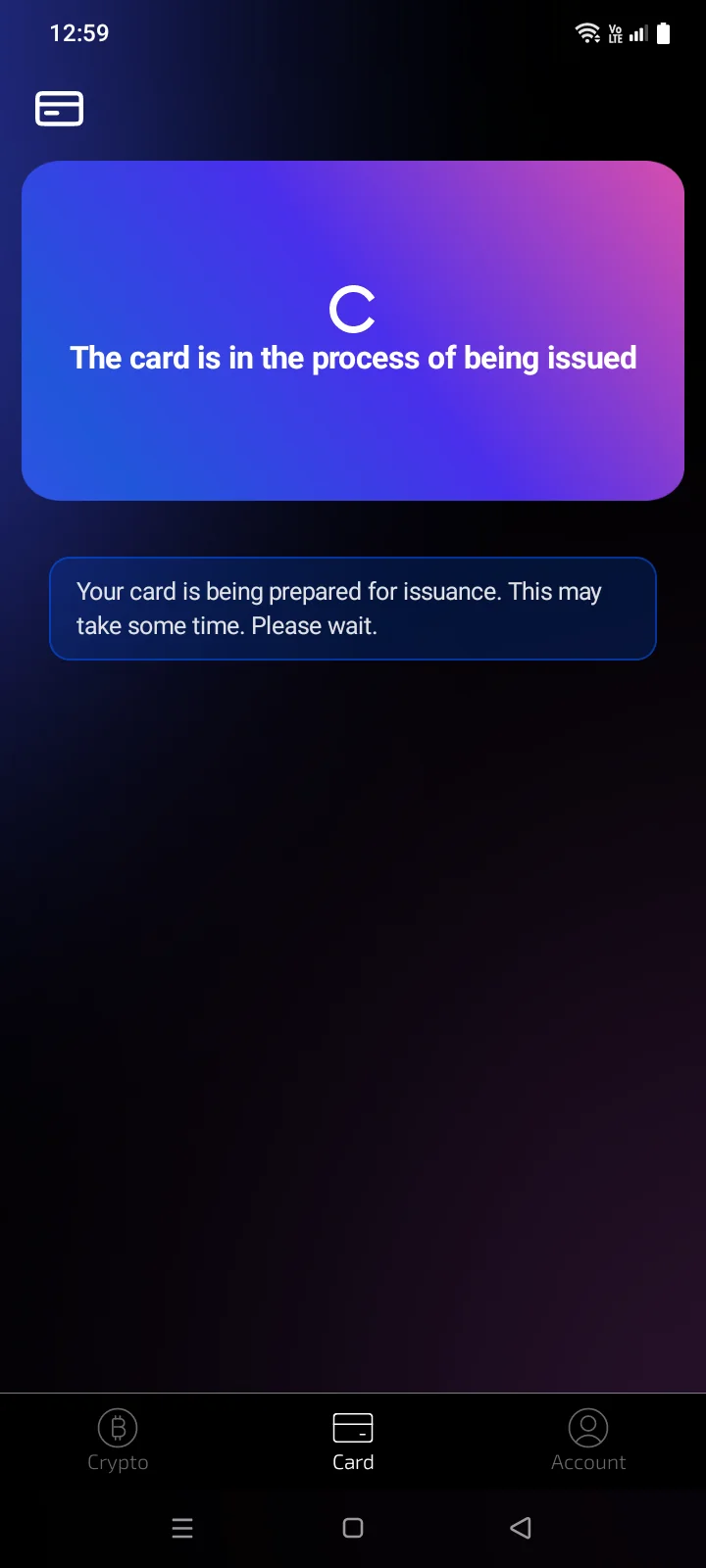 |
| In the process of release | A physical card is being activated. | When you receive the card, enter its 16-digit number and tap Activate card (see 3.4). | 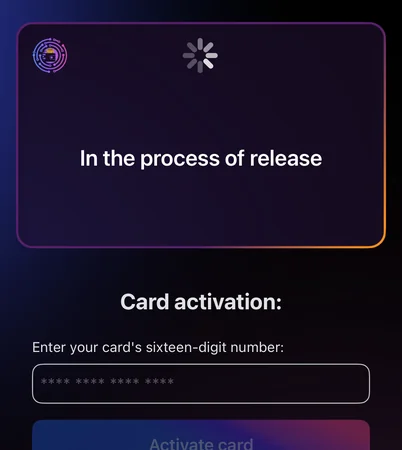 |
| Assigning card... | The card number you entered is being linked to your account. | Wait — this happens automatically. | 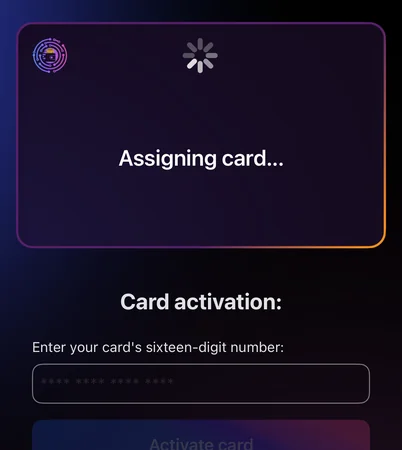 |
| Card assigned | The card is linked to your account and needs a PIN. | Choose 4 or 6 digits, enter a PIN and tap Activate card. See 3.4. | 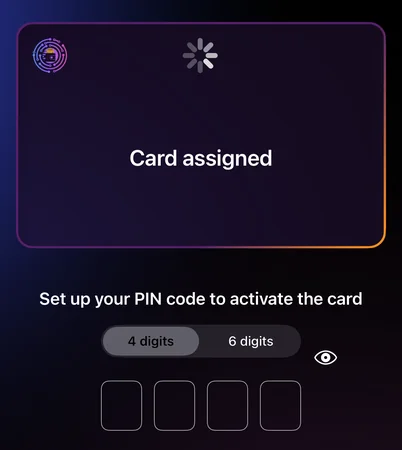 |
| Activating card... | The card is being activated with your PIN. | Wait — this happens automatically. | 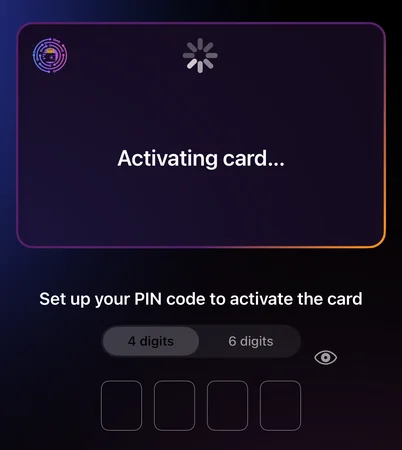 |
| Freezing card...Card freezing in progress | Your freeze request is being processed. | Wait. It can take up to 3 minutes. See 2.5. | 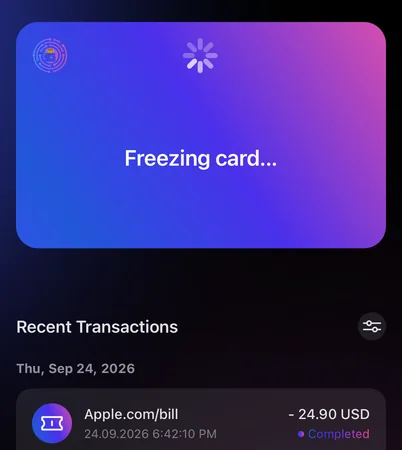 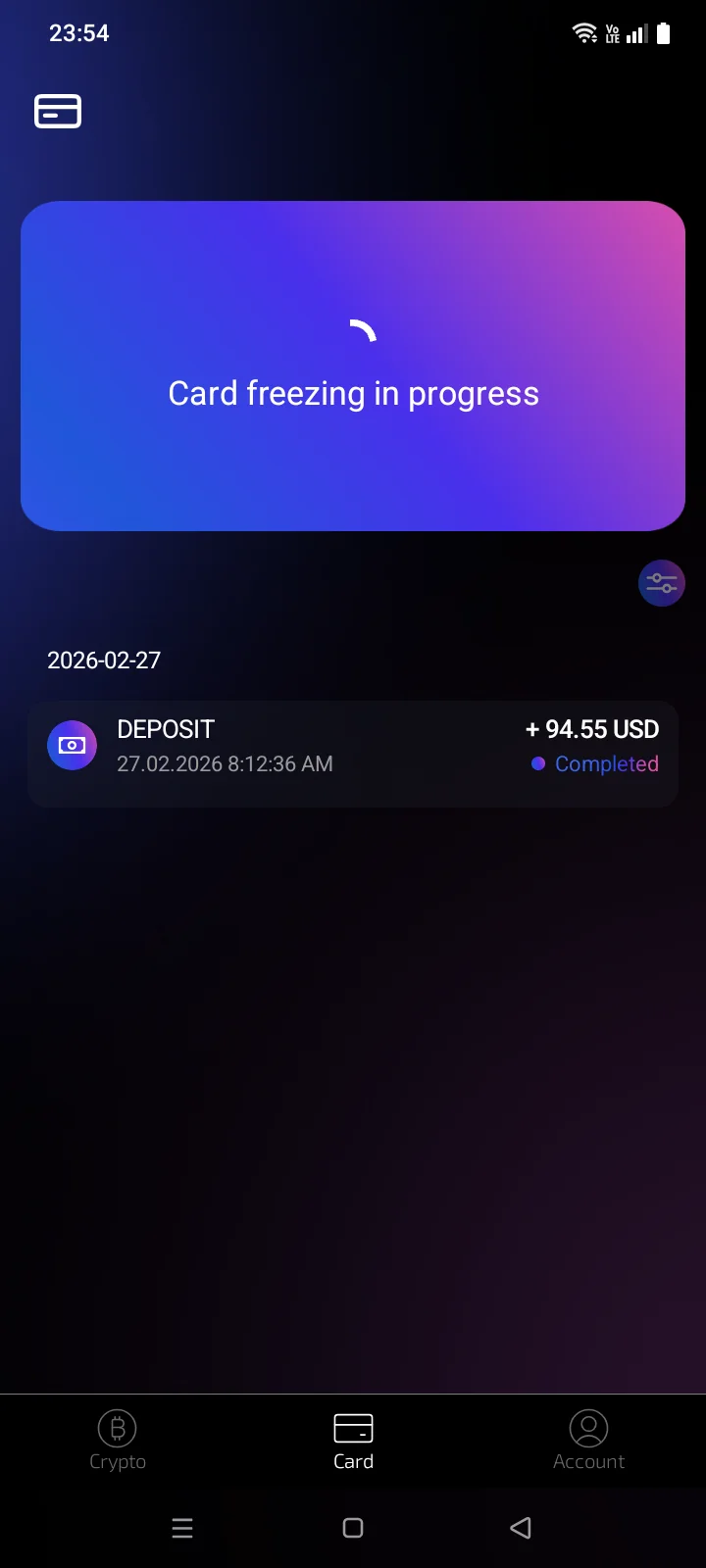 |
| Card frozen | The card is temporarily locked. | Tap Unfreeze below the card. See 2.5. | 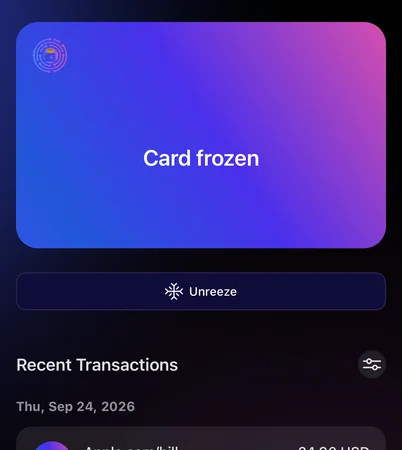 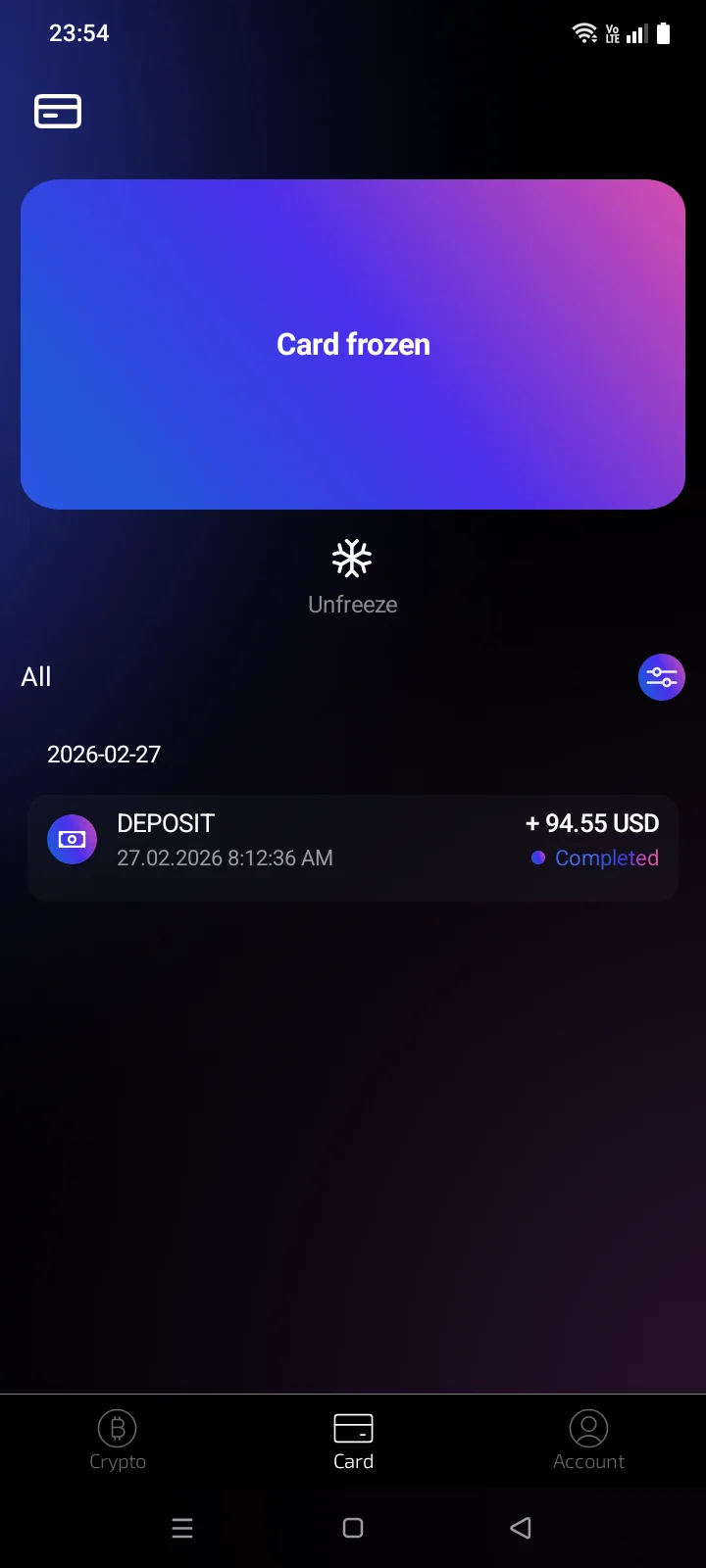 |
| Unfreezing card...Card unfreezing in progress | Your unfreeze request is being processed. | Wait. It can take up to 3 minutes. See 2.5. | 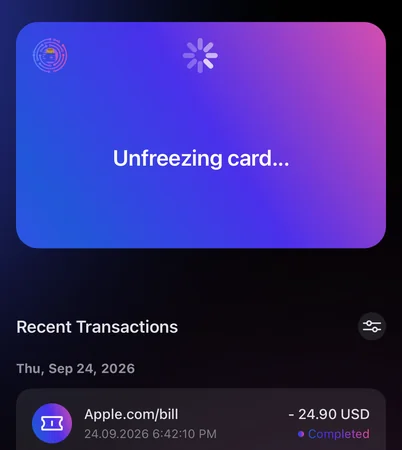 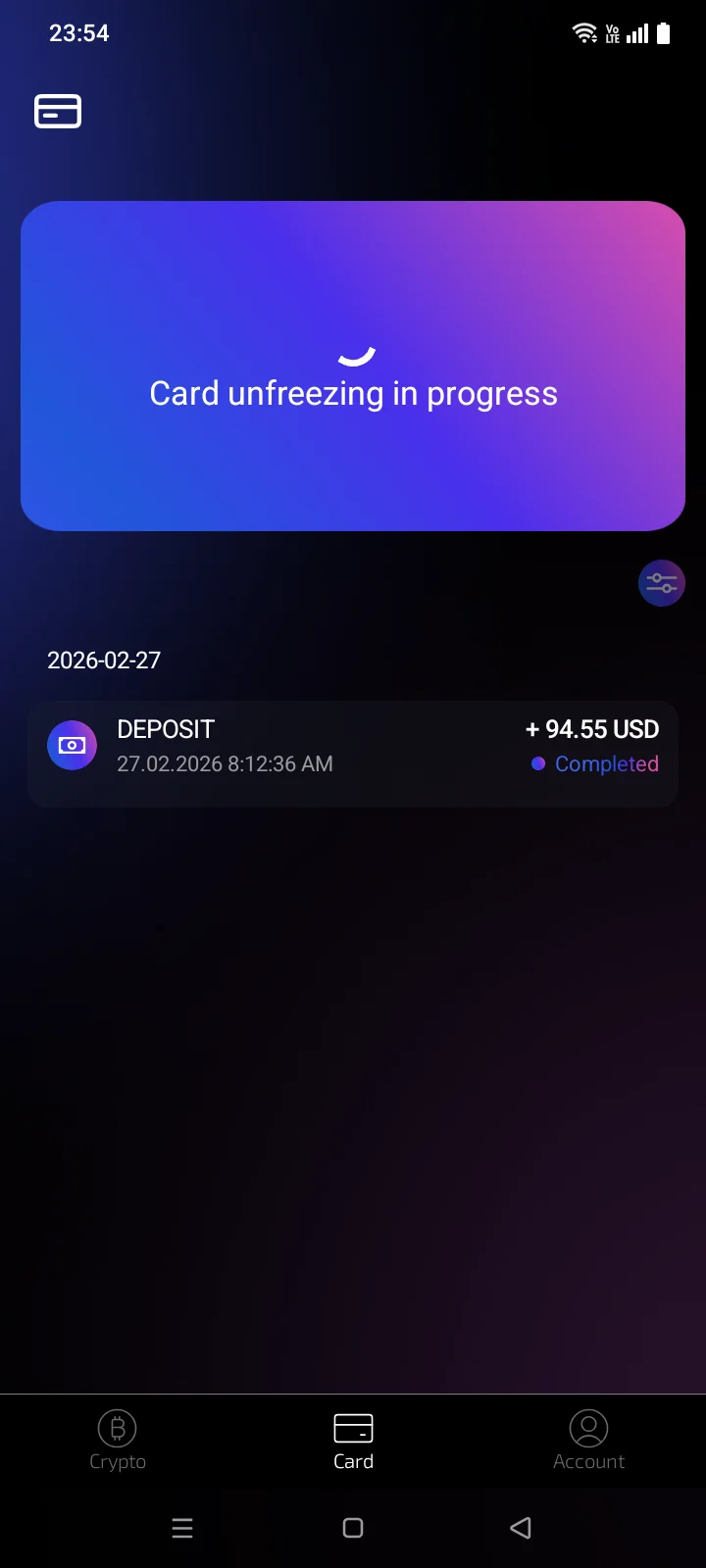 |