
2.10Confirming online payments (3-D Secure)
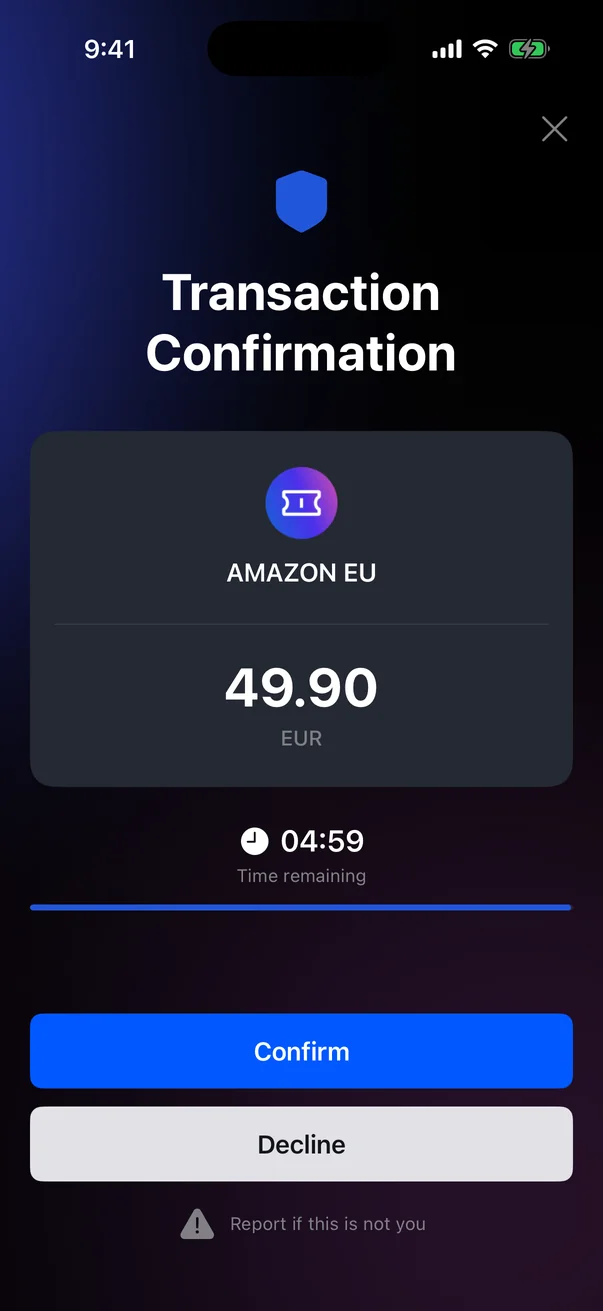
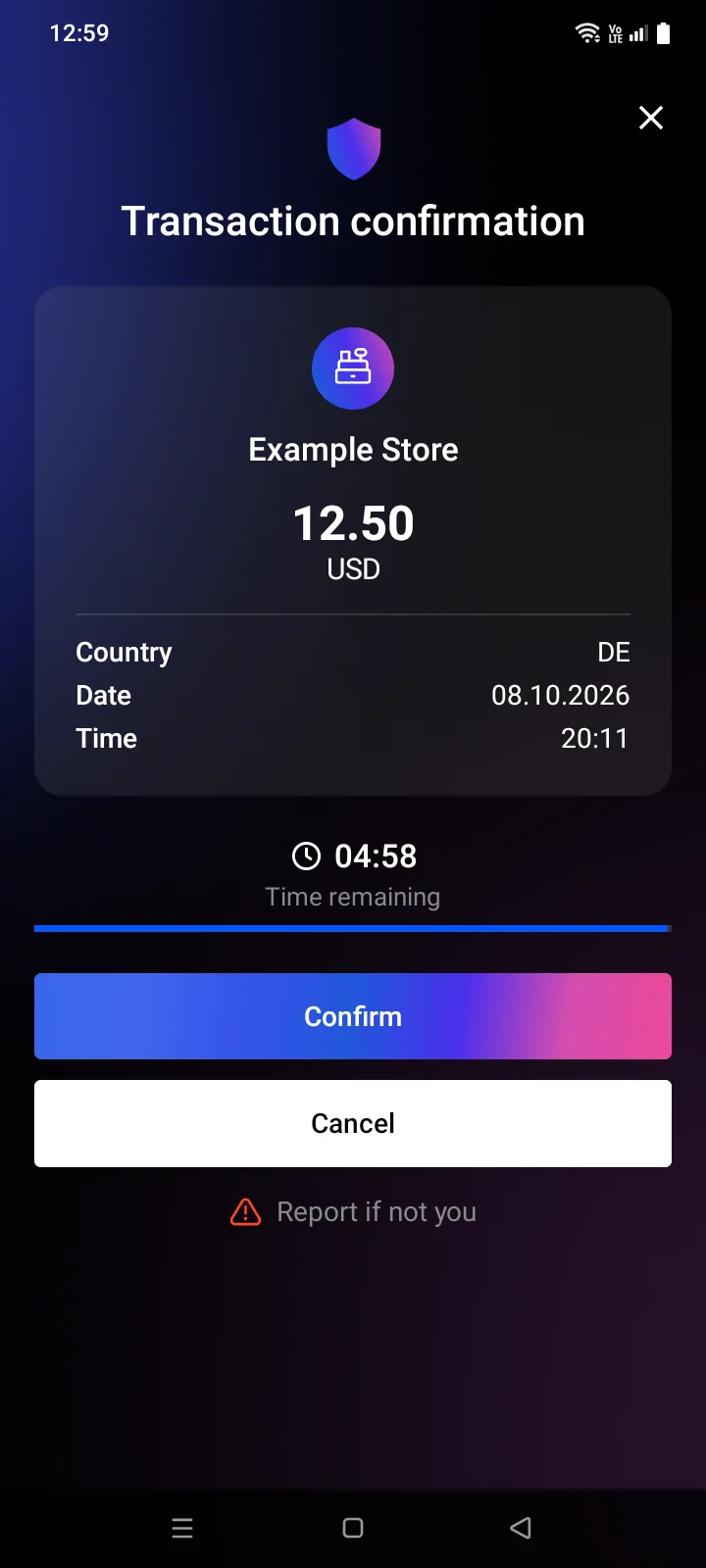
Some online payments with your card need your confirmation in the app. When a shop requests it, the Transaction ConfirmationTransaction confirmation screen opens with the payment details, and you have 5 minutes to confirm or decline the payment.
How the request arrives
- The app is open — the confirmation screen opens on top of any screen.
- The app is closed or in the background — a notification arrives: Transaction confirmation with the text Confirm or decline the transaction in the app. Tap it to open the confirmation screen. If you open the app yourself while the request is still valid, the screen appears as well.
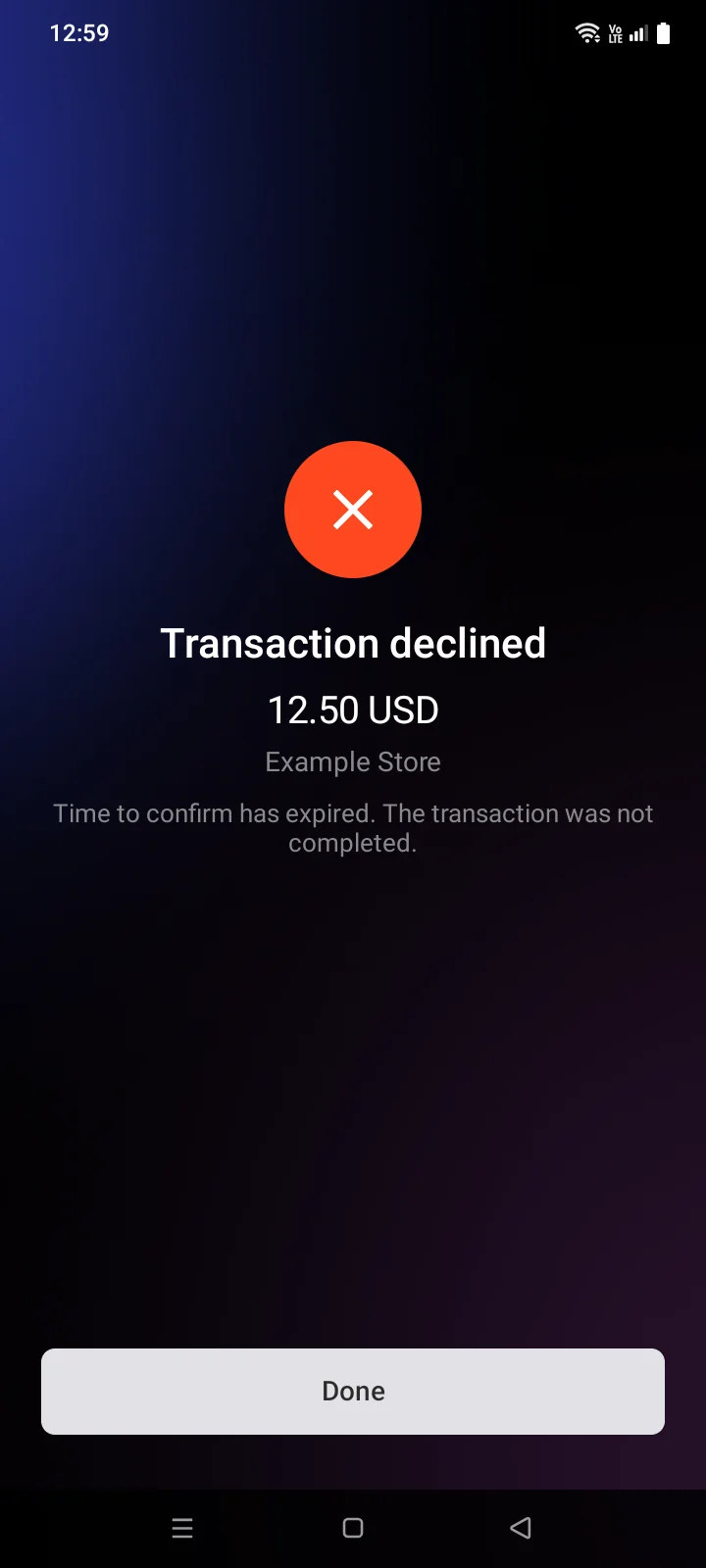
You have 5 minutes from the request to answer. If you don't answer in time, the payment is declined automatically. If the time has already passed, tapping the notification doesn't open the screen.
Confirm or decline a payment
- Check the merchant name, the amount and the currency, as well as the country, date and time.
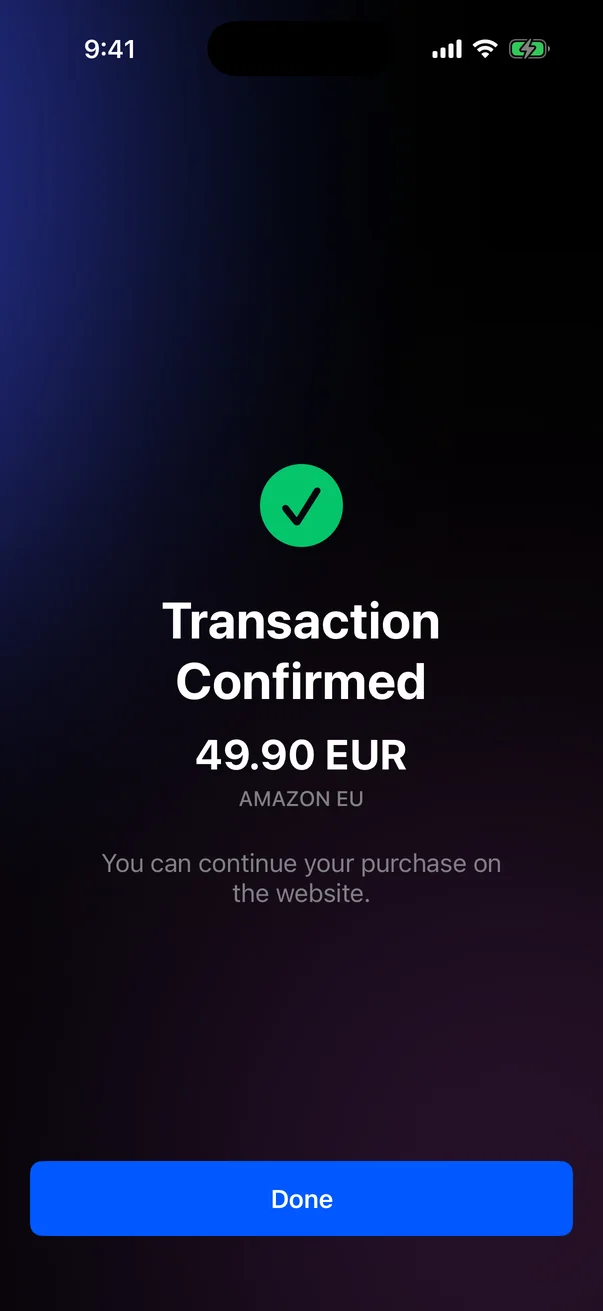
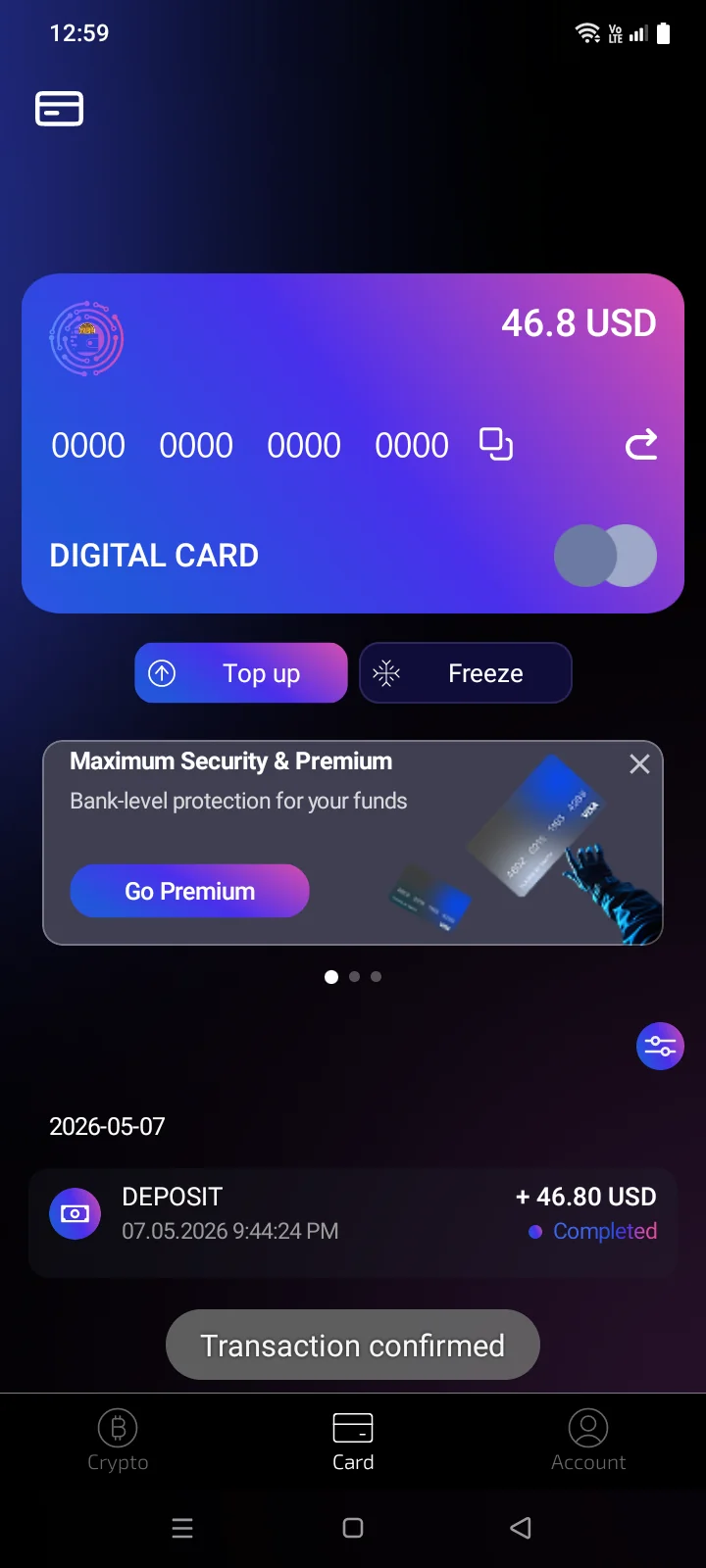
- If it's your purchase, tap ConfirmAccept. The Transaction Confirmed screen appearsThe screen closes and a short Transaction confirmed message appears, and you can continue your purchase on the website.
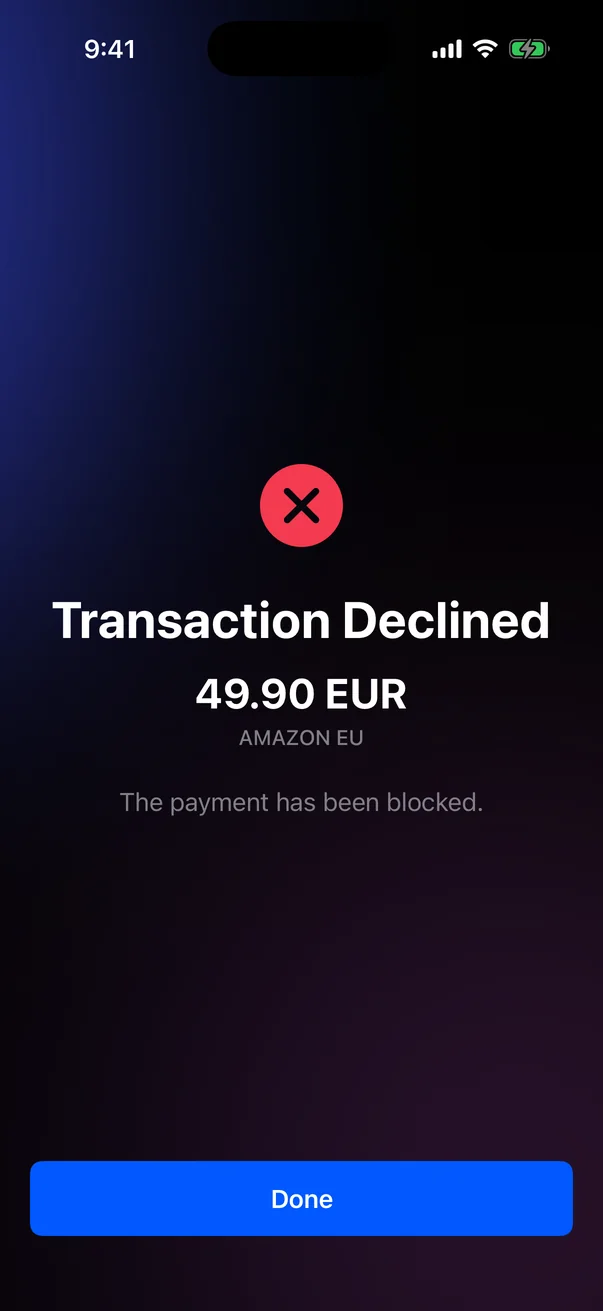
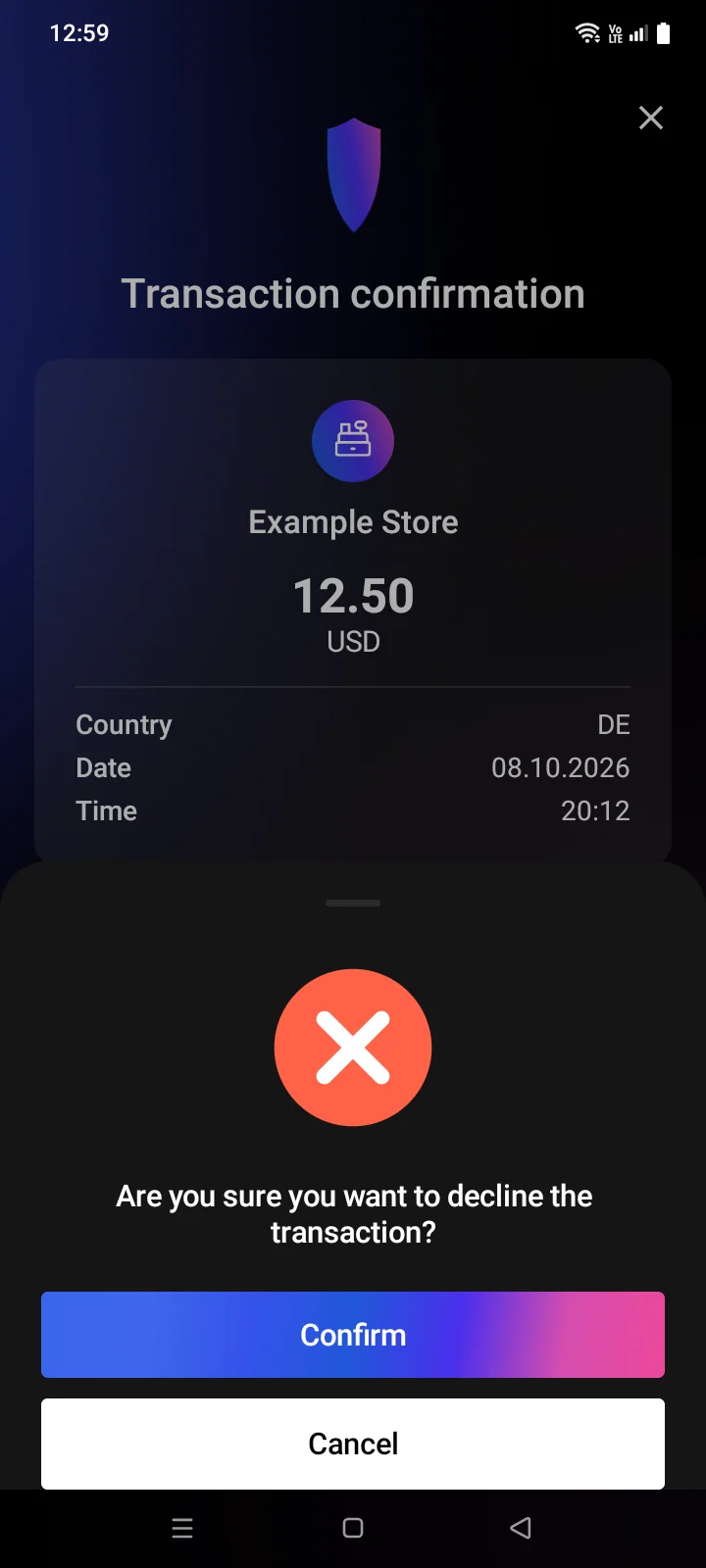
- If you don't want to make this payment, tap Decline. In the Are you sure you want to decline the transaction? window, tap Decline again (or Back to return to the request). The Transaction DeclinedTransaction declined screen confirms that the payment has been blockeddeclined: You declined this transaction.
- Tap Done to return to the appthe Card tab.
 1
2
3
4
5
6
7
1
2
3
4
5
6
7
| 1 | Transaction Confirmation — the screen title. |
| 2 | Merchant — who is requesting the payment, with the purchase category below. |
| 3 | Amount and currency — how much the shop is charging. |
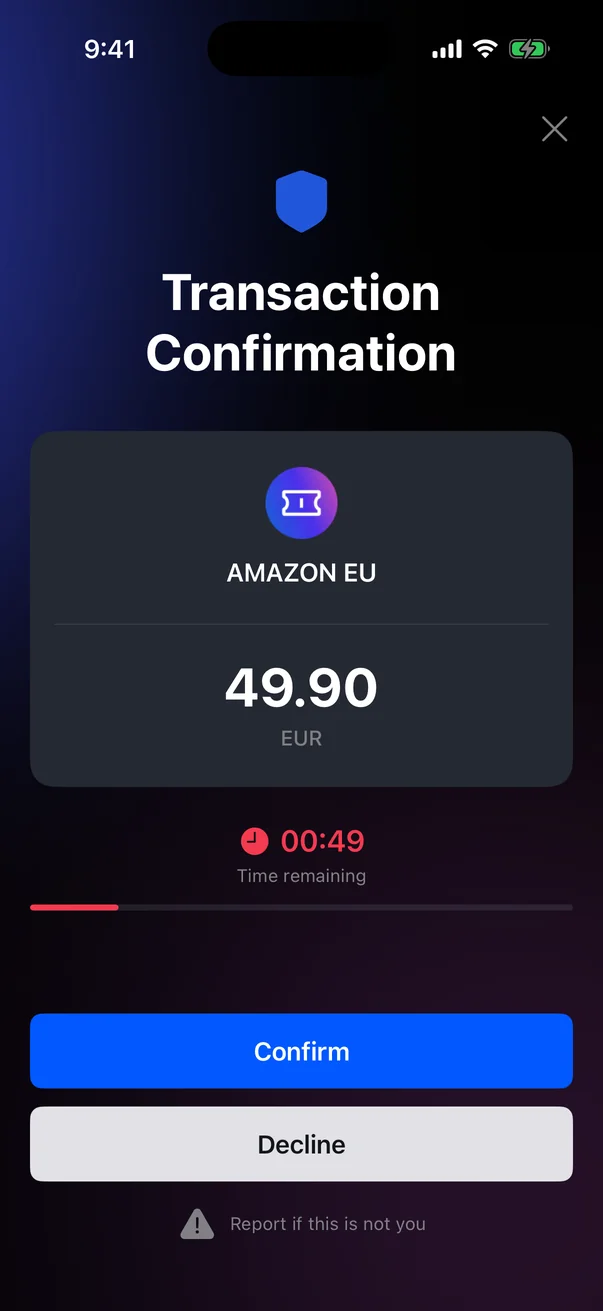
| 4 | Time remaining — how long you have to answer. It turns red in the last minute. |
| 5 | Confirm — approves the payment. |
| 6 | Decline — blocks this payment. |
| 7 | Report if this is not you — use it if you didn't make this purchase (see below). |
 1
2
3
4
5
6
7
8
9
1
2
3
4
5
6
7
8
9
| 1 | Transaction confirmation — the screen title. |
| 2 | Merchant — who is requesting the payment, with the purchase category below. |
| 3 | Amount and currency — how much the shop is charging. |
| 4 | Country, Date, Time — the merchant's country and the date and time of the payment. |
| 5 | Time remaining — a timer and a progress bar showing how long you have to answer. |
| 6 | Accept — approves the payment. |
| 7 | Decline — declines the payment after an extra confirmation. |
| 8 | Report if not you — use it if you didn't make this purchase (see below). |
| 9 | × — closes the screen and opens the Card tab. The payment is neither confirmed nor declined. |
If you didn't make this purchase
- Tap Report if this is not youReport if not you.
- The Not your transaction?Is this not your transaction? window explains that the card will be blocked and the transaction cancelled.
- Tap Block card and cancel. The payment is declined and the card is frozen: the Transaction Declined screen says The payment has been declined and the card is frozen. You can unfreeze it on the card screen.The payment is declined (you see Transaction declined), then the card is frozen and the screen closes. To go back without blocking the card, tap Cancel.
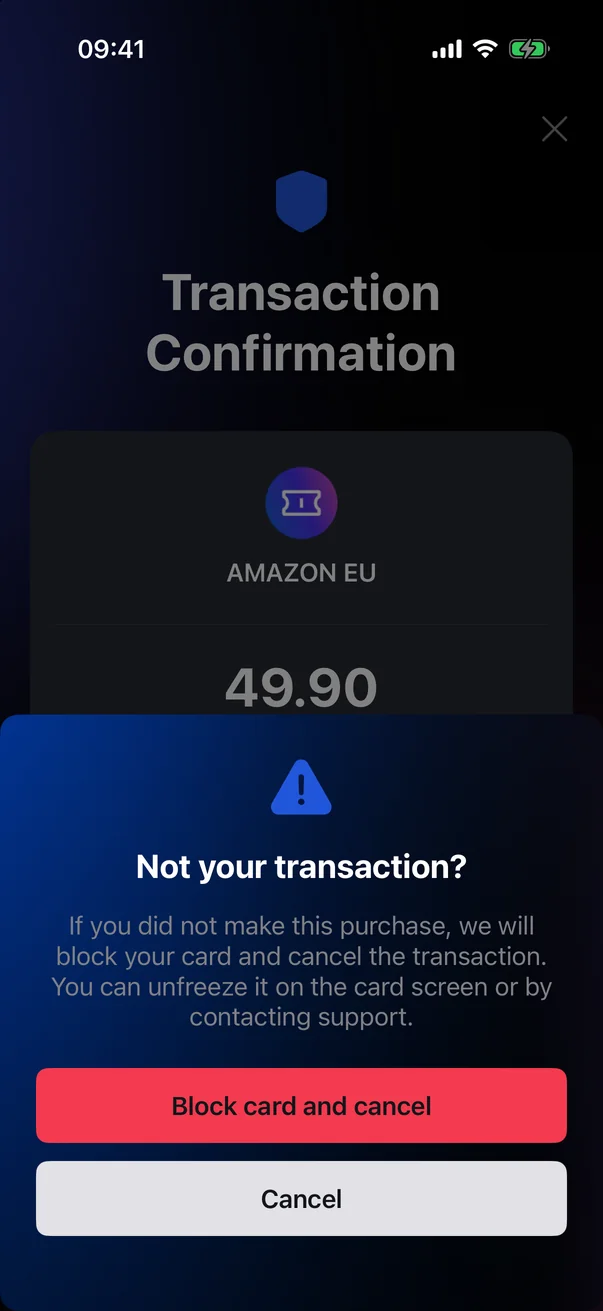
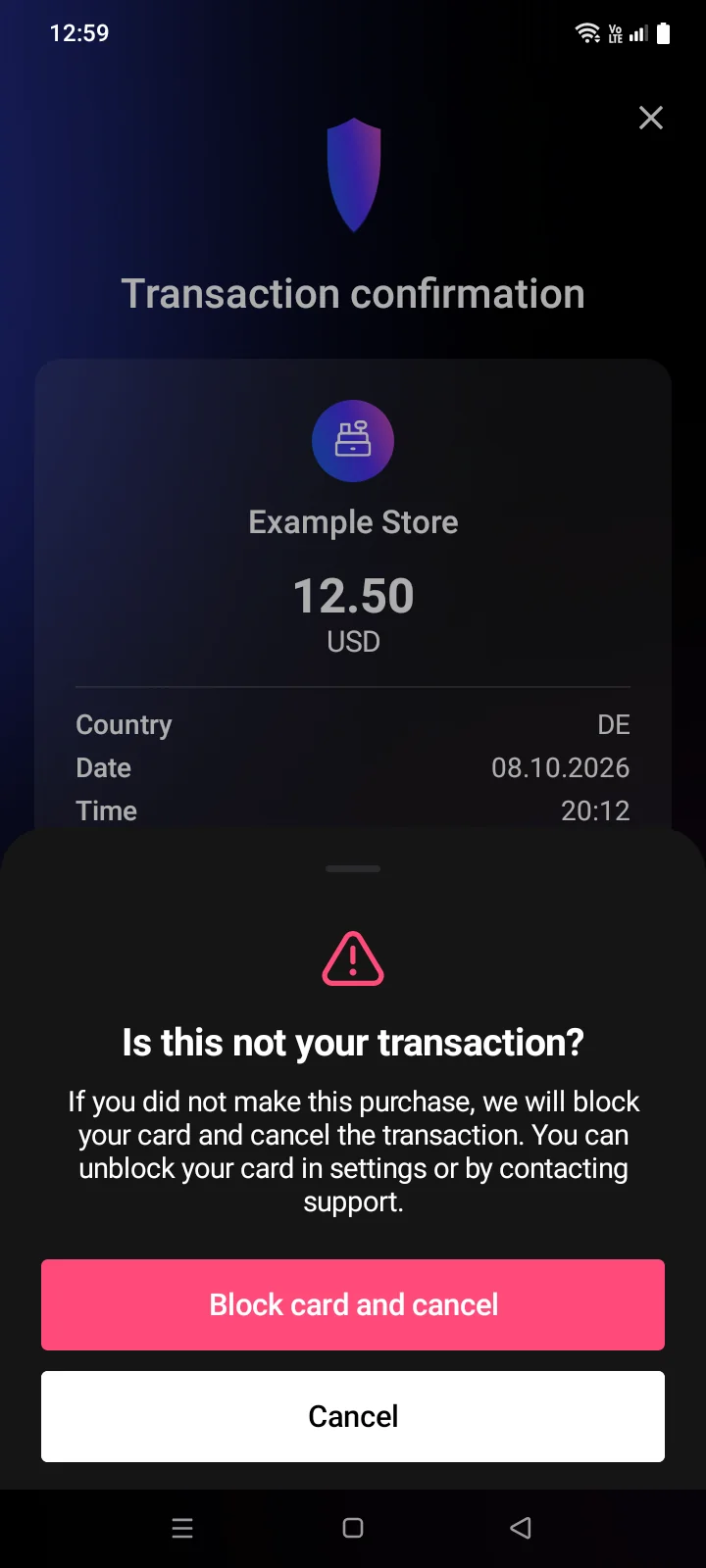
The card screen first shows Freezing card...Card freezing in progress, then Card frozen. You can unfreeze the card with the Unfreeze button on the card screen when you're sure the card is safe — see 2.5. If you think someone else has your card details, contact support (see 5.7).
If something goes wrong
If your answer can't be sent, an error message appears, and the buttons become available again. Check your internet connection and try once more before the timer runs out.
The message reads: Failed to process the request. Please try again.
The message depends on the reason:
| Message | What to do |
|---|---|
| Temporary error, try again later | Try again before the timer runs out. |
| Operation unavailable | The server didn't accept an answer to this request. Close the screen and check the operation in the history (see 2.9). |
| Invalid data | Close the screen and contact support (see 5.7). |
If nothing happens after you tap Accept, it's also a sign of a connection problem — tap it again before the timer runs out.
If the card couldn't be frozen when you blocked it, the Transaction Declined screen says soan error message appears — freeze the card manually (see 2.5) or contact support.