
2.3Paying for a card
A card is paid for in cryptocurrency: you send stablecoins to a one-time deposit address. The payment screen opens after you review the card details and pass any verification the card requires (see 2.2).
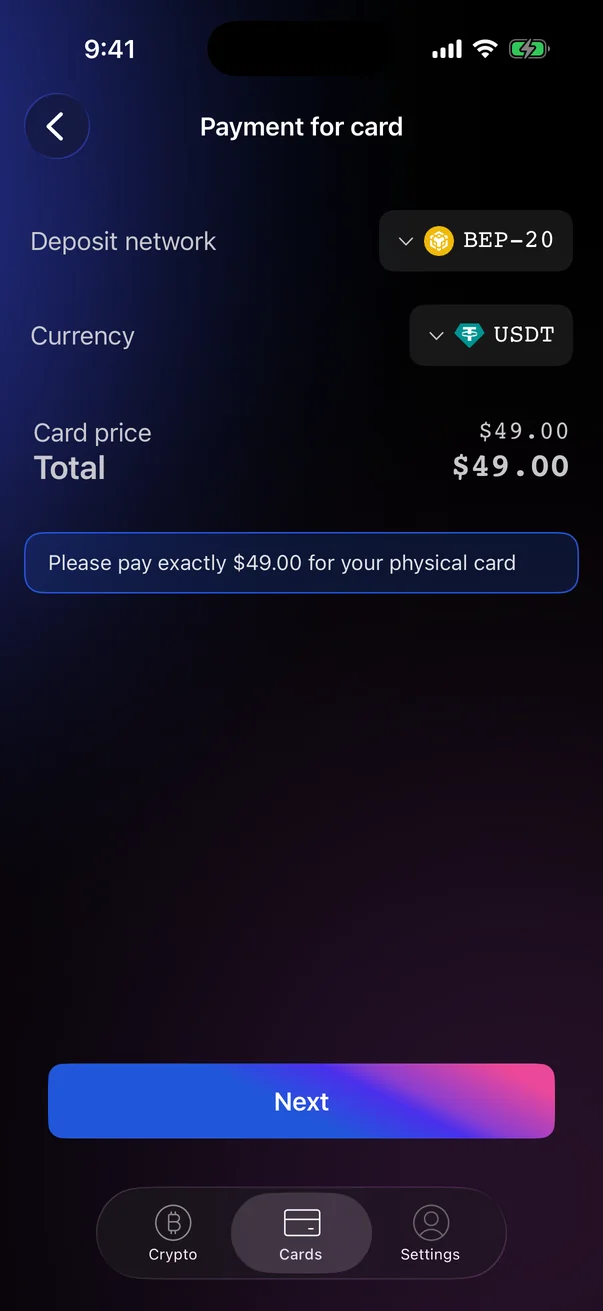
Depending on the service settings, the Payment for card screen works in one of two ways:
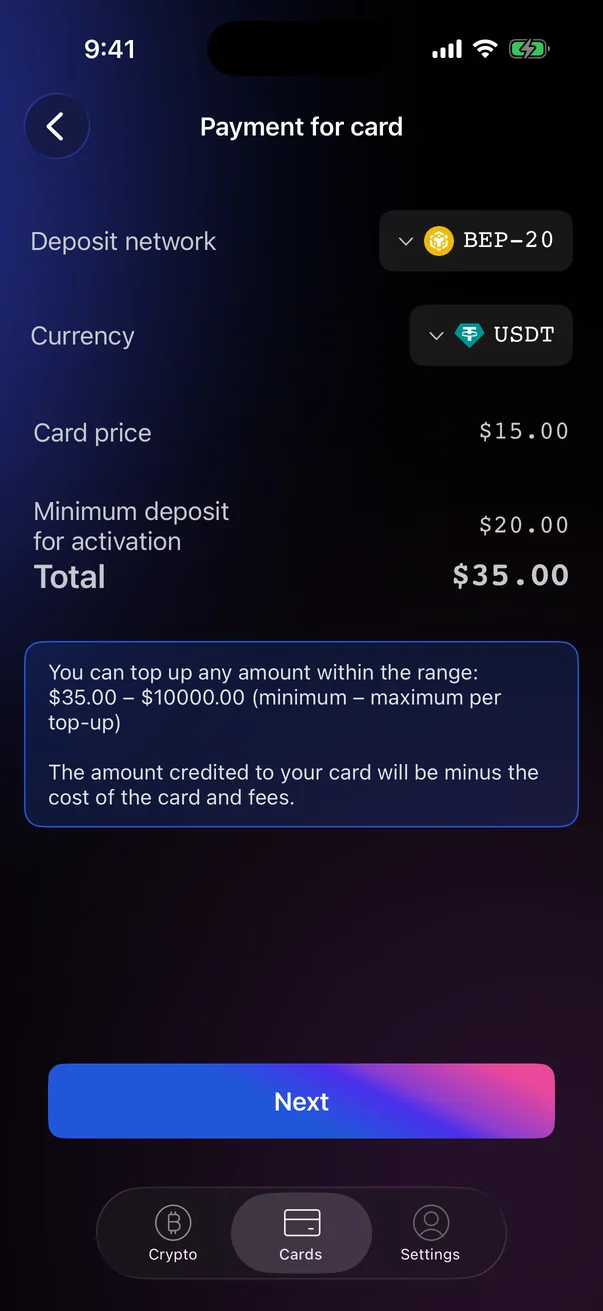
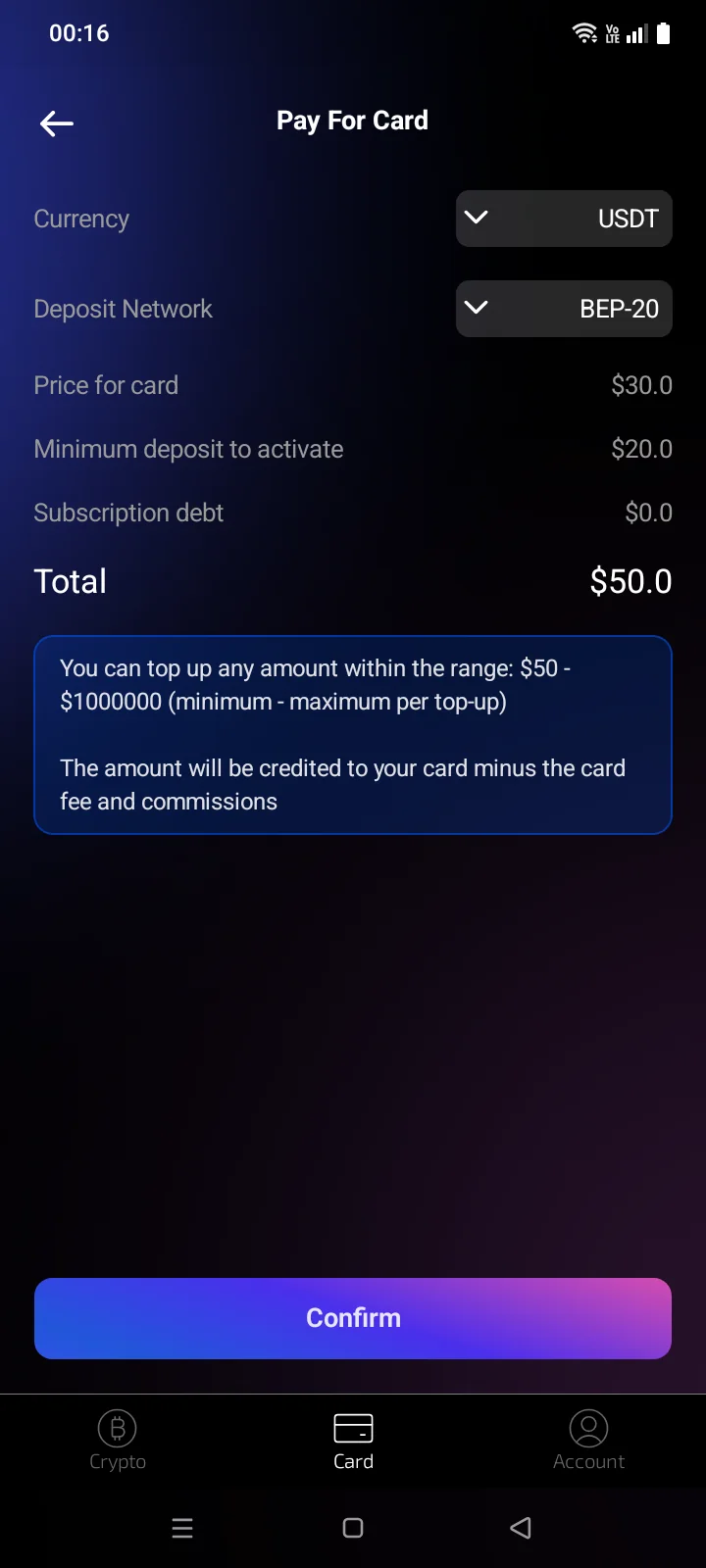
- Choose a network and currency — the app shows the amount to pay, and you send it to the deposit address;
- Enter the amount — you type how much to pay and see exactly how much will reach the card after fees.
Choose a network and currency
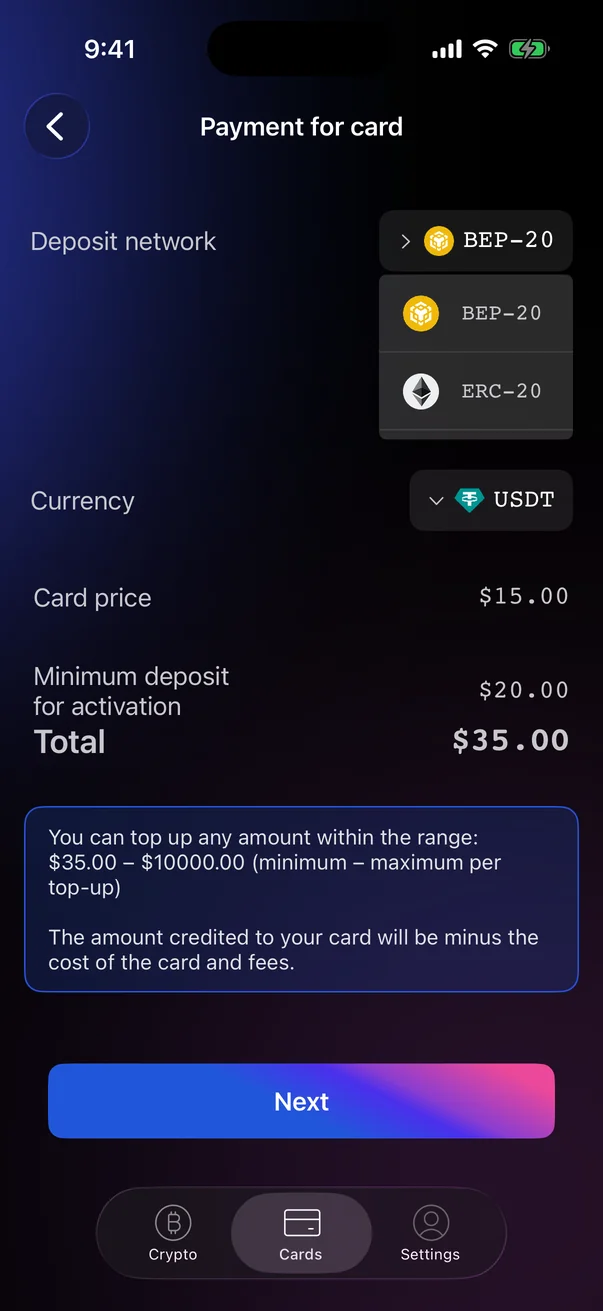
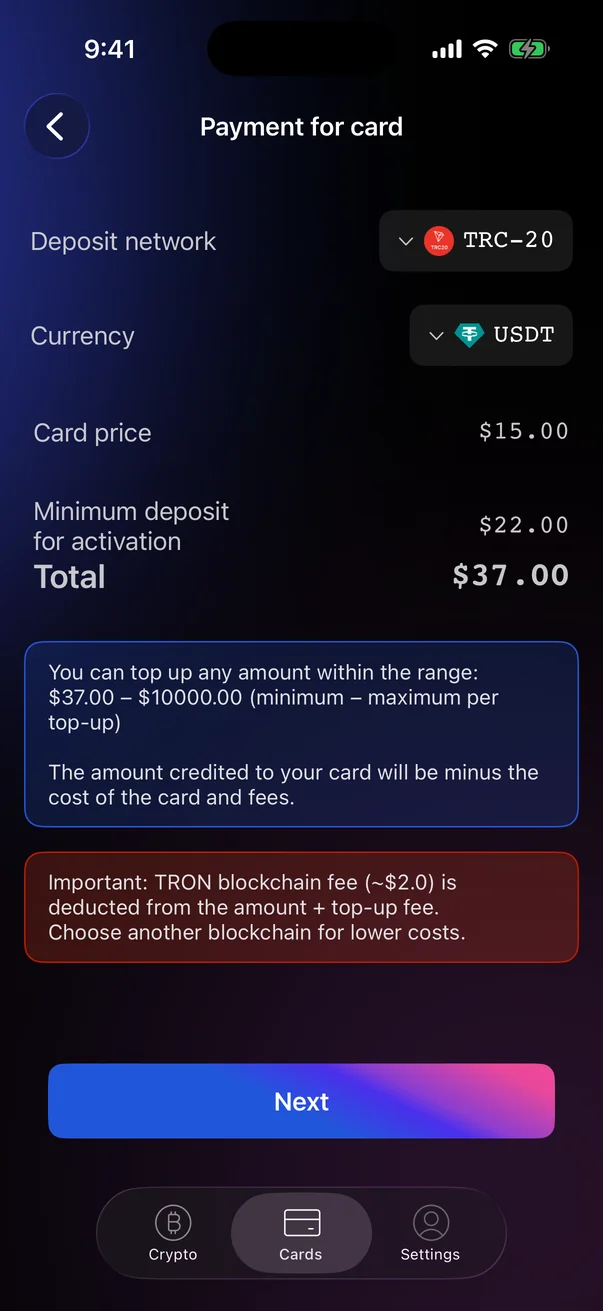
- Under Deposit network, choose the blockchain you'll send from — for example, BEP-20 (BNB Chain), ERC-20 (Ethereum) or TRC-20 (Tron). The list scrolls if there are more networks.
- Under Currency, choose the token — for example, USDT or USDC.
- Under Currency, choose the token you'll pay with, for example USDT.
- Under Deposit Network, choose the blockchain you'll send from: BEP-20 (BNB Chain), ERC-20 (Ethereum), Arbitrum or Optimism.
- Check the amounts and the note below them, then tap NextConfirm.
- The DepositPay For Card screen opens with the address to send the payment to — see The deposit address screen.
 1
2
3
4
5
6
7
1
2
3
4
5
6
7
| 1 | Deposit network — the blockchain you'll send the payment from. Tap to change. |
| 2 | Currency — the token you'll send. The list depends on the network. |
| 3 | Card price — the one-time price of the card. |
| 4 | Minimum deposit for activation — the minimum amount that must be on the card for it to be activated.Virtual cards. |
| 5 | Total — the minimum amount to send: card price plus the minimum deposit (plus subscription debt, if any). |
| 6 | Amount range — the minimum and maximum you can send. Everything above the card price and fees is credited to the card. |
| 7 | Next — creates the deposit address. |
 1
2
3
4
5
6
7
8
1
2
3
4
5
6
7
8
| 1 | Currency — the token you'll send. Tap to change. |
| 2 | Deposit Network — the blockchain you'll send the payment from. Tap to change. |
| 3 | Price for card — the one-time card price. |
| 4 | Minimum deposit to activate — the minimum amount that must reach the card for it to be activated. |
| 5 | Subscription debt — unpaid monthly fees, if any. |
| 6 | Total — the minimum amount to send: the card price plus the minimum deposit and the debt. |
| 7 | Explanation — the range of amounts you can send; everything above the card price and fees is credited to the card. |
| 8 | Confirm — creates the deposit address. |
The deposit address screen
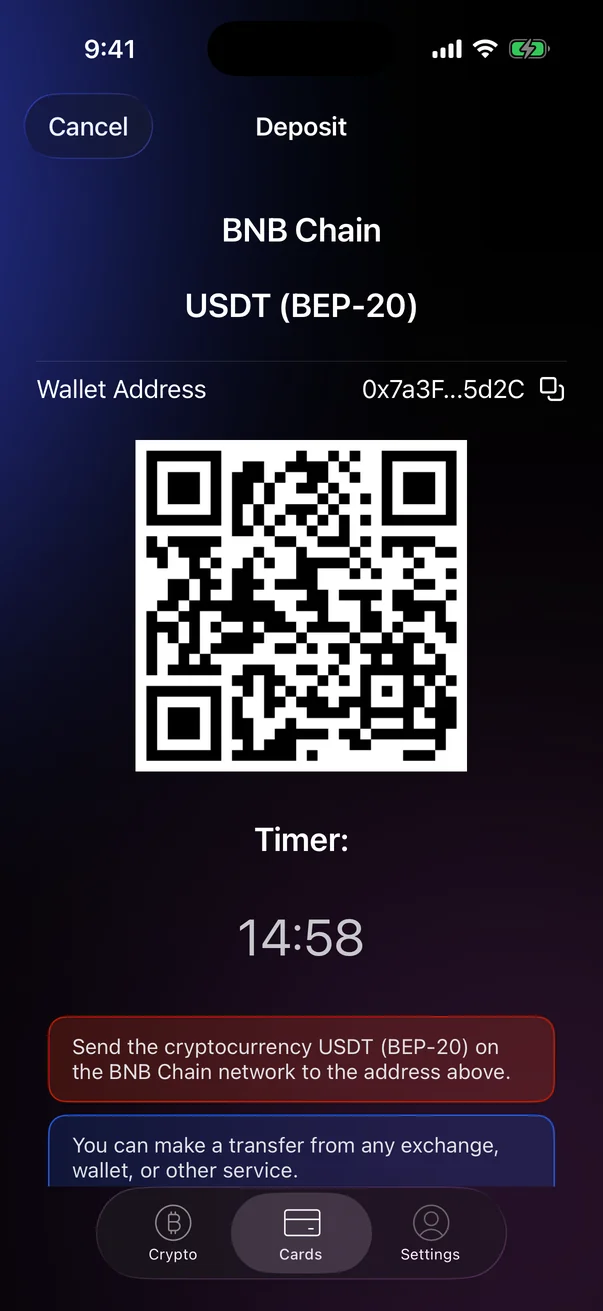
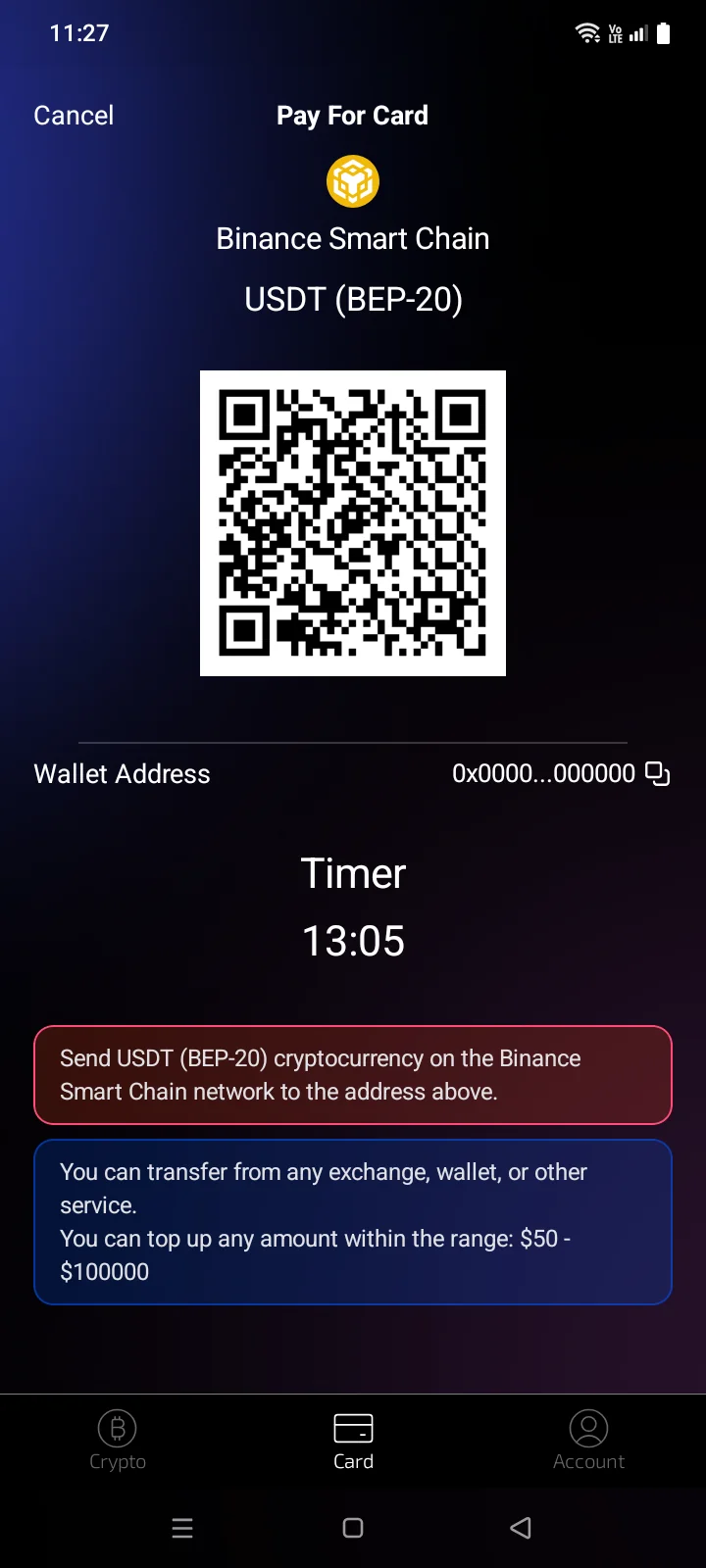
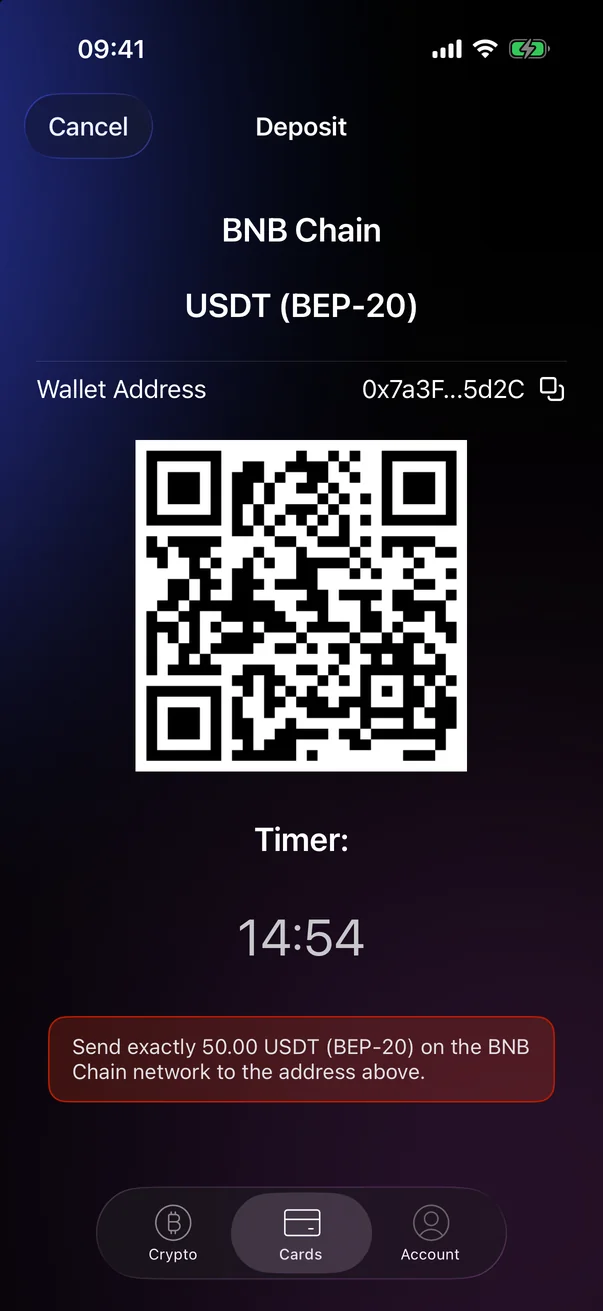
The DepositPay For Card screen (it has the same name as the previous one) shows a one-time address for your payment. Send the payment from any exchange, wallet or other service.
- Copy the address with the copy icon, or scan the QR code in your wallet app.
- Send the chosen token on the chosen network — both are shown at the top of the screen and in the red note. If the note says Send exactly …, send exactly that amount.
- Send the payment before the timer runs out. You have 15 minutes; if you leave the app and come back, the countdown continues. When the timer reaches 00:00, the screen closes and you'll need to start the payment again.
- Wait for the Payment received message — see After you pay.
 1
2
3
4
5
6
7
8
1
2
3
4
5
6
7
8
| 1 | Network — the blockchain to send from. |
| 2 | Token and network — for example, USDT on BEP-20. |
| 3 | Wallet Address — the deposit address (shortened on screen). |
| 4 | Copy — copies the full address. The Copied message confirms it. |
| 5 | QR code — scan it with your wallet app instead of copying the address. |
| 6 | Timer — time left to send the payment, starting from 15 minutes. |
| 7 | Instructions — what to send and on which network, and the amount range. |
| 8 | Cancel — cancels the payment (see below). |
 1
2
3
4
5
6
7
8
1
2
3
4
5
6
7
8
| 1 | Network — the blockchain to send from. |
| 2 | Token and network — for example, USDT on BEP-20. |
| 3 | QR code — scan it with your wallet app instead of copying the address. |
| 4 | Wallet Address — the deposit address (shortened on screen). |
| 5 | Copy — copies the full address. The Copied message appears. |
| 6 | Timer — time left to send the payment, starting from 15 minutes. |
| 7 | Instructions — what to send and on which network, and the amount range. |
| 8 | Cancel — cancels the payment (see below). |
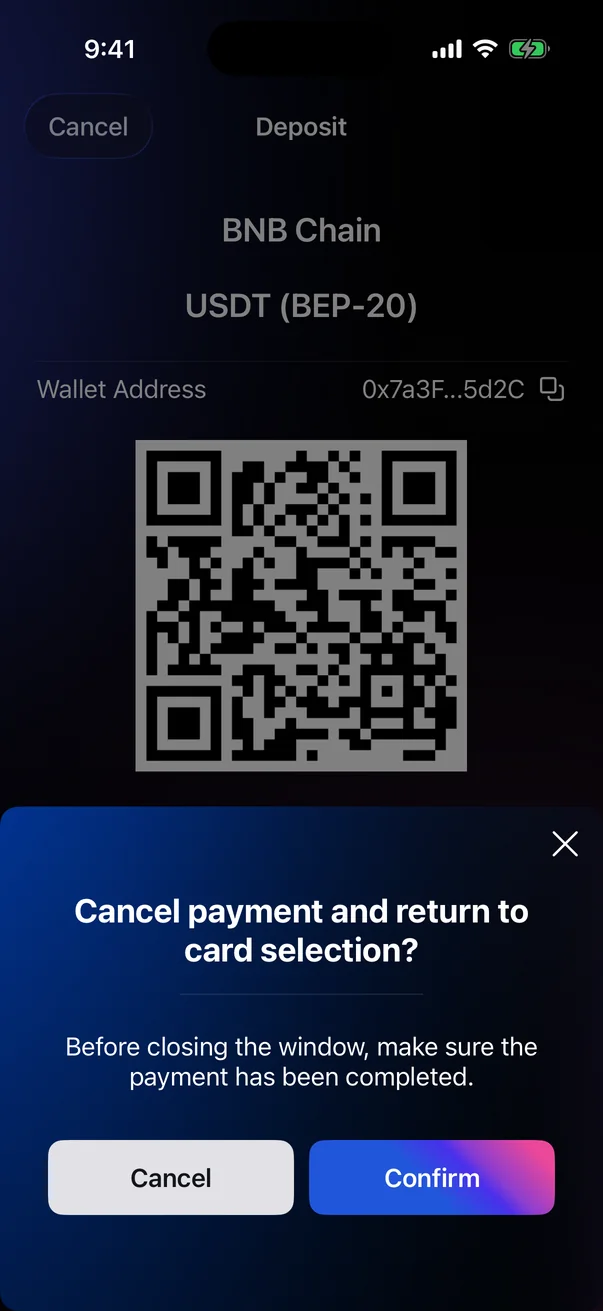
Cancelling a payment
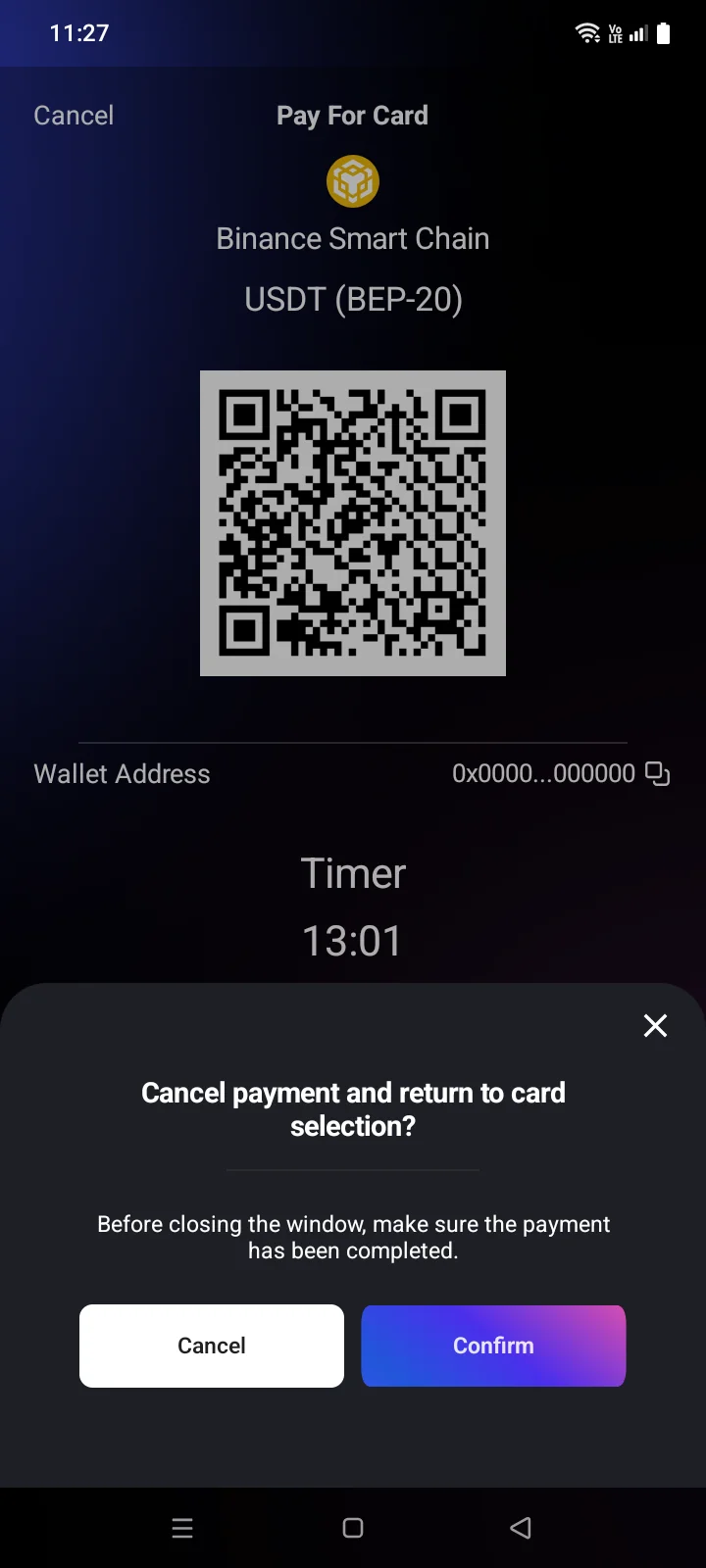
Tap Cancel in the top-left corner. The app asks Cancel payment and return to card selection? and reminds you: Before closing the window, make sure the payment has been completed. Tap Confirm to cancel or Cancel to stay on the screen.
The system Back button opens the same question. Pressing Back again closes it, and you stay on the address screen.
Pay by entering the amount
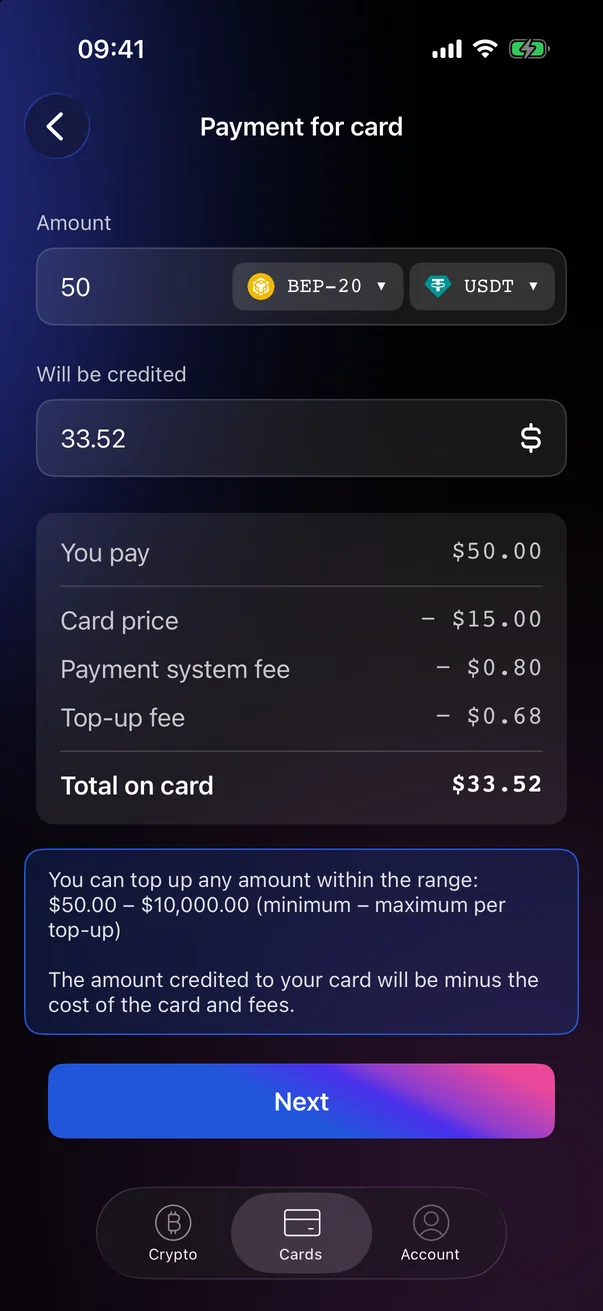
In this mode you enter the amount yourself and see how much will be credited to the card after the card price and fees.
- In Amount, enter how much you want to pay. Next to it, choose the network and the token.
- Alternatively, enter the amount you want to have on the card in Will be credited — the app calculates how much to pay.
- Check the breakdown: what you pay, what is deducted and the Total on card.
- Tap Next. The Deposit screen shows the exact amount to send.
 1
2
3
4
5
6
7
1
2
3
4
5
6
7
| 1 | Amount — how much you'll pay. |
| 2 | Network and token — tap to change. |
| 3 | Will be credited — how much will reach the card. You can enter this amount instead.Virtual cards. |
| 4 | You pay — the amount you'll send. |
| 5 | Deductions — card price, payment system fee, top-up fee and, if any, subscription debt or TRON fee. |
| 6 | Total on card — the card balance after the payment. |
| 7 | Next — creates the deposit address.Available when the calculation is ready and the amount is within the limits. |
If the amount is outside the limits, a red message appears under the field: Minimum … USDT, Maximum … USDT or Amount too small for credit. For a physical card the amount is fixed and can't be changed.
After you pay
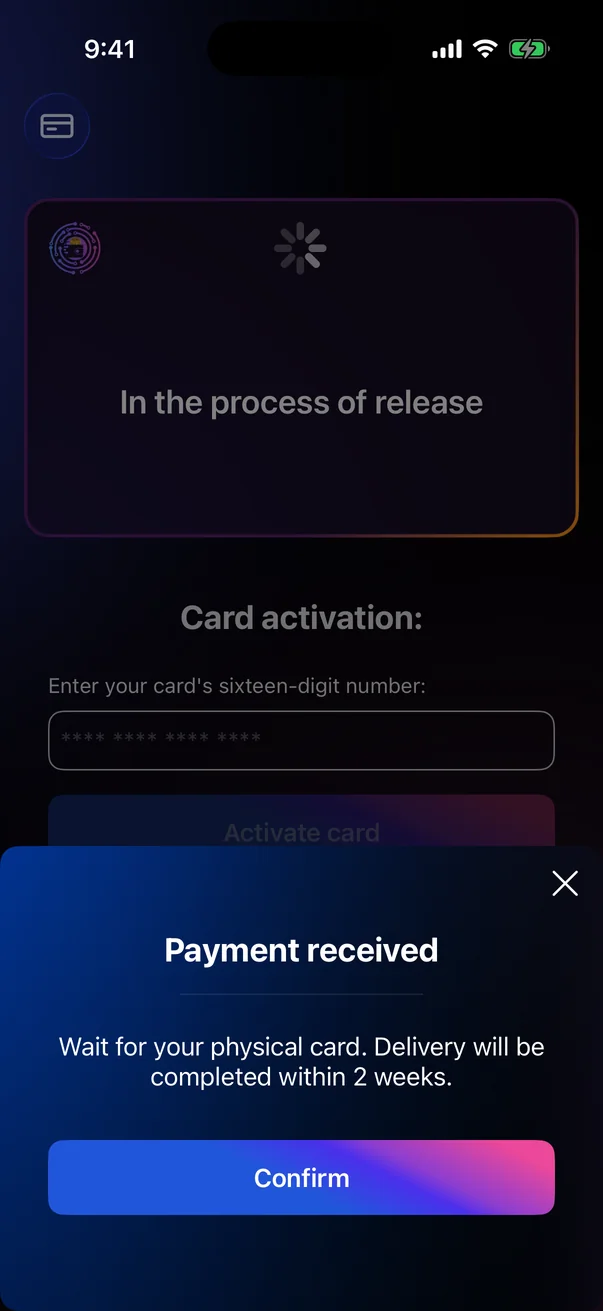
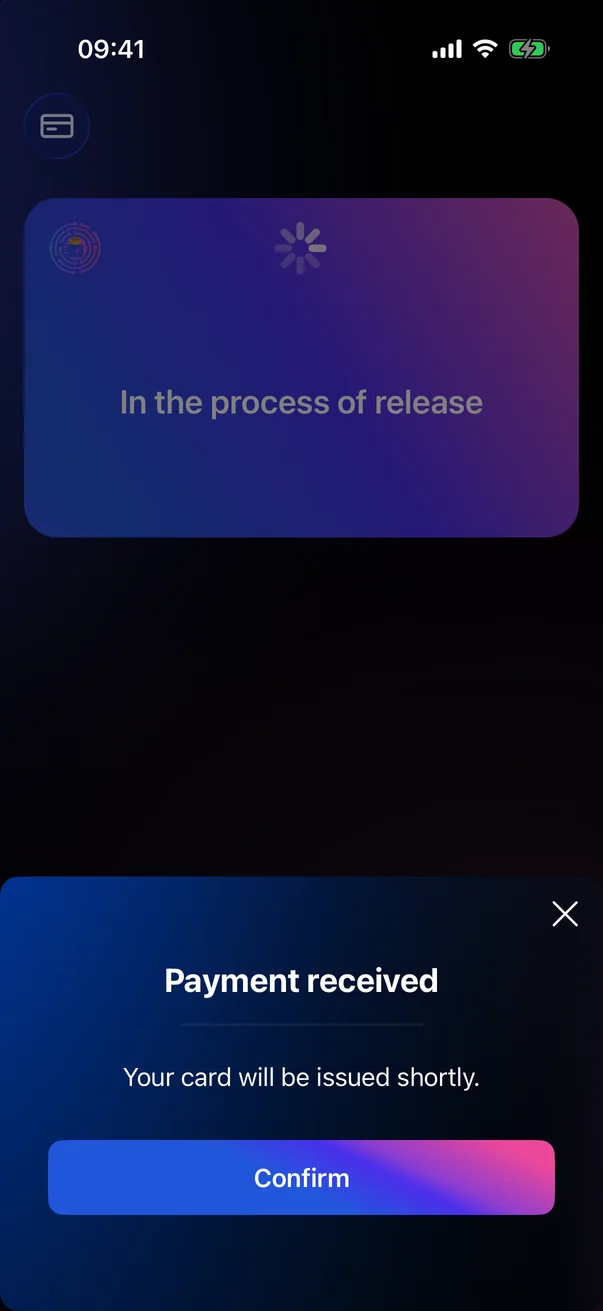
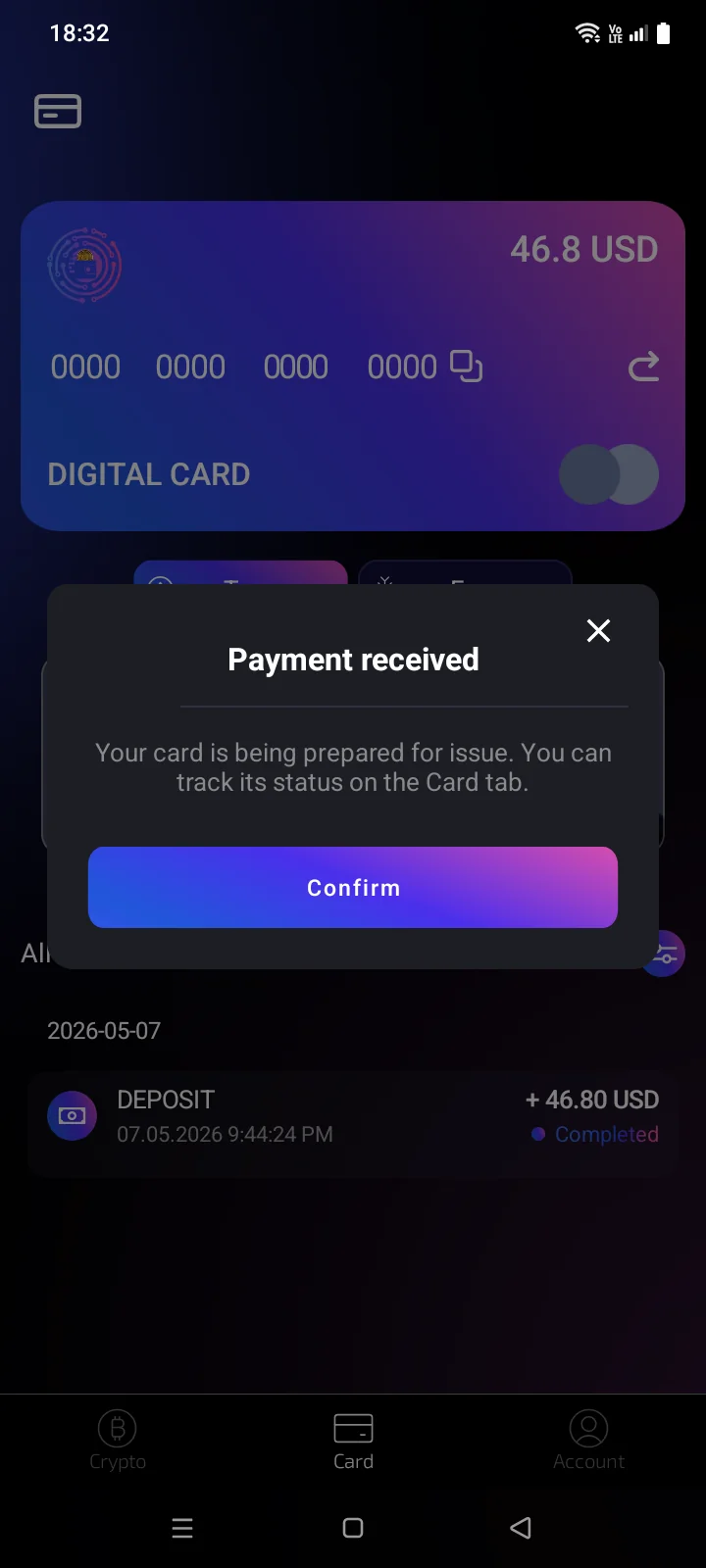
You don't need to confirm the transfer in the app: when the payment arrives, the Payment received message appears automatically with the text Your card will be issued shortly.. Tap Confirm to close it. The new card appears on the CardsCard tab — see its status in 2.1.
If you sent less than the required minimum, the Error message says Top-up amount is less than minimum. Contact support (see 5.7 Getting help).
If you sent the payment but the Payment received message didn't appear, contact support (see 5.7 Getting help).