
2.5Freezing and unfreezing a card
Freezing temporarily locks a card — for example, if you have misplaced it. You can unfreeze the card at any time from the card screen.
Freeze a card
- Open the CardsCard tab. If you have several cards, choose the one you need in the card list (see 2.8).
- Tap Freeze below the card. The button is available only for active cards.
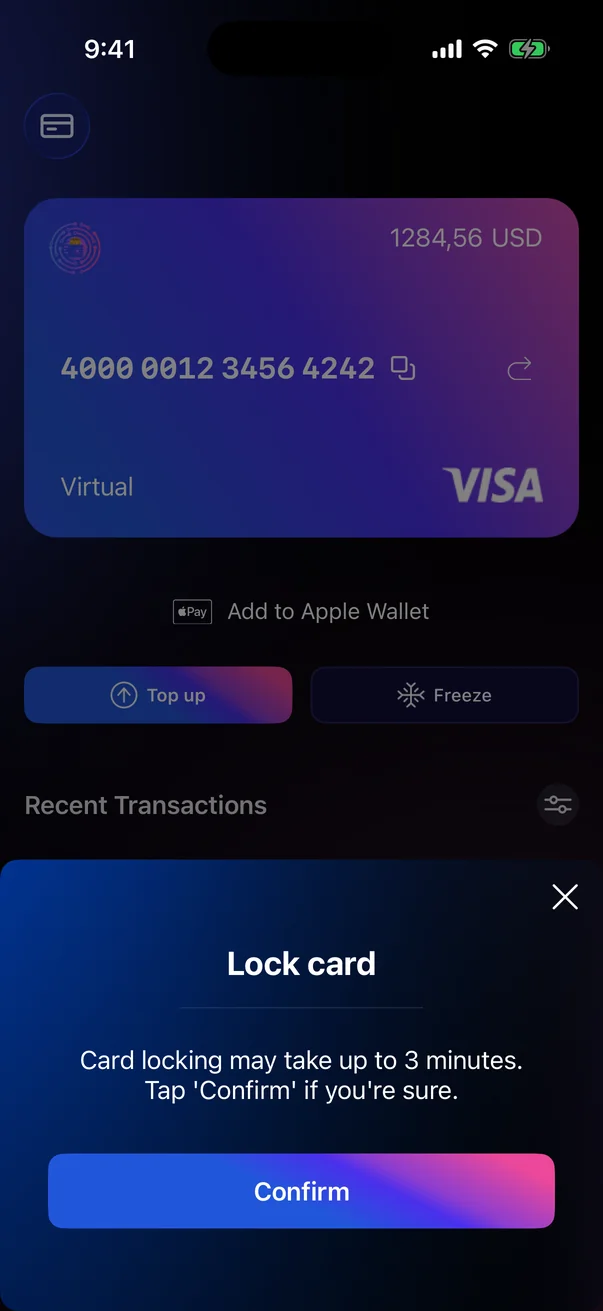
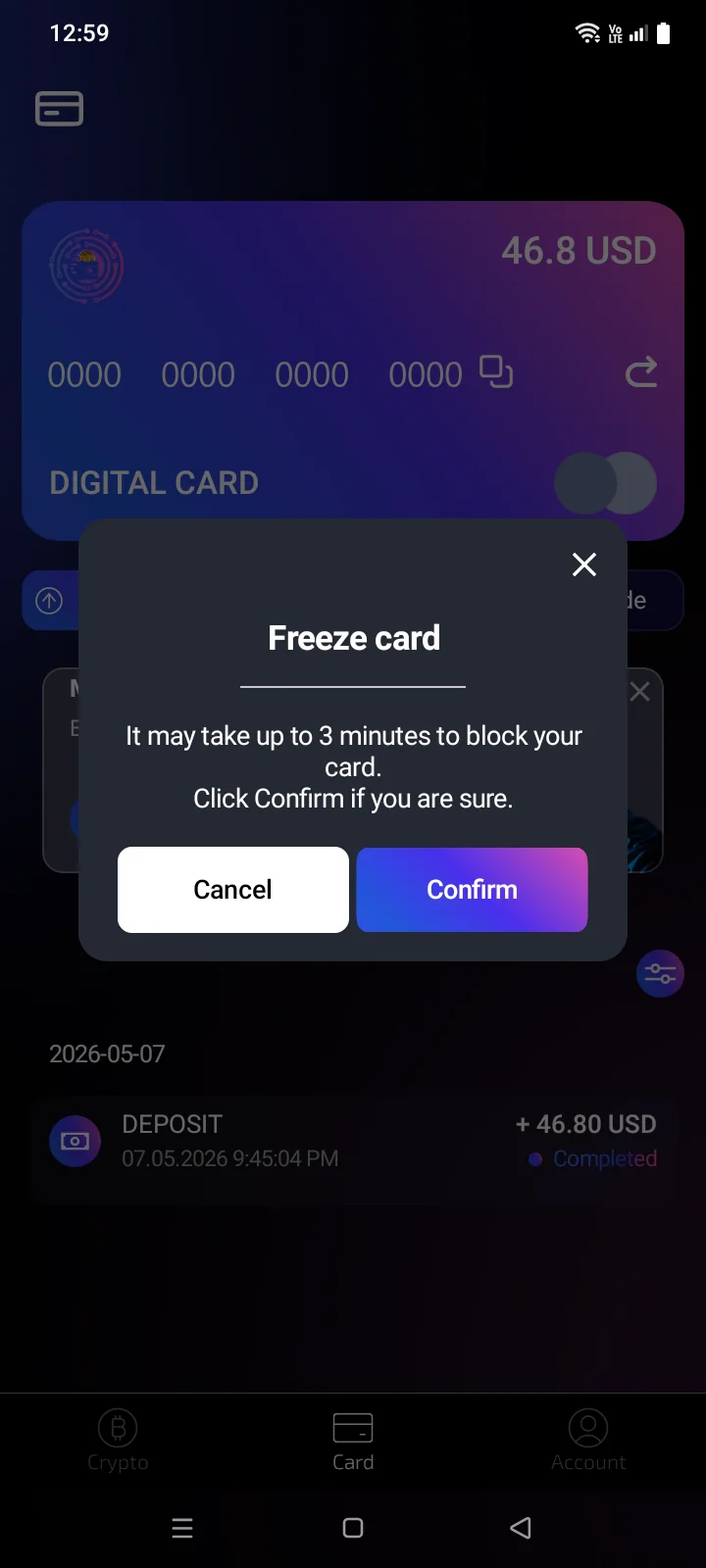
- The Lock card panelFreeze card window opens with a note. Tap Confirm. To change your mind, tap × in the top-right corner of the panelCancel.
- The card shows Freezing card...Card freezing in progress and then Card frozen. This can take up to 3 minutes. The message This card has been frozen right after you confirm means the request was accepted.When the card is frozen, the message Card frozen appears.
 1
2
3
4
1
2
3
4
| 1 | Lock card — the panel title. |
| 2 | Note — Card locking may take up to 3 minutes. Tap 'Confirm' if you're sure. |
| 3 | Confirm — sends the freeze request and closes the panel. |
| 4 | Close (×) — closes the panel without freezing the card. |
 1
2
3
4
1
2
3
4
| 1 | Freeze card — the window title. |
| 2 | Note — It may take up to 3 minutes to block your card. Click Confirm if you are sure. |
| 3 | Cancel — closes the window without freezing the card. |
| 4 | Confirm — sends the freeze request and closes the window. |
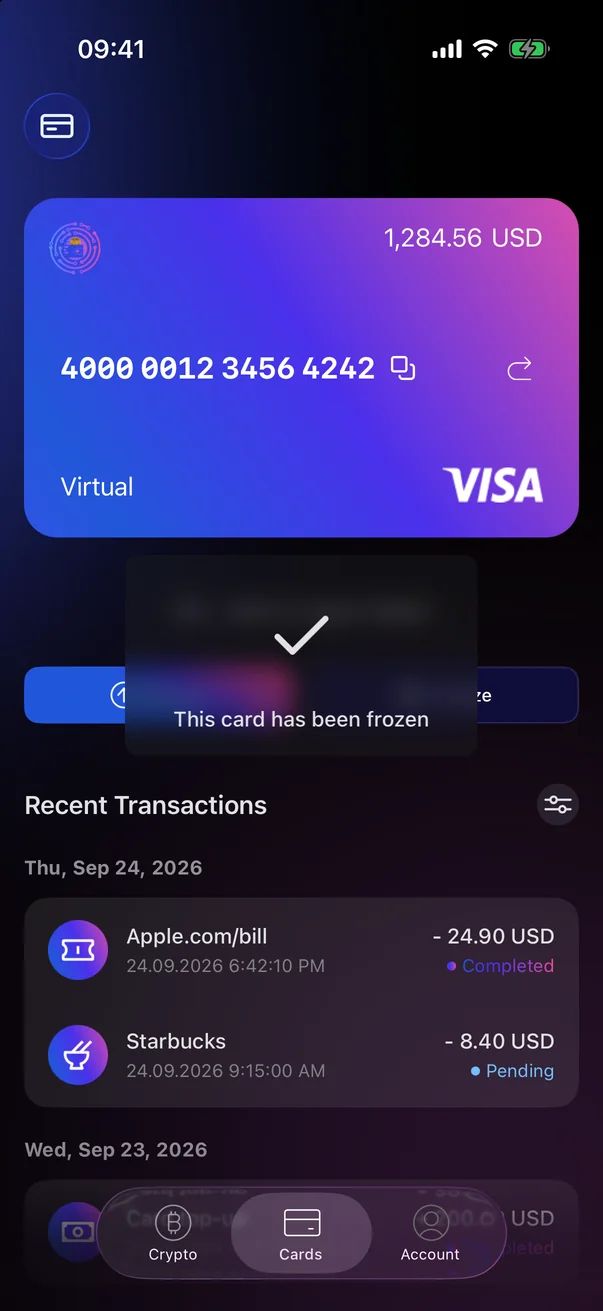
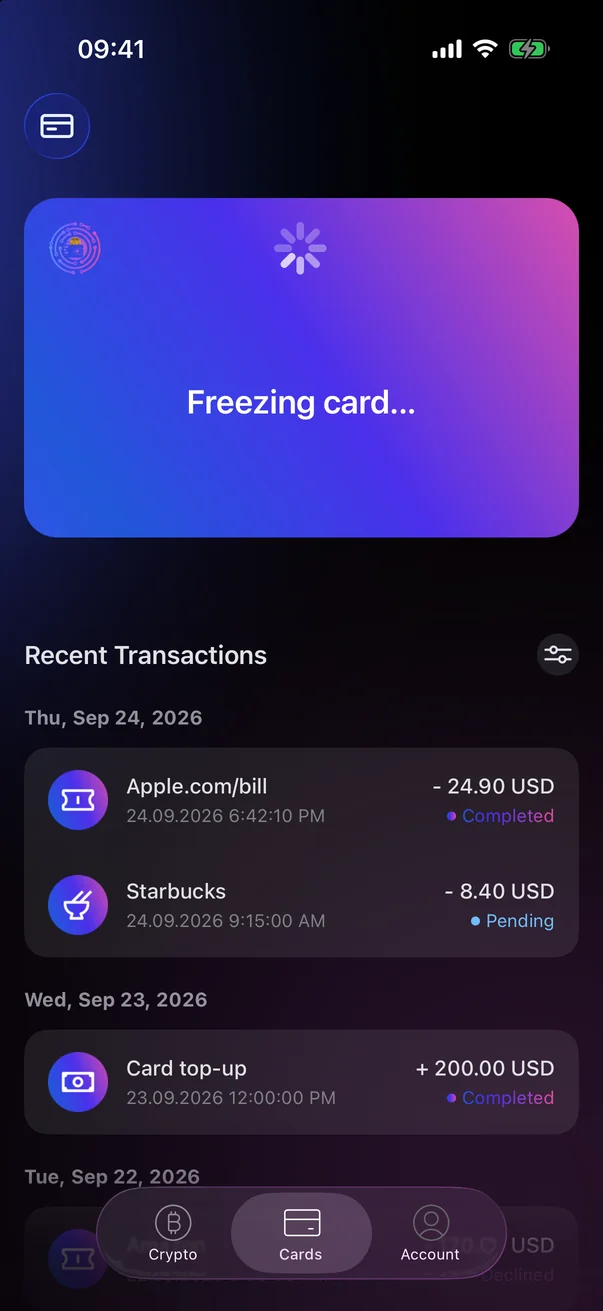
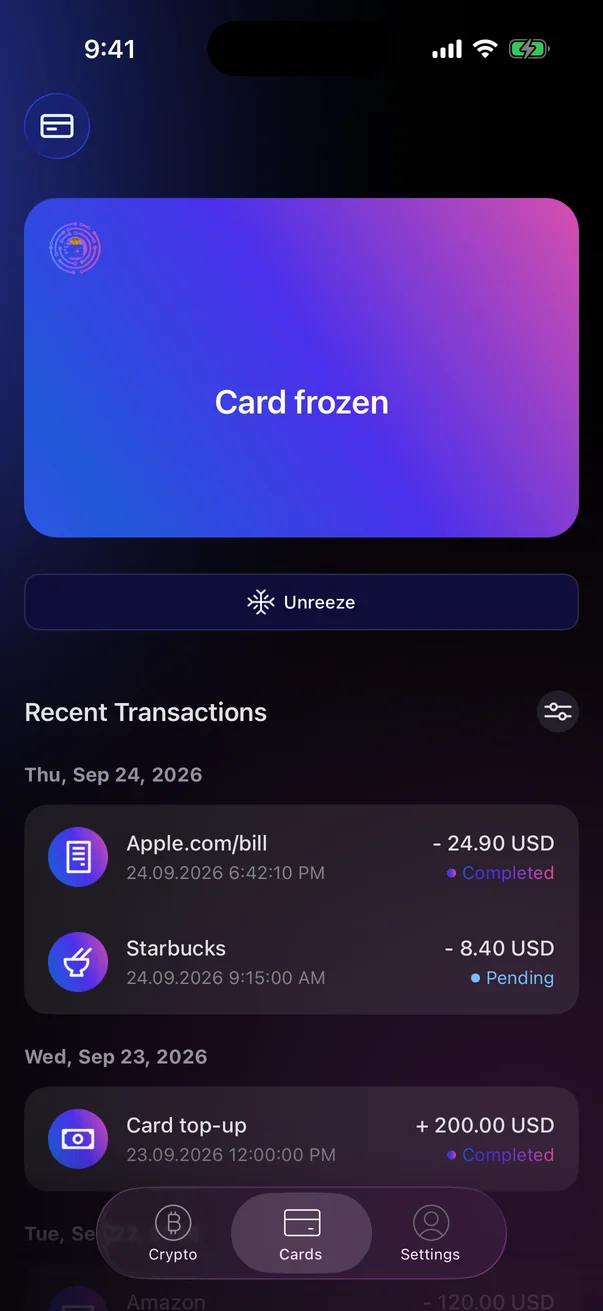
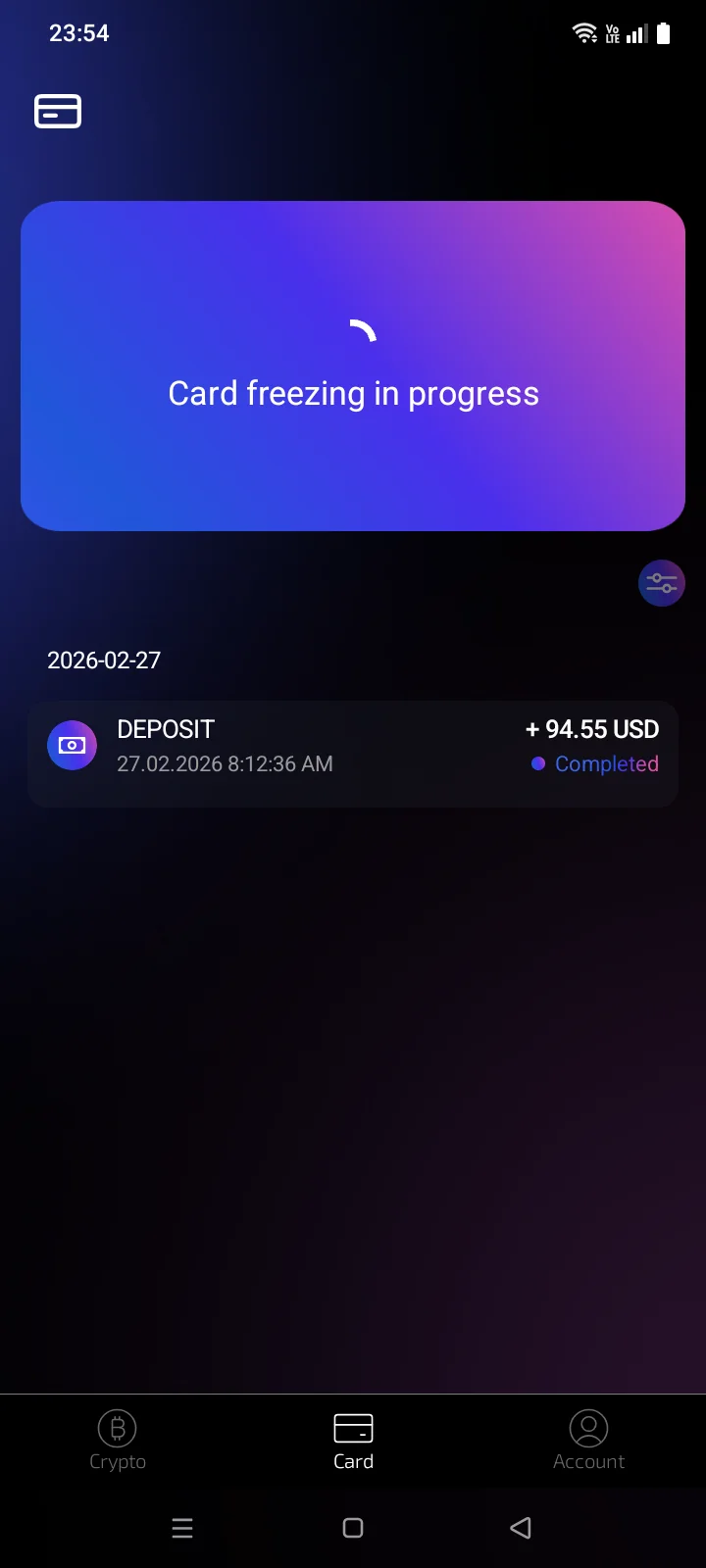
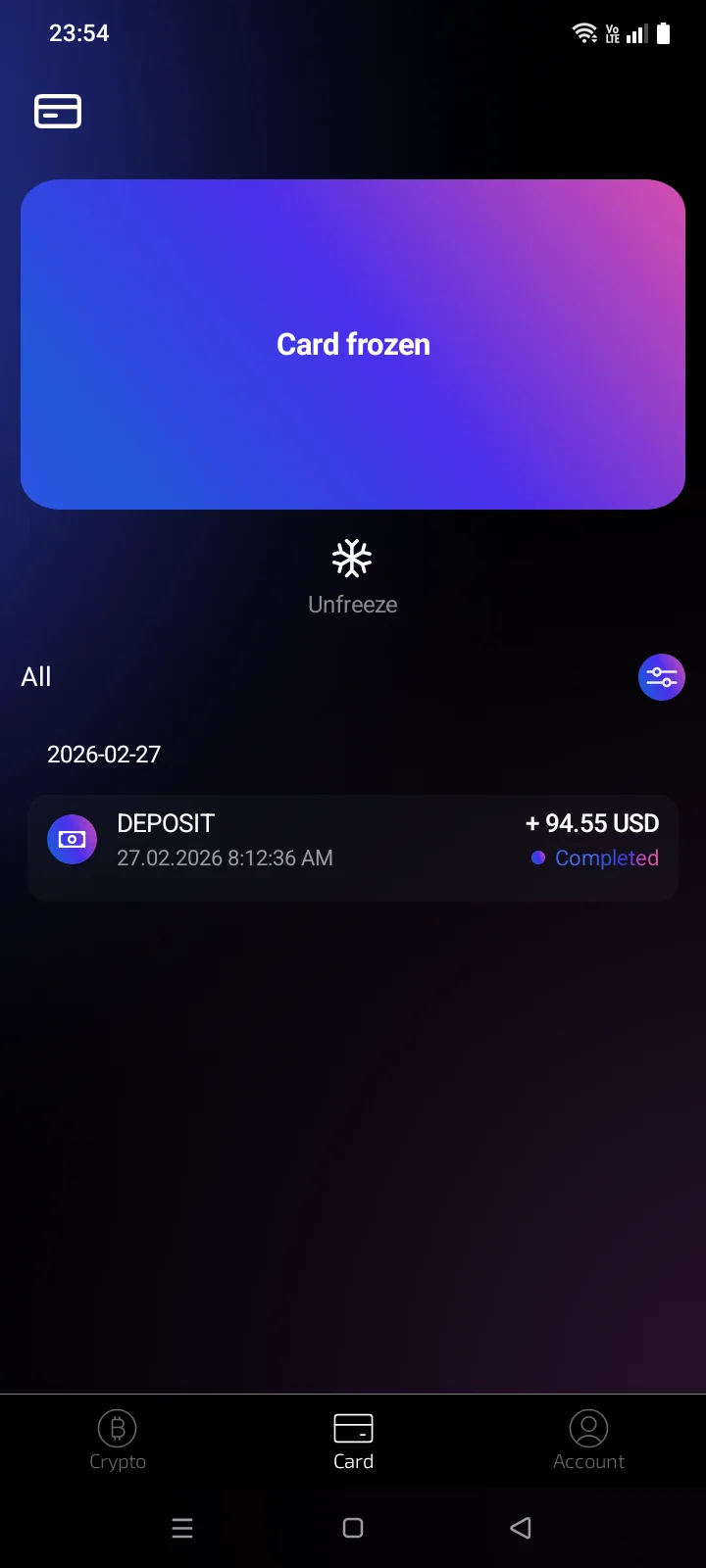
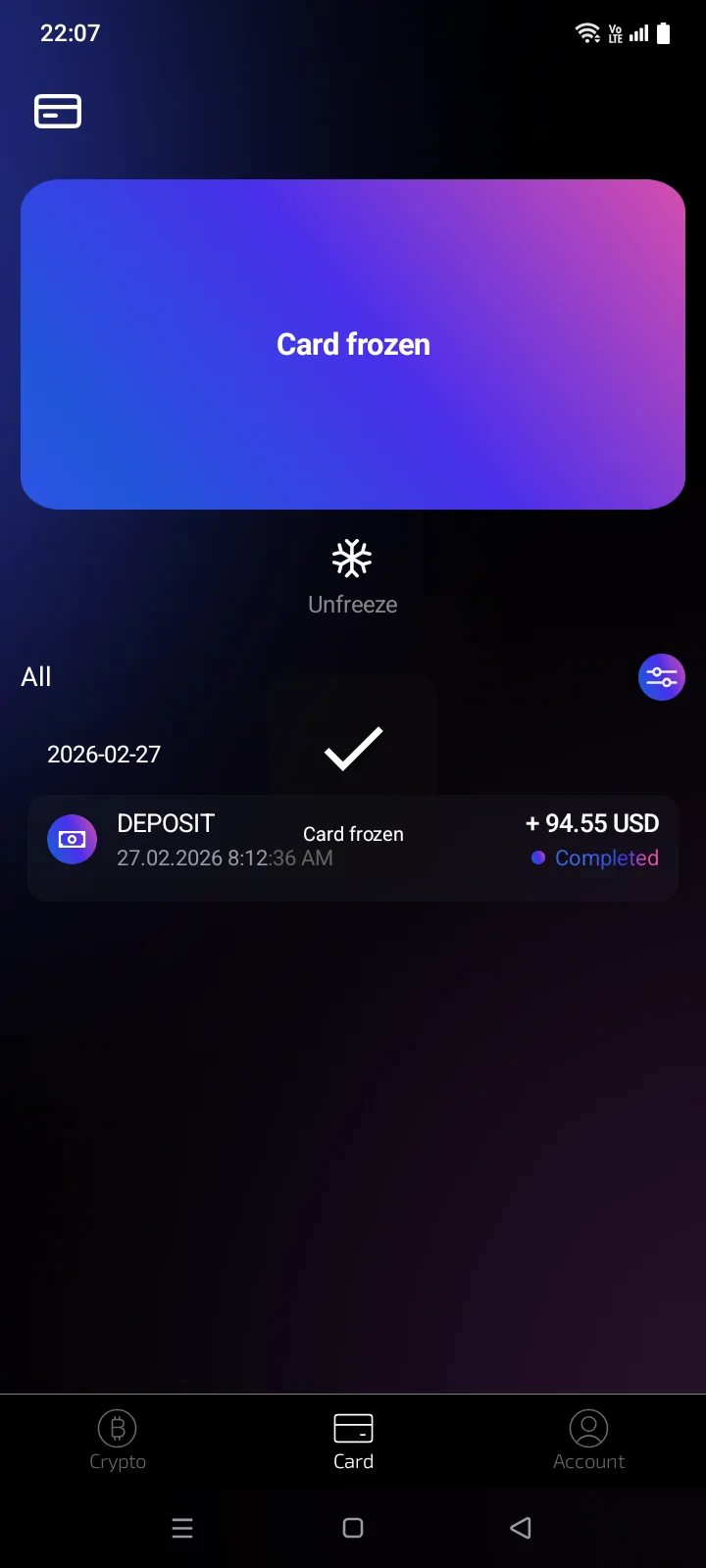
While the card is being frozen, the buttons below it are hidden and the full transaction list icon is inactive. To refresh the status manually, pull the card screen down.
What changes while the card is frozen
The card shows Card frozen instead of its details. The Top up, Freeze and Add to Apple Wallet and Freeze buttons are hidden, and the Unfreeze button with a snowflake icon appears below the card. The card number, expiry date and CVV are available only after you unfreeze the card. The transaction history stays on the screen (see 2.9).
Unfreeze a card
- Open the CardsCard tab and choose the frozen card.
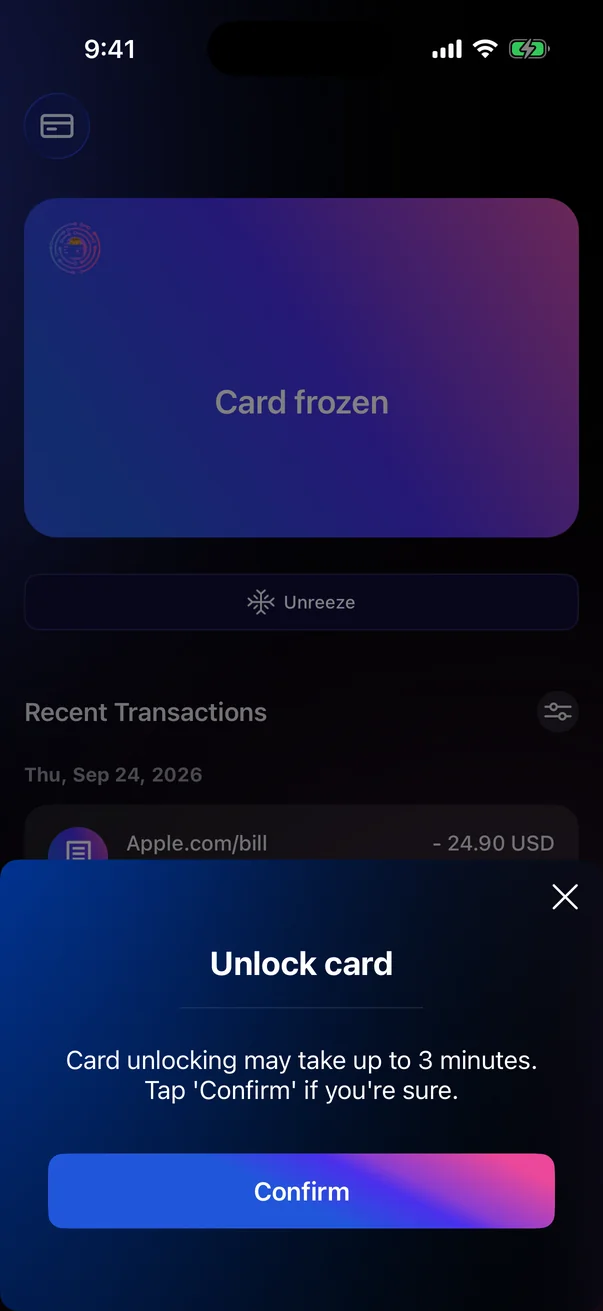
- Tap Unfreeze below the card.
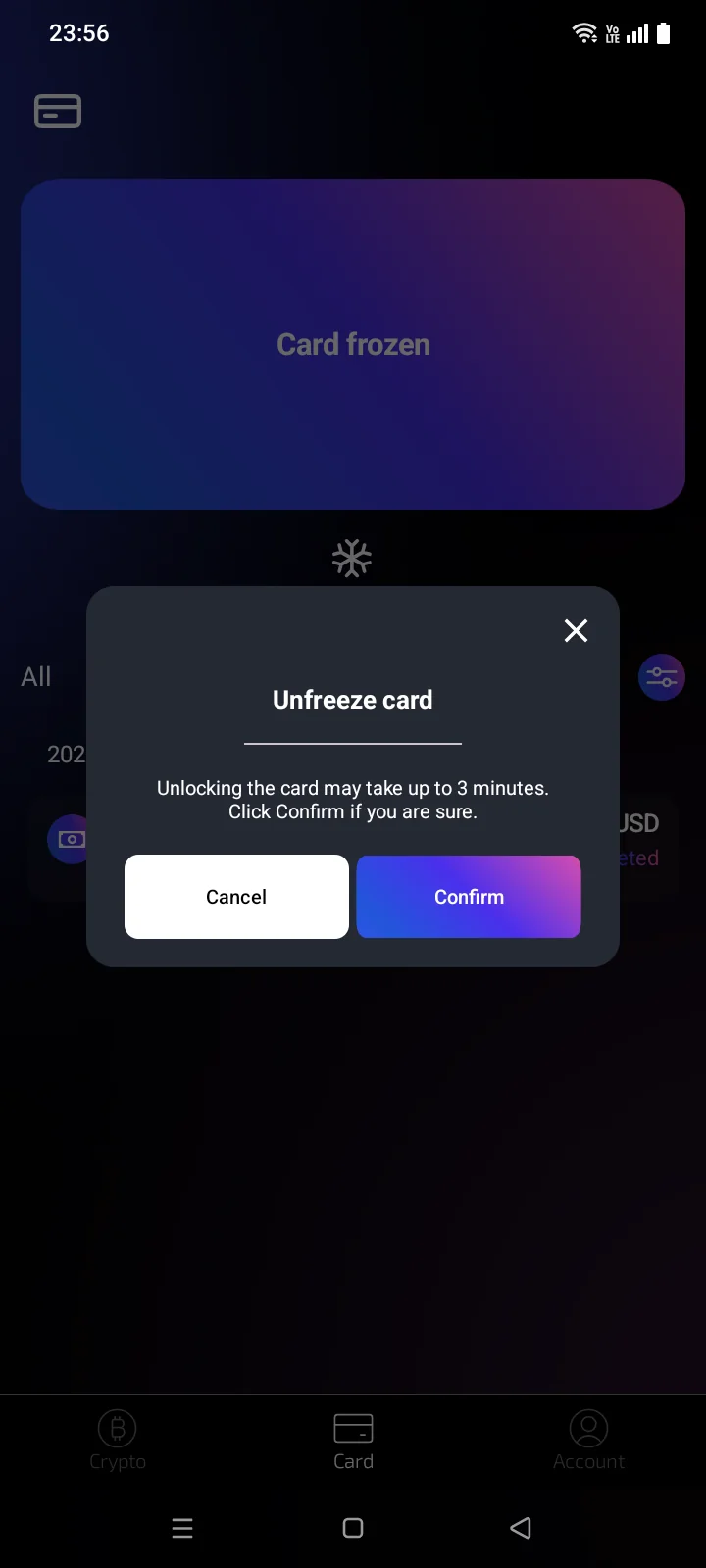
- The Unlock card panel opens with the note Card unlocking may take up to 3 minutes. Tap 'Confirm' if you're sure.Unfreeze card window opens with the note Unlocking the card may take up to 3 minutes. Click Confirm if you are sure. Tap Confirm, or ×Cancel to back out.
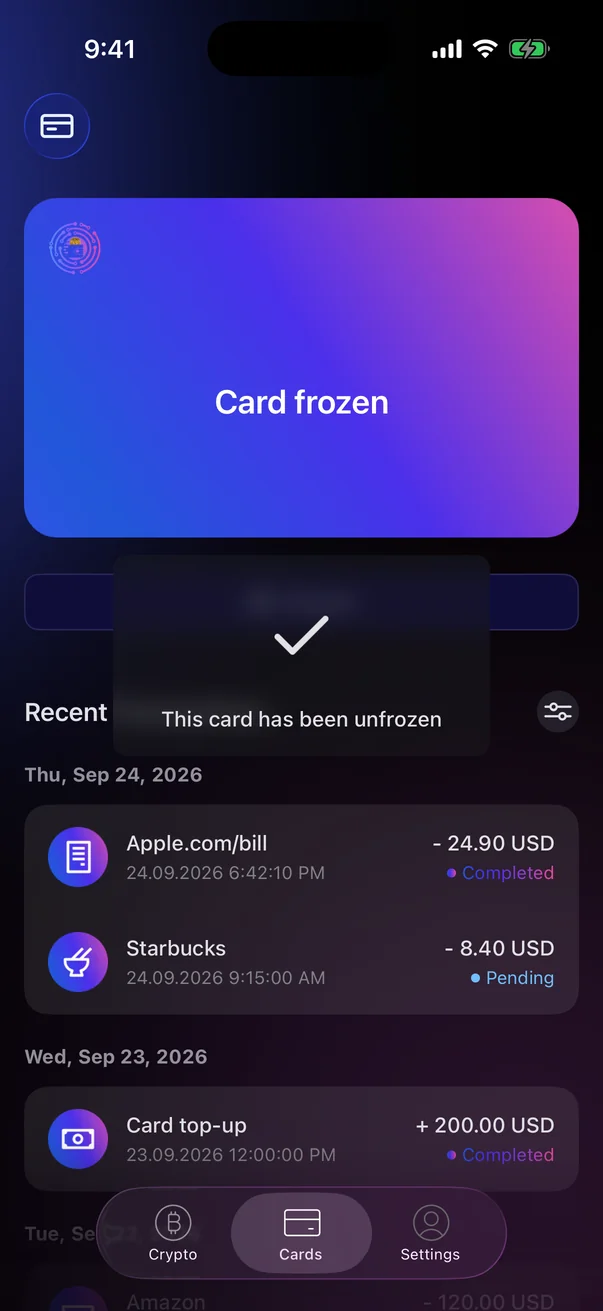
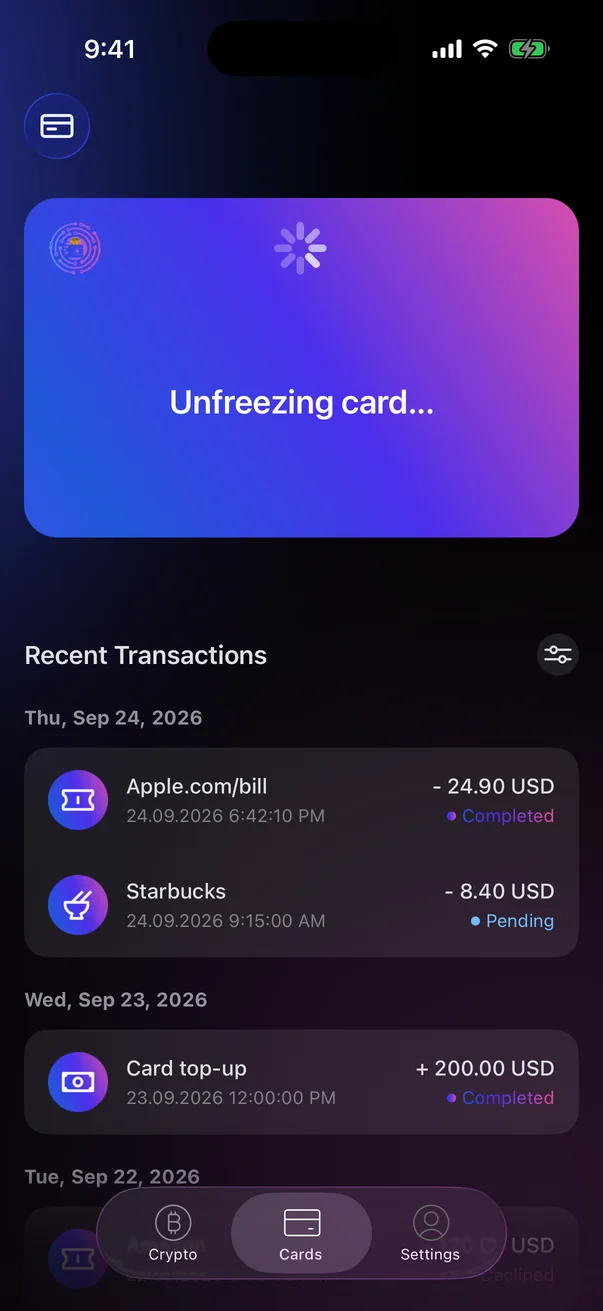
- The card shows Unfreezing card...Card unfreezing in progress and then becomes active again. The message This card has been unfrozen means the request was accepted.When the card is active, the message Card unfrozen successfully appears.
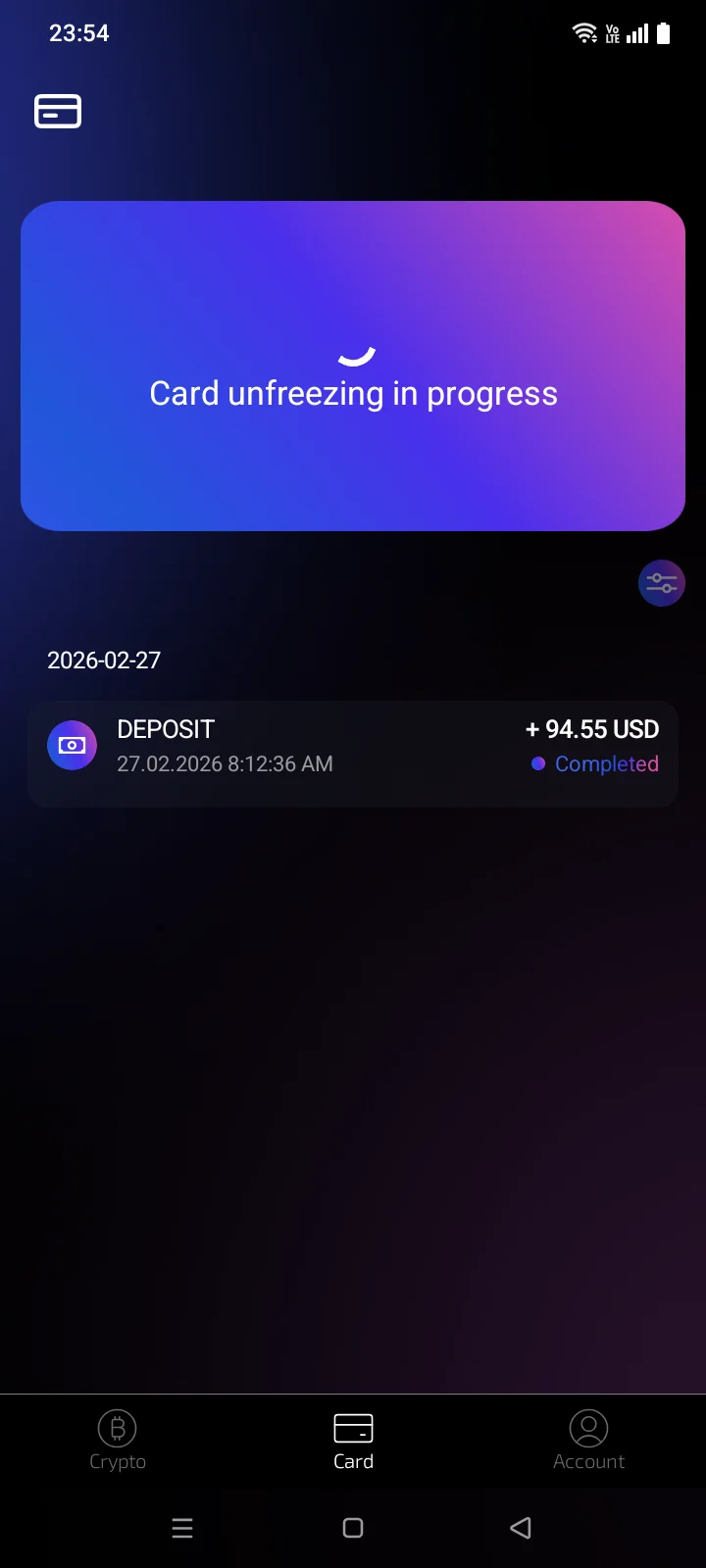
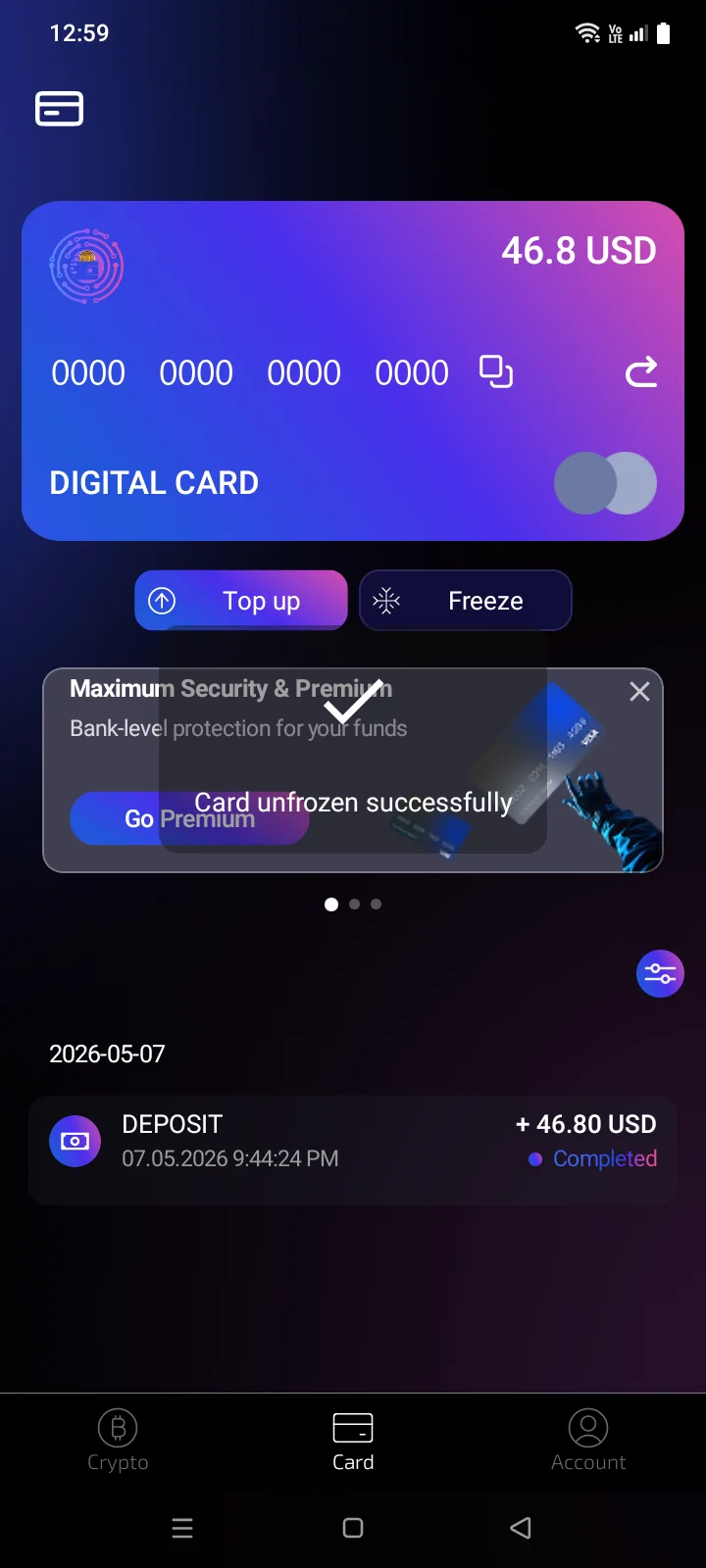
If something goes wrong
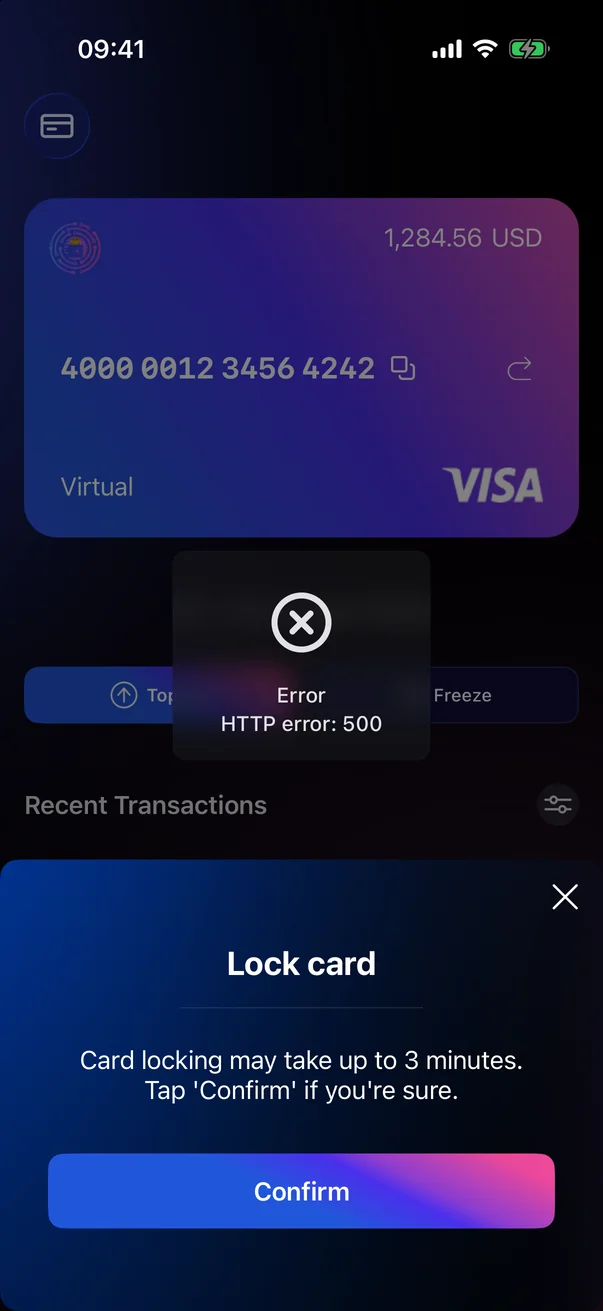
If the request can't be completed, a message titled Error with a short description of the problem appears over the panel. The card keeps its previous status, and the panel stays open — you can tap Confirm again right away or close it.
If the request can't be completed, the card returns to its previous state: its details and the Freeze (or Unfreeze) button are shown again. The app doesn't show a separate error message.
- Check your internet connection and try again in a few minutes.
- If the freezing or unfreezing status stays on the card for longer than 3 minutes, pull the card screen down or close and reopen the app.
- If the problem persists, contact support (see 5.7).
Why is there no Freeze button?
The button is shown only for active cards. While a card is being issued, frozen or unfrozen, the buttons are hidden until the process is complete. See the card statuses in 2.1.