Part 2 · Cards
2.8Several cards
One account can have several cards, virtual and physical. Each card has its own balance, controls and transaction history.
Switch between cards
- On the card screen, tap the cards list button in the top-left corner.
- In the CardsAll wallets list, tap the card you want to open.
If you have only one card, the same button opens ordering a new card right away (see 2.2).
 1
2
3
4
1
2
3
4
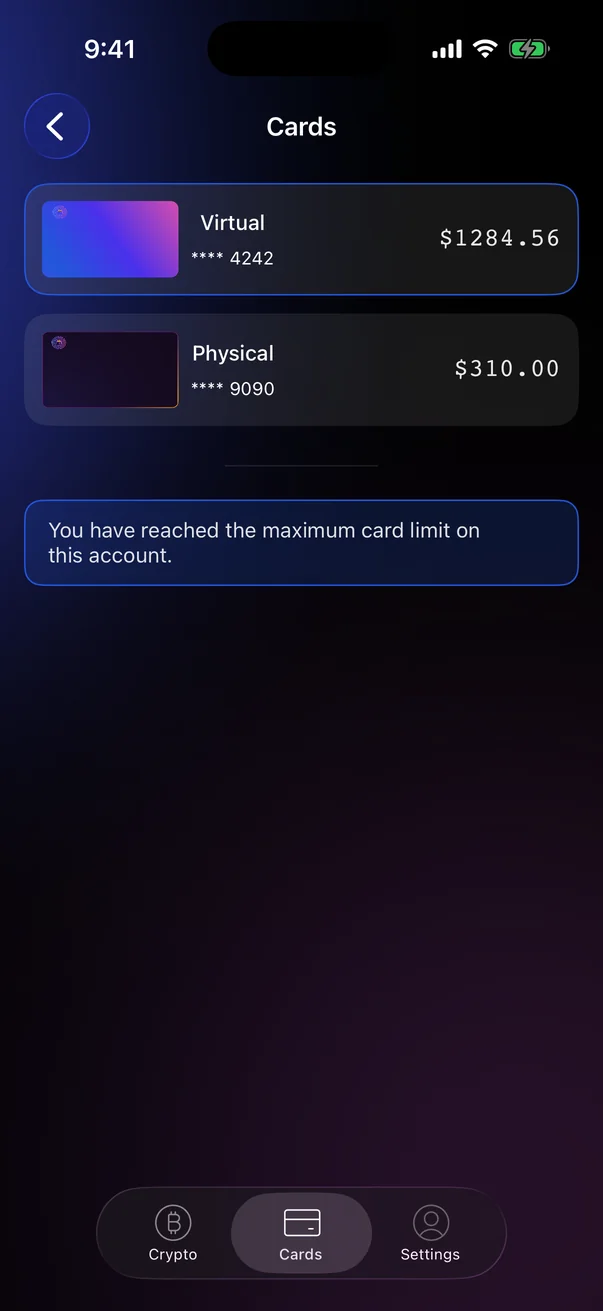
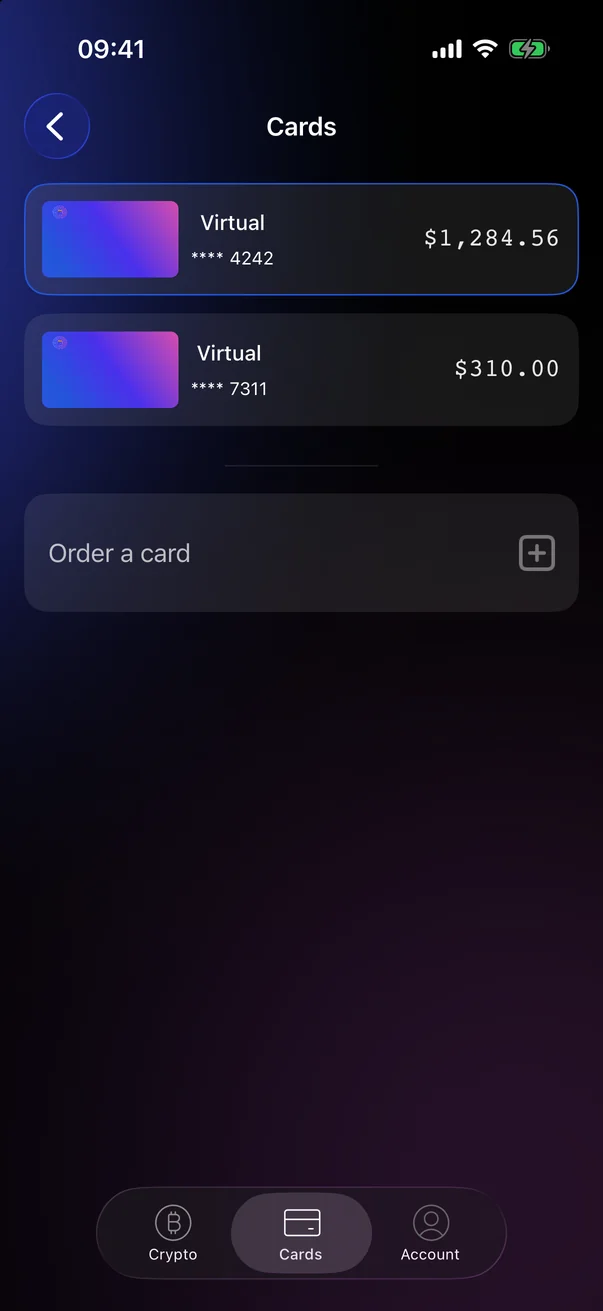
| 1 | Card type — Virtual or Physical. The card that is open now is highlighted. |
| 2 | Last four digits — to tell cards apart. |
| 3 | Balance — the card balance in USD. |
| 4 | Order a card — orders another card (see 2.2). |
 1
2
3
4
5
6
1
2
3
4
5
6
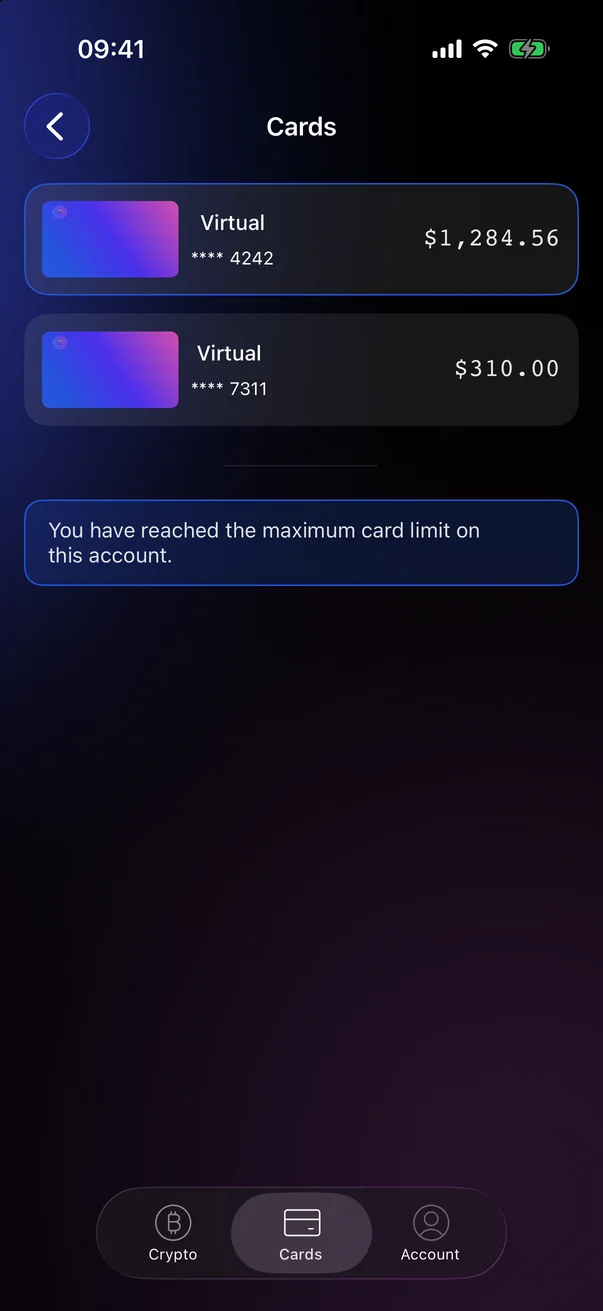
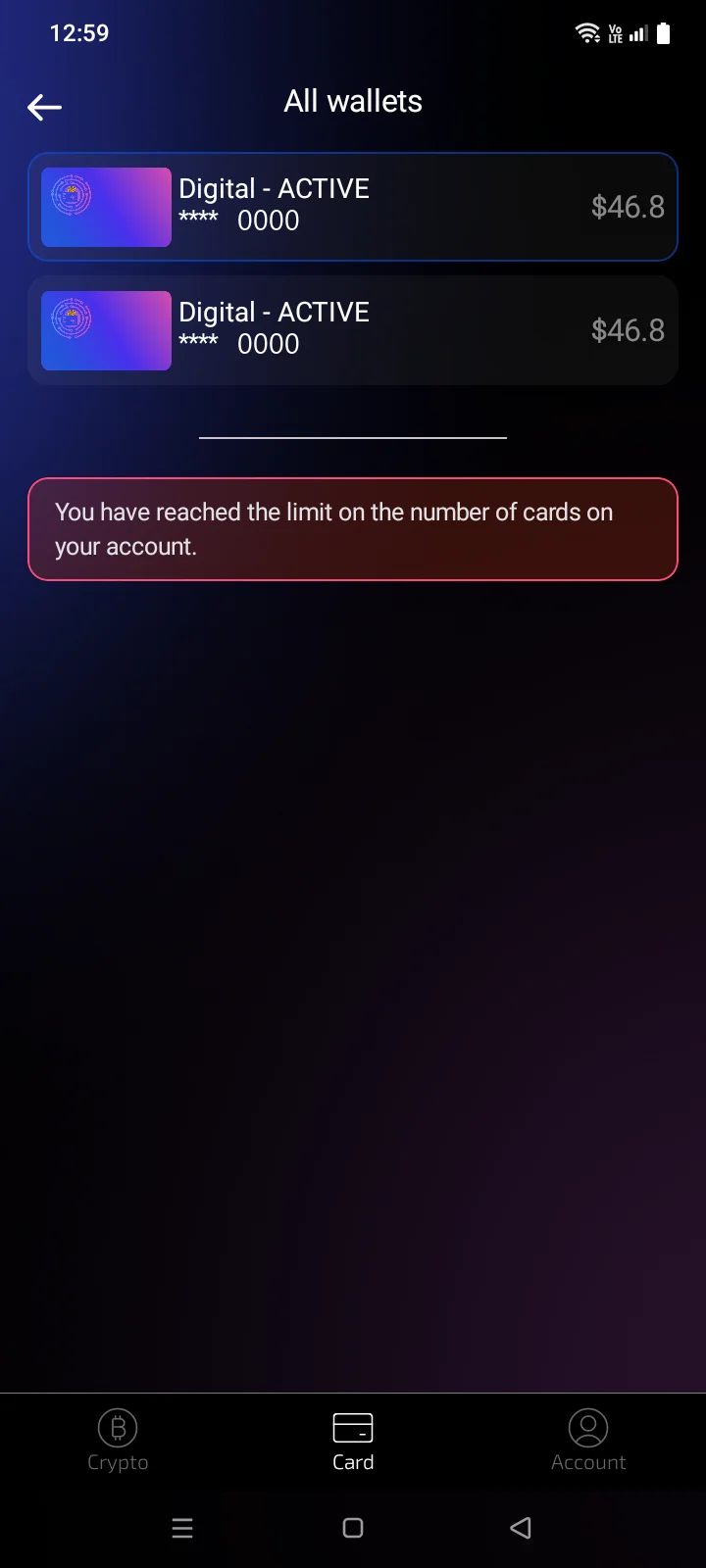
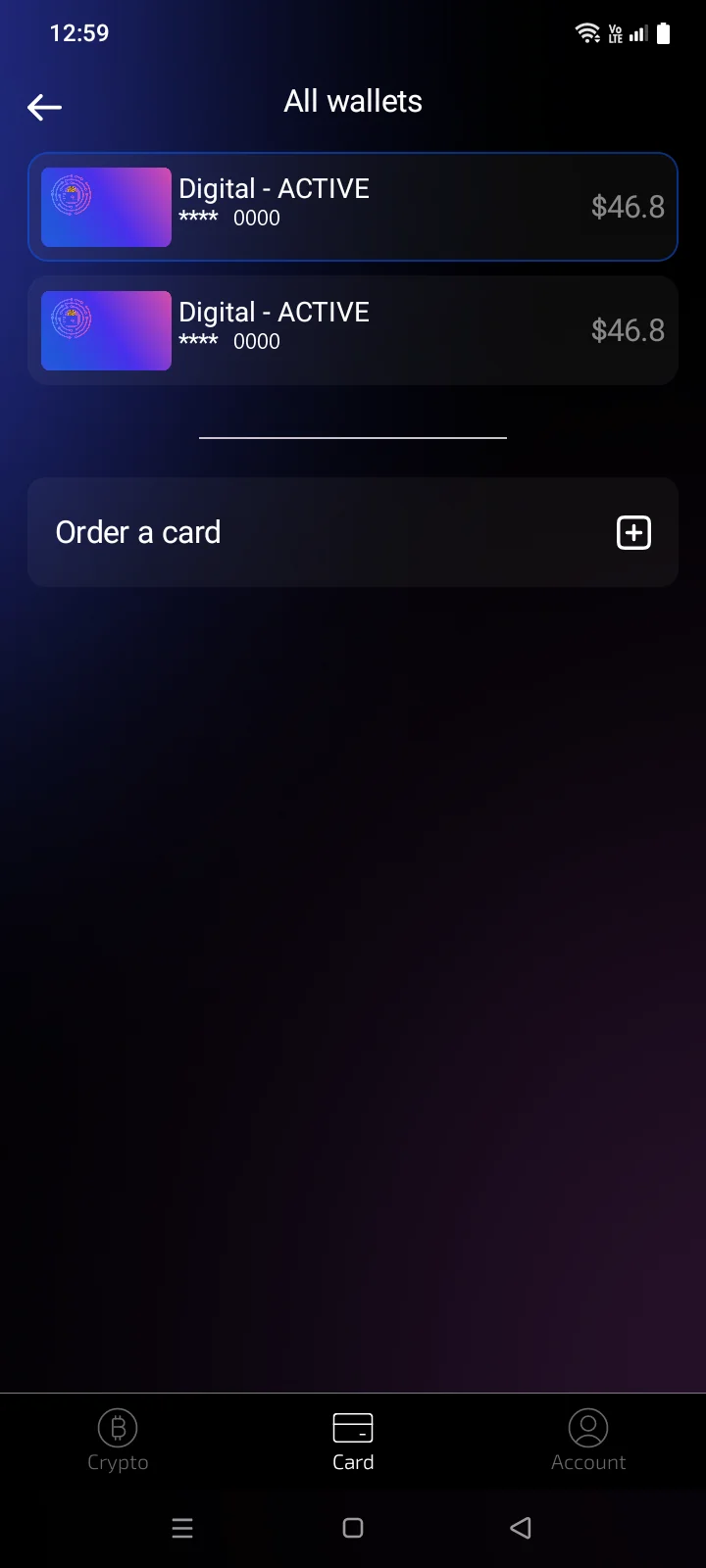
| 1 | All wallets — the title of the cards list. The arrow on the left takes you back to the card screen. |
| 2 | Card image — a card in TBA status has a dimmed image. The card that is open now has a frame around it. |
| 3 | Type and status — internal names of the card type and status, in English (for statuses, see 2.1). |
| 4 | Last four digits — to tell cards apart. |
| 5 | Balance — the card balance in USD. |
| 6 | Order a card — orders another card (see 2.2). |
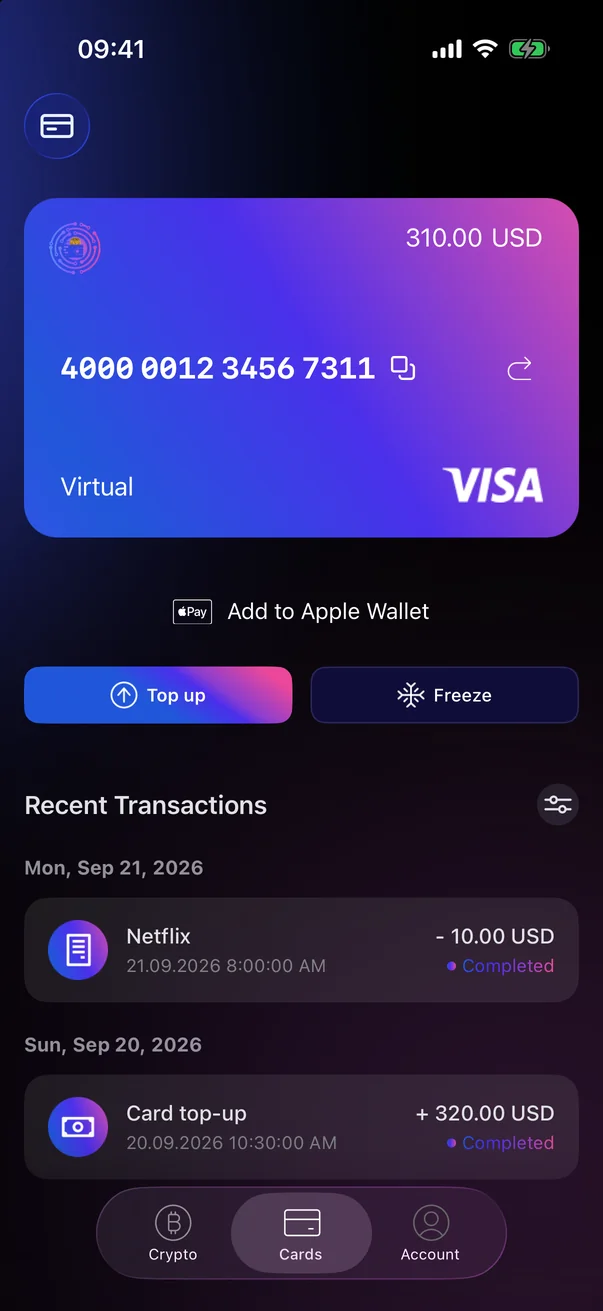
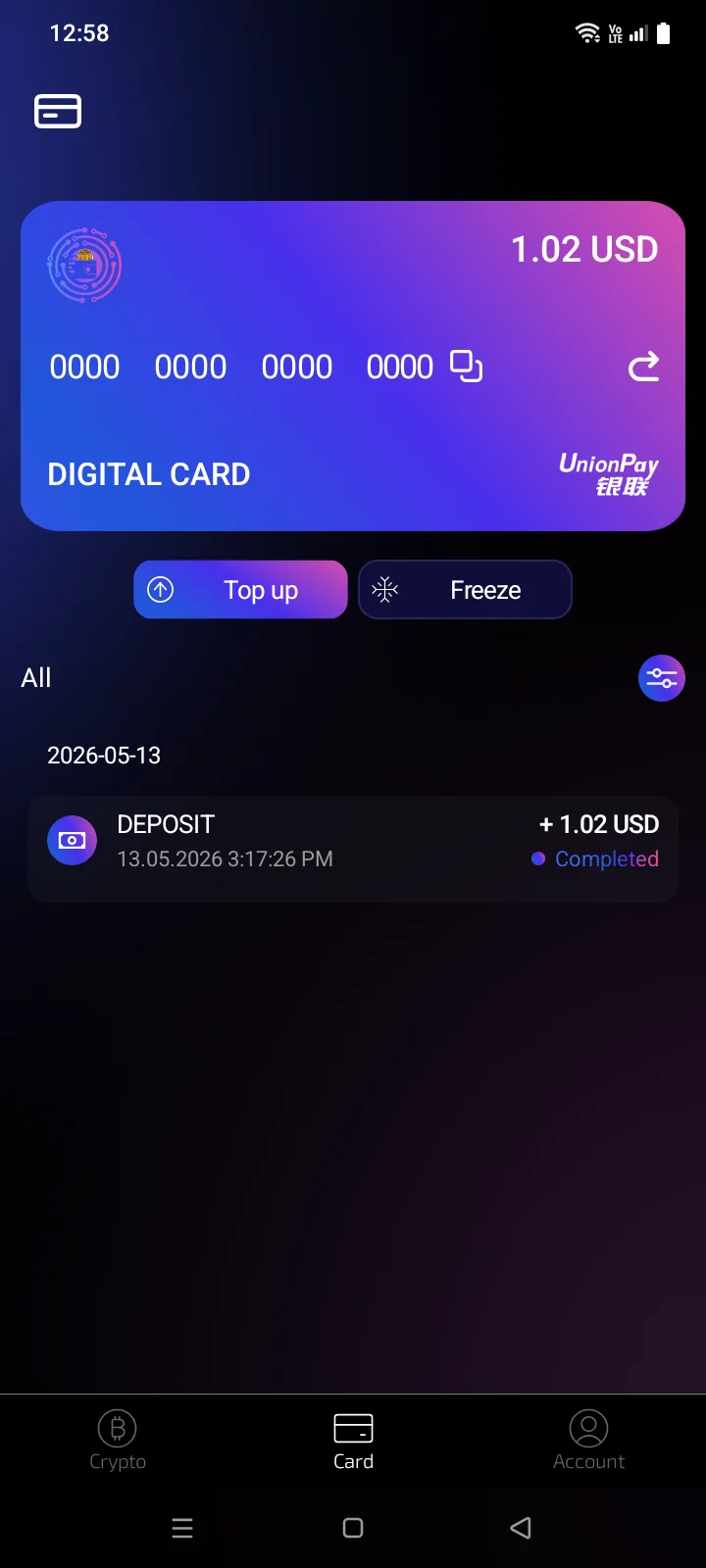
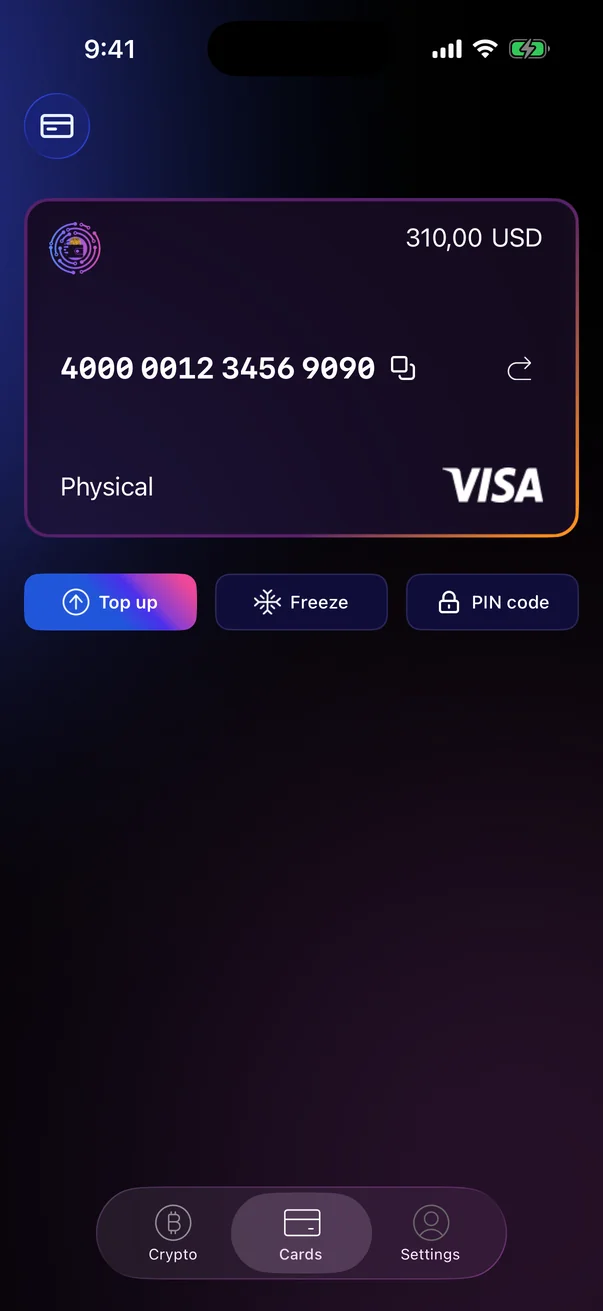
All actions on the card screen — top-up, freezing, card details and transactions — apply to the card that is open.
How many cards you can have
The number of cards on one account is limited; the order screen shows how many cards you can use without additional fees (see 2.2). When the limit is reached, the list shows the message You have reached the maximum card limit on this account.You have reached the limit on the number of cards on your account. instead of the Order a card row, and a new card can't be ordered.