
2.2Choosing and ordering a card
Right now you can order one card in Cryptolink — a virtual card. Before ordering, you can check its price, fees, limits and what it is suited for. Cryptolink offers virtual and physical cards, and you can compare them before ordering.
Where to start
- You have no cards yet — the CardsCard tab opens the Order a card screen right away.
- You already have a card — on the card screen, tap the cards list button in the top-left corner, then tap Order a card (see 2.1).
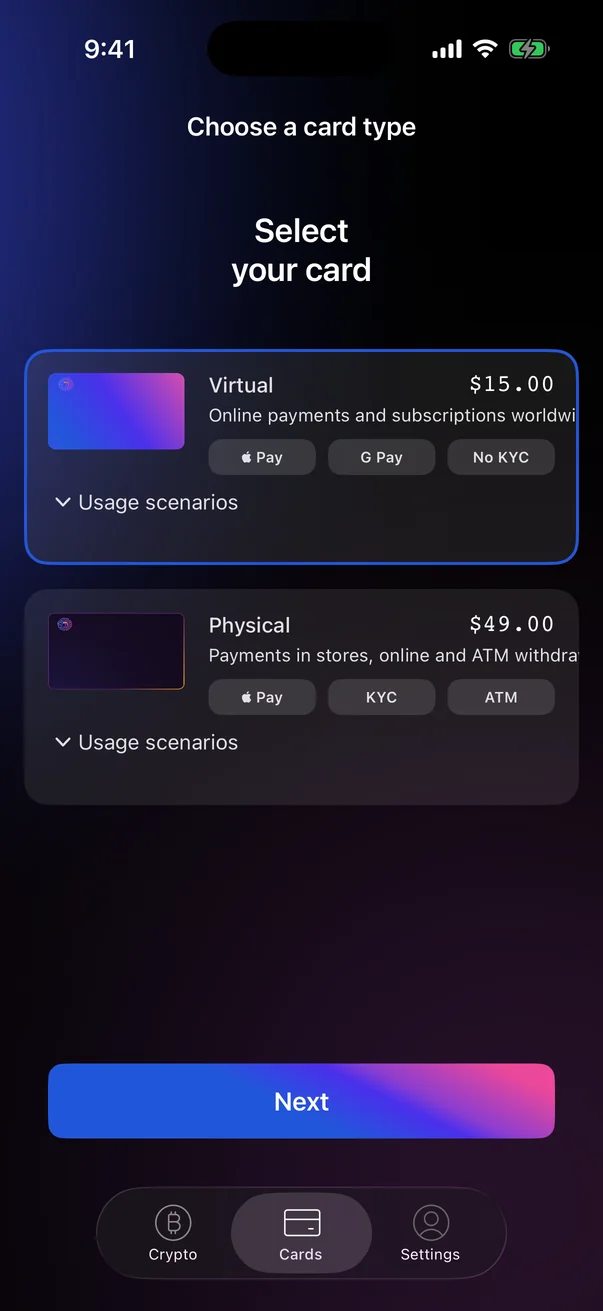
When several cards are available to order, the Choose a card type screen opens first. If only one card type is available, the app skips the card selection and opens Order a card directly.
Choose a card type
- Tap the card you want. It gets highlighted.
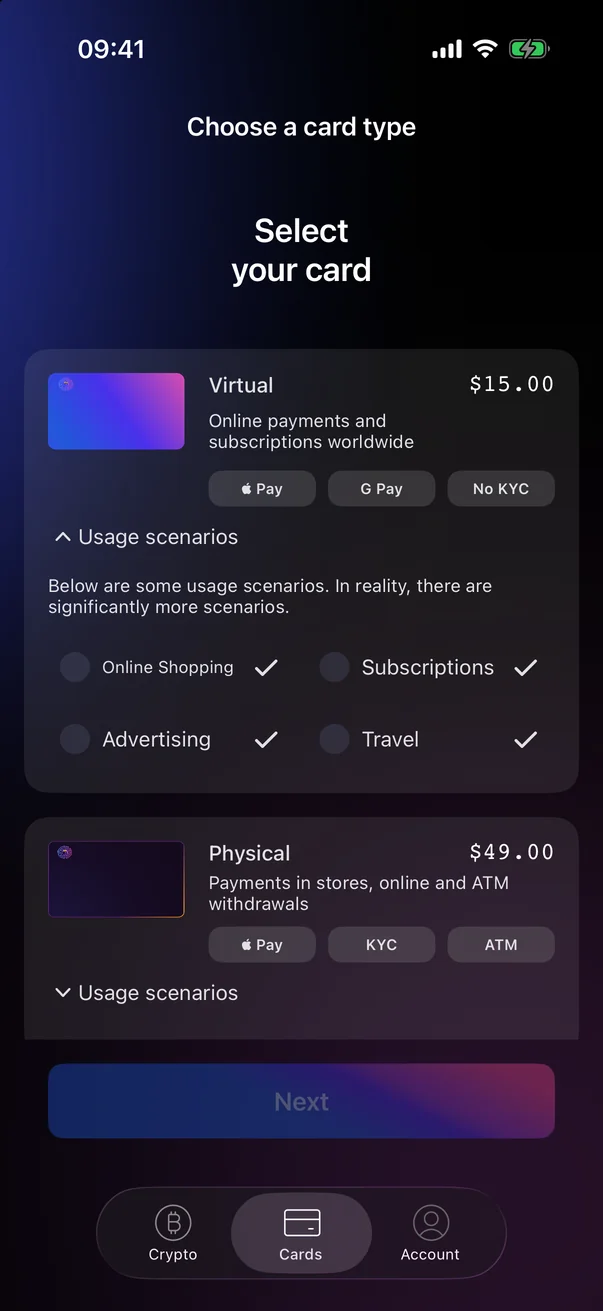
- To see what the card is suited for, tap Usage scenarios under it.
- Tap Next. Everything else works as described below.
 1
2
3
4
5
6
1
2
3
4
5
6
| 1 | Card type — Virtual or Physical. Tap the card to select it. |
| 2 | Description — what the card is intended for. |
| 3 | Price — the one-time card price. |
| 4 | Features — see the table below. |
| 5 | Usage scenarios — shows examples of how the card can be used.Only for cards with listed scenarios. |
| 6 | Next — opens the details of the selected card.Available after you select a card. |
The card on the order screen
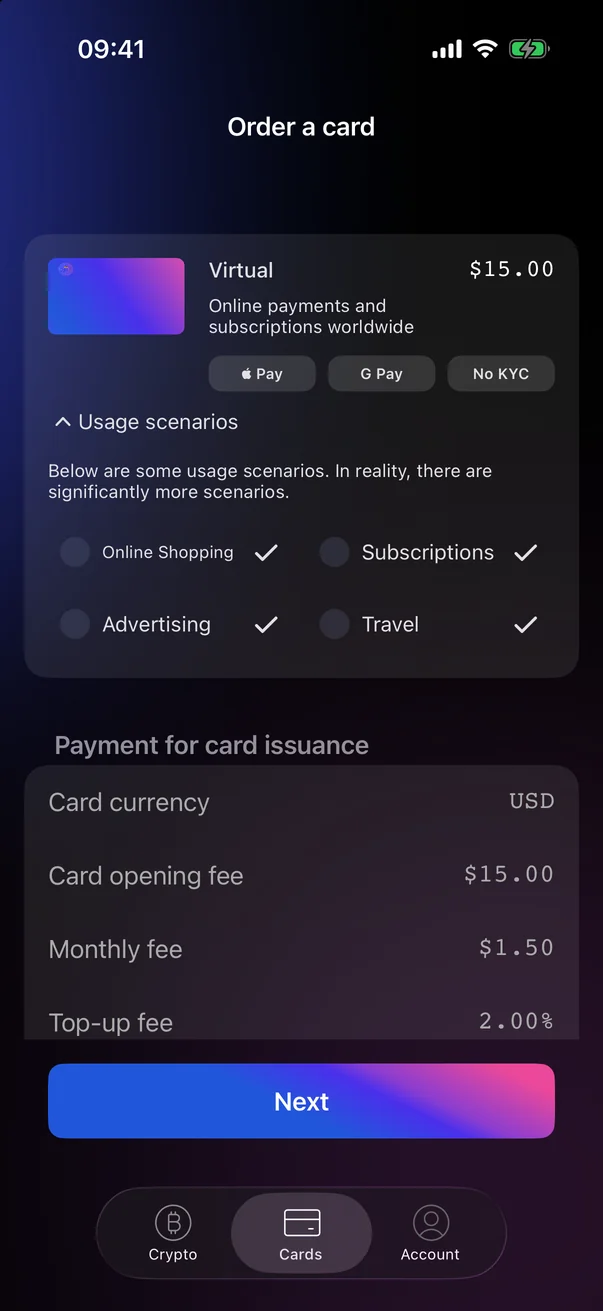
The top of the Order a card screen shows the card: its type, description, price and feature badges.
Card features
| Badge | Meaning |
|---|---|
| PayApple Pay | The card can be added to Apple Pay. |
| G PayGoogle Pay | The card can be added to Google Pay. |
| No KYC | No identity verification is needed to order the card. |
| KYC | Identity verification is required to order the card. See 2.3. |
| ATM | The card can be used to withdraw cash at ATMs. |
Usage scenarios
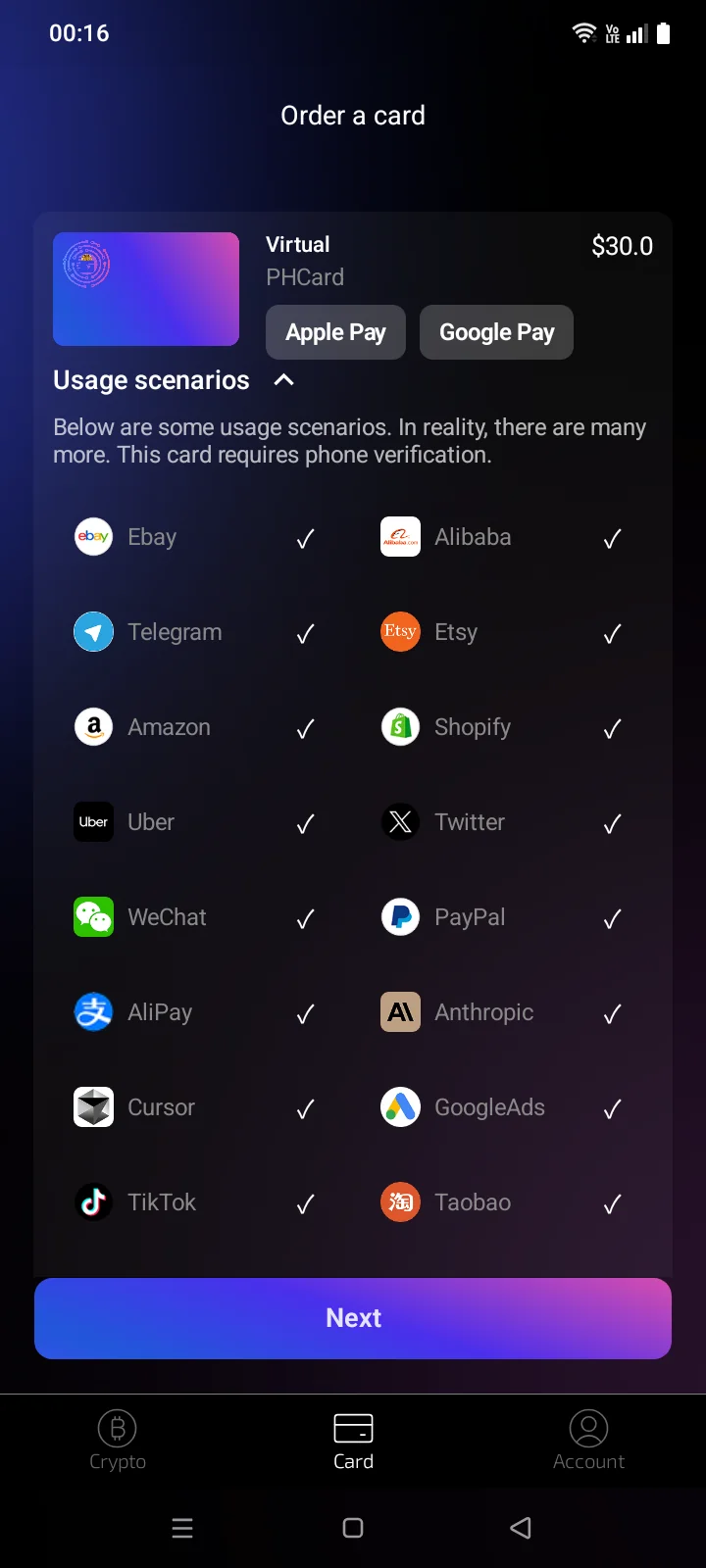
Tap Usage scenarios under the card to expand the list, and tap it again to collapse it. The list shows typical examples of how the card can be used. If a card requires verification, the text above the list says so, for example Phone verification is required for this card.This card requires phone verification.
Review the card details
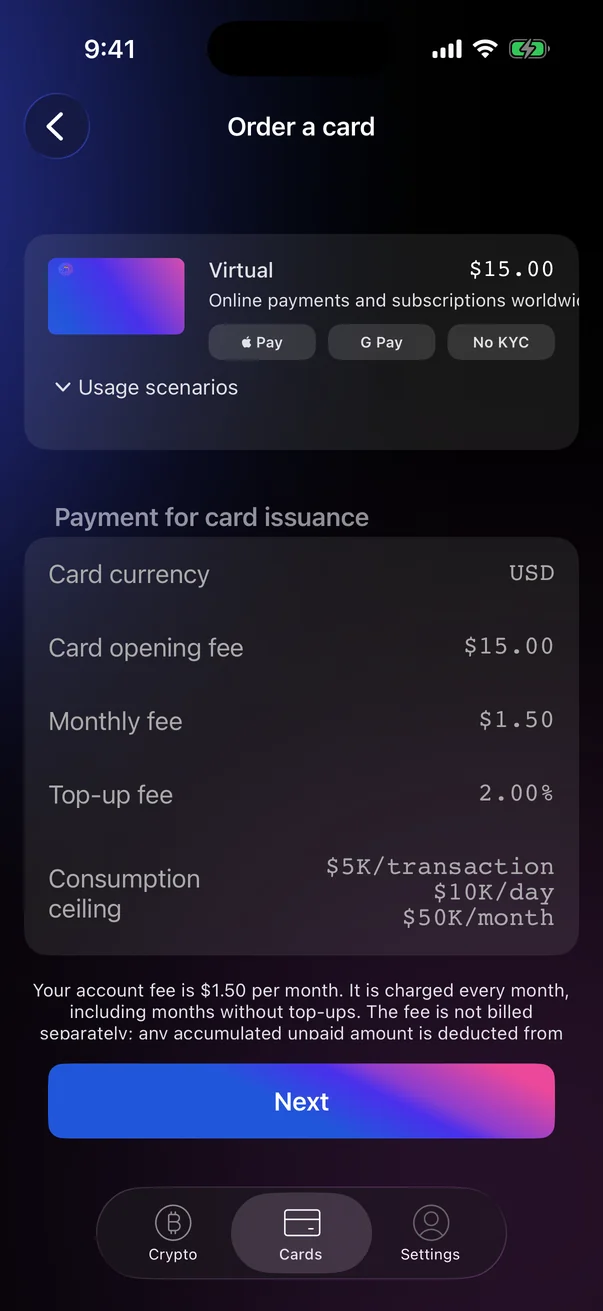
On the Order a card screen, the Payment for card issuance block shows the card's price, fees and limits. Read them and tap Next.
 1
2
3
4
5
6
7
1
2
3
4
5
6
7
| 1 | Card currency — the currency of the card balance: USD. |
| 2 | Card opening fee — the one-time card price. |
| 3 | Monthly fee — the monthly account fee.Shown only if a monthly fee applies. |
| 4 | Top-up fee — the percentage charged on each top-up. |
| 5 | Consumption ceiling — spending limits per transaction, per day and per month. |
| 6 | Account fee and terms — how the monthly fee is charged and how many cards you can have on one account. Tap Terms of Service to open the terms in the browser. |
| 7 | Next — takes you to payment (see below). |
 1
2
3
4
5
6
7
1
2
3
4
5
6
7
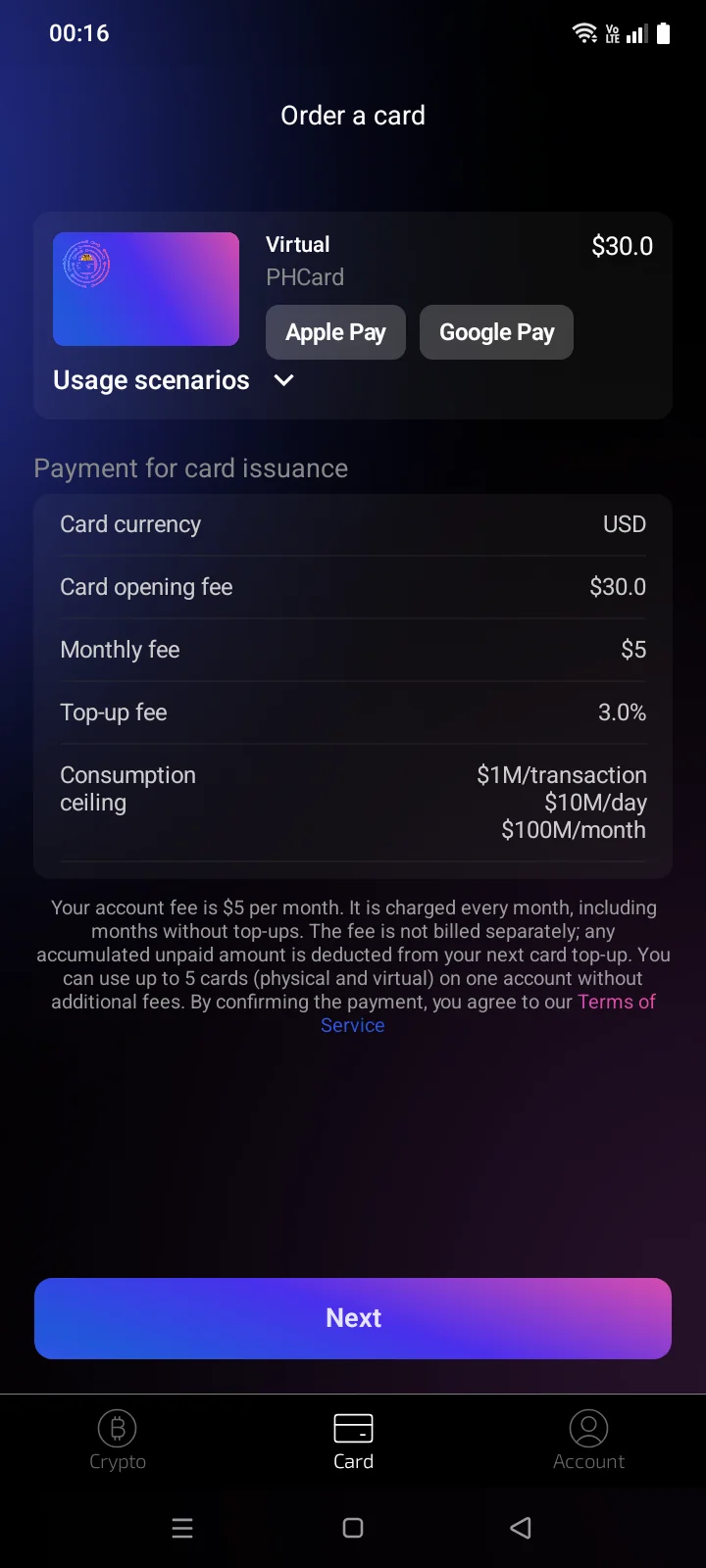
| 1 | Card currency — the currency of the card balance: USD. |
| 2 | Card opening fee — the one-time card price. |
| 3 | Monthly fee — the monthly account fee.Shown only if a monthly fee applies. |
| 4 | Top-up fee — the percentage charged on each top-up. |
| 5 | Consumption ceiling — spending limits per transaction, per day and per month. |
| 6 | Account fee and terms — how the monthly fee is charged and how many cards you can have on one account. Tap the text to open the Terms of Service in the browser. |
| 7 | Next — takes you to payment (see below). |
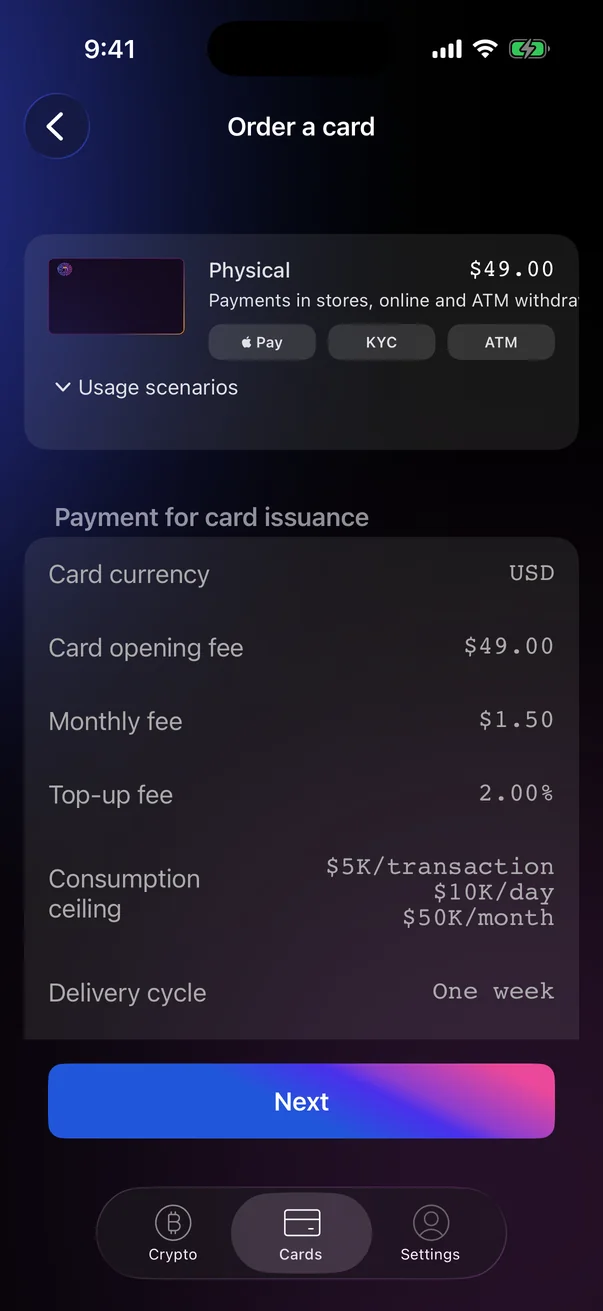
For a physical card, the screen also shows the Delivery cycle, the documents to submit (Submit materials), ATM withdrawal limits and the ATM withdrawal fee.
What happens after Next
After Next, the card payment opens (see 2.3).
Depending on the card, the app first asks for the verification the card requires, then opens the payment:
| The card requires | What you'll be asked to do |
|---|---|
| No verification | Pay for the card — see 2.3 Paying for a card. |
| Phone number | Bind your phone number if you haven't yet (2.2), then pay. |
| Phone and KYC | Bind your phone number and pass identity verification (2.2, 2.3). For a physical card, also enter the delivery address (2.4). Then pay. |
The virtual card currently on sale needs no verification (No KYC): after Next, the payment opens. For cards that need verification, steps you have already completed are skipped. If your verification is still being checked or was rejected, the app shows its status instead (see 2.5).