5.1Account settings
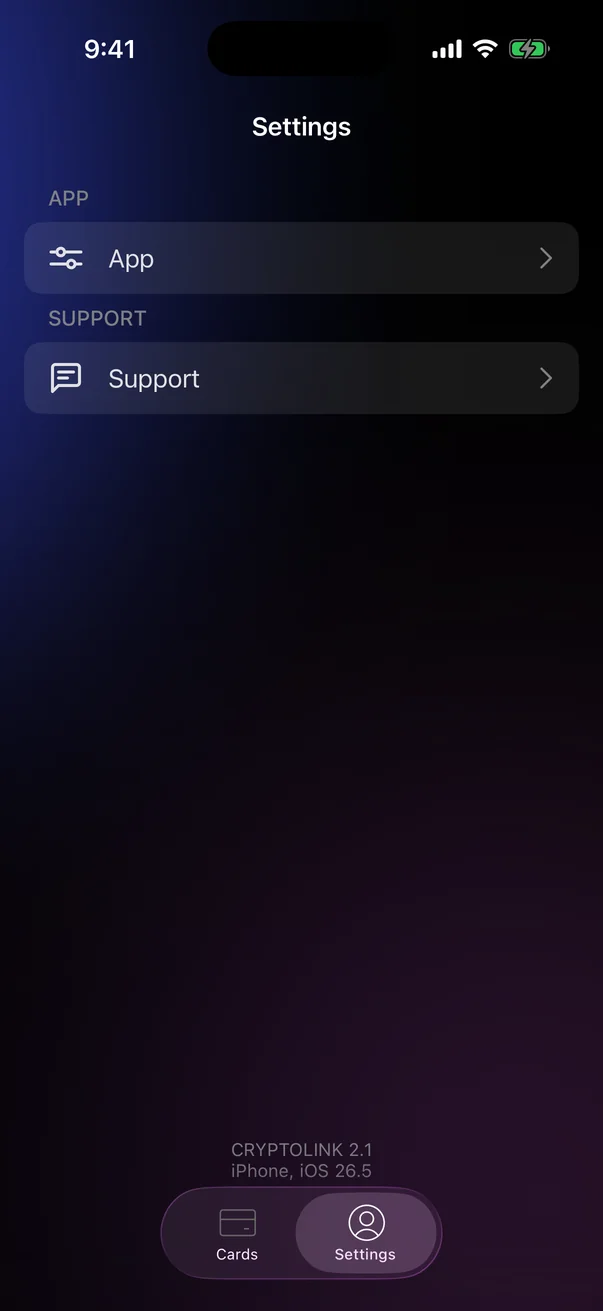
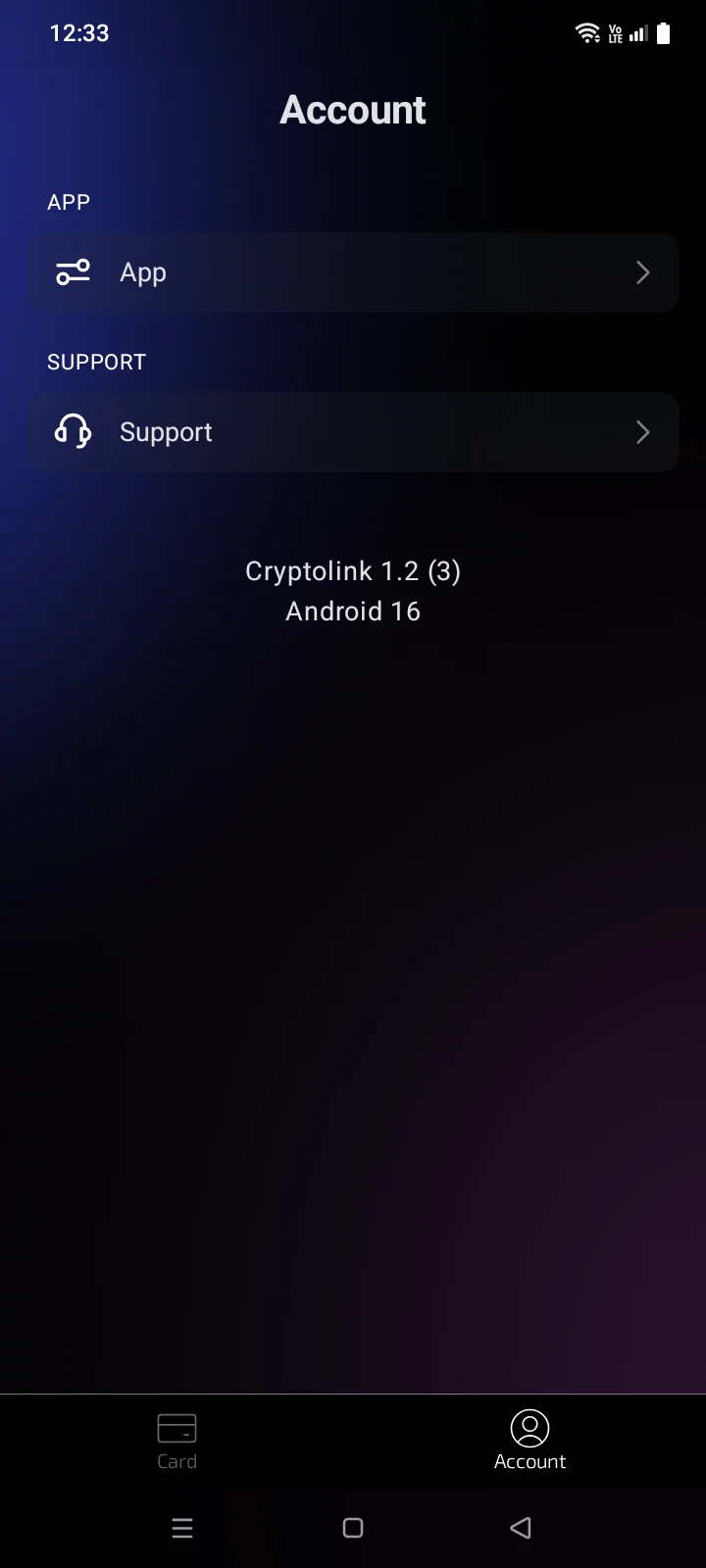
The Account tab (the Settings screen) holds everything about your account and the app. This page covers the Account page: CardsCard tab visibility, email and password.
The Account tab
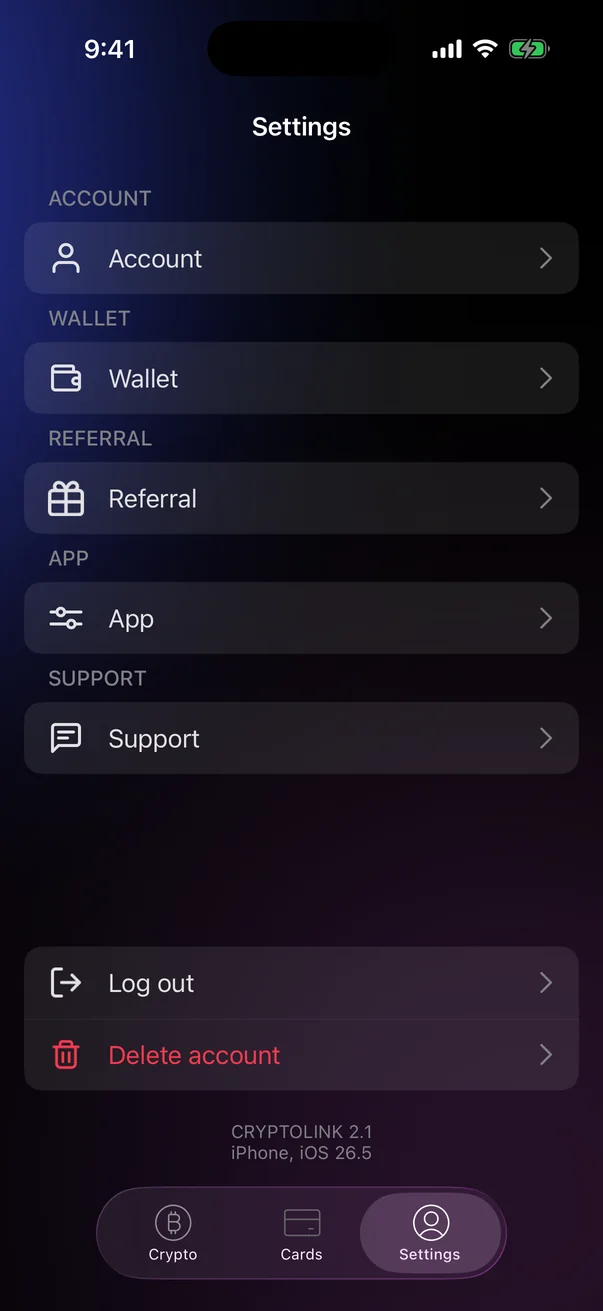
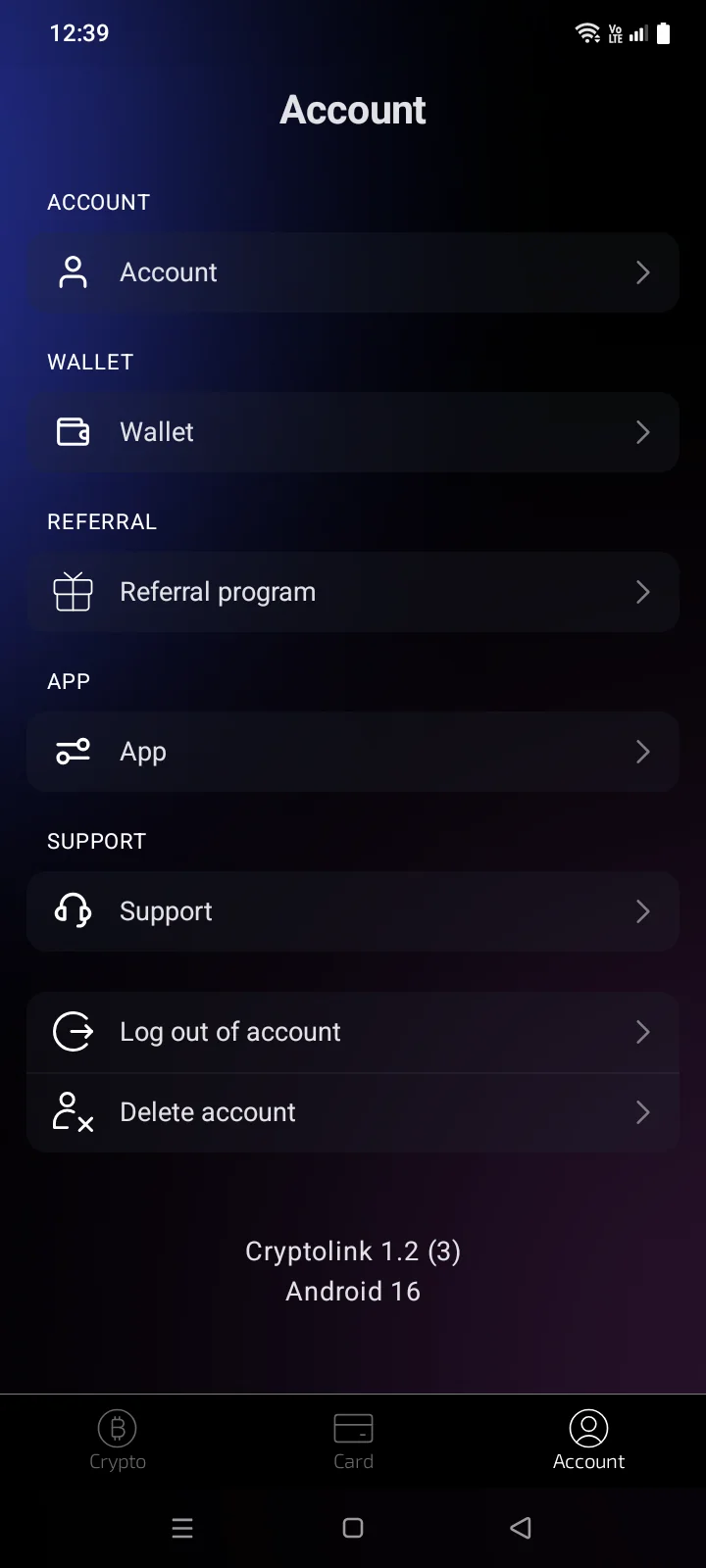
The Account, Wallet and ReferralReferral program sections appear when you're signed in. App and Support are always there. Log outLog out of account and Delete account are at the bottom (see 5.8). Below them are the app version and your iPhone model with its iOS versionyour phone's Android version (for example, Android 16); tell them to support when you report a problem.
 1
2
3
4
5
6
1
2
3
4
5
6
| 1 | Account — Cards tab, email, password, verification (below). |
| 2 | Wallet — Crypto tab, base currency, contacts (see 5.2). |
| 3 | Referral — code, invitations, rewards (see 5.6). |
| 4 | App — security, language, notifications (see 5.3, 5.4, 5.5). |
| 5 | Support — Telegram and email (see 5.7). |
| 6 | Log out and Delete account (see 5.8). |
 1
2
3
4
5
6
1
2
3
4
5
6
| 1 | Account — Card tab, email, password, verification (below). |
| 2 | Wallet — Crypto tab, base currency, contacts (see 5.2). |
| 3 | Referral program — code, invitations, rewards (see 5.6). |
| 4 | App — security, language, notifications (see 5.3, 5.4, 5.5). |
| 5 | Support — Telegram and email (see 5.7). |
| 6 | Log out of account and Delete account (see 5.8). |
Account page
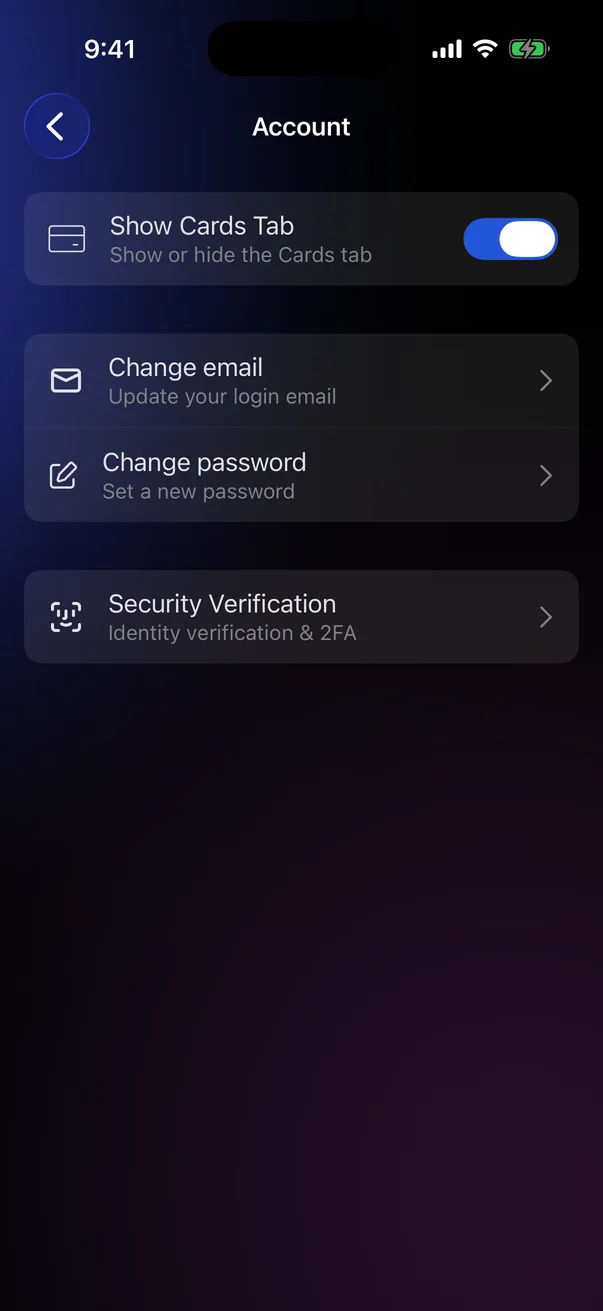
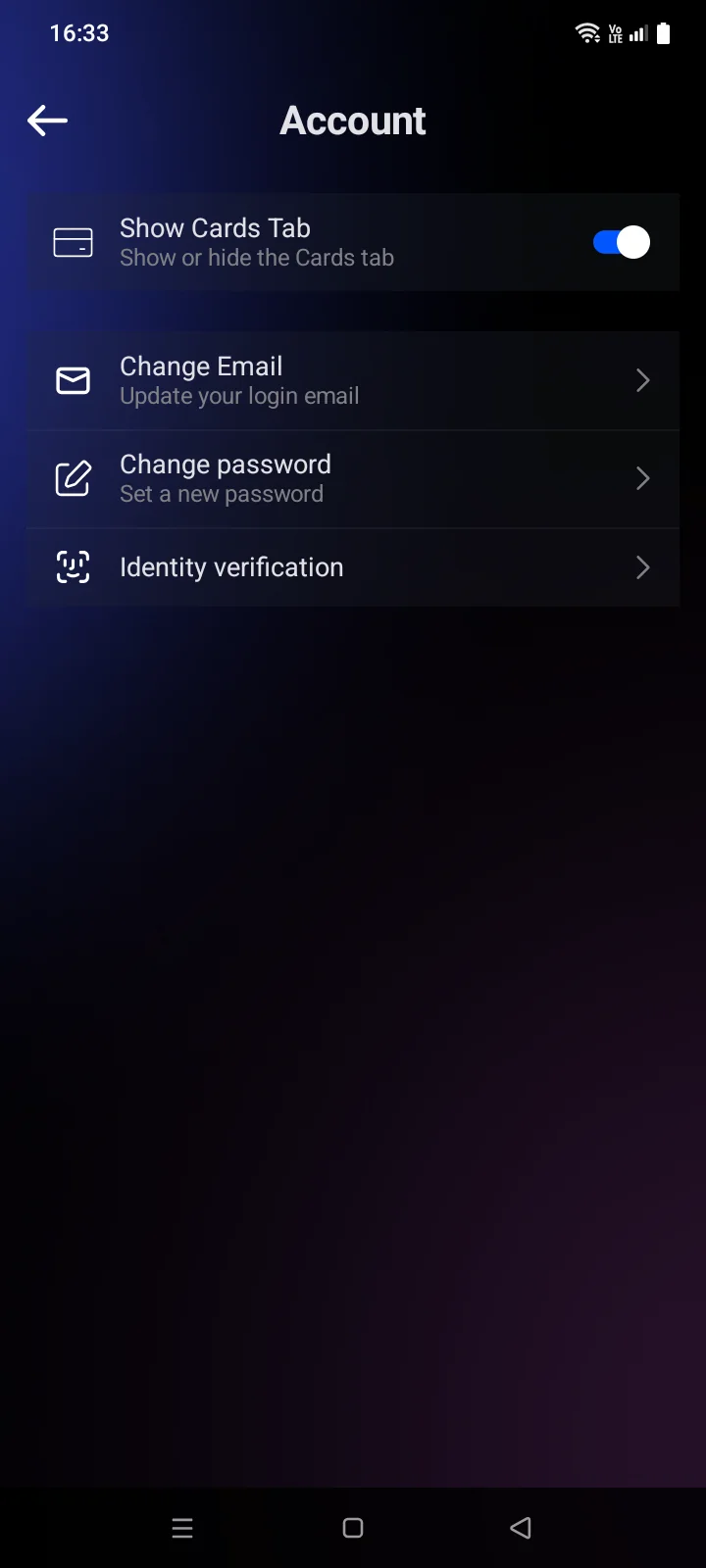
Tap Account in the Account section.
| Row | What it does |
|---|---|
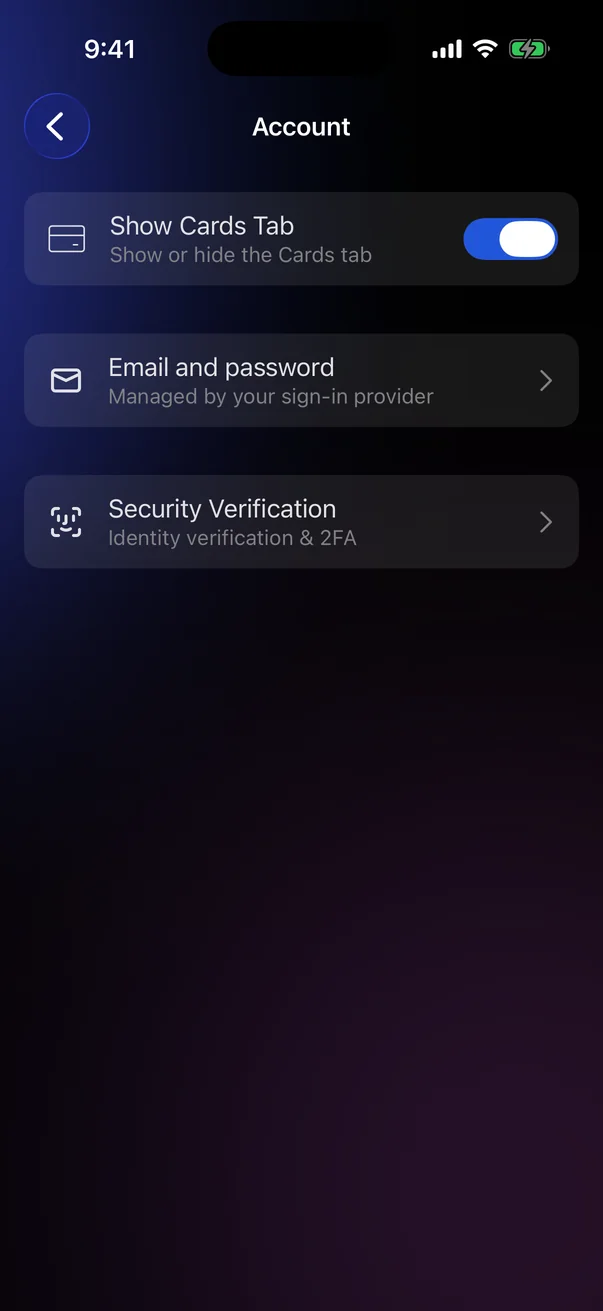
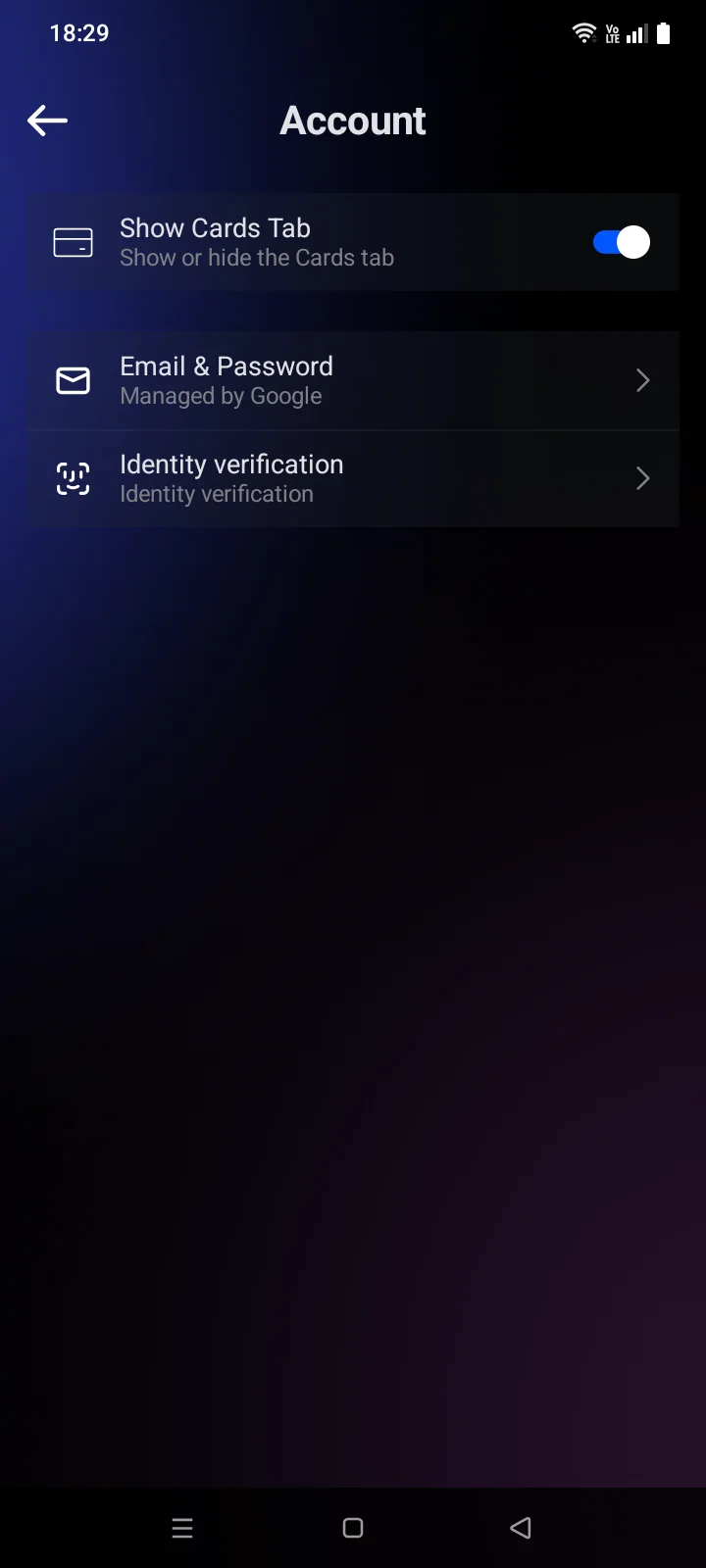
| Show Cards Tab | Shows or hides the CardsCard tab. On by default. |
| Change emailChange Email | Changes the email you sign in with (below). |
| Change password | Sets a new password (below). |
| Security VerificationIdentity verification | What you need to complete before ordering a card: email and phone (see 2.2) and — for cards with full verification — identity verification (see 2.3). The row is there only if the cards available right now need verification, and only while the CardsCard tab is shown (see 2.1). |
If you signed in with Apple or GoogleGoogle
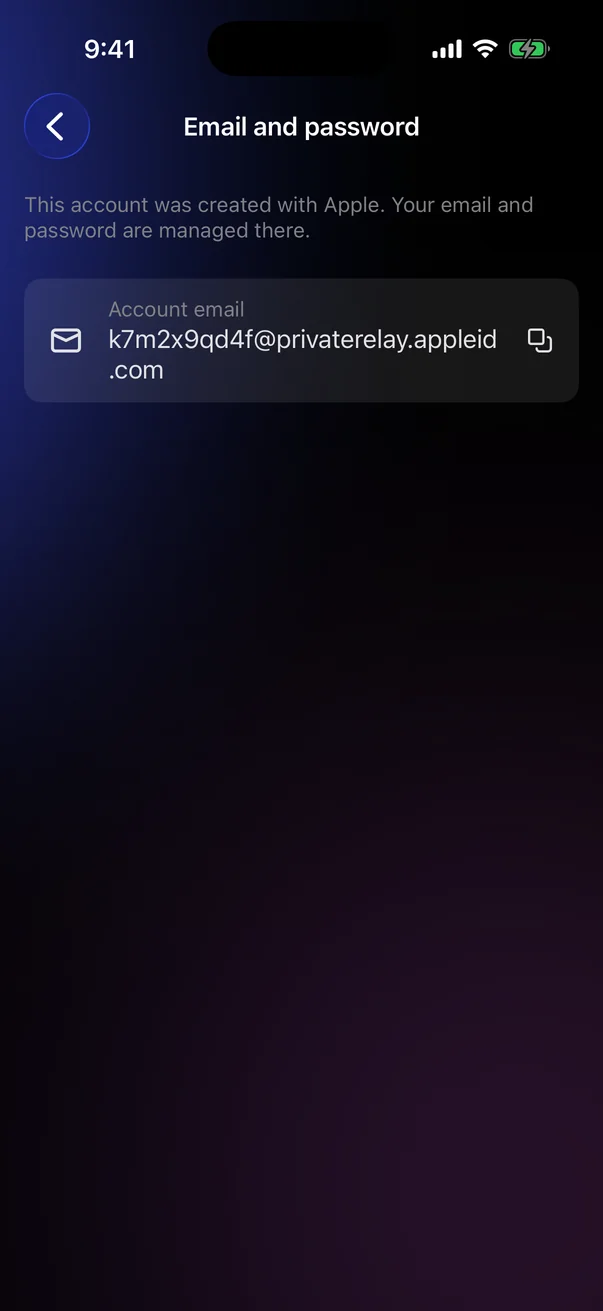
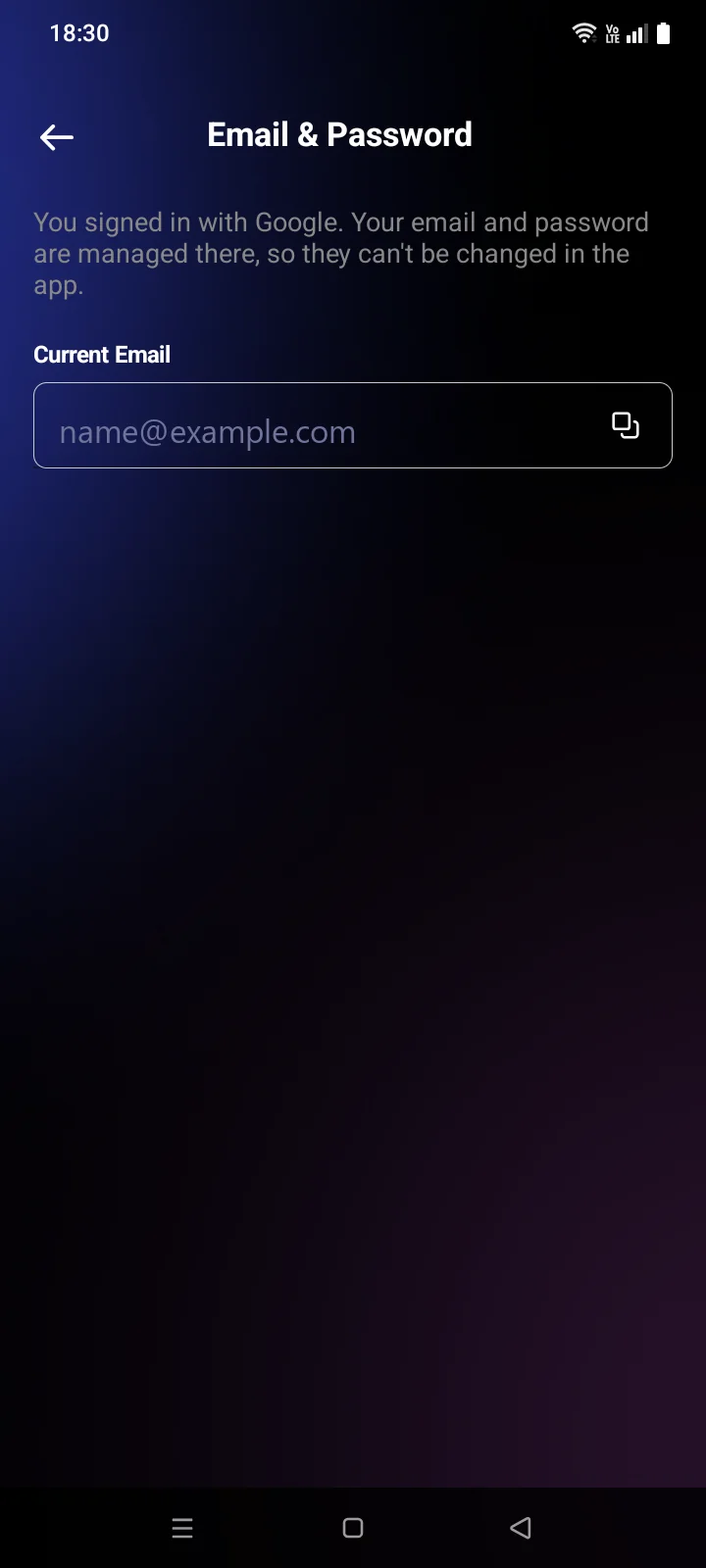
There are no rows for changing the email and password. Instead, there is Email and passwordEmail & Password marked Managed by your sign-in providerManaged by Google: the email and password are changed in your Apple or GoogleGoogle account, not in the app (see 1.3).
Tap the row to see the explanation This account was created with Apple. Your email and password are managed there.You signed in with Google. Your email and password are managed there, so they can't be changed in the app. and the account email. To copy the email, tap ittap the copy icon in the field.
Change email
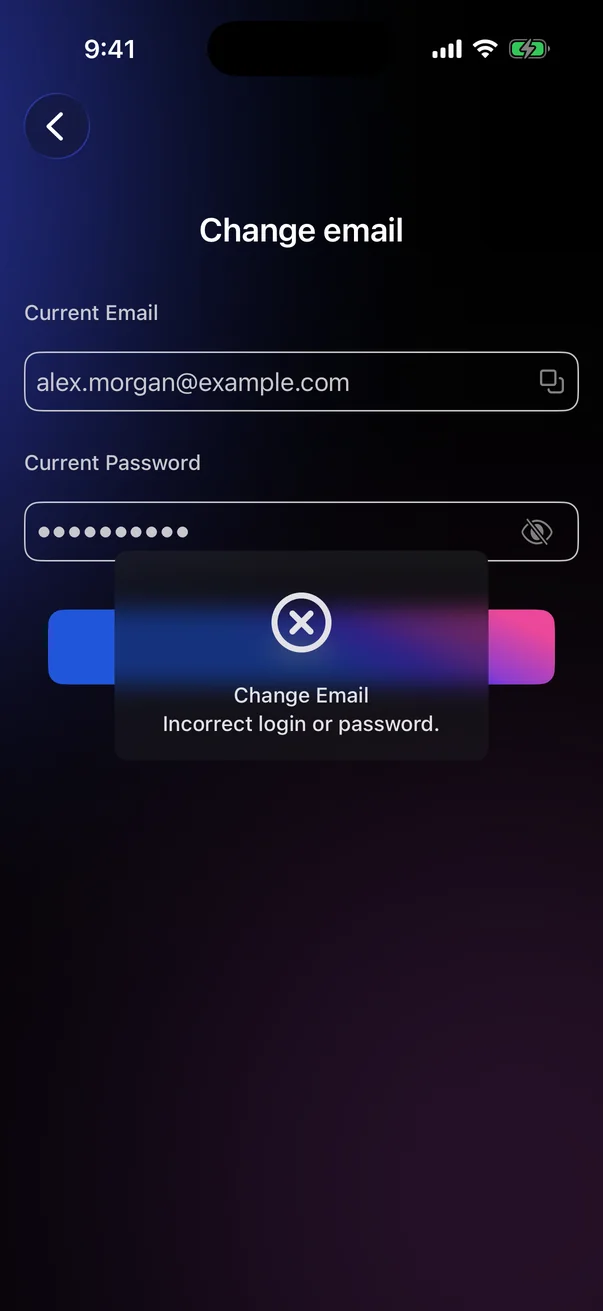
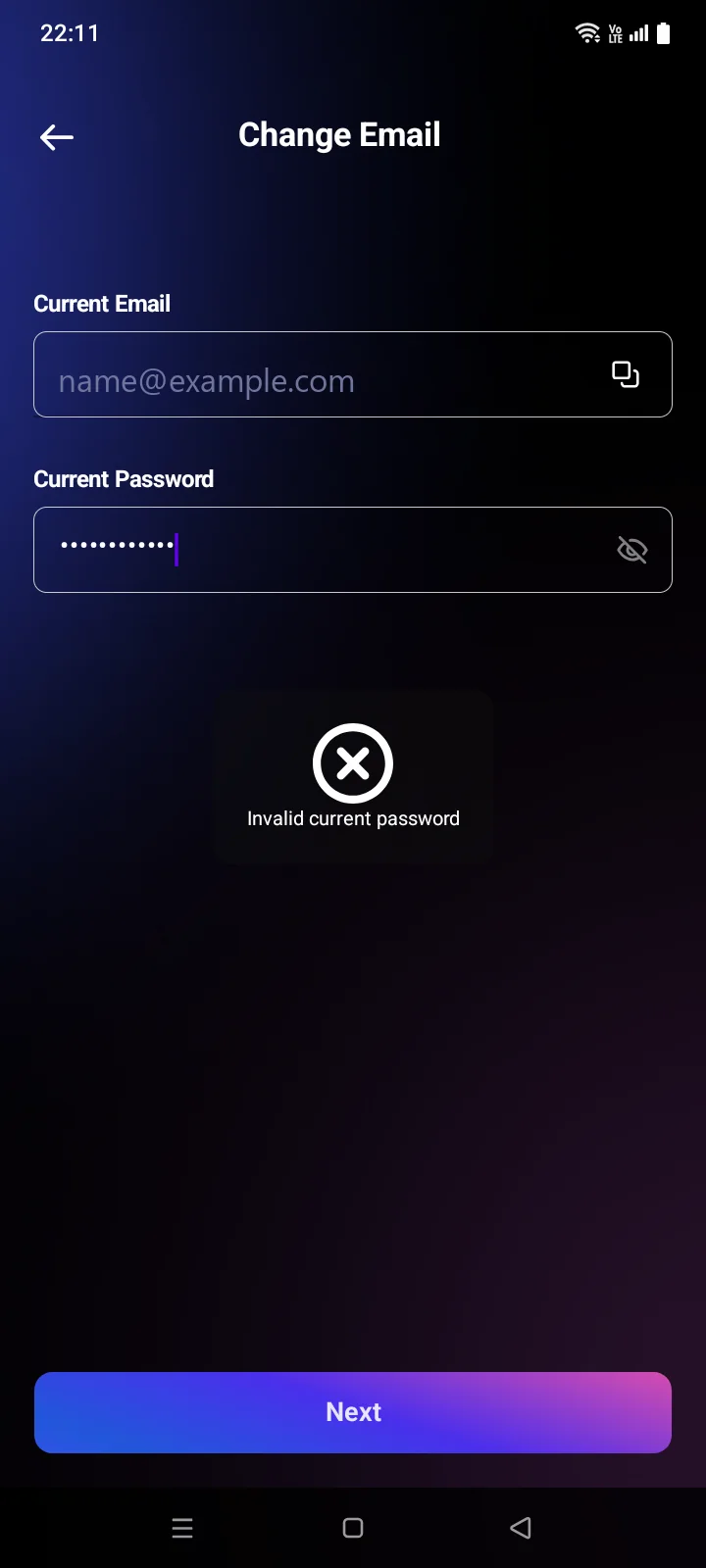
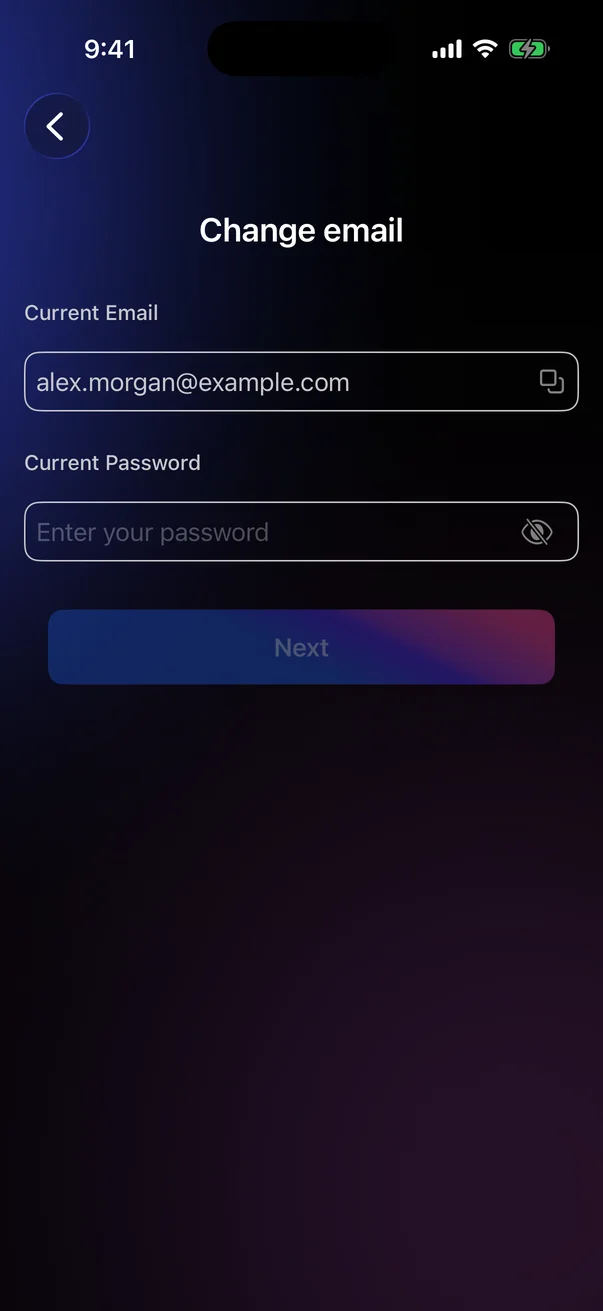
- Tap Change emailChange Email. Your current email is already filled in. Enter your current password and tap Next. A 6-digit code is sent to your current email. If the password is wrong, Incorrect login or password.Invalid current password appears and you stay on this step.
- Enter the new email twice and the code. If the code didn't arrive, wait for the timer and tap Get Code.
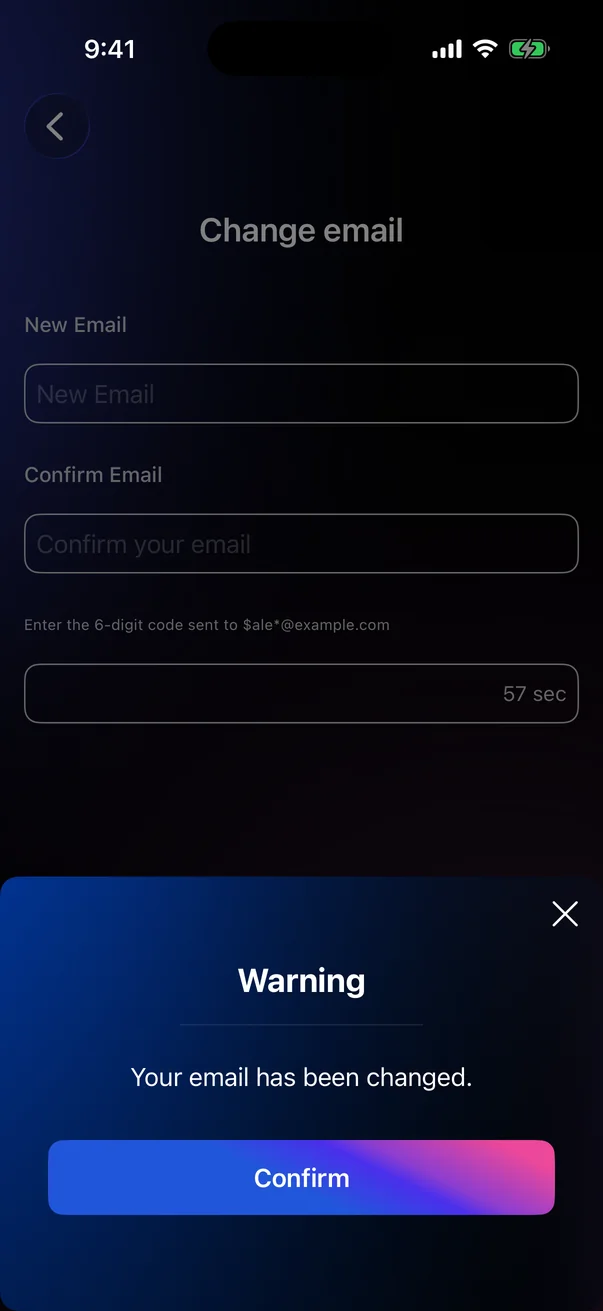
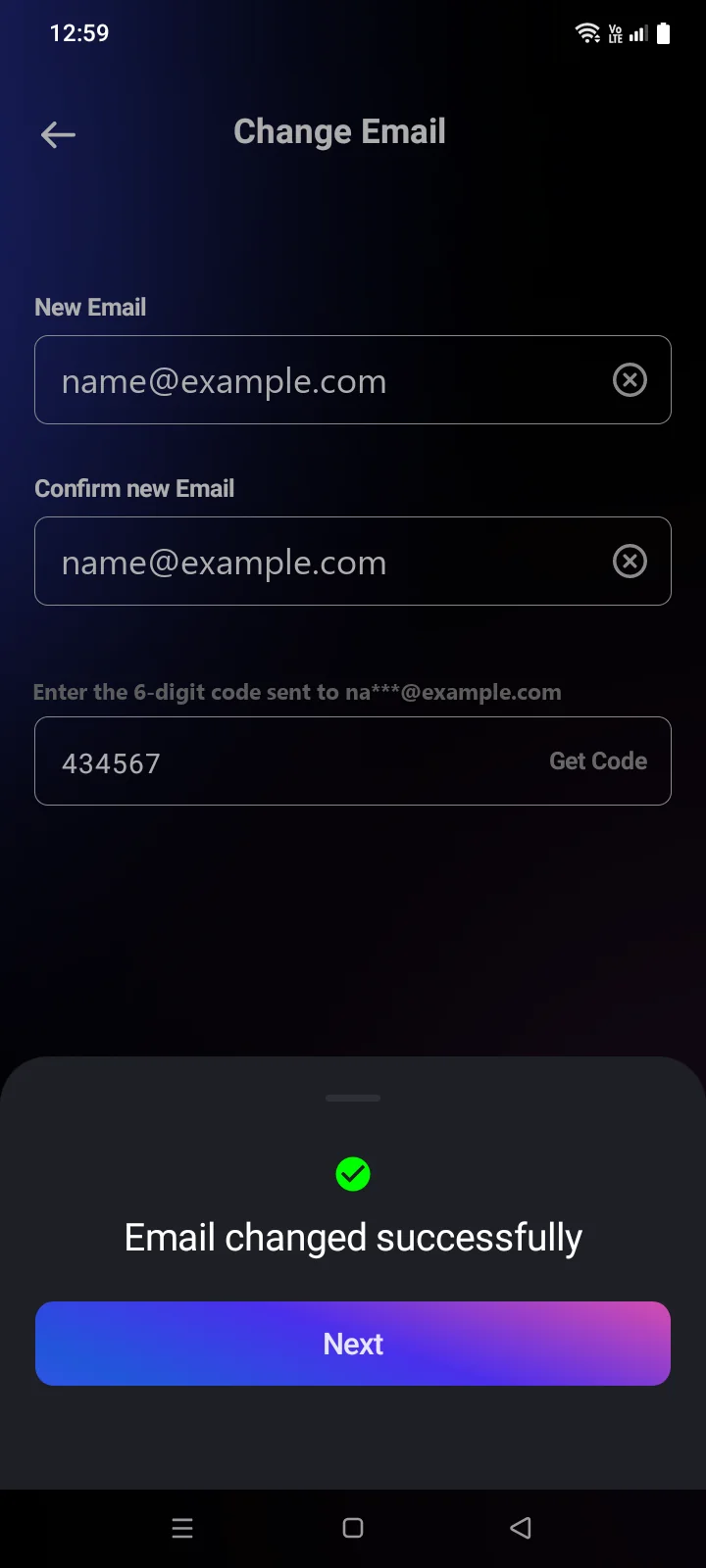
- Tap Next. The message Your email has been changed.Email changed successfully confirms the change. Tap Next to return to the Account page. You stay signed in; next time, sign in with the new email.
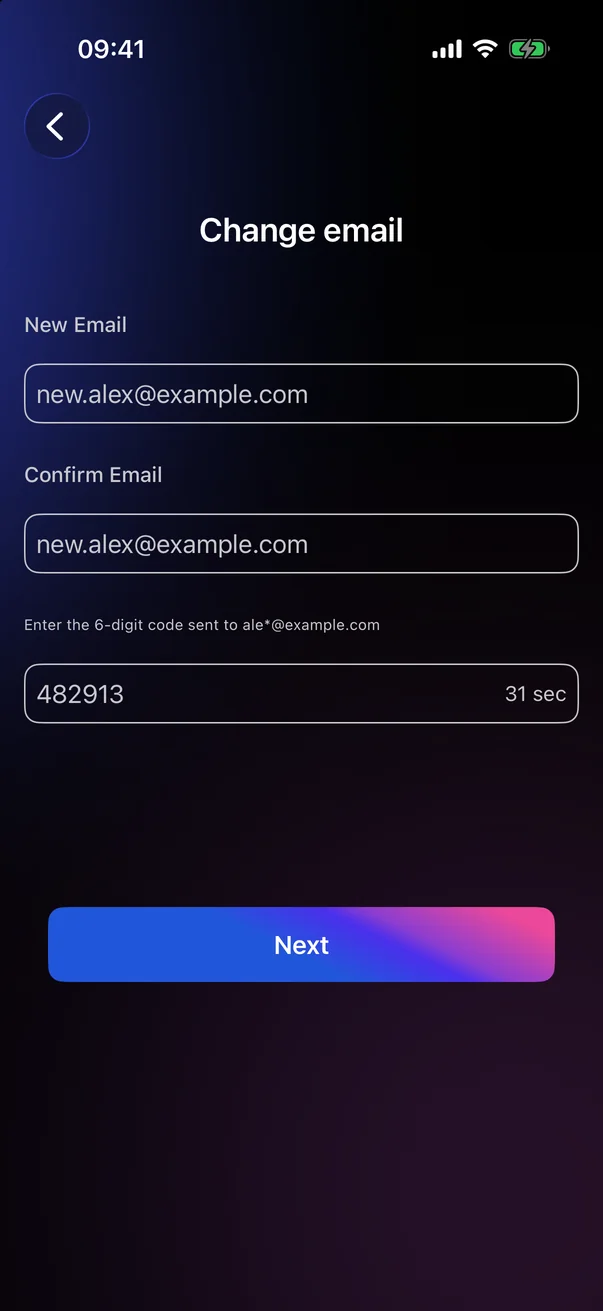
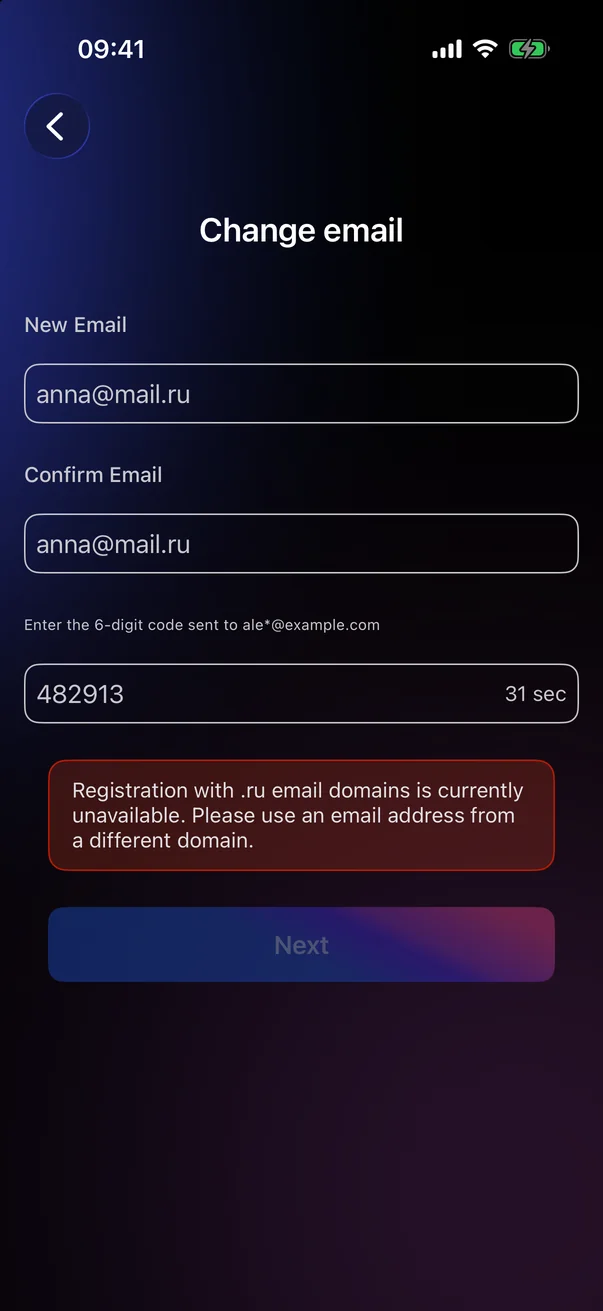
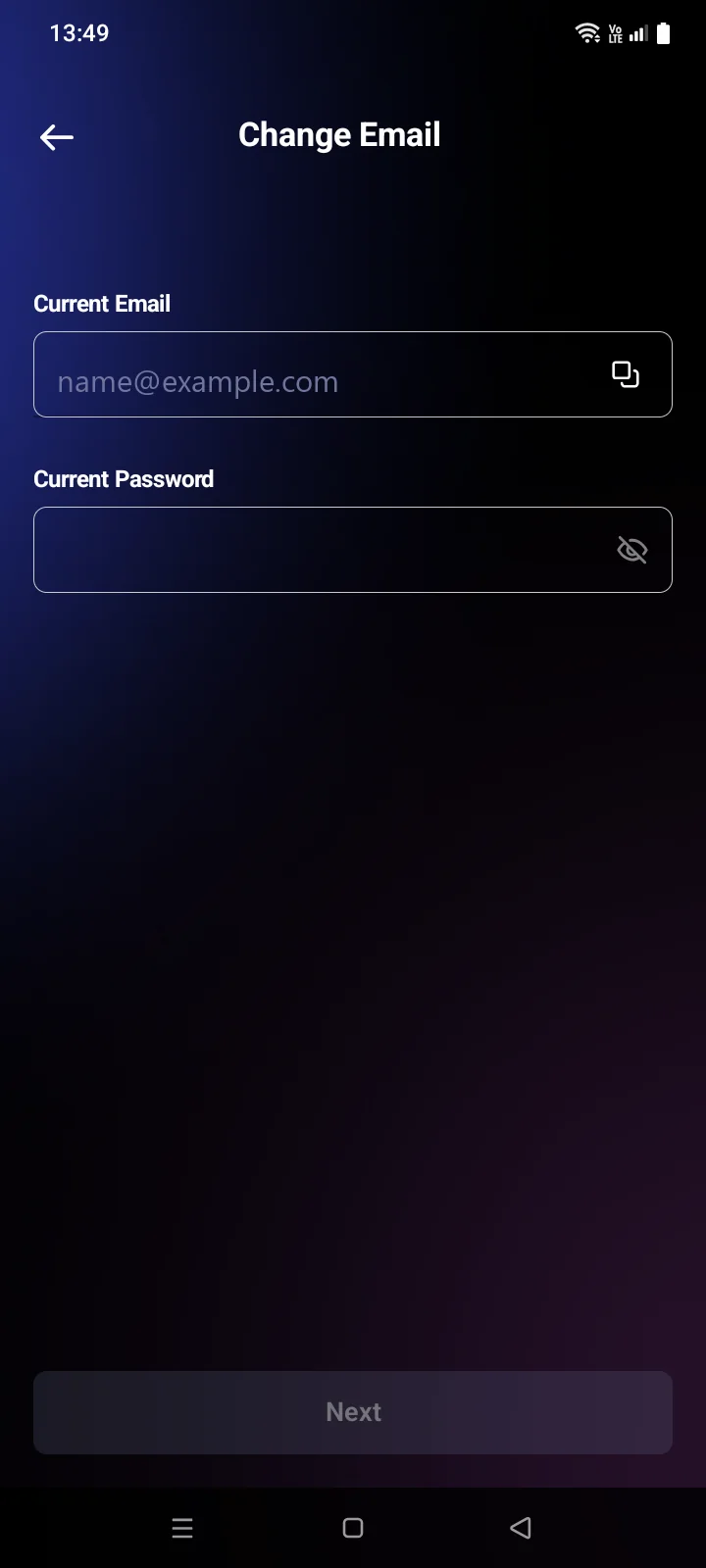
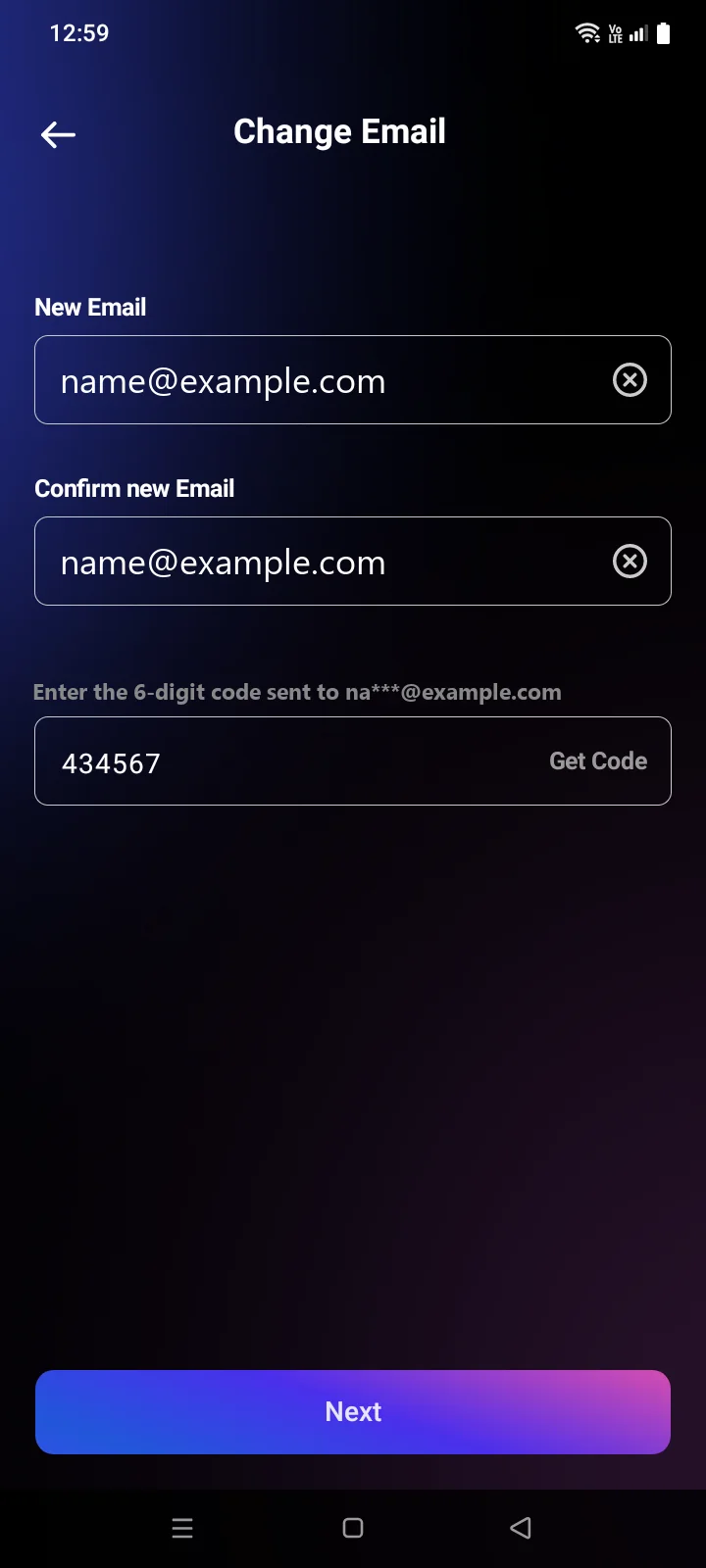
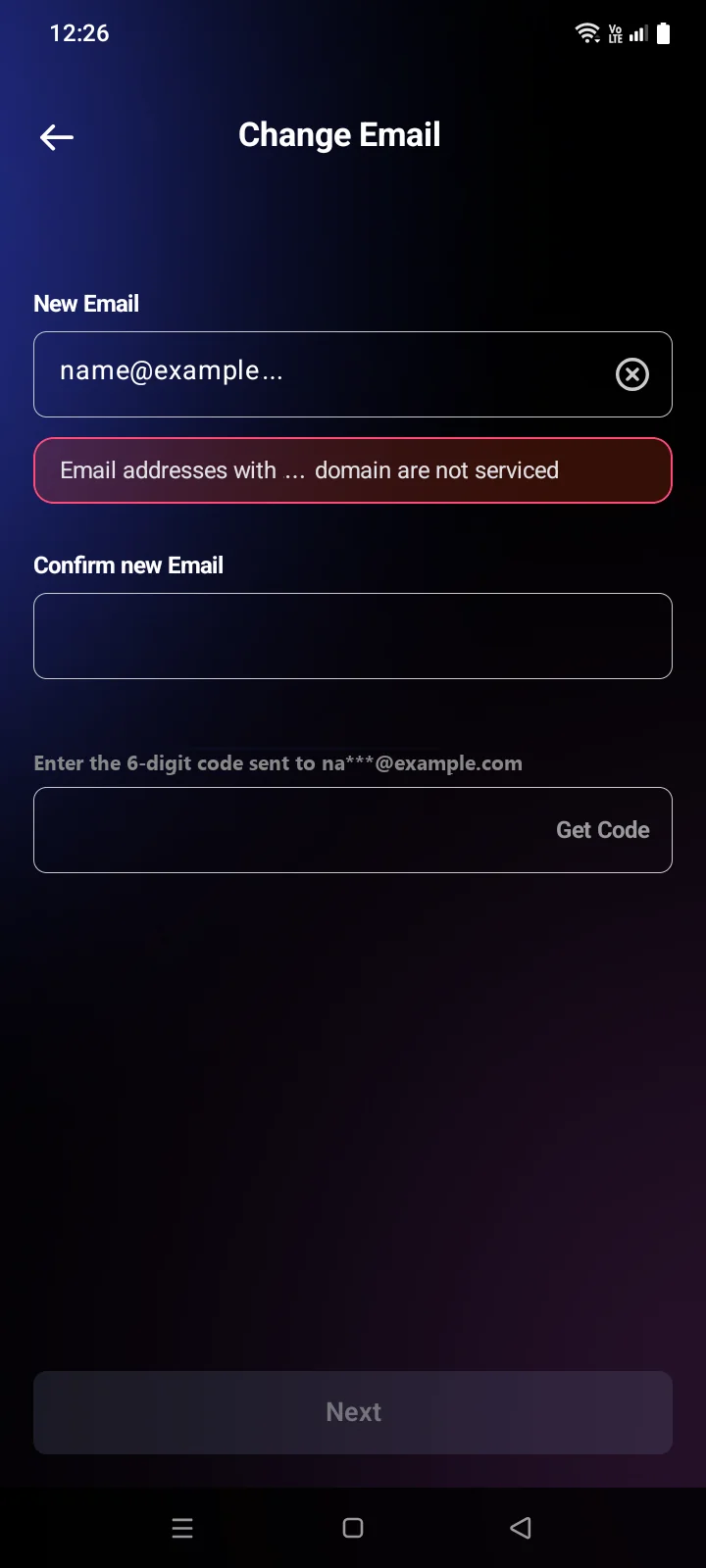
Emails in the .ru domain can't be used: the app shows a warning and Next stays inactive. The button is also inactive until both addresses match and all 6 digits of the code are entered. If the new address isn't a valid email, Invalid email format. appears. As with registration, choose an address without the % character: the Android app doesn't accept such addresses (see 1.2).
Change password
- Tap Change password, enter the current password and tap Next. A 6-digit code is sent to your email. If the password is wrong, Incorrect login or password.Invalid current password appears and you stay on this step.
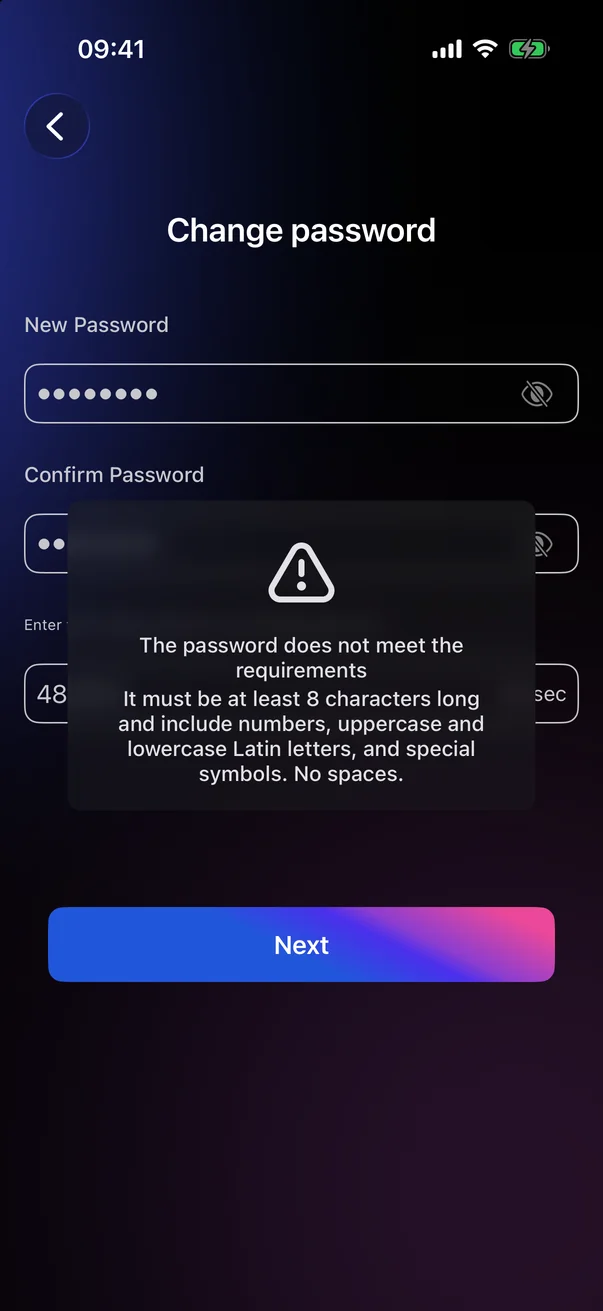
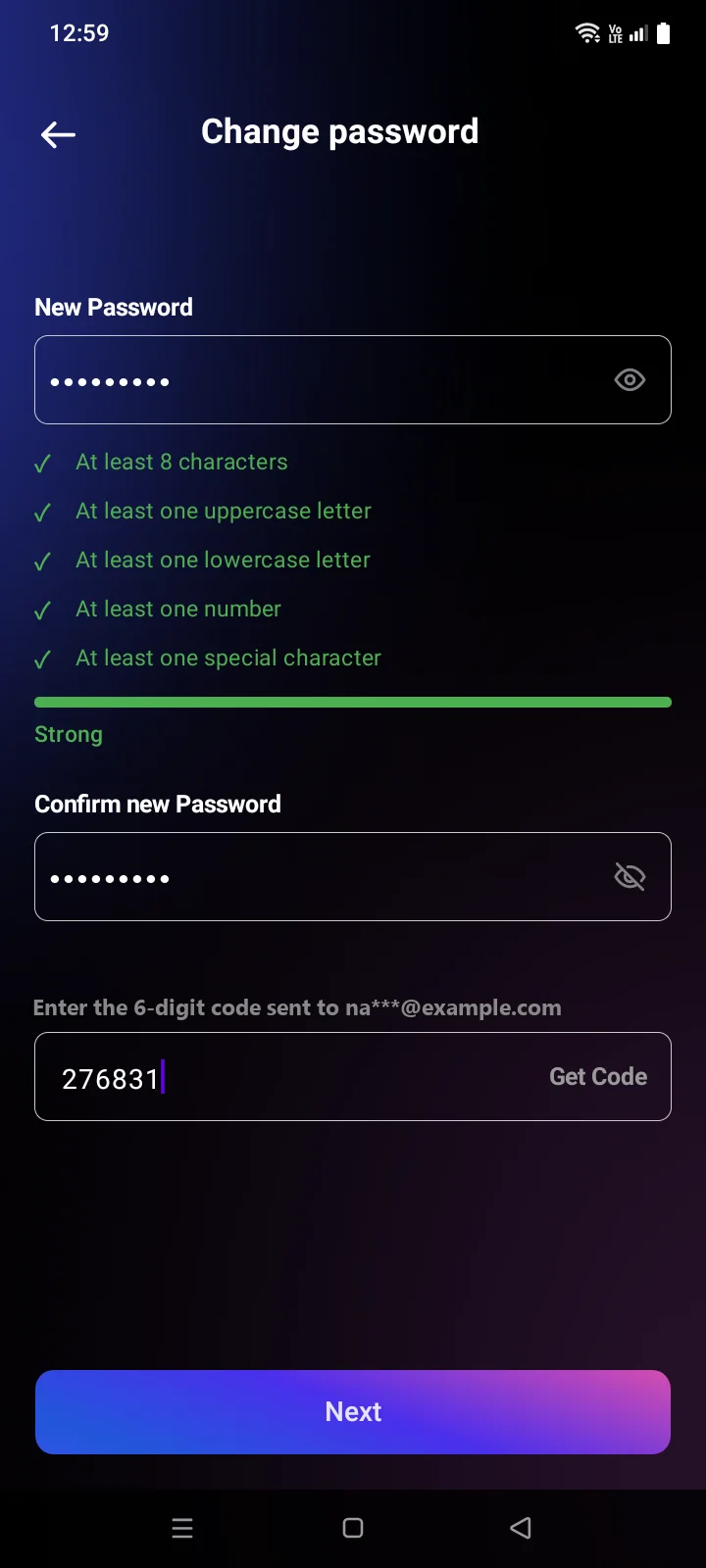
- Enter the new password twice and the code, then tap Next. The password needs at least 8 characters with uppercase and lowercase letters, digits and special symbols (see 1.2).
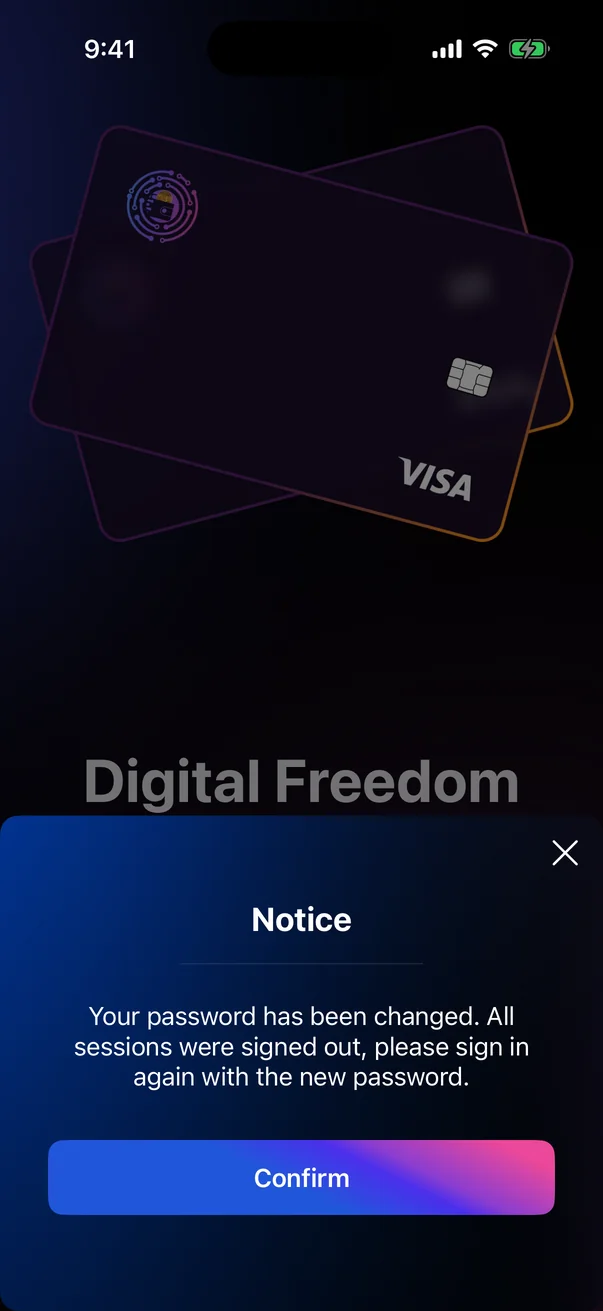
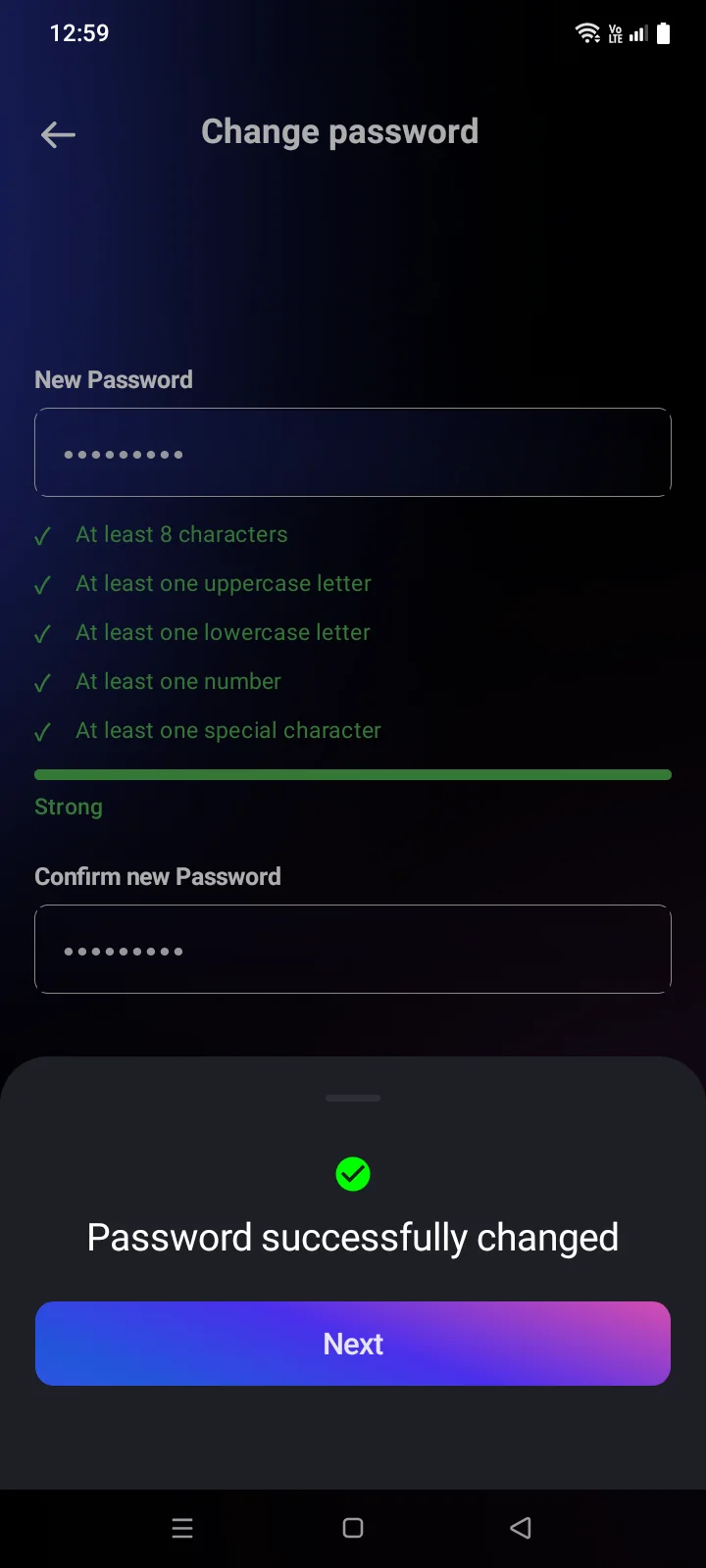
- A message confirms the change; tap Next. For security, all sessions are signed out on all devices, including this one, and the app shows Your password has been changed. All sessions were signed out, please sign in again with the new password. Sign in again with the new password.
The requirements are checked when you tap Next: if the password is too weak, The password does not meet the requirements appears.
The requirements the new password already meets are shown under the field. Until all are met, Next stays inactive.
If something goes wrong
Errors are shown as a short message.
| Message | What to do |
|---|---|
| Incorrect login or password.Invalid current password | The current password is wrong. Enter it again or reset it (see 1.4). |
| Emails do not match. | The new email and its confirmation differ. |
| The passwords do not match.The passwords do not match | The new password and its confirmation differ. |
| Invalid email format. | The new address isn't a valid email. Check it for typos. |
| This email is already in use.This email is already in use | Another account uses this email. Choose a different one. |
| Invalid verification code. | Check the code or request a new one with Get Code. |
| Too many attempts. Please request a new code. | Wait a little and request a new code. |
| Your session has expired. Please sign in again. | The app has returned to the sign-in screen — for example, the password was changed on another device. Sign in again. |
| Connection error. Please check your internet connection and try again | Check your internet connection and try again. |
| Service is temporarily unavailable.Server error. Please try again later | Try again in a few minutes. |
| An error occurred | Try again. If that doesn't help, contact support (see 5.7). |