
4.8Contacts
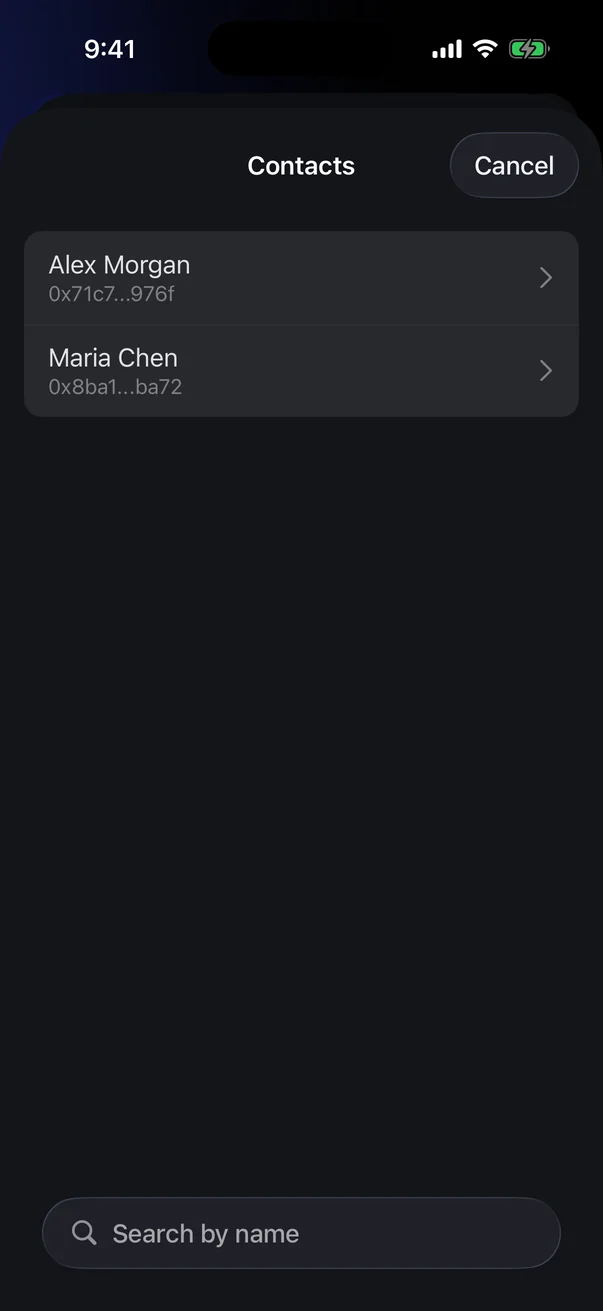
Contacts are an address book for transfers: save the addresses you send to often and pick them in the send form instead of pasting.
Open contacts
Go to Account › Wallet › ContactsMy Contacts (see 5.2).
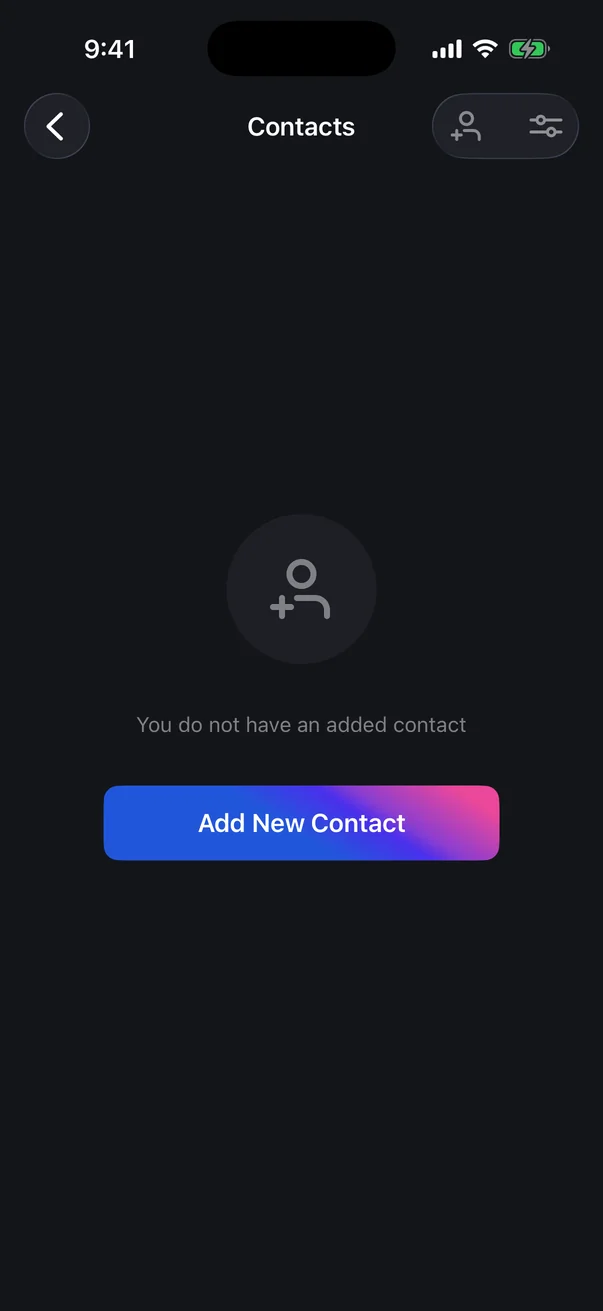
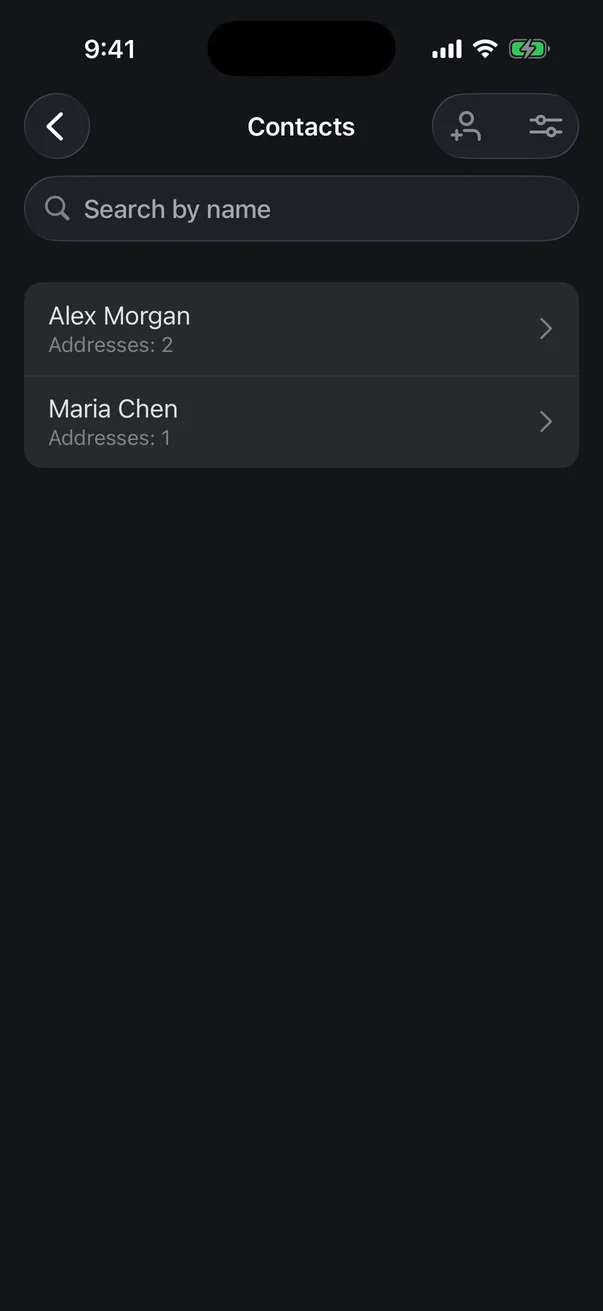
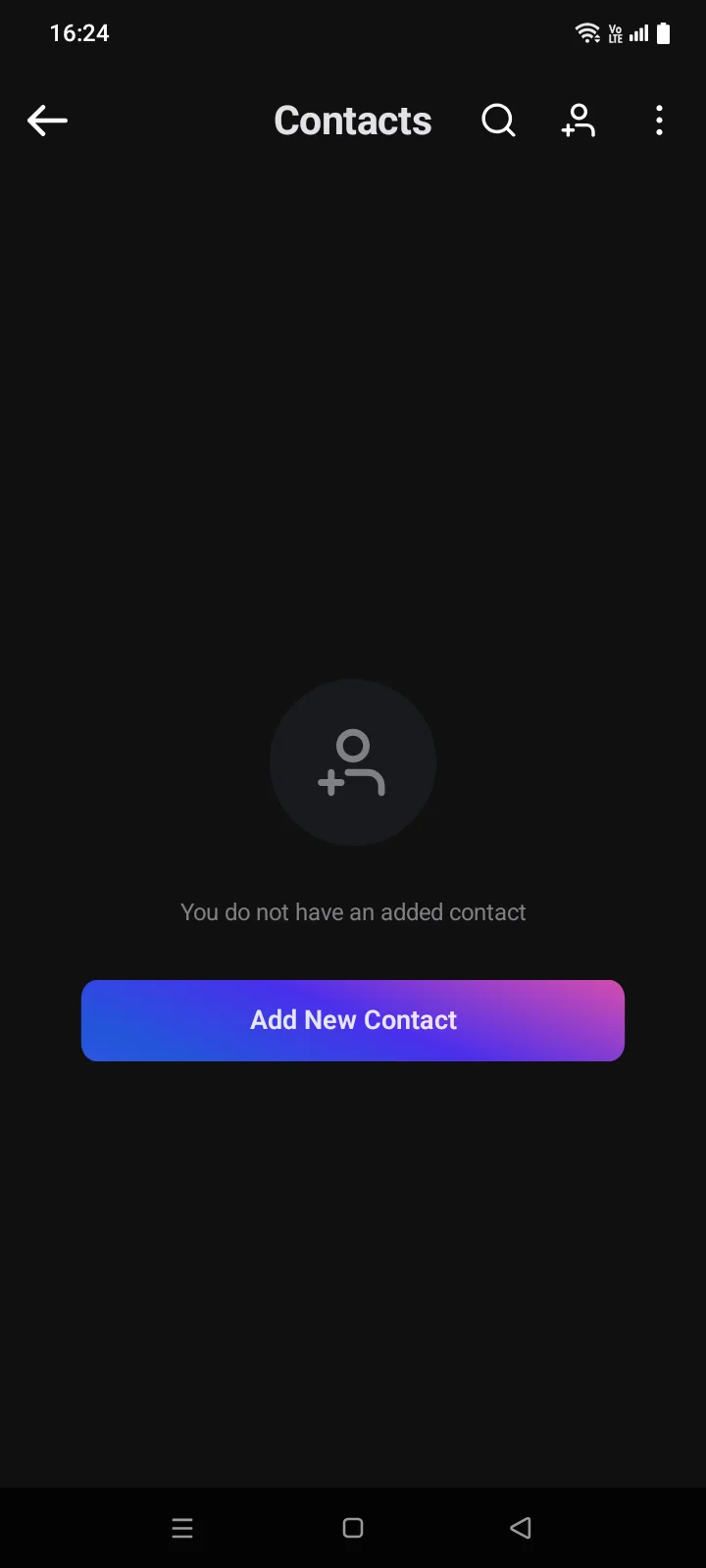
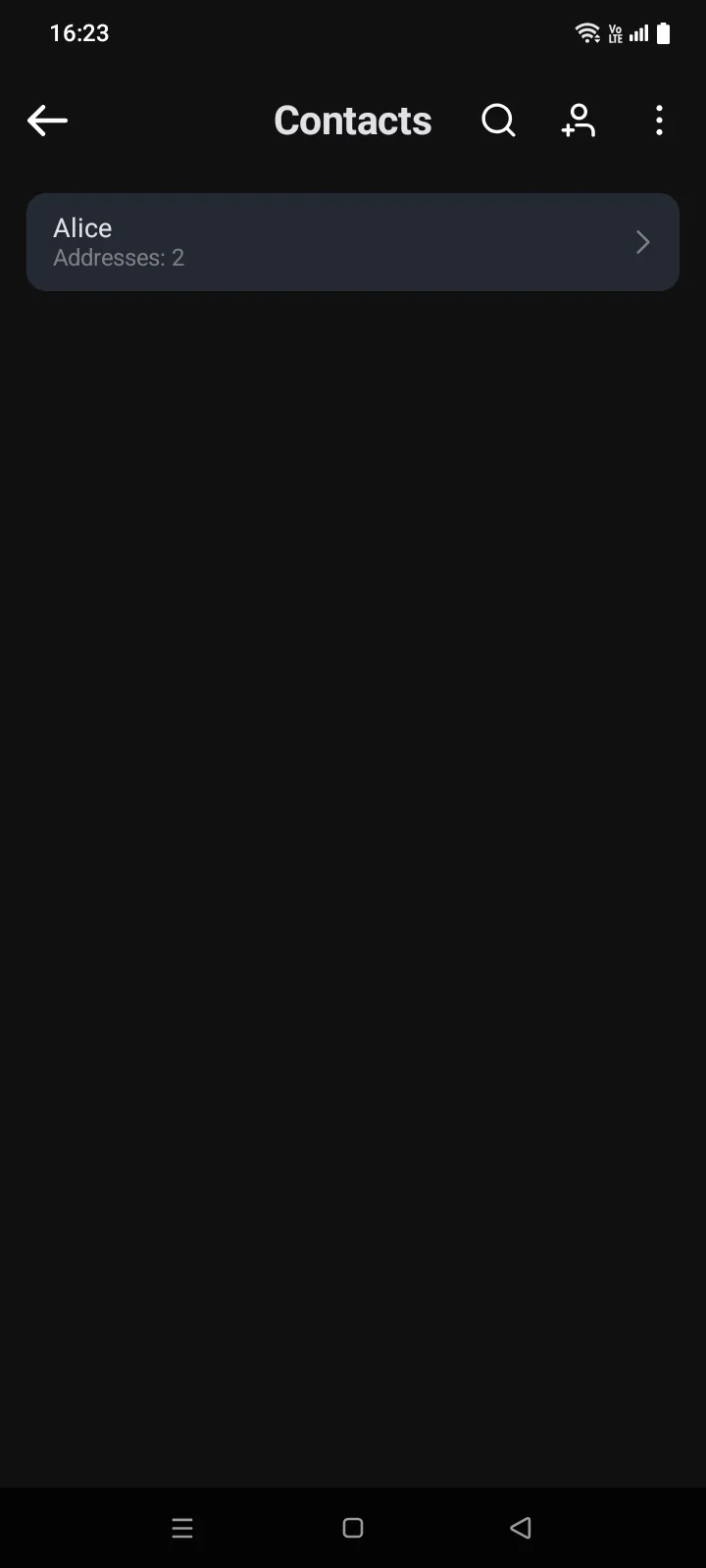
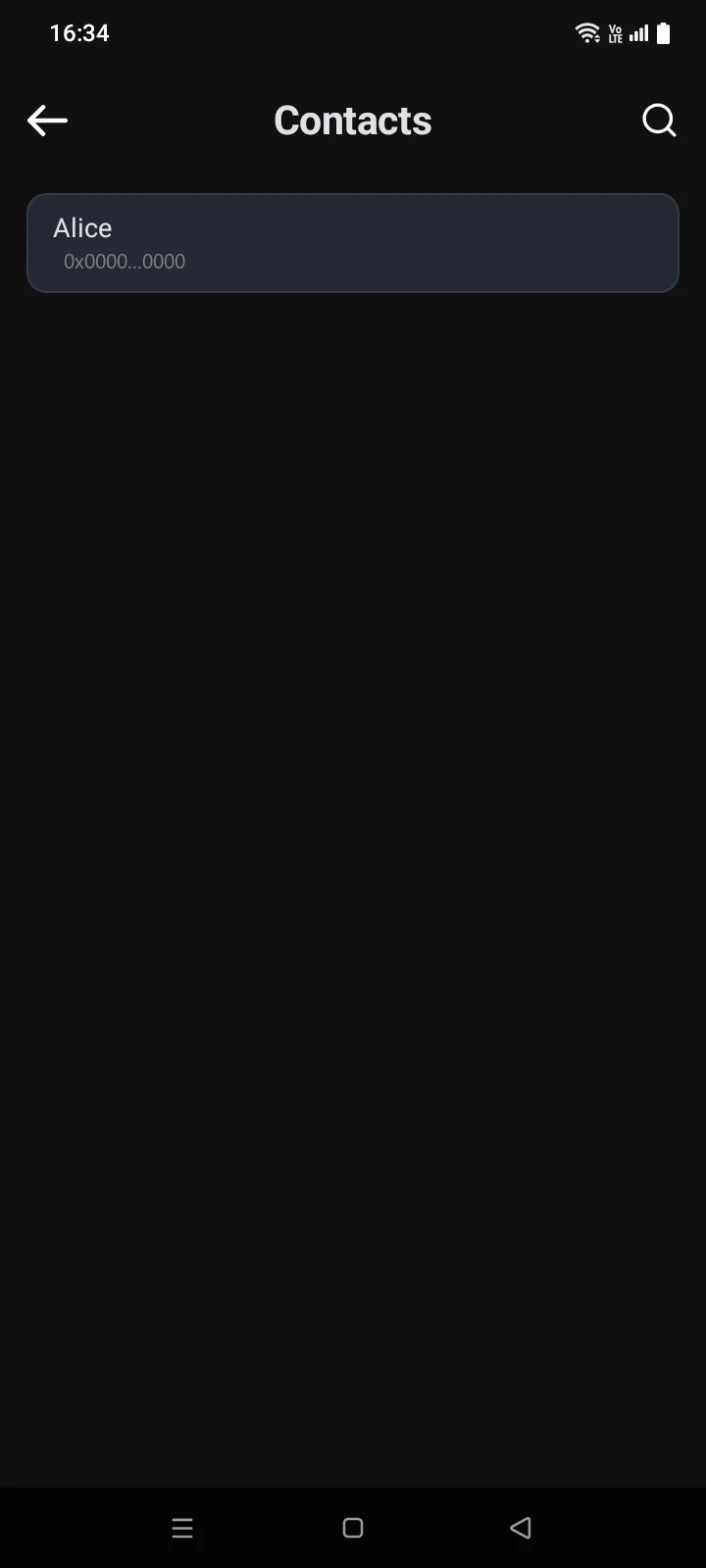
Under each name is the number of saved addresses (Addresses: 2); contacts are sorted alphabetically. To search by name, use the Search by name fieldthe magnifier icon at the top; if nothing matches, you see No results found. Icons at the top of the screen:
- person with plus — a new contact;
- settingsthree dots — the Settings screenMore menu: backup and restore (see below).
In the transaction list, the contact name is shown instead of a saved address.
Add a contact
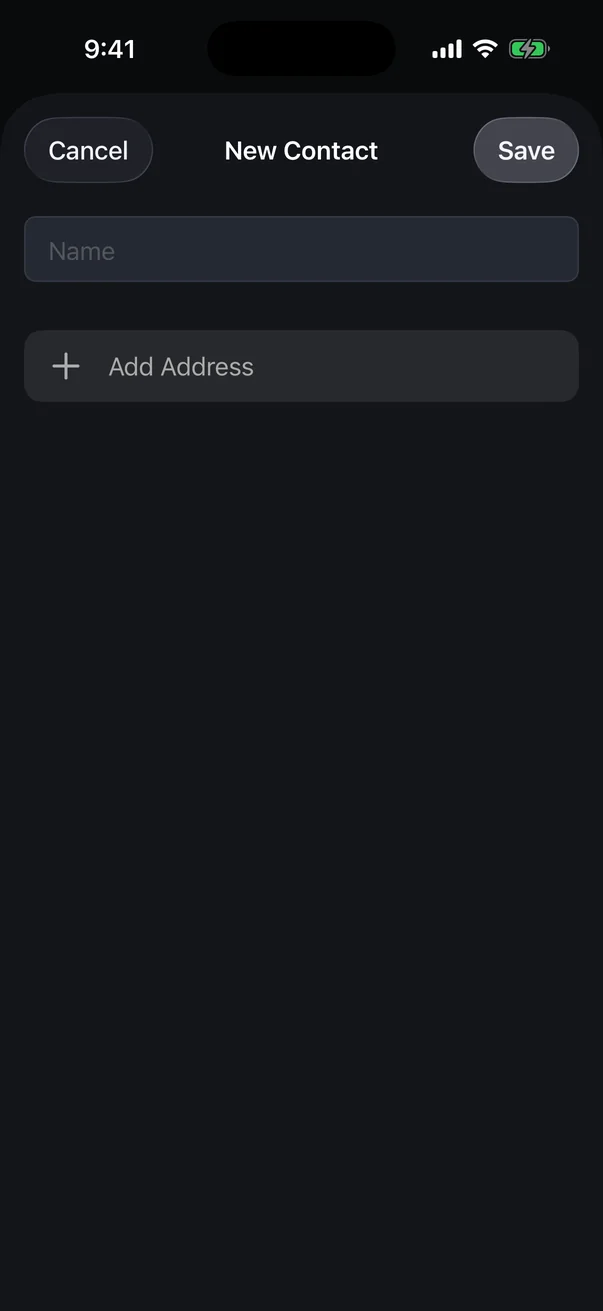
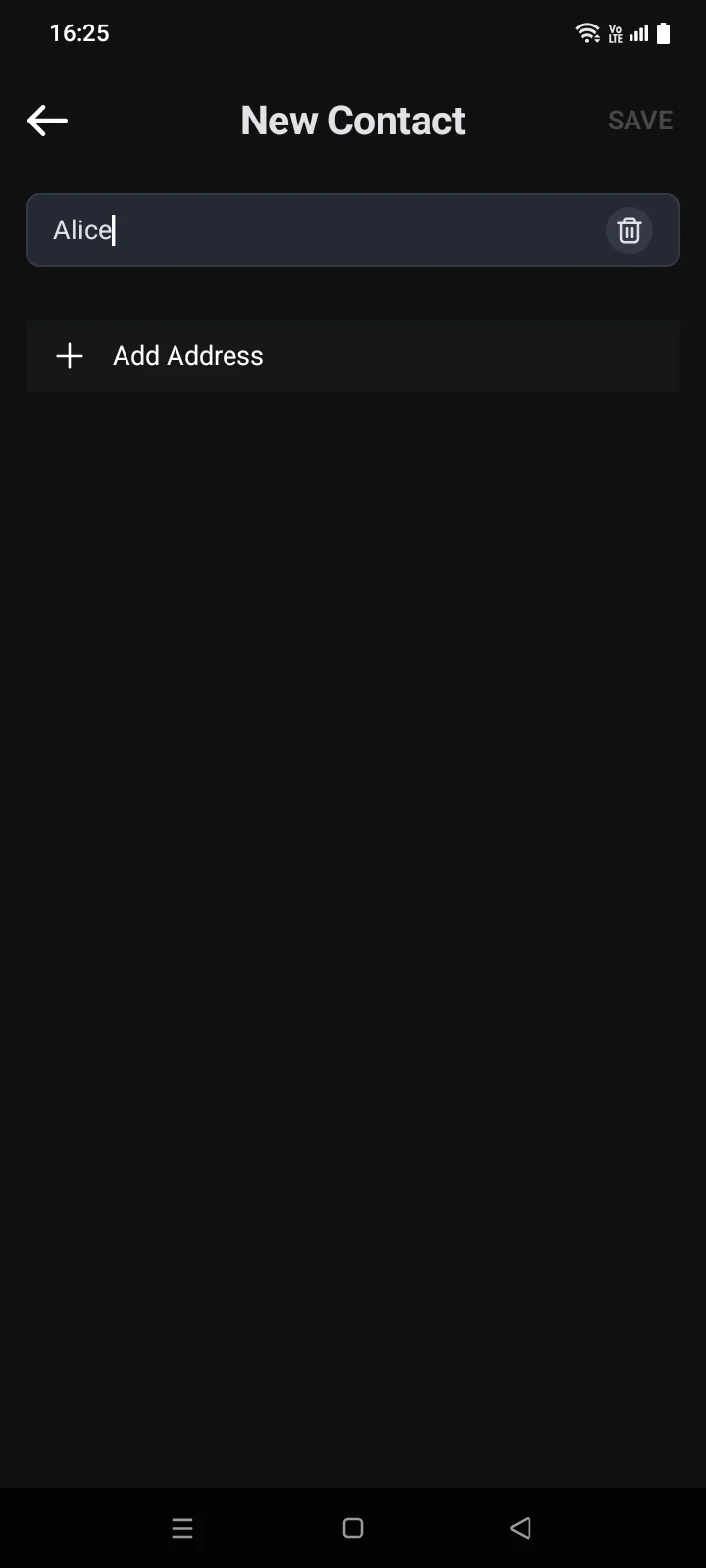
- Tap Add New Contact (or the person-with-plus icon at the top). The New Contact screen opens.
- Enter a name.
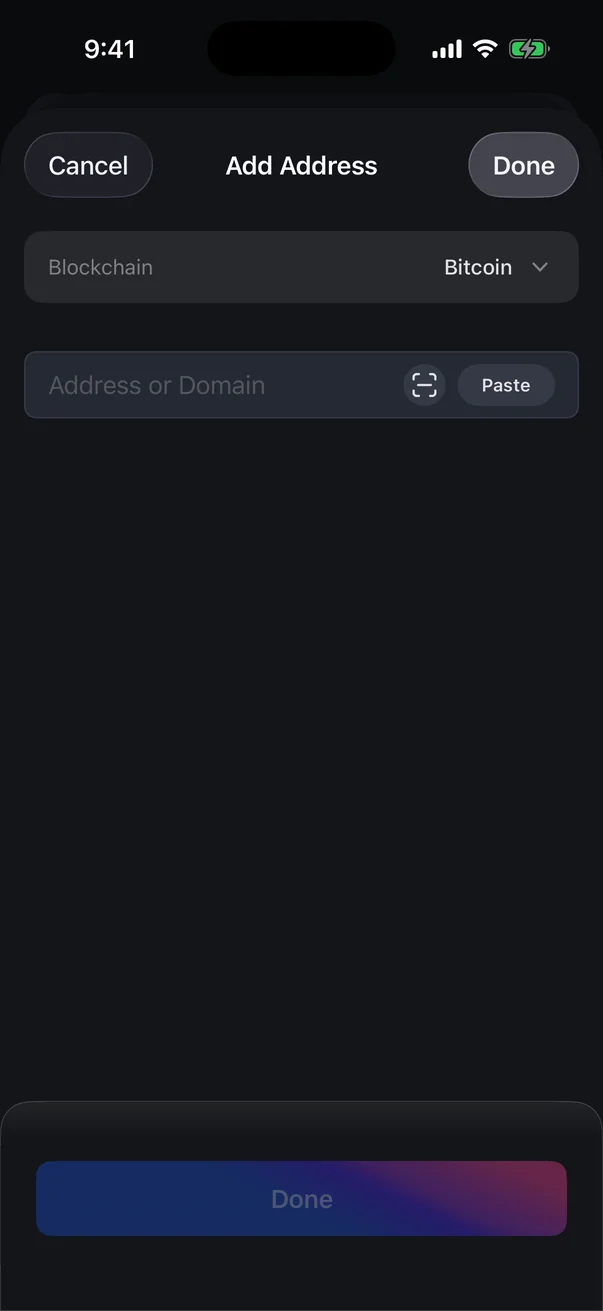
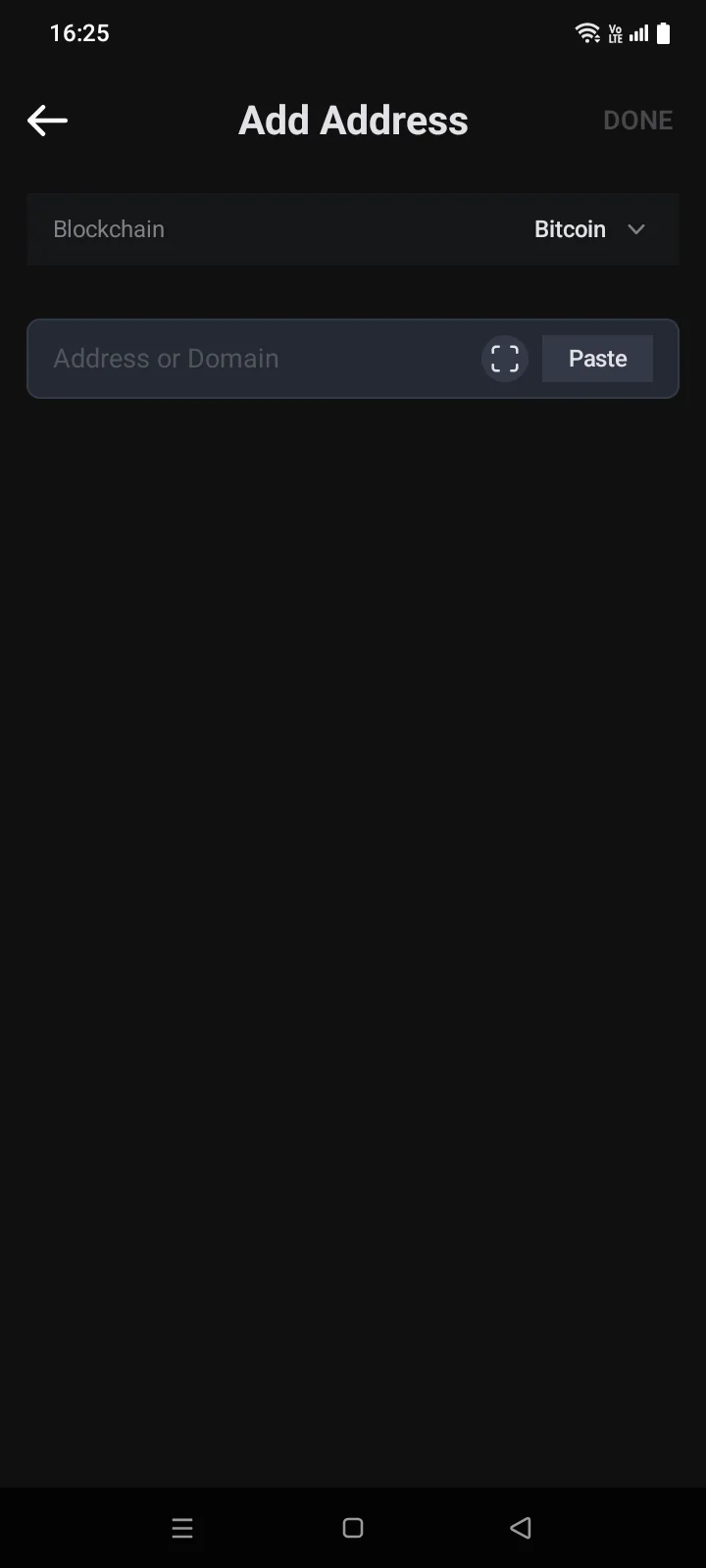
- Tap Add Address.
- In the Blockchain row, choose the network: tap it and choose a network in the Blockchains list.
- Paste the address into the Address or Domain field, or scan a QR code with the icon on the right. Once the address passes the check, tap Done.
- To add an address on another network, repeat steps 3–5.
- Tap Save at the top. The message Done appears.
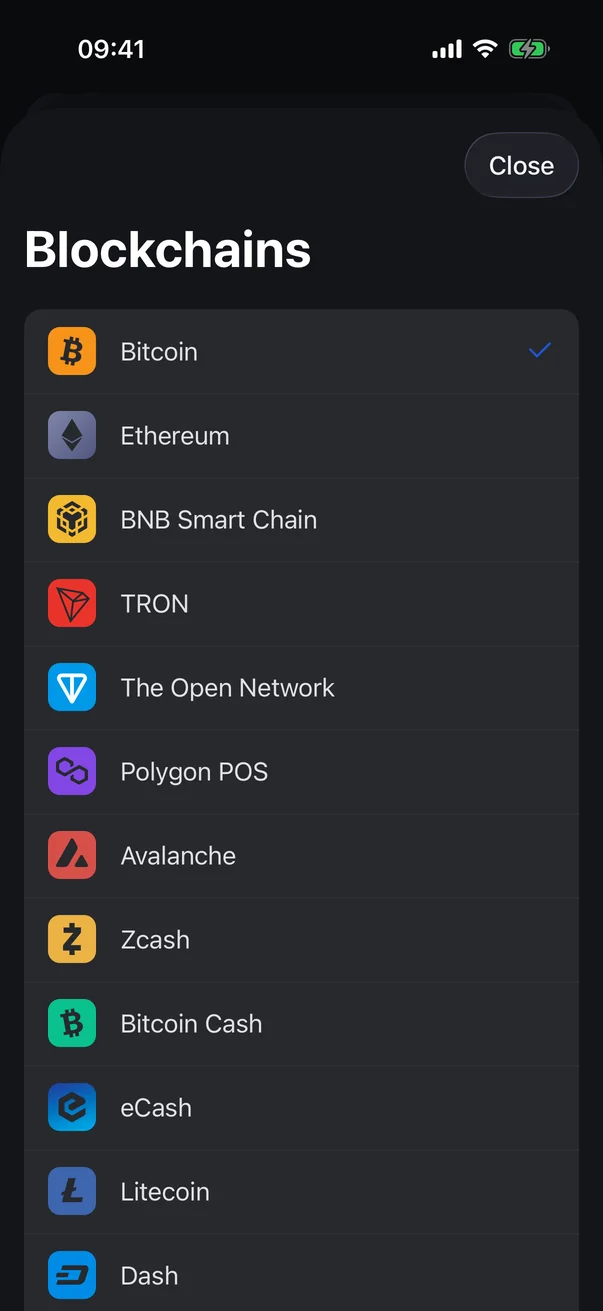
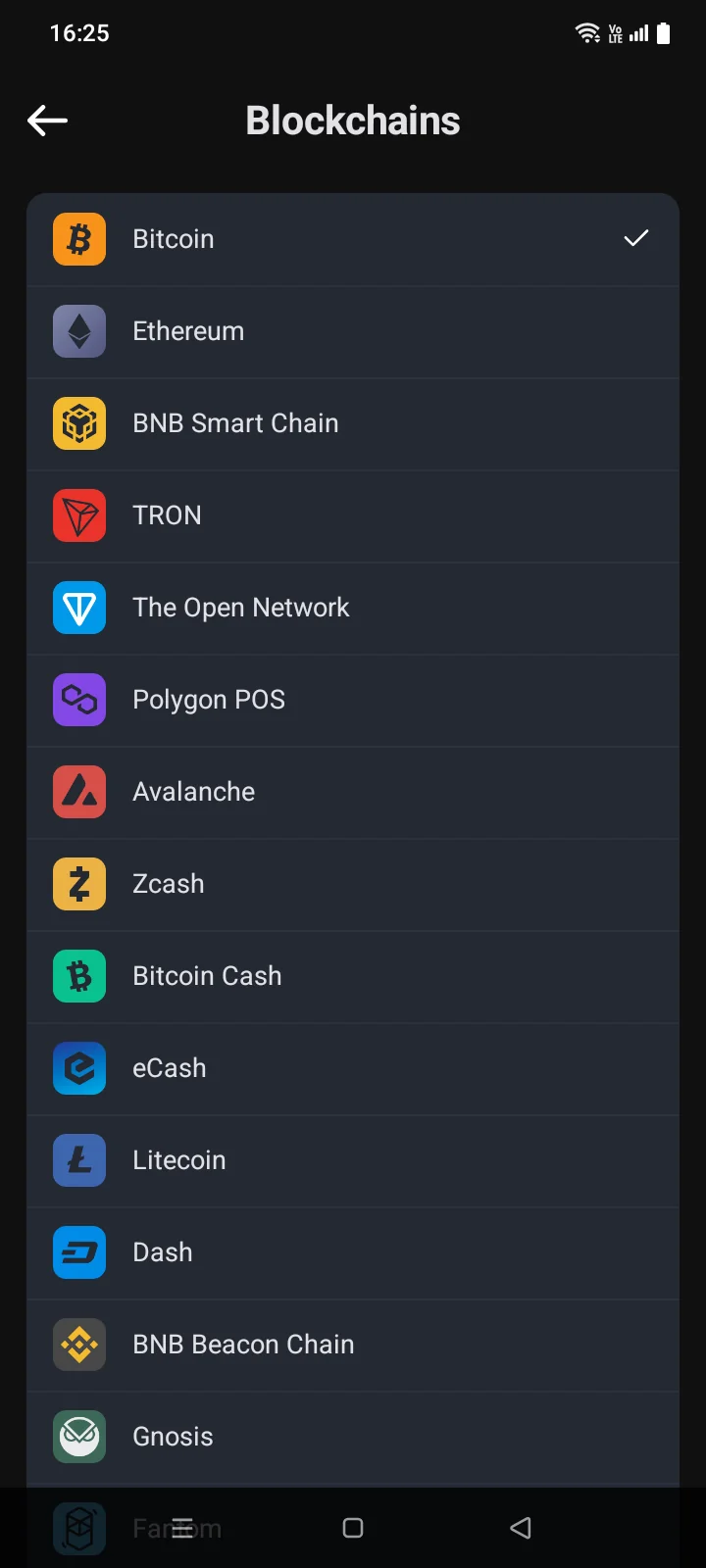
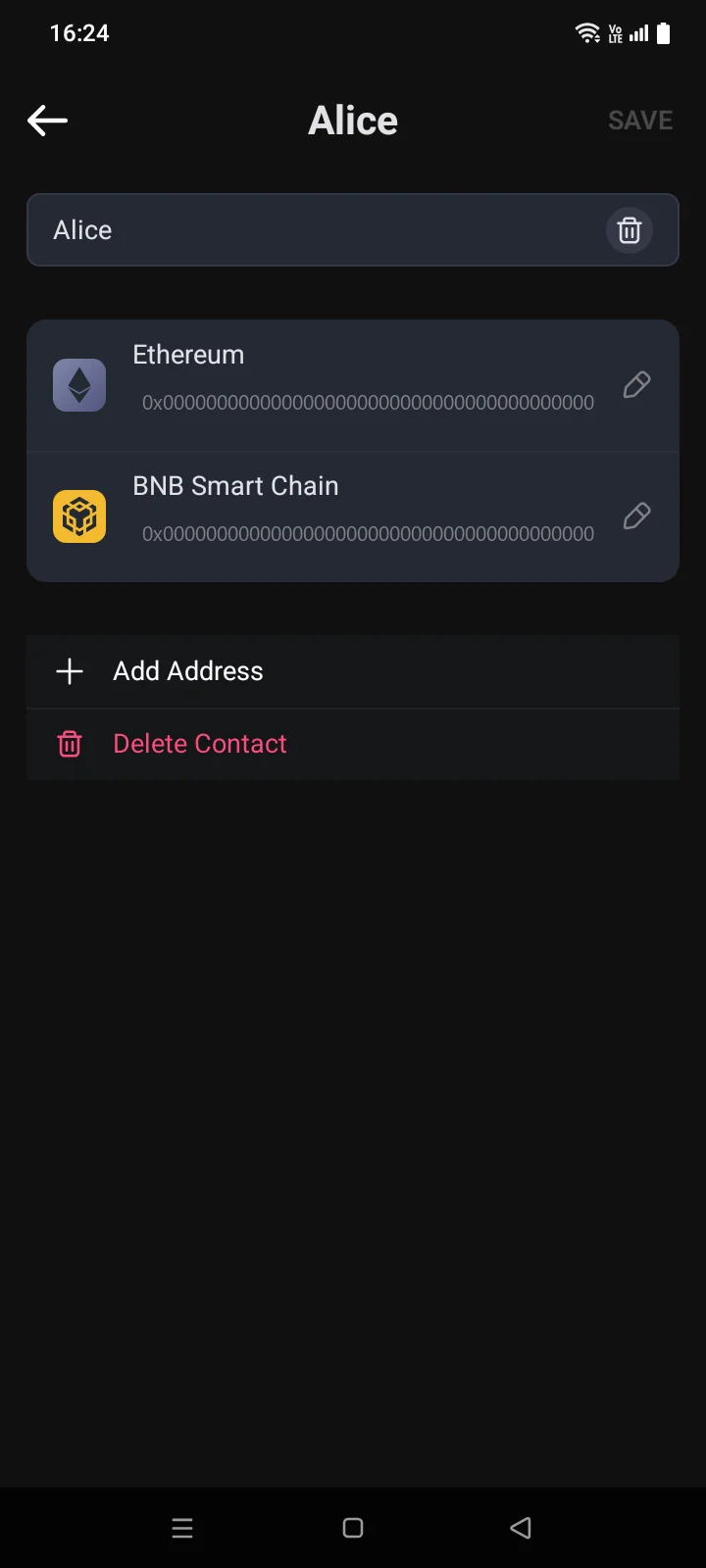
- A contact holds one address per network: networks that already have an address aren't shown in the list.
- Save becomes active once you enter a name and add at least one address.
- You can't save the same address on the same network for two contacts.
Edit or delete
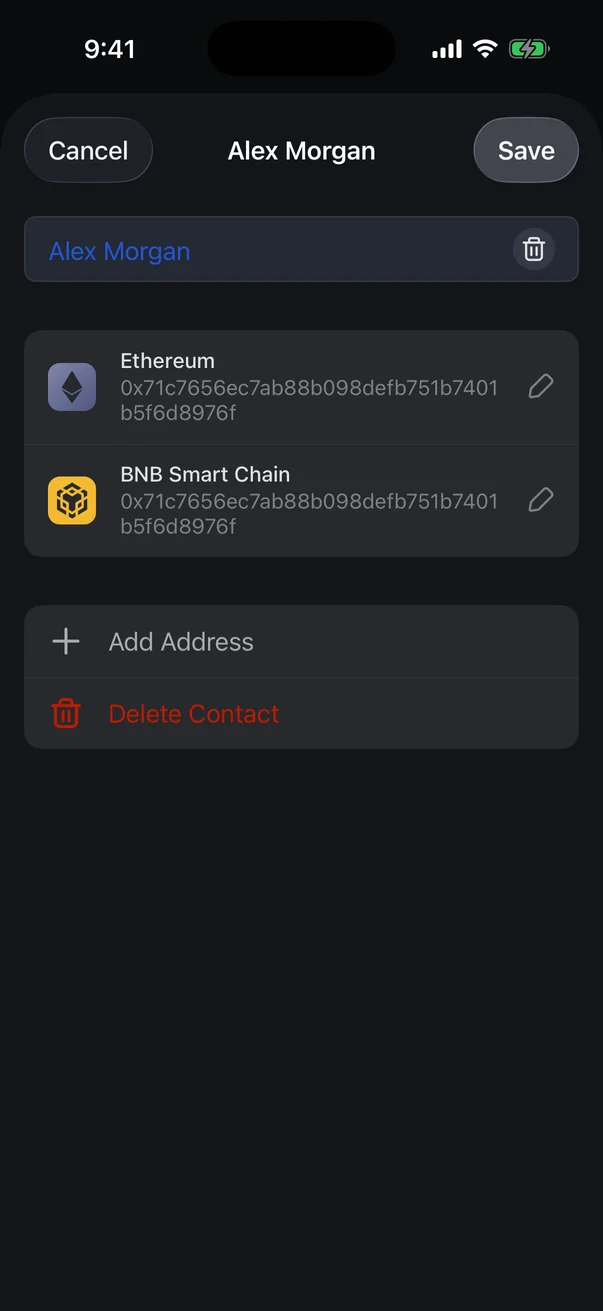
Tap a contact to change its name or addresses. Changed addresses are marked with a yellow pencil icon. Changes take effect after you tap Save.
- Edit an address — tap the address, correct it and tap Done. You can't change the network of a saved address: delete the address and add a new one.
- Delete an address — tap the address, then Delete Address, and confirm with Delete. Then tap Save on the contact screen.
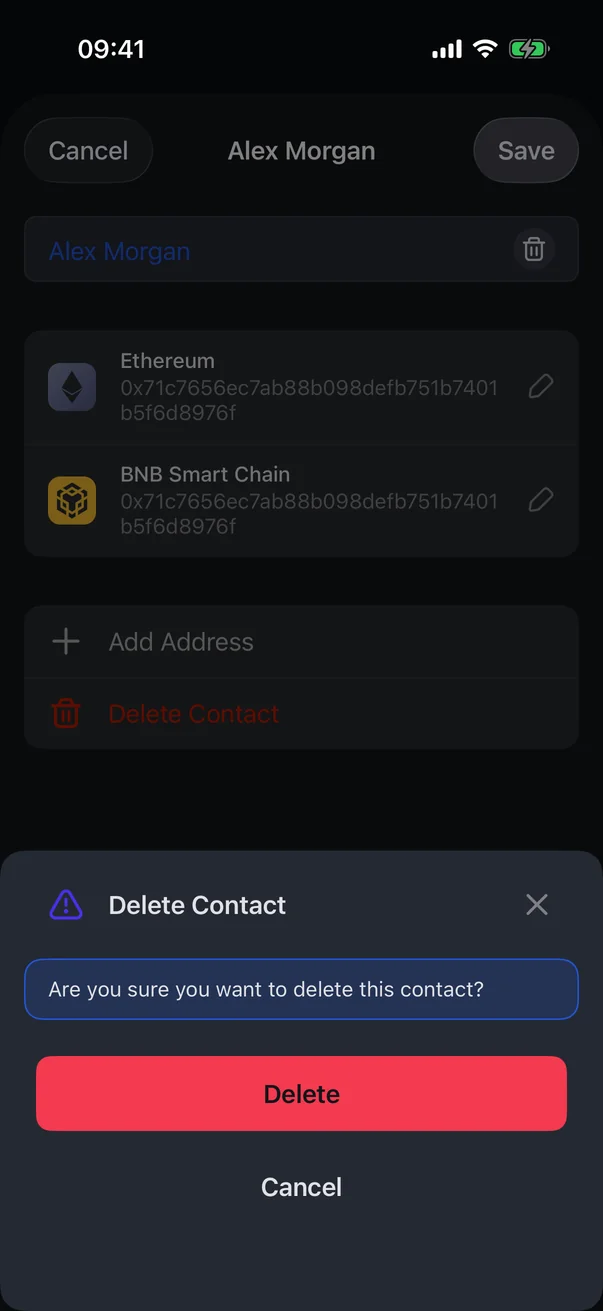
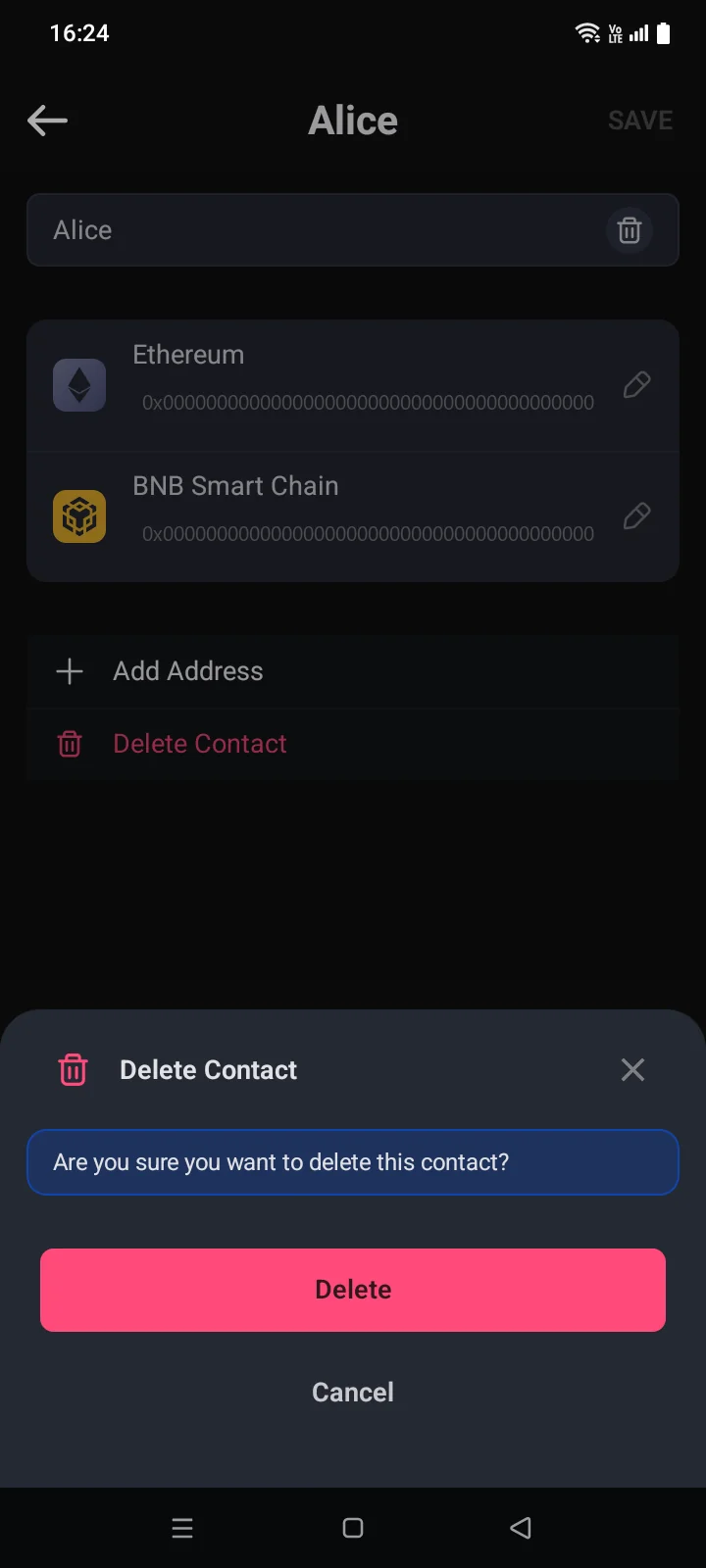
- Delete a contact — tap Delete Contact at the bottom and confirm with Delete.
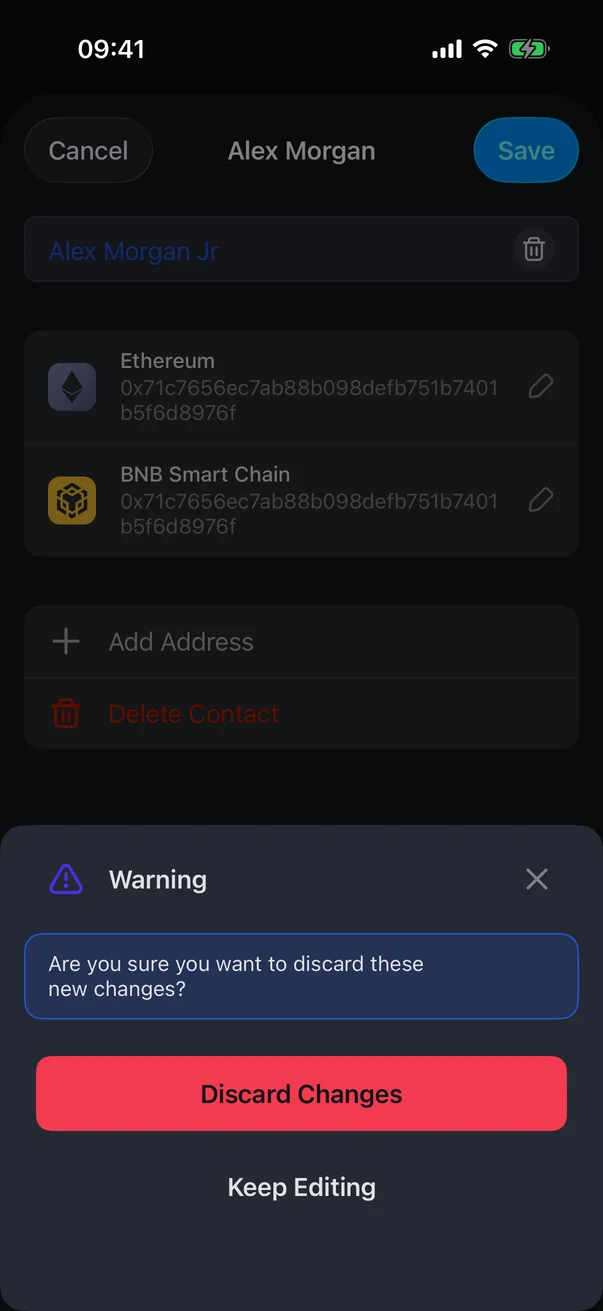
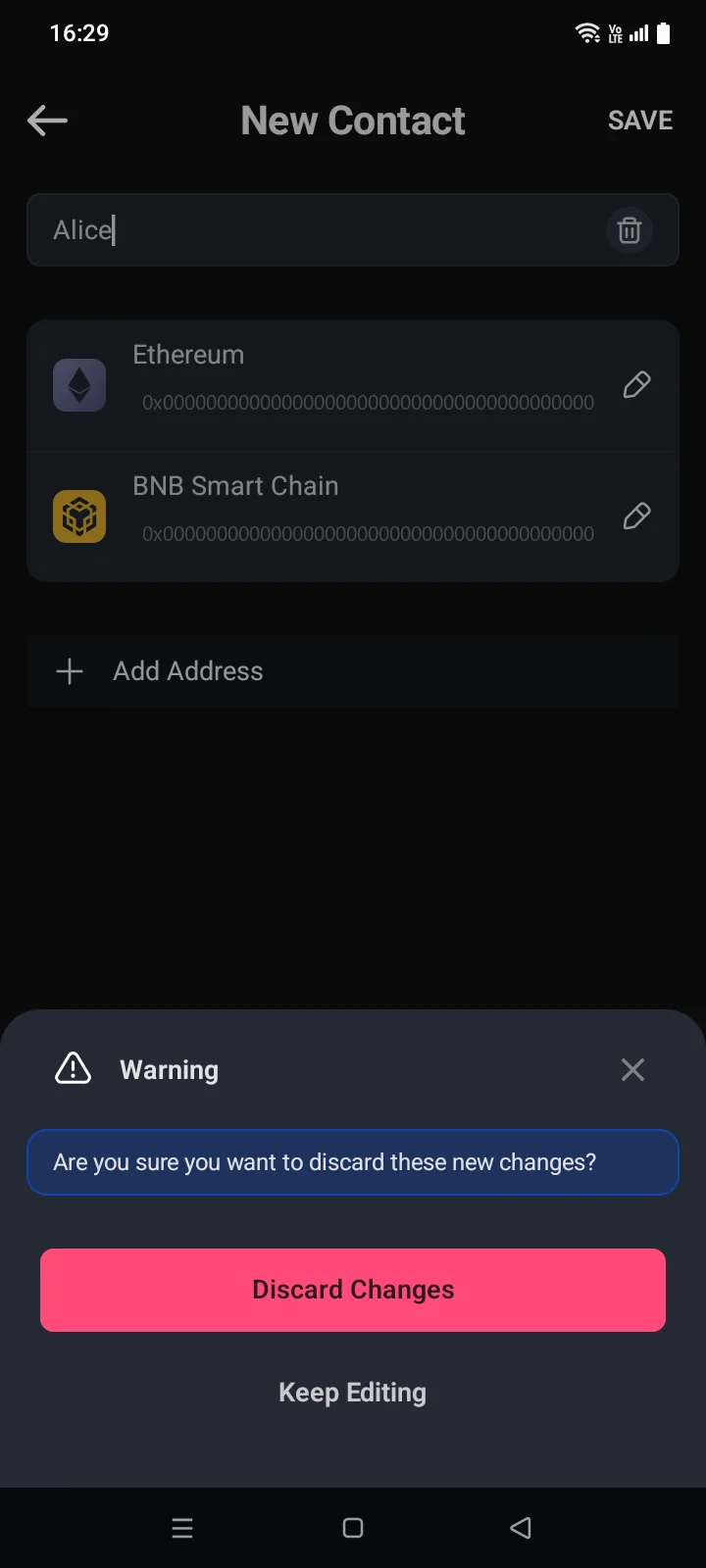
If you leave a contact without saving your changes, the Warning panel opens: Are you sure you want to discard these new changes? Tap Discard Changes to leave without saving, or Keep Editing.
Save an address from a transfer
You can save an address right from a transfer: tap the person-with-plus icon next to the address on the Confirm screen (see 4.3) or in Transaction Info (see 4.7). In the Add Address window, choose:
- Create New Contact — New Contact opens with the address already added; enter a name and tap Save.
- Add to Existing Contact — choose a contact in the list and tap Save. If the contact already has an address on this network, the Warning panel opens: Selected contact already has an address on … Tap Replace to replace the old address with the new one, or Cancel.
If the address is already in your contacts, there's no icon, and a Contact Name row is shown under the address.
Choose a contact when sending
In the send form (see 4.1), the address field has a contacts icon — it's shown while the field is empty. Tap it and choose a contact — the contact's address on this network is filled into the field. The icon appears only if at least one contact has an address on the network of the coin you're sending; the list shows only such contacts.
Contacts backup
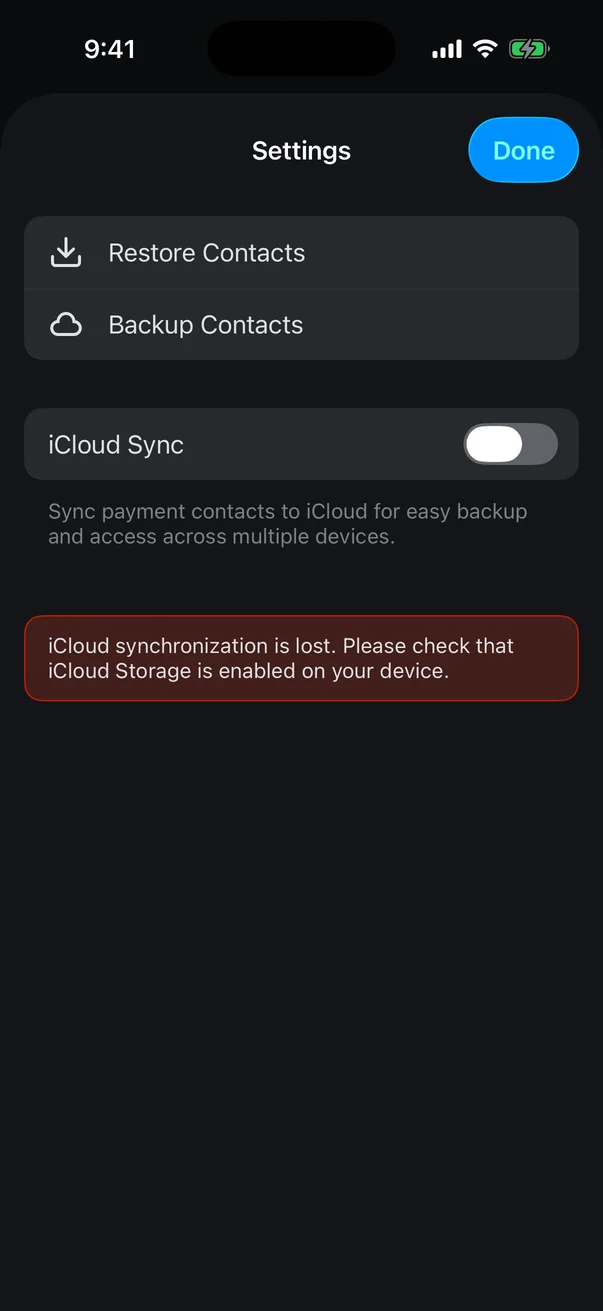
The settings icon at the top of the contacts list opens the Settings screen:
- iCloud Sync — keeps contacts in iCloud so they survive reinstalling and appear on your other devices. If you already have contacts on the device, they're merged with the ones in iCloud.
- Backup Contacts — saves contacts to a JSON file. The system share sheet opens: save the file to Files or send it wherever you'll keep it. The row is shown only once you have contacts.
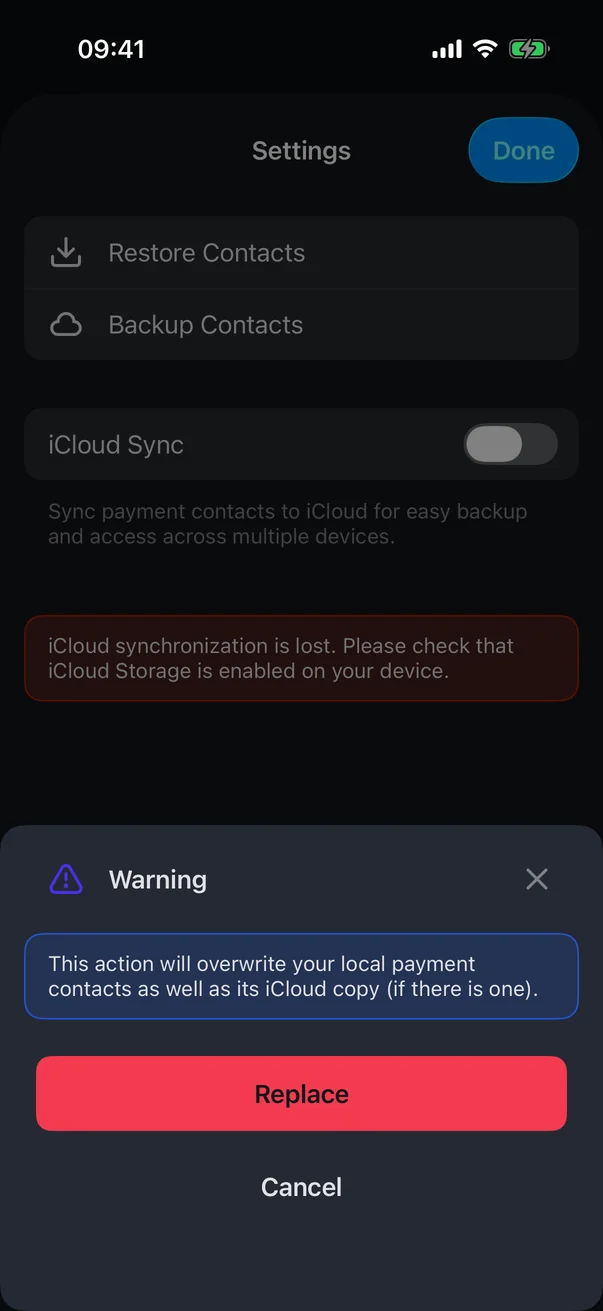
- Restore Contacts — loads contacts from such a file. Choose the file, then in the Warning panel (This action will overwrite your local payment contacts as well as its iCloud copy (if there is one).) tap Replace. Restored appears.
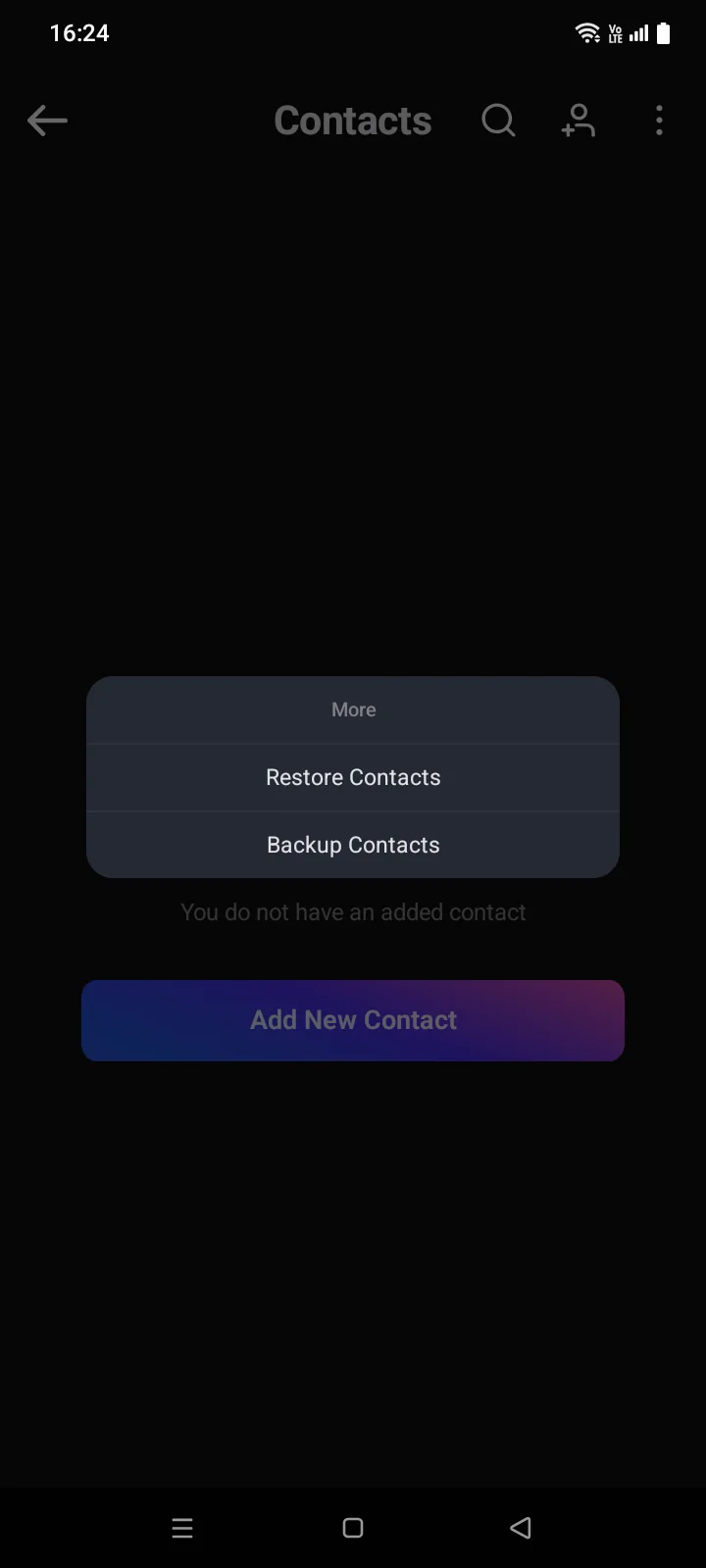
Tap the three dots at the top of the contact list to open the More menu:
- Backup Contacts — saves all contacts to a JSON file. The system save window opens: choose a folder and tap "Save". Once saved, Done appears.
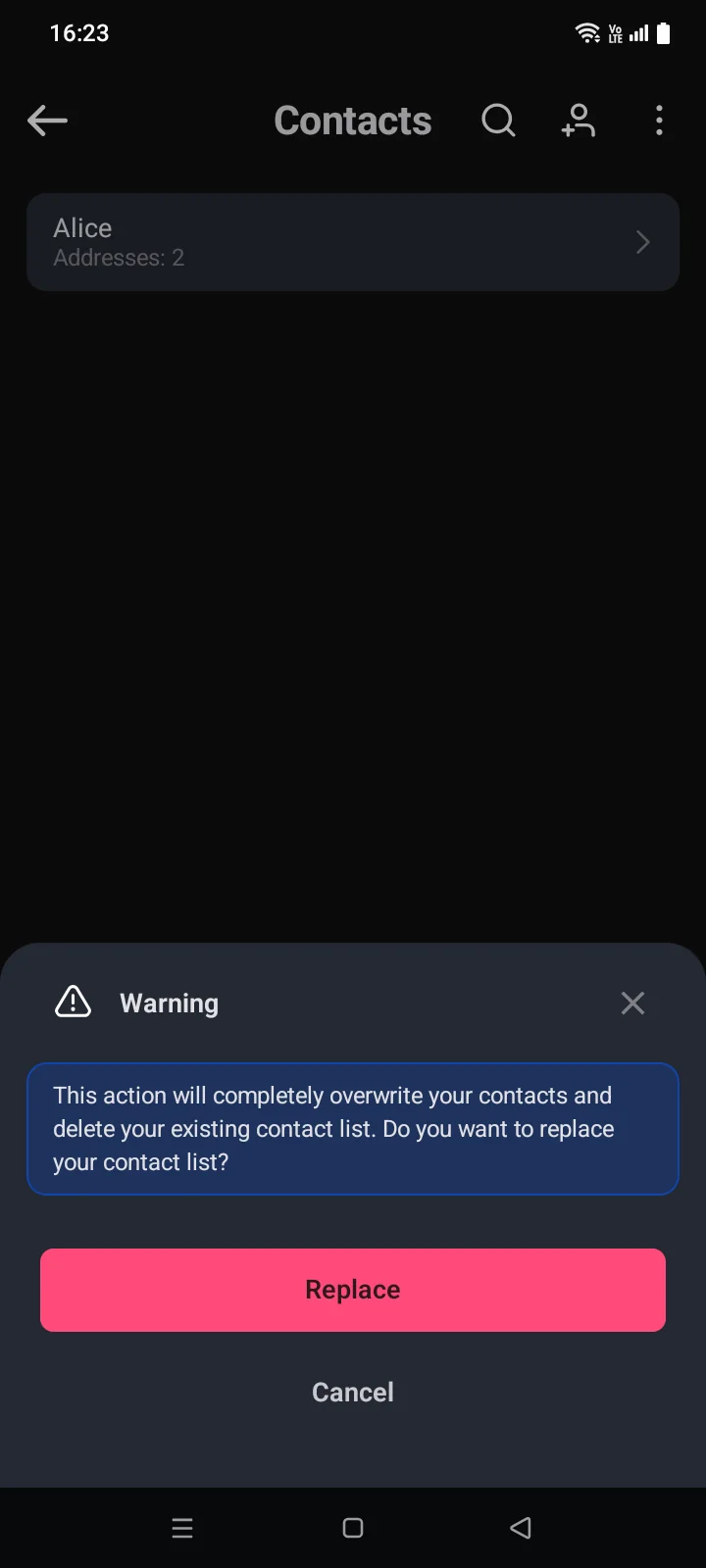
- Restore Contacts — loads contacts from such a file. If the app already has contacts, the Warning panel opens first: This action will completely overwrite your contacts and delete your existing contact list. Do you want to replace your contact list? Tap Replace and choose the file.
The Android version has no cloud sync for contacts: they're stored only in the app on this phone.
If something goes wrong
| Message | What to do |
|---|---|
| Name Already ExistThe name already exists | A contact with this name already exists. Letter case doesn't matter, nor do extra spaces: “Alice” and “alice” count as the same name. Choose another name. |
| This address is already used for … | This address on this network is already saved for another contact — the message shows its name. |
| Invalid … address | The address doesn't match the selected network. Check the address and the network in the Blockchain row. |
| File has wrong data!Couldn't restore contacts from this file | This isn't a contacts backup, or the file is damaged. Choose the right file. |
| Can't create backup fileCouldn't save the contacts backup | Try again.Choose another folder and try again. |
| iCloud synchronization is lost. | Check that iCloud storage is on for this device (iOS Settings › your name › iCloud). |