
4.2Network fees and advanced options
Every transfer pays a network fee to the blockchain, not to Cryptolink. The app suggests a fee that should get the transfer through quickly; you can change it in the advanced settings.
Ethereum and other EVM networks
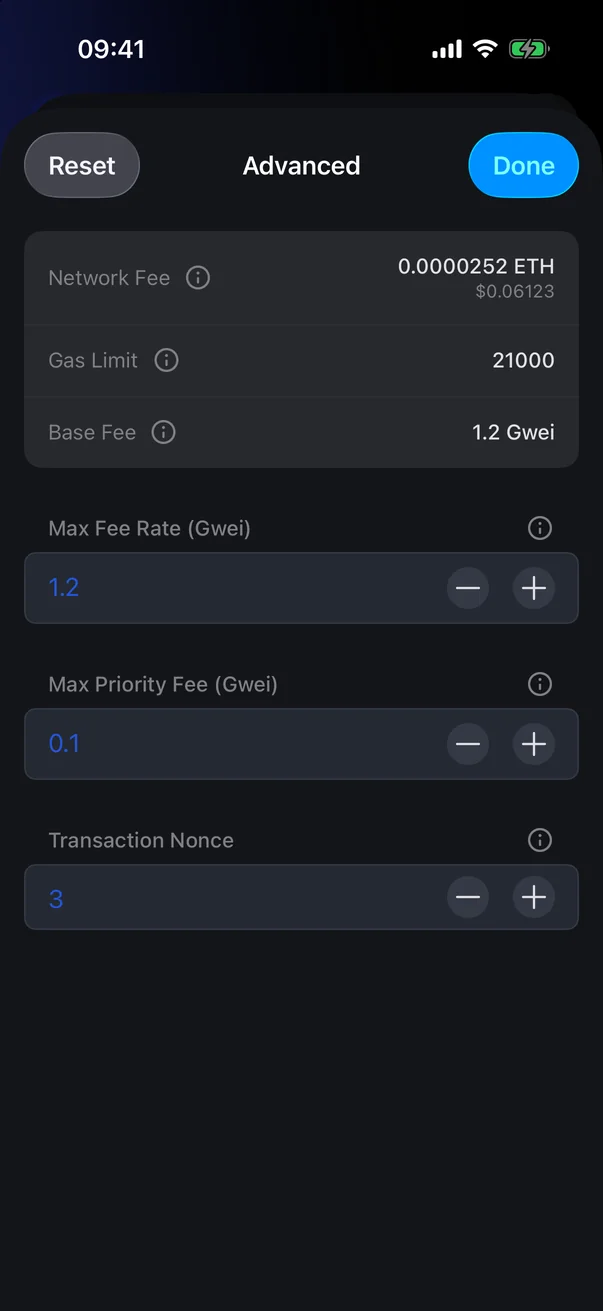
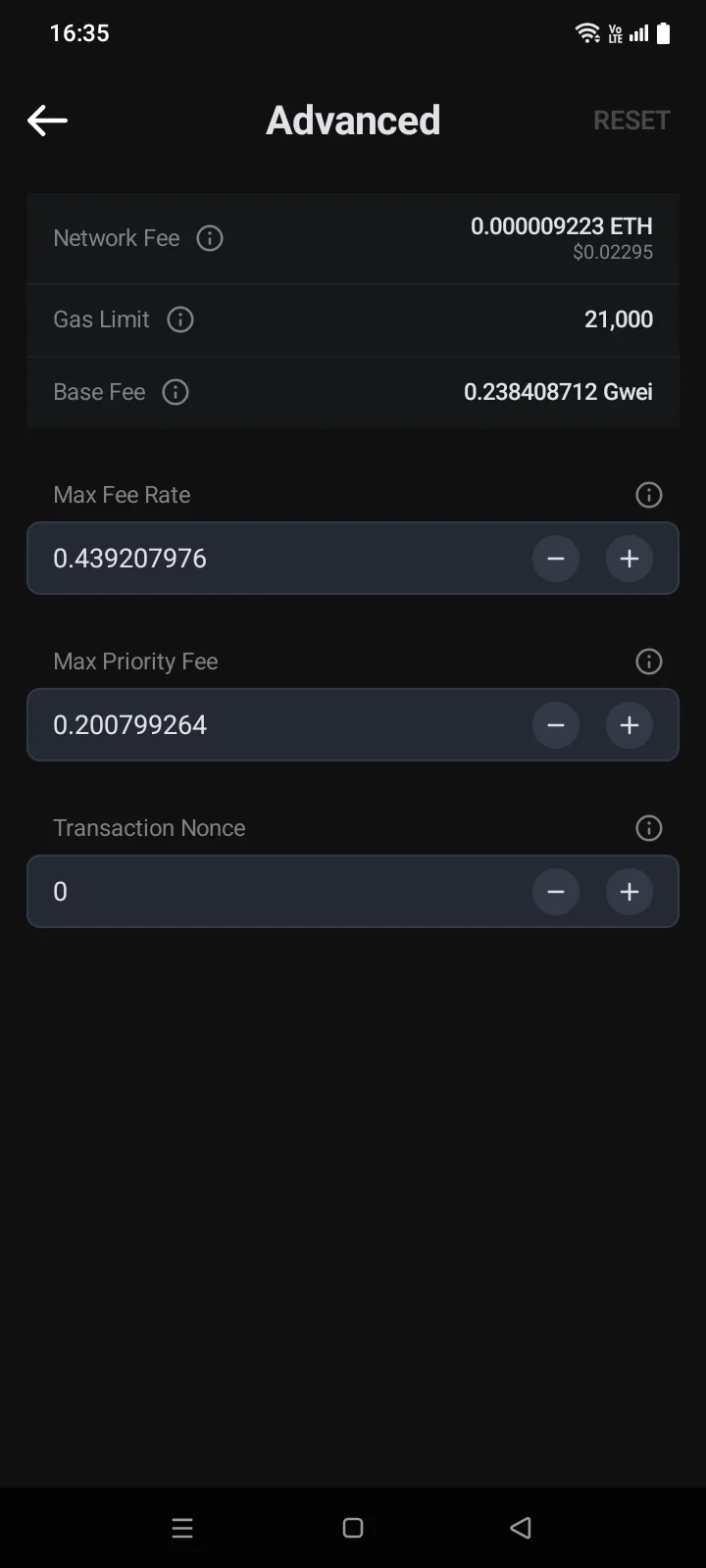
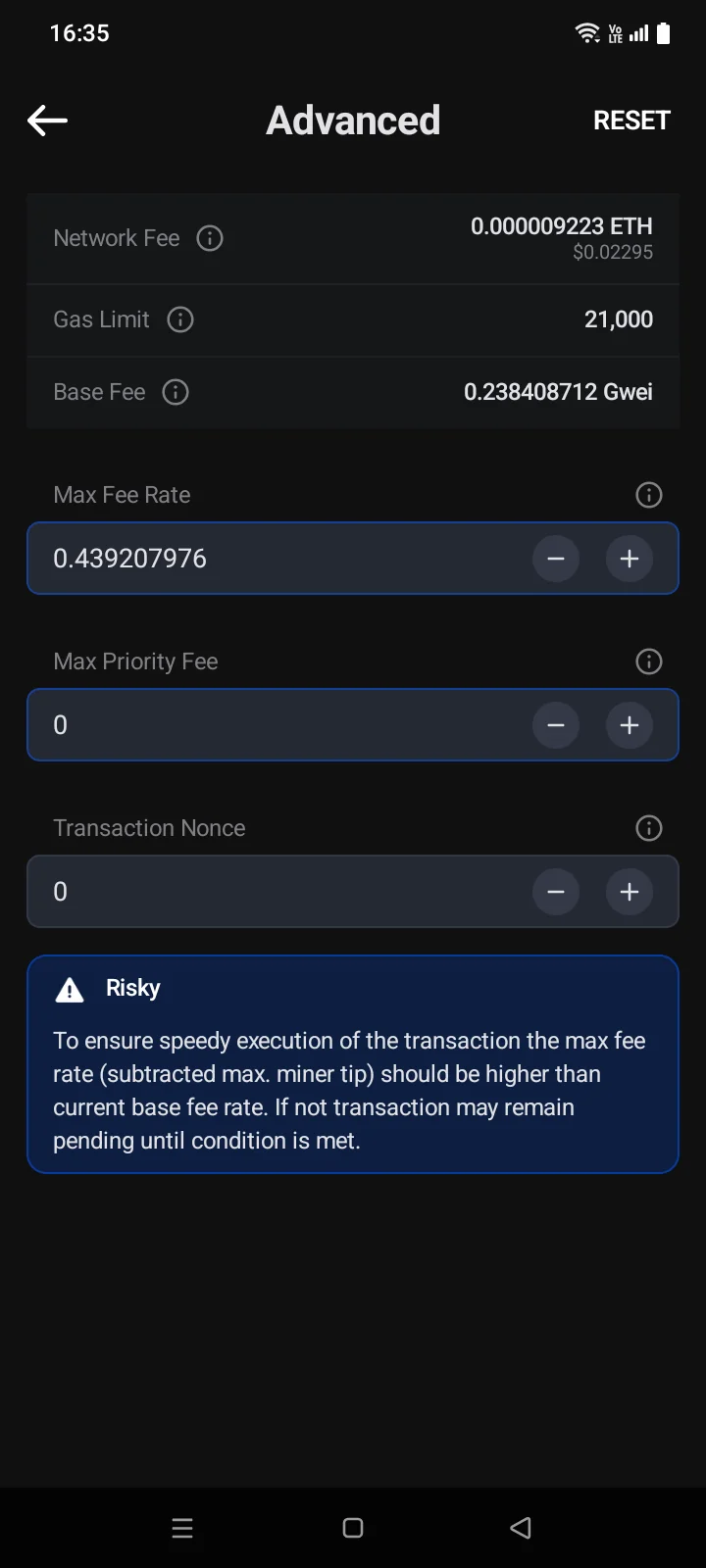
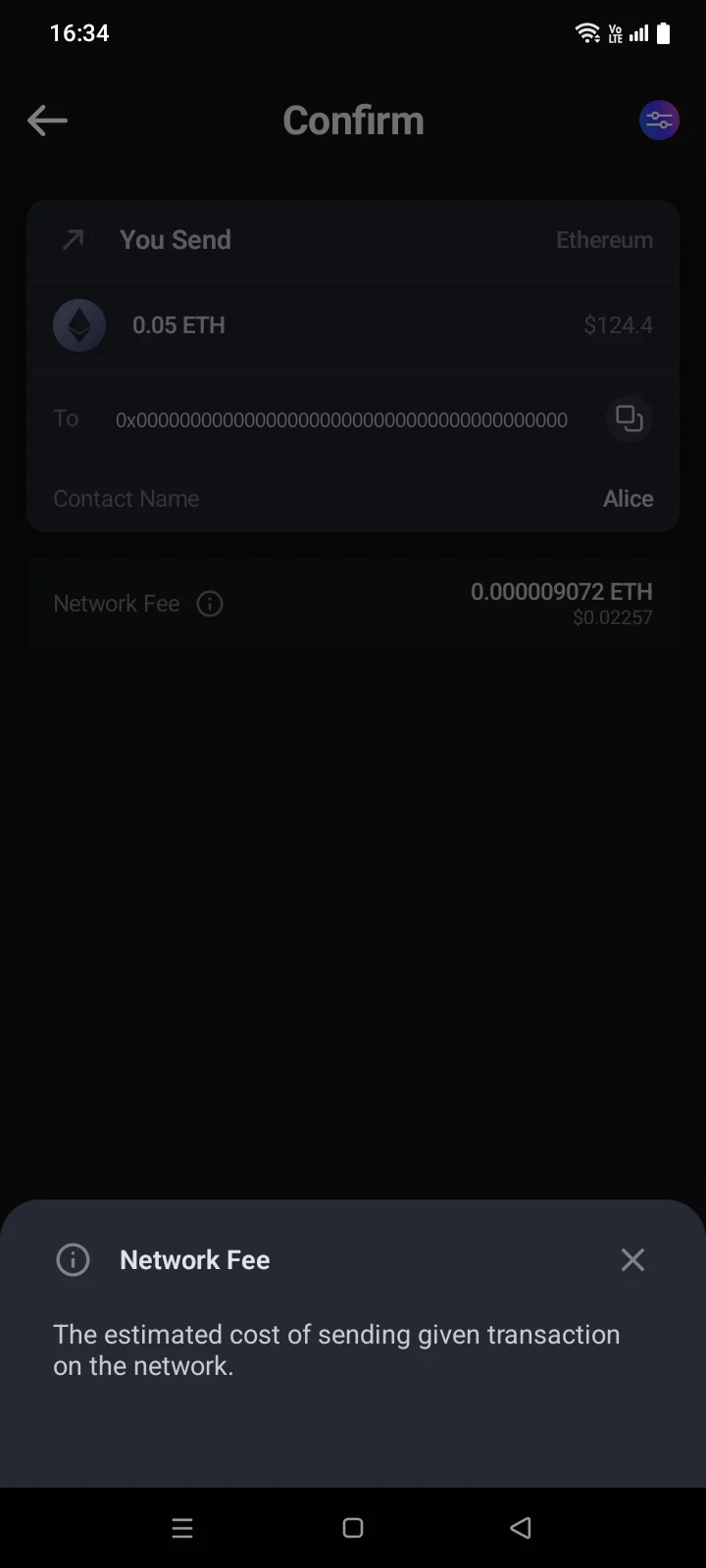
On the Confirm screen (see 4.3), tap the settings button at the top, next to Cancelin the top-right corner. The Advanced screen opens.
 1
2
3
4
5
6
1
2
3
4
5
6
| 1 | Network Fee — the estimated fee in the network coin and in your currency. |
| 2 | Gas Limit — how much “gas” the transfer may use. For a simple ETH transfer it's 21000. The app calculates it; you can't change it. |
| 3 | Base Fee — the current base price of gas on the network. |
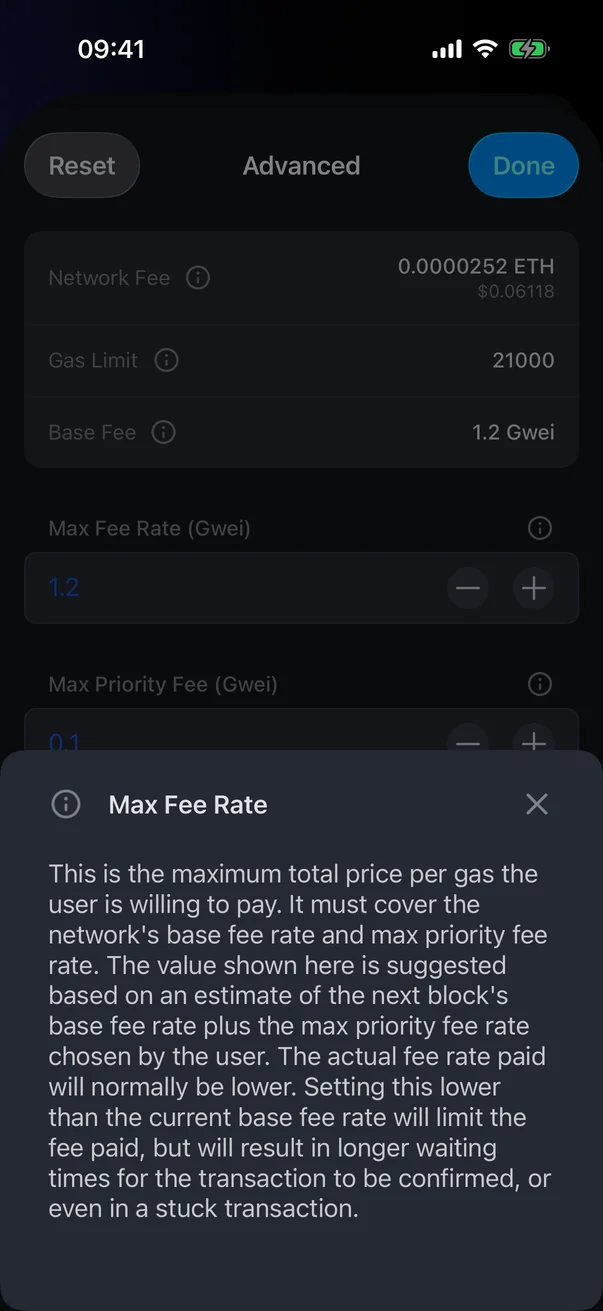
| 4 | Max Fee Rate — the most you agree to pay per unit of gas. |
| 5 | Max Priority Fee — the tip to validators; higher means faster. |
| 6 | Transaction Nonce — the transaction's sequence number. Usually you don't change it. |
 1
2
3
4
5
6
7
1
2
3
4
5
6
7
| 1 | Network Fee — the estimated fee in the network coin and in your currency. |
| 2 | Gas Limit — how much “gas” the transfer may use. For a simple ETH transfer it's 21000. The app calculates it; you can't change it. |
| 3 | Base Fee — the current base price of gas on the network. |
| 4 | Max Fee Rate — the most you agree to pay per unit of gas. |
| 5 | Max Priority Fee — the tip to validators; higher means faster. |
| 6 | Transaction Nonce — the transaction's sequence number. Usually you don't change it. |
| 7 | Reset — go back to the suggested values. Active when you've changed something. |
Change values with − / + or type them. Reset returns to the suggested fee. Done closes the screen.Changes apply right away; to return to the confirmation, tap the back arrow or the system Back button. The (i) icons explainTap a name or the i icon to read about each value.
Networks without EIP-1559 show a single Gas Price field instead of the base fee, max fee and priority fee.
If you change the nonce, the Confirm screen shows a Nonce row with the value you chose.
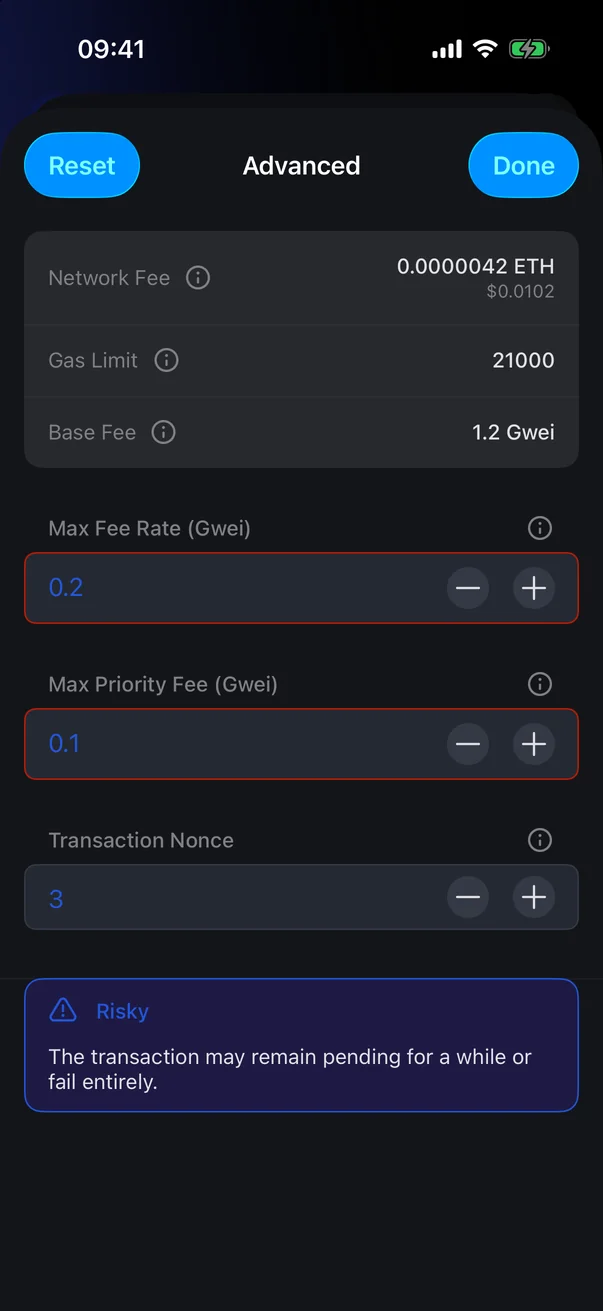
| Warning | What it means |
|---|---|
| Risky | The fee is below the recommended one: the transfer may stay pending for a while or fail. |
| Fee Too High | The fee is higher than needed right now. You can send, but you'll overpay. |
| Used Nonce | A transaction with this nonce has already been executed. Tap Reset. |
| Insufficient Balance | You don't have enough of the network coin for the amount plus the fee. Lower the amount or top up the network coin (for example, ETH for ERC-20 tokens). |
Bitcoin
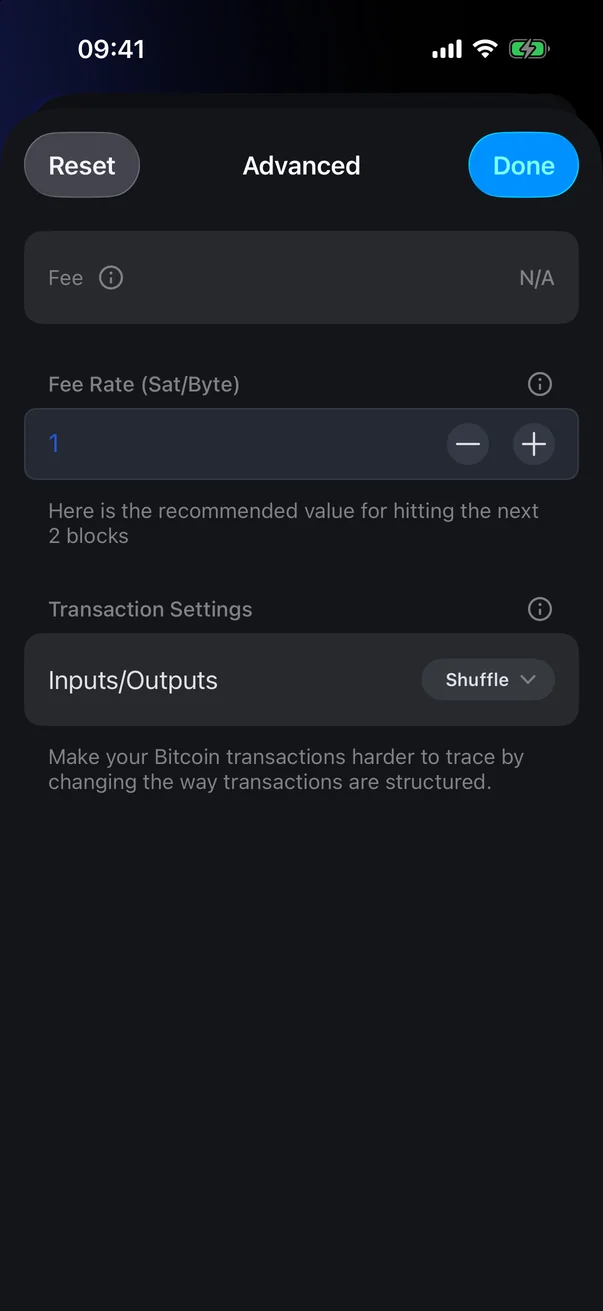
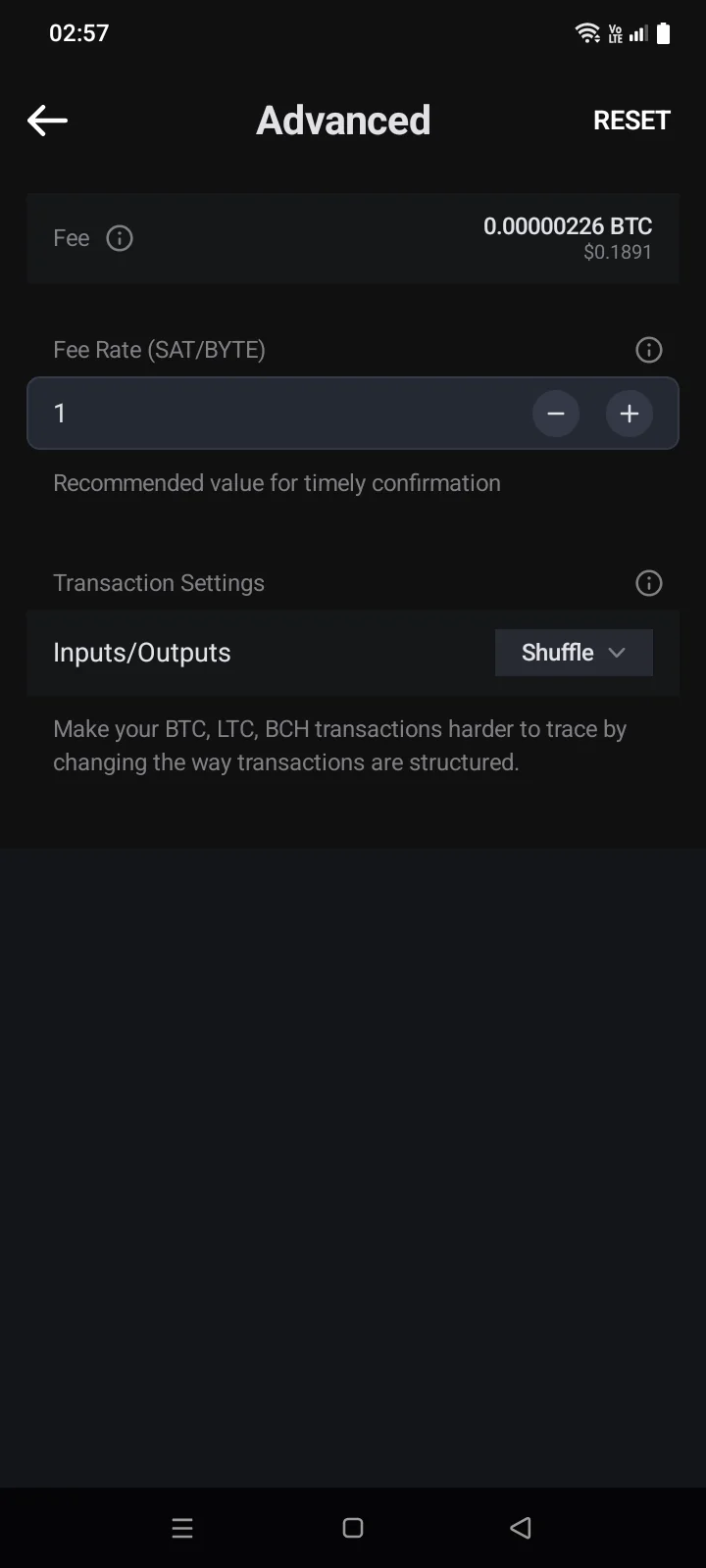
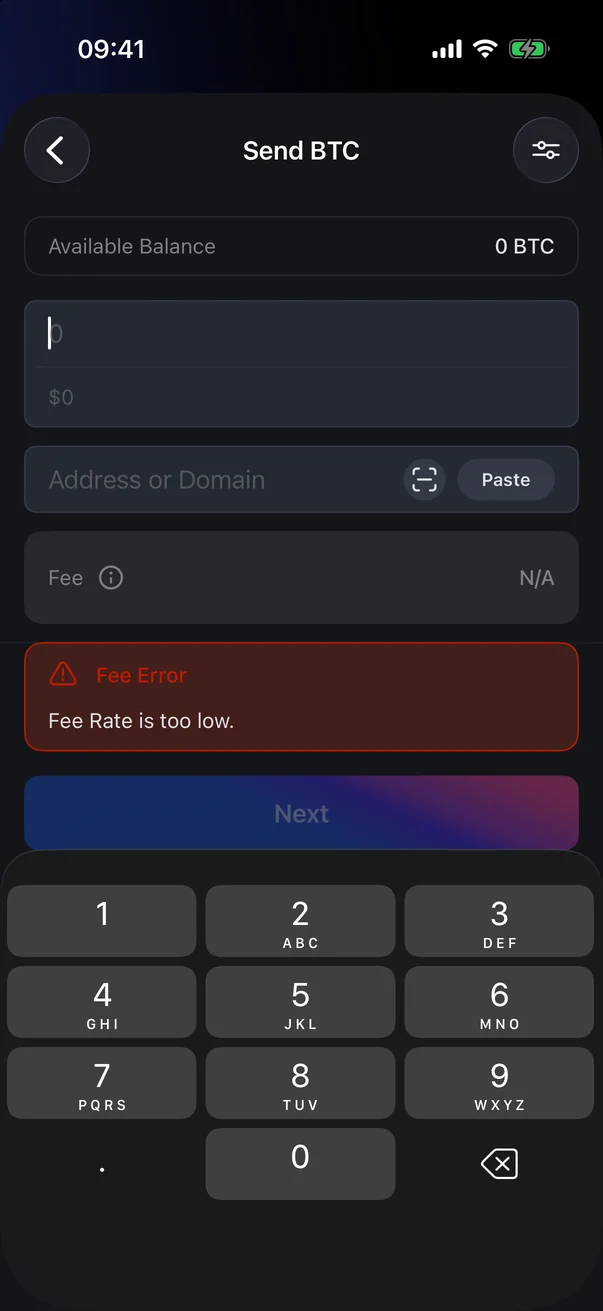
For Bitcoin, the fee is shown right in the send form — the Fee row. To change it, tap the settings button in the top-right corner of the form. The Advanced screen opens:
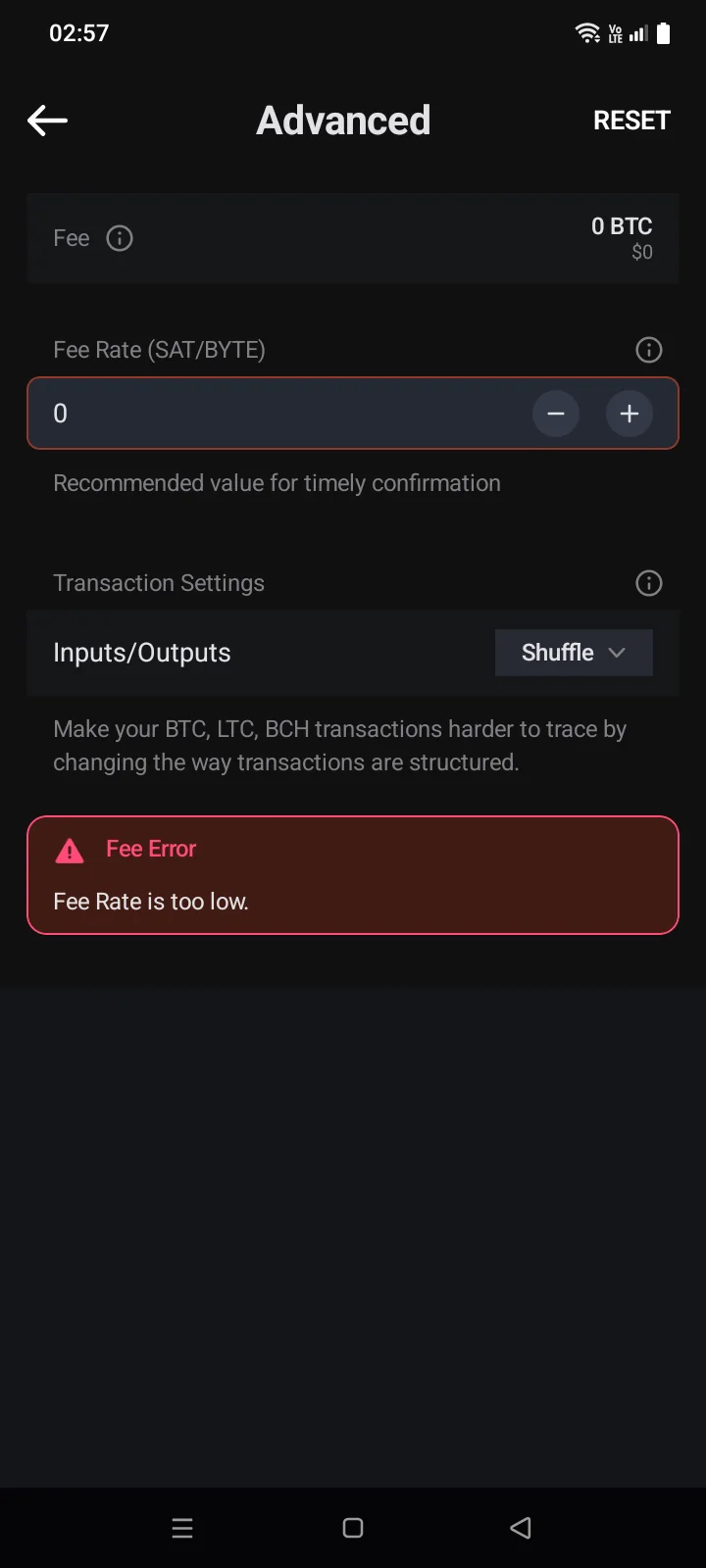
- Fee Rate (Sat/Byte) — change it with − / + or type it. Under the field: Here is the recommended value for hitting the next 2 blocksRecommended value for timely confirmation. A rate below the recommended one shows Risk of getting stuckWarning! Risk of getting stuck; below the network minimum — Fee Error: Fee Rate is too low.
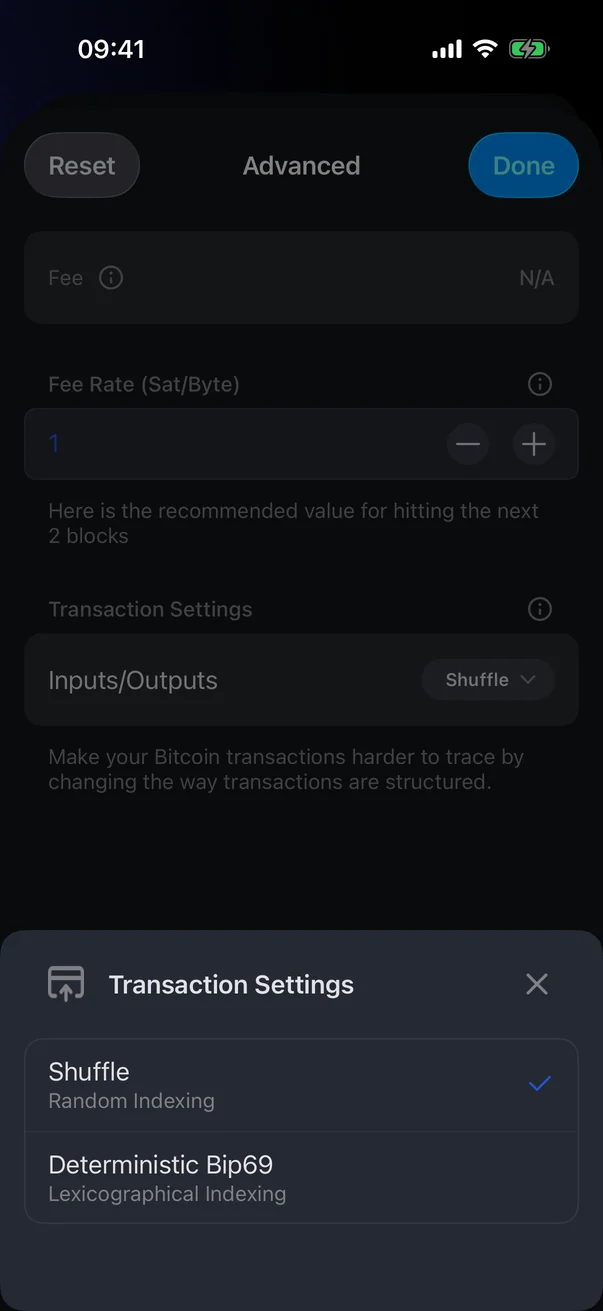
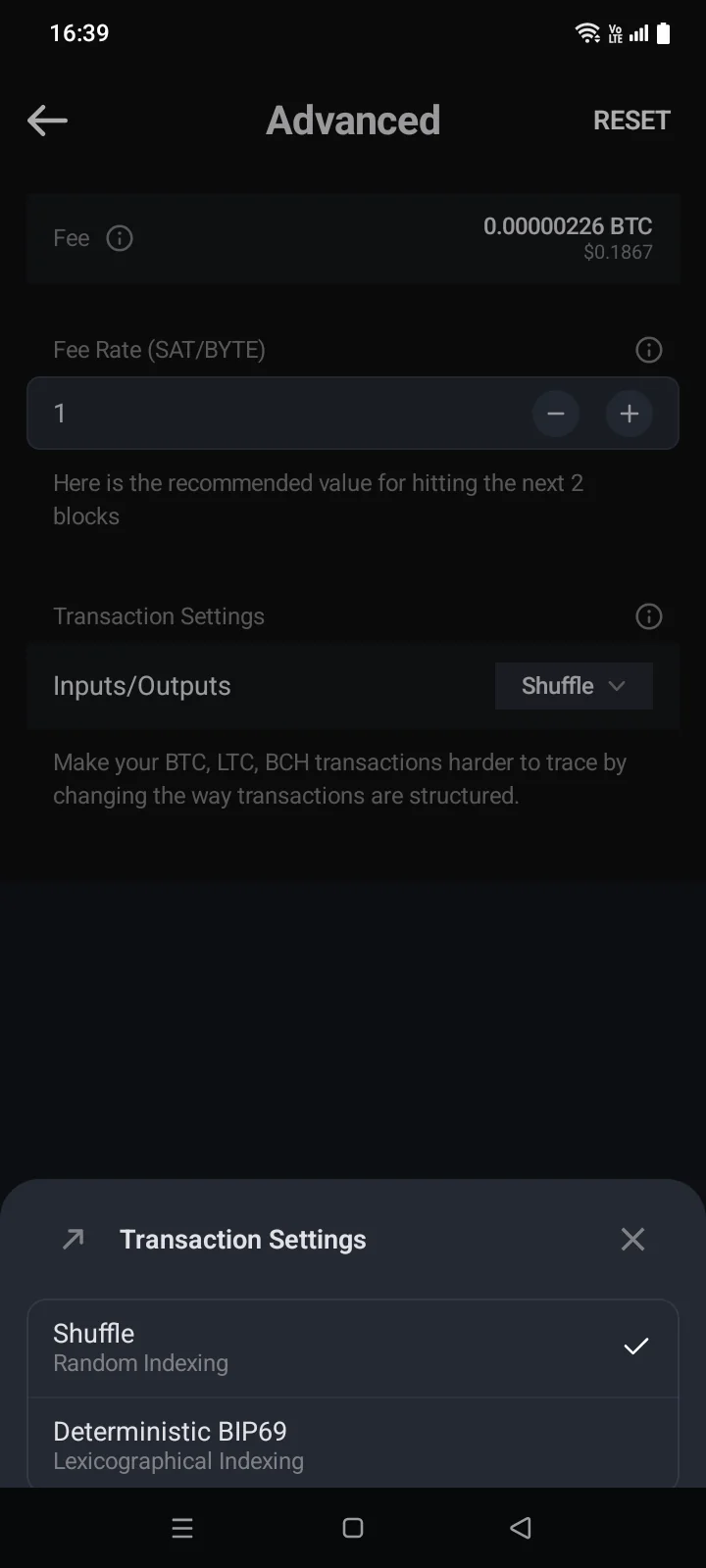
- Inputs/Outputs — the order of the transaction's inputs and outputs: Shuffle (random indexing) or Deterministic Bip69Deterministic BIP69 (lexicographical indexing). Changing the order makes your transactions harder to trace. The order you choose is also used for later transfers of this coin.
Reset restores the recommended rate and the Shuffle order.
If the app couldn't get the fee rate, the form shows Fee Error: Fee Rate unavailable. Please, check fee rates manuallyThe connection to the server has been lost. To proceed, set up the fees manually using the data on the site. Check your internet connection and open the form again, or set the rate manually in Advanced.
For Litecoin, Bitcoin Cash, Dash and eCash the rate is set automatically; only the Inputs/Outputs option is available.
 1
2
3
4
1
2
3
4
| 1 | Fee — the total fee for the transfer. Until it can be calculated, the row shows N/A. |
| 2 | Fee Rate — satoshis per byte of the transaction. |
| 3 | Inputs/Outputs — the order of inputs and outputs. |
| 4 | Reset — go back to the recommended values. |
 1
2
3
4
1
2
3
4
| 1 | Fee — the total fee for the transfer; appears once you enter an amount in the form. |
| 2 | Fee Rate — satoshis per byte of the transaction. |
| 3 | Inputs/Outputs — the order of inputs and outputs; the i icon above the block opens an explanation. |
| 4 | Reset — go back to the recommended values. |
TRON
TRON has no fee settings. The Confirm screen shows the Fee in TRX, the Activation Fee if the recipient's address isn't active yet, and the network Resources Consumed (Bandwidth; token transfers can also use Energy) — see 4.4.