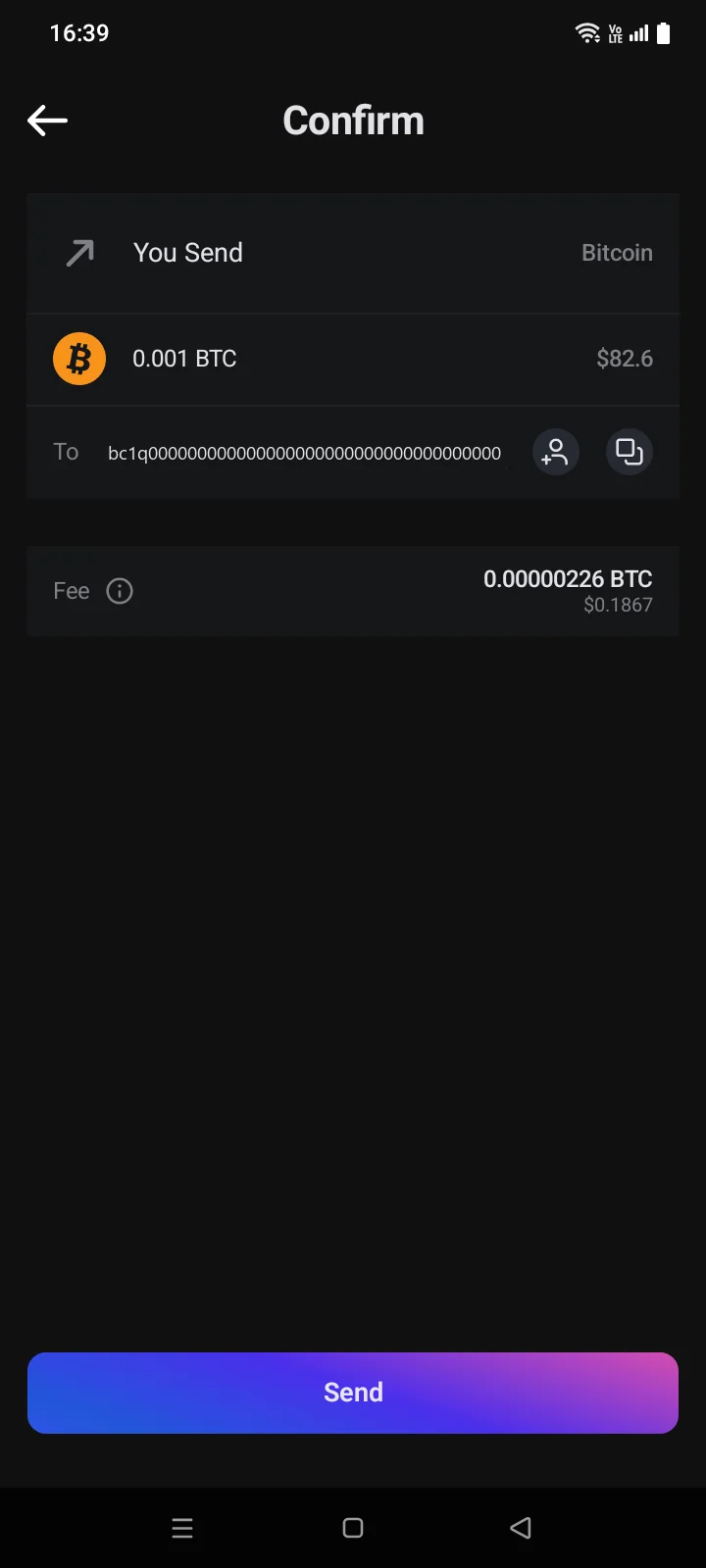
4.3Confirming a transfer
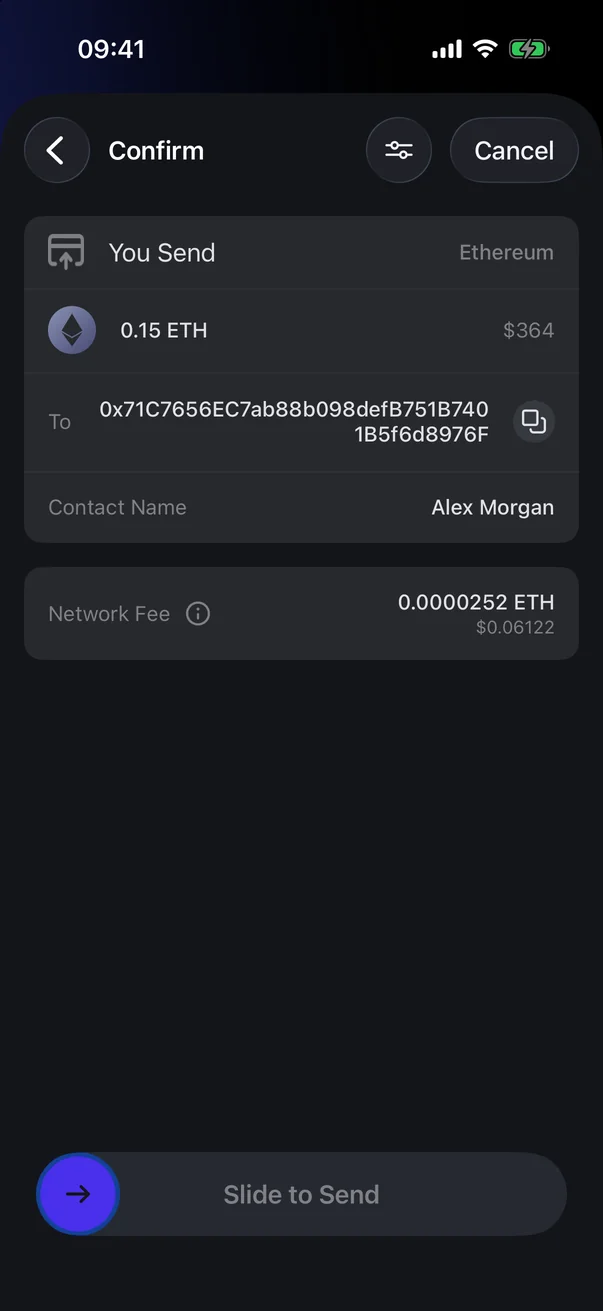
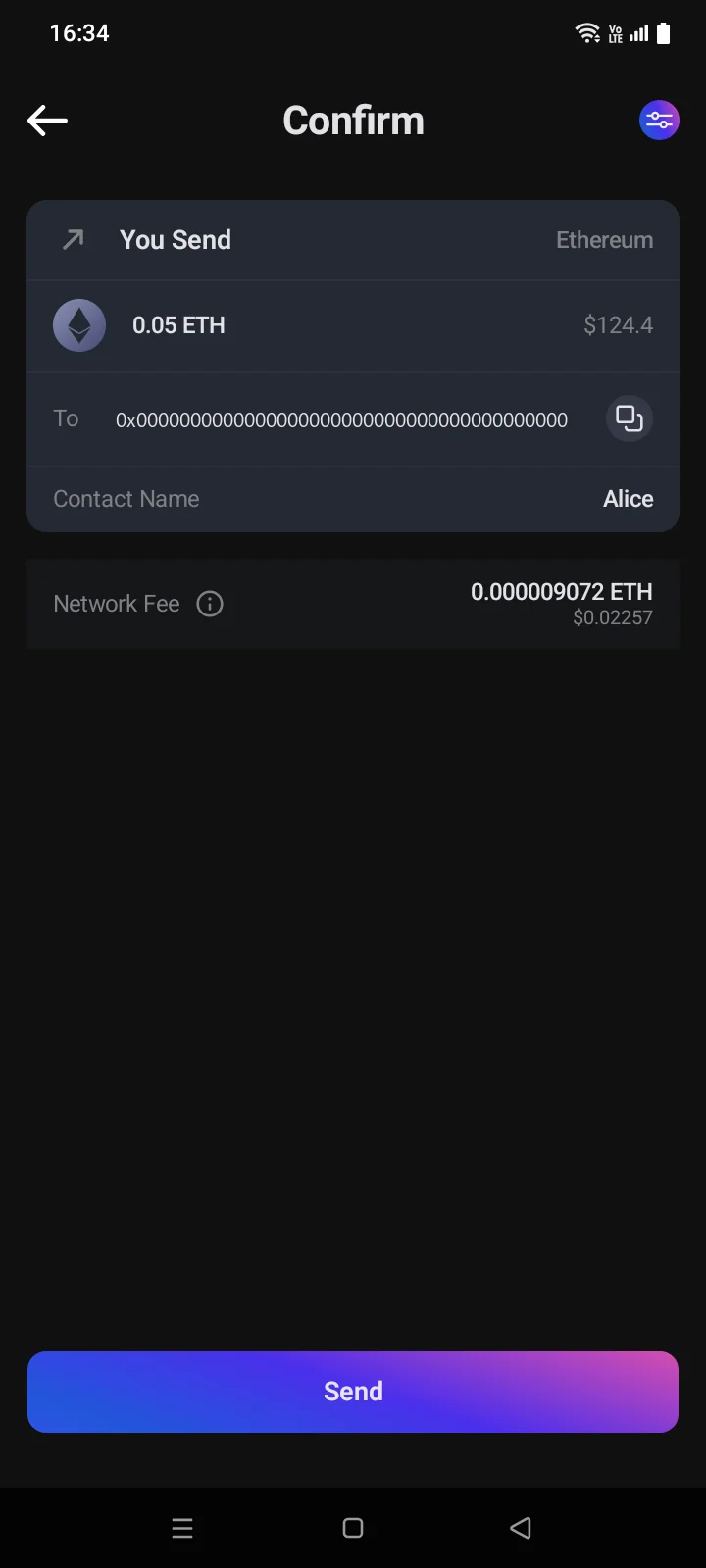
After Next, the Confirm screen shows what will be sent, to whom and for what fee. Nothing leaves the wallet until you slide the buttontap Send.
 1
2
3
4
5
1
2
3
4
5
| 1 | You Send — the amount in the coin and in your currency. |
| 2 | To — the recipient's address. If it's in your contacts, Contact Name appears below; if not, the person icon next to it saves the address to contacts (see 4.8). |
| 3 | Network Fee — the estimated fee. Tap (i) for an explanation. |
| 4 | Fee settings — change the fee (see 4.2). |
| 5 | Slide to Send — slide to the right to send. |
 1
2
3
4
5
1
2
3
4
5
| 1 | You Send — the coin, the amount in the coin and in your currency. |
| 2 | To — the recipient's address; the icon next to it copies the address. If the address is in your contacts, Contact Name appears below; if not, the person-with-plus icon saves the address to contacts (see 4.8). |
| 3 | Network Fee — the estimated fee in the network coin and in your currency. Tap the name for an explanation. |
| 4 | Advanced — change the fee and nonce (see 4.2). Available only for Ethereum and other EVM networks. |
| 5 | Send — send the transfer. |
If something prevents sending — for example, you don't have enough of the network coin for the fee — a red block with the reason appears under the fee, and the Slide to SendSend button becomes inactive. Go back and change the amount or the fee.
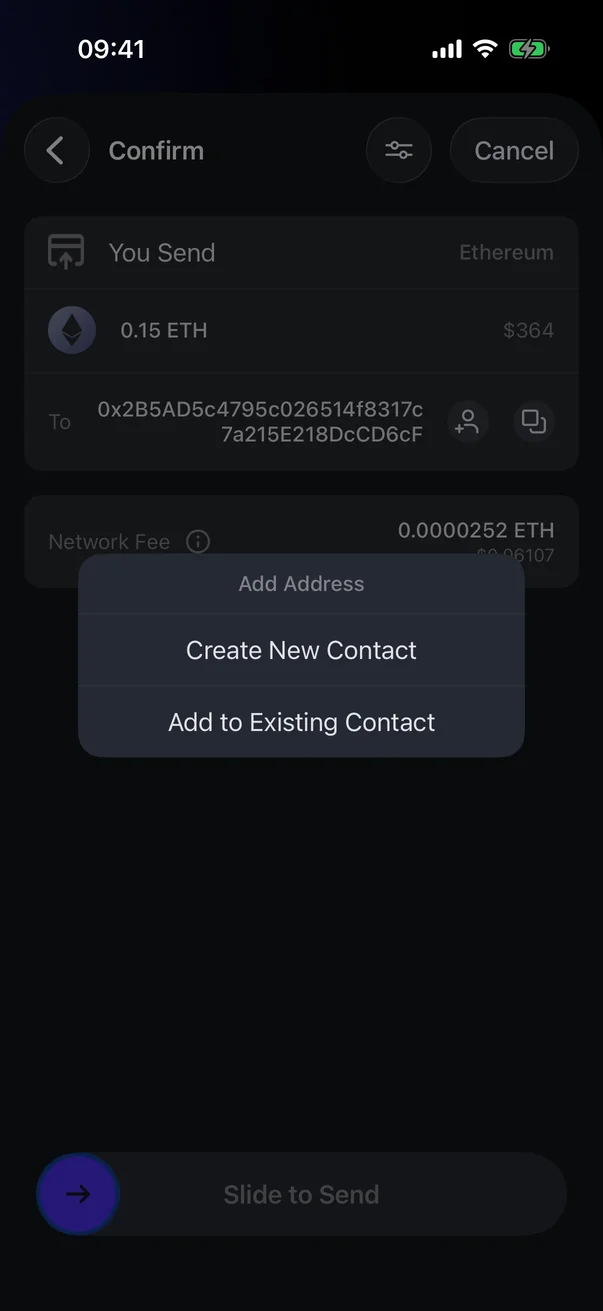
Save the address to contacts
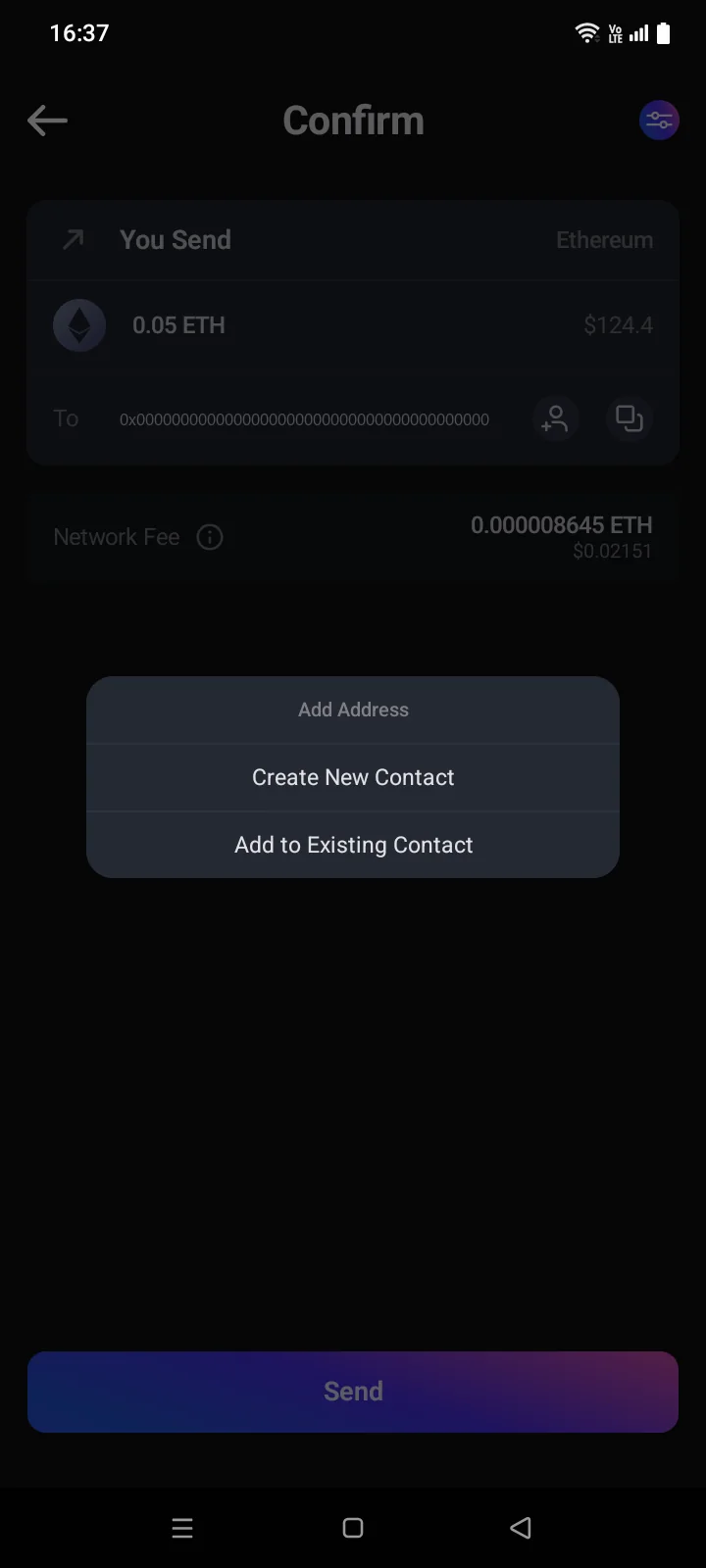
Tap the person icon in the To row. In the Add Address window, choose Create New Contact or Add to Existing Contact (see 4.8). Once saved, Contact Name appears in the row.
After sending
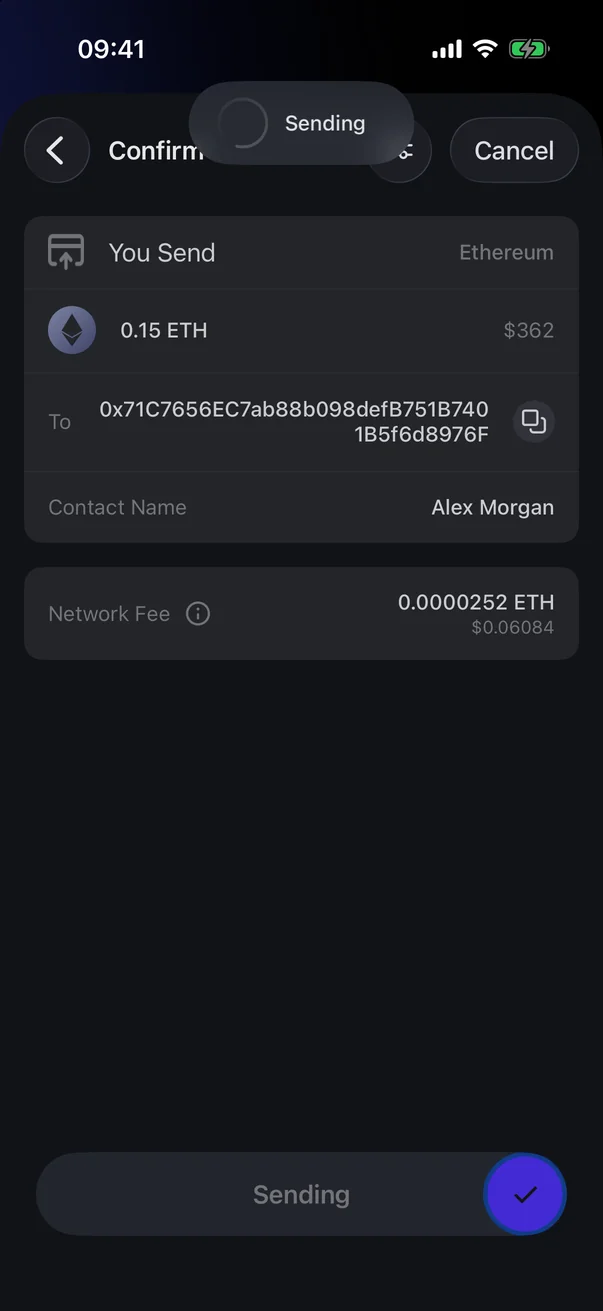
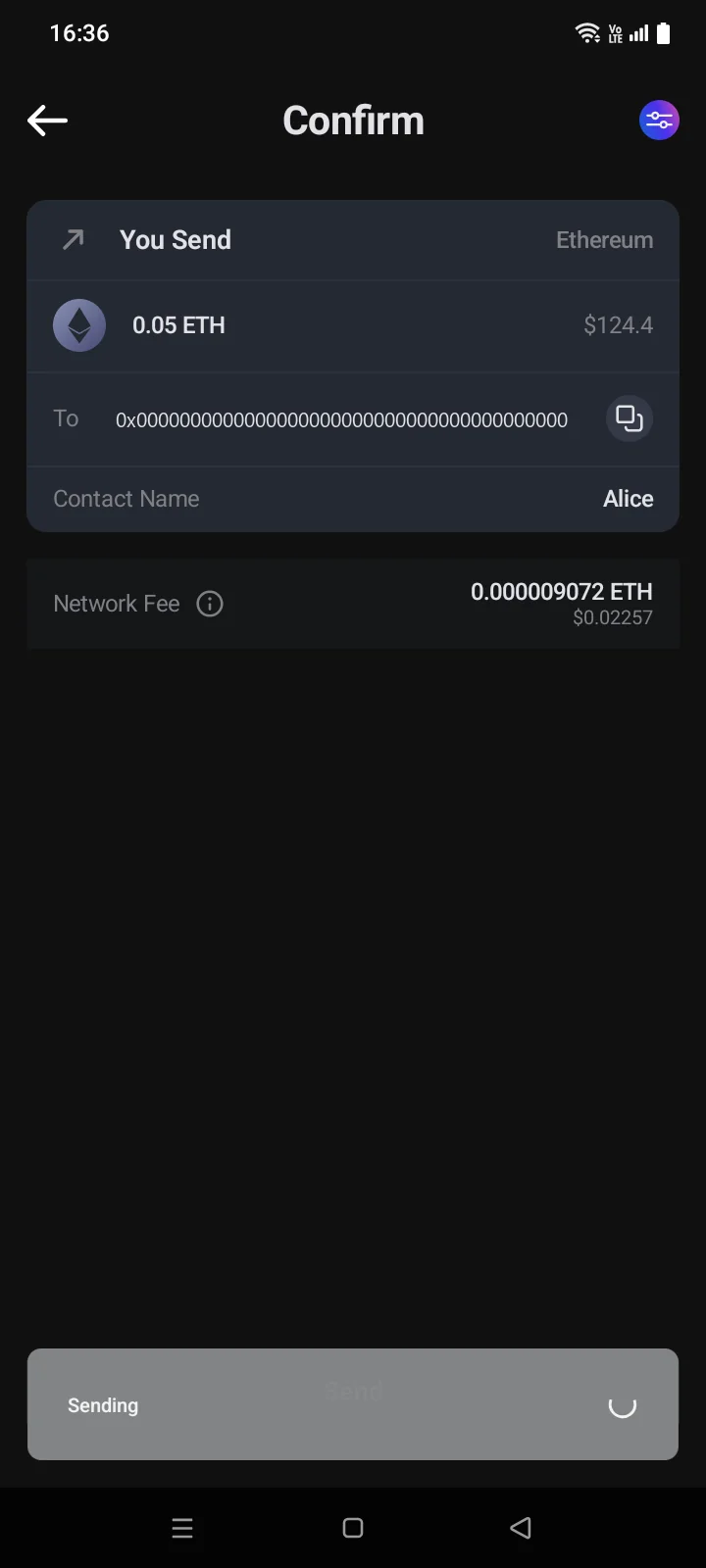
While the transfer is being sent, Sending appears; then Sent, and the screen closes. The transfer appears in the transaction list as pending until the network confirms it (see 3.10, 4.6).
If sending fails, a message with the reason appears. Fix the cause (for example, the fee) and send again.
For TRON the screen simply closes.
If sending fails, the reason is shown in a red banner, and the slider returns to the start.
On Ethereum and other EVM networks the messages appear at the bottom of the screen; on Bitcoin, TRON and other networks the Send button itself turns into them. When the screen closes, you return to where you started: the Crypto tab or the coin page.
If sending fails, on EVM networks the app takes you back to the send form; on other networks it keeps you on the Confirm screen. Without internet, the reason is No Internet.
What differs by network
- Ethereum and other EVM networks — if you entered the recipient as an ENS domain, the screen has a Domain row with that name, and the To row shows the address found for it.
- Bitcoin — the fee row is called Fee; the fee is set in the send form, there's no settings button on this screen (see 4.2).
- TRON — the screen also shows the Activation Fee and Resources Consumed, and if the recipient's address isn't active, the line This address is not active (see 4.4).
- TON, BNB Beacon Chain, Zcash — the Memo is shown if you entered it.