
Part 4 · Sending and transactions
4.5Speeding up or cancelling a transaction
A transfer on Ethereum or another EVM network with a low fee may stay pending for a long time. Until the network accepts it, you can speed it up or cancel it by replacing it with a new transaction that pays a higher fee.
Speed up or cancel a transfer
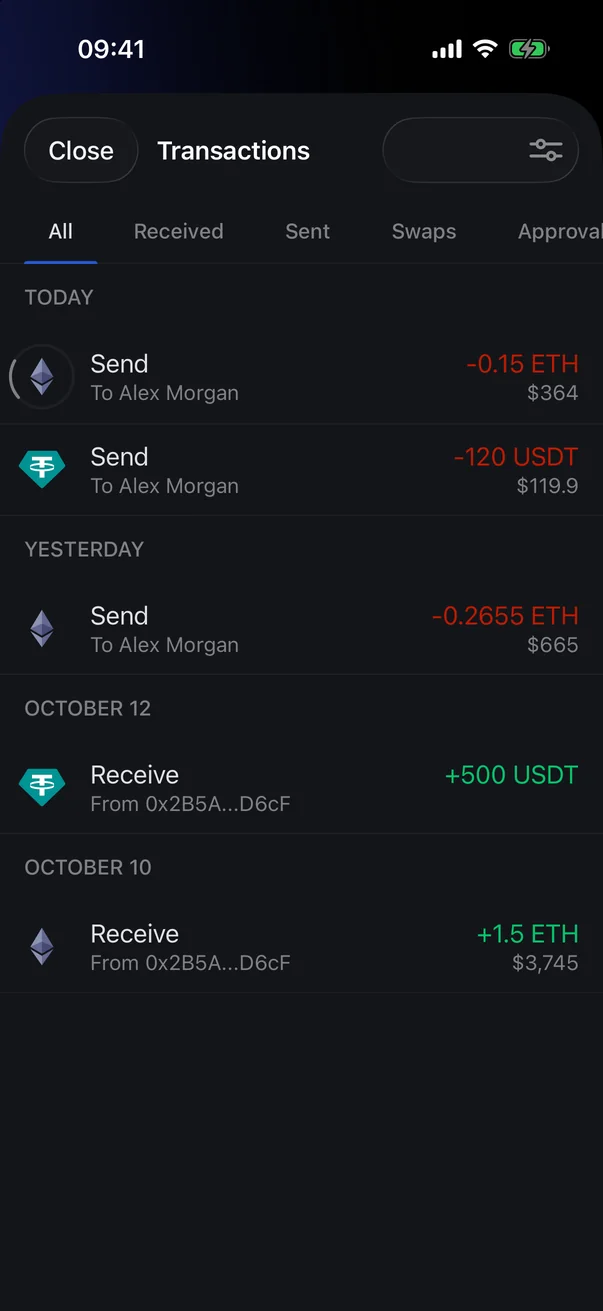
- Open Transactions on the Crypto tab or the page of the coin you sent (see 3.10), and tap the pending transfer — it has a spinner instead of an icon.
- On the Crypto tab, open the coin you sent (see 3.10), and in the transaction list under the buttons, tap the pending transfer — a spinner circles its icon. The Android version has no combined transaction list (see 4.6).
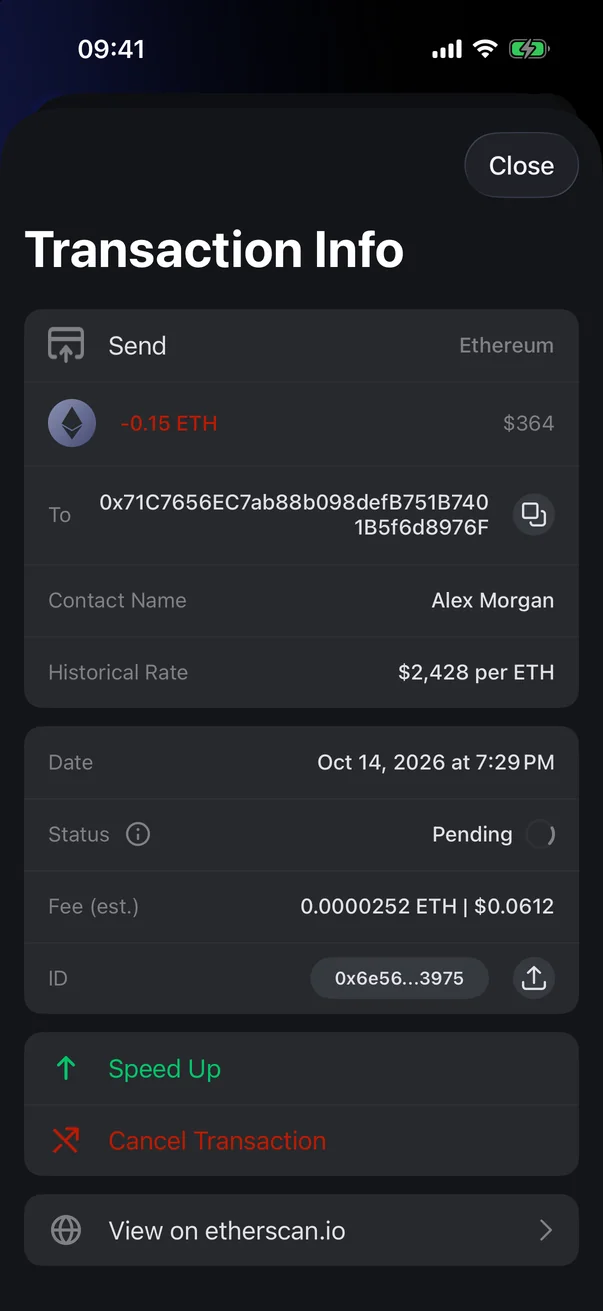
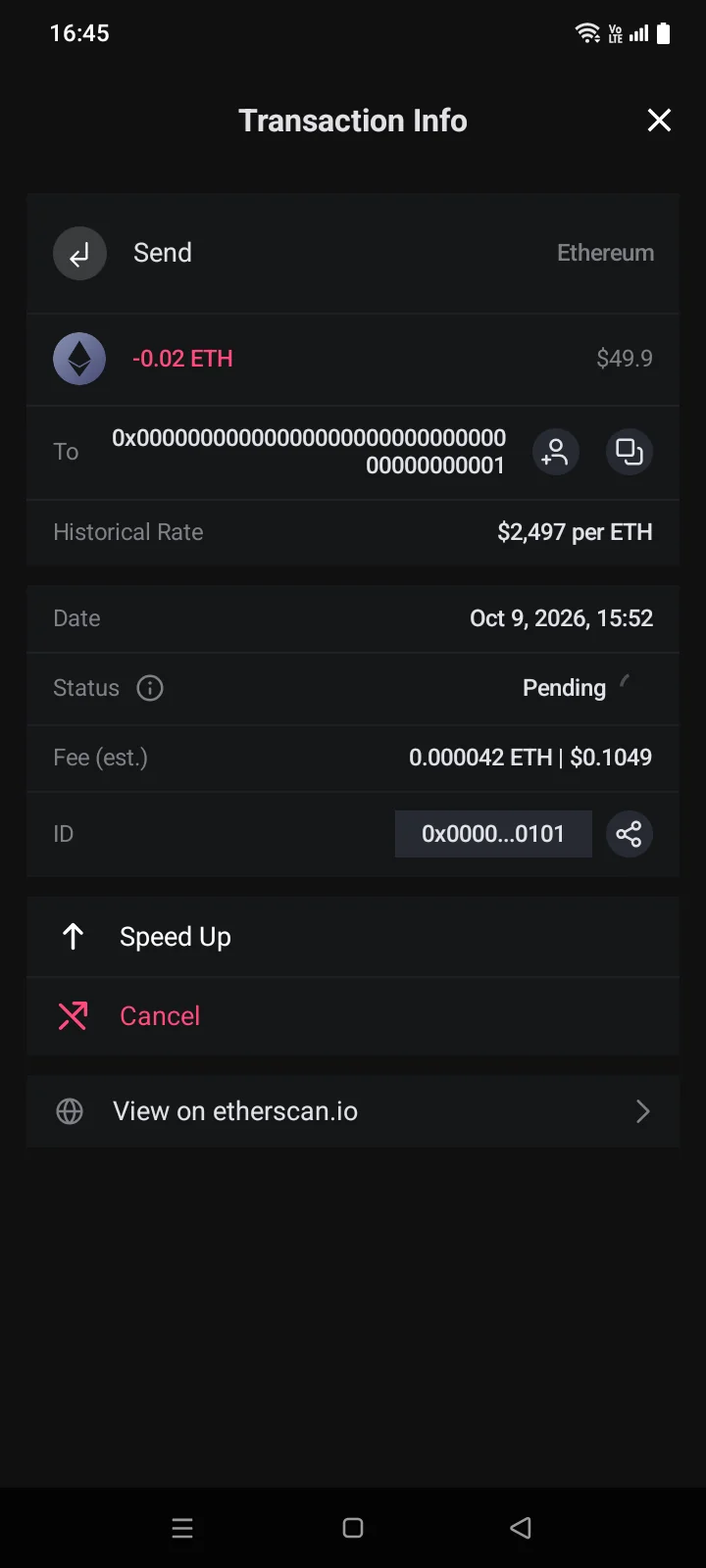
- In Transaction Info, tap Speed Up or Cancel TransactionCancel. The Status row of such a transfer is Pending.
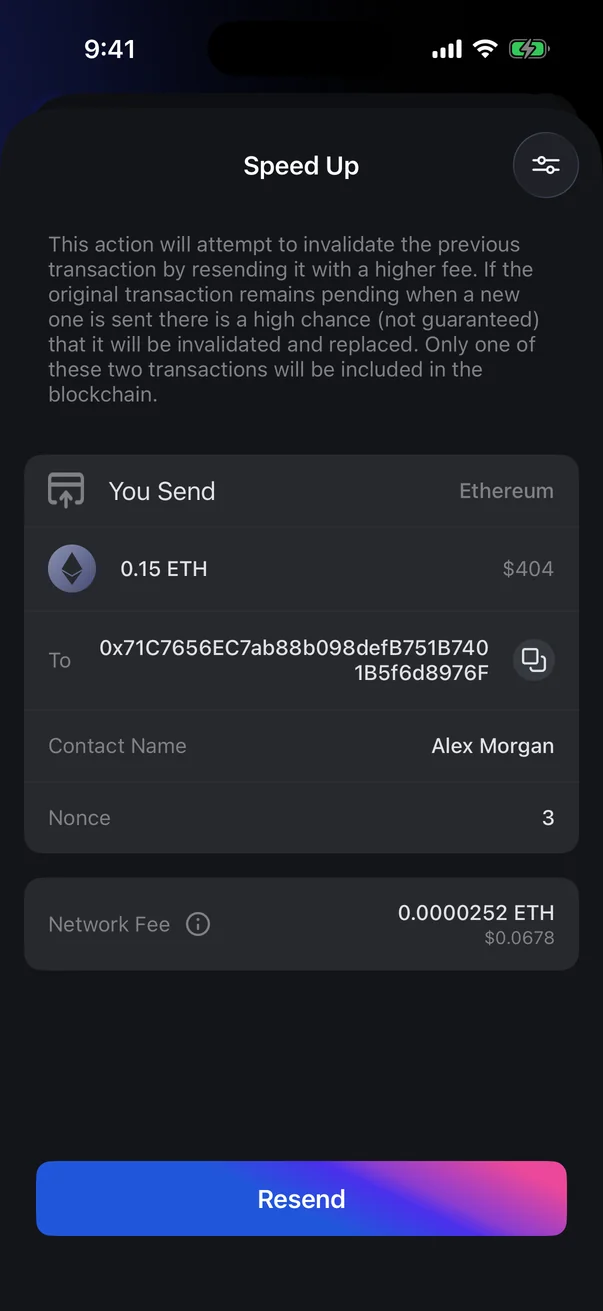
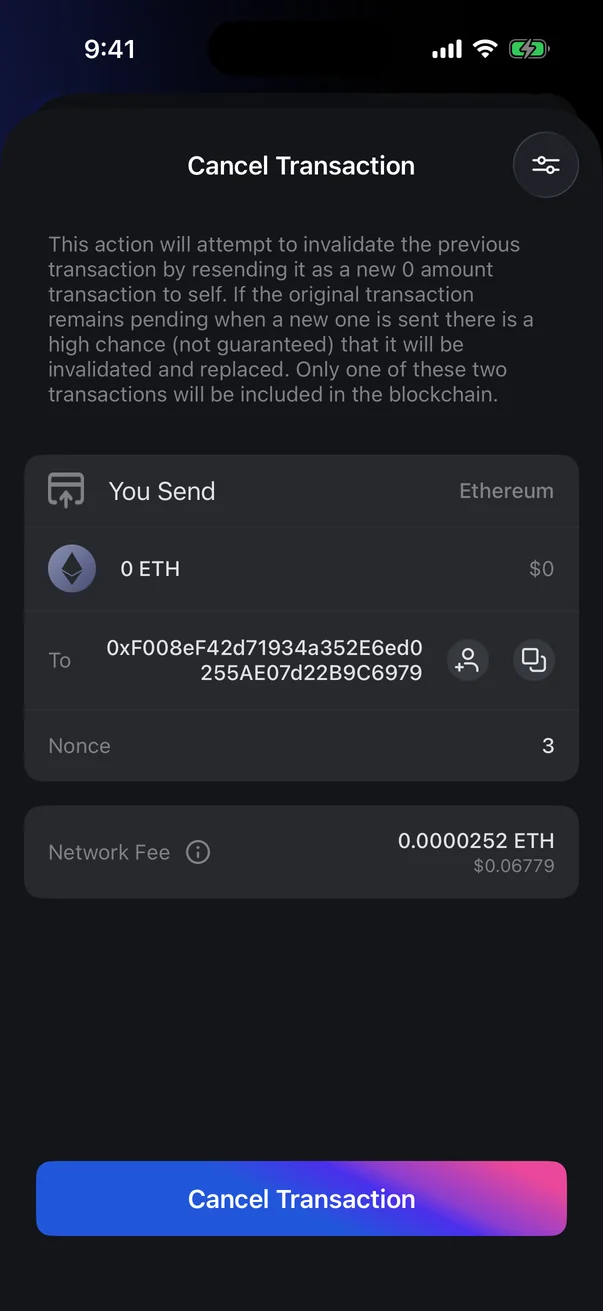
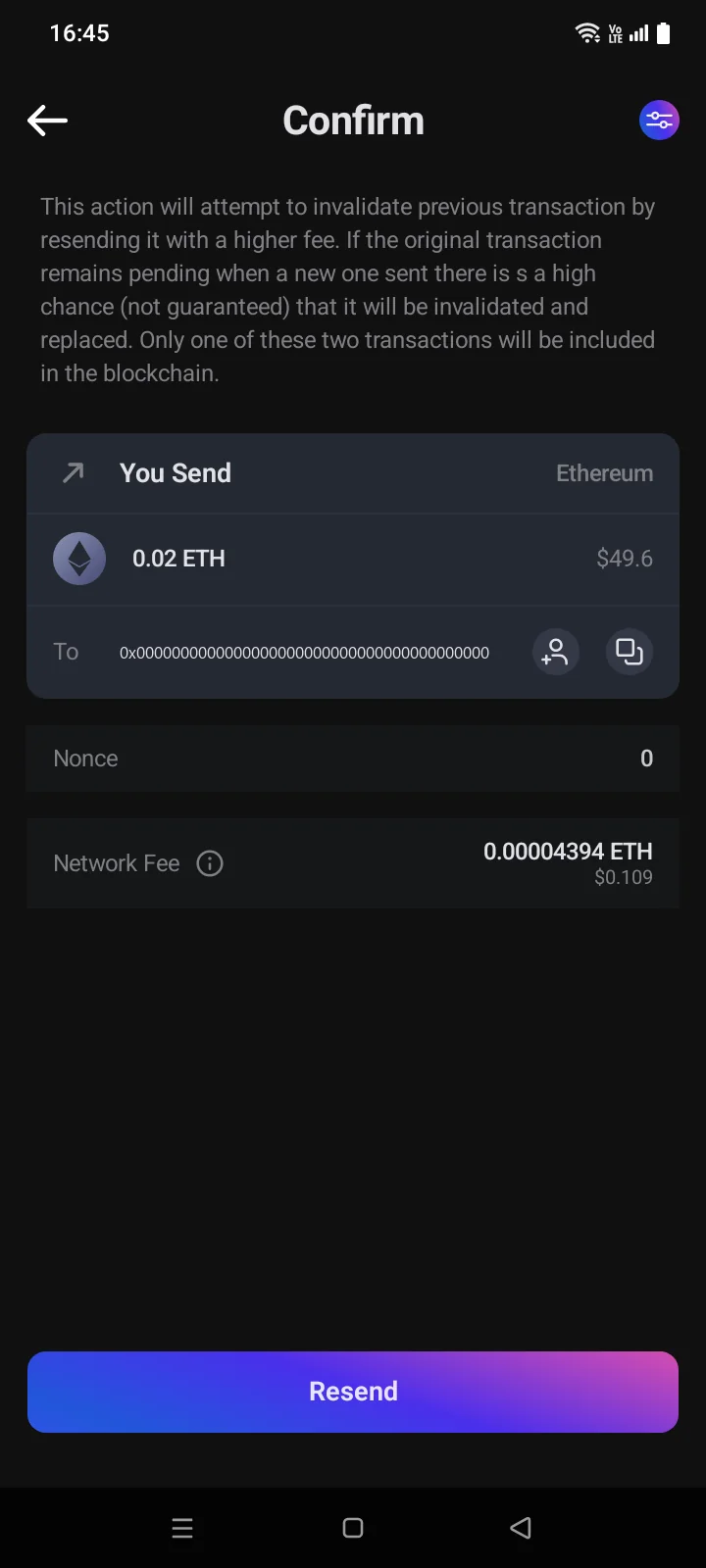
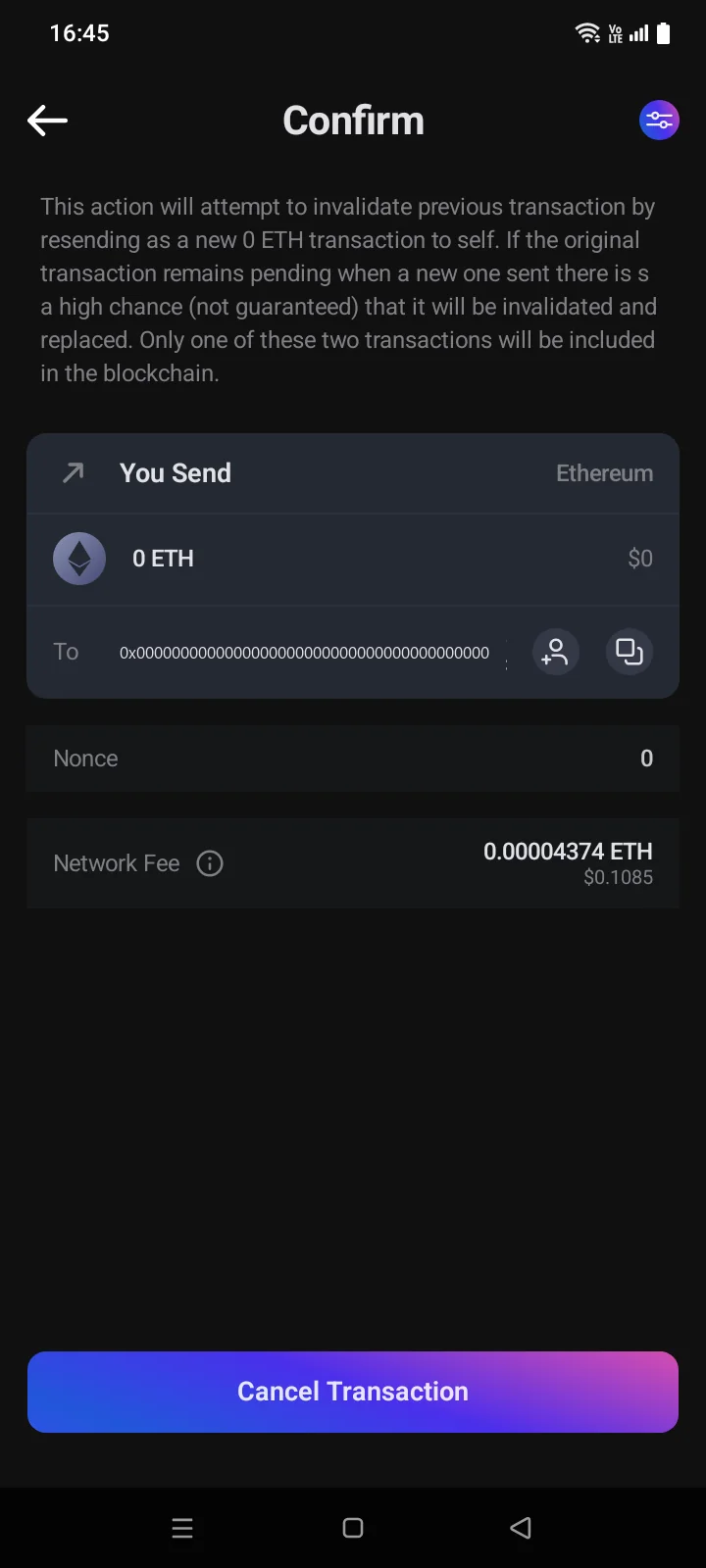
- The Speed Up or Cancel TransactionConfirm screen opens: an explanation at the top, then the transfer and the Network Fee. Check the fee — it must be higher than the original one. To raise it, tap the fee settings icon in the top right (see 4.2).
- Tap Resend (speed up) or Cancel Transaction (cancel). After sending, Done appears, and you return to the coin page.
 1
2
3
1
2
3
| 1 | Status — Pending: the network hasn't accepted the transfer yet. The i icon explains the statuses. |
| 2 | Speed Up — send the same transfer again with a higher fee. |
| 3 | Cancel — replace the transfer with a zero transfer to yourself. |
How it works
- Speed Up sends the same transfer again — same recipient and amount — with the same nonce and a higher fee. The network executes only one of the two transactions.
- Cancel sends 0 of the network coin (for example, 0 ETH) to your own address with the same nonce and a higher fee. If the replacement gets in first, the original transfer isn't executed; you pay only the network fee.
- The replaced transaction gets the Failed status in the history — that's expected.
Not guaranteedIf the original transfer gets into a block first, the replacement fails and the transfer goes through as sent.
When the options are available
- Only on EVM networks — Ethereum, BNB Smart Chain, Polygon, Avalanche, Fantom and others — except Optimism and Arbitrum One.
- Only for your own outgoing transfers that are still waiting (Pending). As soon as the transfer gets into a block (the Processing status), the buttons disappear.
- Incoming transfers can't be sped up or cancelled.
- Bitcoin and TRON transfers can't be sped up or cancelled (see 4.4).
If something goes wrong
| Message | What to do |
|---|---|
| Transaction already in block | The transfer is already in a block; there's nothing to replace. The screen closes by itself; check the transfer status on the coin page. |
| Low Fee for replacement transaction | The new fee is not enough to replace the transaction. Raise it in the fee settings. |
| Can't replace transaction. | The transaction is already in a block. Close the screen and check the history. |
| The set transaction fee amount is insufficient for processing this transaction now. | The fee is below the network's current base fee. Raise it in the fee settings. |
| The current … balance is below the amount required to process this transaction, including the transaction fee. | You don't have enough of the network coin (for example, ETH) for the fee. Top up the balance or wait until the network accepts the original transfer. |
| Risky | A warning in the fee settings: with this fee, the replacement may get stuck too. Raise the fee. |
| Another error message | The network rejected the replacement — most often because the new fee isn't high enough above the original one. In a couple of seconds, you return to the transaction details: raise the fee and try again. |