
Part 4 · Sending and transactions
4.7Transaction details
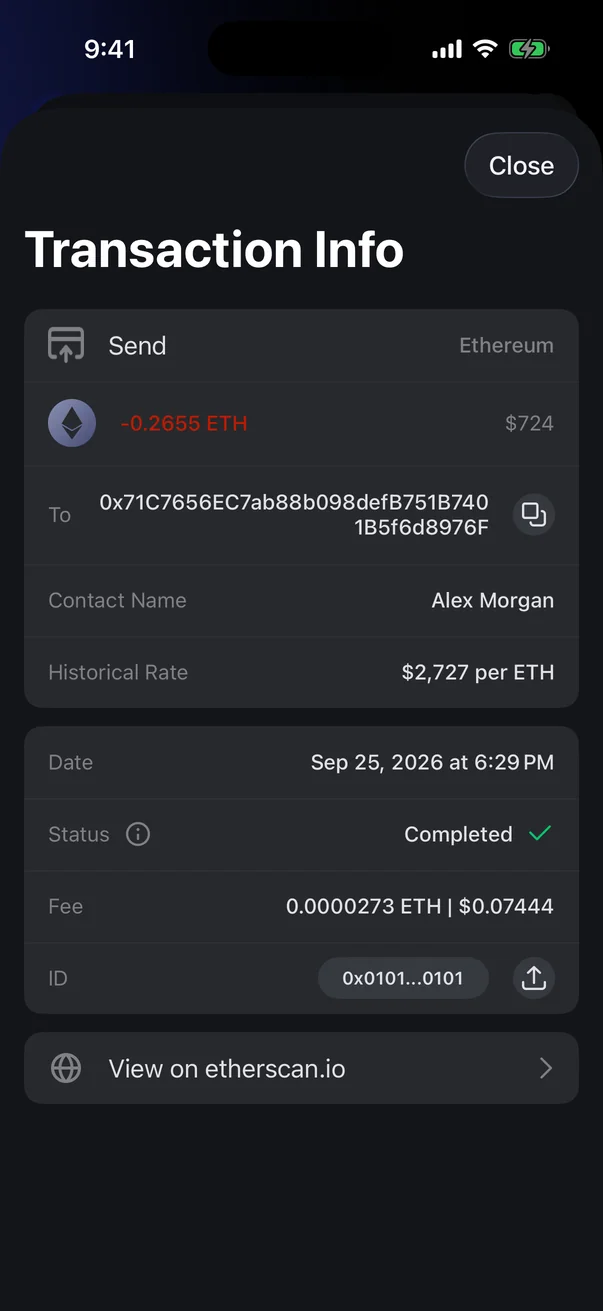
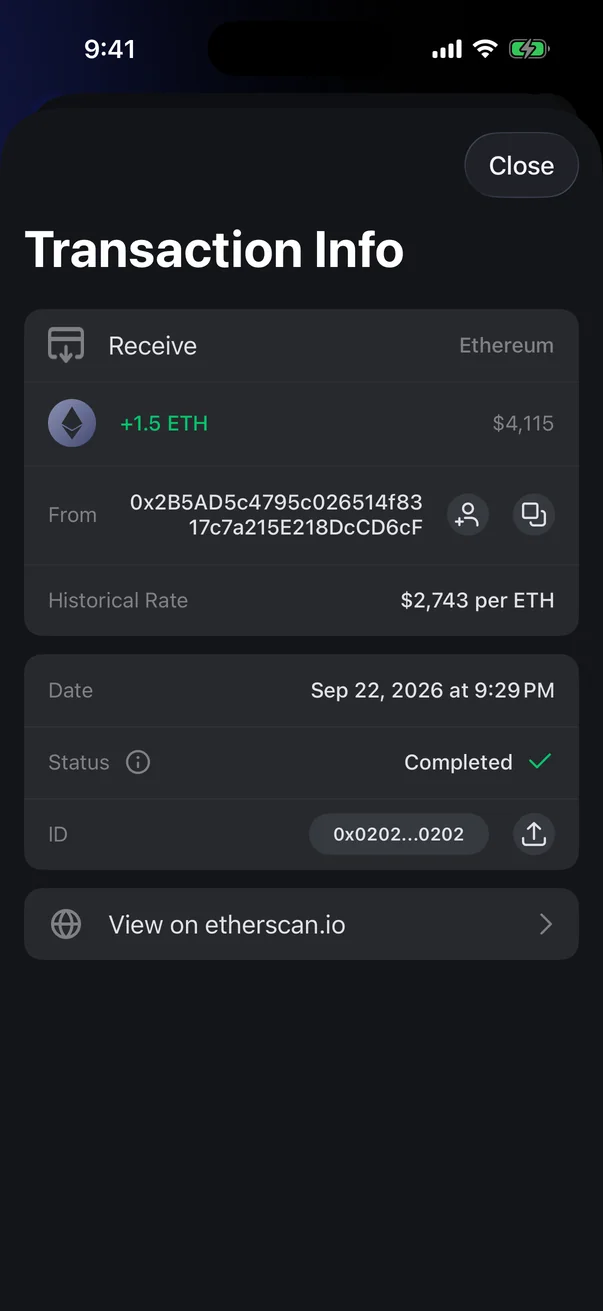
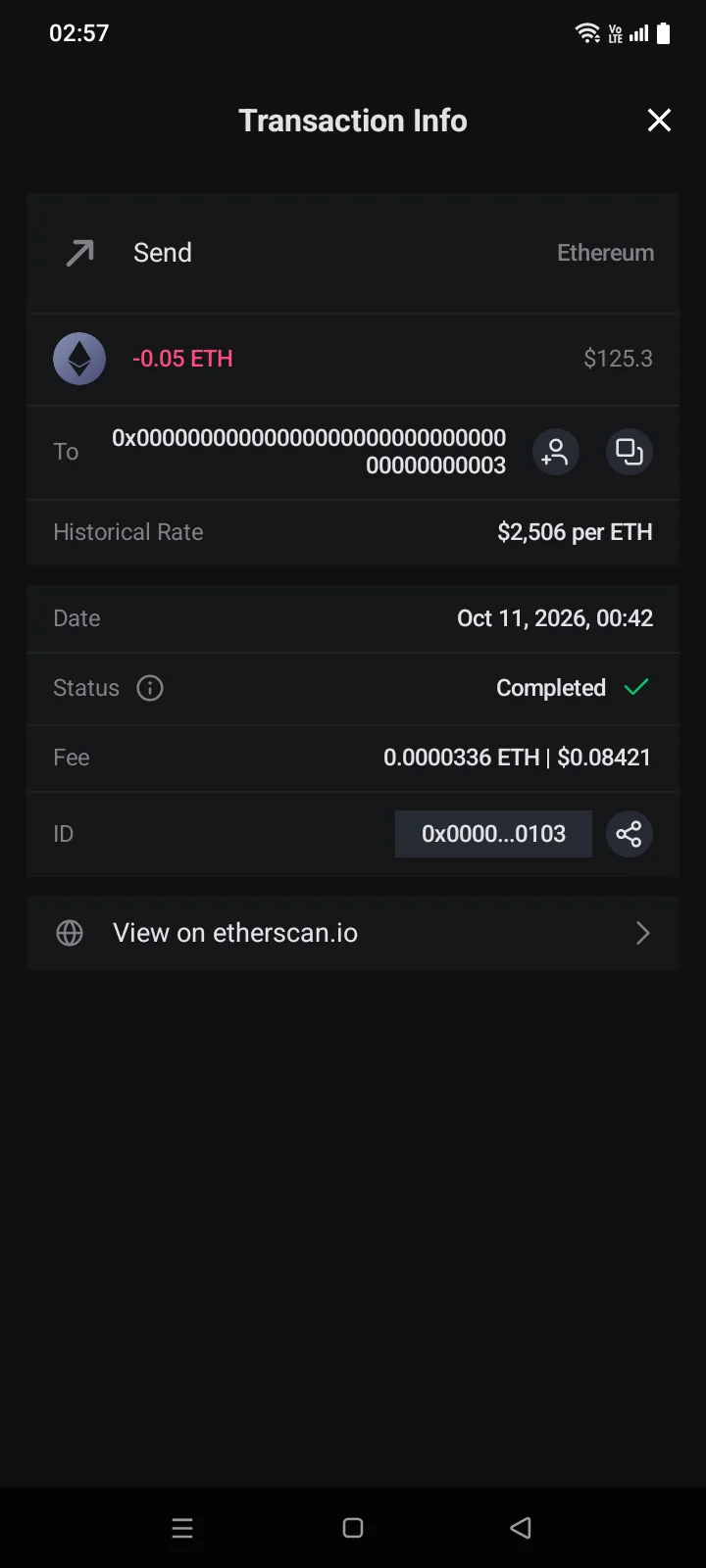
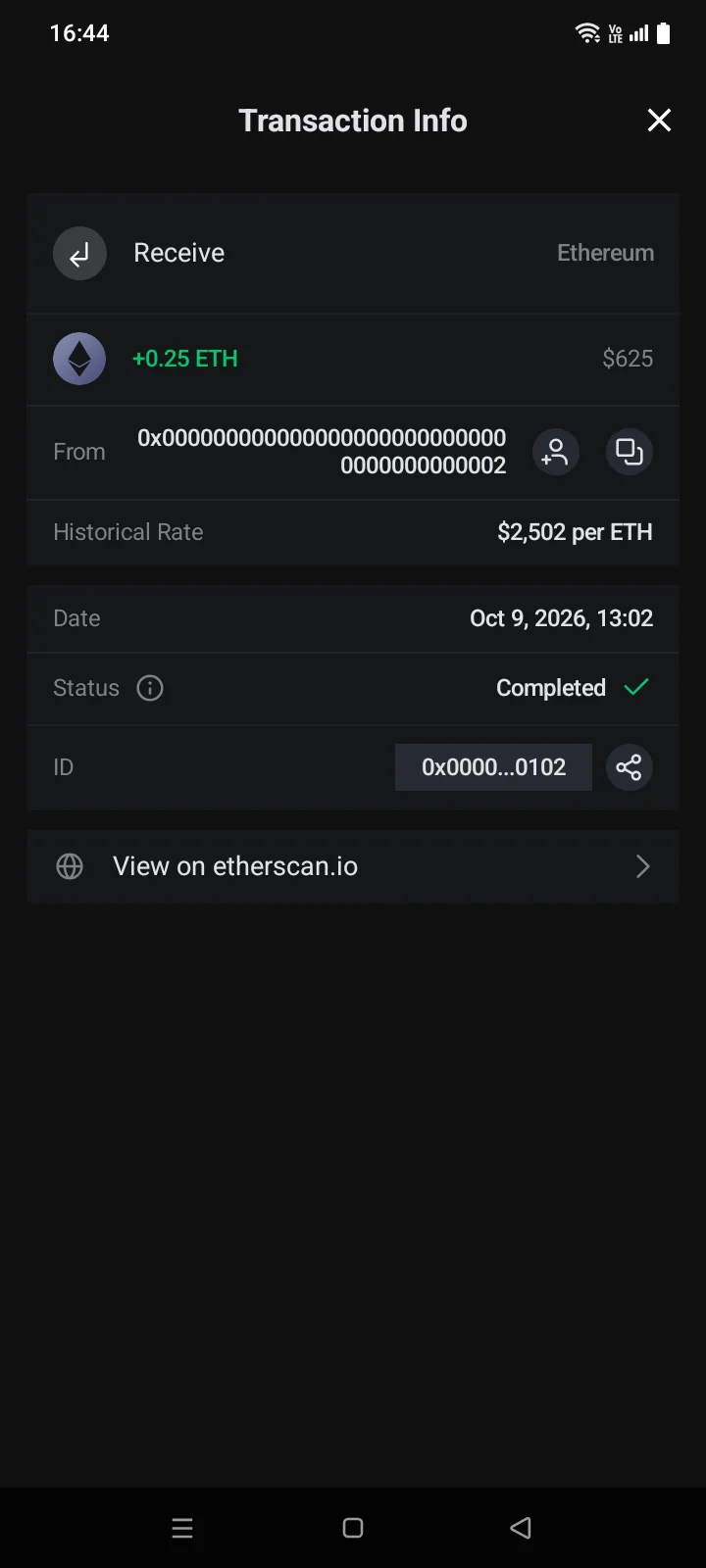
Tap a transfer in the history to open Transaction Info: the amount, address, fee, status, transaction ID and a link to the blockchain explorer.
Open the details
- On the Crypto tab, tap a coin (see 3.10) or tap Transactions under the balance to see transfers of all coins (see 4.6).
- In the transaction list, tap the transaction you need.
To close the screen, tap Close in the top right or the system Back button.
What's on the screen
1
2
3
4
5
6
7
8
9
10
| 1 | Send / Receive — the direction; on the right — the network. |
| 2 | Amount — in the coin and in the base currency. A received amount is green with a "+" sign, a sent amount is red with a "−" sign. If balances are hidden, you see ***** instead of amounts. |
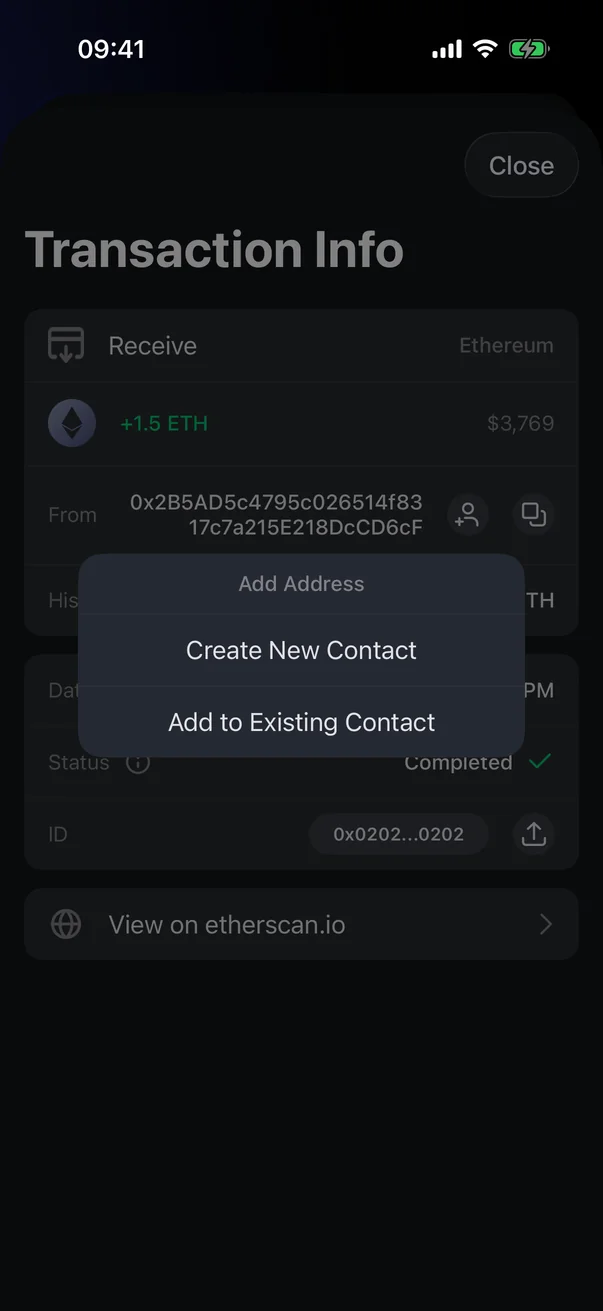
| 3 | To / From — the recipient's or sender's address. The copy icon copies the address. If the address isn't in your contacts, there's a person-with-plus icon next to it — it adds the address to your contacts (see below). |
| 4 | Contact Name — appears if the address is already saved in your contacts. |
| 5 | Historical Rate — the coin price at the time of the transaction. If the price is unknown — ---. |
| 6 | Date — when the transaction was made. |
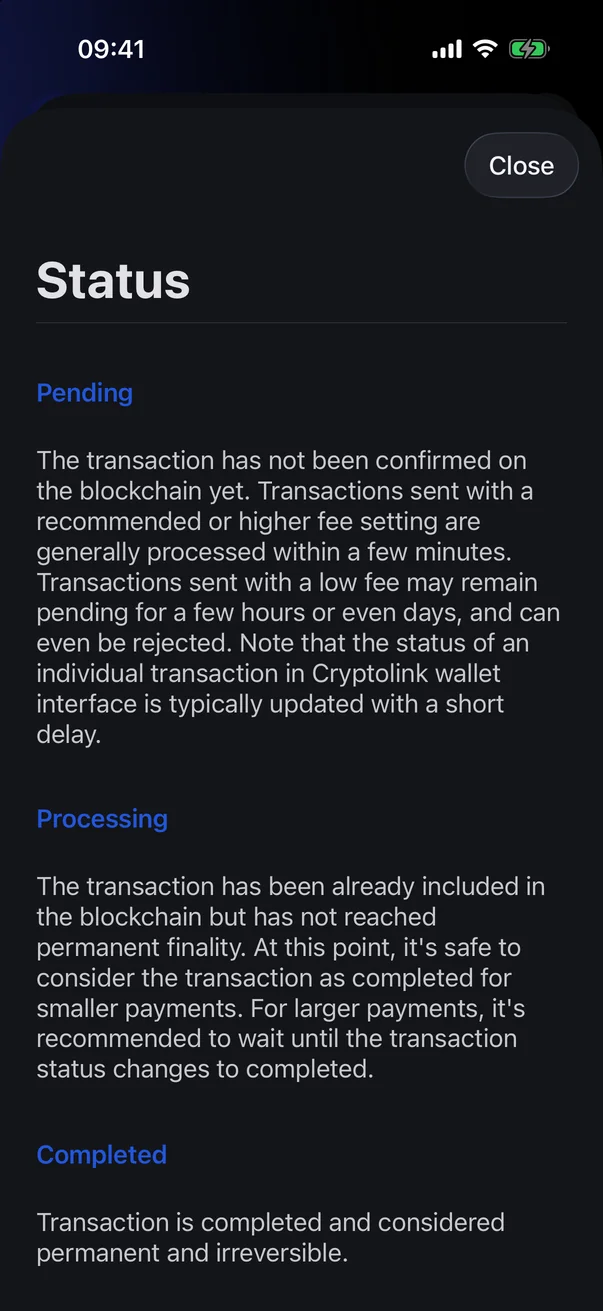
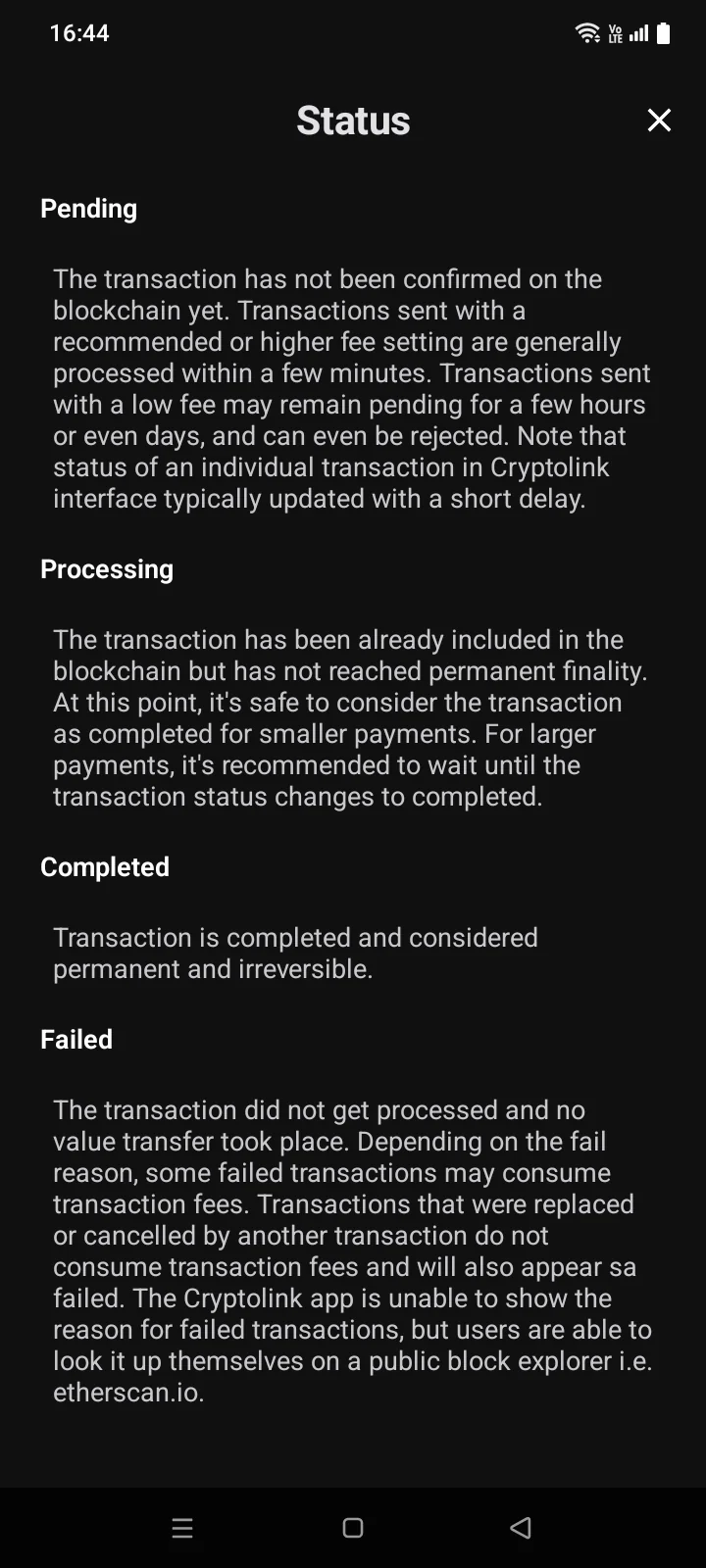
| 7 | Status — Pending, Processing, Completed or Failed. The i icon next to it opens an explanation of each status. While the screen is open, the status updates by itself. |
| 8 | Fee — the network fee paid, in the coin and in the base currency. For a pending transaction — Fee (est.). Shown only for your own transfers. |
| 9 | ID — the transaction hash. Tap it to copy, or tap the share icon to send it through another app — for example, to support or to the recipient. |
| 10 | View on … — opens the transaction in a blockchain explorer. The name depends on the network: for example, etherscan.io for Ethereum, blockchair.com for Bitcoin, Tronscan for TRON. |
1
2
3
4
5
6
7
8
9
| 1 | Send / Receive — the direction: a sent transaction has an up-right arrow, a received one has a down-left arrow; on the right — the coin name. |
| 2 | Amount — in the coin and in the base currency. A received amount is green with a "+" sign, a sent amount is red with a "−" sign. If balances are hidden, you see ***** instead of amounts. |
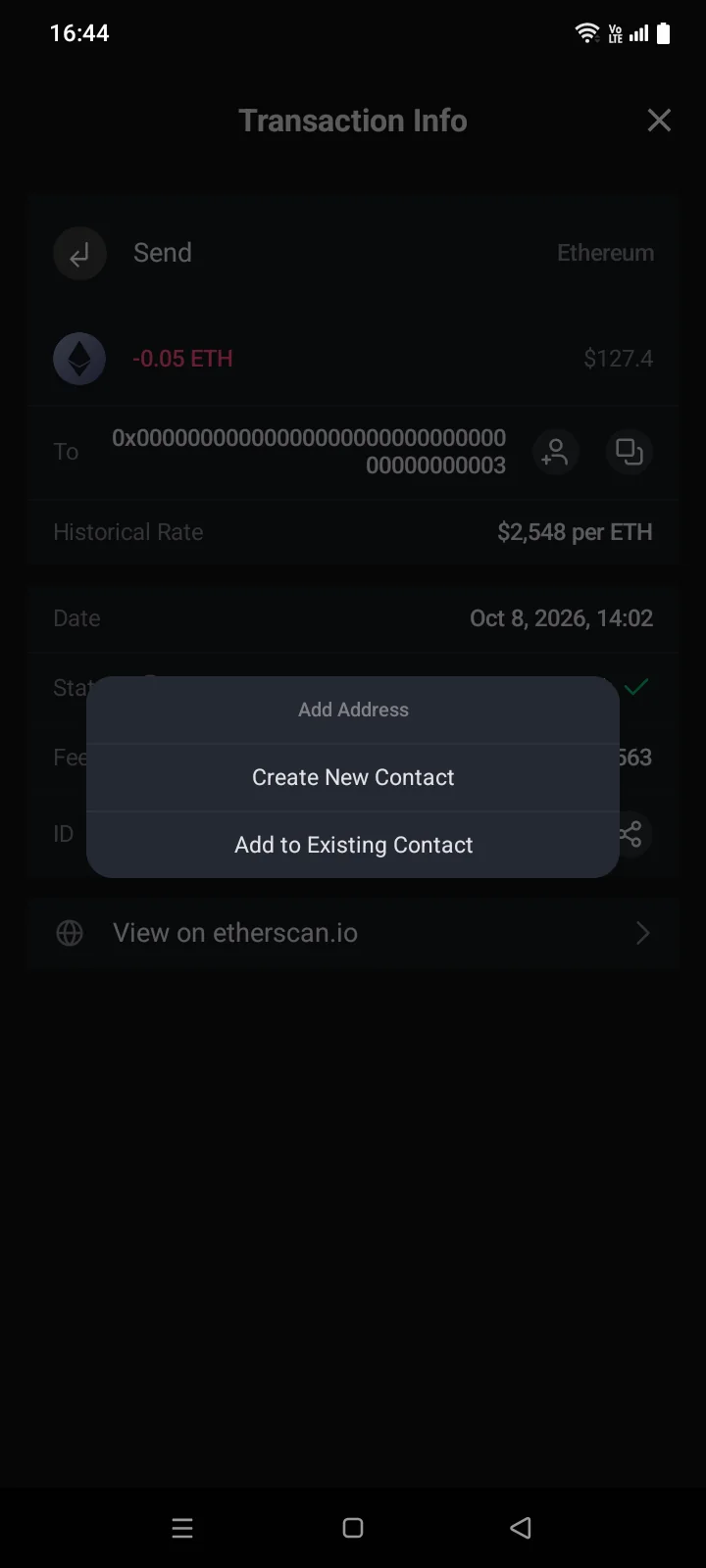
| 3 | To / From — the recipient's or sender's address. The copy icon copies the address. If the address isn't in your contacts, there's a person-with-plus icon next to it — it adds the address to your contacts (see below). If the address is already saved, a Contact Name row appears under it. |
| 4 | Historical Rate — the coin price at the time of the transaction. If the price is unknown — ---. |
| 5 | Date — when the transaction was made. |
| 6 | Status — Pending, Processing, Completed or Failed. The i icon next to it opens an explanation of each status. While the screen is open, the status updates by itself. |
| 7 | Fee — the network fee paid, in the coin and in the base currency. For a pending transaction — Fee (est.). Shown only for your own transfers. |
| 8 | ID — the transaction hash. Tap it to copy, or tap the share icon to send it through another app — for example, to support or to the recipient. |
| 9 | View on … — opens the transaction in a blockchain explorer. The name depends on the network: for example, blockchair.com for Bitcoin, Tronscan for TRON, Solscan.io for Solana. |
Additional rows
Depending on the network and the transaction state, the screen may show other rows:
- Speed Up and Cancel TransactionCancel — for your transaction on Ethereum and compatible networks while it's pending (except Optimism and Arbitrum One). See 4.5.
- Double Spend Risk!, Locked until … or Unlocked at … — for Bitcoin (see 4.4).
- This transaction is sent to own addressThe transaction is sent to own address — if you sent coins to yourself.
- Memo — a comment on the transaction, if there is one.
Suspicious transactionIf the top of the screen says This transaction is suspicious and can be scam.This transaction is suspicious and can be a scam. Please do not copy any addresses from this transaction., don't copy addresses from it and don't send funds to them. Get the recipient's address from a reliable source — for example, from your contacts (see 4.8).
Save the address to contacts
- Tap the person-with-plus icon next to the address in the To or From row.
- In the Add Address window, choose Create New Contact or Add to Existing Contact.
- Enter a name or choose a contact and tap Save. For details, see 4.8.
Transfer sent, but not received?Open the transaction in the explorer with View on …. If it's confirmed there, the coins have reached the recipient's address; send the recipient the transaction ID so they can check on their side.