
4.4Network specifics: TRON and Bitcoin
TRON and Bitcoin work differently from Ethereum and other EVM networks. Here's what you may see when sending and receiving on these networks.
TRON
Inactive address
A new TRON address is inactive until it receives its first transfer of TRX or TRC-10 tokens. You can see that your own address isn't active yet on the receive screen: it's marked Not active under the address (see 3.9).
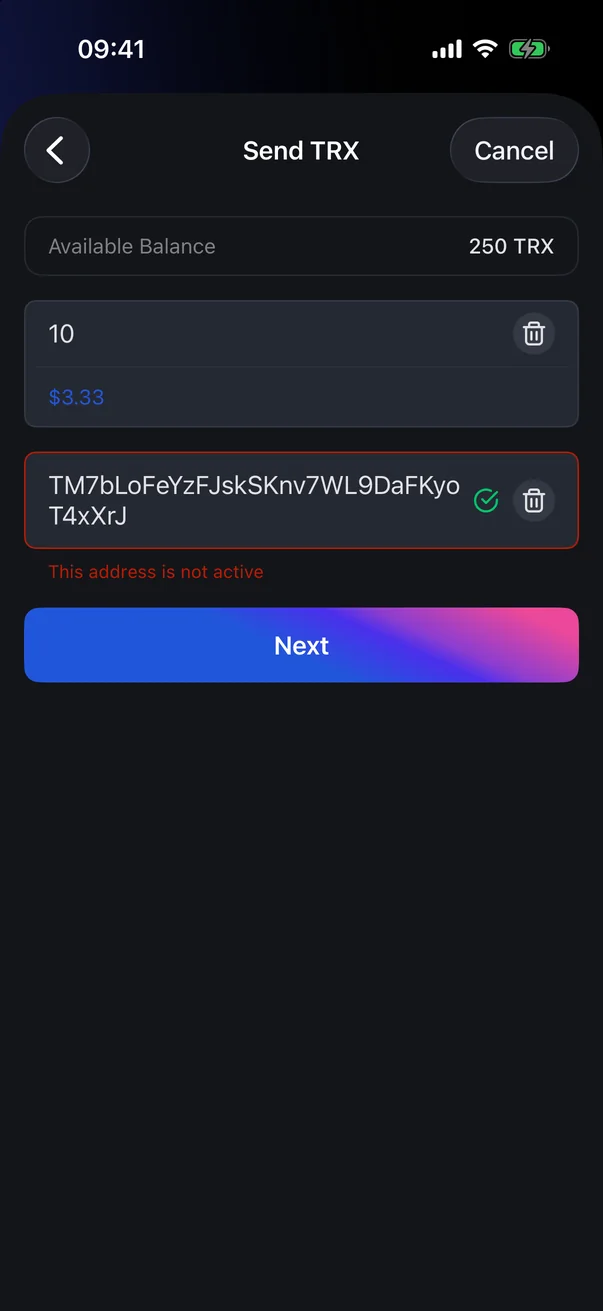
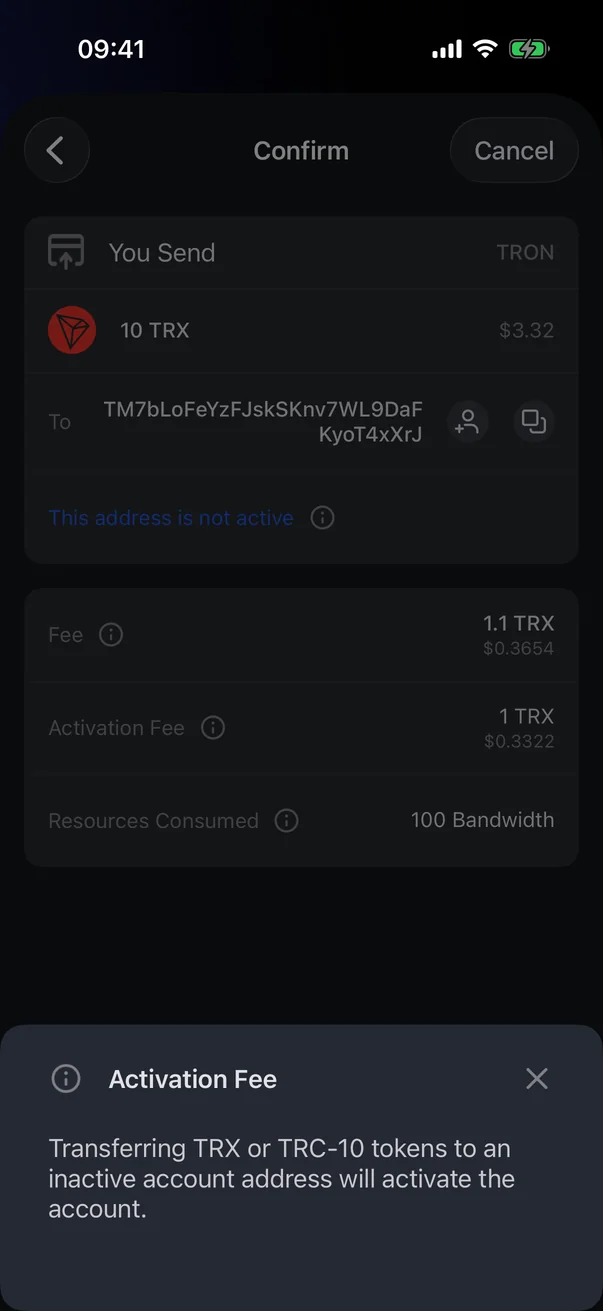
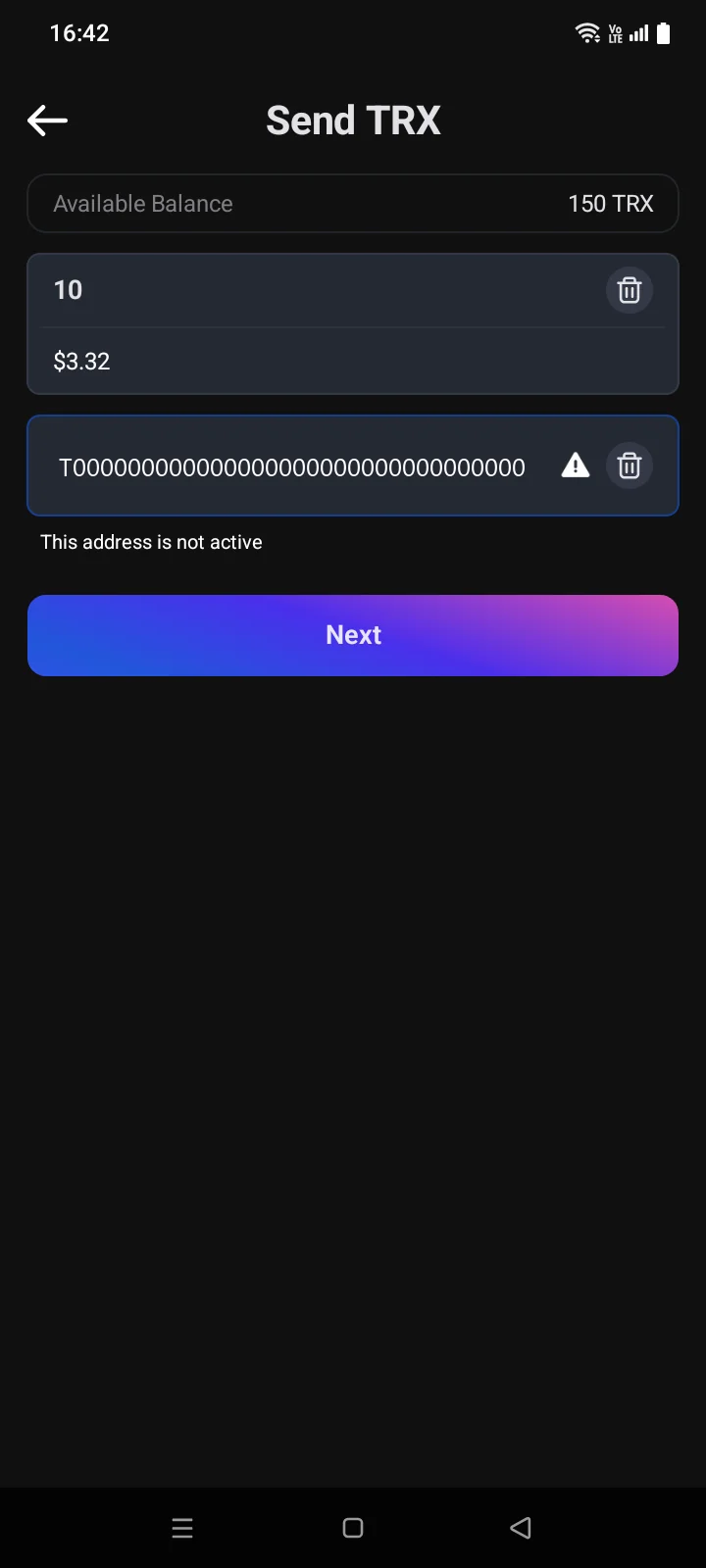
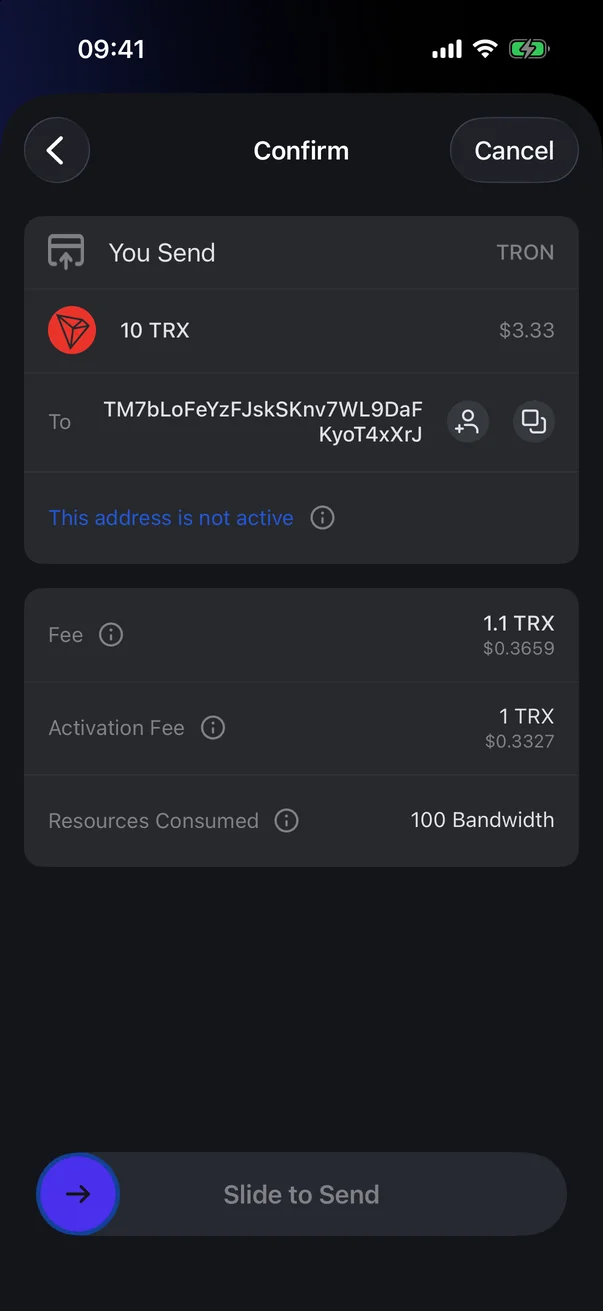
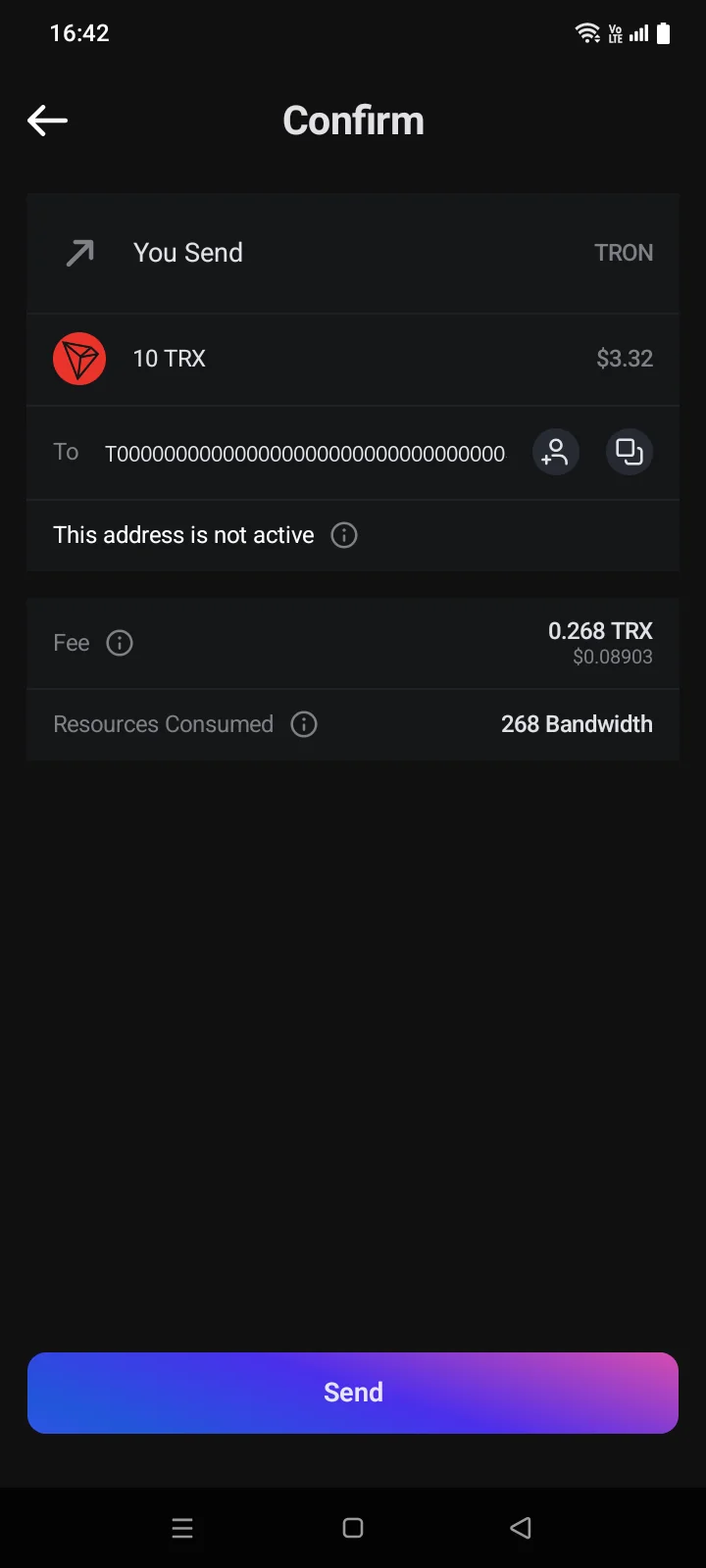
If you enter a recipient address that isn't active yet, the warning This address is not active appears under the address field. You can still send — Next stays active. Transferring TRX or TRC-10 tokens to such an address activates it, and the network charges an extra Activation Fee, shown on the Confirm screen.
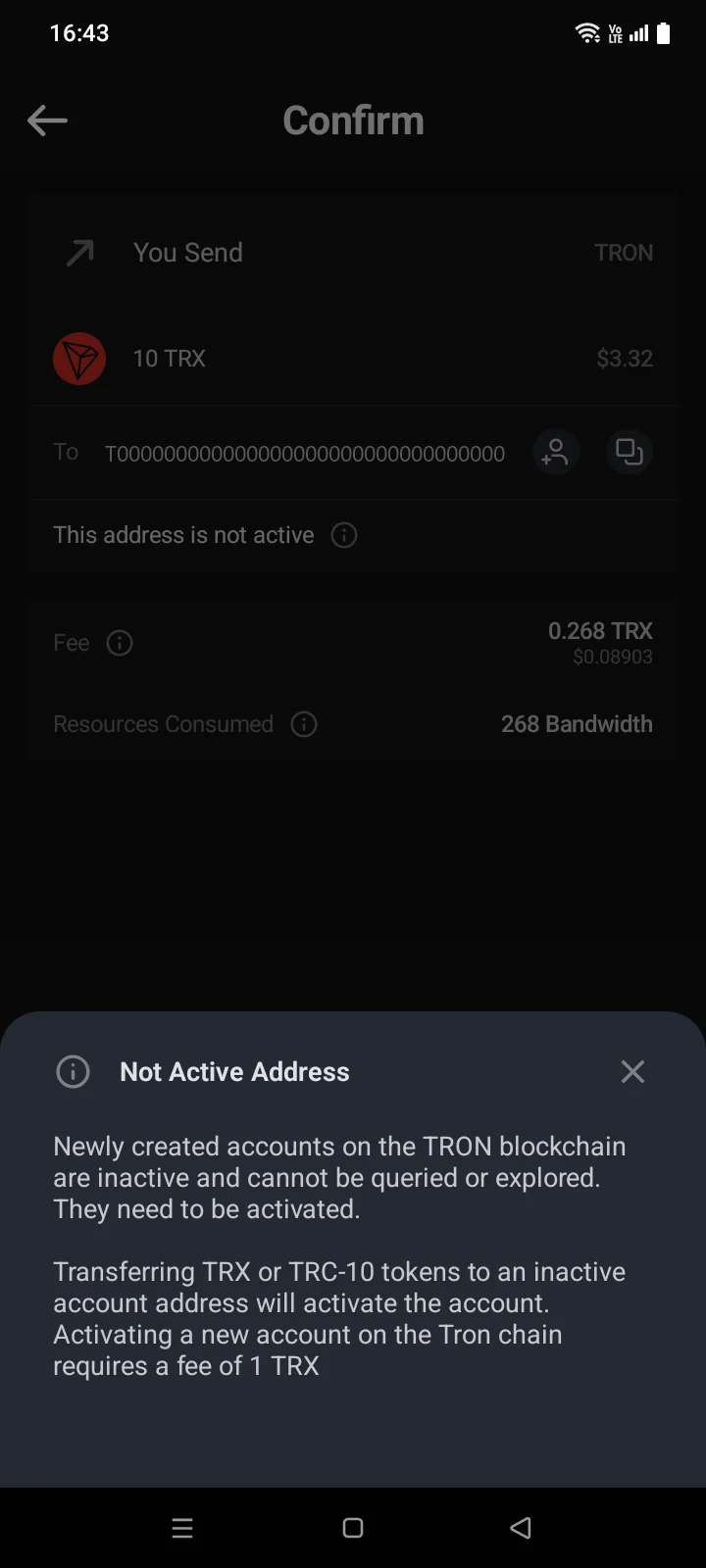
On the Confirm screen, the line This address is not active also appears under the recipient's address. Tap it to open the Activation Fee panel: Transferring TRX or TRC-10 tokens to an inactive account address will activate the account.Not Active Address panel, which explains that activating a new account costs 1 TRX.
Fee and resources
TRON has no fee settings: the send form has no Advanced button. The app calculates the fee itself and shows it on the Confirm screen.
 1
2
3
4
1
2
3
4
| 1 | This address is not active — appears only if the recipient's address isn't activated yet. Tap it to read an explanation. |
| 2 | Fee — how much TRX the transfer will cost. |
| 3 | Resources Consumed — the network resources the transfer needs: a TRX transfer uses only Bandwidth, token transfers can also use Energy. The (i) icon explains what they are. |
| 4 | Slide to Send — send the transfer (see 4.3). |
 1
2
3
4
1
2
3
4
| 1 | This address is not active — appears only if the recipient's address isn't activated yet. Tap it to read an explanation. |
| 2 | Fee — how much TRX the transfer will cost. |
| 3 | Resources Consumed — how much Bandwidth and Energy the transfer needs. The i icon explains what they are. |
| 4 | Send — send the transfer (see 4.3). |
- Bandwidth depends on the transaction size, Energy on the amount of computation. Token transfers such as USDT (TRC-20) use Energy; a simple TRX transfer uses Bandwidth.
- The fee is always paid in TRX — including when you send USDT on TRON. If you don't have enough TRX, the Confirm screen shows The current TRX balance is below the amount required to process this transaction, including the transaction fee. — the transfer can't be sent.
- If you send your whole TRX balance (the Max button), the fee is deducted from the amount — on the Confirm screen the amount is slightly less than what you entered.
Limitations
| Message | What to do |
|---|---|
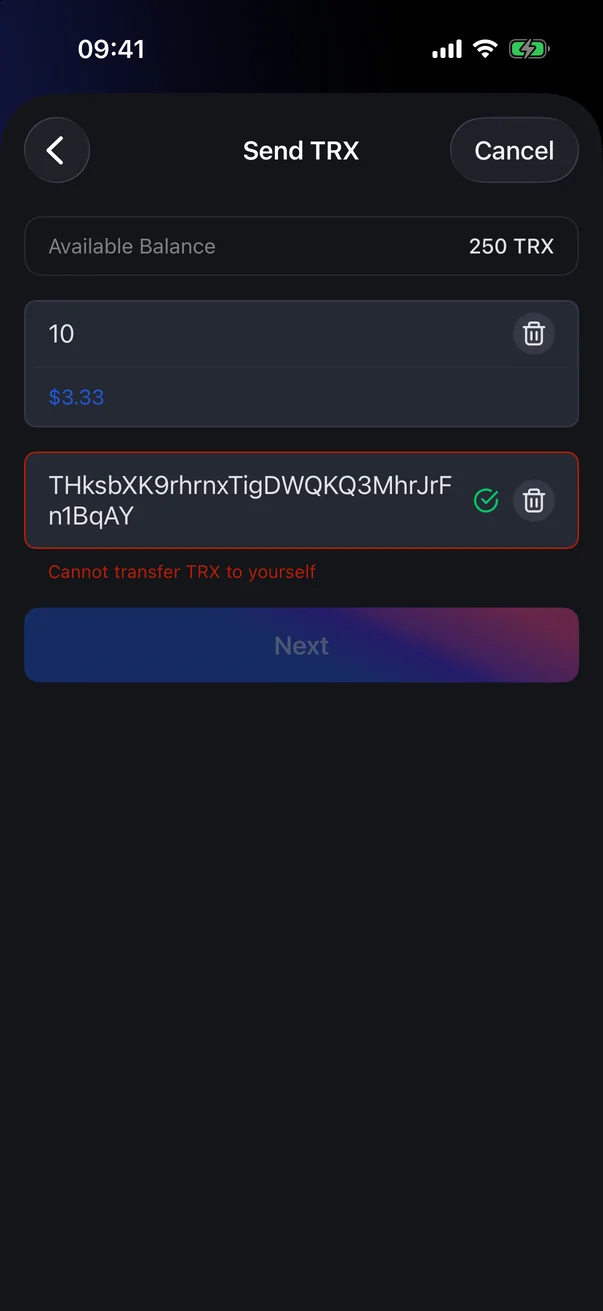
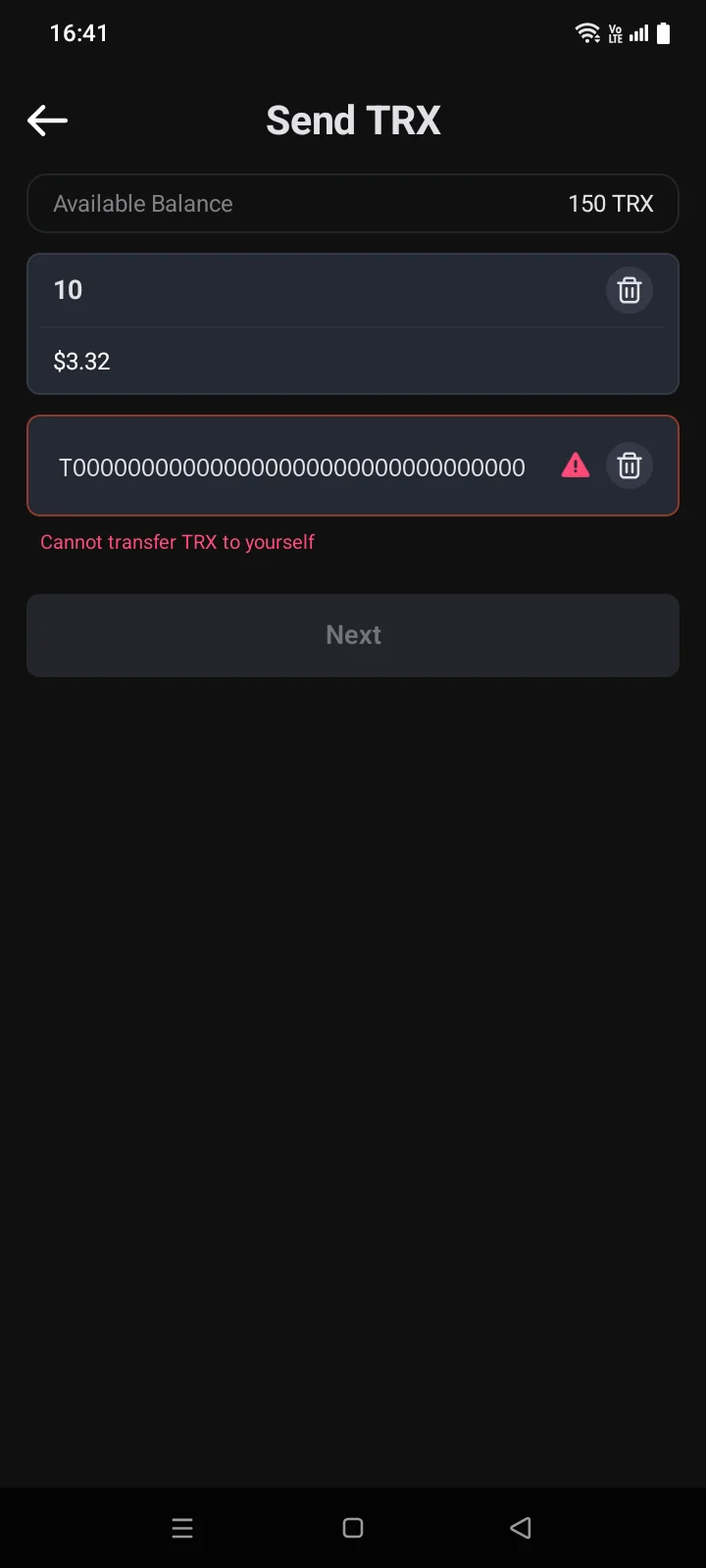
| Cannot transfer TRX to yourself | You entered your own TRON address. Next is inactive — enter the recipient's address. |
| Cannot transfer 0 TRX | Appears on the Confirm screen if nothing is left to send after the fee is deducted — your TRX balance covers only the fee. |
| Invalid address | This isn't a TRON address. Check the address and the network. |
Bitcoin
Address formats
Bitcoin has several address formats. The format is shown next to the coin name — for example, BTC tagged BIP84 — and on the receive screen in the Format row (see 3.9).
| Format | Address starts with |
|---|---|
| Legacy (BIP 44) | 1 |
| SegWit (BIP 49) | 3 |
| Native SegWit (BIP 84) | bc1q. The recommended format, used by default in a new wallet. |
| Taproot (BIP 86) | bc1p |
- You can send to an address of any format — you don't need to choose the recipient's format.
- Each format you turn on is a separate row on the Crypto tab with its own balance. When you send, only coins of the format you opened are spent.
- You can turn on other formats when managing coins (see 3.8). You need this, for example, if the wallet was restored from an app that used a different format.
Fee
The Bitcoin fee is based on a rate — how many satoshis are paid per byte of the transaction — so it depends on both the rate and the transaction size. You can change the rate in the send form: the settings button in the top right, the fee rate field. The app suggests a recommended rate; if you set a lower one, you see a warning that the transaction may get stuck. For details, see 4.2.
Inputs and outputs (UTXO)
A Bitcoin balance is made up of separate incoming payments. When you send, the app gathers the payments it needs into the transaction's inputs, and the outputs hold the amount for the recipient and the change, which goes back to your address. The more small payments you have, the larger the transaction and the higher the fee at the same rate.
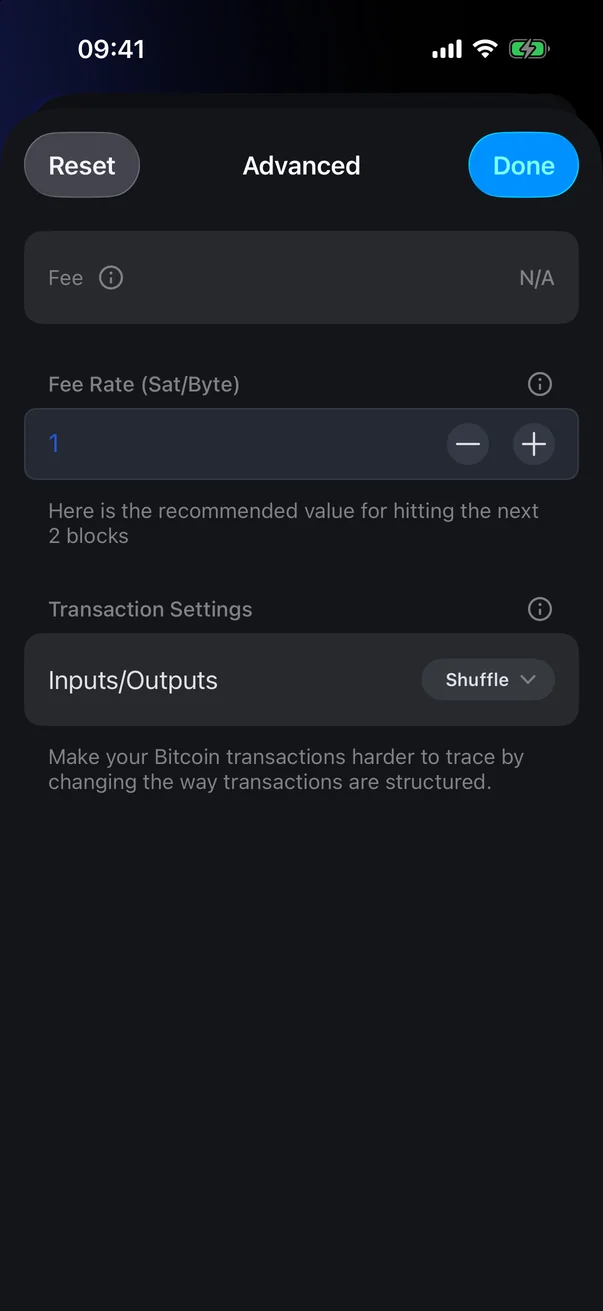
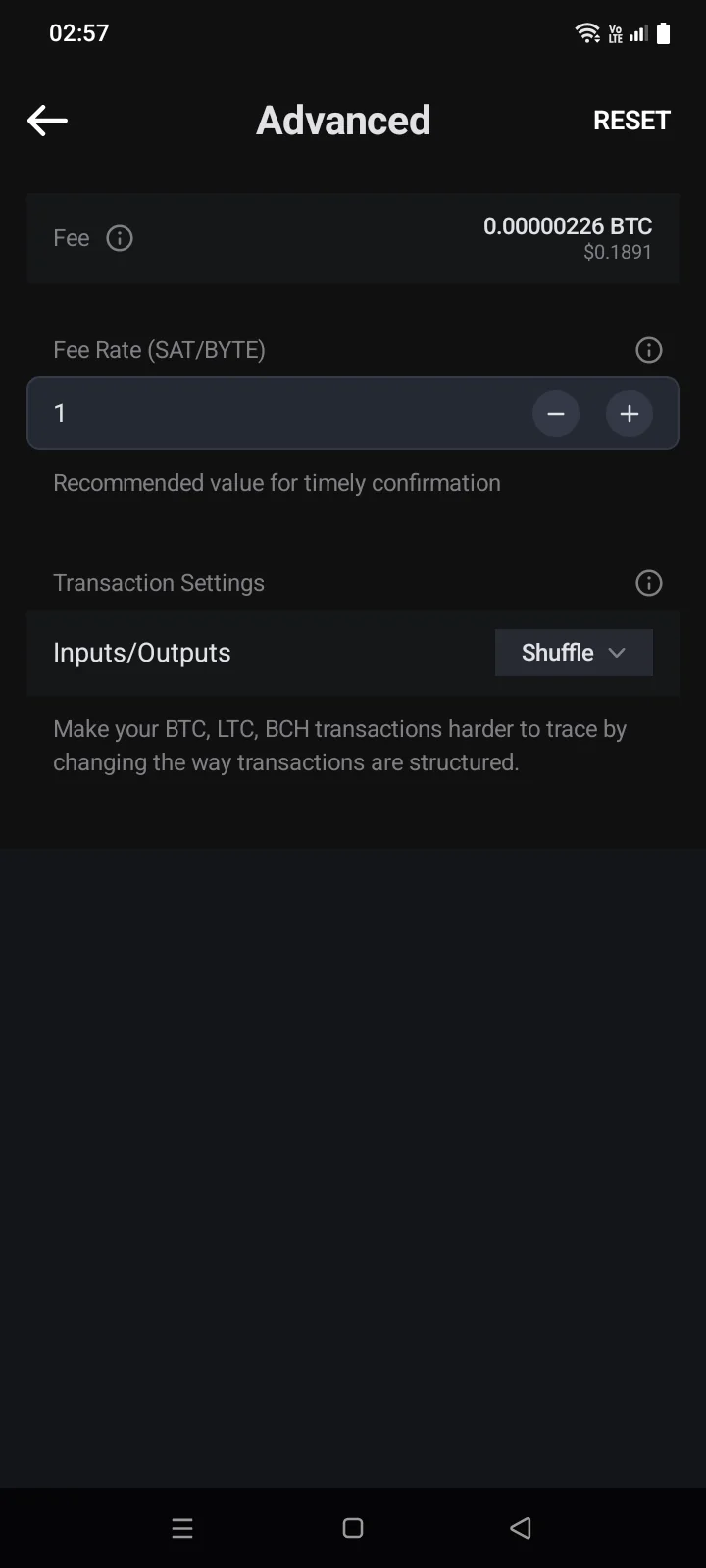
In Advanced, in the Transaction Settings block, the Inputs/Outputs row sets the order of inputs and outputs:
- Shuffle — random order (the default);
- Deterministic Bip69Deterministic BIP69 — order according to the BIP69 standard.
Both options make tracking harder: it's more difficult to tell from the transaction which output is the change. Your choice is kept for later transfers; Reset restores the recommended rate and the Shuffle option.
 1
2
3
1
2
3
| 1 | Fee Rate — the “−” and “+” buttons or type a number. |
| 2 | Inputs/Outputs — the order of the transaction's inputs and outputs. |
| 3 | Reset — go back to the recommended rate and the default order. |
 1
2
3
1
2
3
| 1 | Fee Rate — the “−” and “+” buttons or type a number. |
| 2 | Inputs/Outputs — the order of the transaction's inputs and outputs. |
| 3 | Reset — go back to the recommended rate and the default order. |
No speeding up or cancelling
A Bitcoin transaction can't be sped up or cancelled (see 4.5). If the fee is too low, the transaction waits until the network confirms or drops it, and then the coins return to your balance.
Double spend
If another transaction on the network tries to spend the same coins, the line Double Spend Risk! appears in the transaction details. Tap it to open the Double Spend panel with both transactions: This Tx and Conflicting Tx. The network accepts only one of them. In the transaction list, such a transaction has a special icon. See 4.7.