Part 3 · Crypto wallet
3.9Receiving crypto
To receive crypto, give the sender your address for the right coin and network. Cryptolink shows it as text and a QR code; you can also add an amount to the QR code.
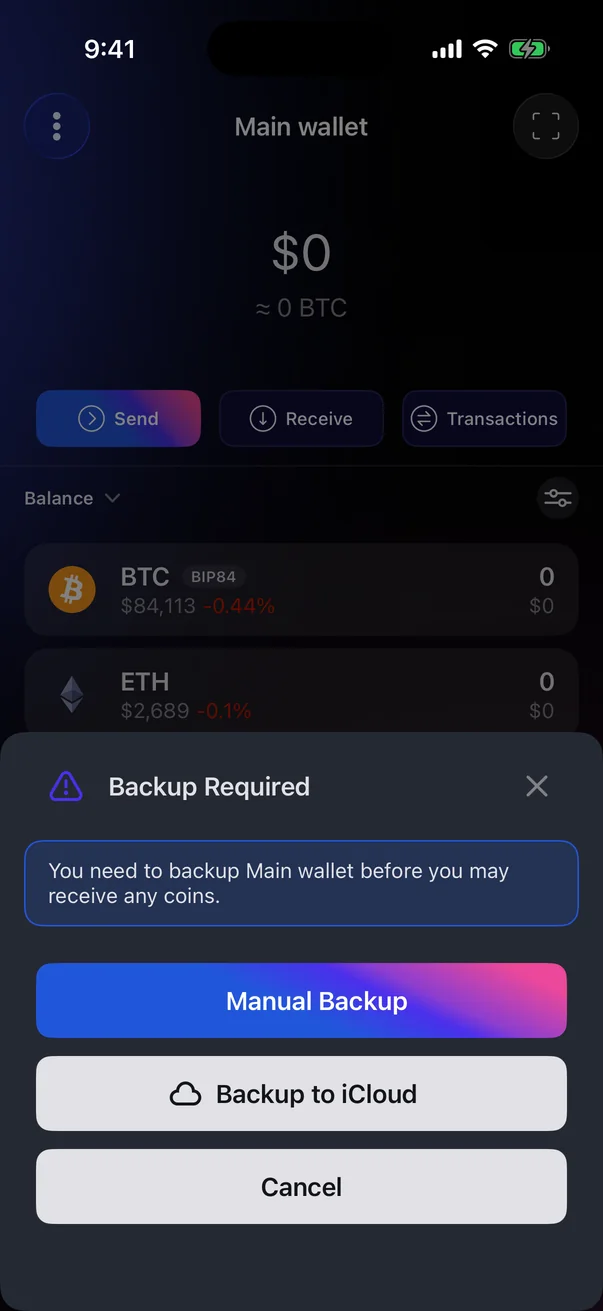
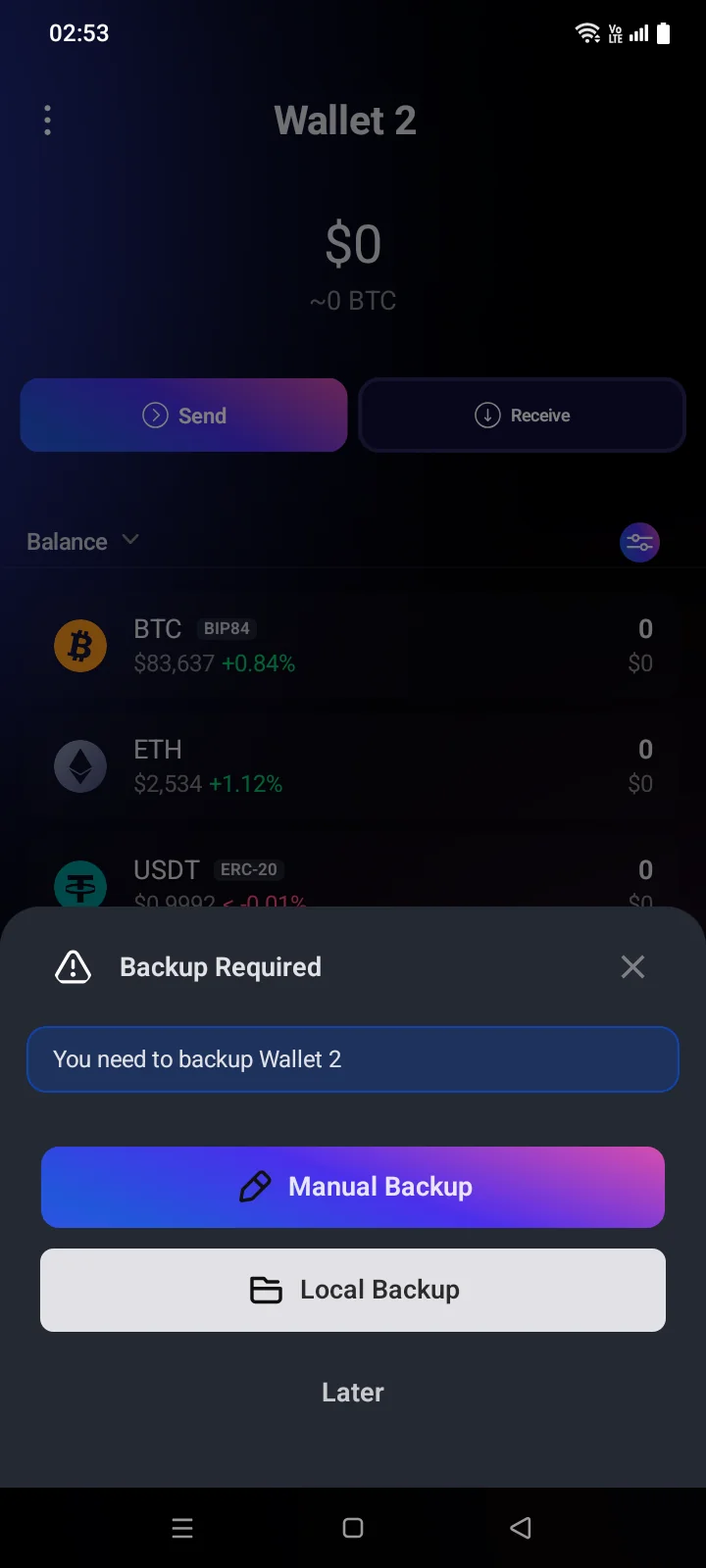
Back up firstReceive works only after the wallet is backed up — manually or to iCloudto a file (see 3.4). Without a backup, the Backup Required panel opens with the Manual Backup, Backup to iCloudLocal Backup and CancelLater buttons.
Get your address
- On the Crypto tab, tap Receive. You can also open a coin and tap Receive there — then the address of that coin opens right away.
- Choose the coin. Use search to find a coin that isn't in the list yet.
- If the coin exists on several networks (for example USDT), the Network screen opens: Choose a network and get an address to receive.Choose network to get an address to receive. Choose the network the sender will use.
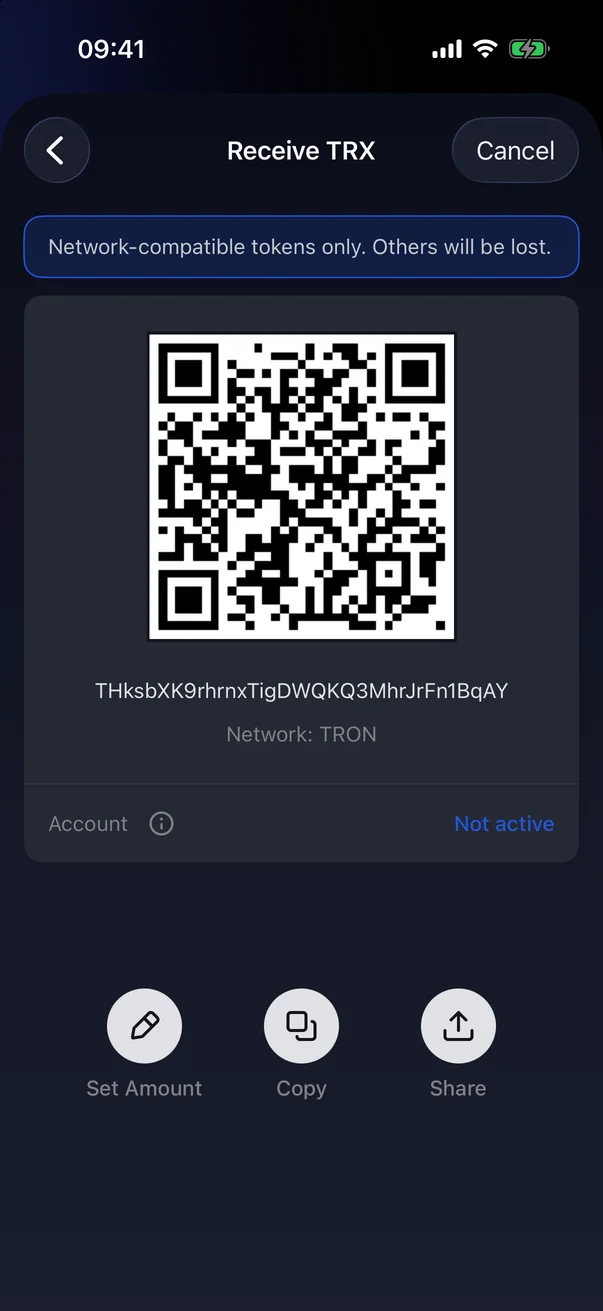
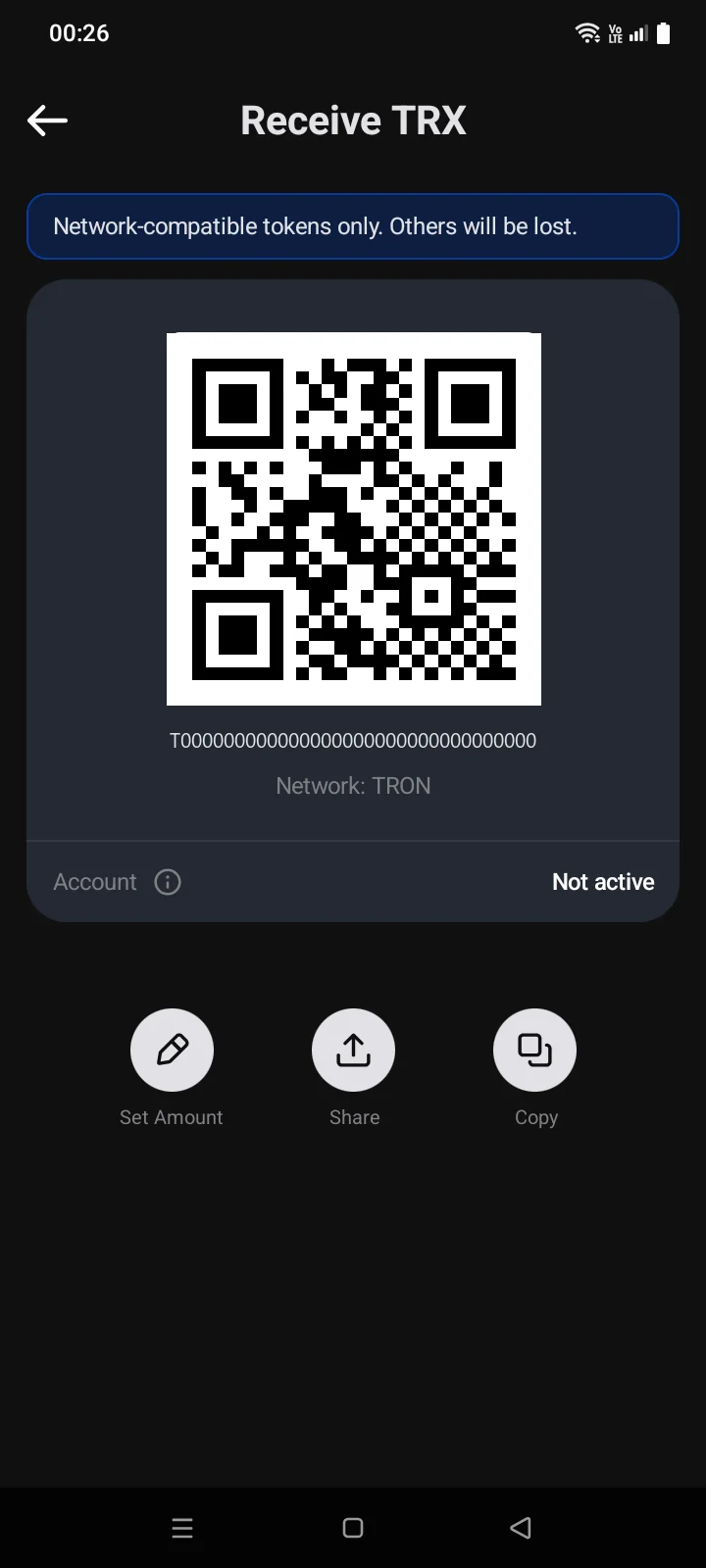
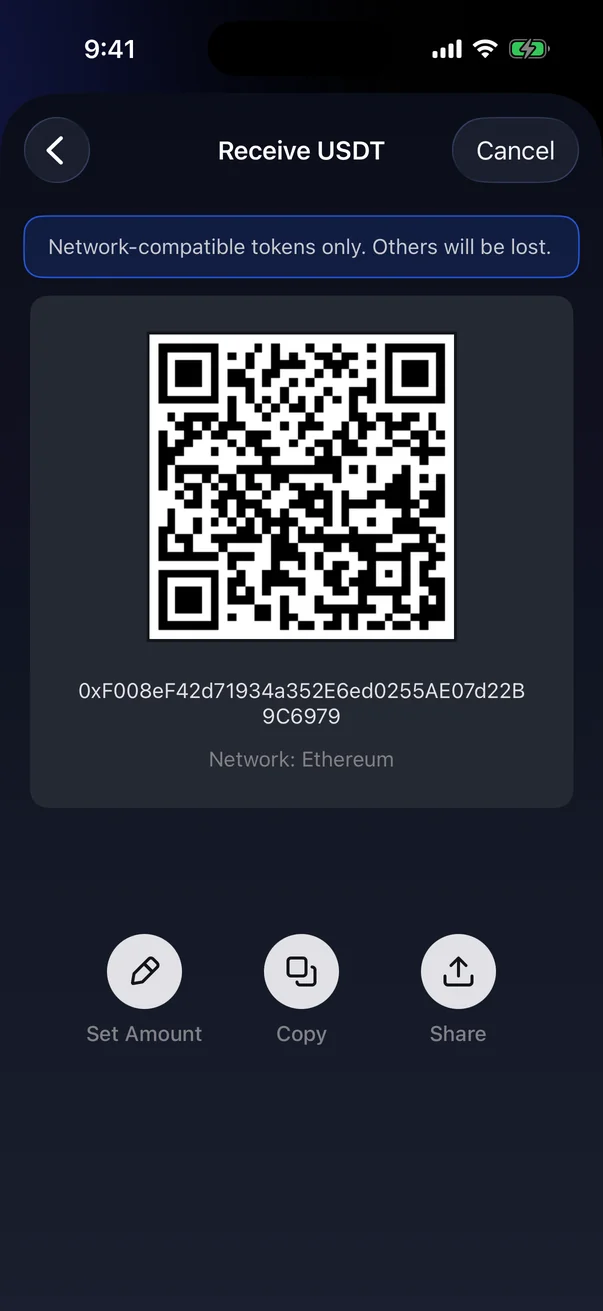
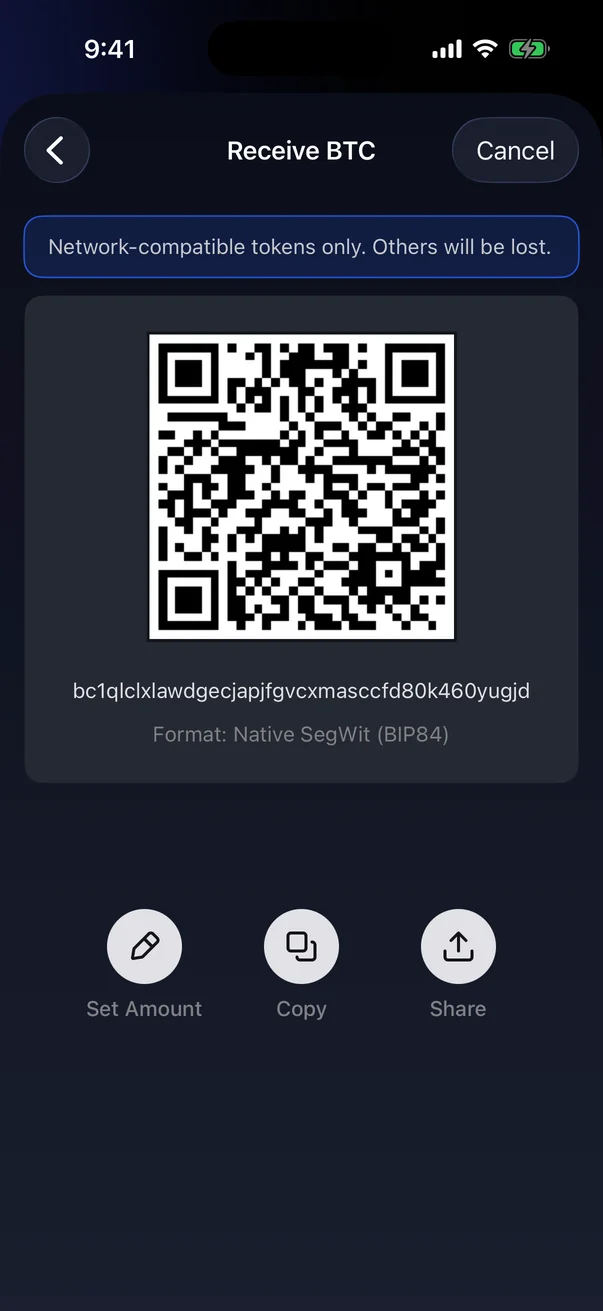
- The Receive … screen opens with the address. Tap Copy or Share, or let the sender scan the QR code.
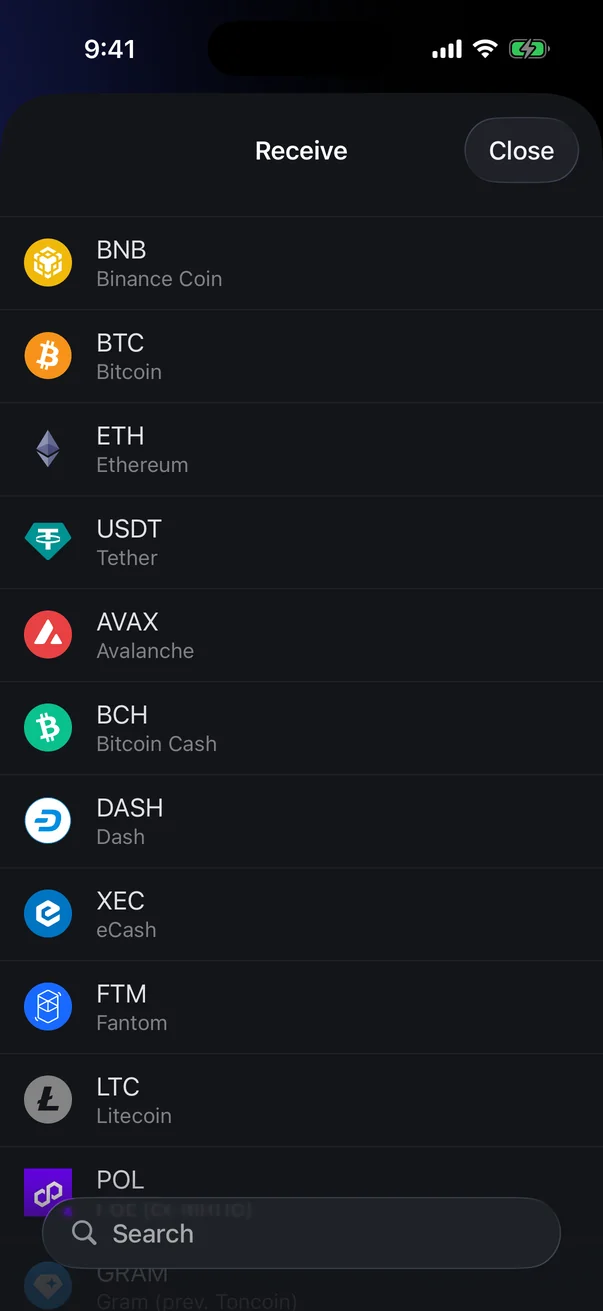
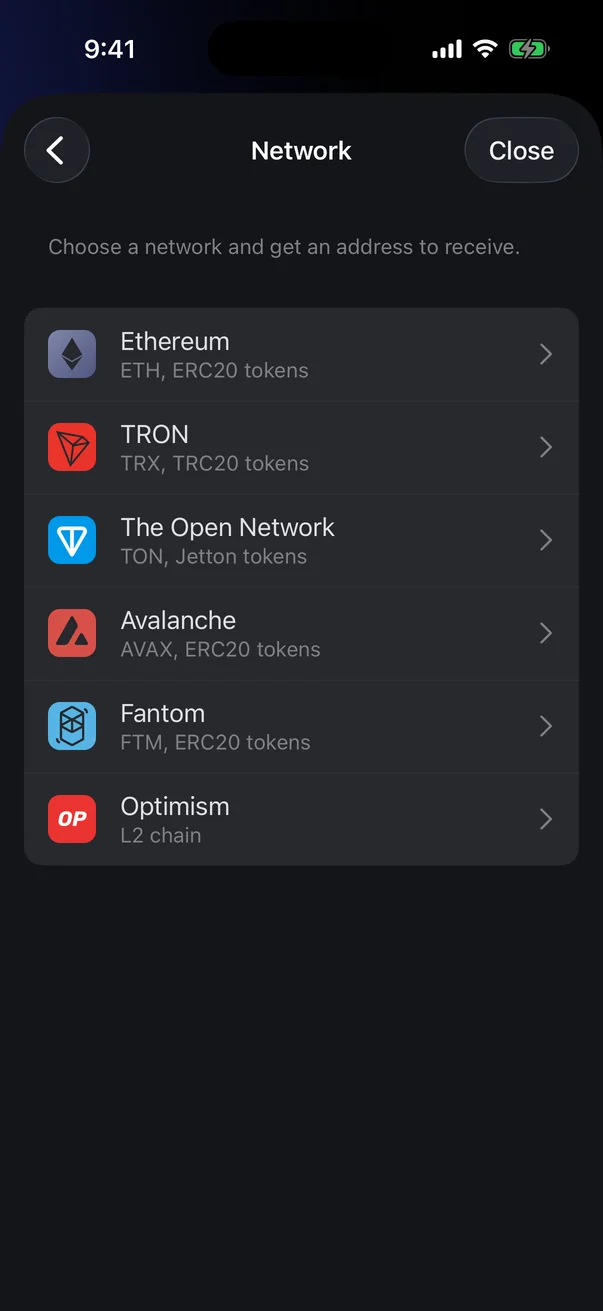
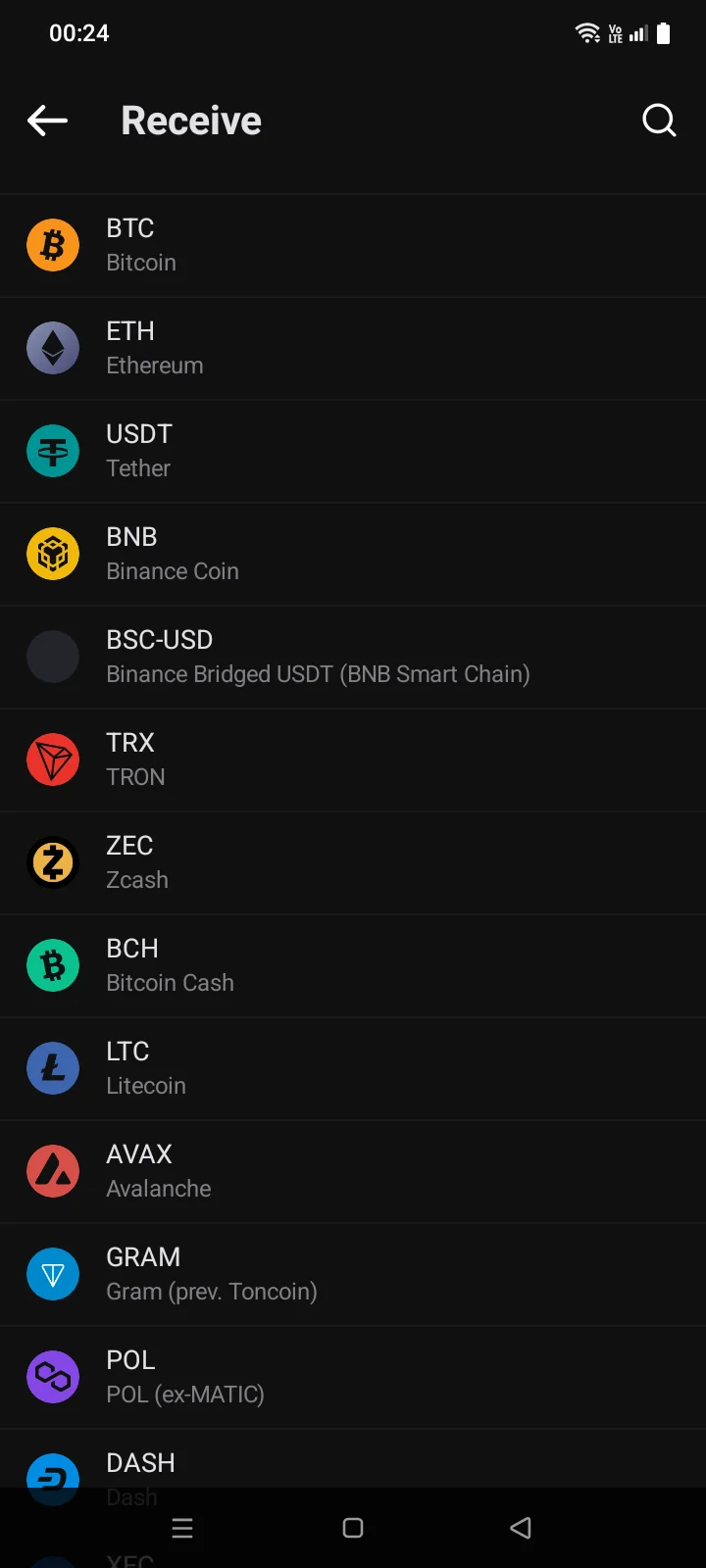
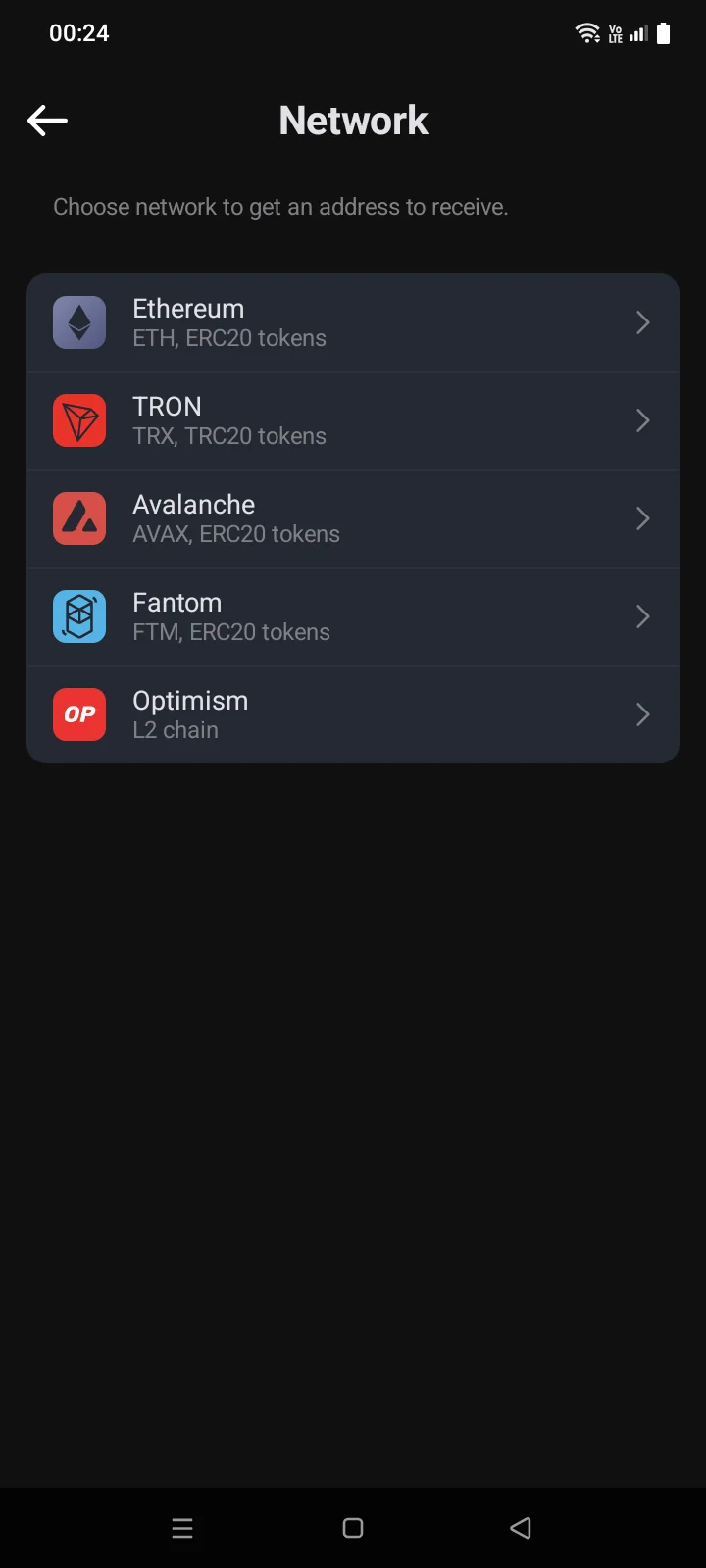
USDT on BNB Smart Chain is a separate coinIn the coin list, USDT on the BNB Smart Chain network has its own row — BSC-USD (Binance Bridged USDT). To receive USDT on this network, choose BSC-USD.
 1
2
3
4
5
6
1
2
3
4
5
6
| 1 | Warning — send only tokens of this network to this address; others will be lost. |
| 2 | Address — tap it to copy. |
| 3 | Network — or the address format for Bitcoin, for example Native SegWit (BIP84). |
| 4 | Set Amount — add the amount to the QR code (below). |
| 5 | Copy — copy the address (with the amount, if set). |
| 6 | Share — send the address via another app. |
 1
2
3
4
5
6
1
2
3
4
5
6
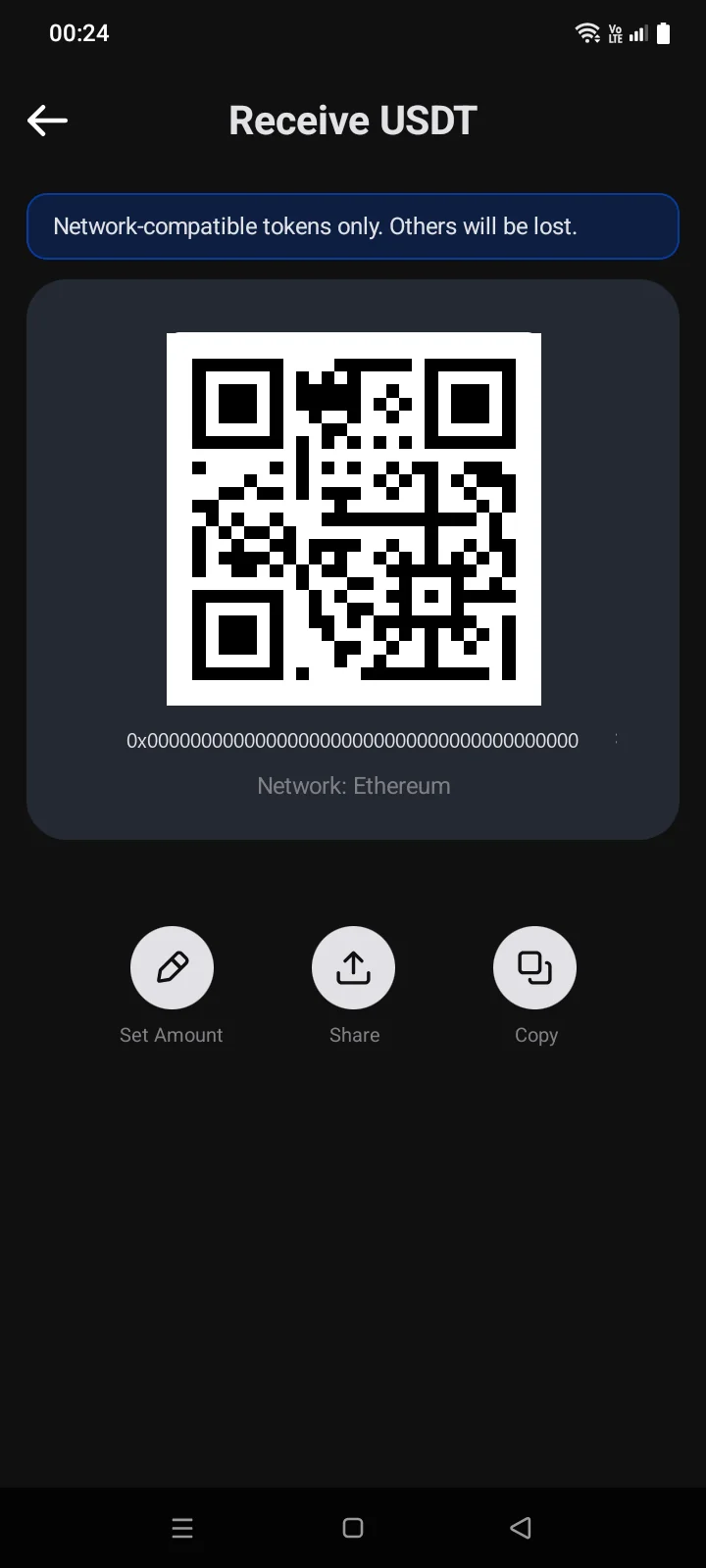
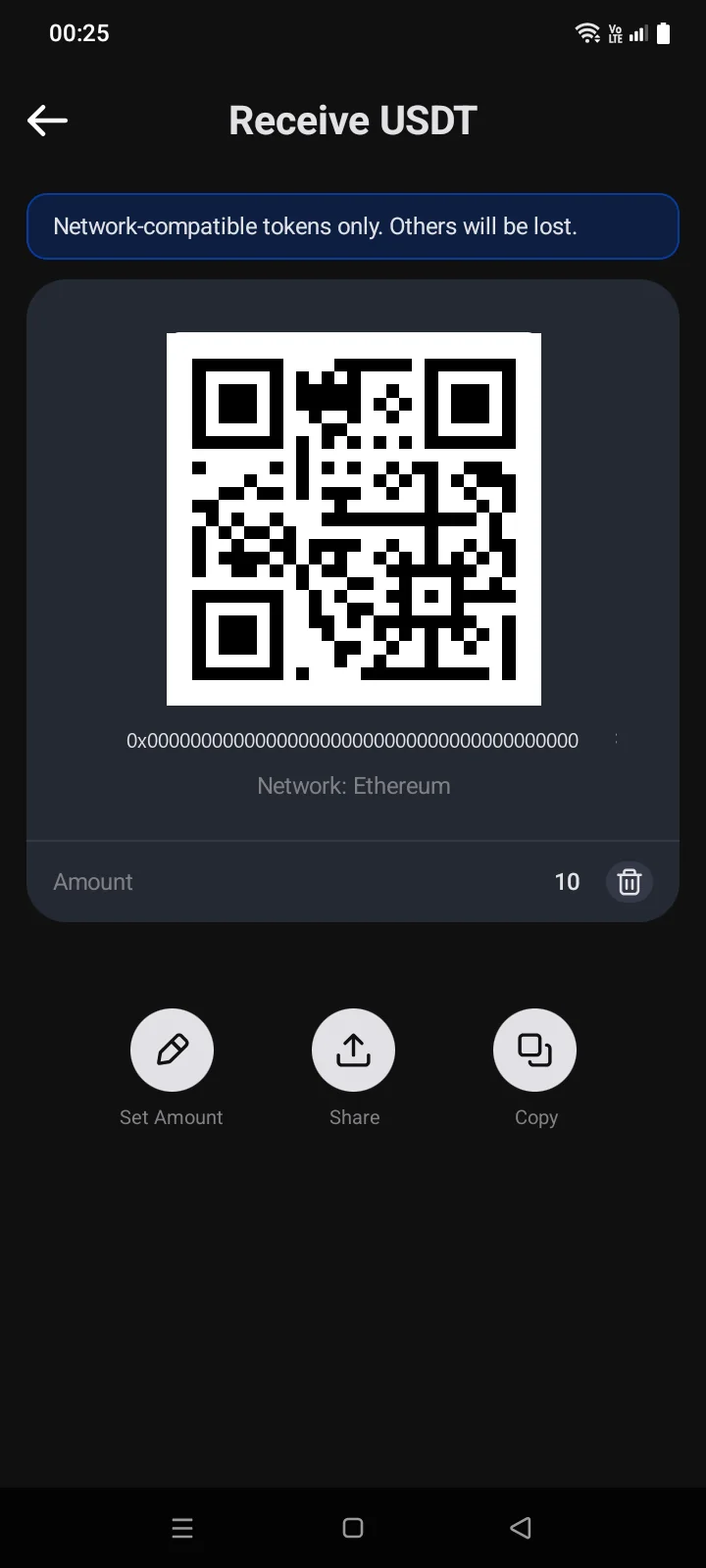
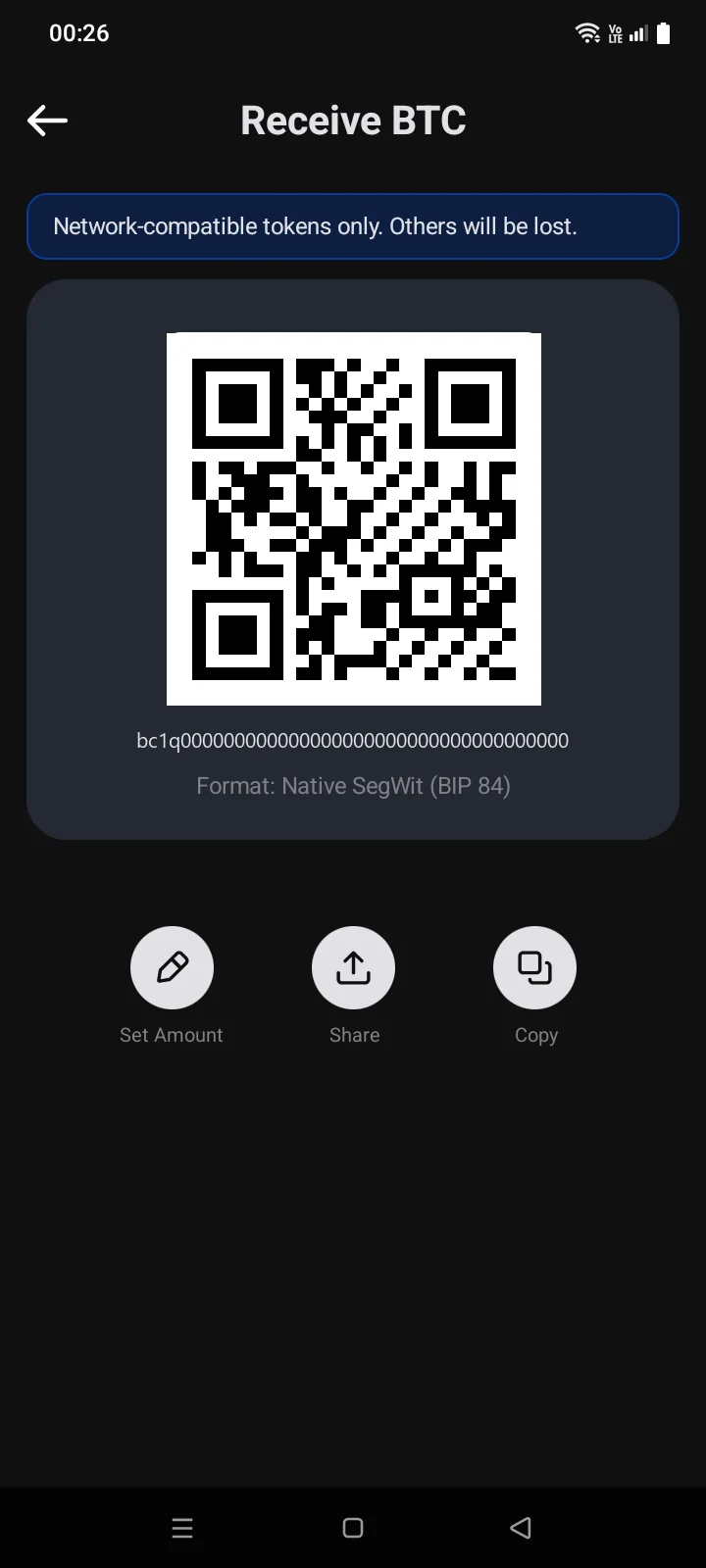
| 1 | Warning — send only tokens of this network to this address; others will be lost. |
| 2 | QR code and address — tap the card to copy the address. |
| 3 | Network — or the address format for Bitcoin, for example Format: Native SegWit (BIP 84). |
| 4 | Set Amount — add the amount to the QR code (below). |
| 5 | Share — send the address via another app. |
| 6 | Copy — copy the address (with the amount, if set). |
Check the networkThe sender must use the same network as the address. USDT sent over TRON to an Ethereum address, for example, won't arrive.
Request an amount
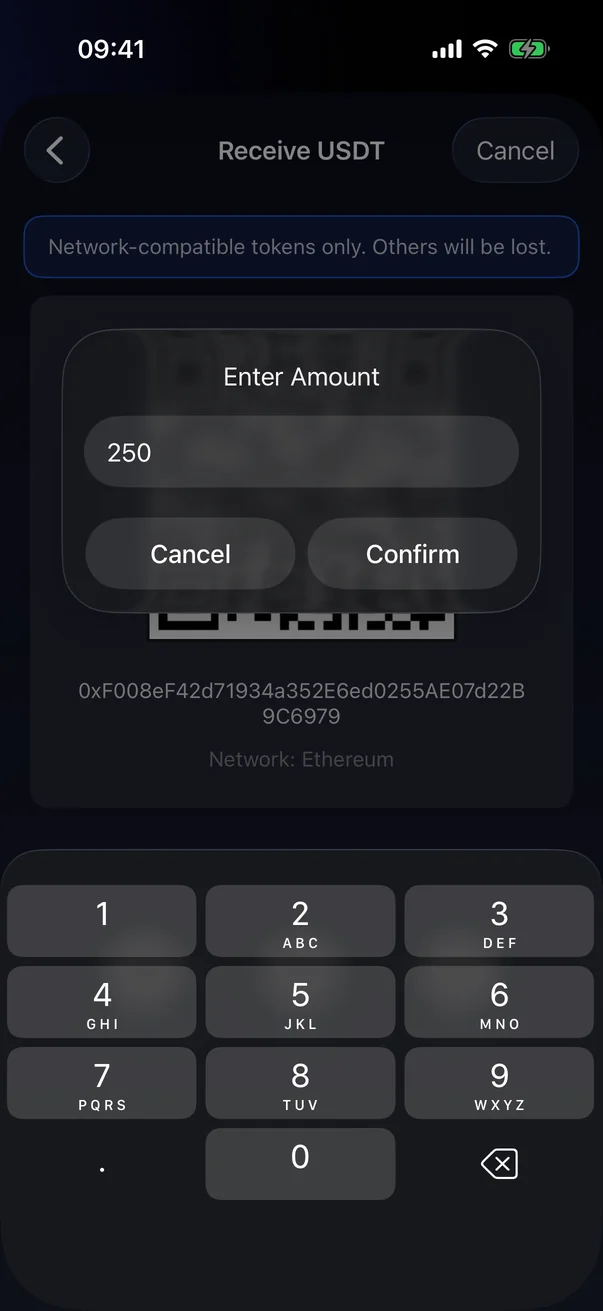
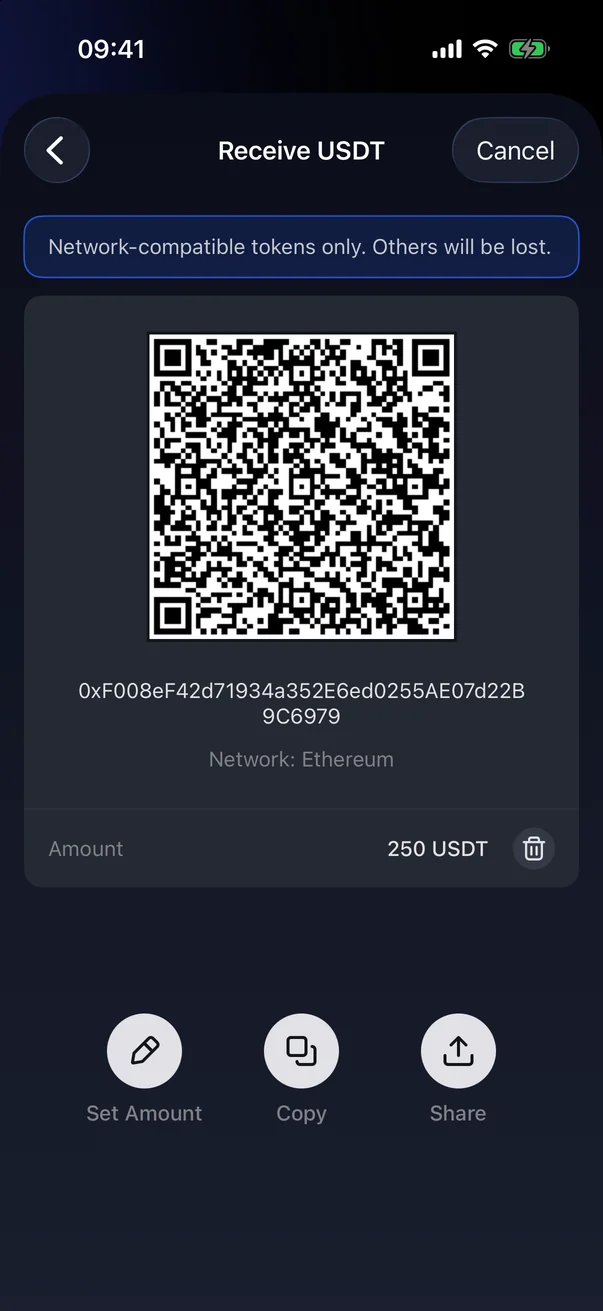
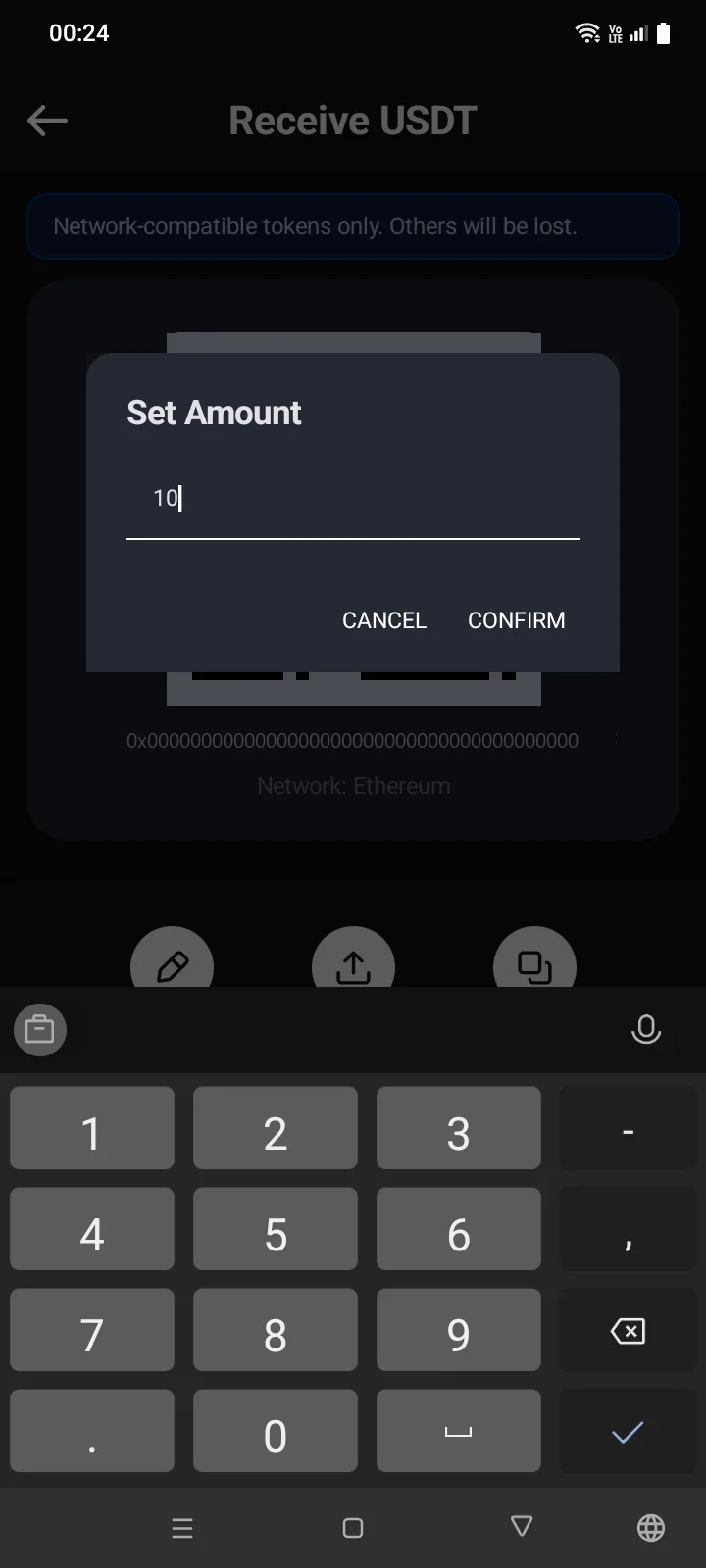
Tap Set Amount, enter the amount in the Enter AmountSet Amount window (you can use a period or a comma as the decimal separator) and tap ConfirmCONFIRM. The QR code now contains the amount, and an Amount row appears under the address; the bin icon in that row removes it. Copy and Share pass the address together with the amount as a payment link.
Good to know
- If you choose a coin or network that isn't shown in the wallet yet, the app adds it to the wallet automatically.
- If several Bitcoin address formats (or Litecoin, Bitcoin Cash formats) are on in the wallet, the Address Format screen opens first. Any format works: the sender can transfer to it from an address of any format.
- A new TRON address is inactive until TRX or TRC-10 tokens are sent to it; activation costs a fee of 1 TRX. In that case, an Account — Not active row appears under the address; the info icon next to it opens the Not Active Address panel with an explanation. If you've just added TRON to the wallet, the row may appear a little later, once the app learns the address status — the screen updates by itself.
- A watch-only wallet has no Receive button (see 3.6). Its address opens with the Address button on the coin page instead; you can't set an amount there.
- For Zcash the app first asks whether you have owned ZEC before, to know where to start syncing.
- If the address doesn't load, the message Sync error. Try again.Sync error. Try Again appears. Tap the message to try again.