3.7Managing wallets
You can keep several wallets in Cryptolink and switch between them. Each wallet has its own settings: name, backup, recovery phrase and keys, and removal from the phone.
The wallet list
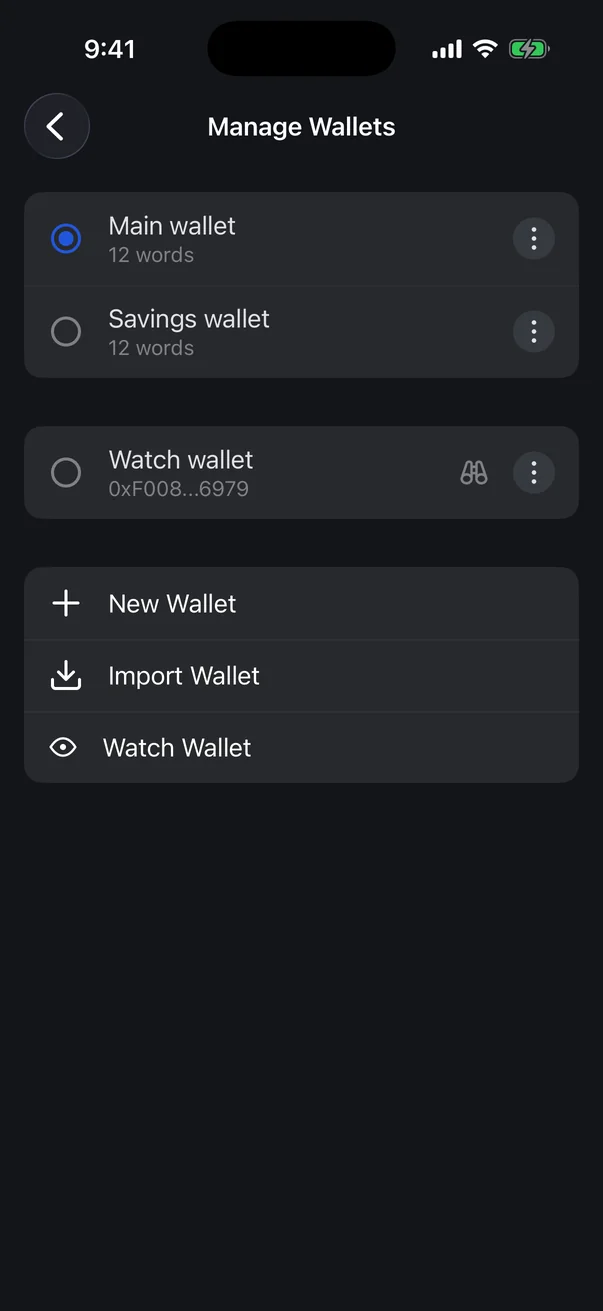
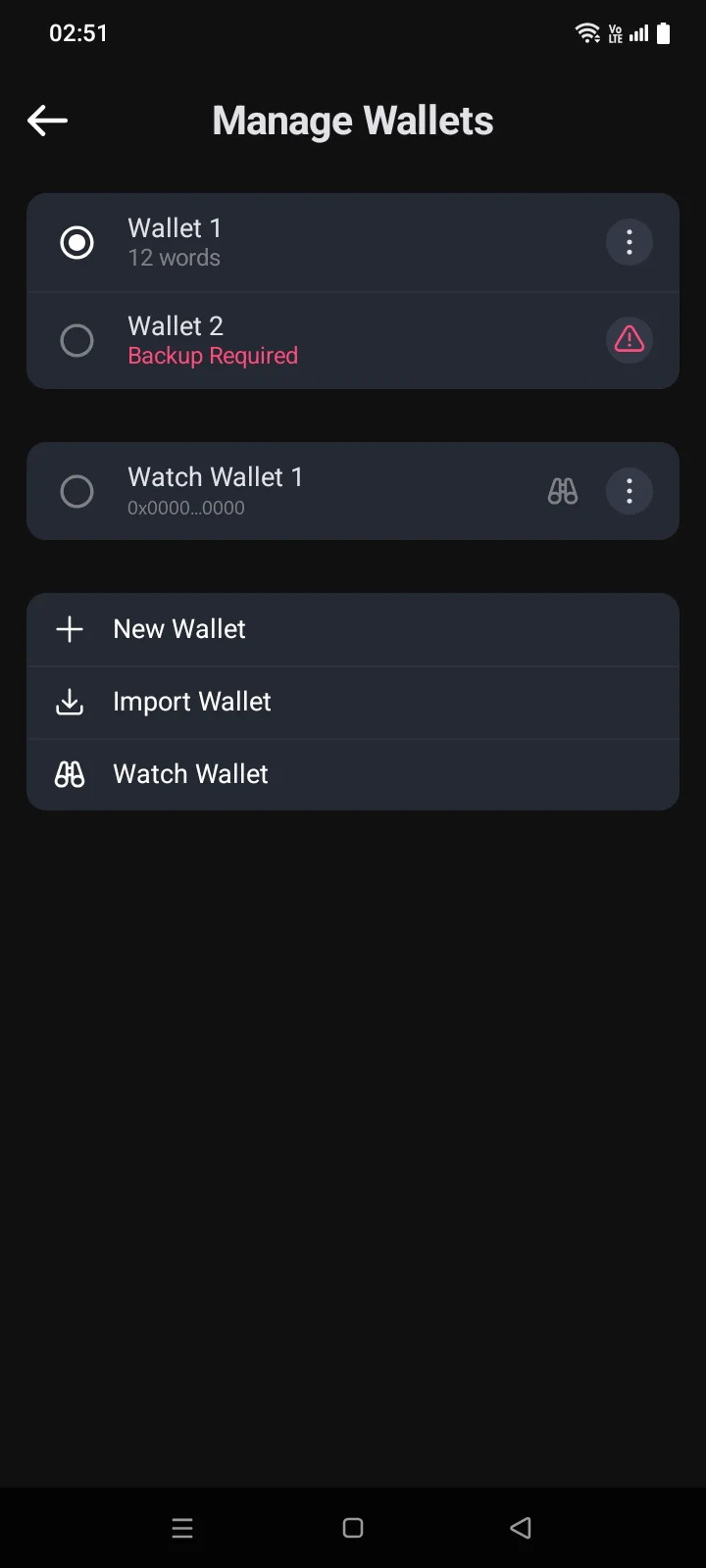
On the Crypto tab, tap ⋮ in the top-left corner. The Manage Wallets screen opens. Regular wallets come first, watch-only wallets below; within each group, wallets are sorted alphabetically.
 1
2
3
4
5
1
2
3
4
5
| 1 | Active wallet — marked with a filled circle. Tap another wallet to make it active; the Crypto tab switches to it, and the list stays open. |
| 2 | Wallet type — for example 12 words, or EVM Private Key or BIP32 Root Key for a wallet imported with a key. A red Backup required means the wallet has no backup yet. |
| 3 | Settings — the ⋮ button opens the wallet settings. A red warning icon in its place means the wallet needs attention: usually it has no backup at all (neither manual nor to iCloud). The icon opens the settings too. |
| 4 | Watch-only wallets — listed after regular wallets, with a binoculars icon and a shortened address under the name (see 3.6). |
| 5 | Add a wallet — New Wallet (see 3.3), Import Wallet (see 3.5) or Watch Wallet (see 3.6). |
 1
2
3
4
5
1
2
3
4
5
| 1 | Active wallet — marked with a filled circle. Tap another wallet: it becomes active, the screen closes, and the Crypto tab shows its coins. |
| 2 | Wallet type — for example 12 words, or EVM Private Key or BIP32 Root Key for a wallet imported with a key. A red Backup Required means the wallet has no backup yet. |
| 3 | Settings — the ⋮ button opens the wallet settings. A red warning icon in its place means the wallet needs attention: usually it has no backup at all (neither manual nor to a file). The icon opens the settings too. |
| 4 | Watch-only wallets — listed after regular wallets, with a binoculars icon and a shortened address under the name (see 3.6). |
| 5 | Add a wallet — New Wallet (see 3.3), Import Wallet (see 3.5) or Watch Wallet (see 3.6). |
Wallet settings
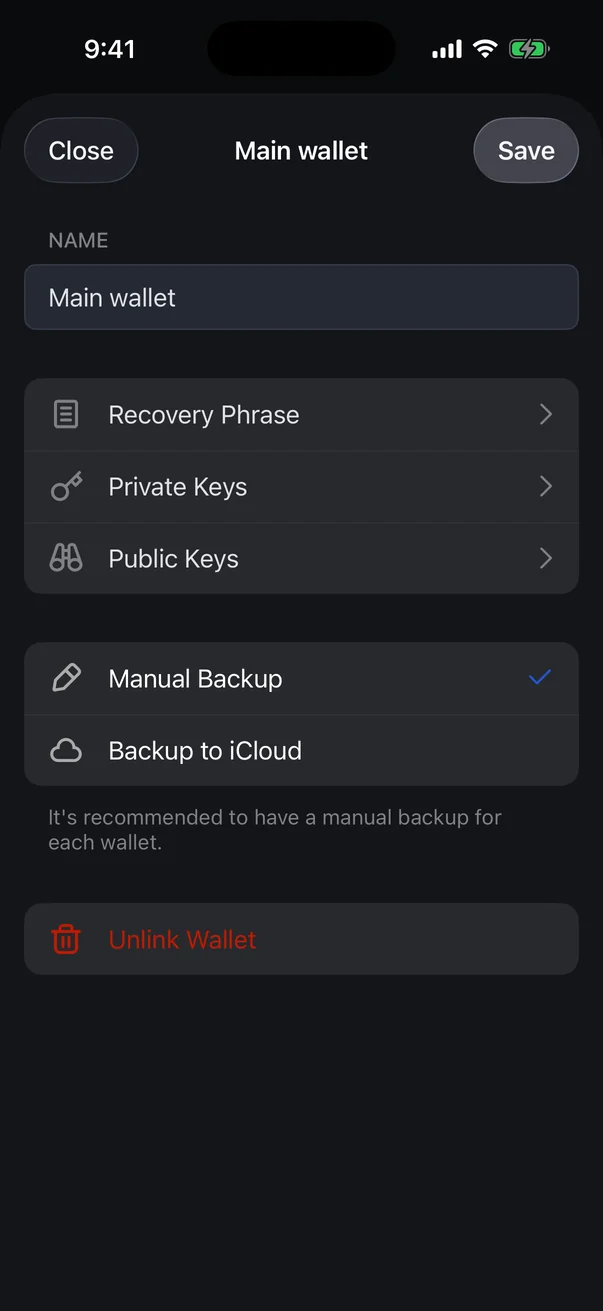
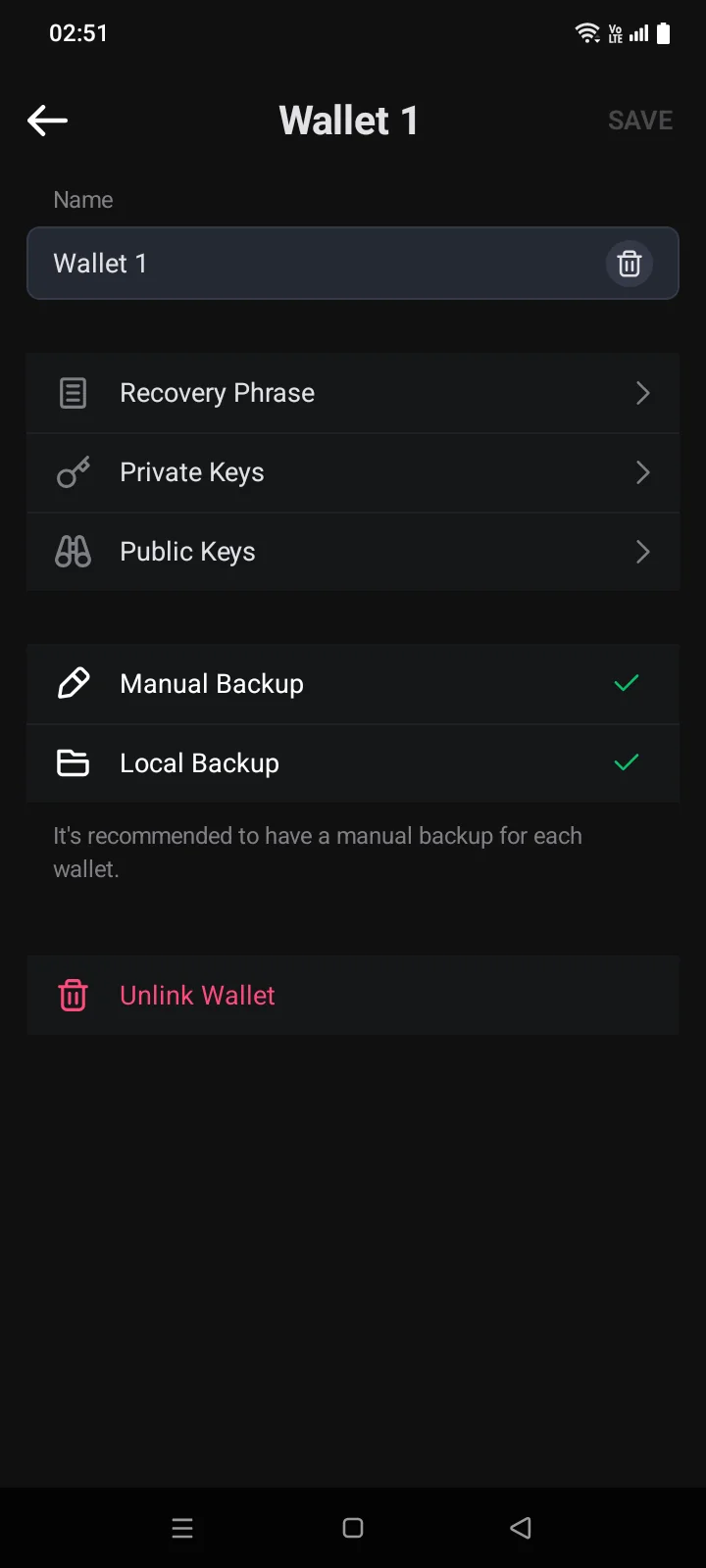
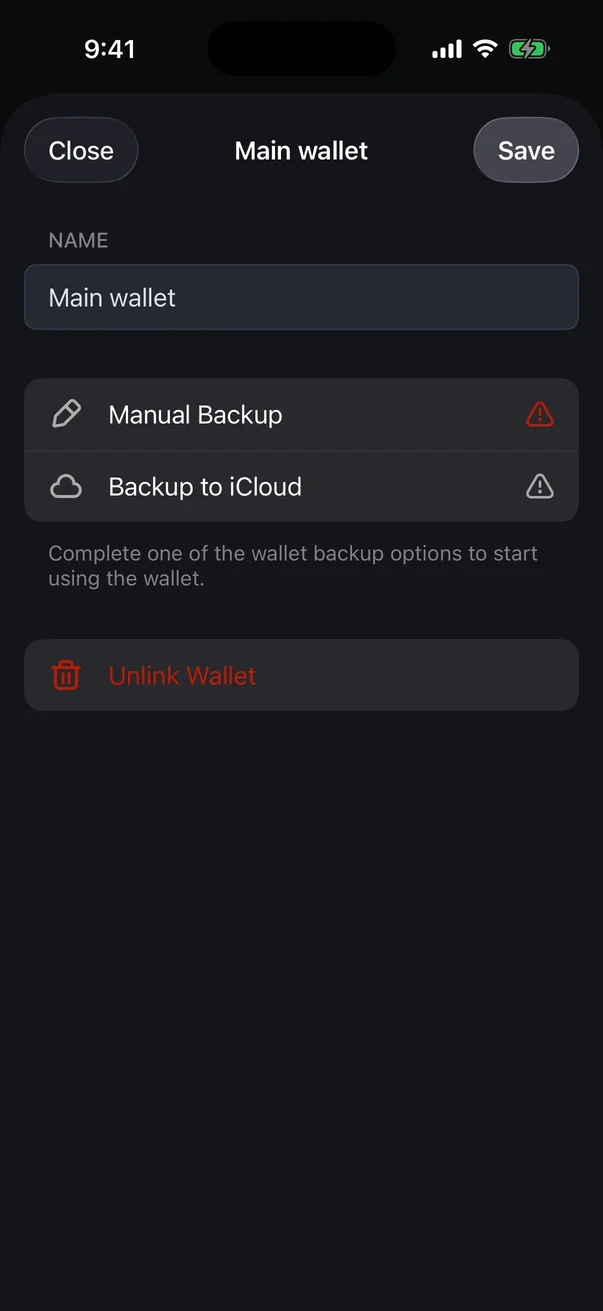
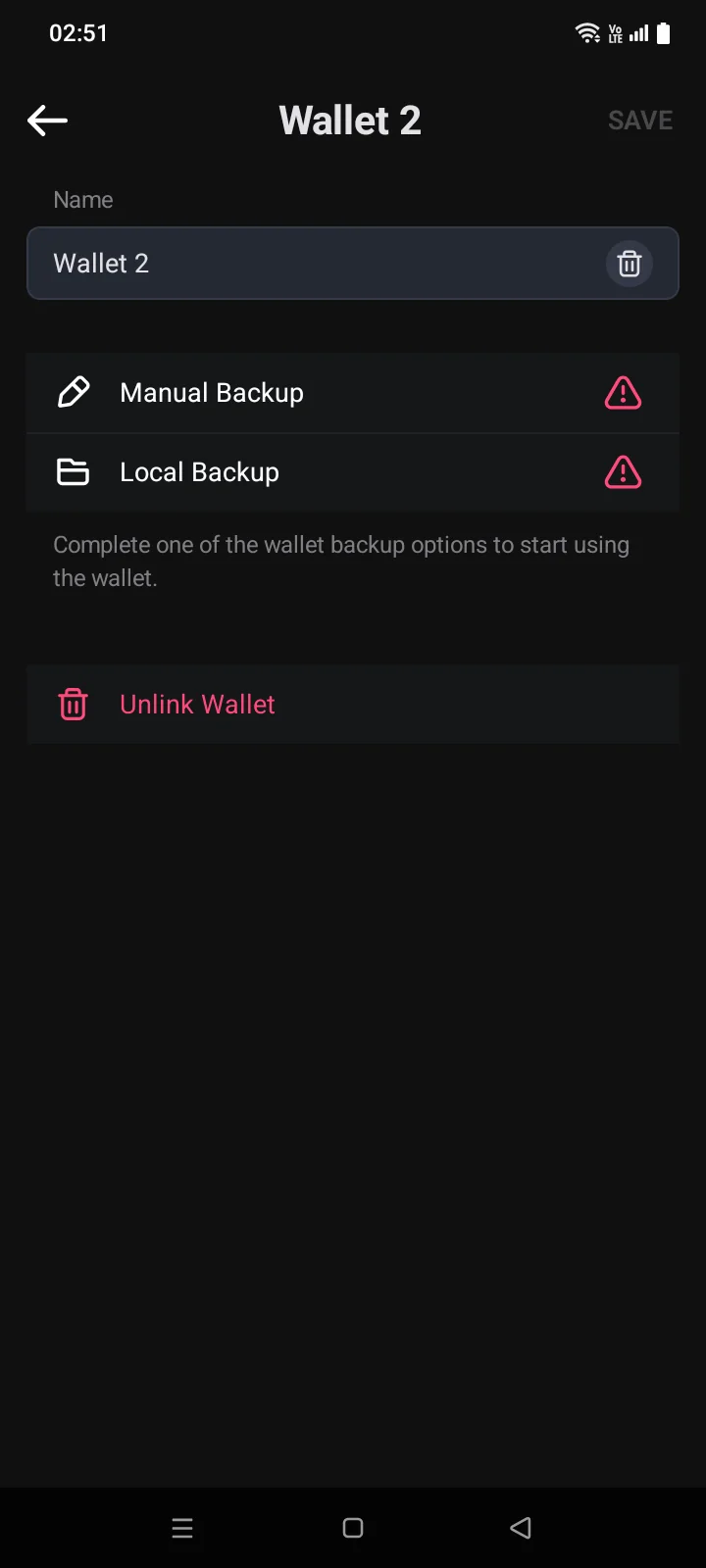
Tap ⋮ (or the red icon) to the right of the wallet.
 1
2
3
4
5
6
1
2
3
4
5
6
| 1 | Name — change it and tap Save in the top-right corner. |
| 2 | Recovery Phrase — view the words.After the wallet is backed up. |
| 3 | Private Keys — EVM private key, BIP32 root key, account extended private key.After the wallet is backed up. |
| 4 | Public Keys — EVM address and account extended public key, for watching the wallet elsewhere.After the wallet is backed up. |
| 5 | Backup — Manual Backup, Backup to iCloud or Delete Backup from iCloud (see 3.4). A check mark means the backup is done. |
| 6 | Unlink Wallet — remove the wallet from this iPhone (below). |
 1
2
3
4
5
6
7
1
2
3
4
5
6
7
| 1 | Name — change it and tap Save in the top-right corner. |
| 2 | Recovery Phrase — view the words.After the wallet is backed up. |
| 3 | Private Keys — EVM private key, BIP32 root key, account extended private key.After the wallet is backed up. |
| 4 | Public Keys — EVM address and account extended public key, for watching the wallet elsewhere.After the wallet is backed up. |
| 5 | Manual Backup — write down the recovery phrase (see 3.4). A red icon means there's no manual backup yet; a green check mark means it's done. |
| 6 | Local Backup — save the wallet to a password-protected file (see 3.4). A green check mark means the file backup is done. |
| 7 | Unlink Wallet — remove the wallet from this phone (below). |
The Save button is active when the name has changed and isn't empty.
Until the wallet has a backup, there are no Recovery Phrase, Private Keys and Public Keys rows, and under the backup buttons it says Complete one of the wallet backup options to start using the wallet. One backup is enough — manual or to iCloudto a file.
If an app passcode is set (see 1.5), the app asks for it before showing the recovery phrase or private keys, and before a backup.
A wallet imported with a private key has no recovery phrase — only keys and Backup to iCloudLocal Backup. A watch-only wallet's settings have only the Name field and the Unlink Wallet row.
View the recovery phrase and keys
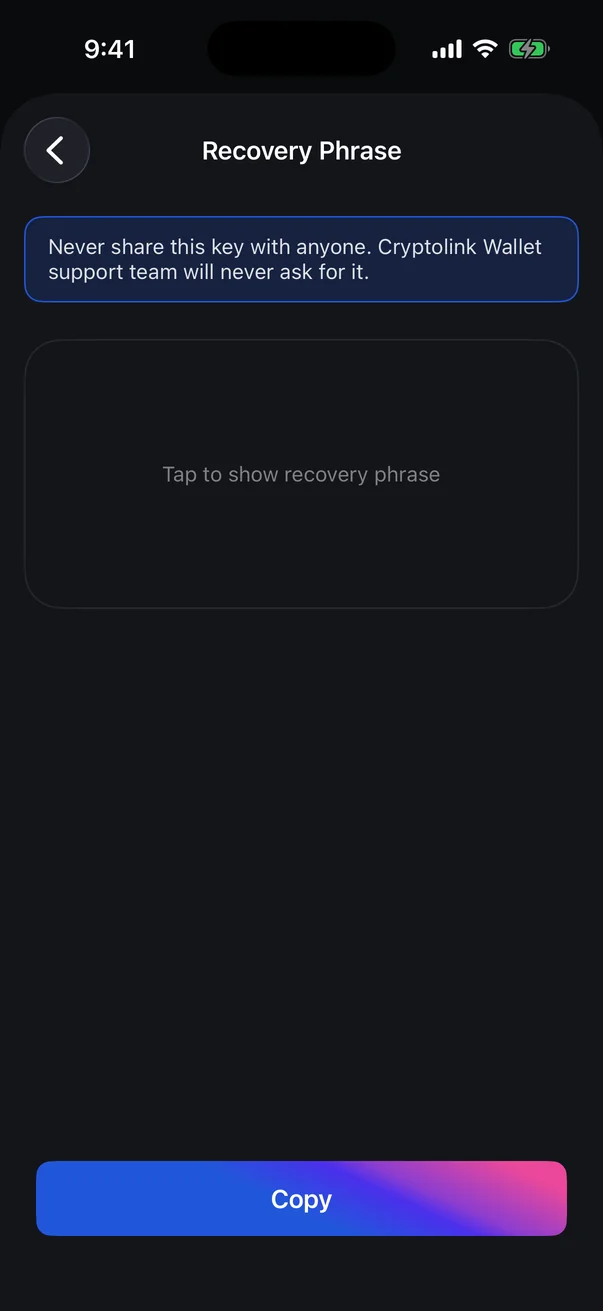
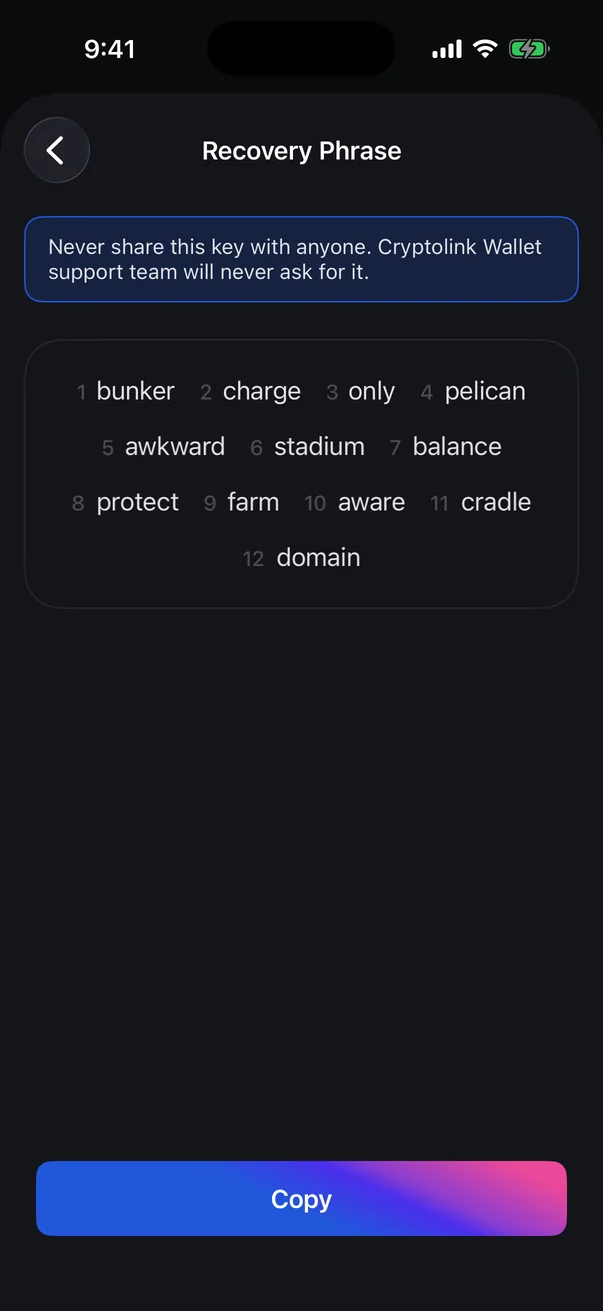
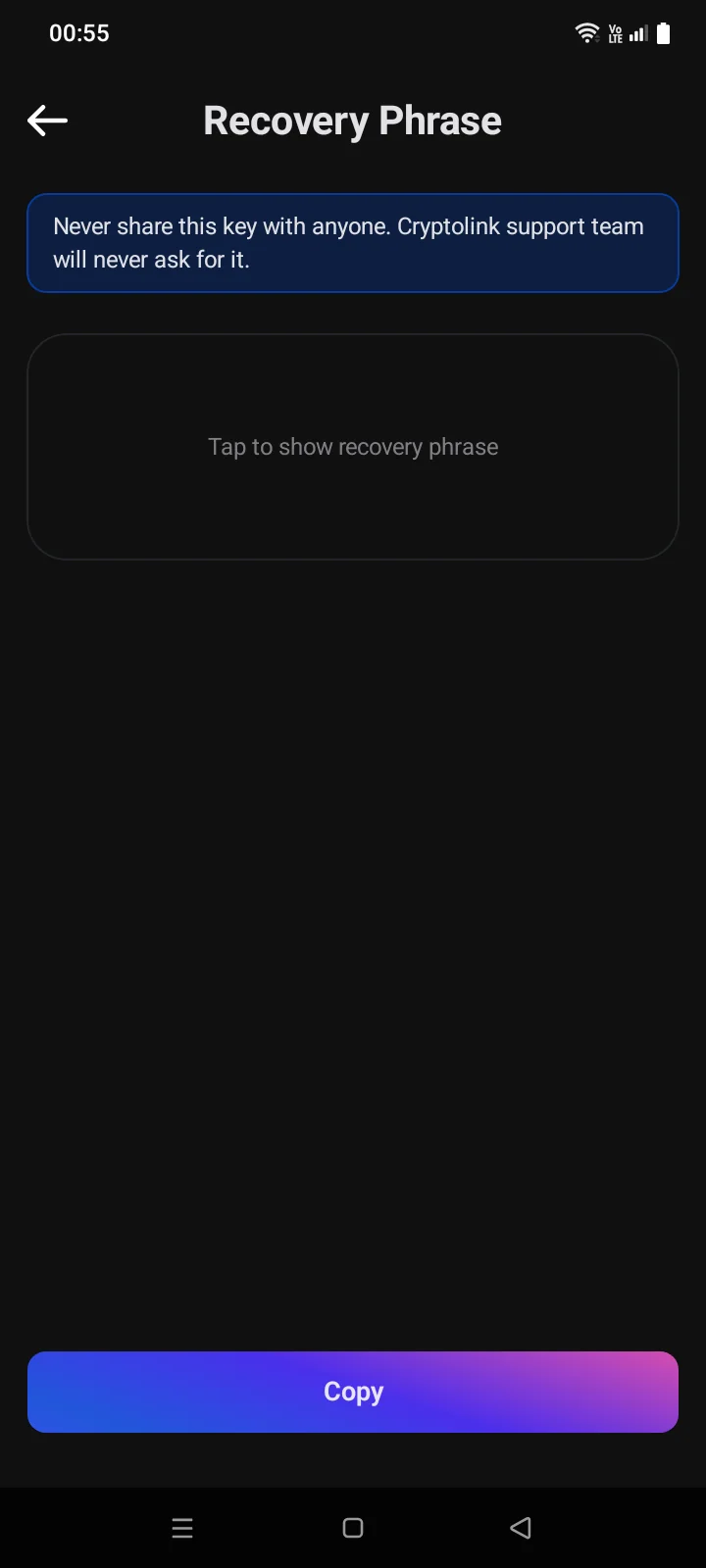
The phrase and private keys are hidden until you tap the card (Tap to show recovery phrase, Tap to show private key). Above them is a warning: never share this with anyone; support will never ask for it. If a passphrase was set when the wallet was created, it's shown under the words in the Passphrase row.
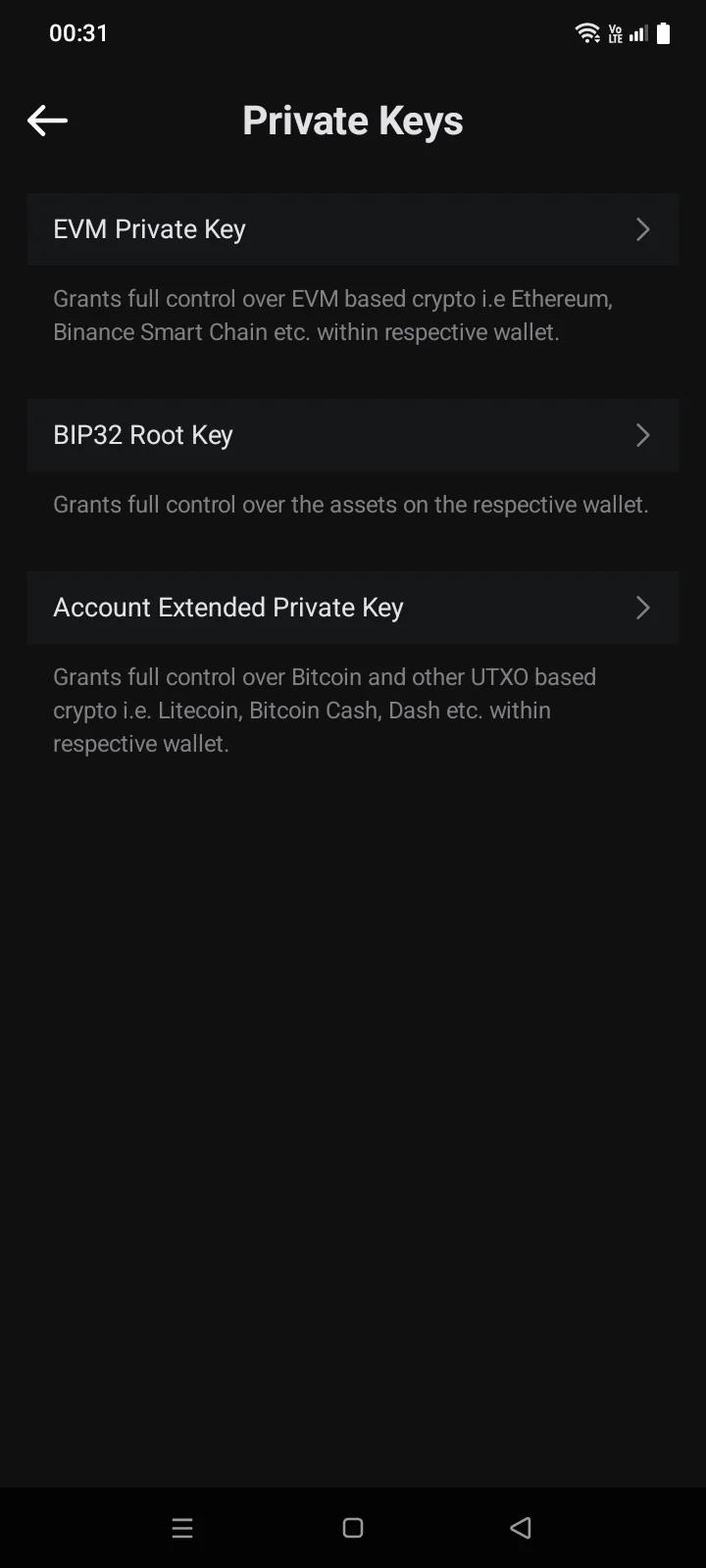
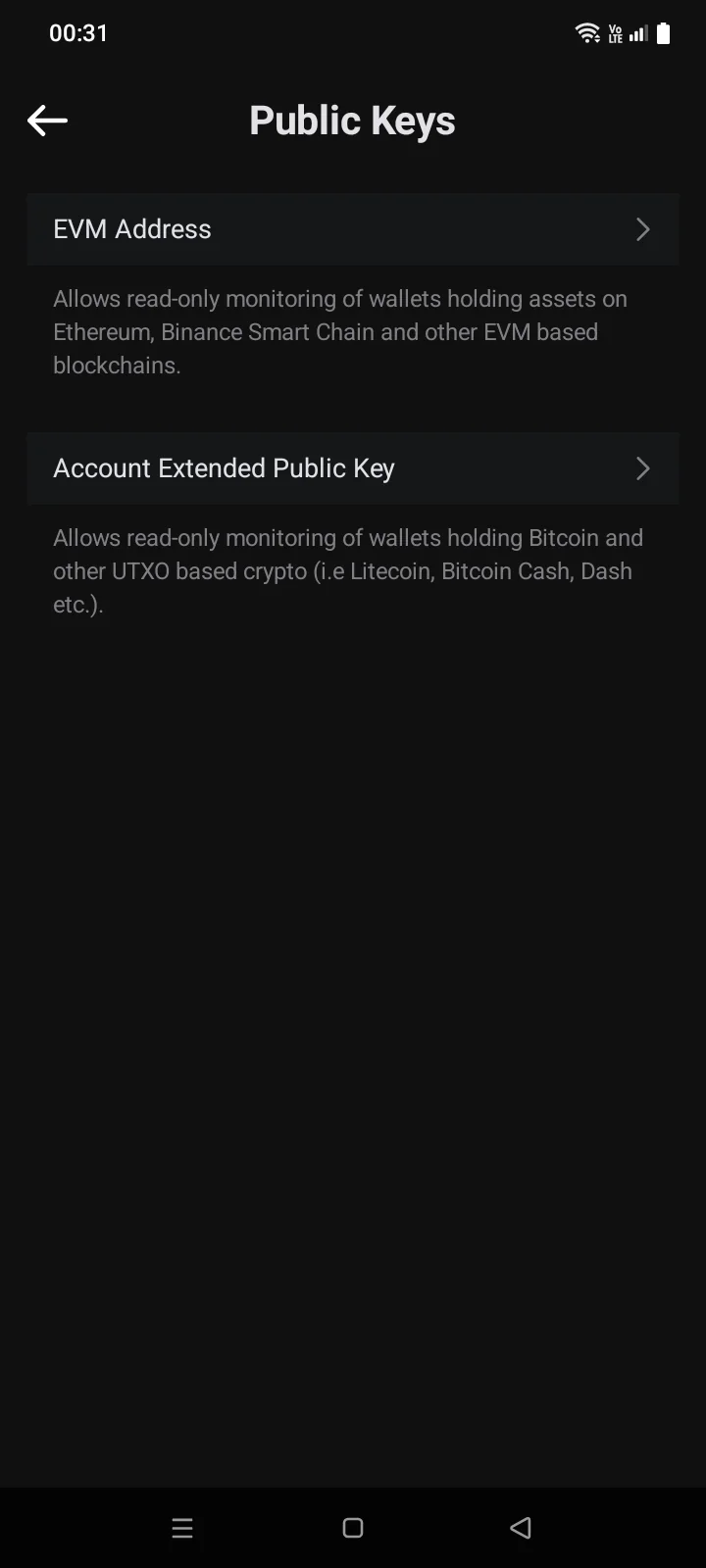
The Private Keys menu has three rows, the Public Keys menu has two. Under each, a note says what the key gives:
| Key | What it gives |
|---|---|
| EVM Private Key | Full control over coins on EVM networks (Ethereum, BNB Smart Chain and others) in this wallet. |
| BIP32 Root Key | Full control over all assets in the wallet. |
| Account Extended Private Key | Full control over Bitcoin and similar coins (Litecoin, Bitcoin Cash, Dash) in this wallet. |
| EVM Address | Viewing assets on EVM networks without being able to spend them. |
| Account Extended Public Key | Viewing Bitcoin and similar coins without being able to spend them. |
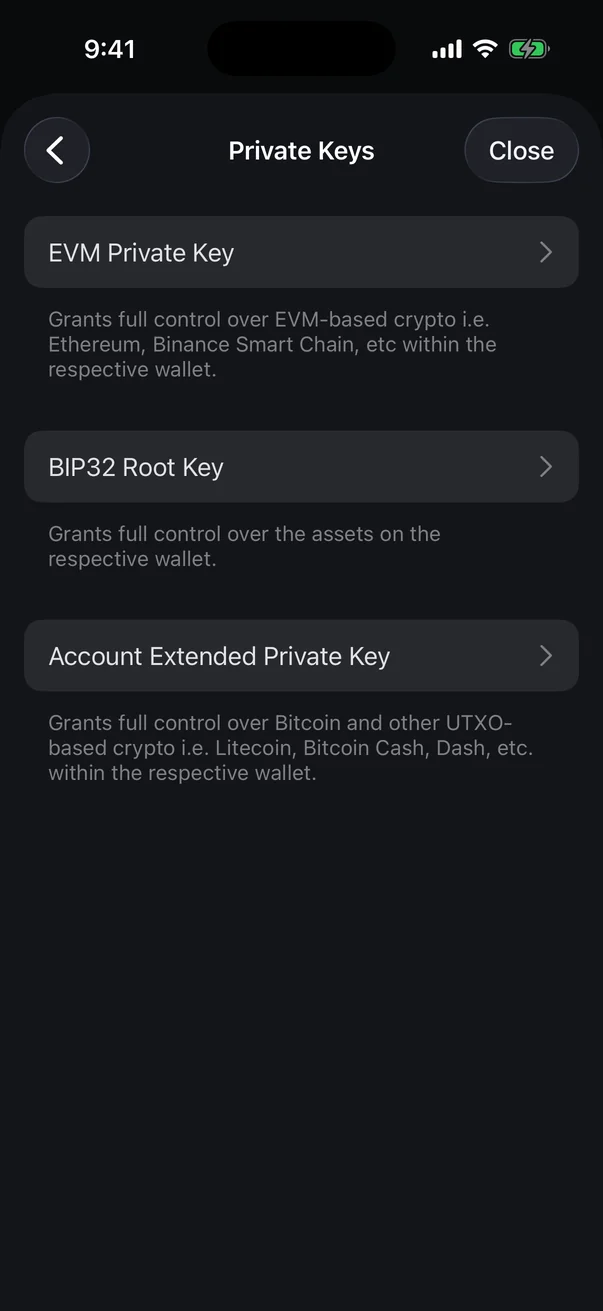
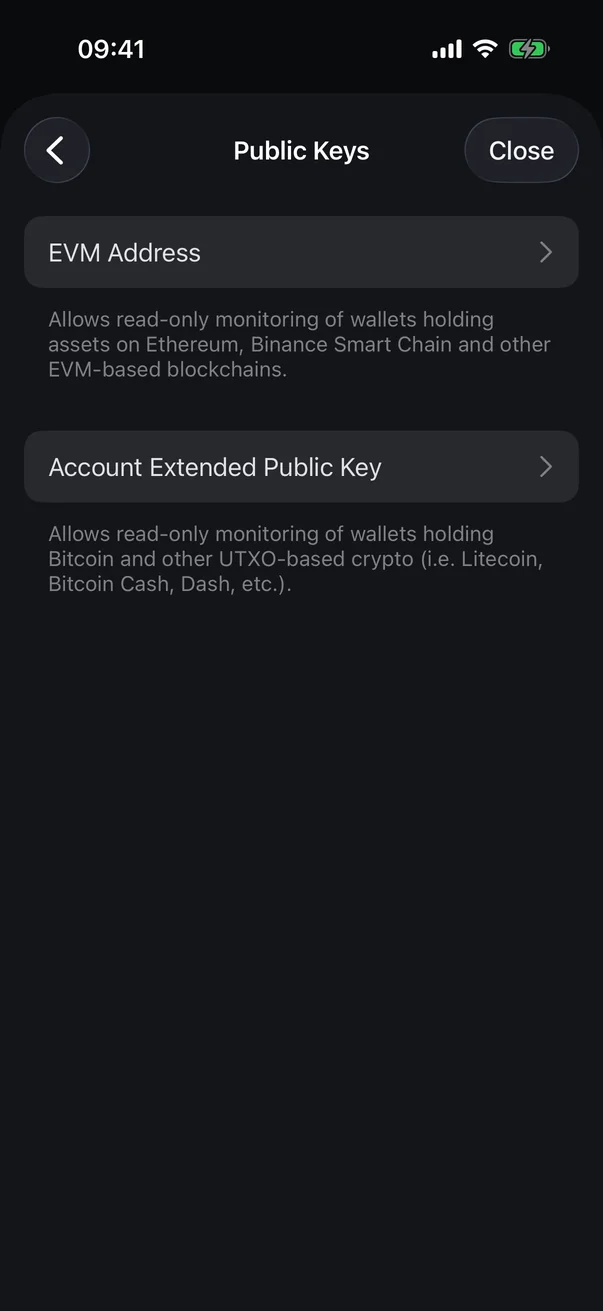
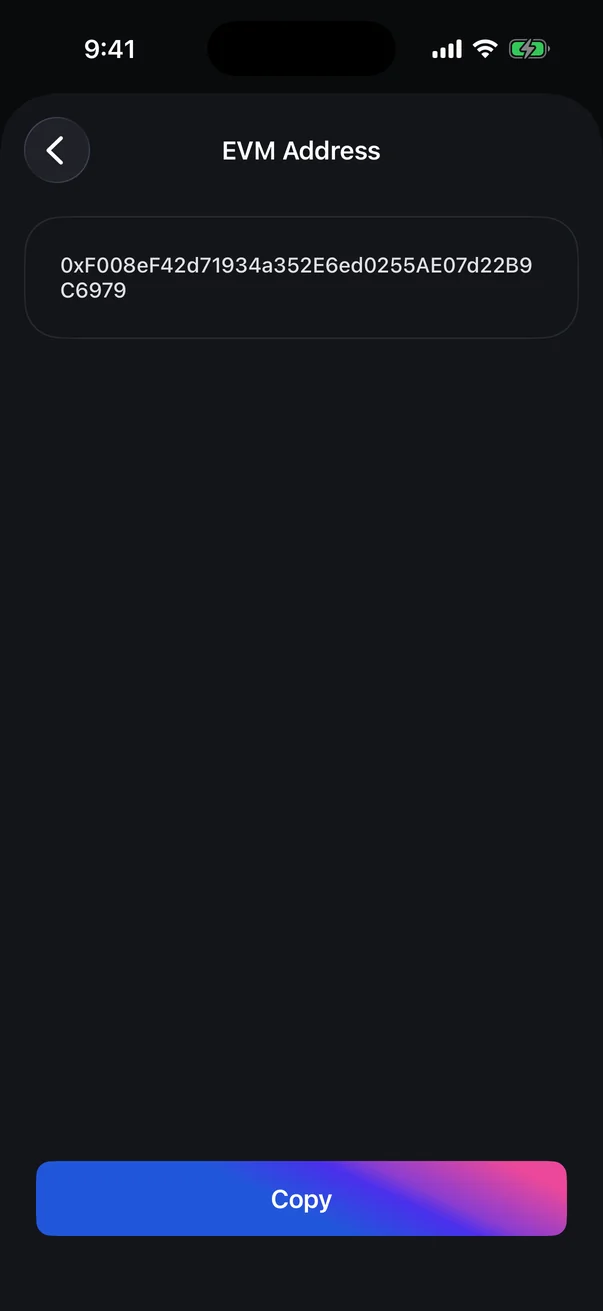
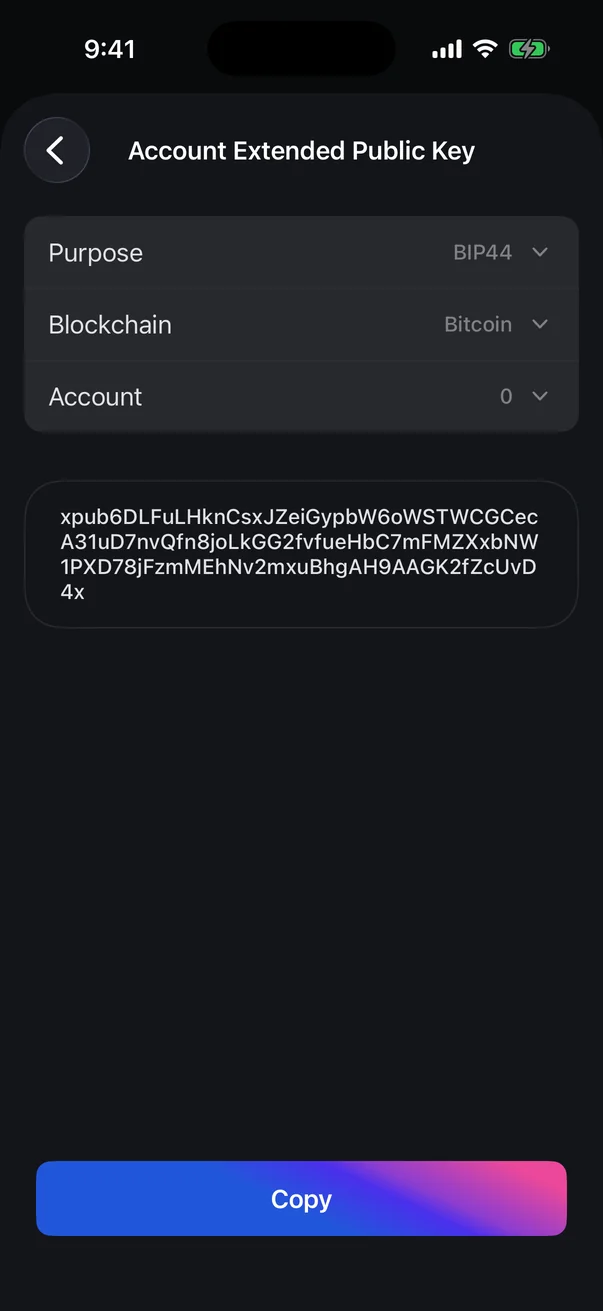
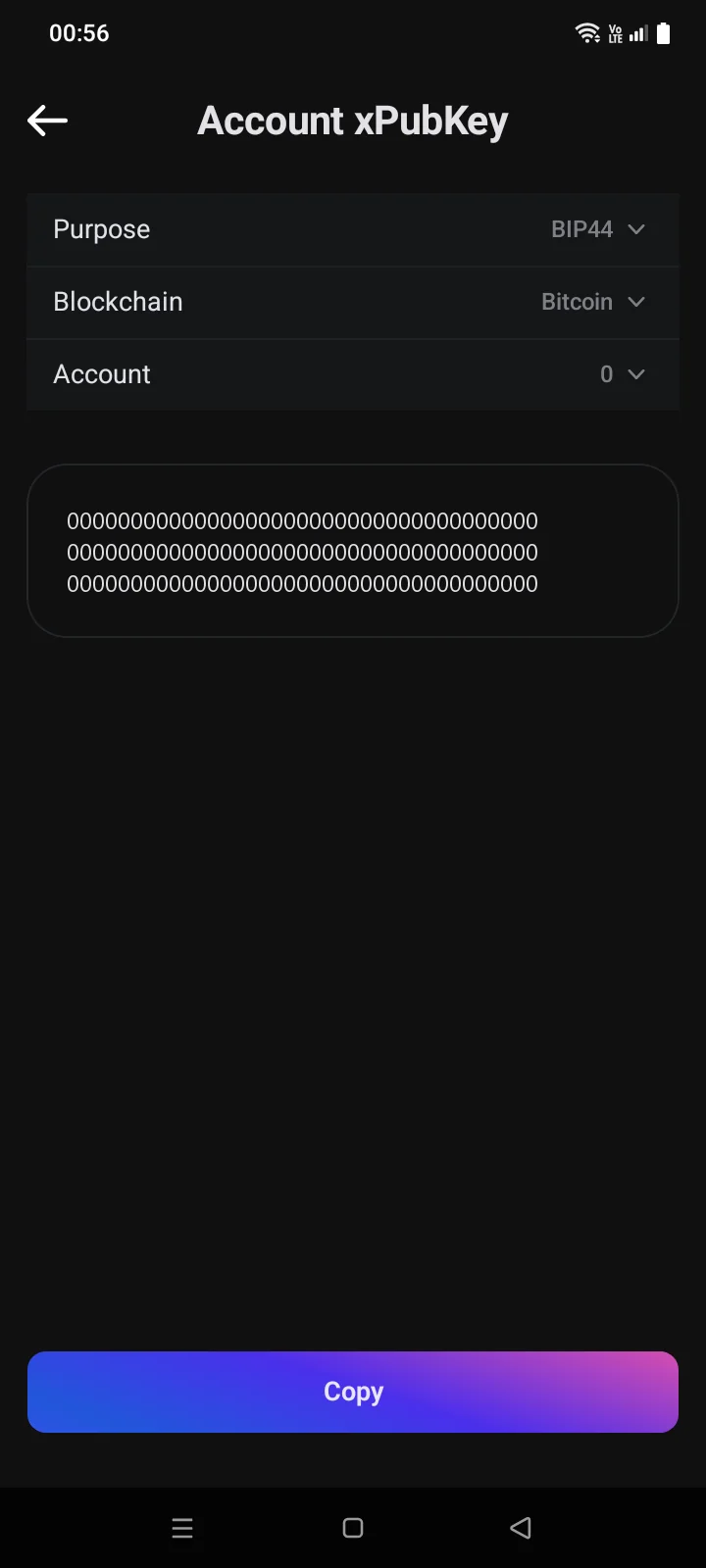
For an extended key you can choose the Purpose (BIP44, BIP49, BIP84, BIP86), the Blockchain (Bitcoin, Bitcoin Cash, Litecoin, Dash) and the Account number (0 to 5). Bitcoin Cash and Dash are available only with BIP44. For the BIP32 Root Key, you choose only the Purpose.
You can't take a screenshot of the phrase and keys — the app blocks it.
Remove a wallet from the phone
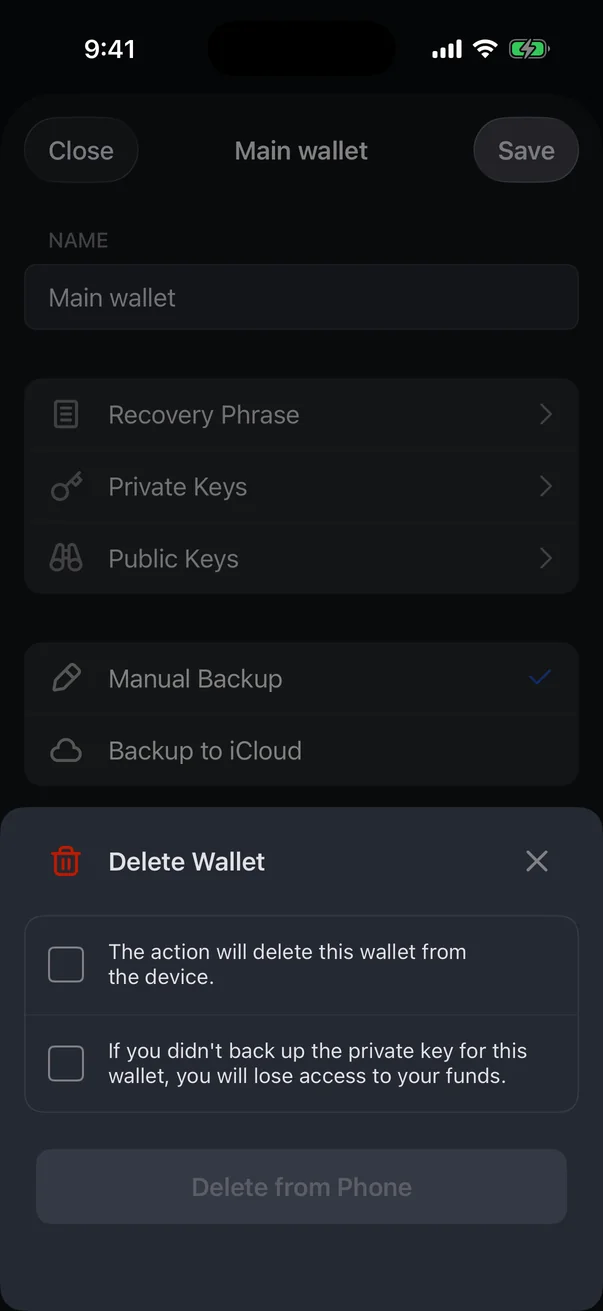
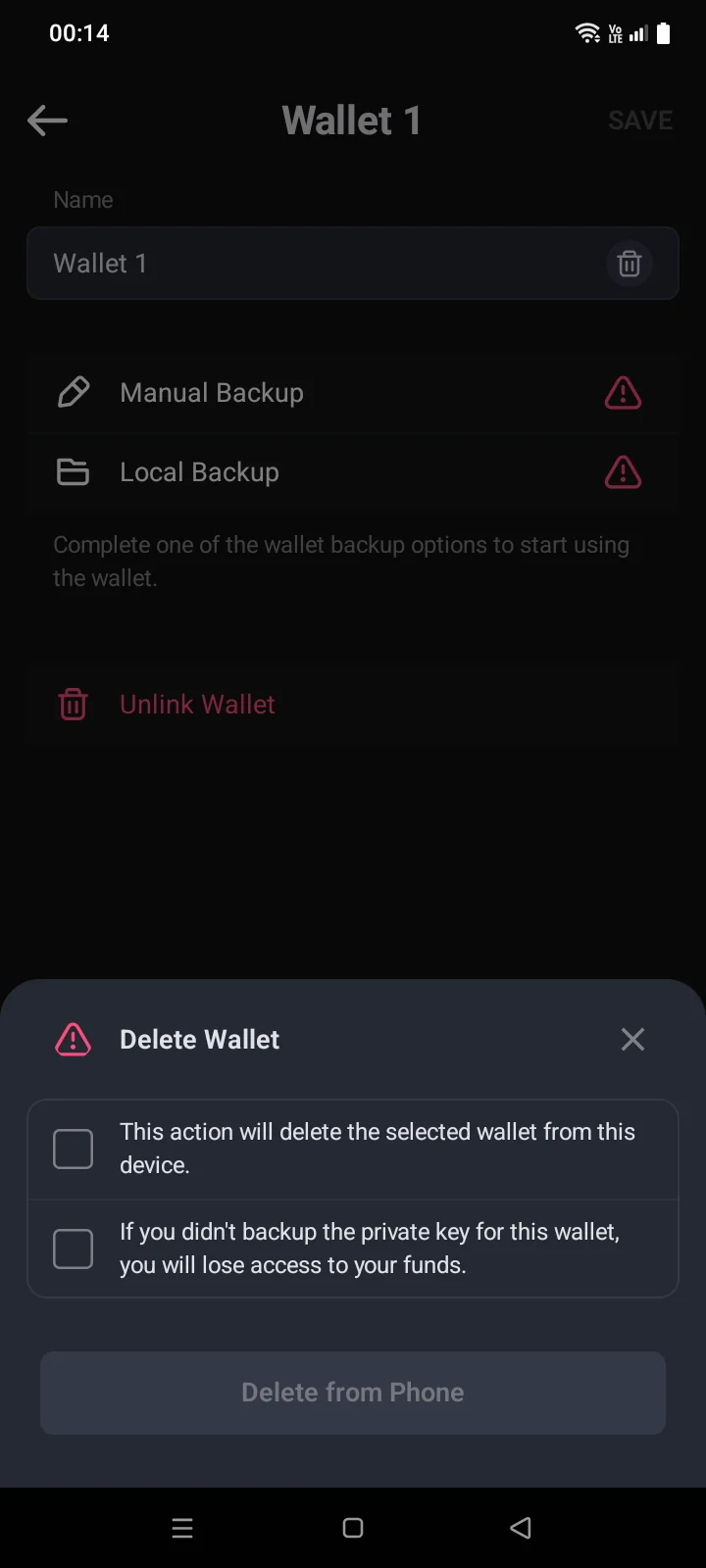
- In the wallet settings, tap Unlink Wallet. The Delete Wallet panel opens.
- Tick both statements: the wallet will be deleted from this device, and if you didn't back up its private key, you will lose access to the funds.
- Tap Delete from Phone. The message DeletedDone confirms it.
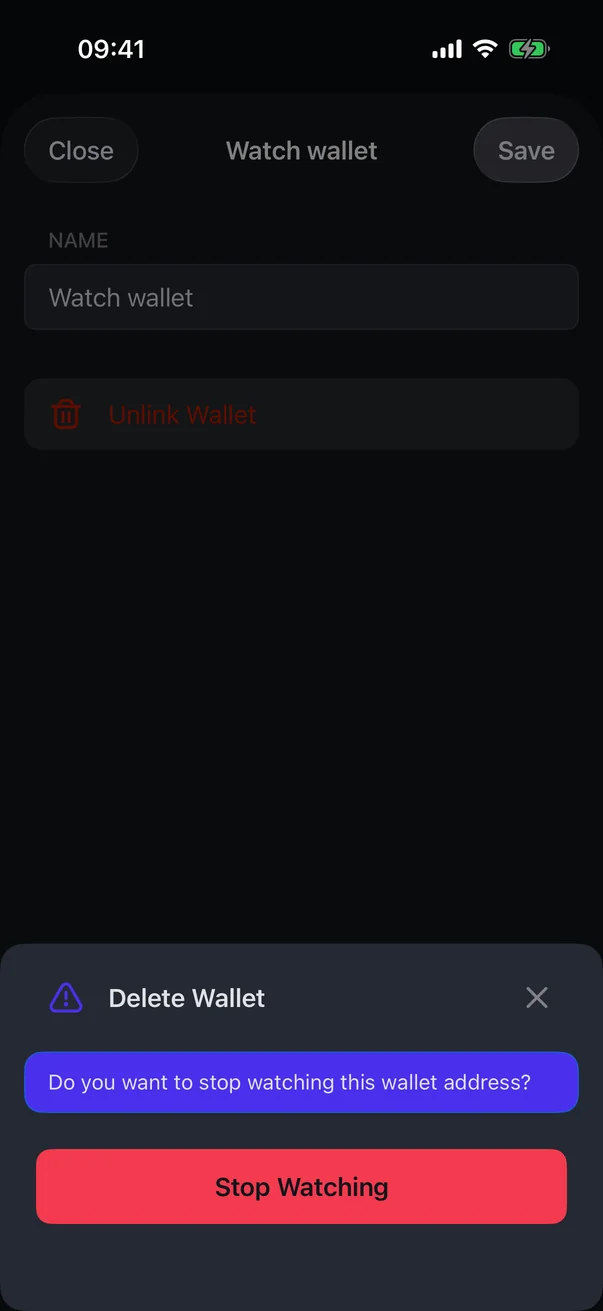
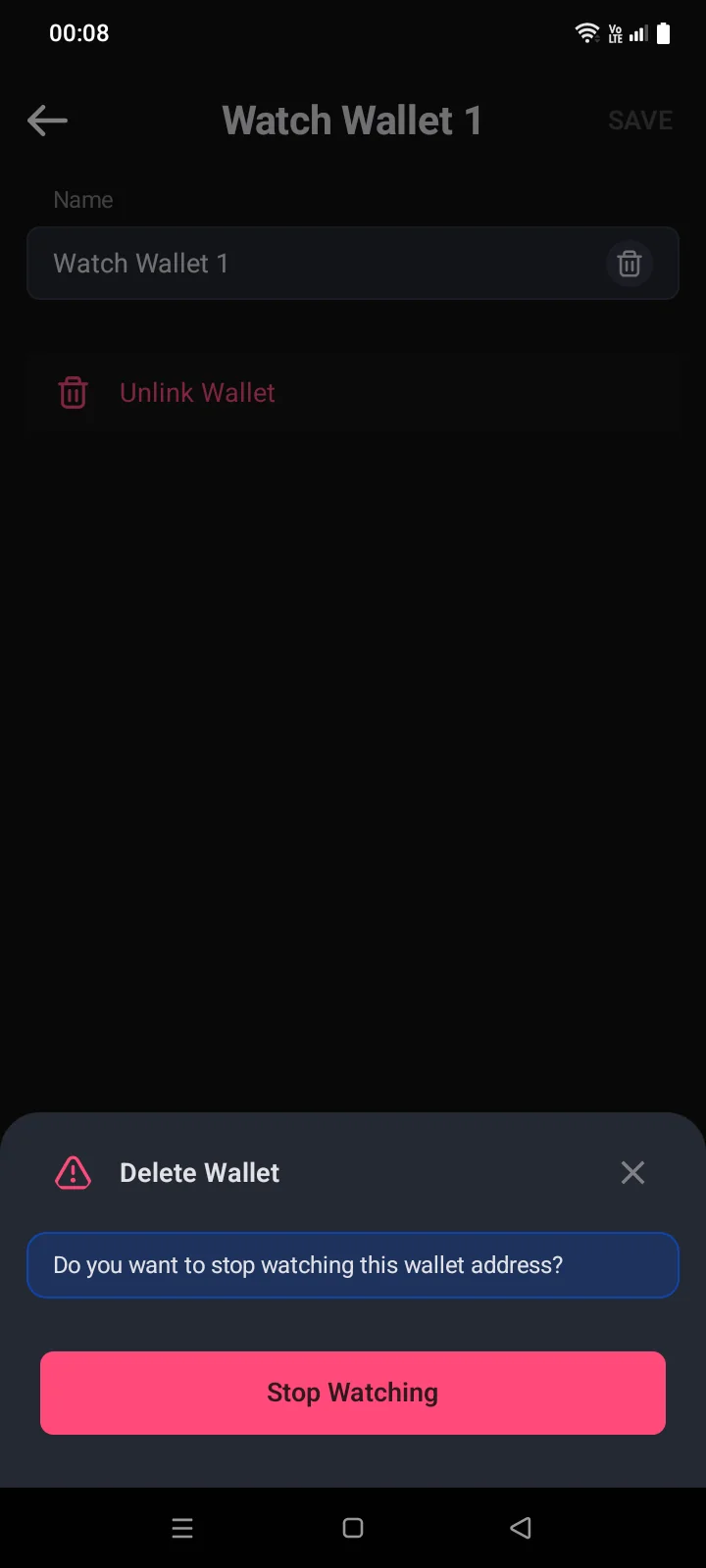
For a watch-only wallet, the panel asks Do you want to stop watching this wallet address? There are no statements; the panel has a single button — Stop Watching (see 3.6).