3.4Backing up a wallet
A backup is your recovery phrase kept somewhere other than this phone. If the phone is lost or broken, or the passcode is turned off, or the app is deleted, the backup is the only way to get your wallet back. Cryptolink offers two kinds: a manual backup (you write the words down) and an encrypted copy in iCloudan encrypted file with a password that you store yourself.
Where to start a backup
- Right after creating a wallet — the Backup Recovery Phrase panel (see 3.3).
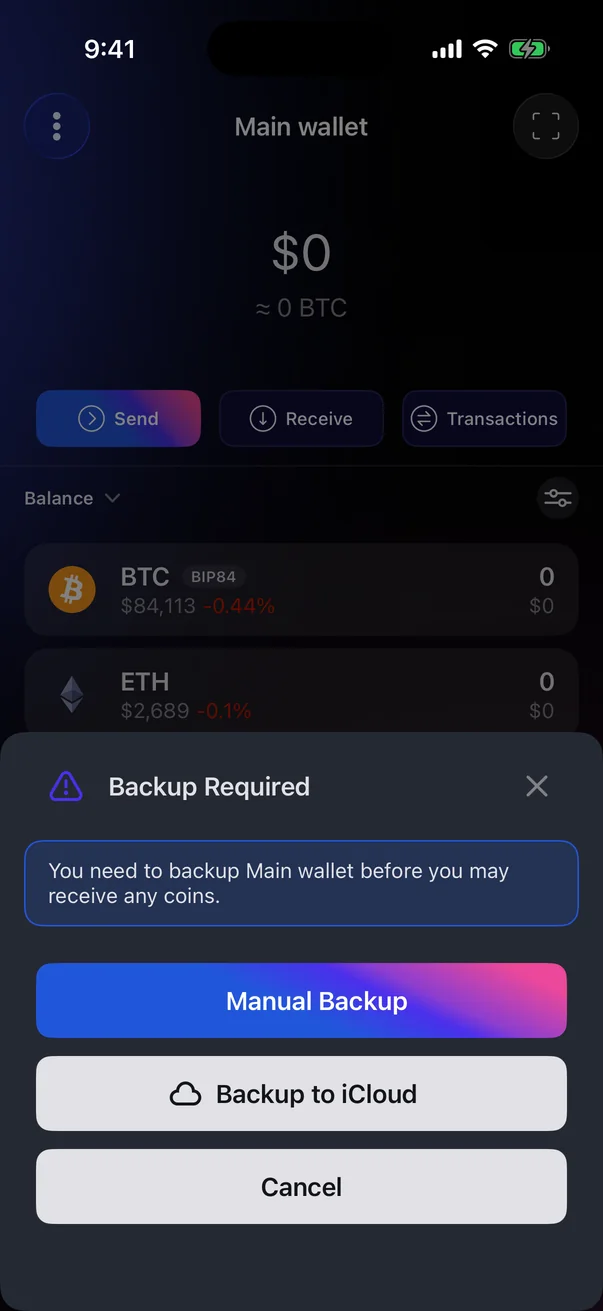
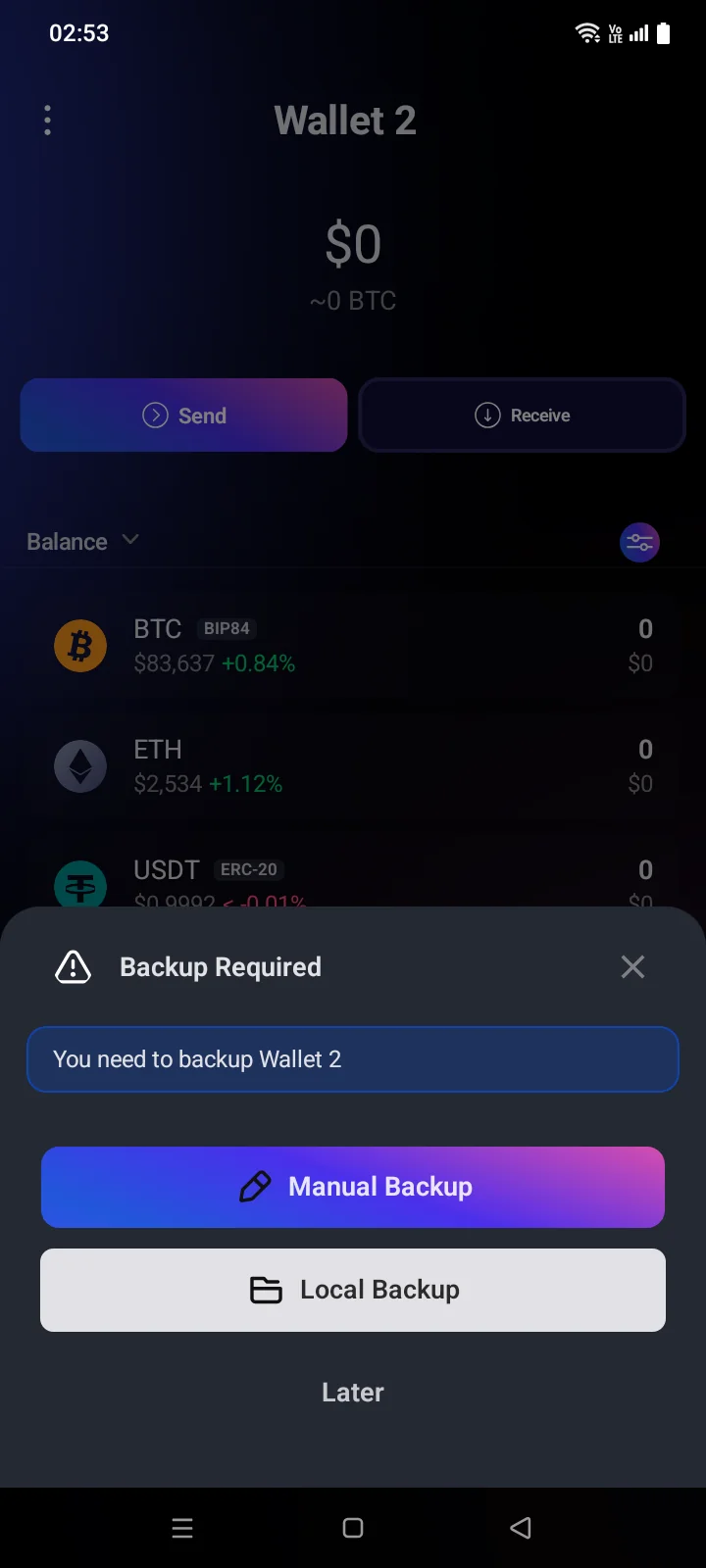
- When you tap Receive on a wallet without a backup — the Backup Required panel.
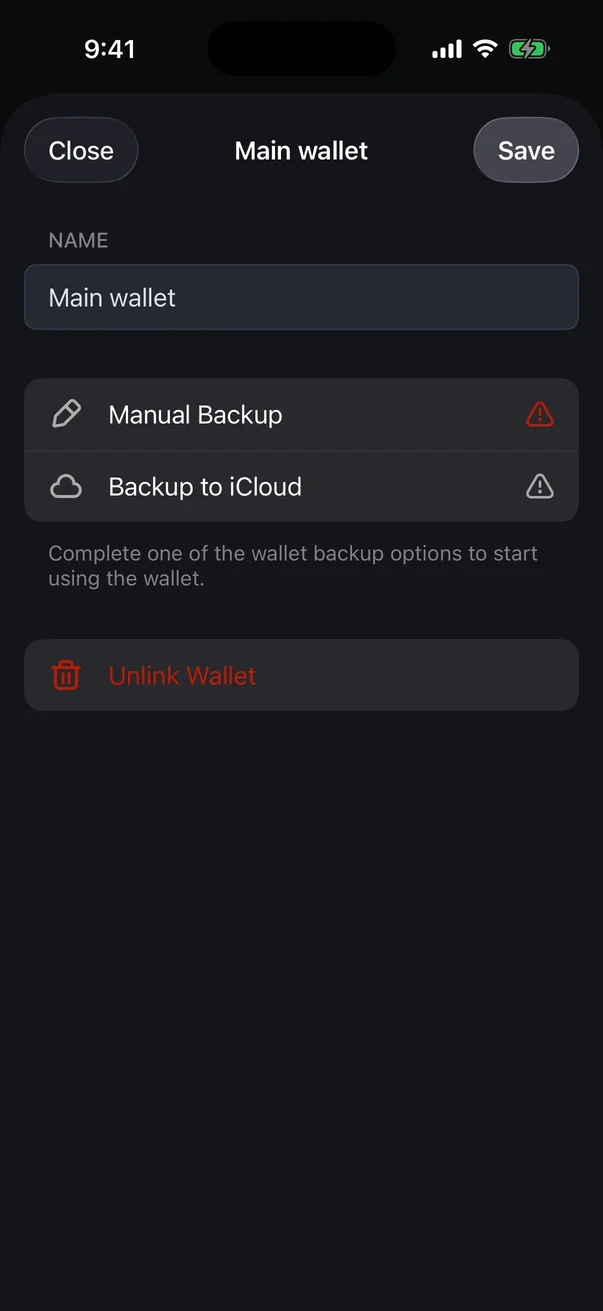
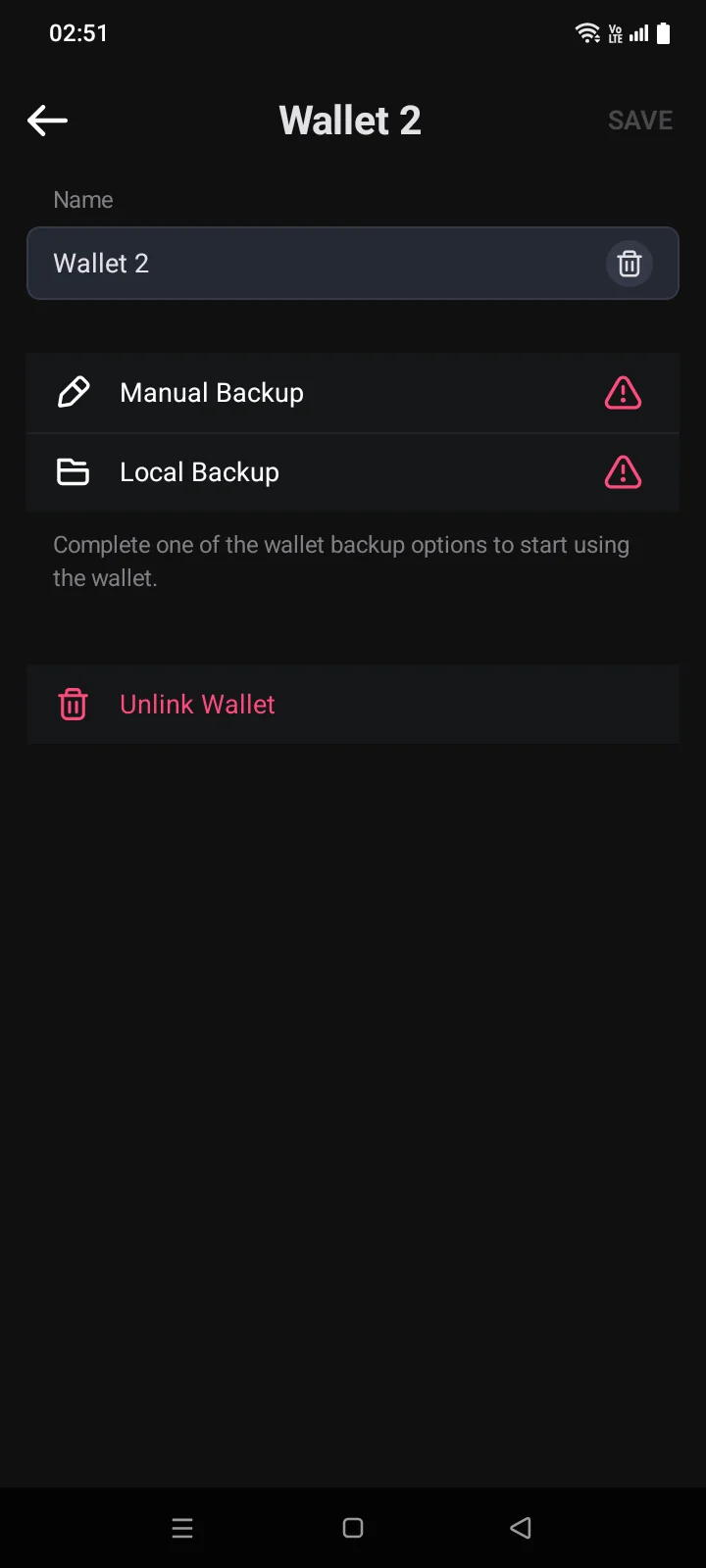
- Any time: wallet list (the ⋮ button in the top-left corner of the Crypto tab) › the ⋯ button next to the walletbutton to the right of the wallet (⋮ or a red warning icon) › Manual Backup or Backup to iCloudLocal Backup.
The panels have three buttons: Manual Backup, Backup to iCloudLocal Backup (a backup to a file) and Later. If an app passcode is set, the app asks for it before showing the recovery phrasefirst when you start from the wallet settings (see 1.5).
 1
2
3
1
2
3
| 1 | Manual Backup — show the phrase and write it down (below). |
| 2 | Backup to iCloud — save an encrypted copy to iCloud (below). |
| 3 | A hint: until there is at least one backup, you can't fully use the wallet. |
 1
2
3
1
2
3
| 1 | Manual Backup — show the phrase and write it down (below). |
| 2 | Local Backup — save an encrypted backup file (below). |
| 3 | A hint: until there is at least one backup, you can't fully use the wallet. |
Until there is a backup, the wallet list shows Backup requiredBackup Required under the wallet name and a red icon on the right. The Recovery Phrase, Private Keys and Public Keys rows appear in the wallet settings only after a backup of either kind (see 3.7).
Manual backup
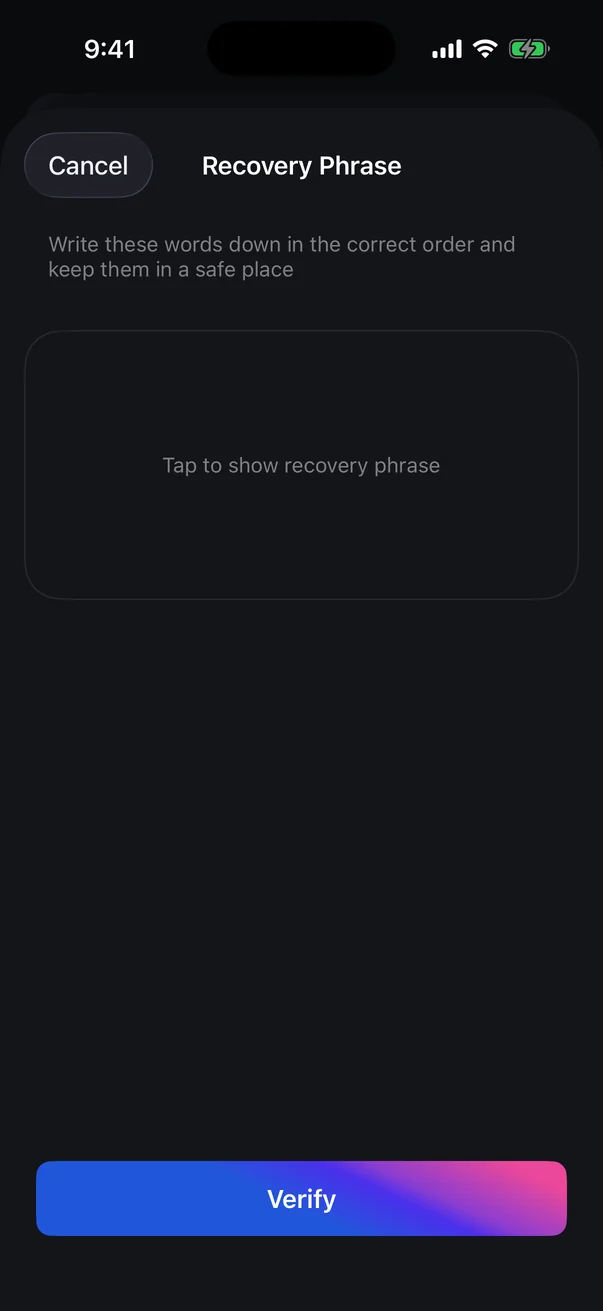
- Tap Manual Backup. The Recovery Phrase screen opens with the words hidden.
- Make sure nobody can see your screen, then tap the card to show the words. Tap it again to hide them.
- Write the words down on paper in the given order. Don't take a screenshot and don't save them in notes, messages or the cloud. The app won't let you take a screenshot of this screen.
- Tap Verify. Choose the requested words (for example the 3rd and the 9th) from the suggested ones, in order; the current field is highlighted.
- If the words are right, Verified appears and the wallet is marked as backed up: in the wallet settings, a check mark appears next to Manual Backup.
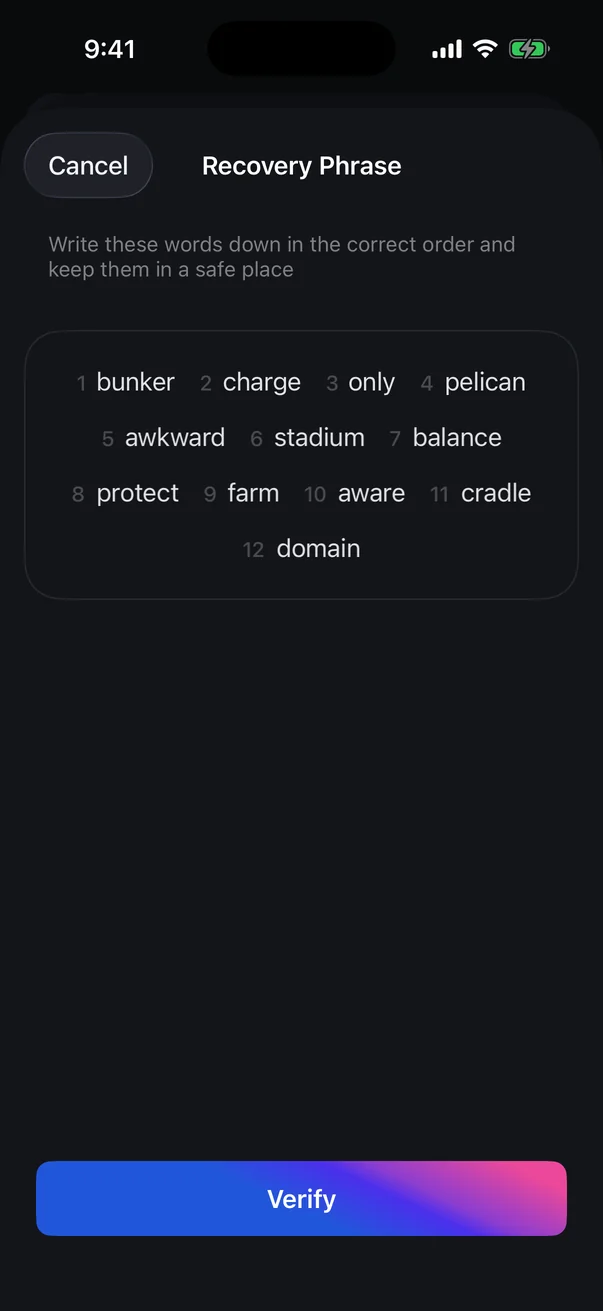
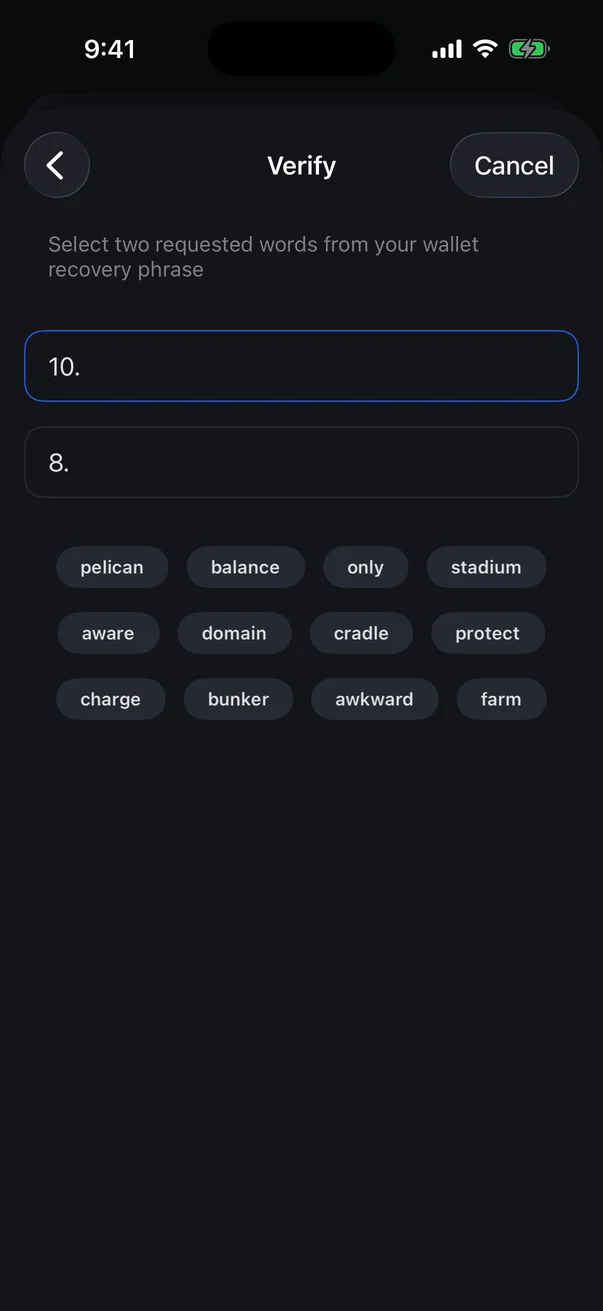
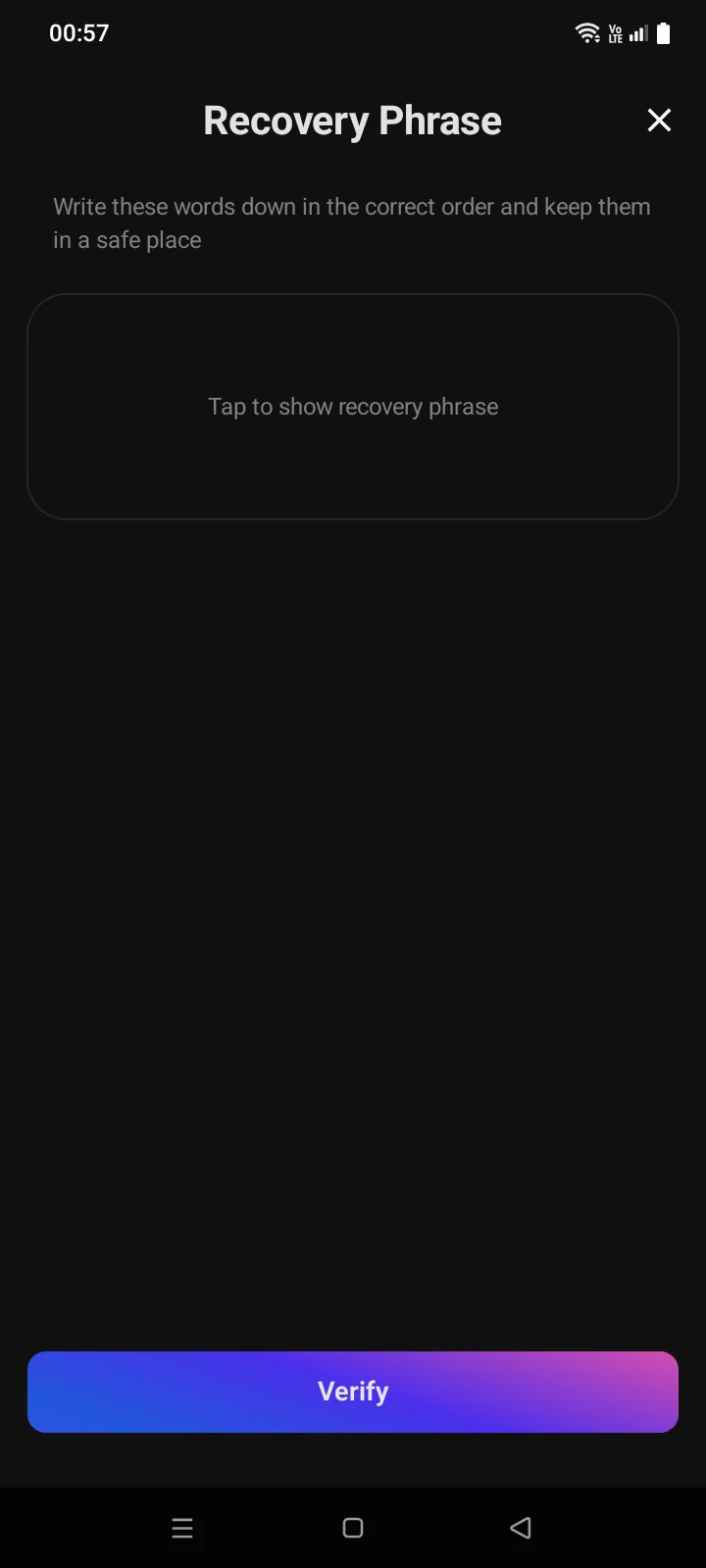
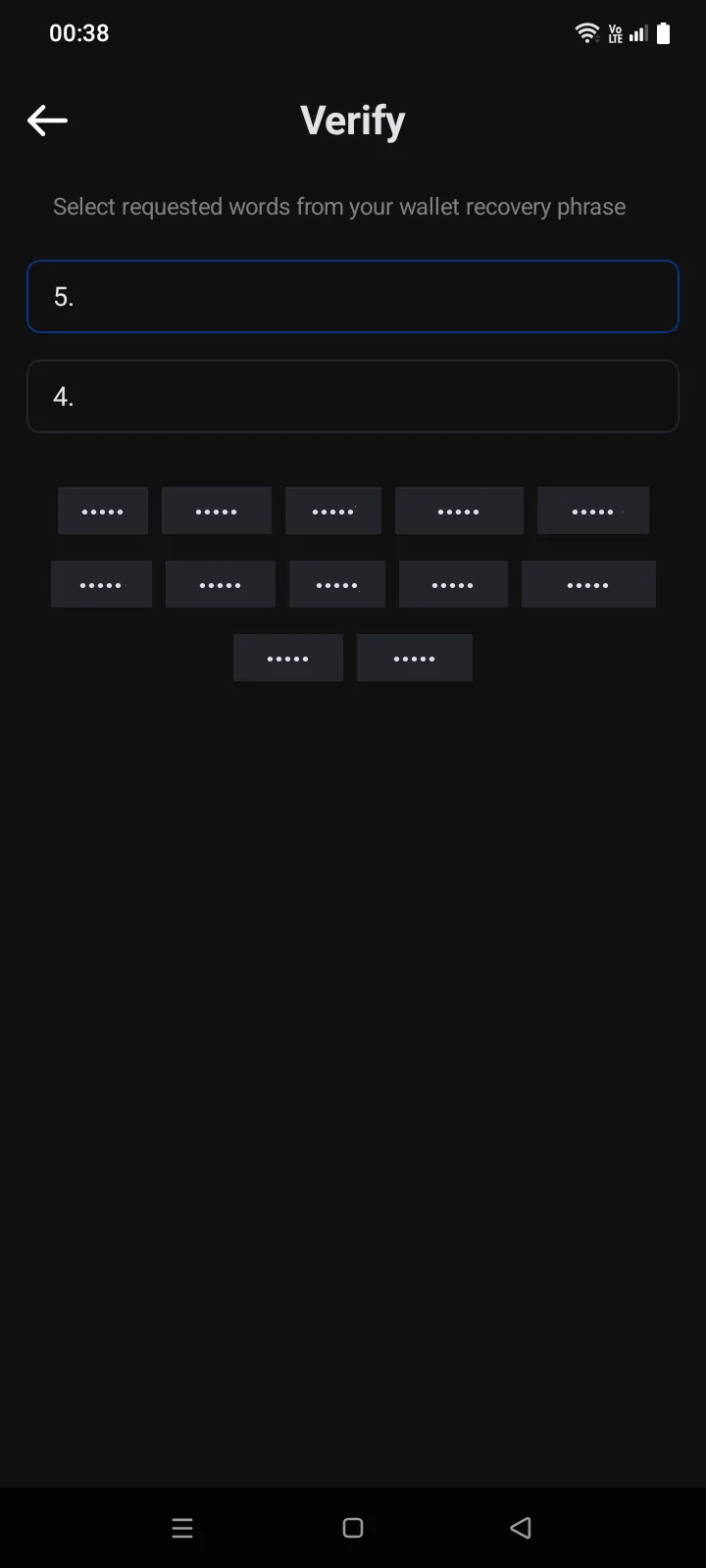
How many words you're asked for depends on the phrase length: two for 12 and 15 words, three for 18 and 21, four for 24two for 12 words, three for 15, 18 and 21, four for 24. A wrong choice shows Incorrect WordInvalid word, and the check starts again with other words. If the wallet has a passphrase, it is shown under the words — write it down too.
A manual backup is available only for wallets with a recovery phrase. For a wallet imported with a private key, only a backup to iClouda backup to a file is available.
Backup to iCloud
- Tap Backup to iCloud. Read the note that iCloud is a third-party service provided by Apple, tick the statement and tap Continue.
- Enter a name for the backup file (the wallet name is suggested) and tap Next.
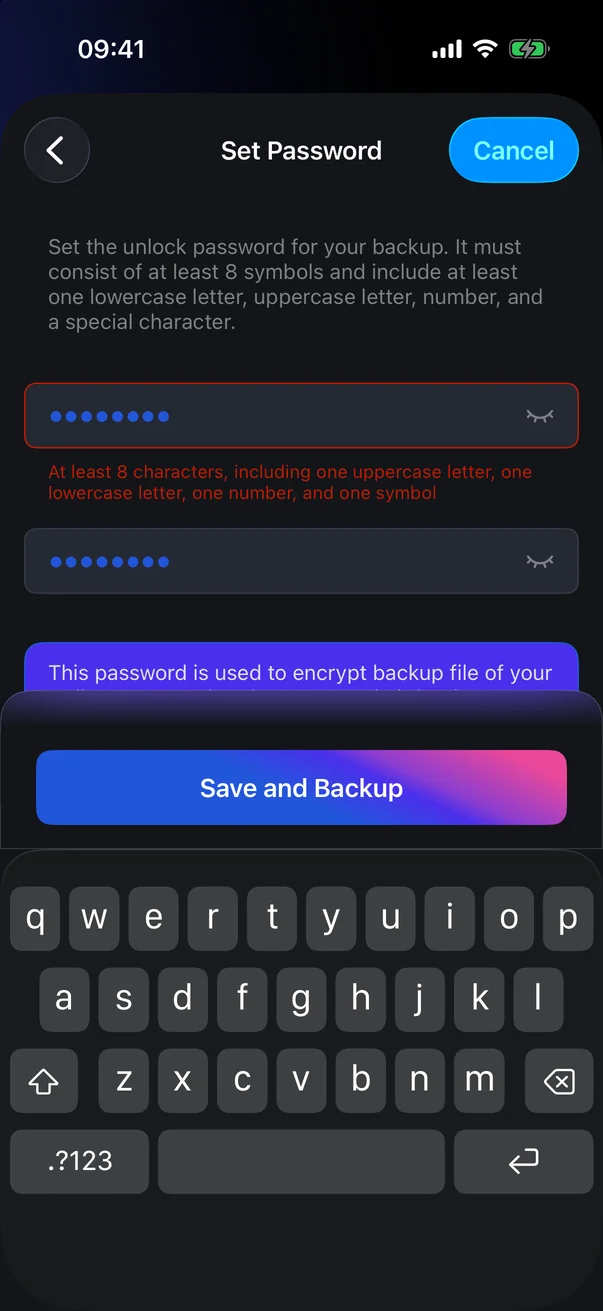
- Set a password for the backup and confirm it (requirements: see 3.4).
- Tap Save and Backup. The message Saved to iCloud confirms it.
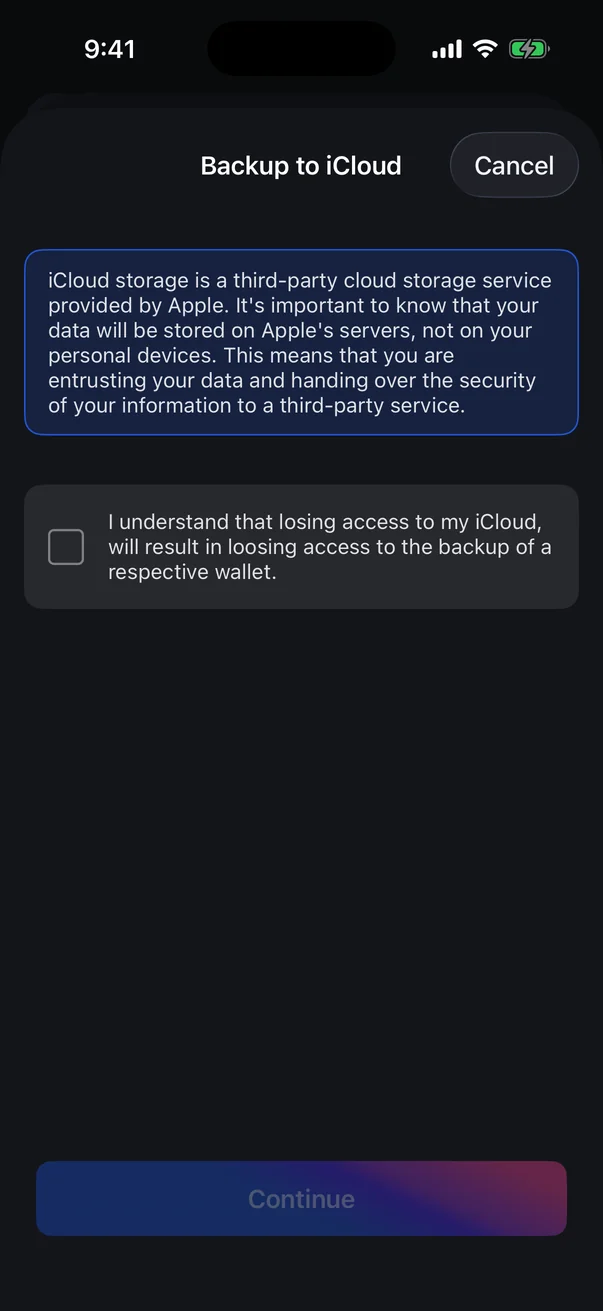
If iCloud isn't available on the iPhone, the Access iCloud panel asks you to allow iCloud storage. Sign in to iCloud in the iPhone settings and turn on iCloud Drive.
Delete the iCloud backup
When a wallet has an iCloud backup, its settings show Delete Backup from iCloud instead of Backup to iCloud. Tap it and confirm with Delete. If the wallet has no manual backup yet, the app first asks you to make one (Backup Now) and deletes the iCloud copy after the manual backup is verified.
Backup to a file
The app encrypts the recovery phrase (and the passphrase, if there is one) with a password you set, and saves the file wherever you choose: the phone's storage, a memory card or a cloud storage connected to the phone.
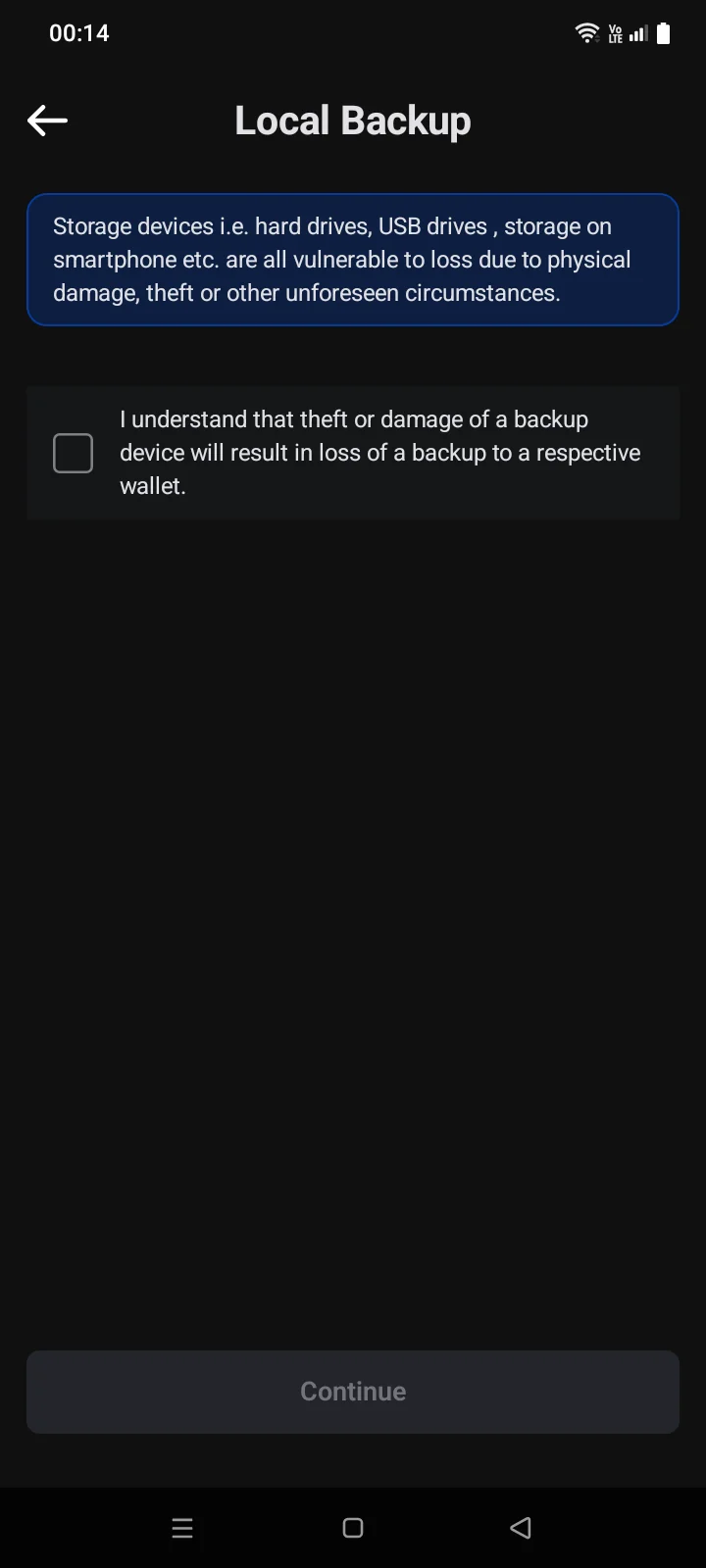
- Tap Local Backup. Read the warning: storage devices can be lost, damaged or stolen.
- Tick the statement I understand that theft or damage of a backup device will result in loss of a backup to a respective wallet. and tap Continue.
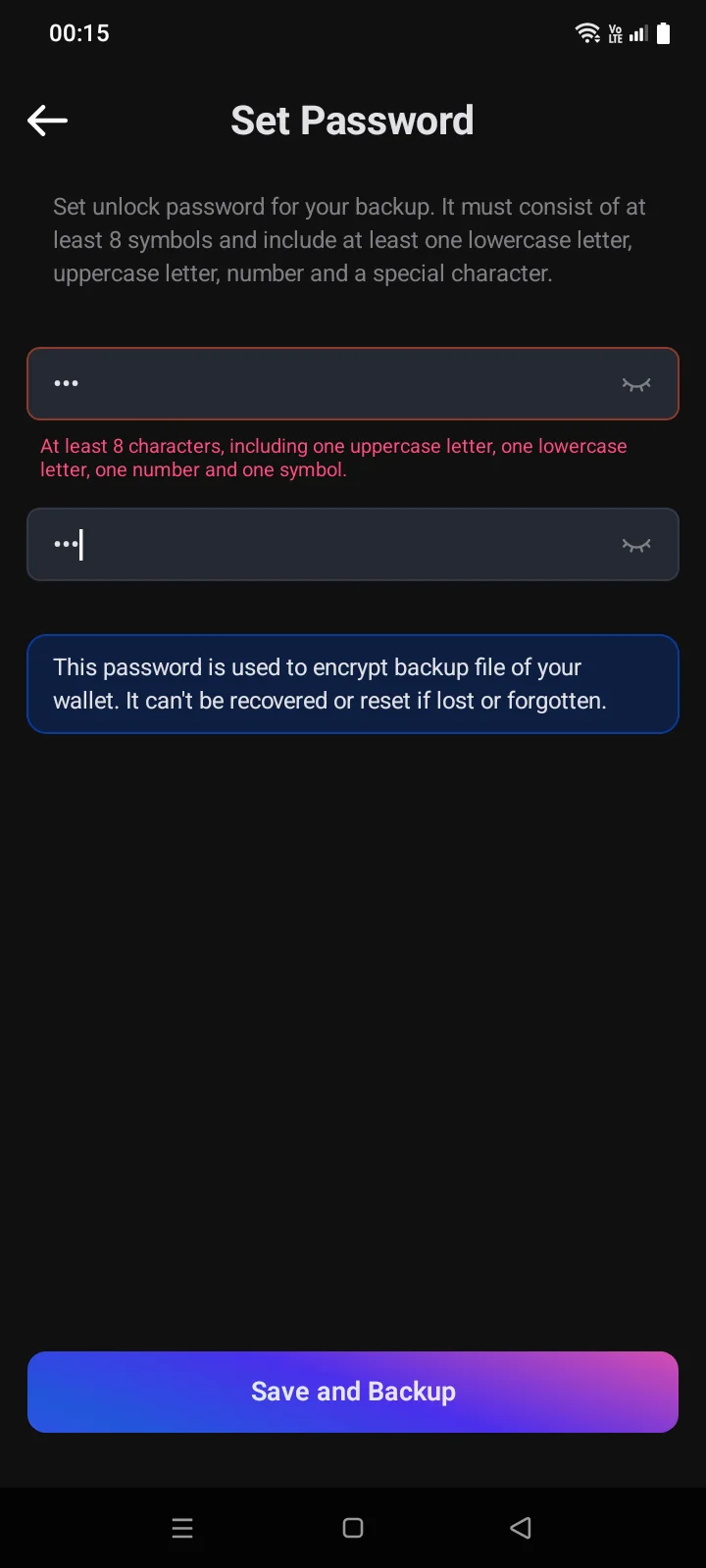
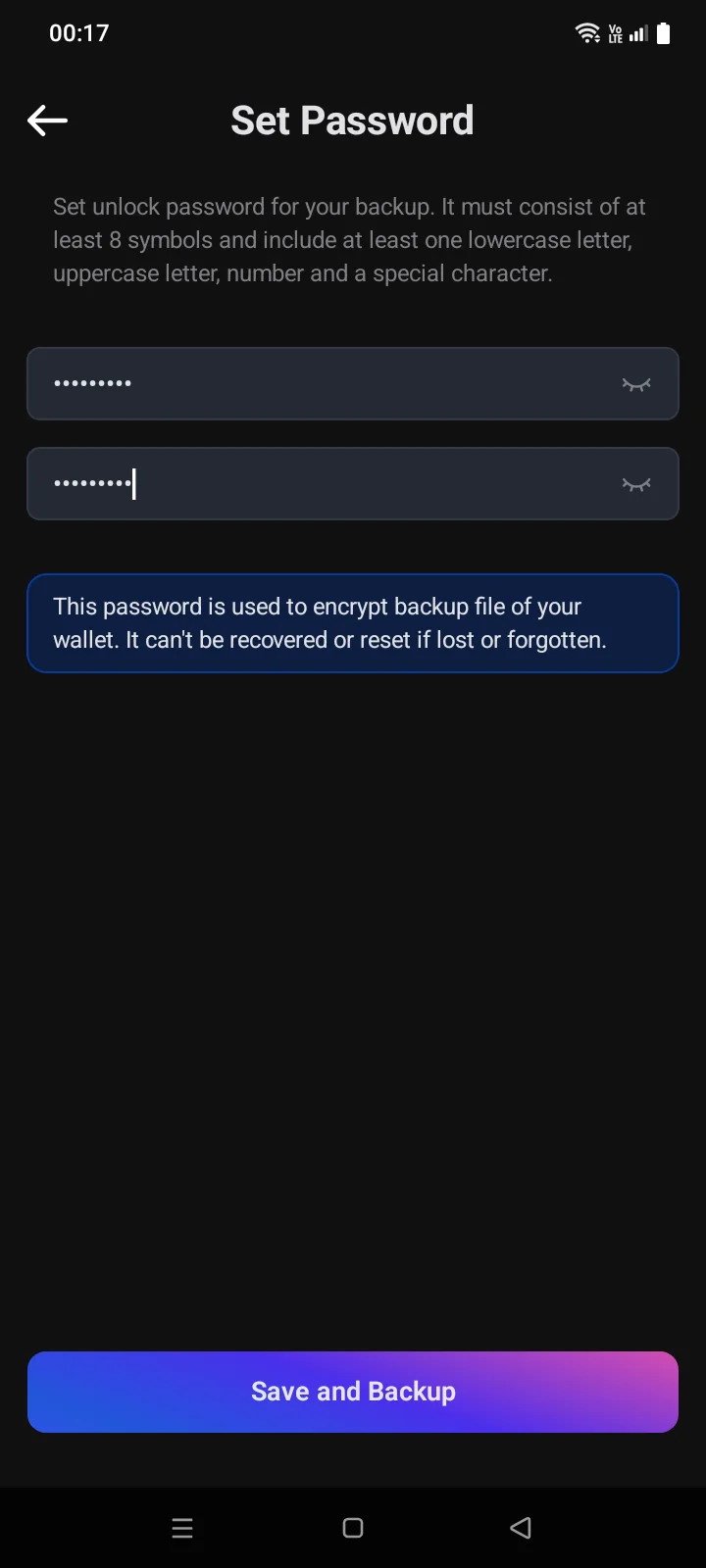
- On the Set Password screen, enter a password in the Password field and repeat it in the Confirm field. The eye icon shows the characters you typed.
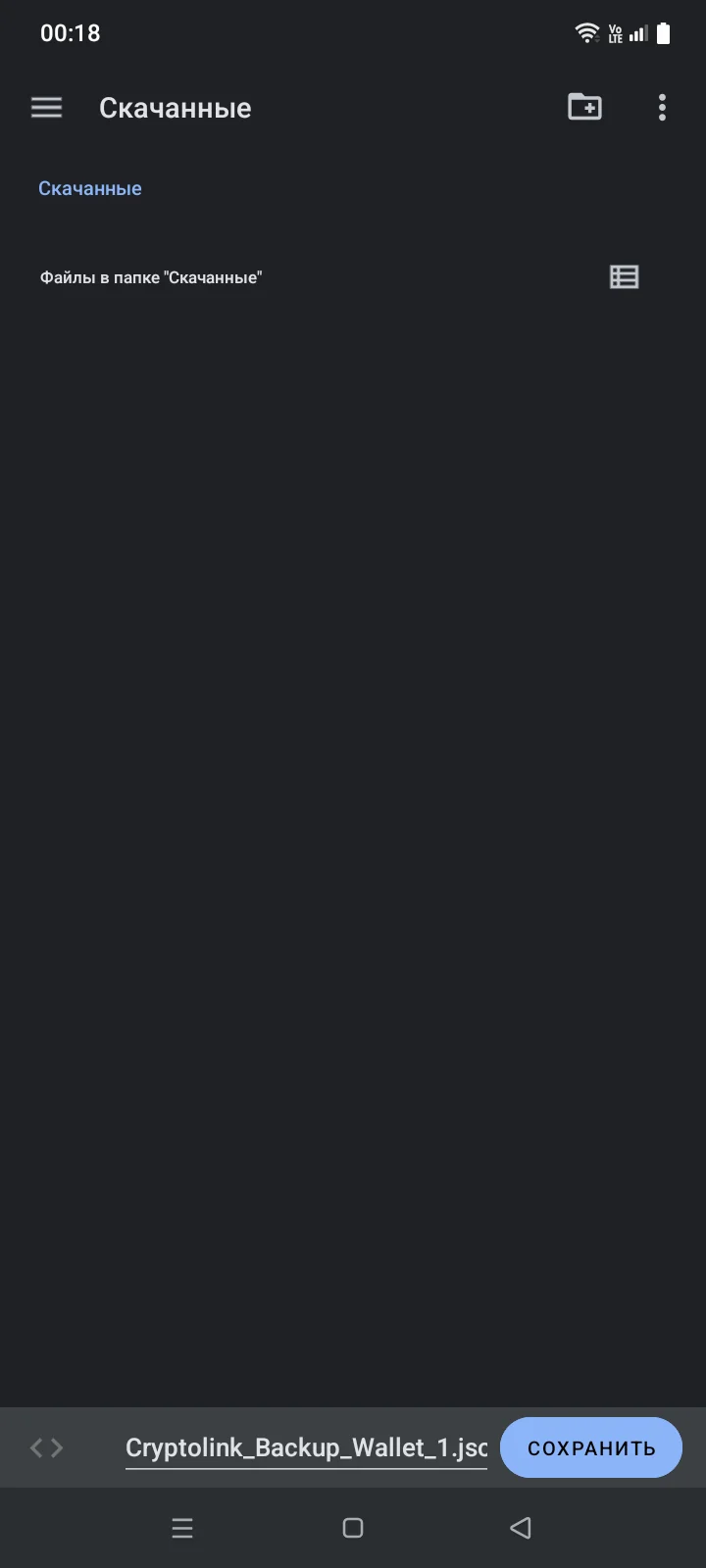
- Tap Save and Backup. The system save window opens, in your phone's language. The file name is already filled in: Cryptolink_Backup_<wallet name>.json. Choose a folder and confirm.
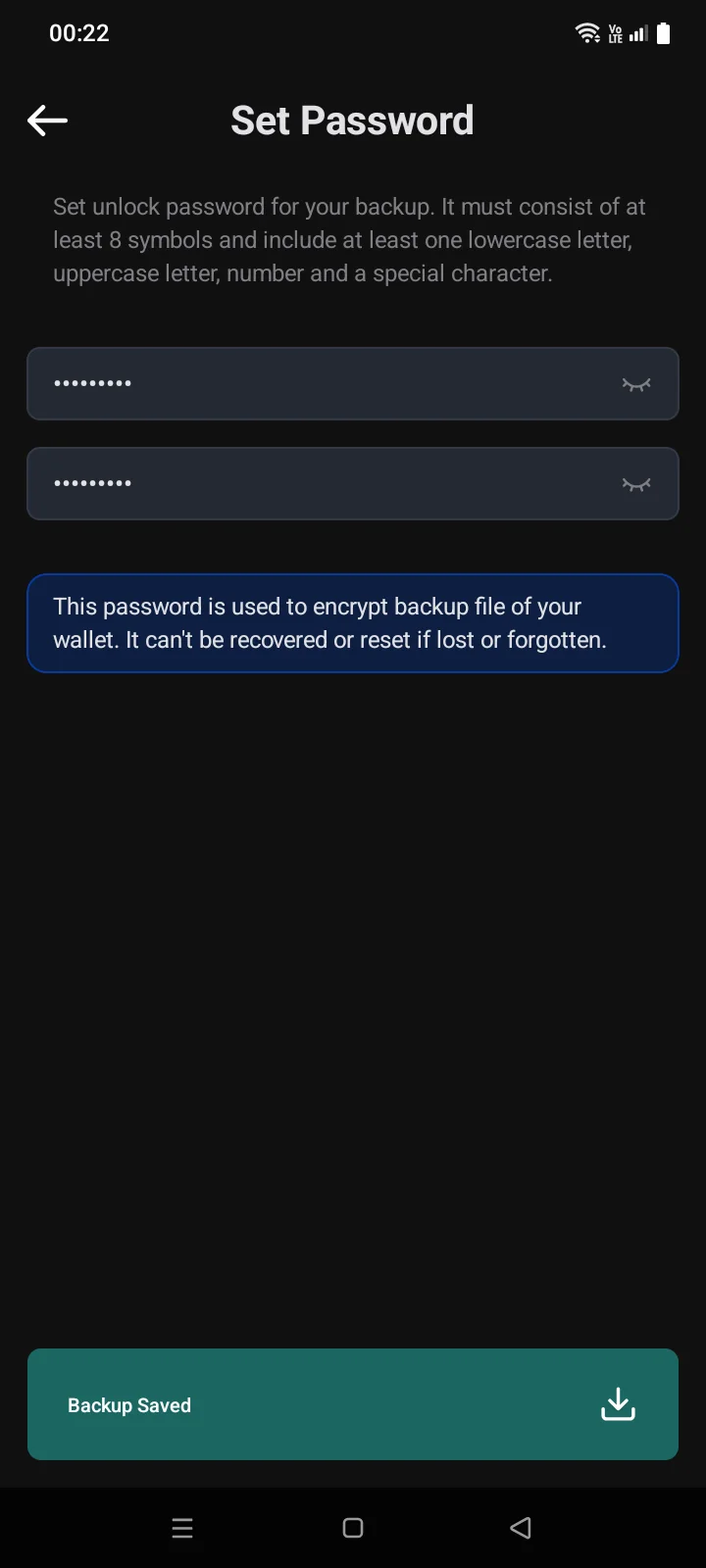
- The Backup Saved bar appears at the bottom of the screen, and a couple of seconds later the screen closes.
If you close the system window without saving, you stay on the password screen — tap the button again.
You can make a backup to a file again at any time — for example, after you've added coins. To restore a wallet from a file, see 3.5.
Backup password
The backup password rules are the same on iOS and Android: at least 8 characters with an uppercase and a lowercase Latin letter, a digit and a special character (a period or a space also counts). Only Latin letters, digits, spaces and the symbols ' " ` & / ? ! : ; . , ~ * $ = + - [ ] ( ) { } < > \ _ # @ | % are allowed; Cyrillic letters are not. Letter case matters: when restoring, type the password exactly as you set it.
After the backup
Once the wallet has a backup of either kind, Receive works, the Backup requiredBackup Required label disappears from the wallet list, and the phrase and key rows appear in the wallet settings. If there is no manual backup yet, the app still recommends one: It's recommended to have a manual backup for each wallet.
If something goes wrong
| Message | What to do |
|---|---|
| Incorrect WordInvalid word | Check your written phrase and go through the check again. |
| Backup name already exists! | Choose another name for the iCloud backup. |
| At least 8 characters, including one uppercase letter, one lowercase letter, one number, and one symbol | The backup password doesn't meet the requirements. Make it stronger. |
| Please use only supported symbols: … | The password contains a character that isn't allowed — for example, a Cyrillic letter. Use the characters listed in the message. |
| Password doesn’t matchPassphrase confirmation does not match | Enter the same password in both fields. |
| Can't save File to iCloud | Check that iCloud Drive is on and has free space, then try again. |