
3.5Importing a wallet
Import brings an existing wallet into Cryptolink: by its recovery phrase, a private key, or a backup from iCloud or a filefile. Your funds live on the blockchain, so after the import the wallet shows the same balances as before.
Start the import
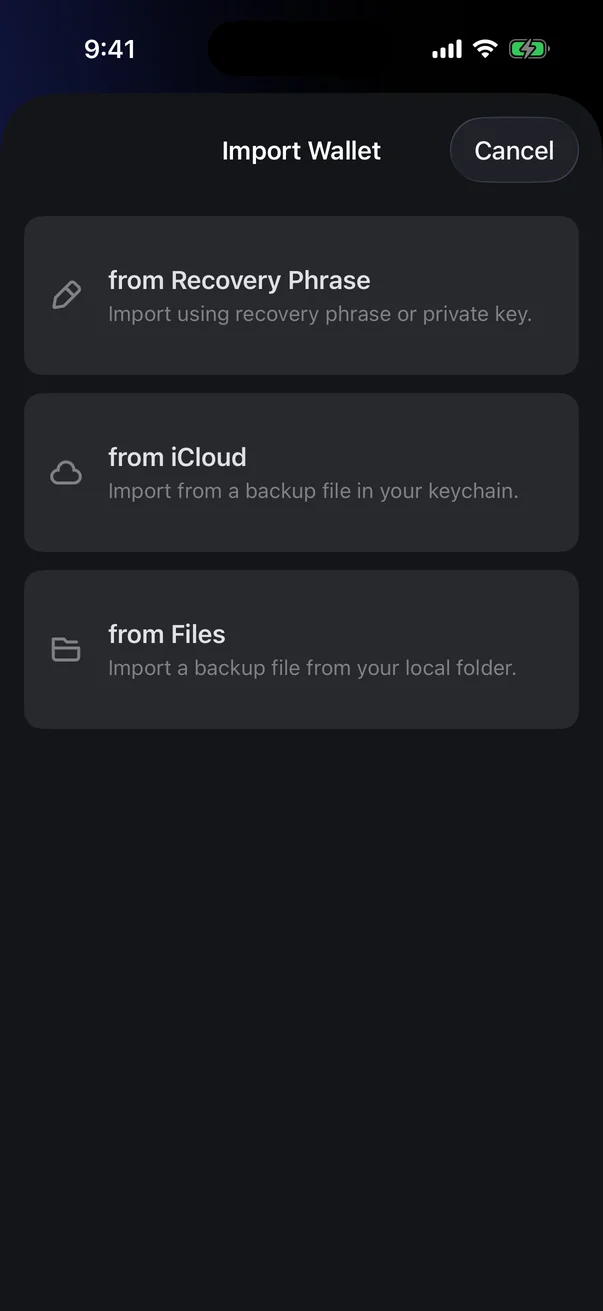
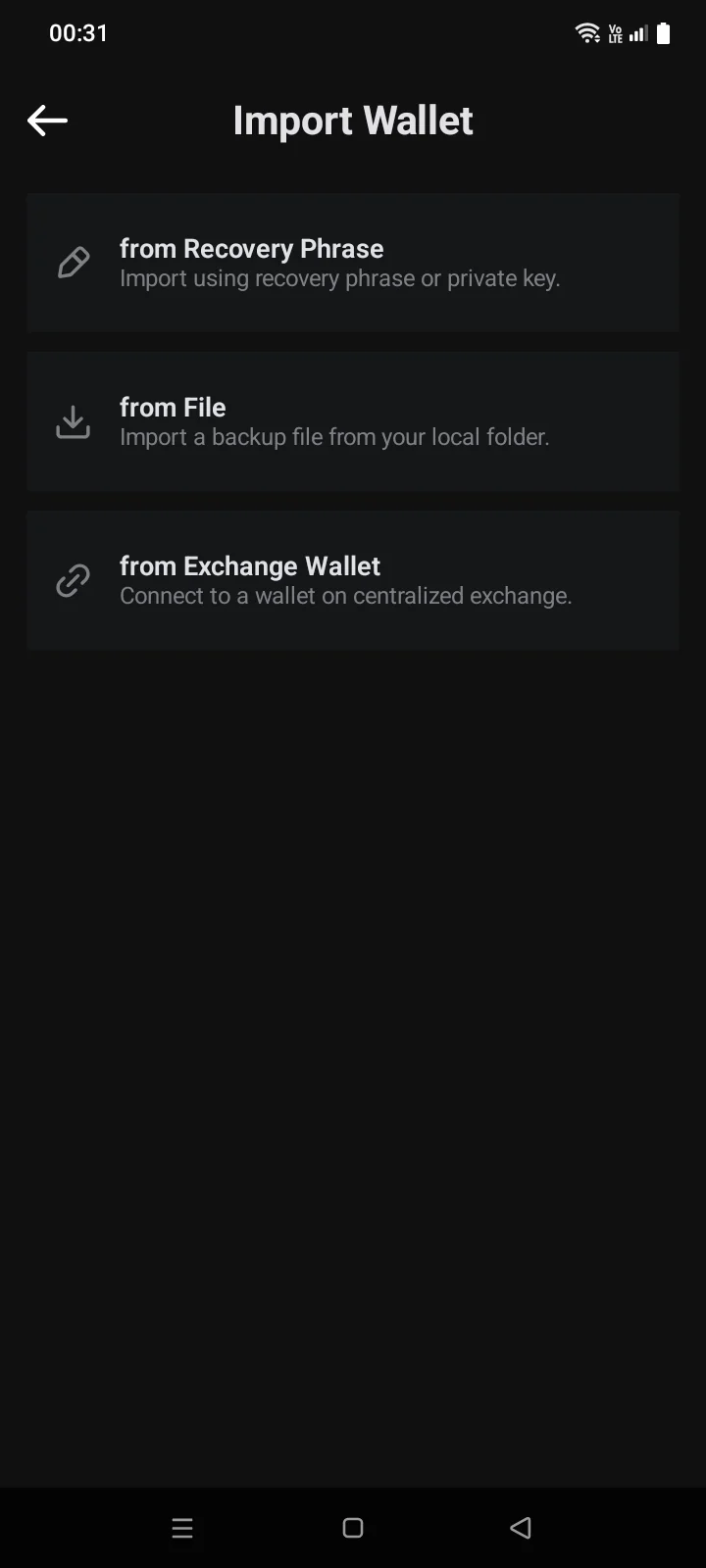
- On the Crypto tab, tap Import Wallet. If you already have a wallet, open the wallet list (the ⋮ button in the top-left corner) and tap Import Wallet there.
- Choose the source:
If you haven't accepted the wallet terms of use yet, the terms screen opens before the import (see 3.3).
Import by recovery phrase
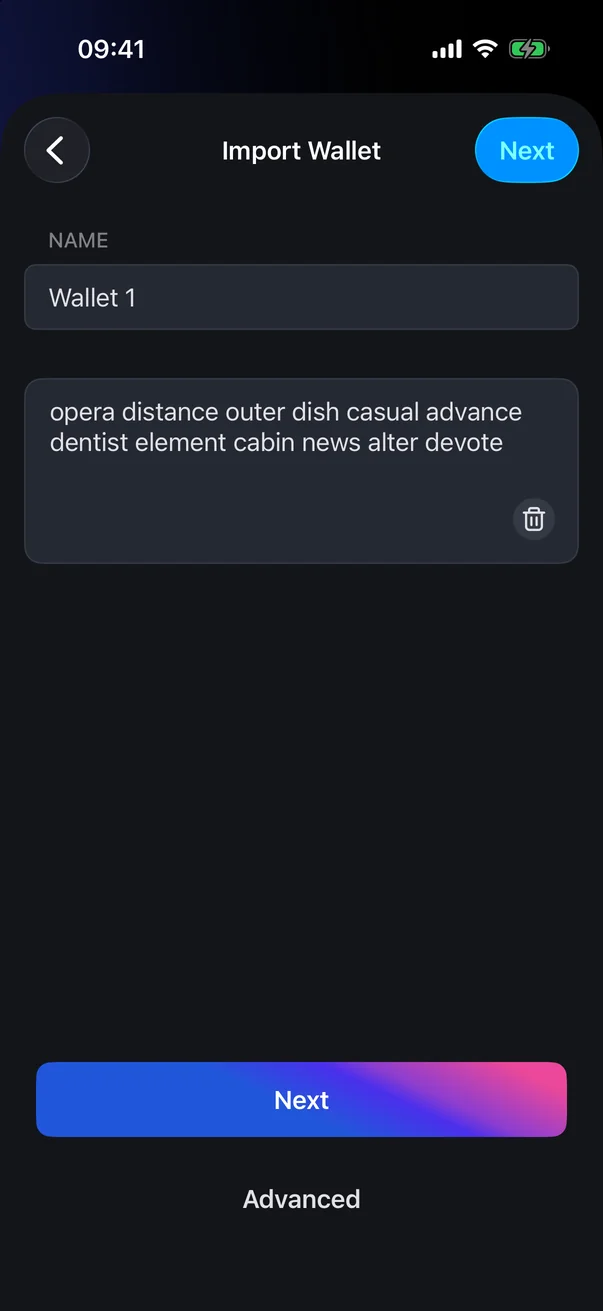
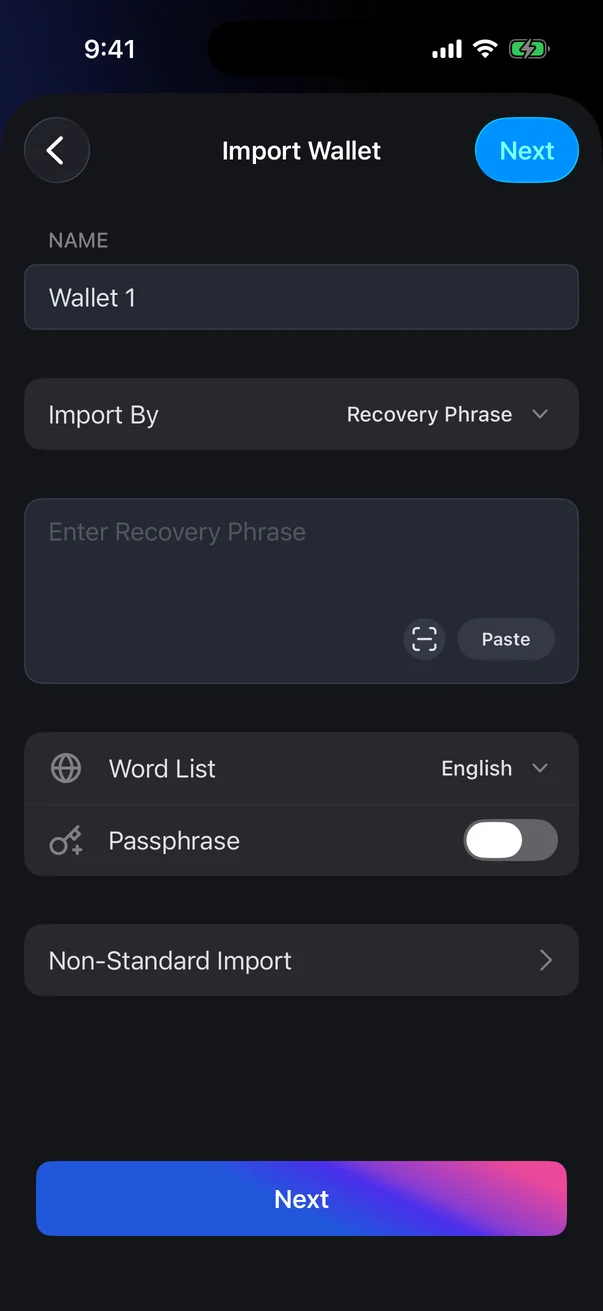
- Enter a name for the wallet or keep the suggested one (Wallet 1, Wallet 2…).
- Type or paste the recovery phrase, words separated by spaces. While you type, the bar above the keyboard suggests words; unknown words are highlighted. You can also tap Paste to paste the phrase from the clipboard or the QR code icon to scan it; the trash icon clears the field.
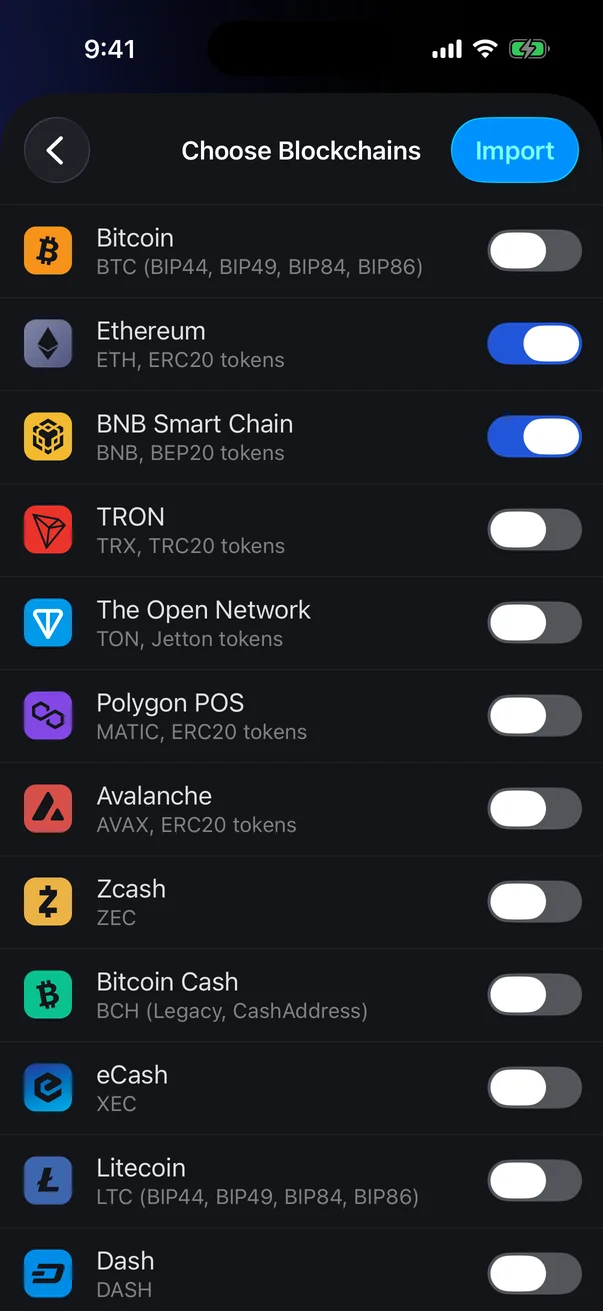
- Tap Next. The Choose Blockchains screen opens.
- Turn on the blockchains you use. For Bitcoin (and Litecoin, Bitcoin Cash) choose the address formats in the panel that opens; if unsure, keep the suggested ones. To change your choice later, tap the pencil icon in the blockchain row.
- Tap Import. The message Imported appears and the wallet opensthe import screen closes.
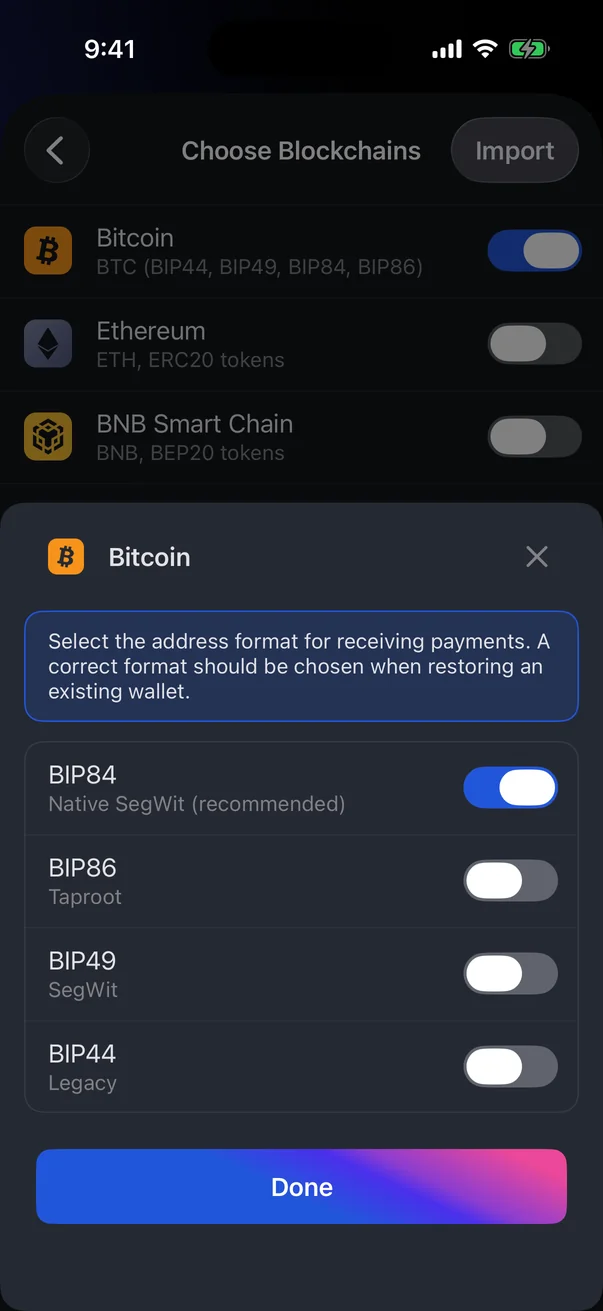
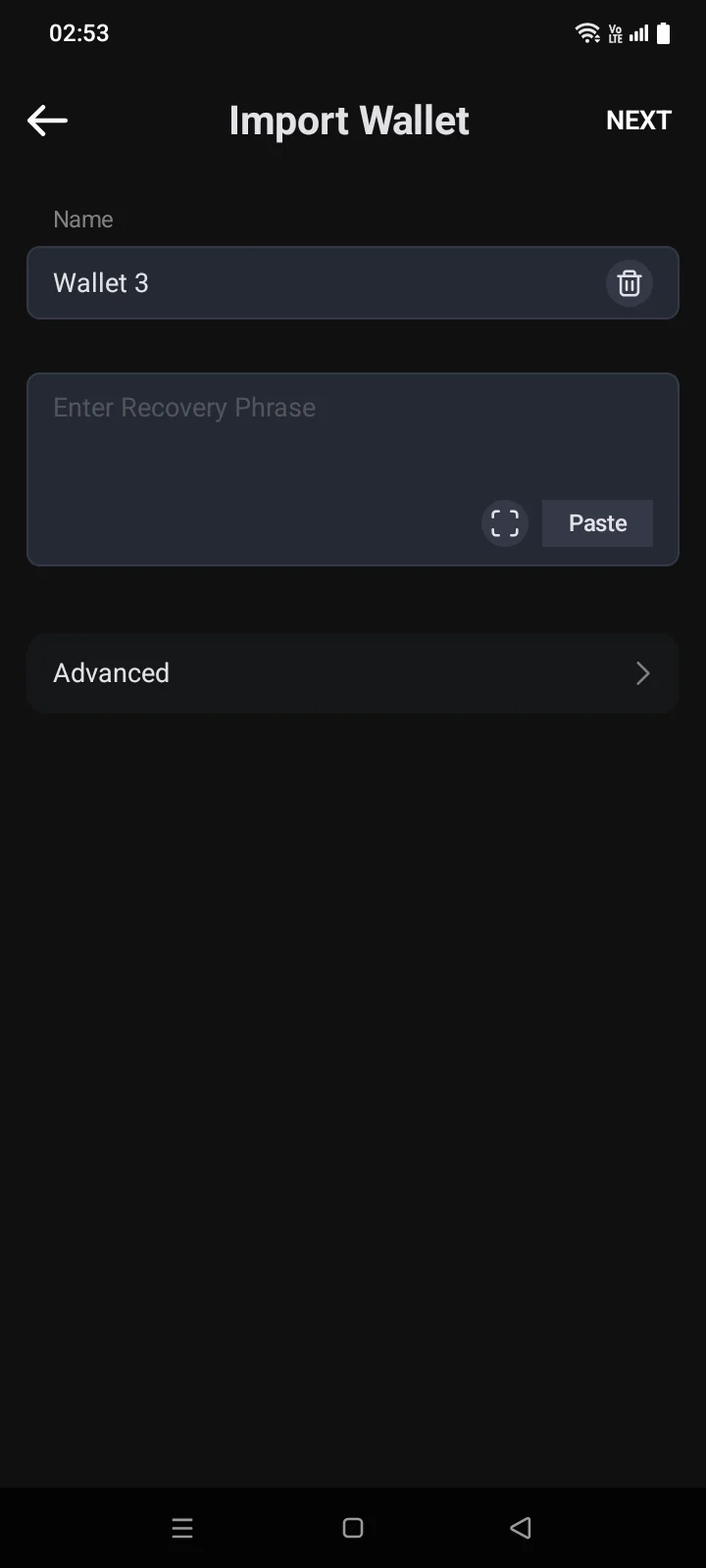
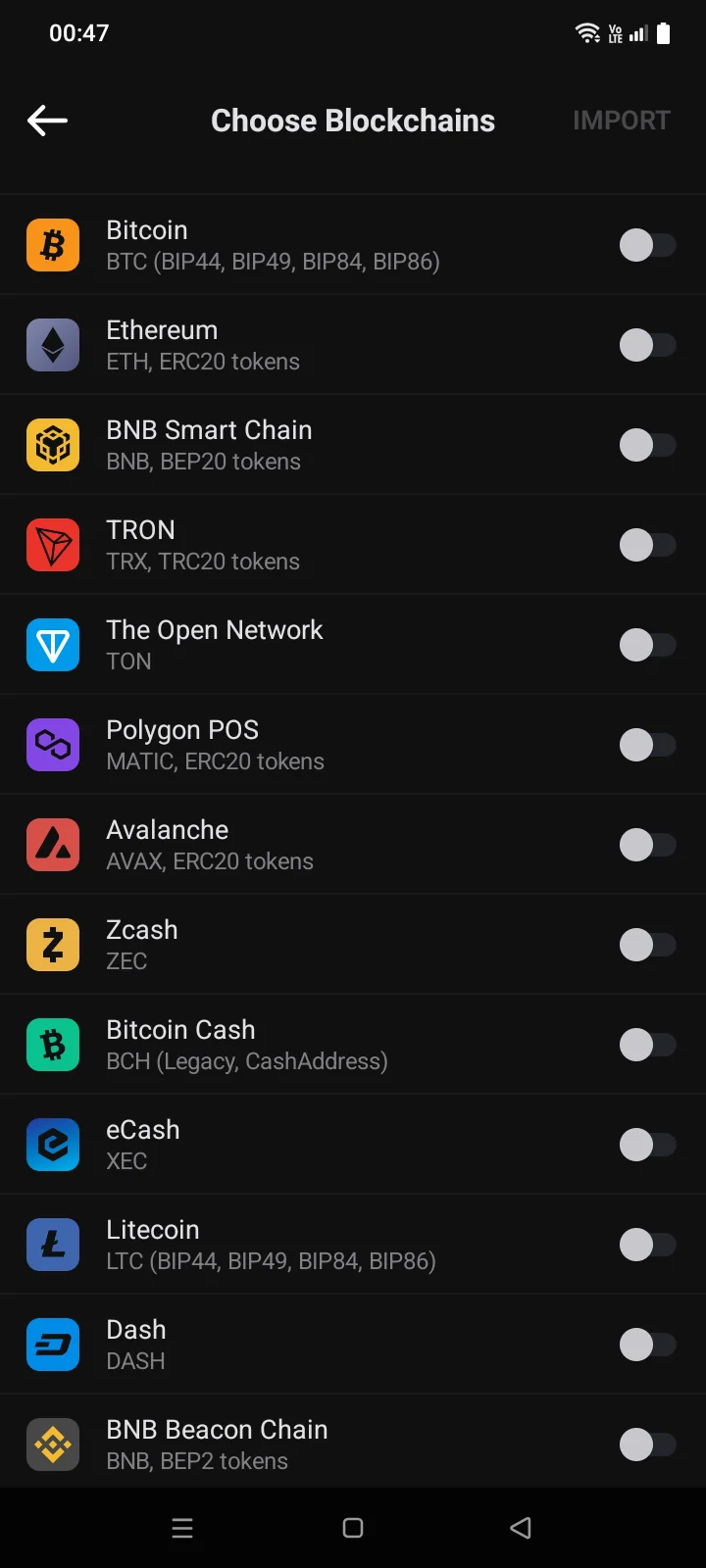
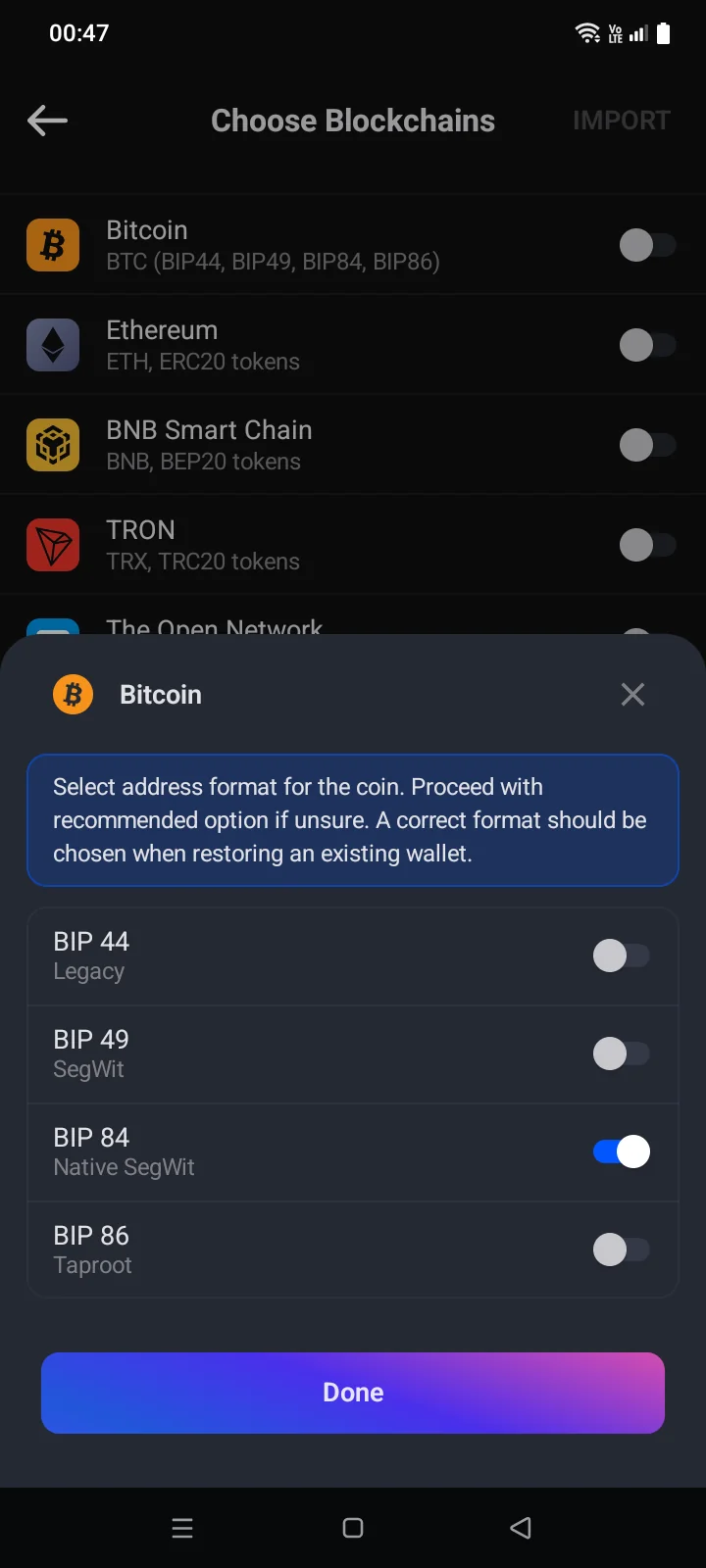
A wallet imported by phrase doesn't need a backup: you already have the phrase. Receive works right away.
If the phone uses a third-party keyboard, a Warning appears when you enter the phrase: the app advises switching to the default keyboard, because third-party keyboards may collect what you type. SELECT opens the keyboard picker; SKIP lets you continue with your keyboard.
Advanced import
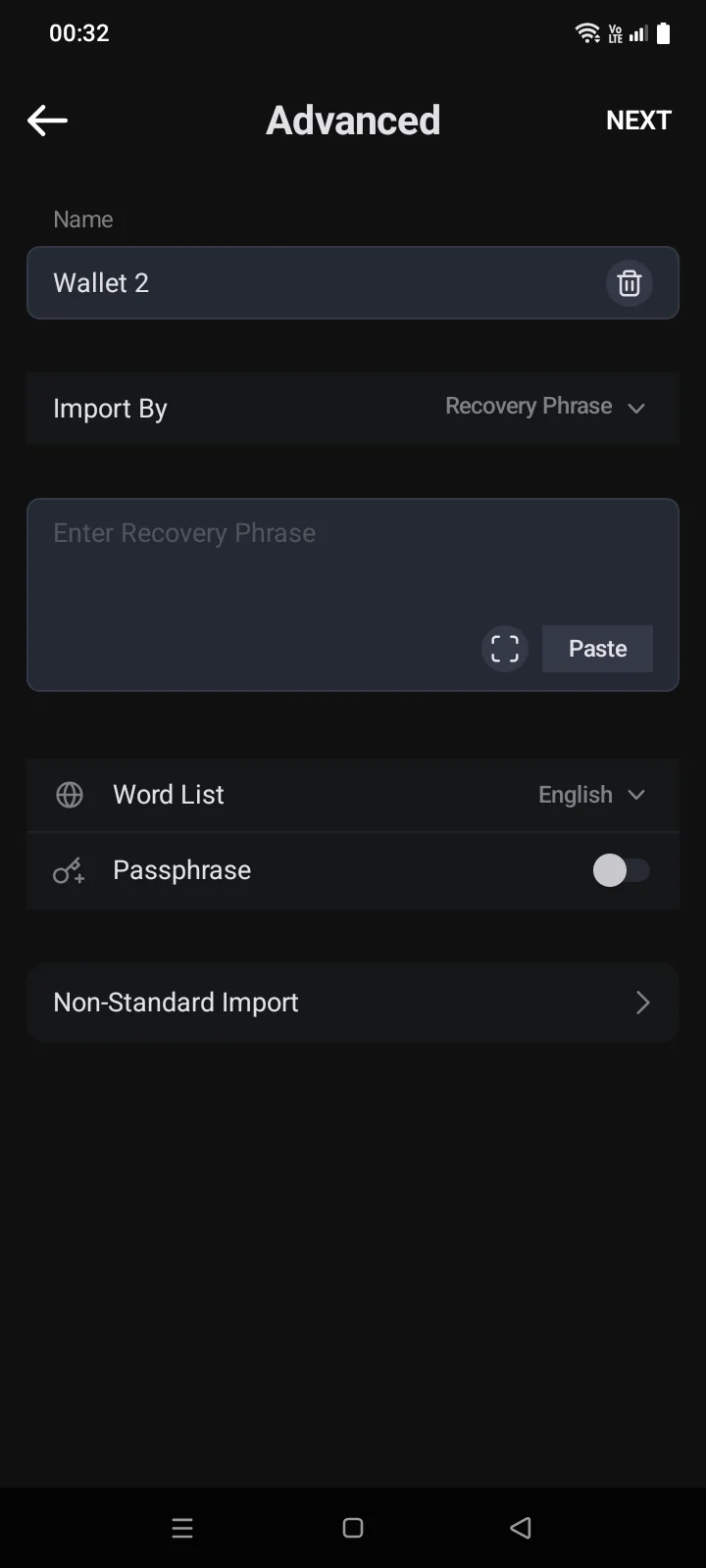
Tap Advanced on the import screen to:
- import by Private Key — Import By › Private Key, then enter an EVM private key, a BIP32 root key or an account extended private key;
- choose the Word List language if the phrase isn't in English (Japanese, Korean, Spanish, Chinese Simplified and Traditional, French, Italian, Czech, Portuguese);
- turn on Passphrase and enter it if the wallet was created with one. Restoring with a different passphrase gives you a different, empty wallet;
- use Non-Standard Import for old non-standard wallets.
Then tap Next and choose the blockchains as described above. A wallet imported with a private key has no manual backup — keep the key yourself or make a backup to iCloud (see 3.4)to a file (see 3.4).
Import from iCloud or a file
- Choose from iCloud and pick the backup in the list, or choose from Files and pick the backup file.
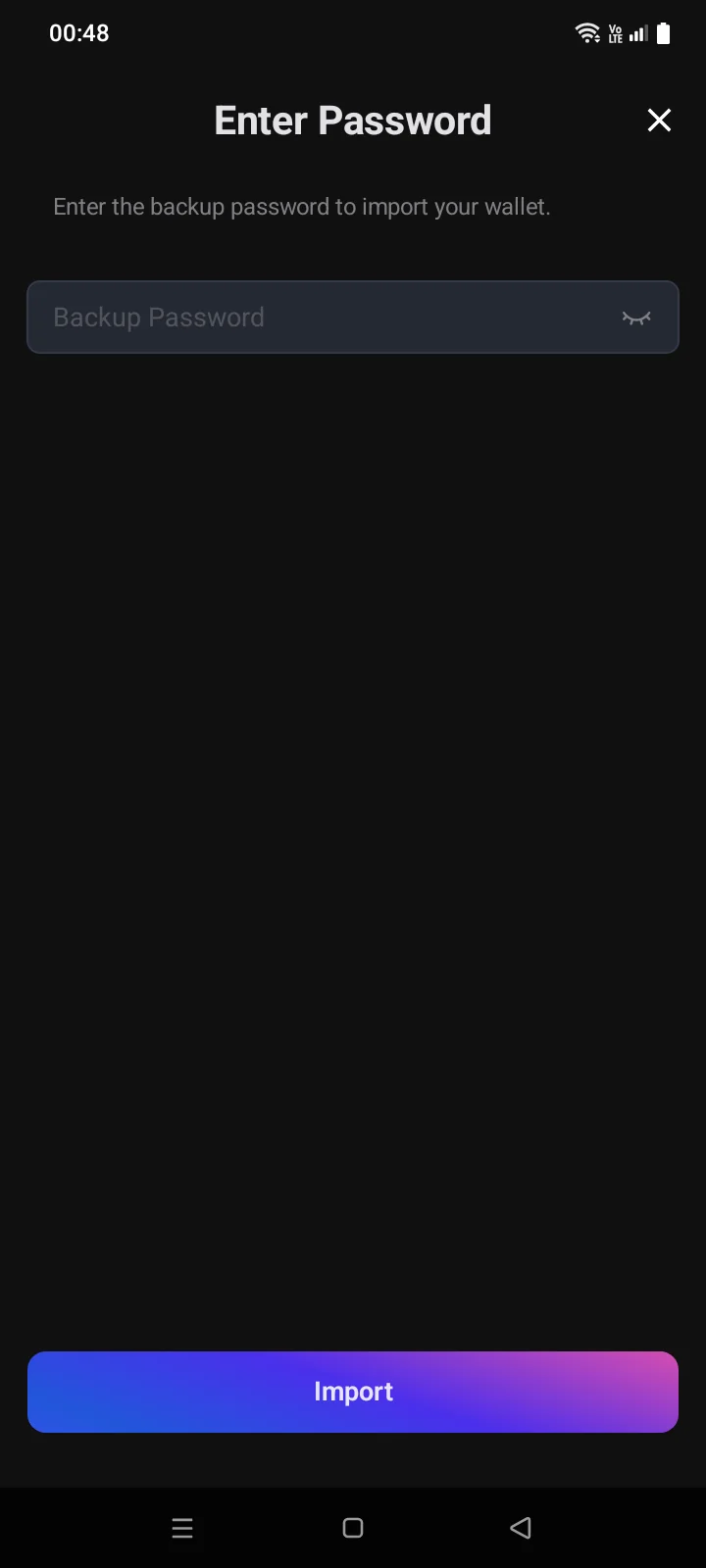
- Enter the backup password — the one set when the backup was made.
- Tap Import. A full app backup first shows what it contains (wallets, watch wallets, contacts, settings); tap Restore.
In the iCloud list, backups of wallets already on this iPhone are shown under Imported wallets. Swiping a backup to the left deletes it from iCloud right away, without confirmation.
Import from a file
- Tap from File. The system file picker opens. Find the backup file (by default its name starts with Cryptolink_Backup_) and select it.
- On the Enter Password screen, enter the password you set when you made the backup in the Backup Password field.
- Tap Import. The message Imported appears and the screen closes.
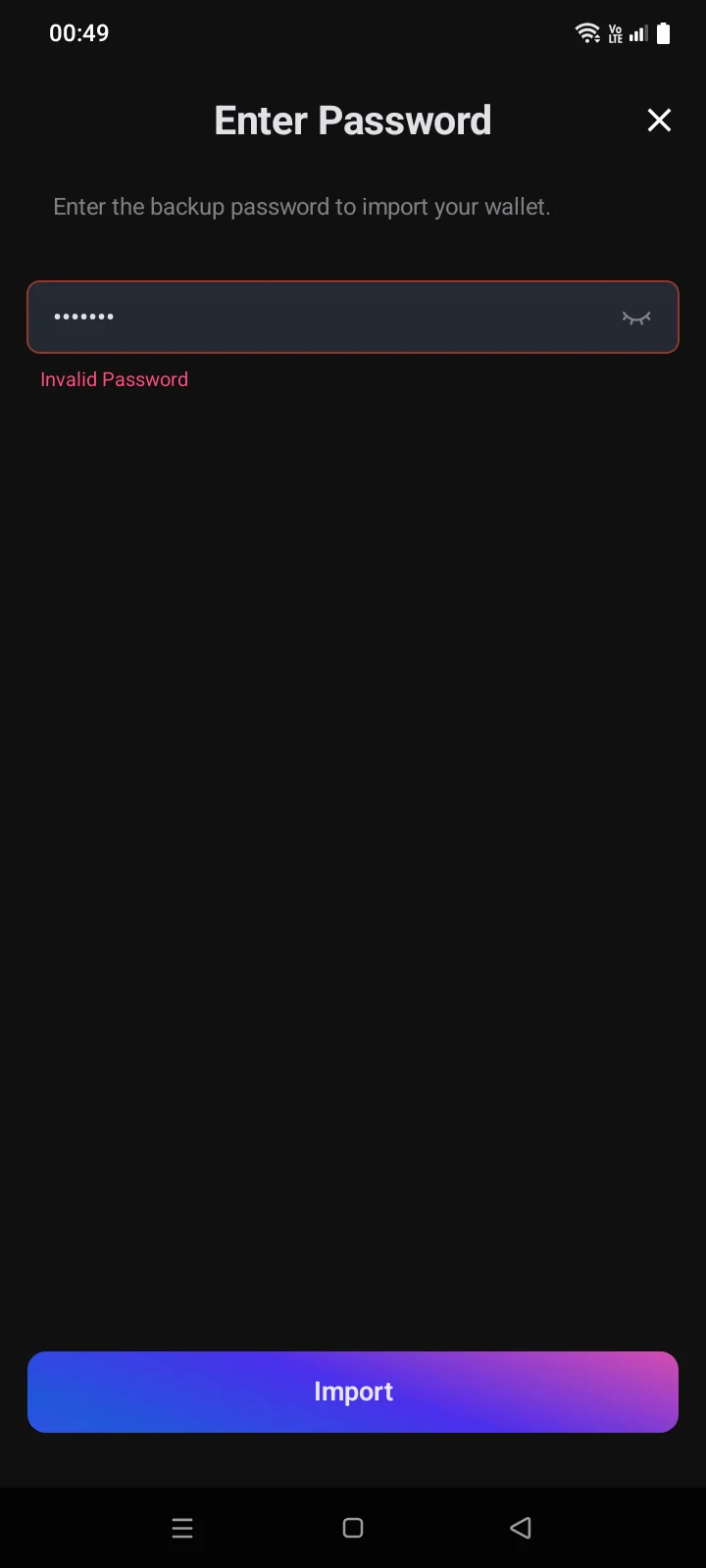
If the password is wrong, the field turns red and Invalid Password appears under it. Enter the password you set when you saved the backup — letter case matters.
- The wallet name comes from the file name: without Cryptolink_Backup_ and the extension, with underscores replaced by spaces. You can rename the wallet later in its settings (see 3.7).
- The coins restored are the ones the wallet had when the backup was made. If the backup has no coin list, the Choose Blockchains screen opens.
- A wallet imported from a file already counts as backed up; Receive works without a separate backup.
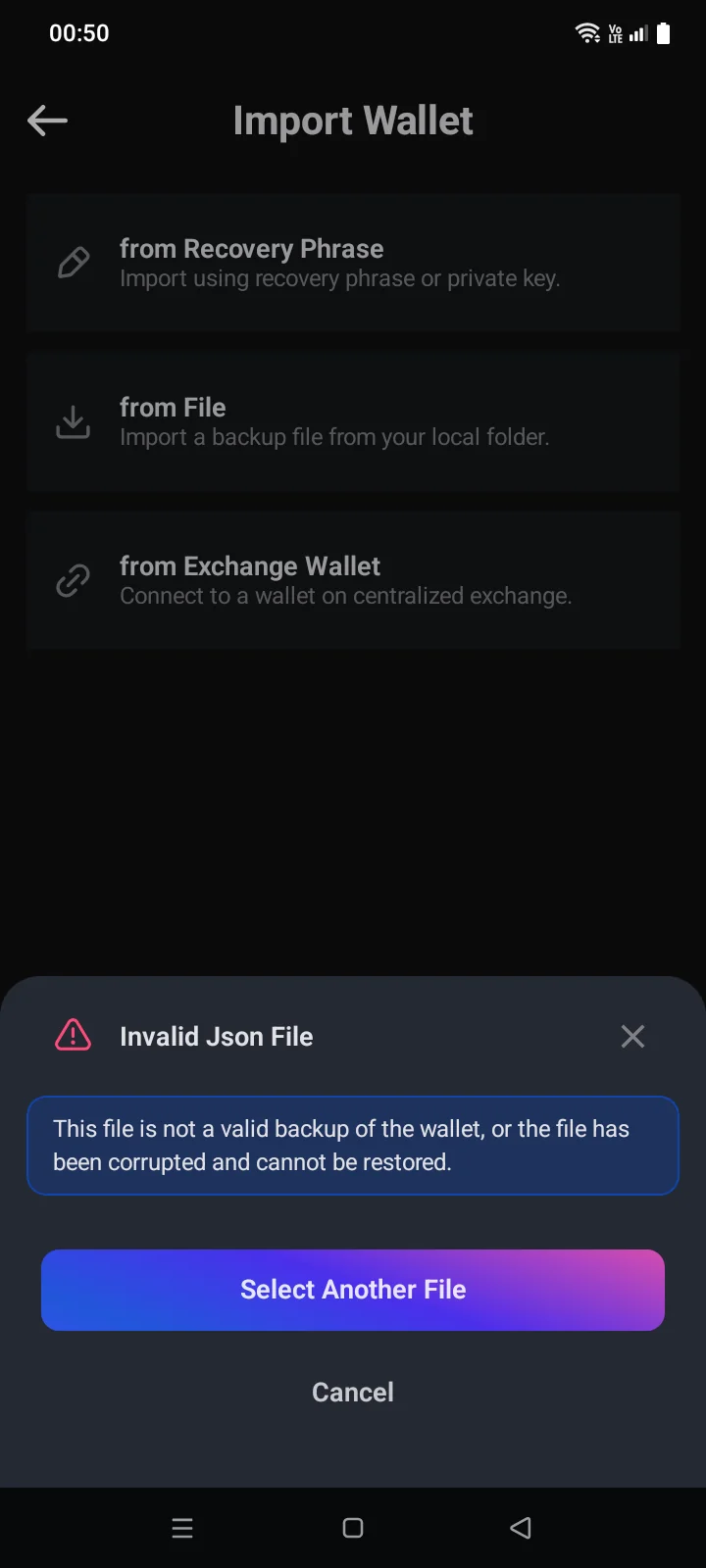
- If the selected file isn't a Cryptolink backup or is damaged, the Invalid Json File panel opens. Tap Select Another File or Cancel.
Zcash: birthday height
When you turn on Zcash, the app asks whether it's a New Wallet (Doesn't have any transactions) or an Existing Wallet (Has transactions). For an existing wallet you can enter its Birthday Height — the block to start syncing from. It makes the first sync faster; the first sync can use a lot of internet traffic.
If something goes wrong
| Message | What to do |
|---|---|
| Wrong words count. It must be between 12 and 24 words. You entered: NWrong words count. It must be between 12 or 24 words. You entered: N | Check that no word is missing or extra. A phrase has 12, 15, 18, 21 or 24 words. |
| Invalid checksumInvalid Checksum | A word is wrong or out of order. Compare with your written phrase. |
| The passphrase cannot be emptyPassphrase cannot be empty | You turned on Passphrase but didn't enter it. Enter the passphrase or turn off the switch. |
| Invalid Key | The private key isn't recognised. Check that it's complete. A public key (xpub) can't be imported — you can add it only as a watch-only wallet (see 3.6). |
| Incorrect PasswordInvalid Password | Enter the backup password again — the one set when the backup was made; letter case matters. |
| Can't RecognizeInvalid Json File | The selected file isn't a Cryptolink backup or is damaged. Choose another file. |