
Part 3 · Crypto wallet
3.3Creating a wallet
A new wallet is created right on your phone together with a 12-word recovery phrase. The phrase is the only way to restore the wallet, so back it up right after creating the wallet.
Before the first wallet: the terms
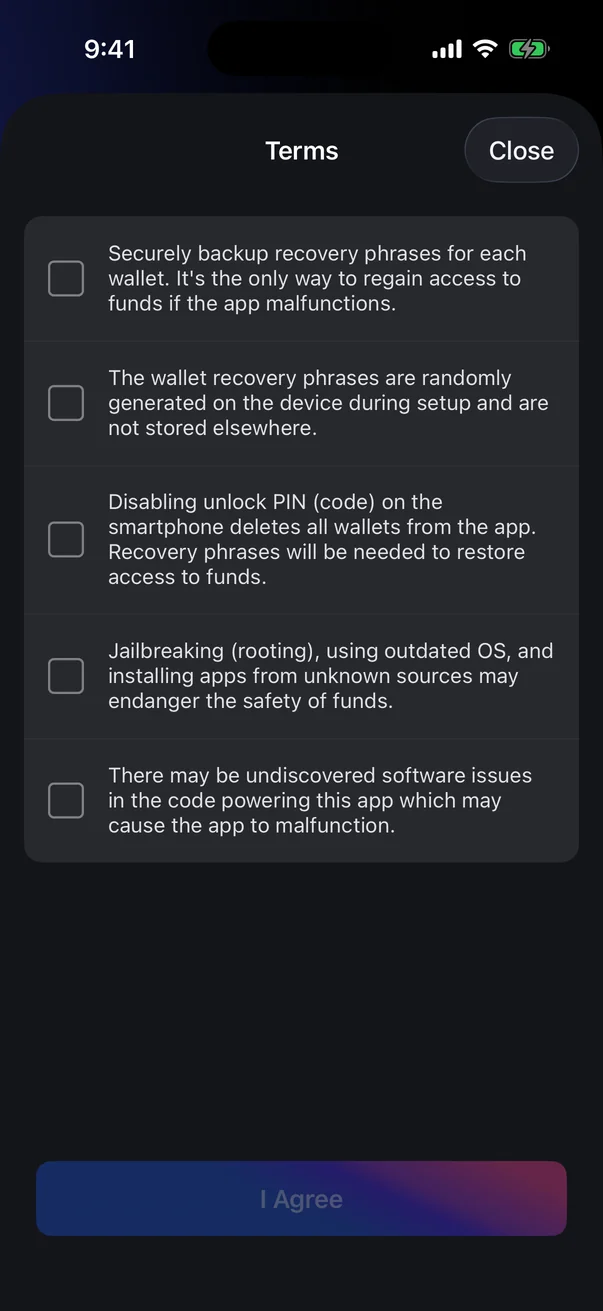
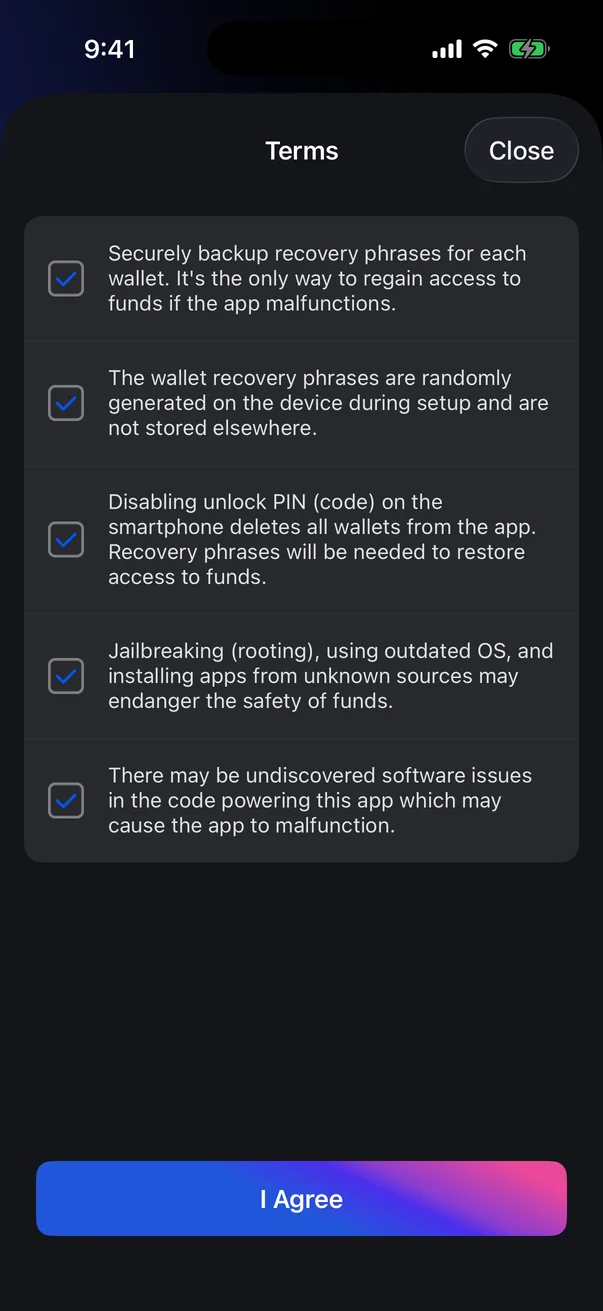
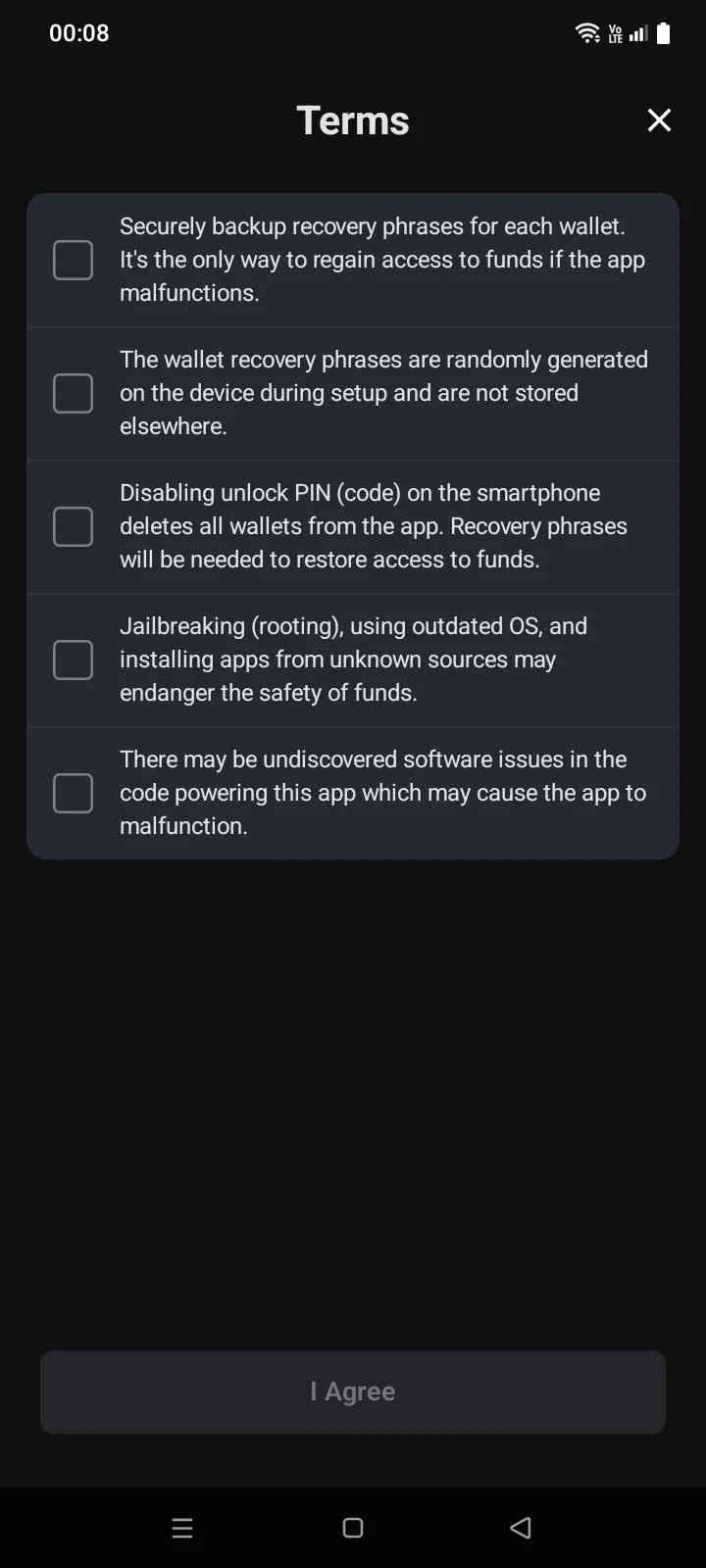
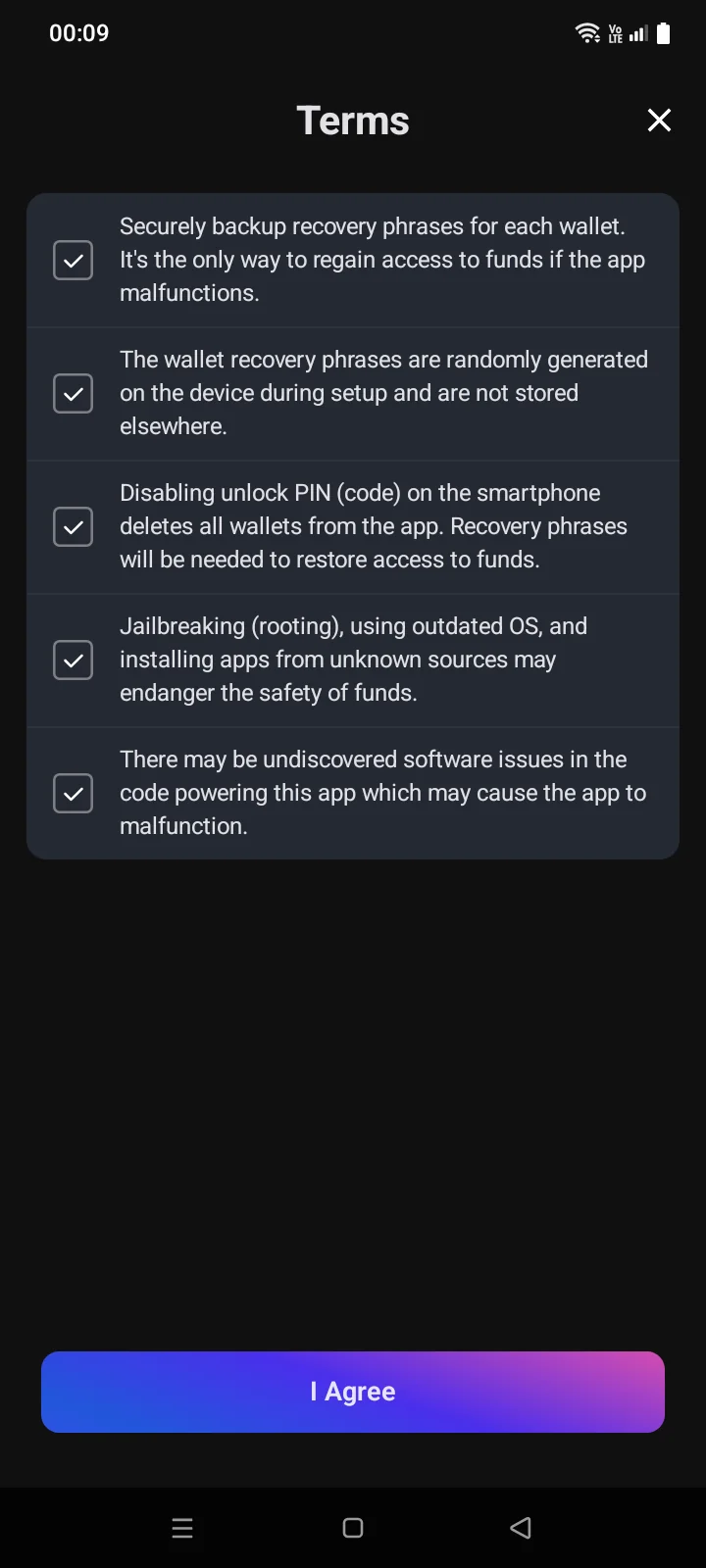
Before you create or import your first wallet, the Terms screen lists five statements. Read each one and tick it; I Agree becomes active when all five are ticked. The terms are shown only before your first wallet — you won't see them again when you create or import more wallets. If you close the screen (Closethe cross or the system Back button), no wallet is created.
- Securely back up the recovery phrase of each wallet — it's the only way to regain access to funds if the app malfunctions.
- Recovery phrases are generated randomly on the device and aren't stored anywhere else.
- Turning off the iPhone passcodeTurning off the phone's screen lock deletes all wallets from the app (see 0.3).
- Jailbreaking, an outdated iOSRoot access, an outdated Android version and apps from unknown sources may put funds at risk.
- The app may contain undiscovered software issues.
Create a wallet
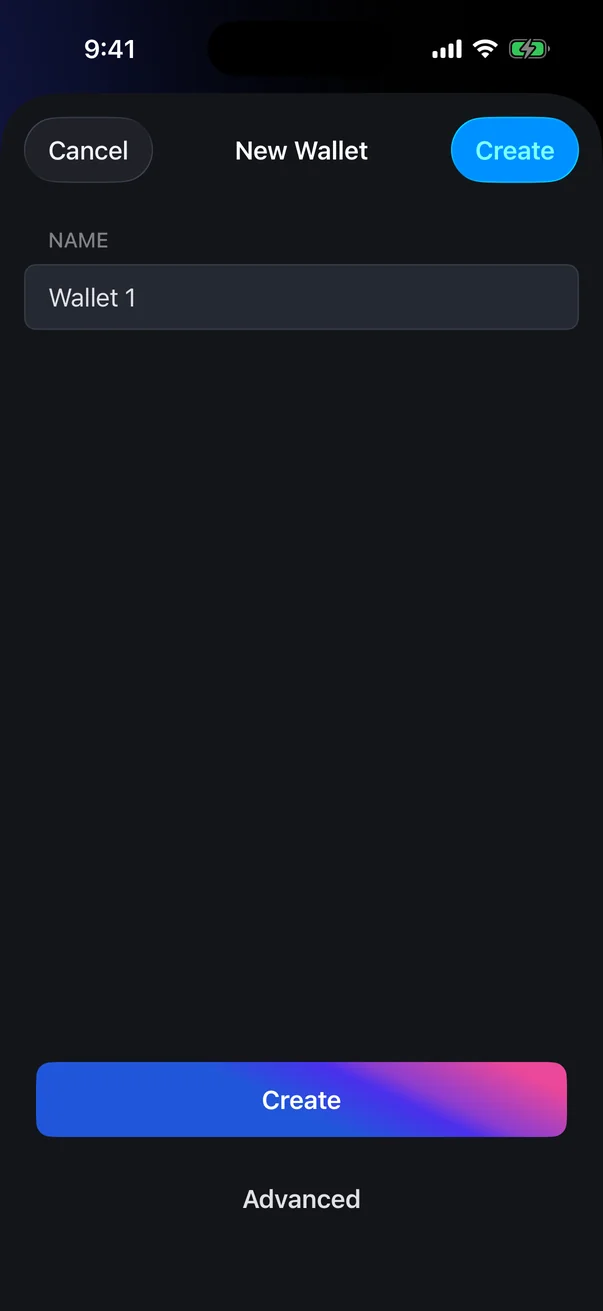
- On the Crypto tab, tap New Wallet. If you already have a wallet, open the wallet list (the buttonSwitch Wallet button in the top-left corner) and tap New Wallet there.
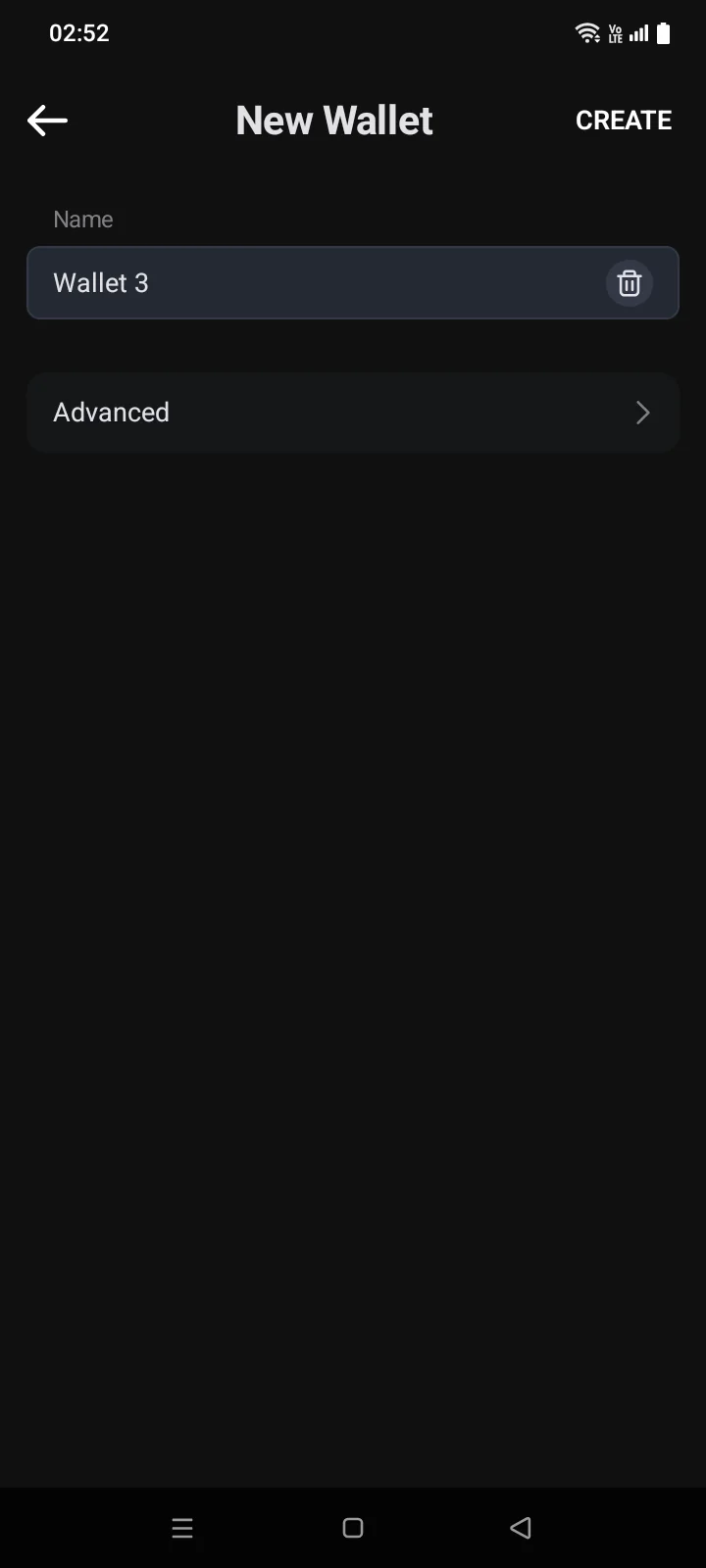
- Enter a name, or keep the suggested one (Wallet 1, Wallet 2…).
- Tap Create. The message Created appears, and the wallet opens with BTC, ETH, USDT (ERC-20), USDT (BEP-20 — on the BNB Smart Chain network)BSC-USD (BEP-20 — USDT on the BNB Smart Chain network) and BNB (see 3.2).
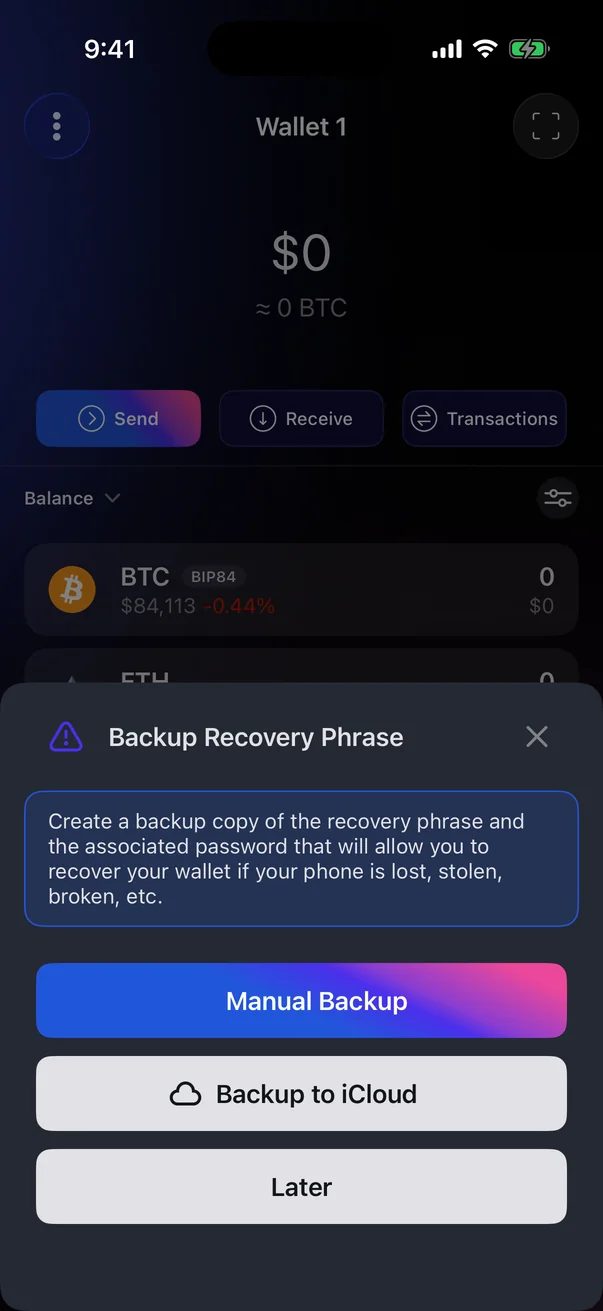
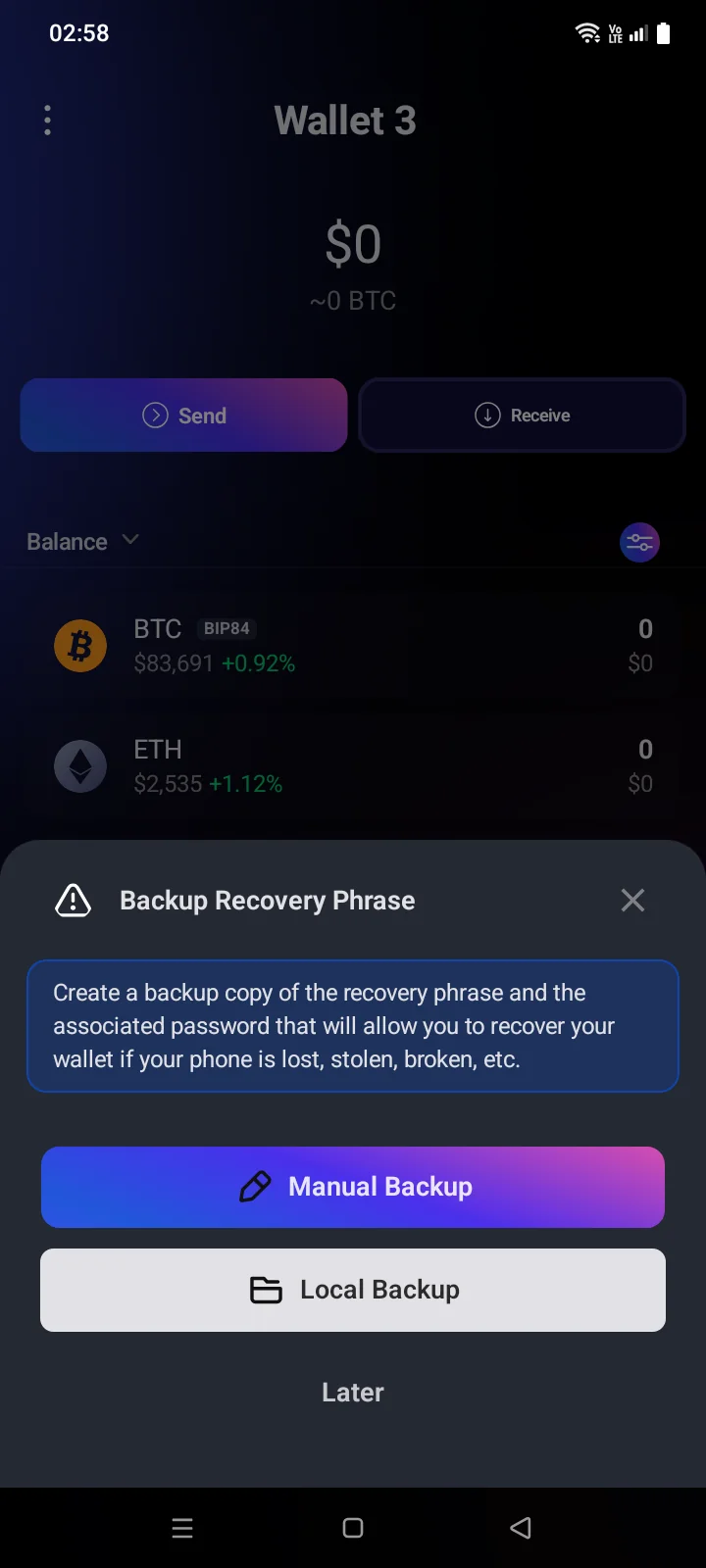
- The Backup Recovery Phrase panel offers to back up the phrase right away: Manual Backup, Backup to iCloudLocal Backup (a backup to a file) or Later (see 3.4).
Back up before you receive fundsUntil the wallet is backed up, Receive doesn't show an address — the Backup Required panel opens instead, with the same backup options.
Advanced options
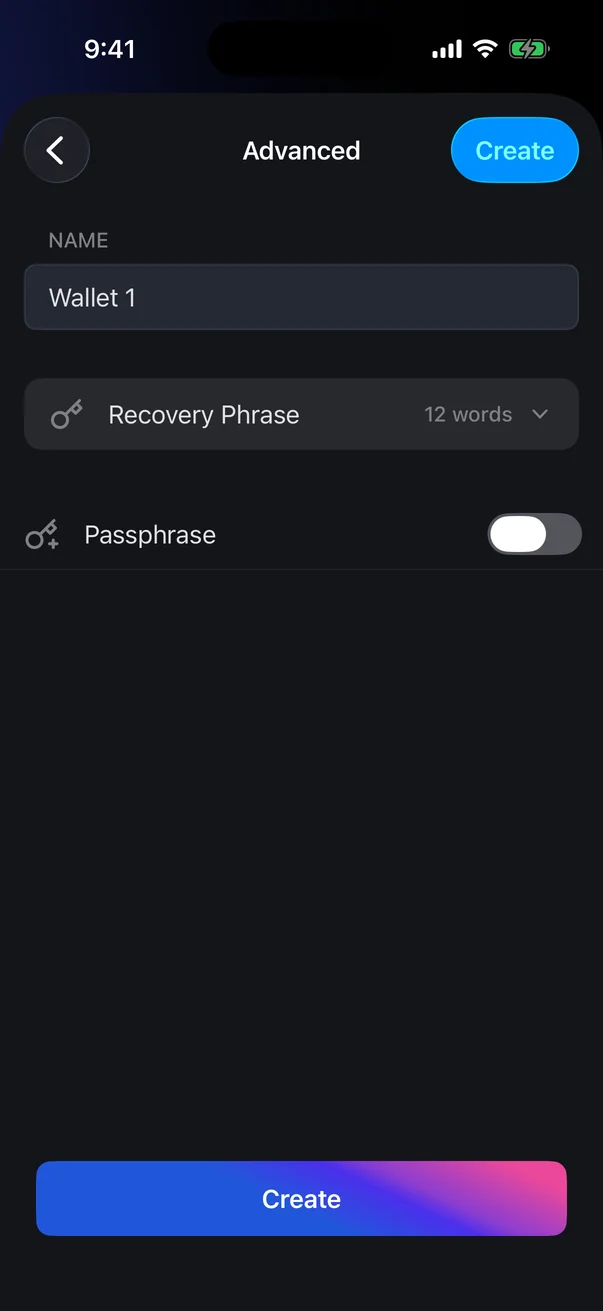
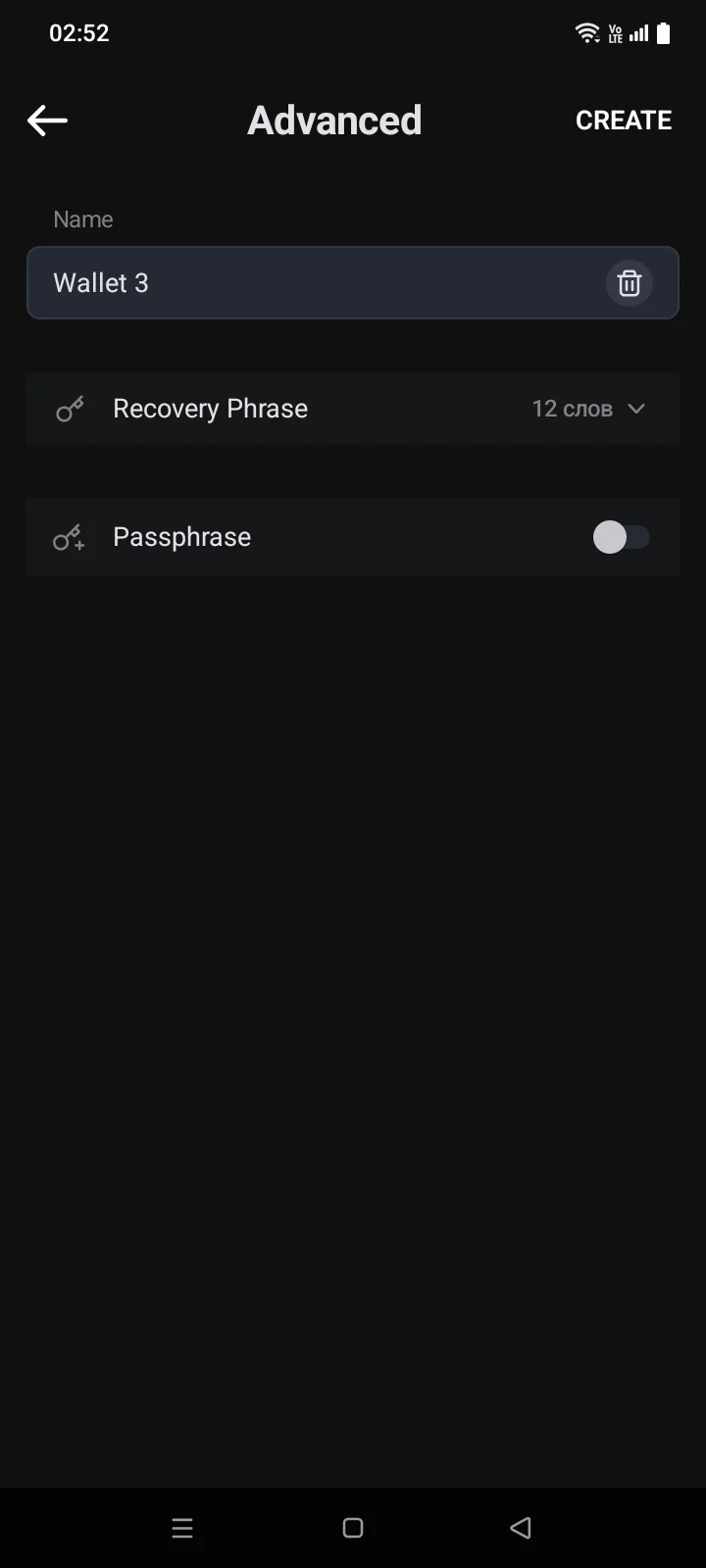
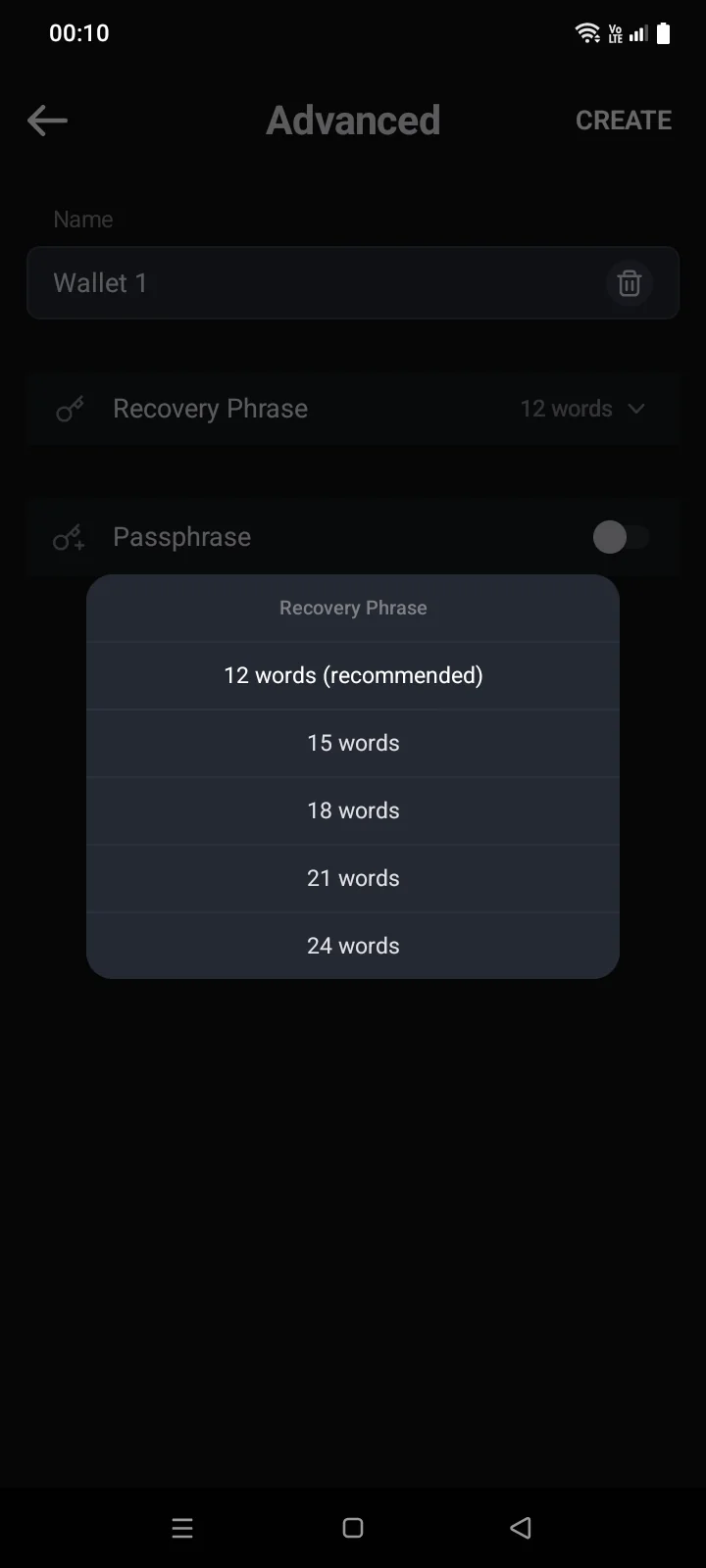
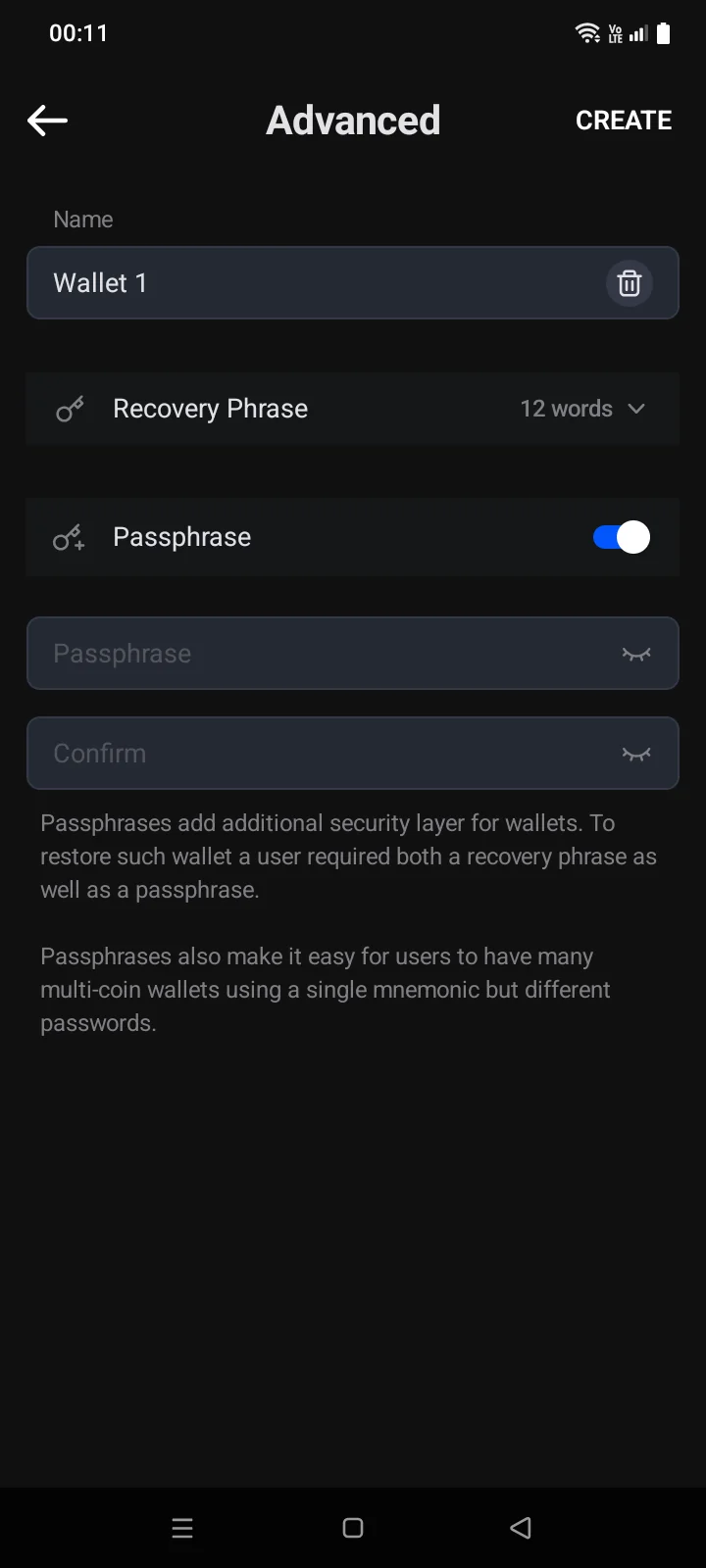
Tap Advanced on the New Wallet screen. On the Advanced screen you can set:
- Name — the same as on the previous screen.
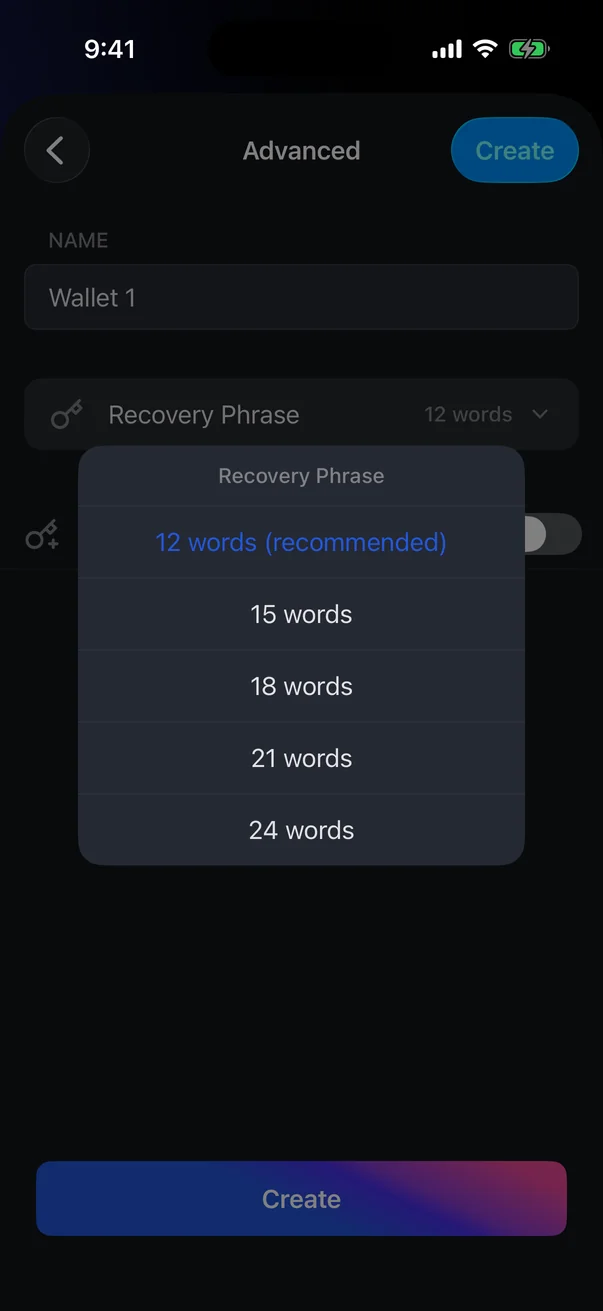
- Recovery Phrase — the number of words: 12 (recommended), 15, 18, 21 or 24.
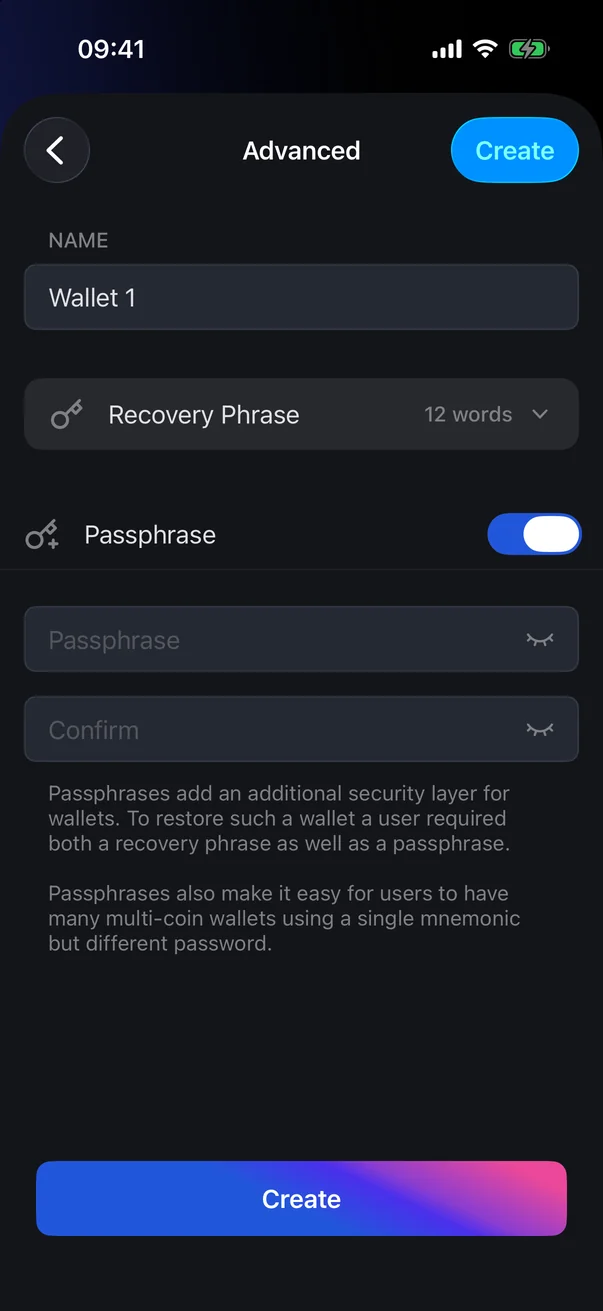
- Passphrase — an extra password added to the recovery phrase. Turn on the switch and enter it in the Passphrase and Confirm fields. To restore such a wallet you will need both the phrase and the passphrase. Allowed characters: Latin letters, digits, spaces and common symbols (the same on iOS and Android).
Then tap Create on the Advanced screen. The rest is as in steps 3–4 above.
Don't lose the passphraseThe passphrase can't be recovered. Without it, the recovery phrase alone opens a different, empty wallet. Letter case and spaces matter:
Secret and secret are different passphrases. Avoid a space at the start or end — it is easy to lose when you type the passphrase on another phone.If something goes wrong
Messages appear under the passphrase fields.
| Message | What to do |
|---|---|
| Passphrase cannot be empty | The Passphrase switch is on but the field is empty or contains only spaces. Enter a passphrase or turn off the switch. |
| Passphrase confirmation does not match | Enter the same passphrase in both fields. |
| Please use only supported symbols: A-Z a-z 0-9 ' " ` & / ? ! : ; . , ~ * $ = + - [ ] ( ) { } < > \ _ # @ | % | The passphrase contains a character that isn't allowed, for example a Cyrillic letter. Use only the characters from the list. |