0.3Device requirements and security basics
Cryptolink stores the keys to your crypto wallets on your iPhonephone, in Android's secure storage, so the app relies on the iPhone'sphone's own protection. This page lists what the app needs from your device and the basic security rules.
Requirements
- An iPhone with iOS 15 or later. The app is made for iPhone only.A phone with Android 8.1 or later. The app works only in portrait orientation.
- A passcode (screen lock) turned on in the iPhone settingsscreen lock (PIN, pattern or password) turned on in the phone settings — see below.
- An internet connection for card features, verification and sending crypto.
- For signing in with Google — Google Play services on the phone (see 1.3).
The iPhone passcode is requiredA screen lock is required
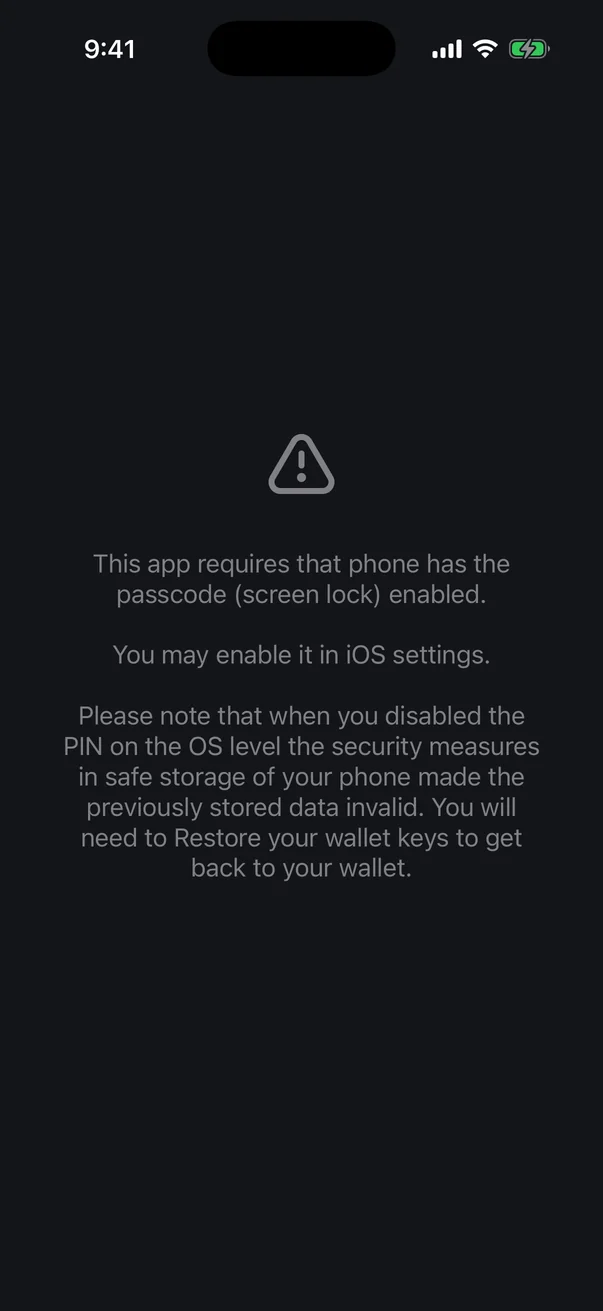
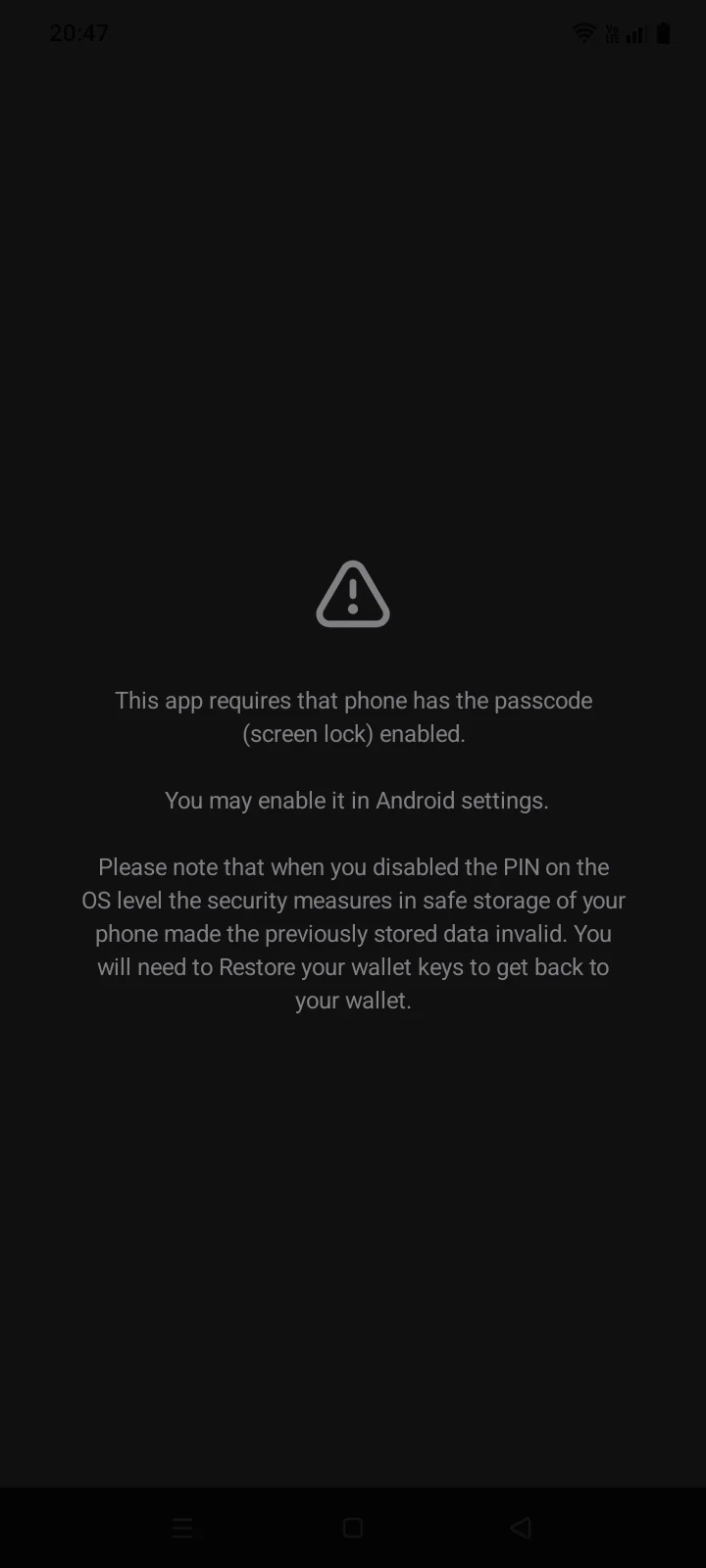
If no passcode is set on the iPhonescreen lock is set up on the phone, Cryptolink doesn't open. Instead, you see a screen with the text This app requires that phone has the passcode (screen lock) enabled. There are no buttons on it.
Open the iPhone Settings › Face ID & Passcode (or Touch ID & Passcode), tap Turn Passcode On, then return to Cryptolink — the app continues by itself.
Open the Android settings, turn on a screen lock (the section is usually called “Lock screen” or “Security”; the name depends on the phone) and open Cryptolink again.
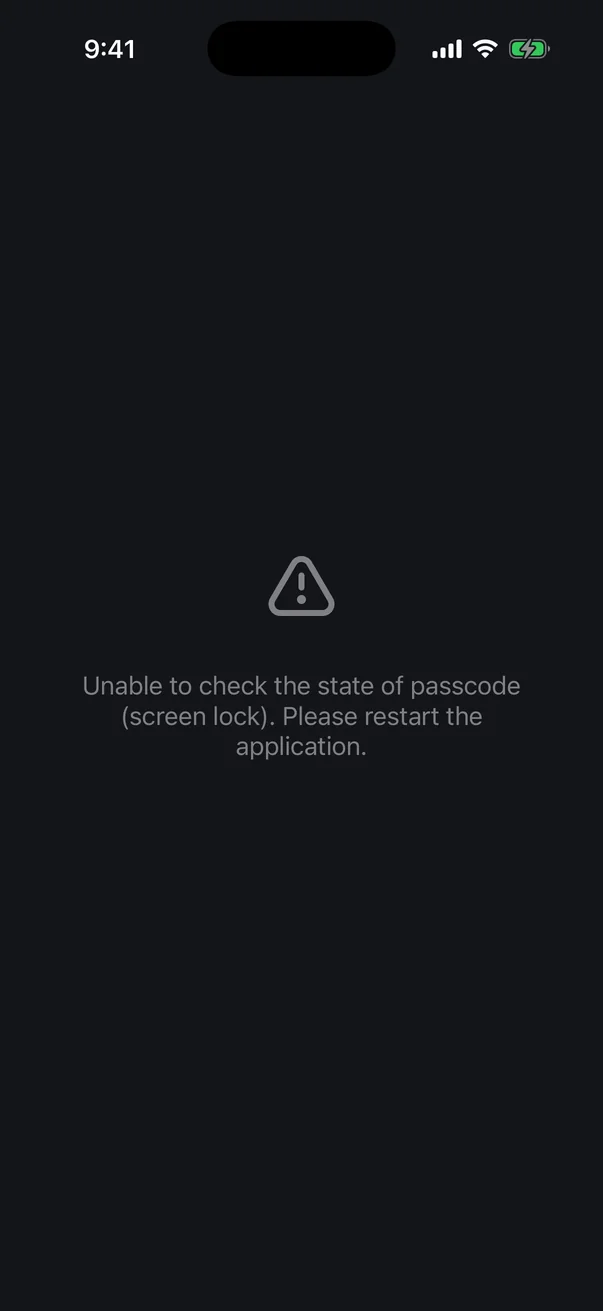
Rarely, the app can't find out whether a passcode is set and shows Unable to check the state of passcode (screen lock). Please restart the application. Close Cryptolink completely and open it again.
Confirming with the screen lock
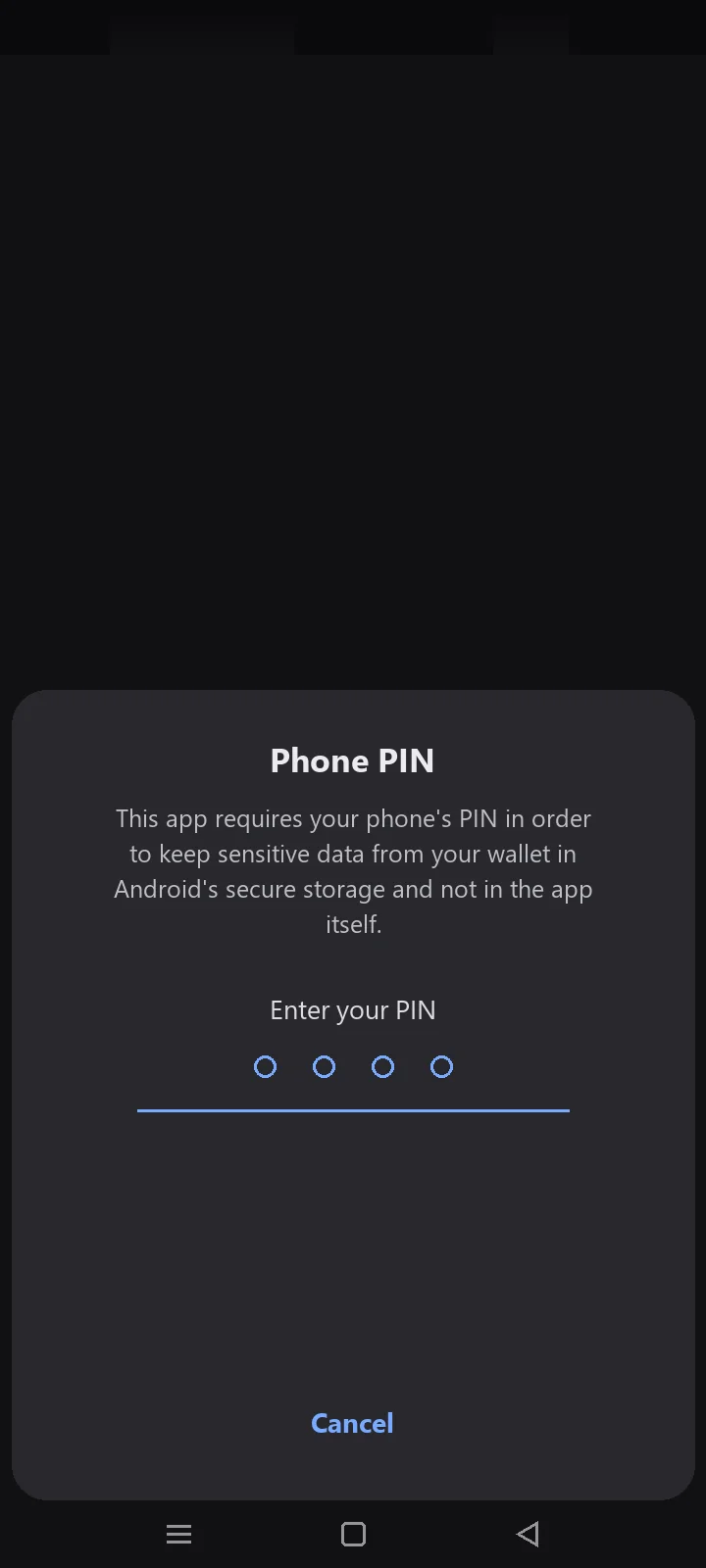
Access to the secure storage lasts 24 hours after you last confirmed your screen lock. When that time is up, opening Cryptolink brings up the system Phone PIN prompt: enter the PIN, pattern or password you use to unlock the phone. If you cancel the prompt, the app closes.
If you changed the screen lock
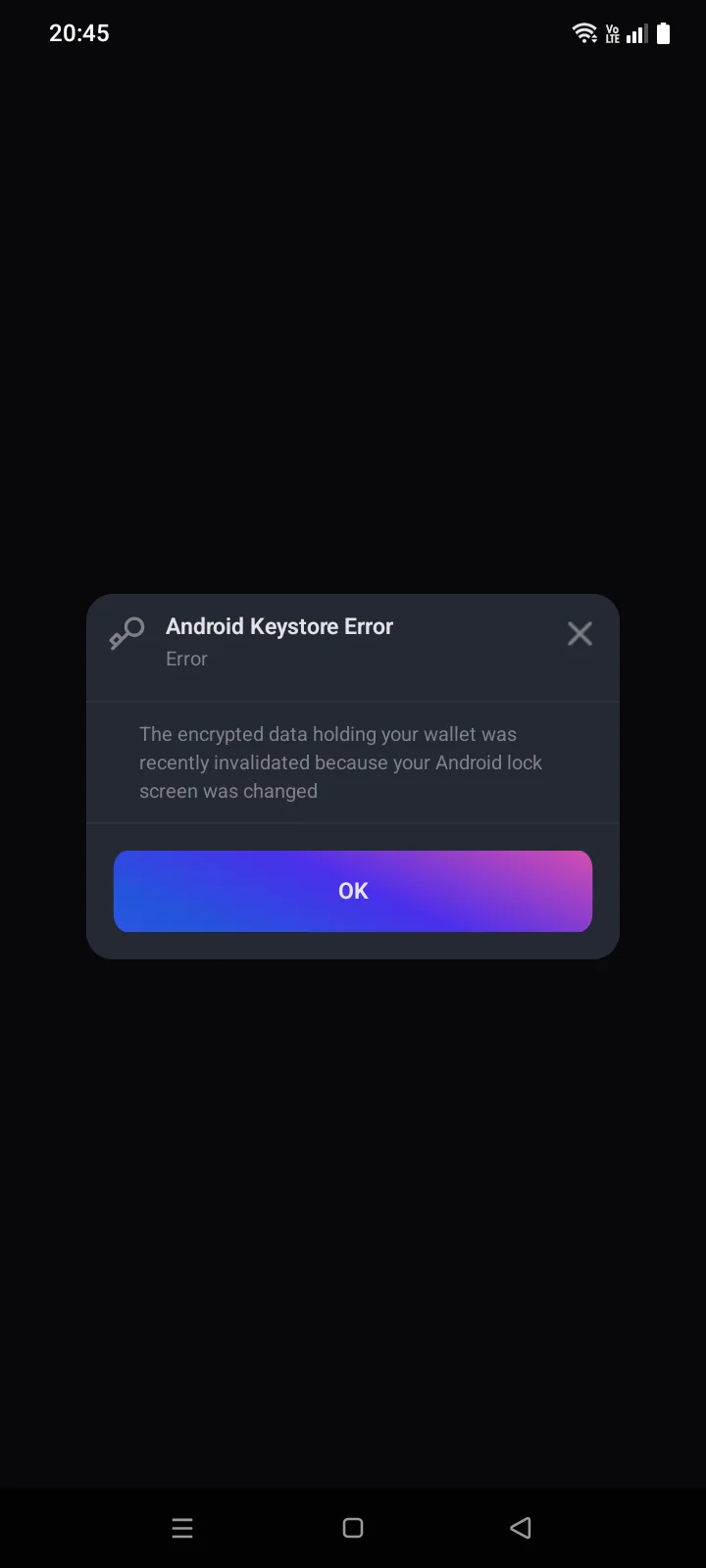
After you change the screen lock method, Android may invalidate the keys saved earlier. Cryptolink then shows the Android Keystore Error window. Tap OK — the app opens again, but the wallets on this phone are no longer in it. Import them with their recovery phrases (see 3.5).
Jailbroken iPhonesRooted phones
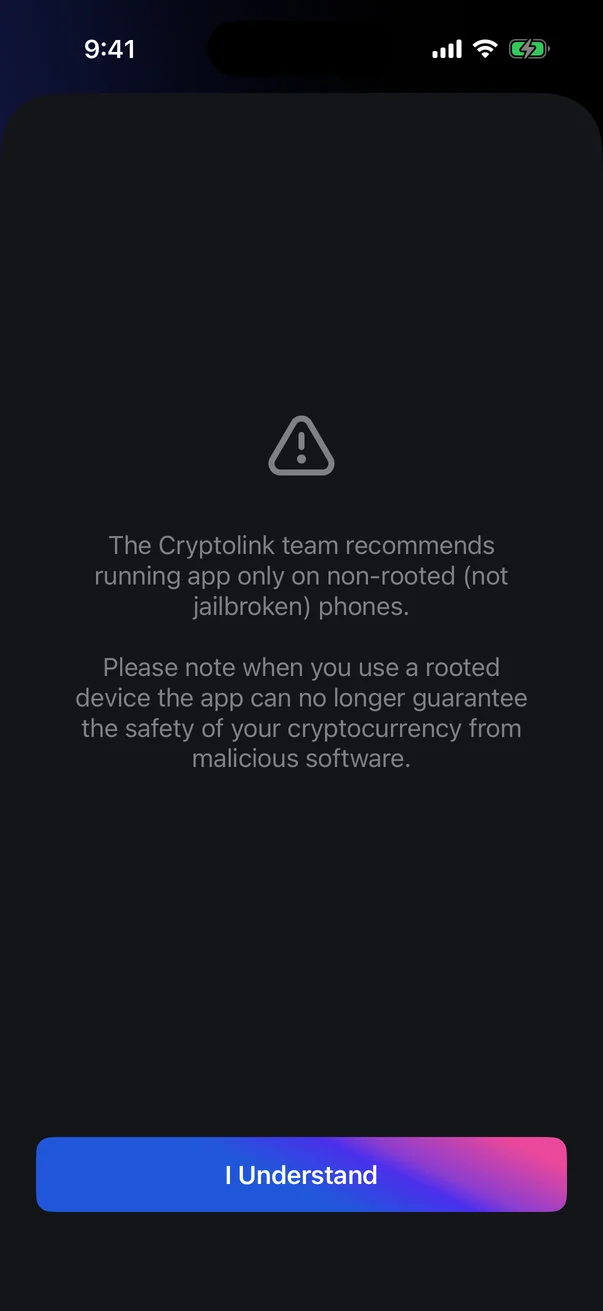
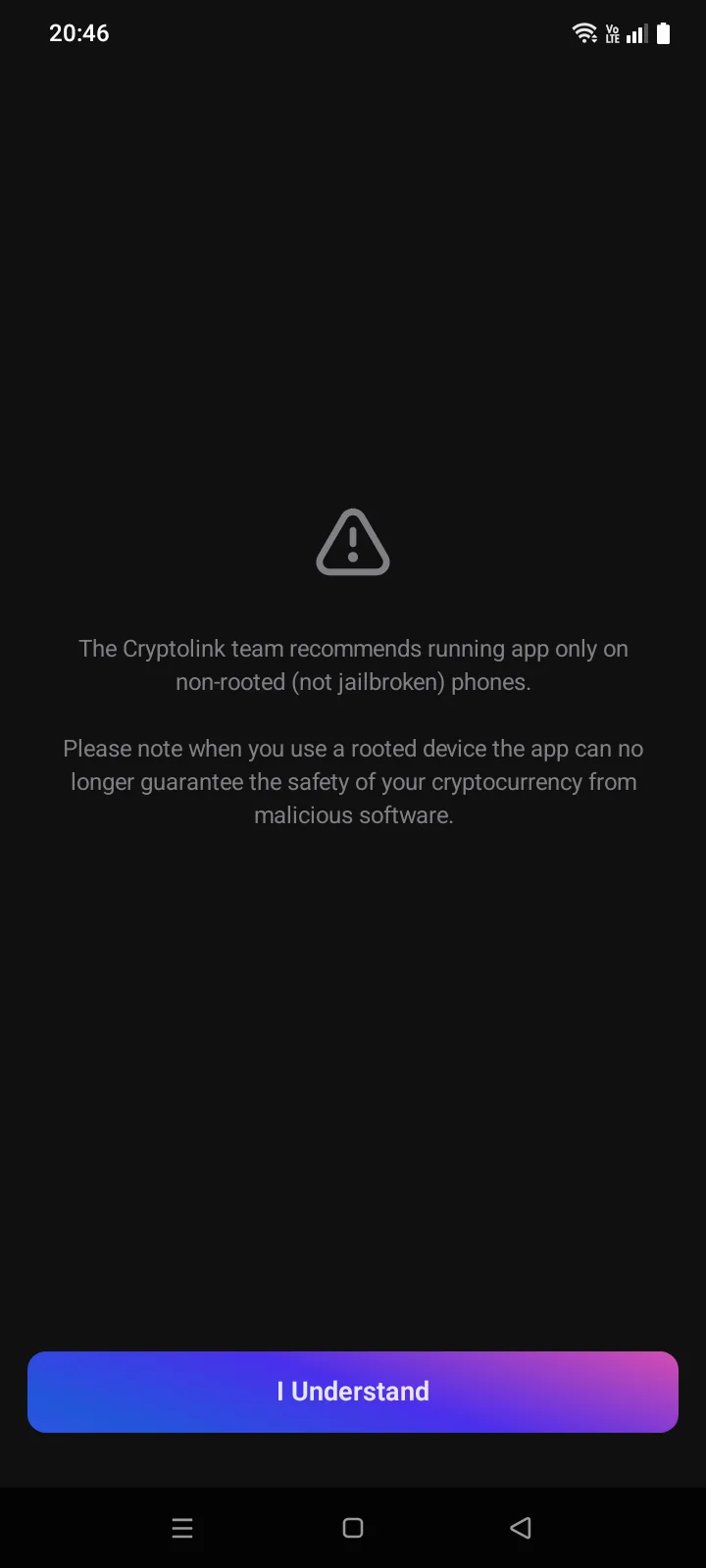
If the iPhone looks jailbrokenphone is rooted, Cryptolink shows a warning once: on such a device the app can't guarantee that your cryptocurrency is safe from malicious software. Tap I Understand to continue. We recommend using Cryptolink only on an iPhone that isn't jailbrokena phone that isn't rooted.
Security basics
- Set an app passcode and, if you like, Face ID or Touch IDturn on unlocking with your fingerprint or face — then nobody can open Cryptolink on your unlocked iPhonephone (see 1.5).
- Back up every wallet and keep the recovery phrase offline, in a safe place (see 3.4).
- Never share your recovery phrase, passwords or verification codes with anyone.
- Inside Cryptolink only the standard iPhone keyboard works — third-party keyboards are turned off to protect what you type.
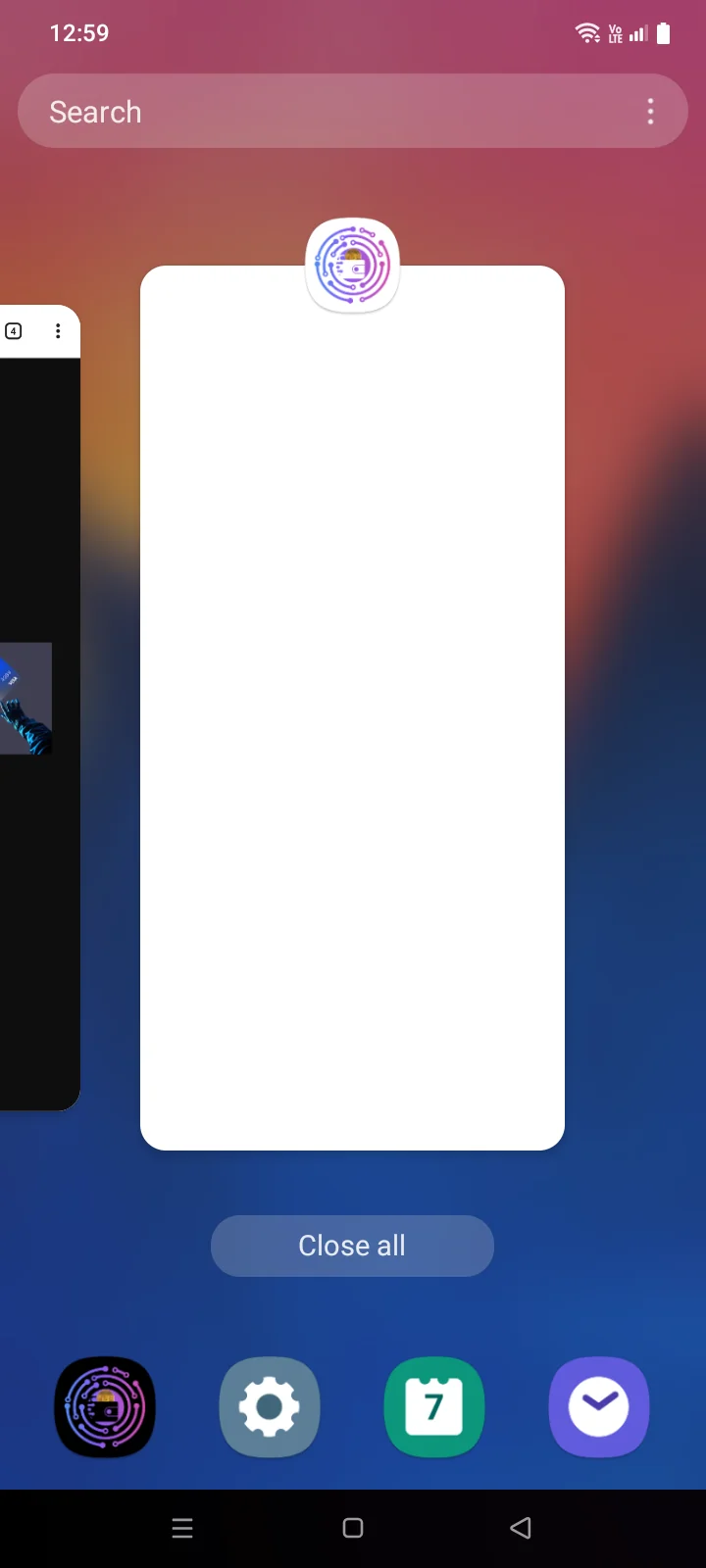
- When you leave the app, Cryptolink hides your balances and cards: the app switcher shows a cover insteadon Android 13 and later, the recent apps list shows an empty window instead (see 5.3).
- Screens with the recovery phrase and keys can't be captured with a system screenshot or screen recording.