
4.6Transaction history and filters
Each coin's transfer history is on its page (see 3.10), newest first. In addition, all transfers of all your coins are in Transactions. Card operations are in 2.9.
Open a coin's history
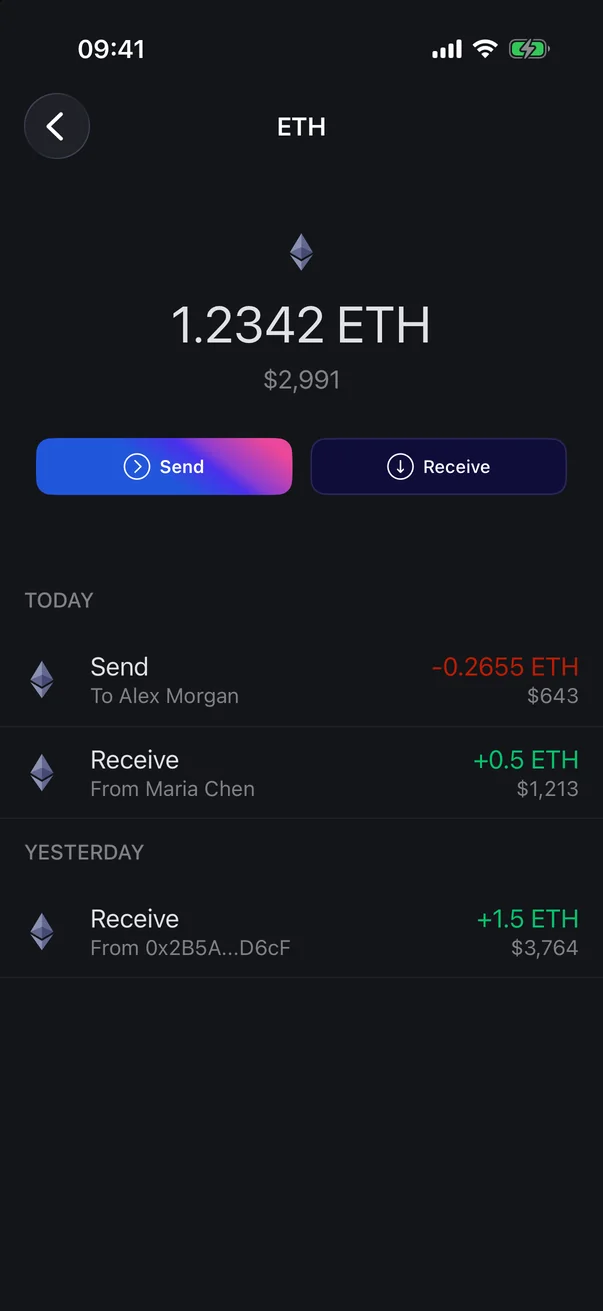
- On the Crypto tab, tap a coin, for example BTC or USDT.
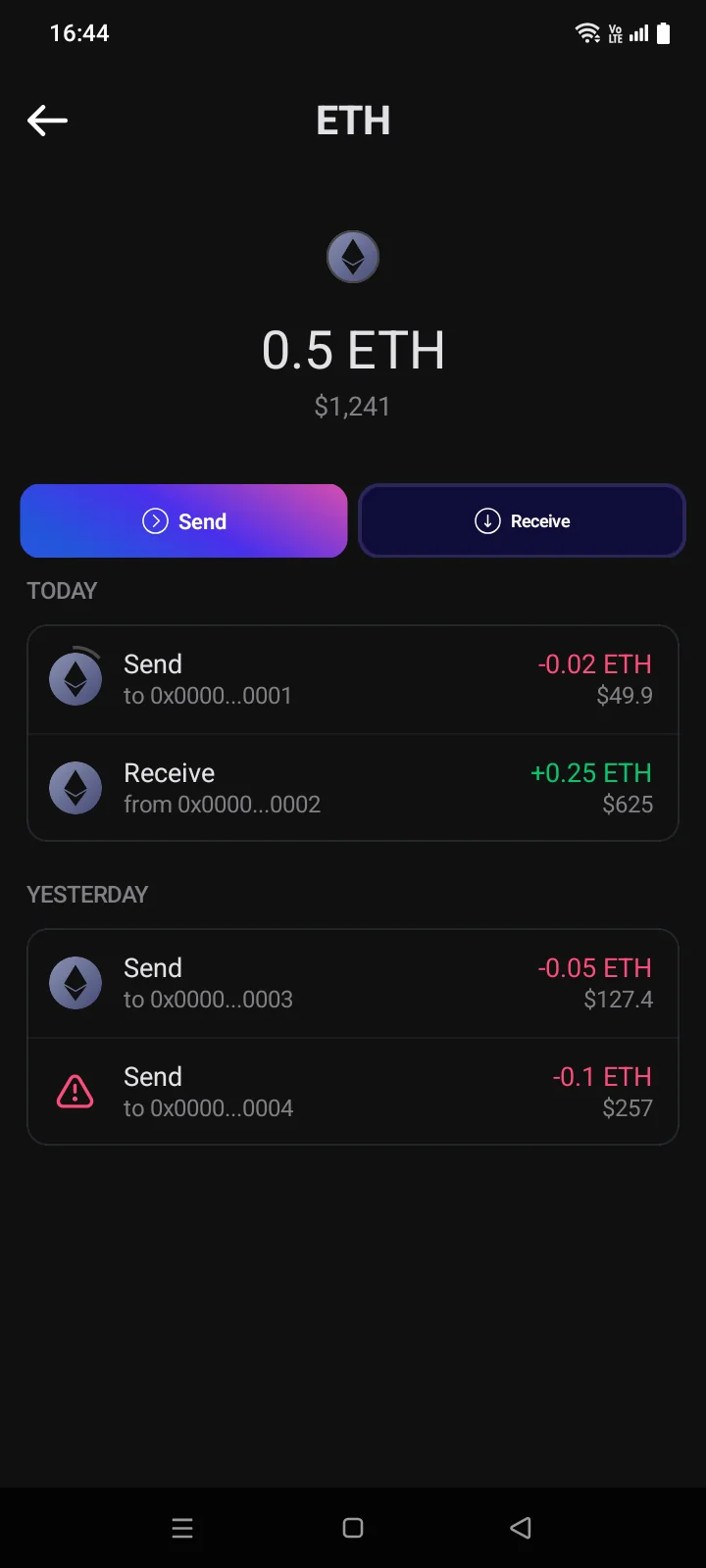
- Under the Send and Receive buttons is the list of this coin's transactions. Transfers are grouped by day: Today, Yesterday, then by date. Older transactions load as you scroll down.
 1
2
3
4
1
2
3
4
| 1 | Day — Today, Yesterday or a date. |
| 2 | Icon — the coin; it also shows the state of the transfer (below). |
| 3 | Direction — Receive or Send; below it — from whom or to whom: a name from your contacts (see 4.8) or a shortened address. |
| 4 | Amount — in the coin (received in green, sent in red); below it — in the base currency at the rate at the time of the transfer. If balances are hidden, you see ***** instead of amounts. |
 1
2
3
4
1
2
3
4
| 1 | Day — Today, Yesterday or a date. |
| 2 | Icon — the coin; it also shows the state of the transfer (below). |
| 3 | Direction — Receive or Send; below it — from whom or to whom: a name from your contacts (see 4.8) or a shortened address. |
| 4 | Amount — in the coin (received in green, sent in red); below it — in the base currency at the rate at the time of the transfer. If balances are hidden, you see ***** instead of amounts. |
Tap a row to open Transaction Info (see 4.7).
All transactions
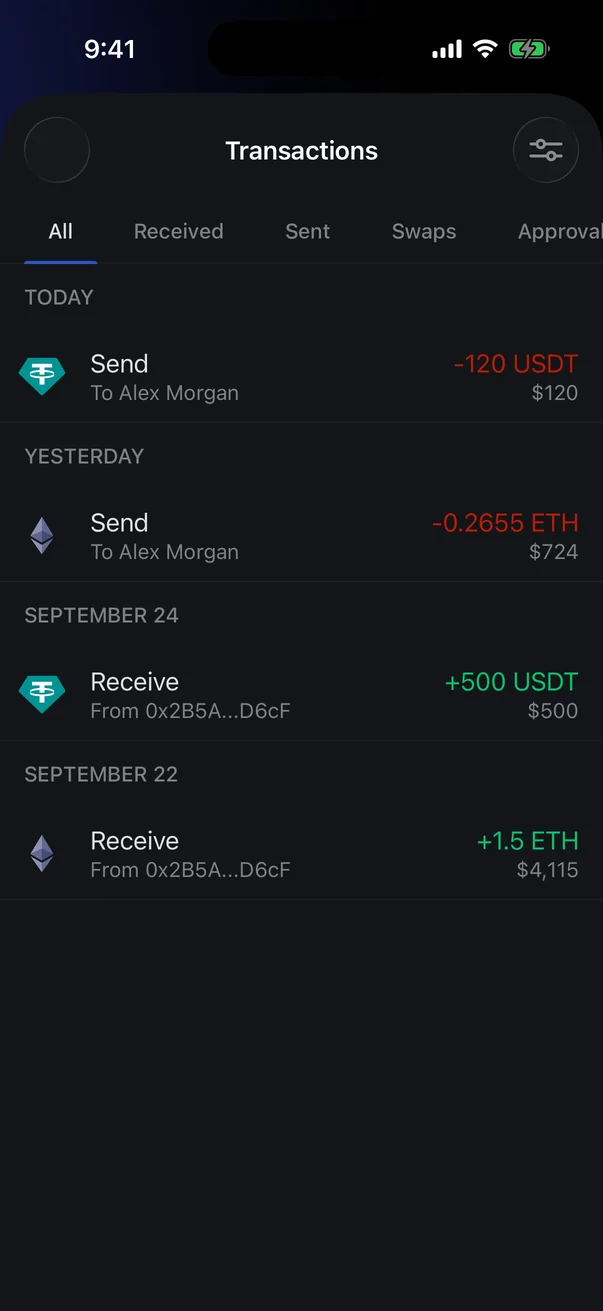
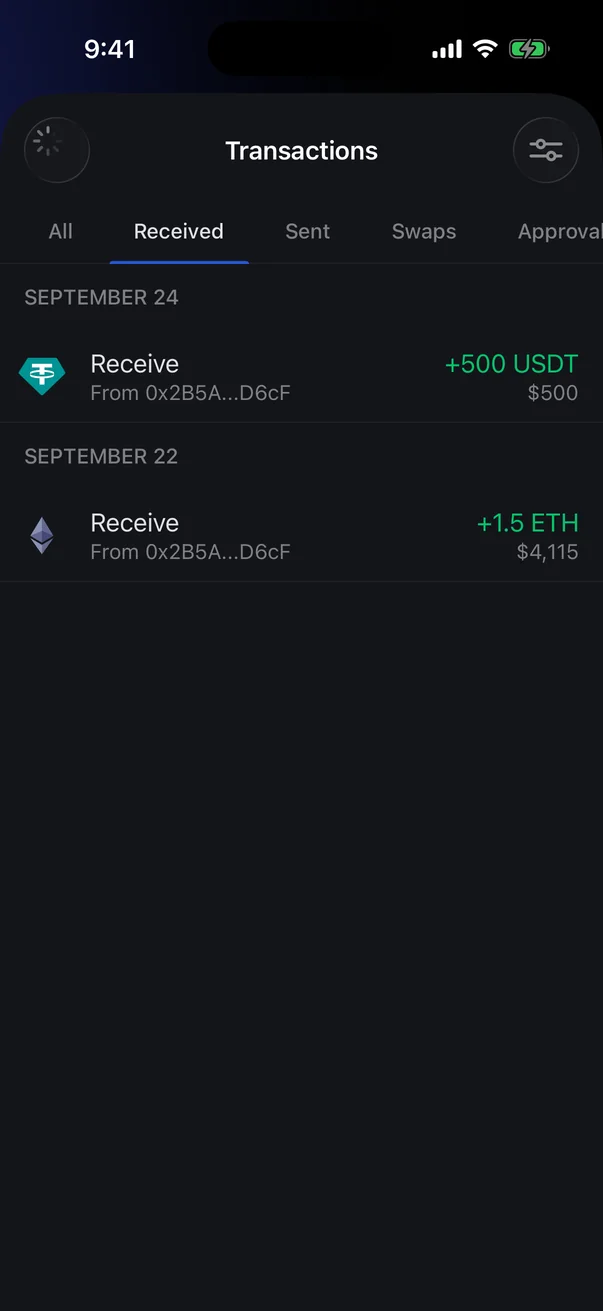
On the Crypto tab, tap Transactions under the balance to open the combined list of transfers of all your coins, grouped by day.
 1
2
1
2
| 1 | Tabs — All, Received, Sent, Swaps, Approvals. |
| 2 | Filter — by network and coin. A red dot means a filter is on. |
| List (outlined) — each row shows the direction, the address and the amount. Tap a row to open the details. |
The Android version has no combined transaction list across all coins: you view the history on each coin's page.
Transfer status in the list
| In the list | What it means |
|---|---|
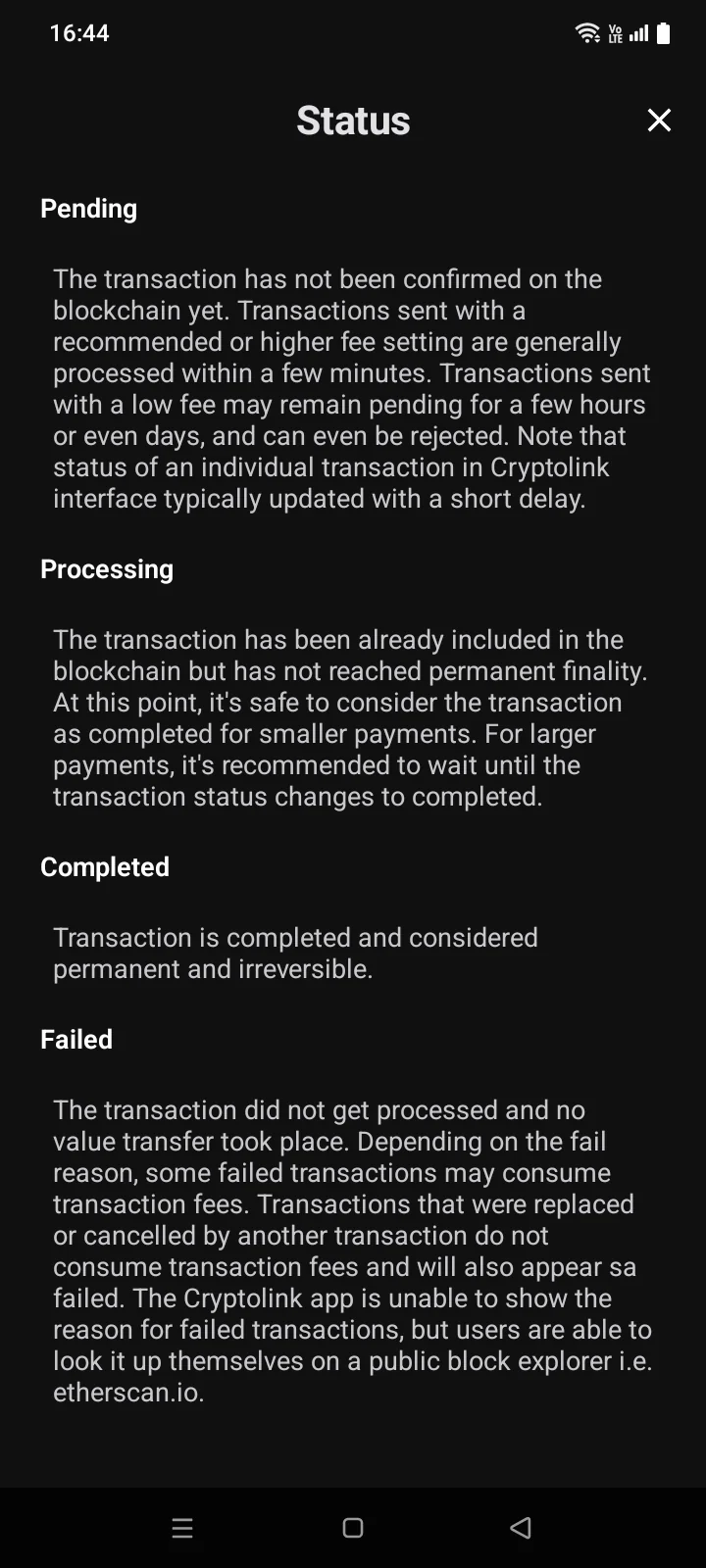
| SpinnerSpinner around the icon | The transfer is pending or being confirmed. In the details, the status is Pending (the network hasn't accepted the transfer yet) or Processing (the transfer is already in a block and is getting confirmations). You can speed up or cancel a stuck outgoing transfer on an EVM network (see 4.5). |
| Red icon | The transfer failed or was replaced — the Failed status. |
| Regular coin icon | The transfer is completed — the Completed status. |
There may be extra icons next to the amount:
- double spend — there's a conflicting transaction with the same coins (Bitcoin, see 4.4);
- lock — received bitcoins are locked until a date (an open lock means the lock has expired);
- return arrow — a transfer to your own address.
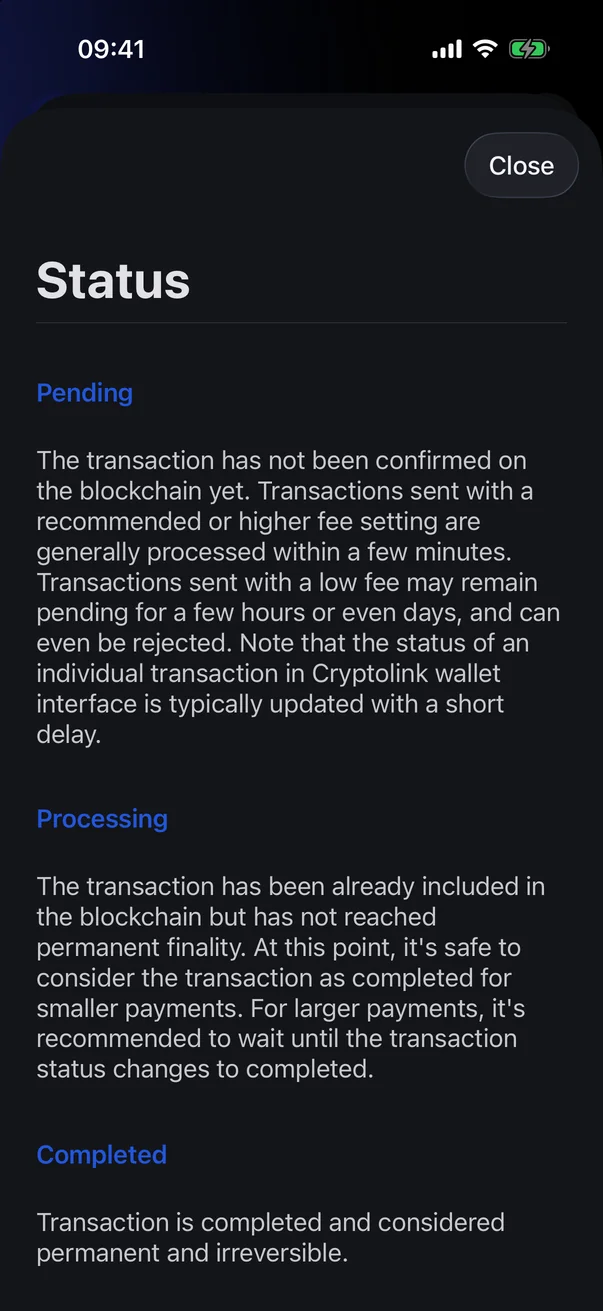
To read what each status means, open the transaction details: the i icon in the Status row opens a panel with explanations.
If the list is empty
| Message | What it means |
|---|---|
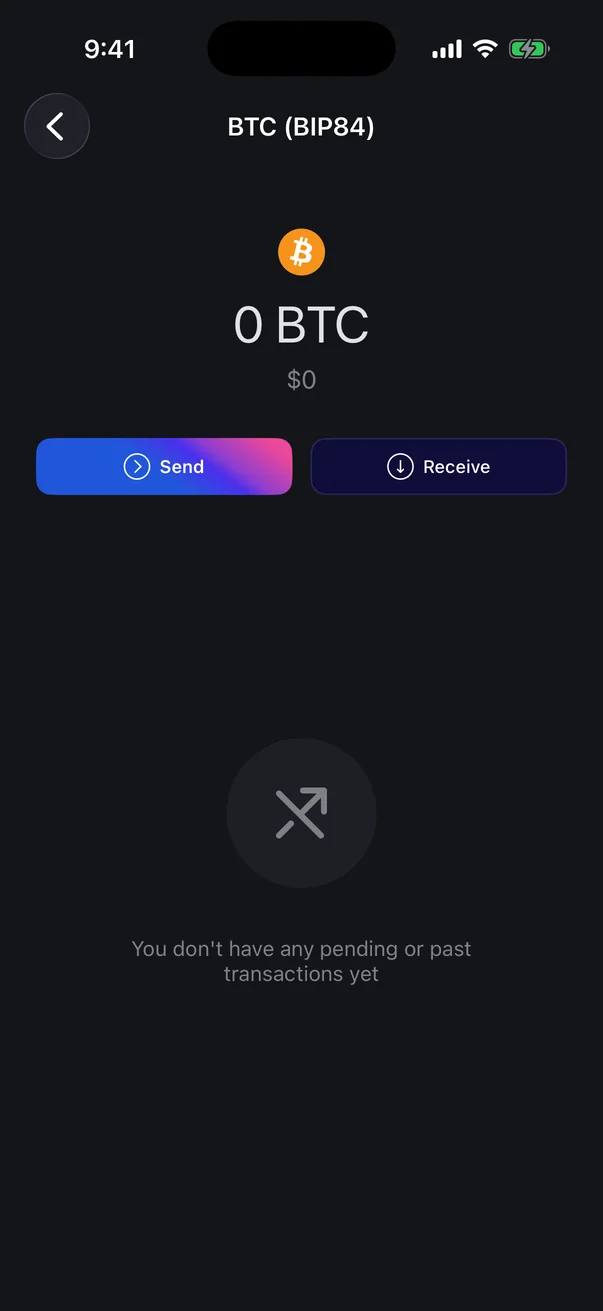
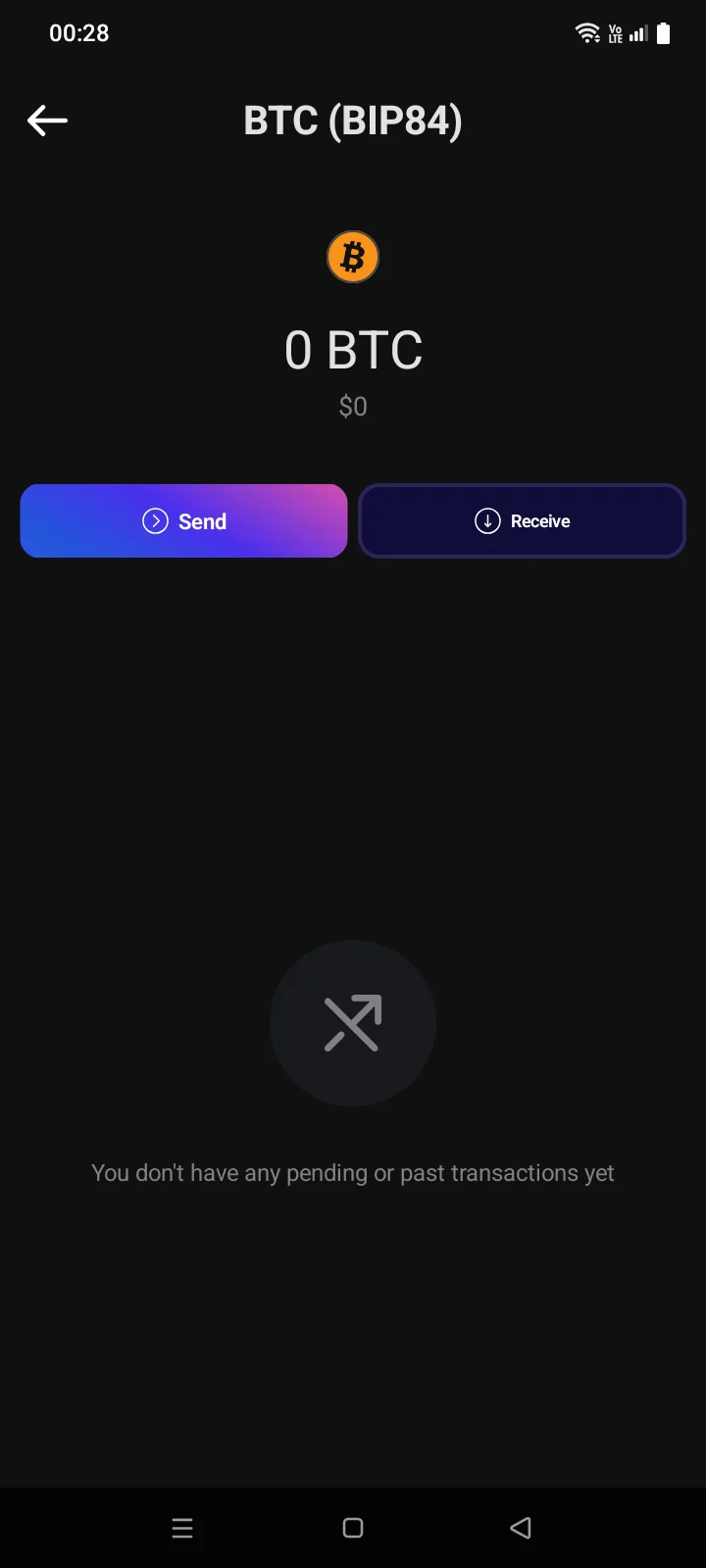
| You don't have any pending or past transactions yet | There have been no transfers of this coin yet. |
| Please wait for the sync to finish. | The coin is syncing; the history appears after syncing. If syncing doesn't finish, see 6.2. |
Filters and suspicious transactions
If a coin exists on several networks or in several address formats (for example, USDT on Ethereum and on TRON, BTC in different formats), each has its own row on the Crypto tab and its own history.
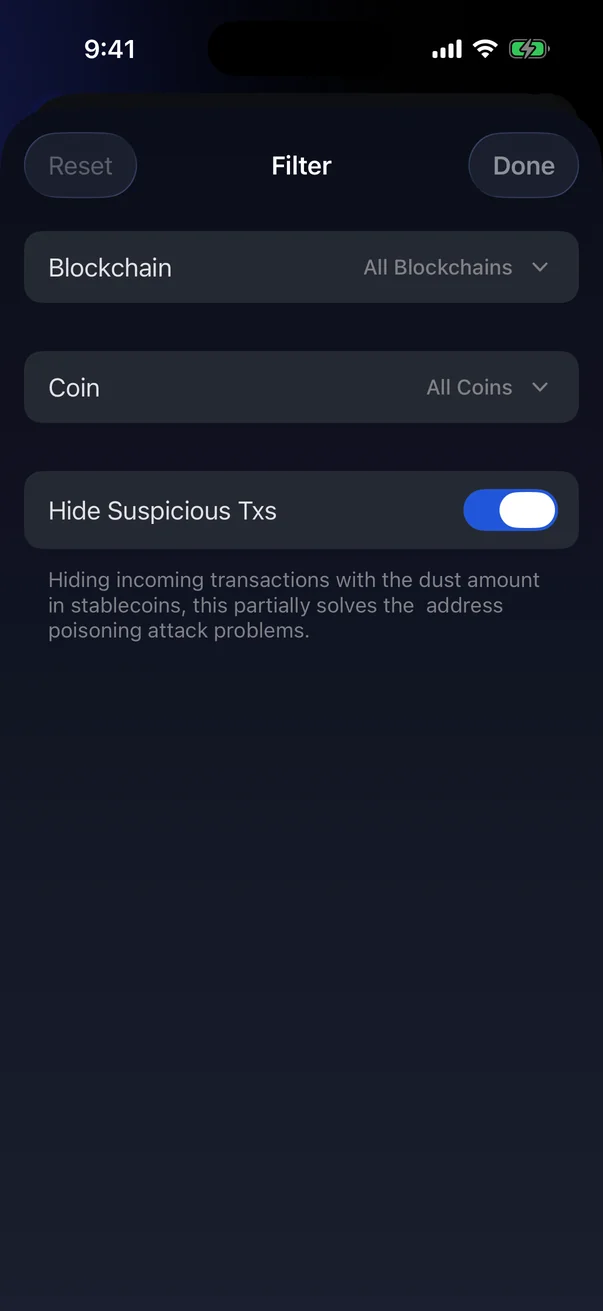
In Transactions, tap a tab to see only incoming or outgoing transfers. For more, tap the filter icon:
- Blockchain — show one network (default: All Blockchains).
- Coin — show one coin (default: All Coins).
- Hide Suspicious Txs — hides spam transfers, such as tiny amounts from addresses that look like yours. On by default.
Reset clears the filter.
There's no filtering by network, coin or transfer type: to see transfers of one coin, open its page. Suspicious transactions — for example, tiny incoming amounts from addresses that look like yours — aren't shown in the history.