
6.2Wallet sync problems
The wallet syncs each coin with its blockchain. Until syncing finishes, the coin's balance and history may be incomplete, and you can't send it. Here's how to recognise sync problems and fix them.
Sync states
The state is shown in the coin's row on the Crypto tab and in the header of the coin page (see 3.2, 3.10).
| What you see | What it means |
|---|---|
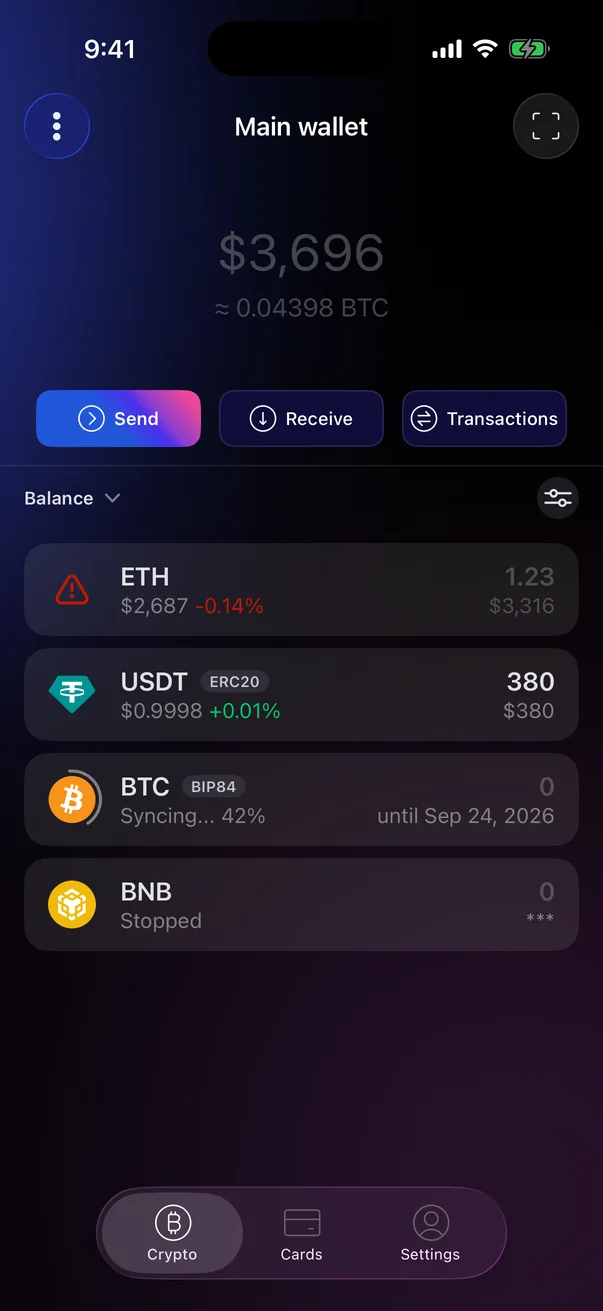
| A spinning ring around the logo | The coin is syncing. While the ring is visible, amounts are shown in grey — they may be incomplete. |
| Syncing… 42% | The wallet is catching up with the blockchain. Not every network shows a percentage — sometimes you see just Syncing…. On the right — until … and the date up to which data has already been received. |
| Searching transactions… | The wallet is looking for the address's transactions. On the right — how many it has found so far, for example “12 tx”. |
| Stopped | Syncing is paused. |
| A red icon instead of the logo | Syncing failed. Tap the icon — see 6.2. |
 1
2
3
1
2
3
| 1 | Red icon instead of the coin logo — the coin failed to sync. |
| 2 | Syncing… 42% — the wallet is catching up; the date shows how far it has got. |
| 3 | Stopped — syncing is paused. |
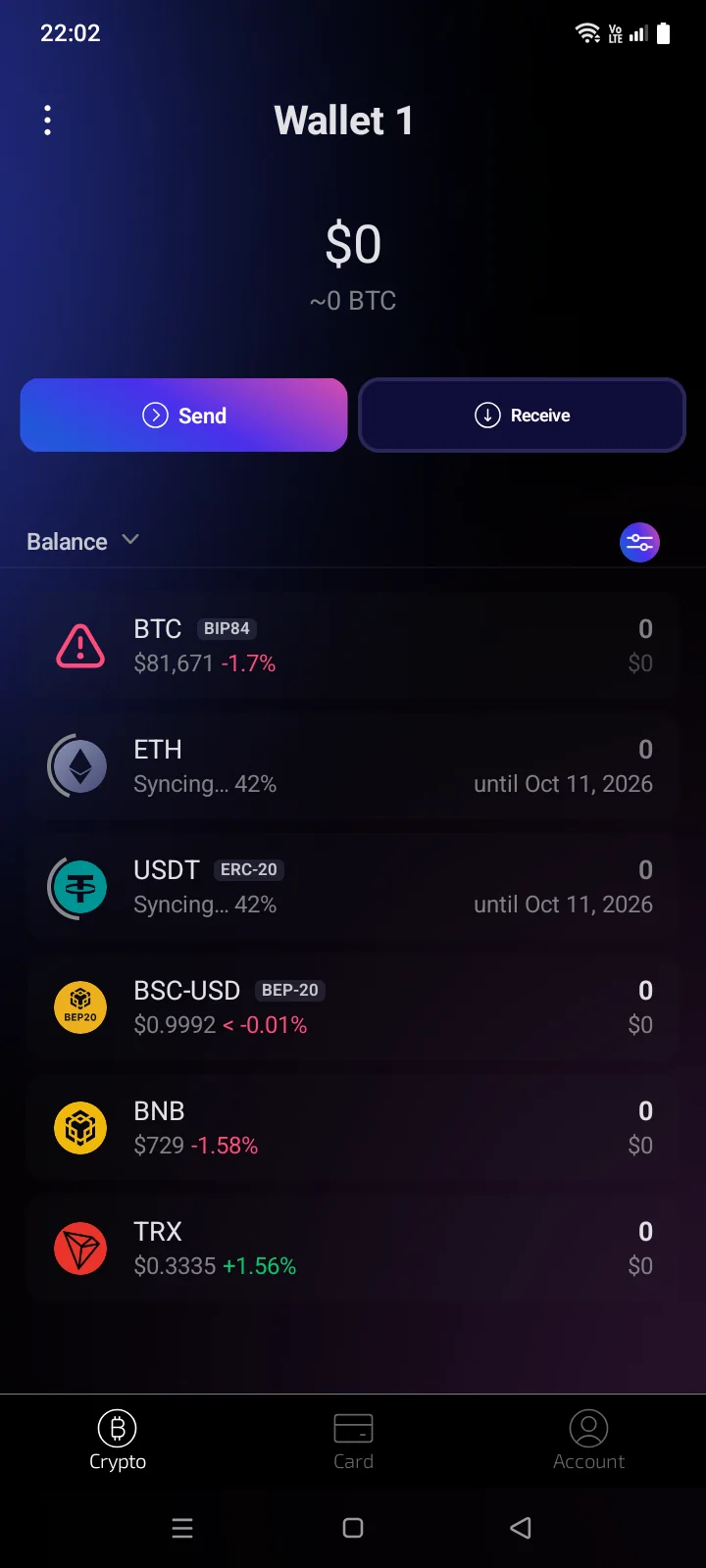
A dimmed total balance means some coins aren't synced or some prices are outdated. If you pick a coin that isn't synced in the send list, you see Wait for synchronization (the coin is still syncing) or a red bar with the error text (syncing failed). You can send the coin once syncing finishes (see 4.1).
Fix a sync error
- Check your internet connection and pull the coin list on the Crypto tab down — the app requests balances and prices again.
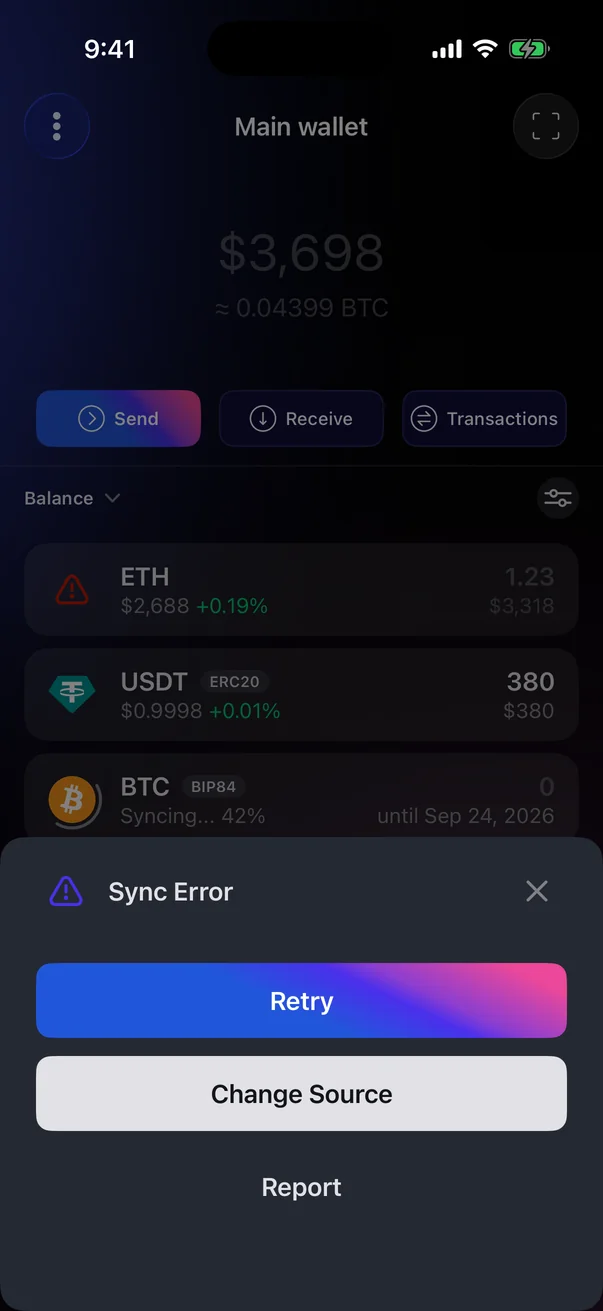
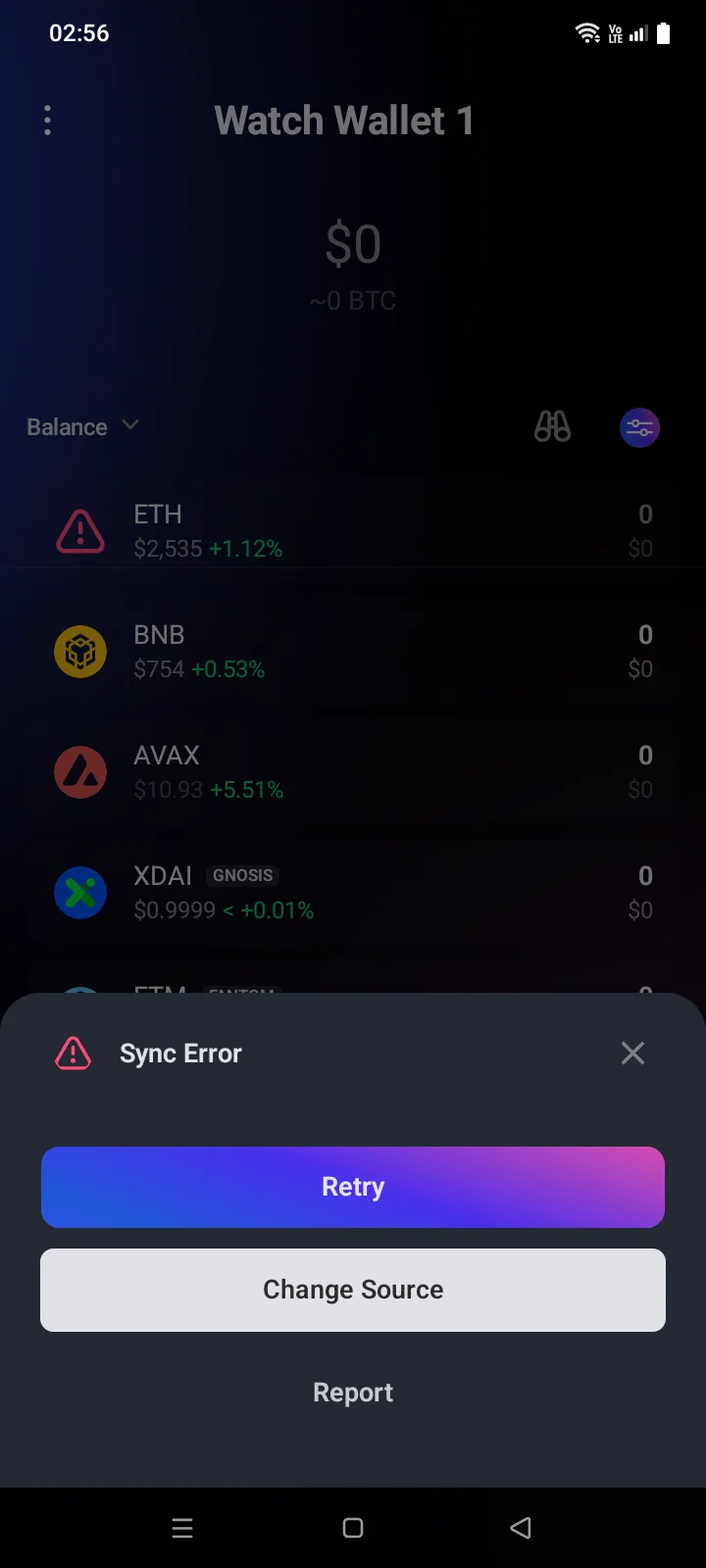
- Tap the red icon next to the coin (on the Crypto tab or on the coin page). Without internet, No Internet appears at the topat the bottom of the screen — restore the connection. Otherwise the Sync Error panel opens.
- Tap Retry. The panel closes, and the coin starts syncing again.
- If the error comes back, tap Change Source and choose another data source (see 6.2). The button is available only for Bitcoin and similar networks and for EVM networks (Ethereum, BNB Smart Chain and others).
- Still failing? Tap Report: an email to Cryptolink opens with the technical error text, the network, wallet type and app version. Add what you were doing and send it. If there's no email app on your phone, the address is copied along with the error text — CopiedEmail address copied appears; paste it into any email service. You can also contact support (see 5.7).
Sync source
A source is the service the wallet uses to get blockchain data. You can change it only from the Sync Error panel — that is, once the coin already shows a red icon; there's no such setting in Account. The choice applies to the whole network, not to a single coin.
Bitcoin and similar networks
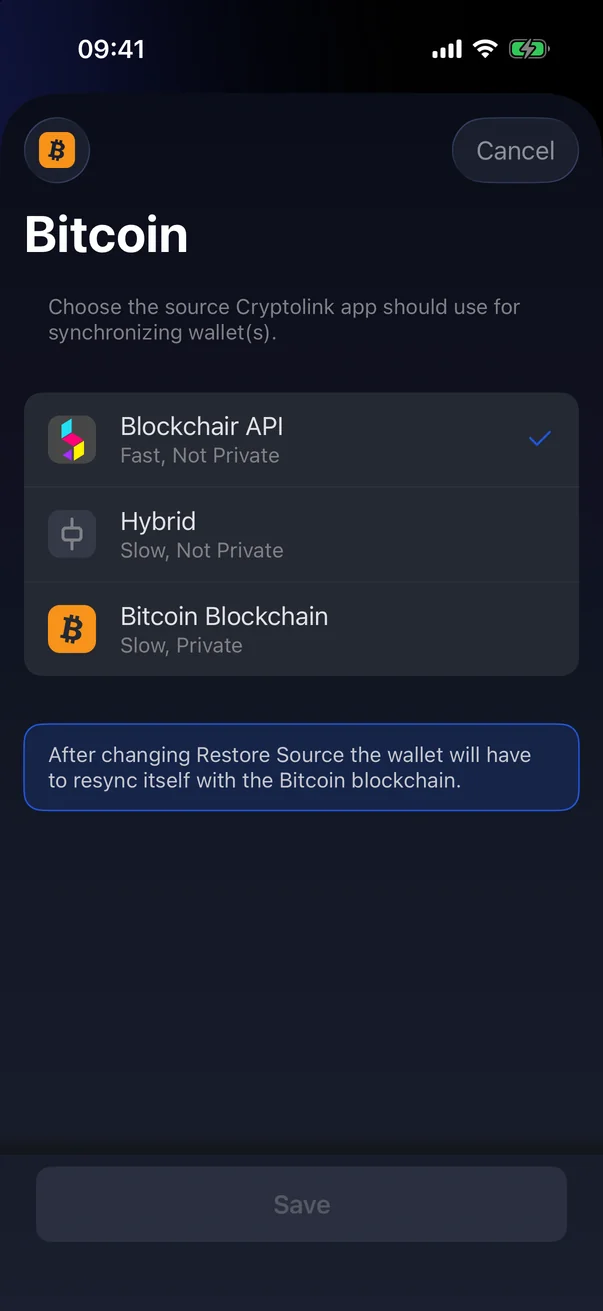
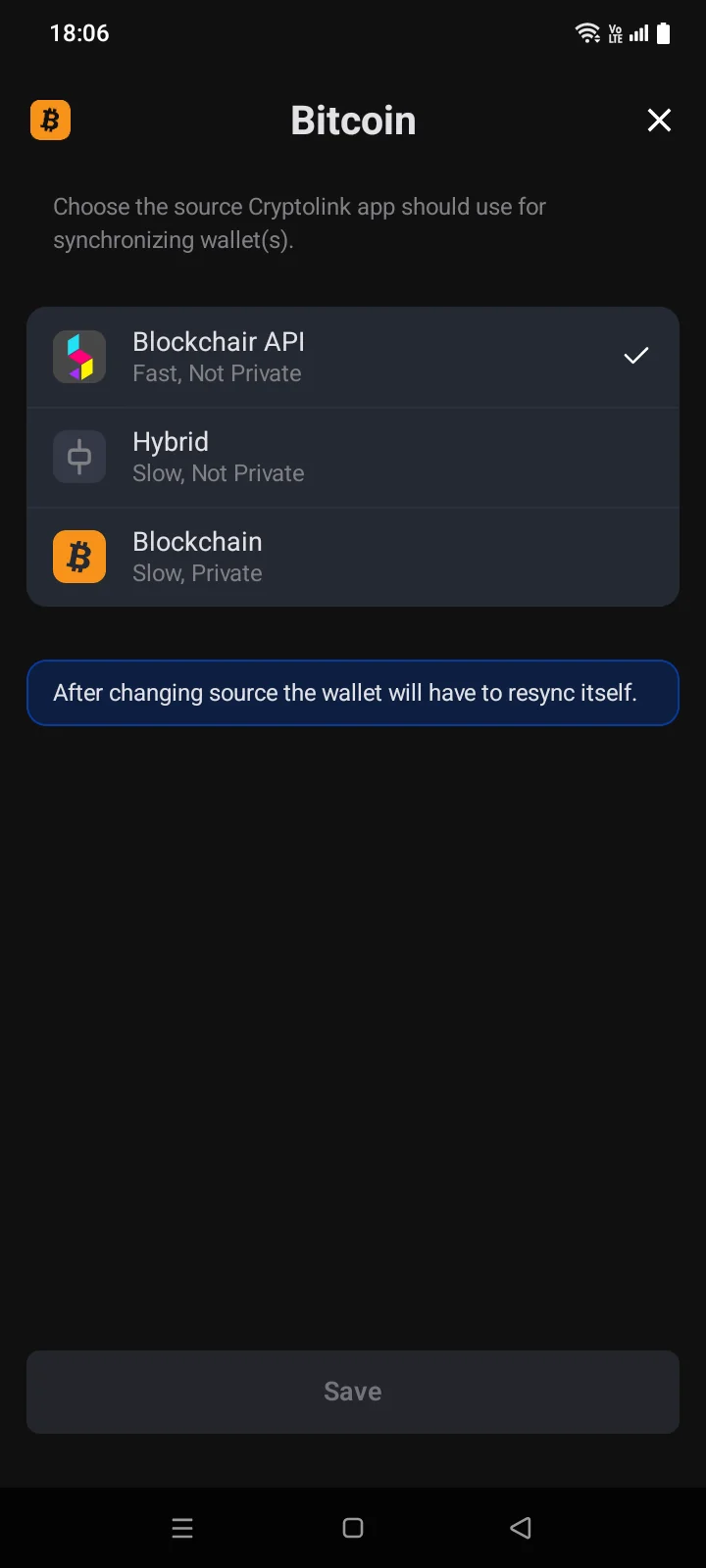
For Bitcoin, Bitcoin Cash, Litecoin, Dash and eCash, a screen opens with the network name and a list of sources:
- Blockchair API — Fast, Not Private. Bitcoin and Bitcoin Cash only.
- Hybrid — Slow, Not Private.
- Bitcoin BlockchainBlockchain — Slow, Private: data comes directly from the network.
- Tap the source you want — a check mark appears on the right. Below the list is a warning that after the change the wallet will have to resync.
- Tap Save. The screen closes, and the wallet syncs again from scratch.
Ethereum, BNB Smart Chain and other EVM networks
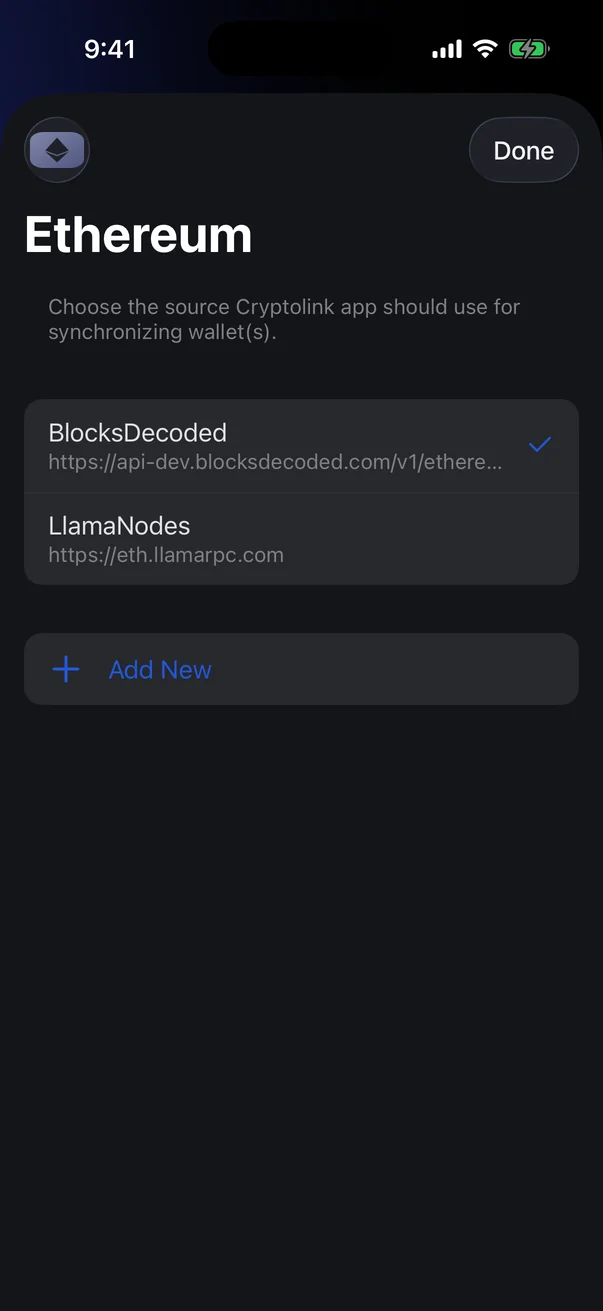
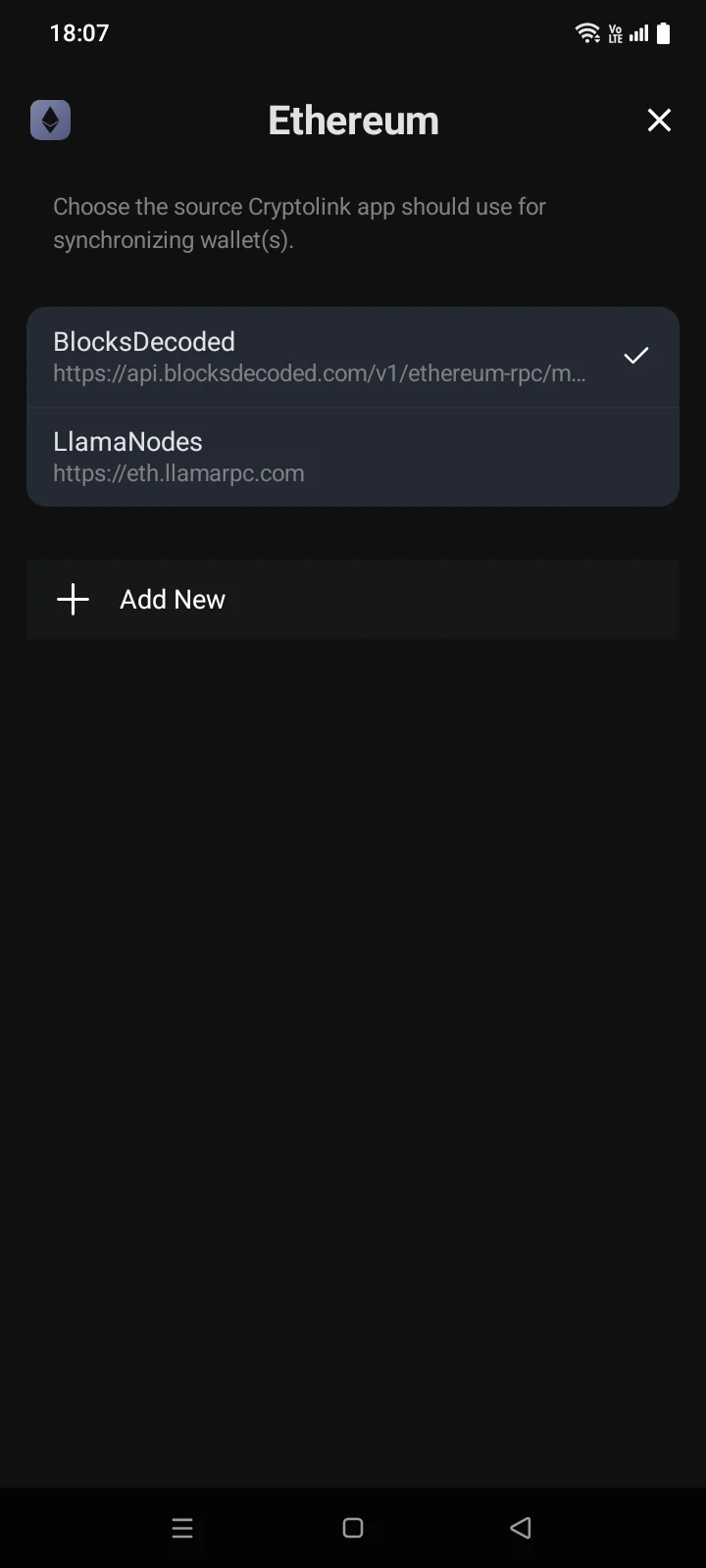
A screen opens with the network name and a list of preset RPC sources: each shows a name and an address (or switches automatically if the source has several addresses). Tap a source — a check mark appears on the right.
Tap Done to apply the choice.
The choice takes effect right away. There's no save button: close the screen with the × icon.
To add your own source:
- Tap Add New. The Add RPC Source screen opens.
- In the RPC URLRPC Url field, enter the source address — it must start with https:// or wss://. If the source requires authorization, fill in Basic Auth (optional)Basic Auth(optional).
- Tap Add. The source appears in the Added section and is selected right away.
| Message | What to do |
|---|---|
| The entered URL is invalid.Entered url is invalid. Valid url must have one of the following schemes: https, wss | Check the address: it must start with https:// or wss://. |
| RPC Source with this URLurl already exists | This source is already in the list — select it. |
To delete your own source, swipe its row to the left and tap the minus icon. A green Removed message appears. Preset sources can't be deleted.
Other cases
| Situation | What to do |
|---|---|
| A coin takes a long time to sync | The first sync of an imported wallet can take a while, especially for Bitcoin with a slow source (Hybrid or directly from the blockchain). Keep the app open and connected to the internet. Blockchair API is faster. |
| No balance after import | Check that the right wallet is active and the coin is turned on in Coin Manager (see 3.7, 3.8). Wait for syncing to finish — until then the balance may show zero. |
| Zcash takes a long time to sync | When you turn on Zcash in an existing wallet, enter the Birthday Height (see 3.5). |
| The Crypto tab is gone | The tab is visible only after you sign in and with Show Crypto Tab turned on (see 3.1, 5.2). Your wallets aren't deleted (see 5.8). |
| iOS Keychain ErrorAndroid Keystore Error | The iPhone passcodephone's screen lock was turned off or changed, the wallet keys became invalid, and the wallets are no longer in the app. Import them using their recovery phrases (see 0.3, 3.5). |
| The app asks you to turn on a passcodescreen lock | Without a passcode on the iPhonescreen lock, Cryptolink doesn't open. Turn it on in iPhoneAndroid settings and import your wallets again (see 0.3). |