
6.3Common messages and banners
Short messages and windows the app shows after you do something, and what they mean. Error messages are in 6.1; card notifications and banners are in 2.11.
Where messages appear
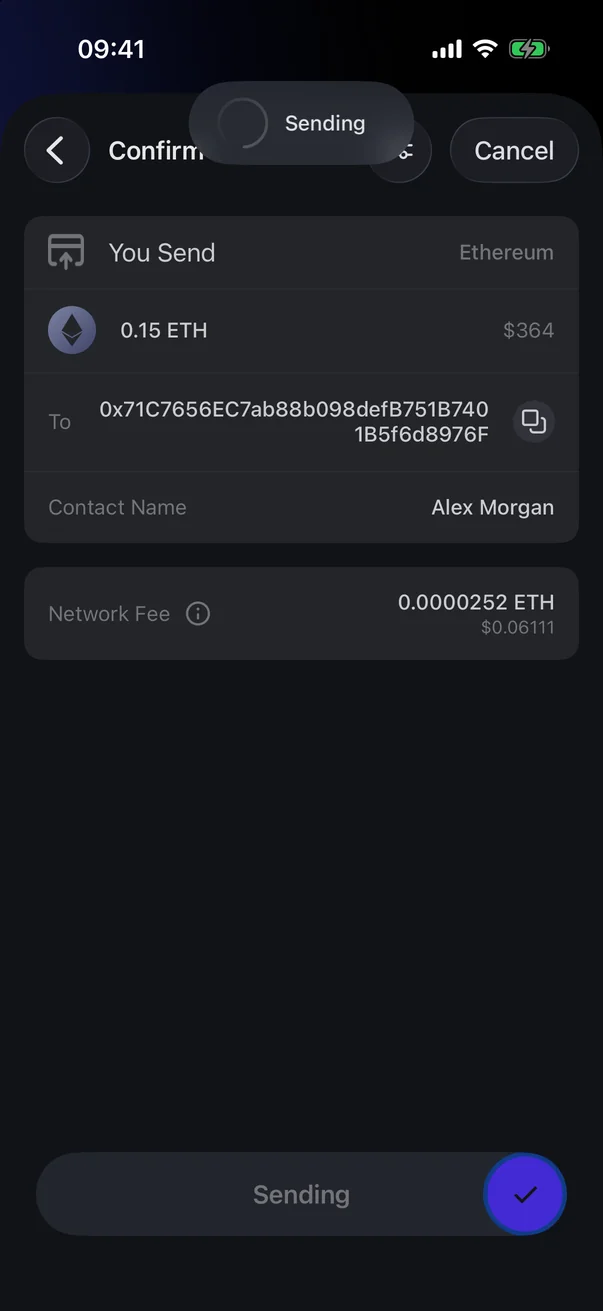
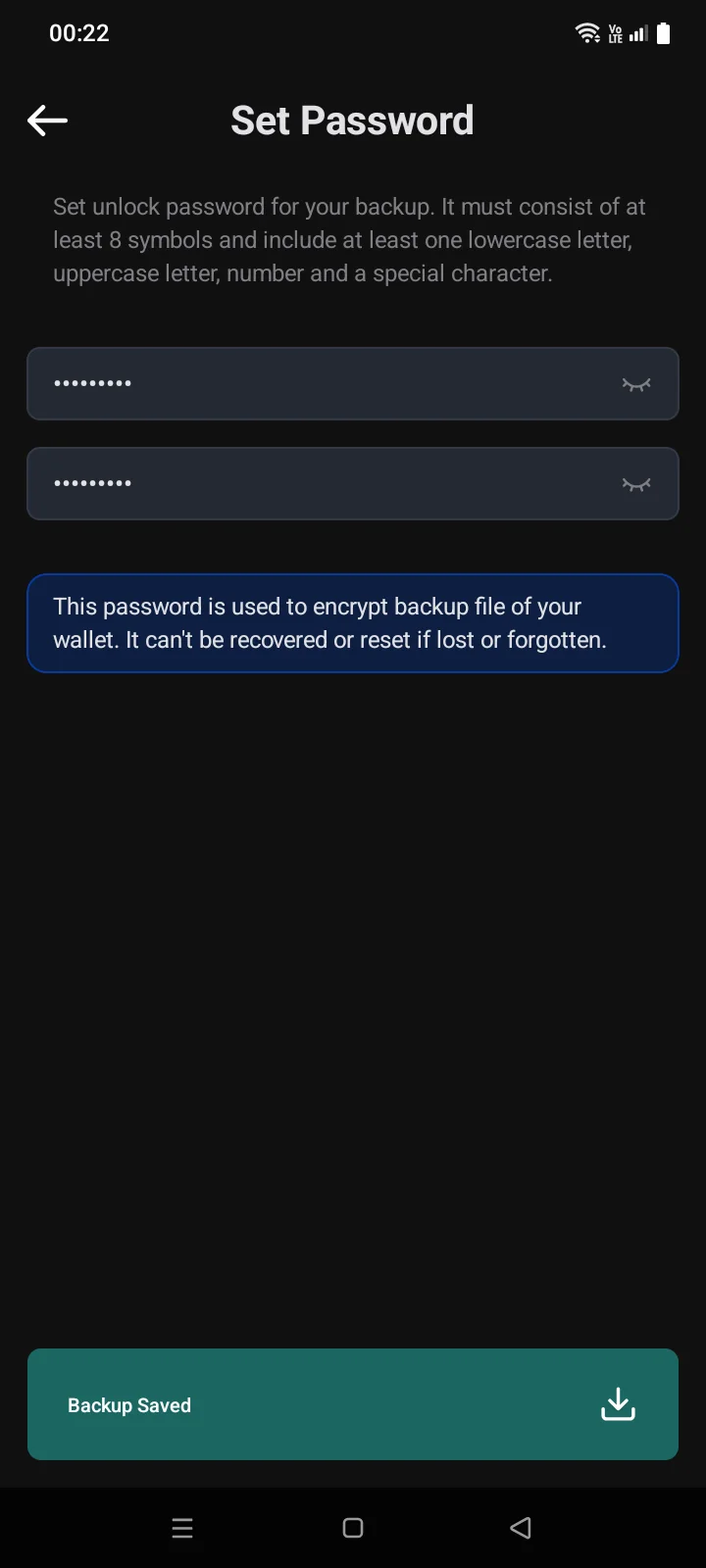
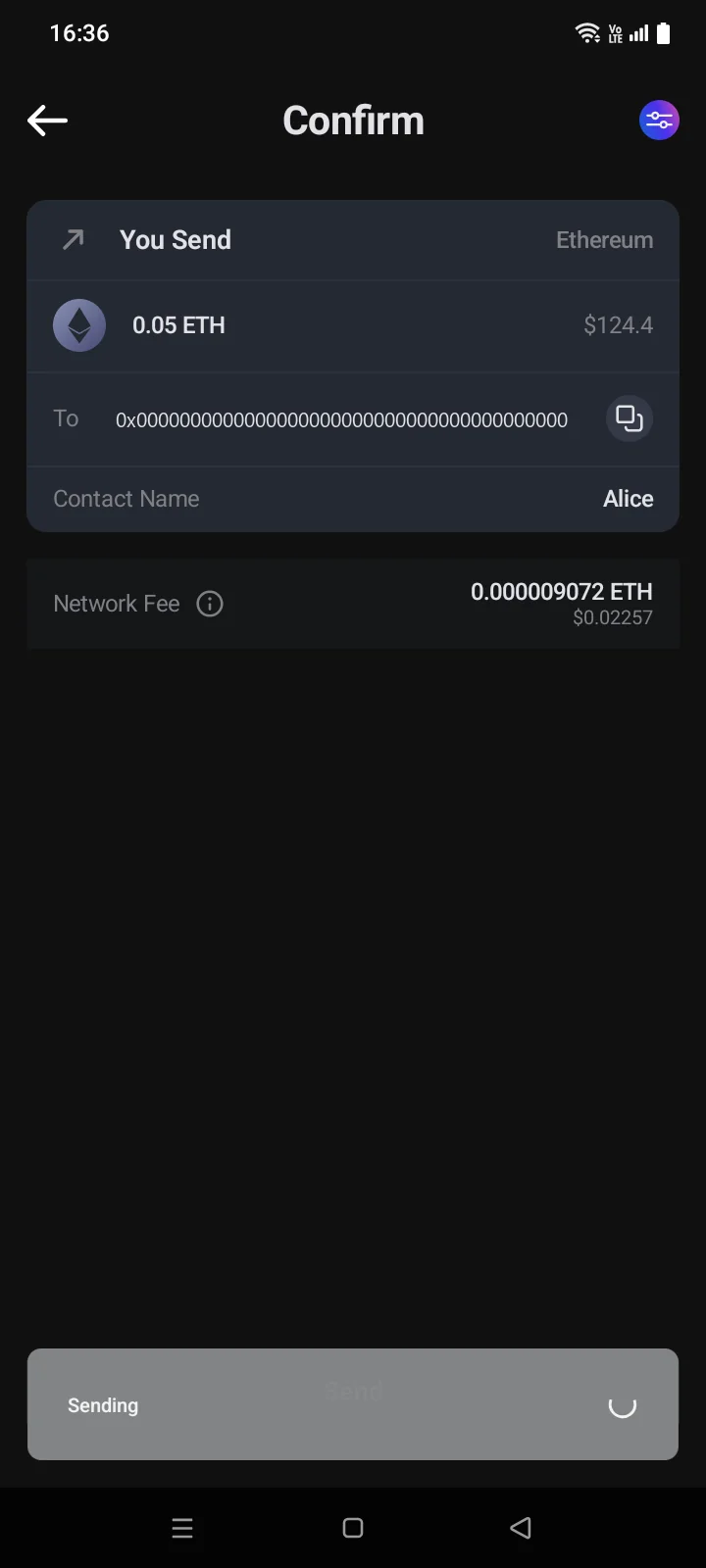
A short message appears as a banner at the top of the screenin the crypto wallet as a bar at the bottom of the screen and disappears on its own after a few seconds. The colour tells you what it means: a green bar — the action is done, red — an error, grey — the action is in progress or you need to wait.
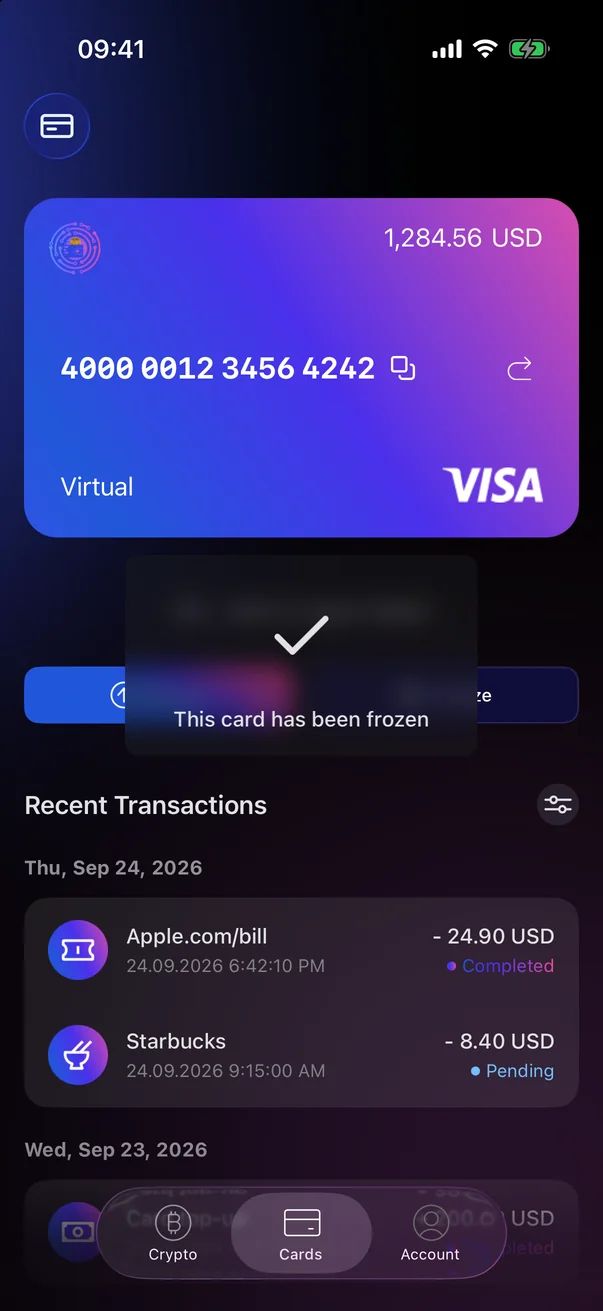
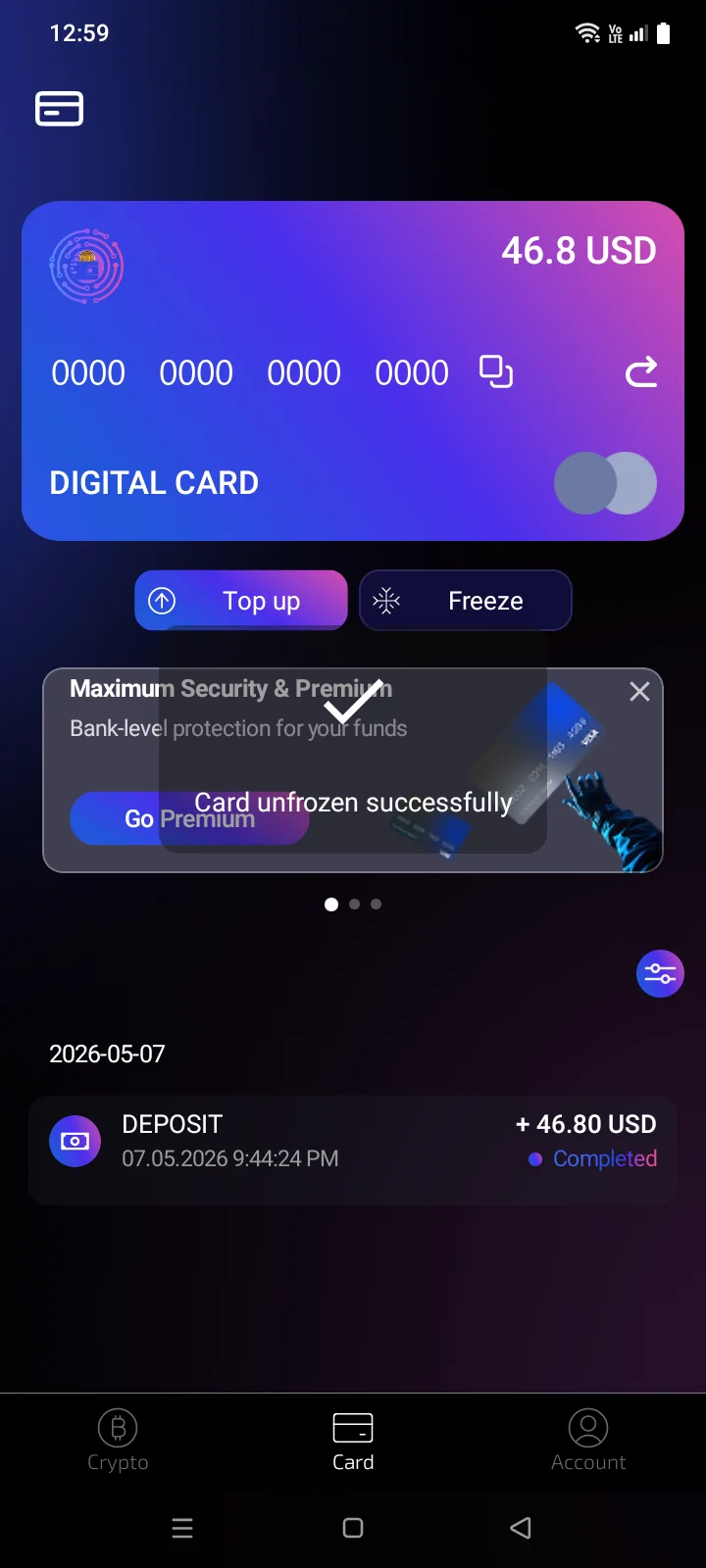
The result of a card action, such as freezing, is shown as a message in the middle of the card screen. On the account screens, too, a success message appears as a small window with a check mark in the middle of the screen. It also disappears on its own.
Crypto wallet messages
| Message | When it appears |
|---|---|
| Copied | You copied an address, a transaction ID, a key or a code (see 3.9, 4.7, 3.7). |
| Created | A wallet has been created (see 3.3). |
| Imported | A wallet has been imported — from a phrase, a key or a backup (see 3.5). |
| Wallet AddedAddress Added | A watch-only wallet has been added (see 3.6). |
| Verified | The recovery phrase words have been checked — the manual backup is complete (see 3.4). |
| Saved to iCloudBackup Saved | The wallet backup has been saved to iCloudto a file (see 3.4). |
| Restored | Wallets or contacts have been restored from a backup (see 3.5, 4.8). |
| Deleted | A backup or a contact has been deleted. |
| Added to Wallet / Removed from Wallet | A coin has been turned on or off in the Coin Manager (see 3.8). |
| Sending / ✓ Sent | A transfer is being sent / has been sent — on any network (see 4.3). |
| Done | The action is complete: a transaction has been sped up or cancelled (see 4.5), a token has been added (see 3.8), a wallet has been removed from the phone (see 3.7), a contact has been saved or contacts have been saved to a file (see 4.8). For example, the PIN has been changed (see 3.6). |
| Wait for synchronization | The coin you picked to send is still syncing (see 6.2). |
| No Internet | There's no internet connection. Check Wi-Fi or mobile data. |
| Can't Recognize | A scanned QR code isn't an address or payment link (see 4.1). |
| CopiedEmail address copied | You tapped Report in the Sync Error panel, and there's no email app on your phone (see 6.2). |
| Removed | A sync source you added has been deleted (see 6.2). |
Card and account messages
| Message | When it appears |
|---|---|
| Card number copiedCopied | You copied the card number, a payment or top-up address, or your referral ID (see 2.4). |
| This card has been frozenCard frozen | The freeze request has been acceptedcompleted (see 2.5). |
| This card has been unfrozenCard unfrozen successfully | The unfreeze request has been acceptedcompleted, and the card is active again (see 2.5). |
| DoneReferral code applied | The referral code you entered when you first signed in with Apple or GoogleGoogle has been applied (see 1.3). |
| A new verification code has been sent to your emailConfirmation code sent to your email address | You requested a new code during sign-up, sign-in or password recovery (see 1.2, 1.3, 1.4). |
Windows
| Window | What it means | See |
|---|---|---|
| Payment receivedDeposited Successful / Payment received / Error | The result of a card top-up or a card order payment. A top-up is credited within 3 minutes. For a virtual card order — “Your card will be issued shortly.” For a physical card order — “Wait for your physical card…”. | 2.11, 2.3, 2.6 |
| Error — Top-up amount is less than minimum | The payment was below the minimum. | 2.6 |
| Activation Error | The card couldn't be activated; the reason is below the title. | 3.4 |
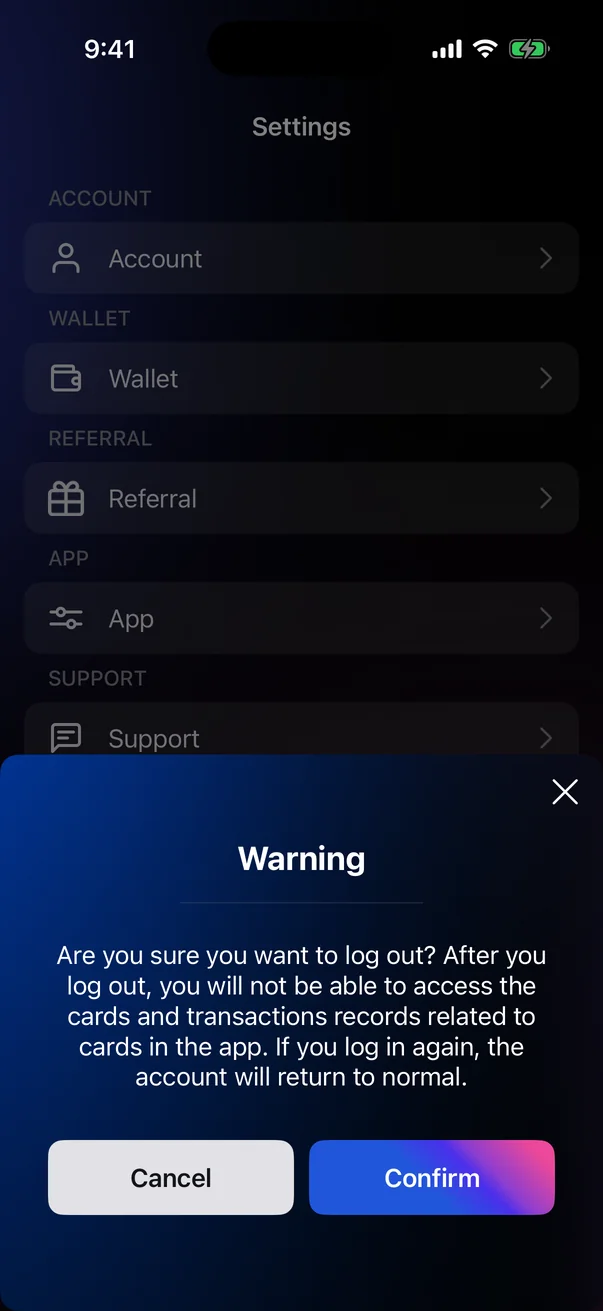
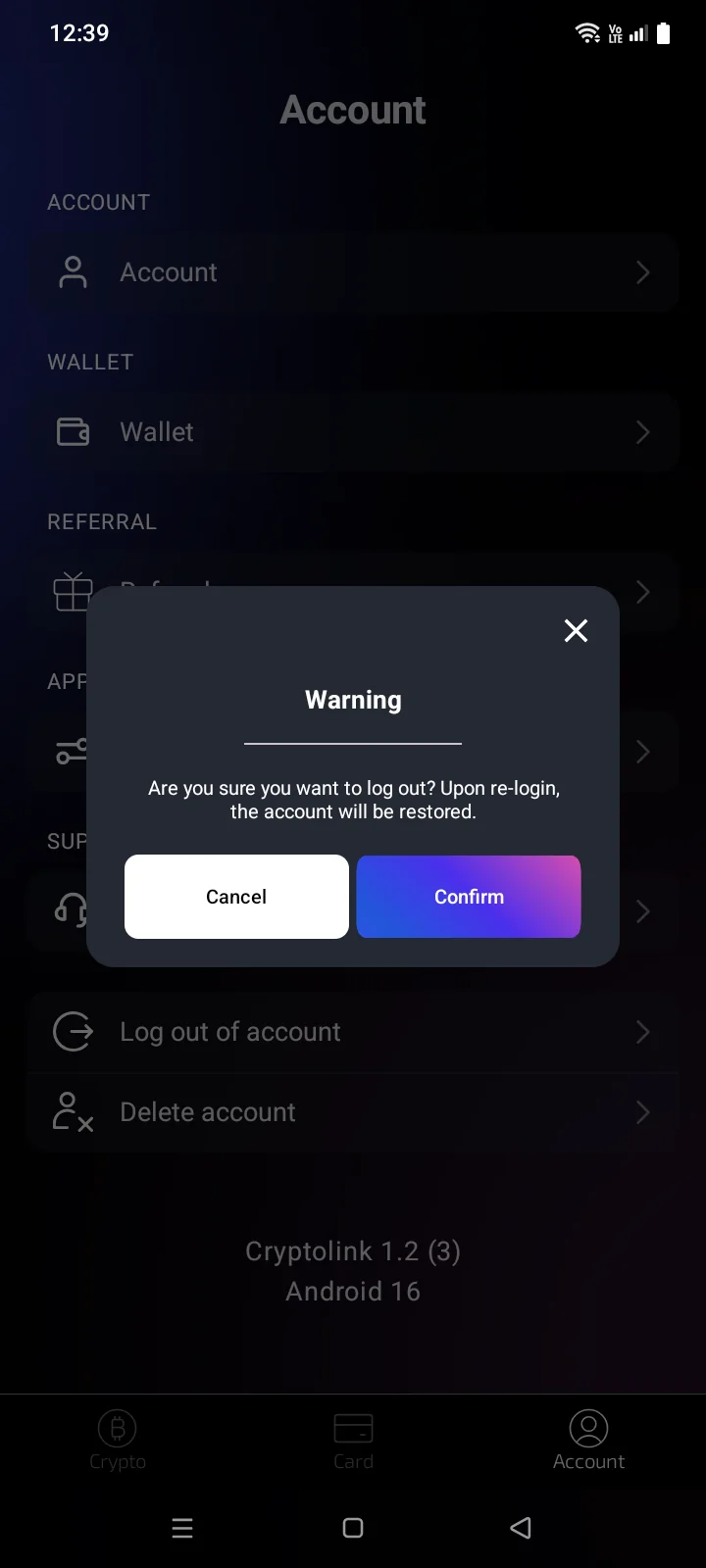
| Warning — Are you sure you want to log out? | Confirms signing out of your account. | 5.8 |
| Warning — Are you sure you want to delete your account? | Confirms deleting your account. Deletion can't be undone. | 5.8 |
| Notice — Your password has been changed… | After a password change, all sessions are signed out; sign in with the new password. | 5.1 |
| Notifications Disabled | Notifications for Cryptolink are off in iOS settings. | 5.5 |
| Warning | A confirmation in contacts: leave without saving changes, replace an address, or overwrite contacts from a file. | 4.8 |
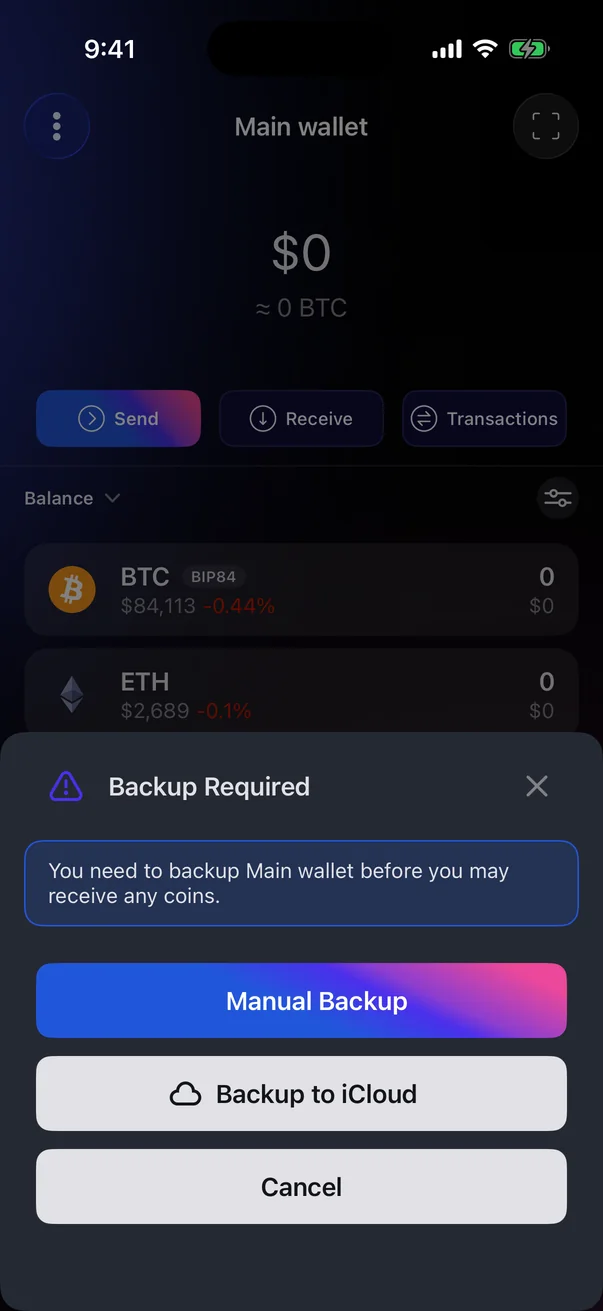
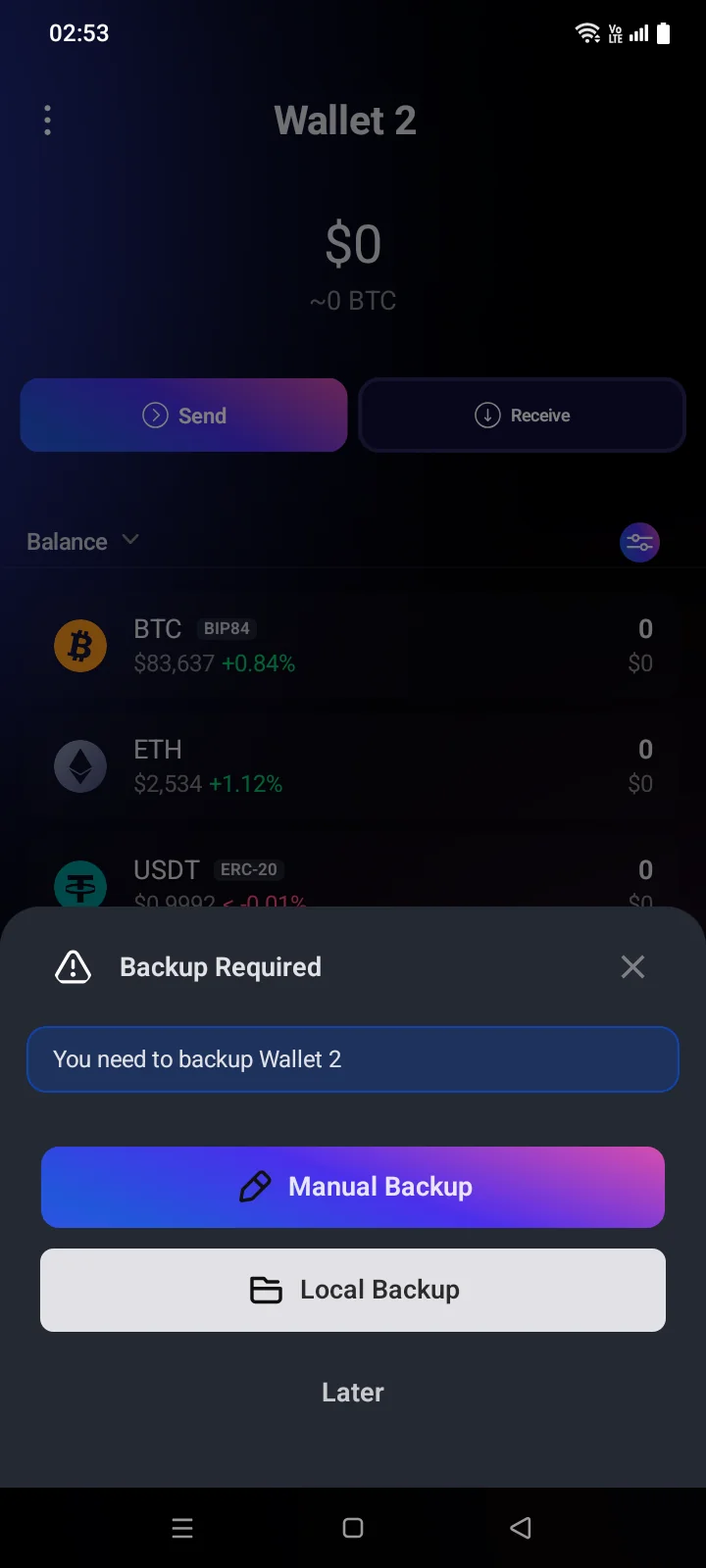
| Backup Required | Back up the wallet before you receive coins. | 3.4, 3.9 |
| Sync Error | The coin didn't sync: retry syncing or change the source. | 6.2 |
| iOS Keychain ErrorAndroid Keystore Error | The wallet keys became invalid after the iPhone passcodescreen lock was changed; the wallets need to be imported again. | 0.3, 6.2 |
Card payment results that arrive while you're away are shown the next time you open the Cards tab (see 2.11).
Notification reminder
On phones with Android 12 or earlier, a system message appears once at the bottom of the screen after Cryptolink starts: Check in your phone settings that this app is allowed to receive notifications. It's a reminder, not an error: if notifications are already allowed, you don't need to do anything (see 5.5).
“I was signed out” or card actions stop working
If the session expires, the app signs you out without a message and shows the welcome screen. The Crypto tab is also hidden until you sign in.
If the app responds to card or account actions with Authorization error. Please try again and trying again doesn't help, sign out of your account (see 5.8).
Sign in again (see 1.3): your cards and transactions come back, and your crypto wallets stay on the phone.
Screens that keep the app from opening
Cryptolink doesn't open if the iPhone has no passcodethe phone's screen lock is turned off, and it may ask you to confirm the screen lock with the Phone PIN system prompt. On a jailbrokenrooted phone, the app shows a warning. What to do in each case is in 0.3.
If the app can't start, a screen with Report appears — restart the app; if it repeats, send the report.